How to access the Prescription Change section within the eMAR system to begin adjusting medication stock levels.
How to select the correct service user and identify the medication that needs a stock adjustment.
How to amend stock levels accurately, including entering the quantity, choosing whether to add or remove stock, and selecting an appropriate reason for the change.
How to save your changes and understand the confirmation message that follows a successful adjustment.
How the system returns you to the prescription list, allowing you to continue managing stock or make further changes.
1
After signing into eMAR, select Prescription Change from the eMAR home page options.
2
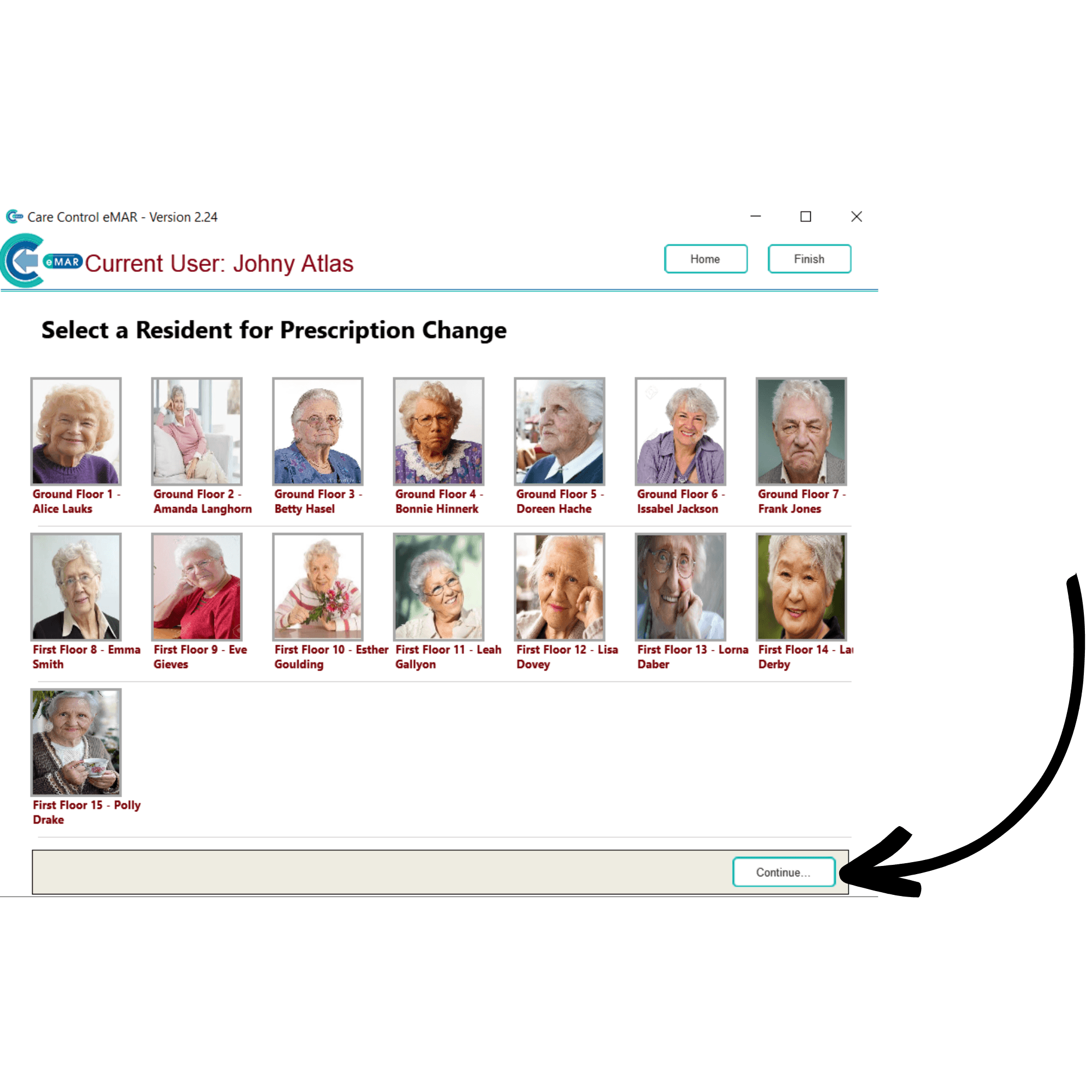
A list of your service users will be displayed. Select one and press Continue.
3
The prescription list for the service user will open. Here, select the medication using the tick box on the right-hand side of the screen, and press Amend Stock Levels.
4
A new window will open. Here, some information about the prescription will be displayed, including the current stock level.
You can add or remove stock by entering a number into the Adjustment Amount box and ticking the Add or Remove options. The stock will be adjusted by the number entered.
You can also select a reason for the stock adjustment by using the drop-down list. Press Save Details to complete the process.
5
You will receive a confirmation message and be taken back to the prescription list for the selected service user.