Bank Holiday Closure Notice: We will be closed on the 3rd April for the Easter bank holiday, so our customer service team will not be available on this day. If you need to get in touch, you can still use our customer contact form and we will get back to you as soon as possible. Even better, Margo will still be available on our phone lines to help with your queries whenever you need support. We hope you have a lovely Easter weekend 🐣
View Categories
Assigning Allocation to the Rota
This guide will cover how to assign allocation groups to shifts on the live rota.
1
In the Administration of Care Control Windows, open the Roster System which can be found under the Common Options and Time & Attendance tabs.
2
Select Allocation Groups from the options on the left-hand side of the window.
3
A new window will open. Here, tick ‘Apply to Live Rota’ then press Load Data.
4
The window will populate with data. You can now assign allocation groups to shifts via the drop-drown boxes on the right-hand side.
After making any changes, press Save Your Changes.
5
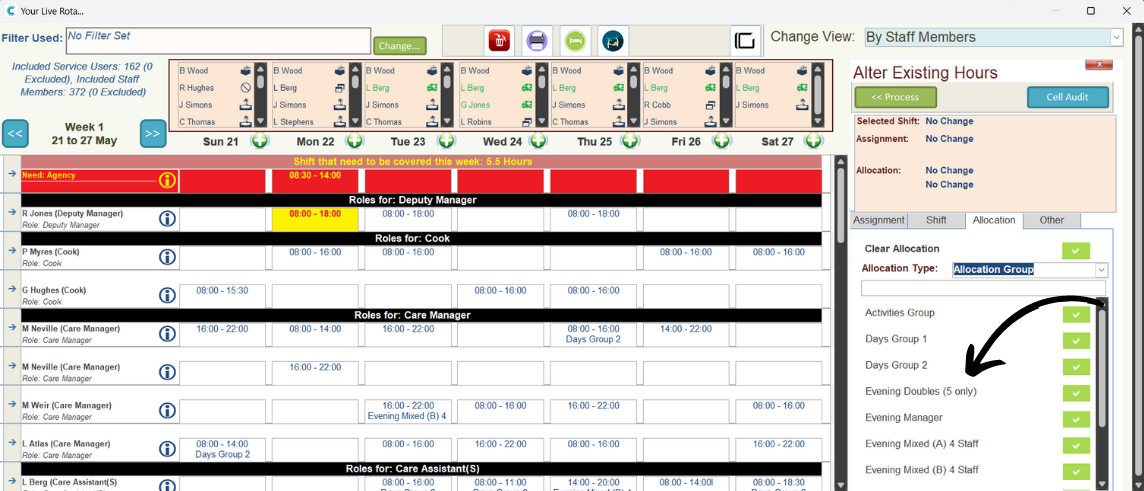
You can also do this on an individual shift level. From the Roster System, open the Live Rota.
6
Open the Smart Board for a shift and navigate to the Allocation tab. Select Allocation Group from the drop-down list, then choose the appropriate allocation for the shift.