This guide will cover how to access and complete a Braden Assessment for a service user on Care Control Cloud.
1
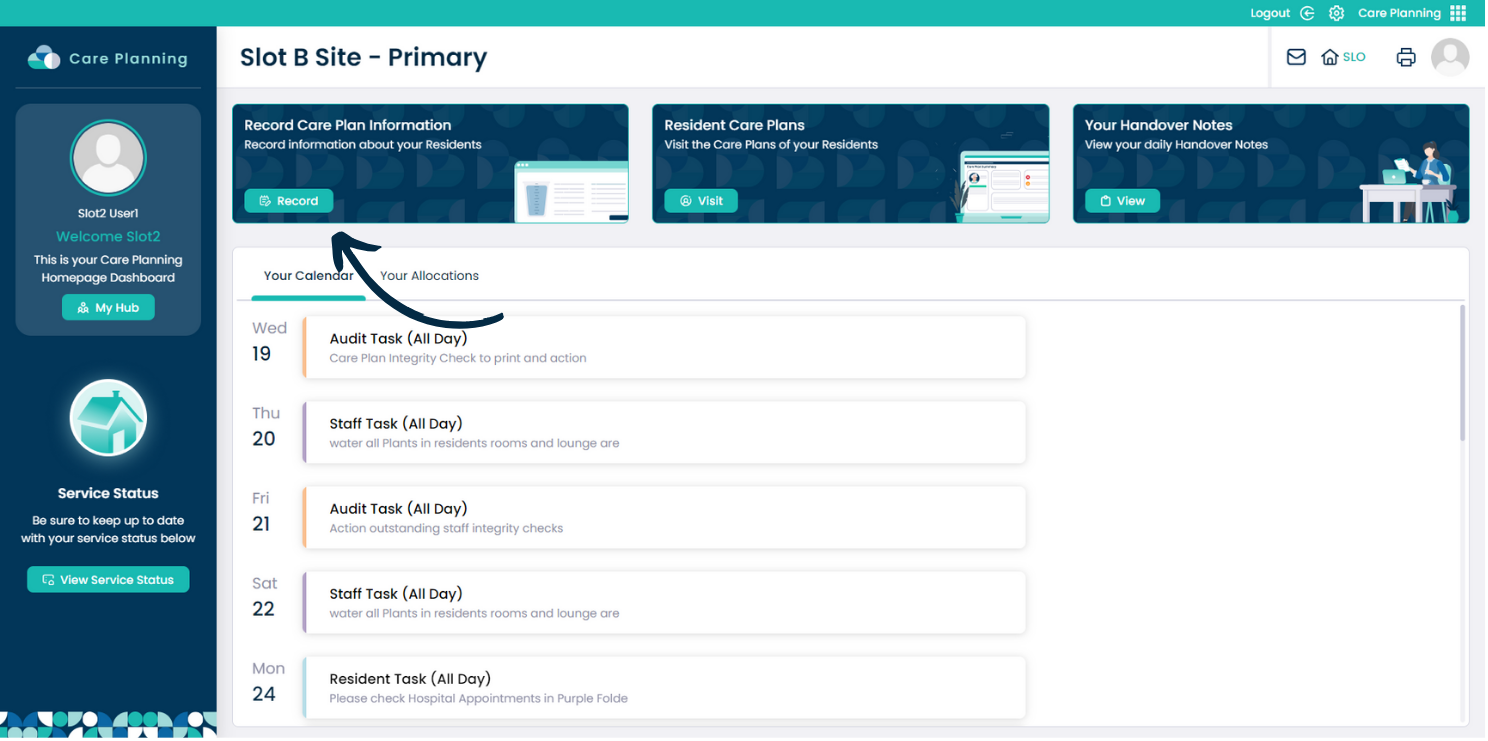
From within the Care Planning application on Care Control Cloud, navigate to the Record Care Plan Information tool.
2
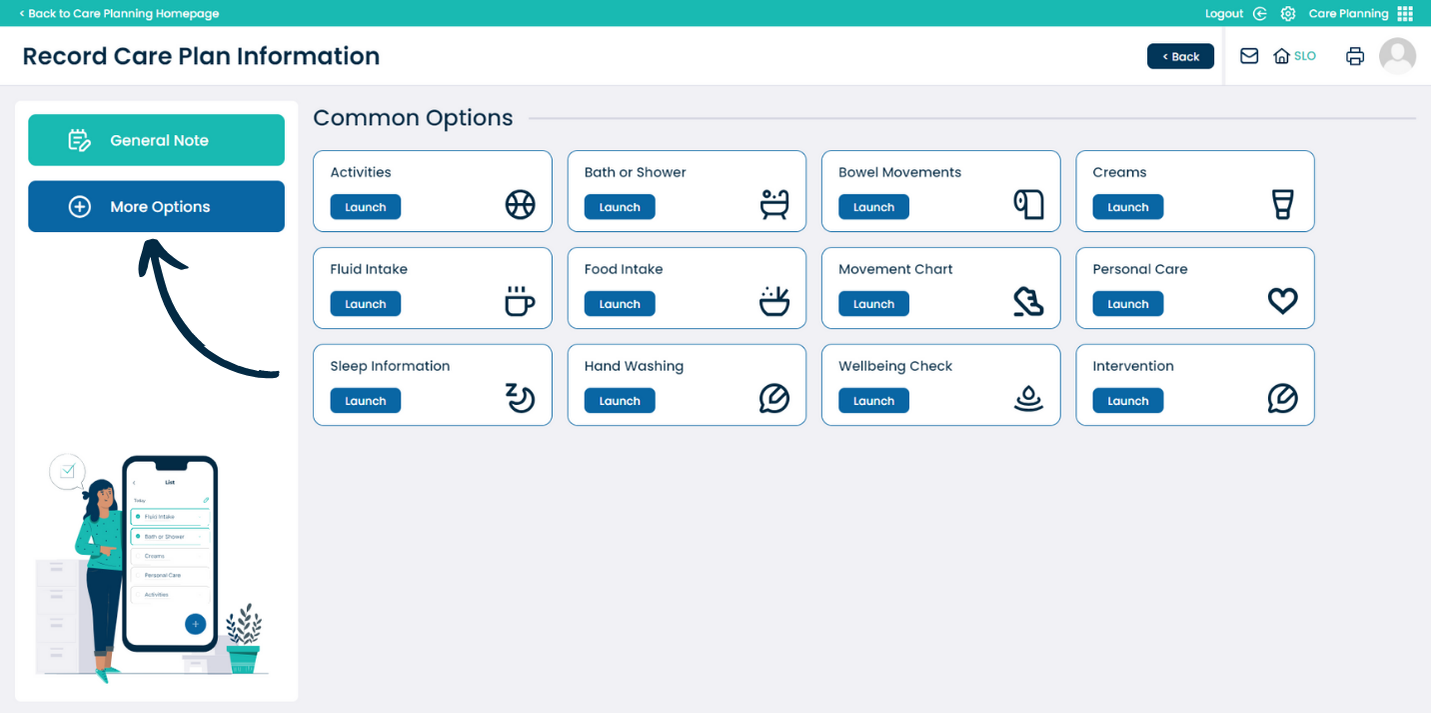
Here, select More Options to display all the recording areas on your system.
3
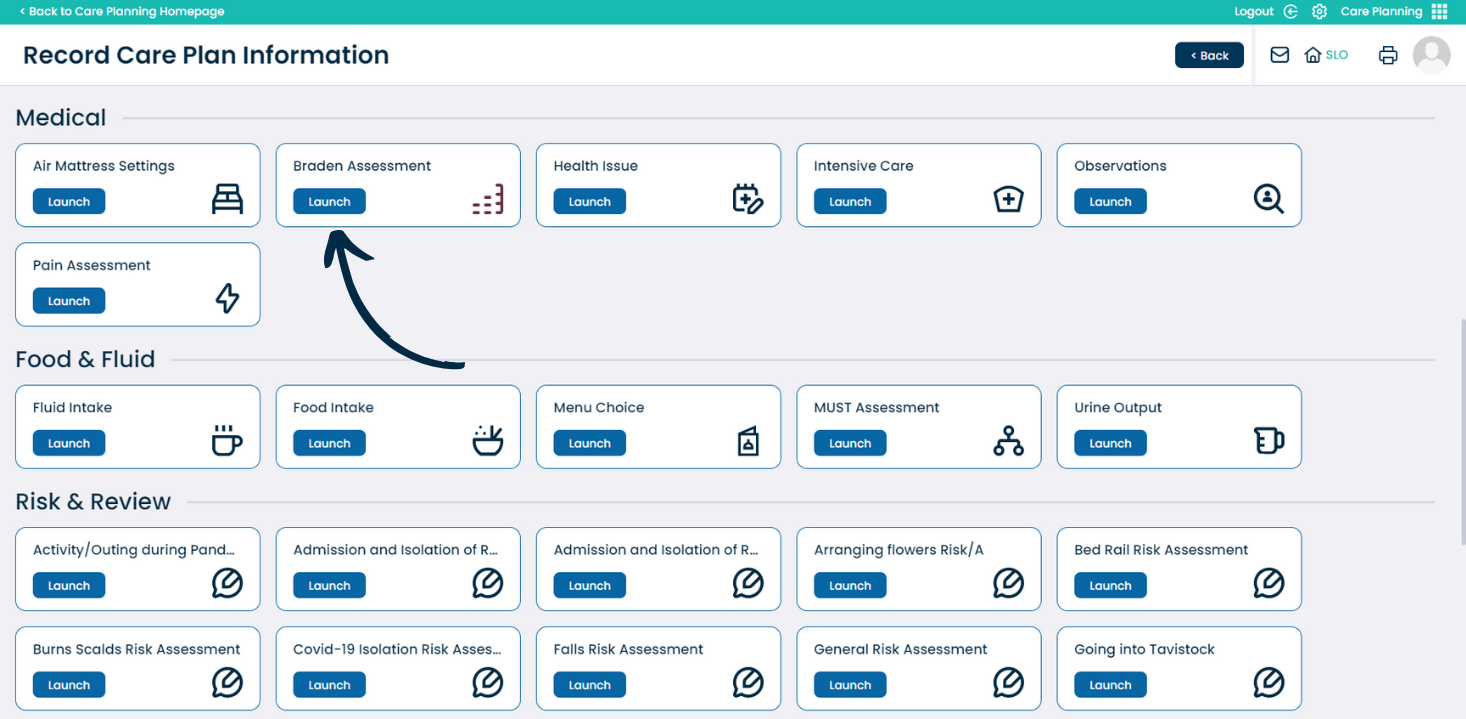
Next, scroll down the the Medical section and select Braden Assessment.
4
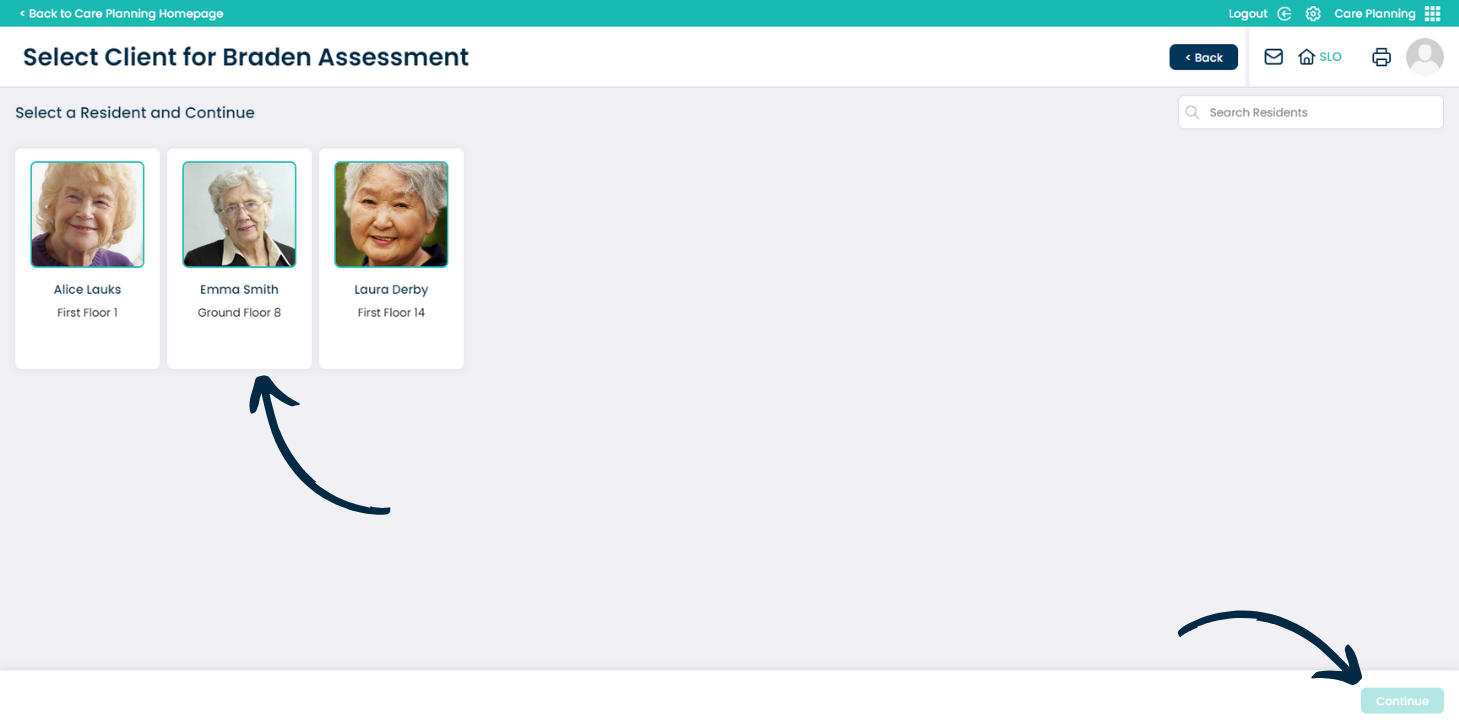
Choose the service user you wish to record for and press Continue.
5
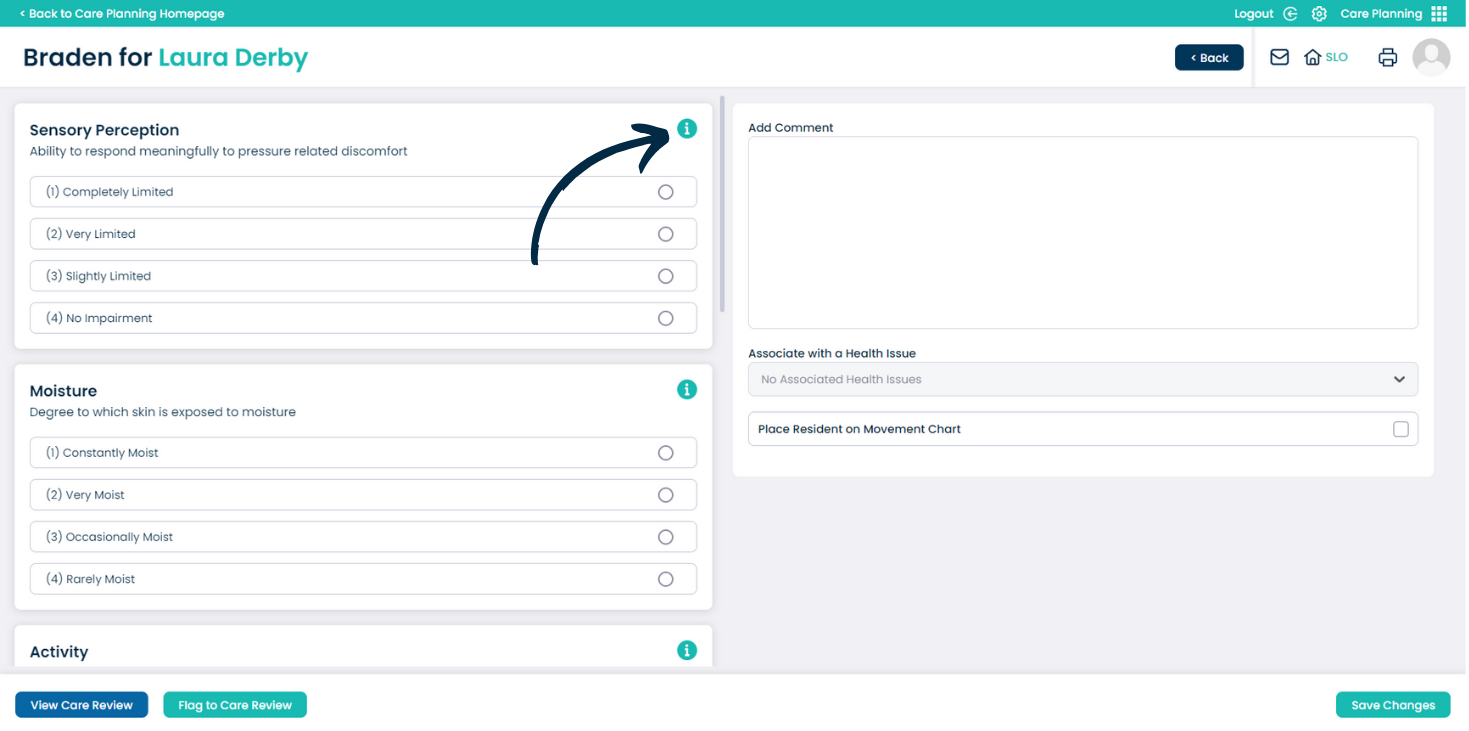
The left hand side of the form contains the 6 scoring areas which generate the final risk level. You can view more information about each section by clicking on the ‘i’ icon.
6
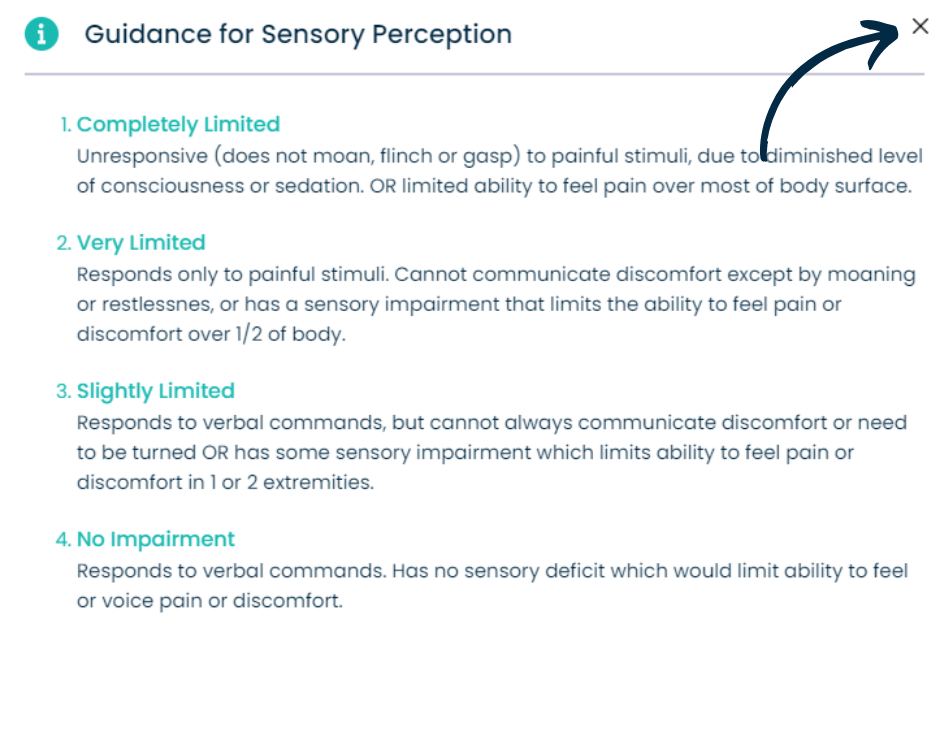
A small window will open containing information about each of the scoring levels.
7
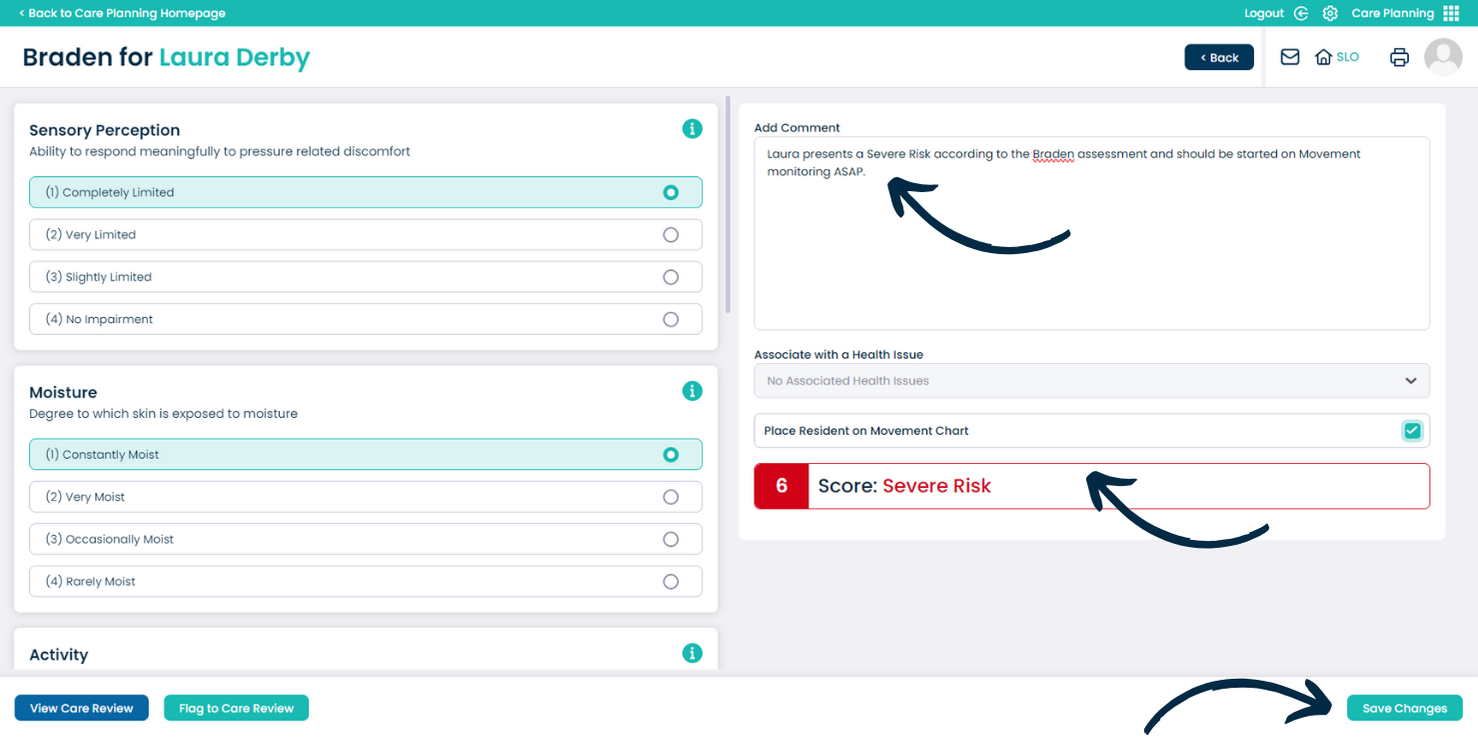
After completing the 6 scoring areas, a final score and risk level will be generated. You can also add a comment in the text box.
If required, you can tick the checkbox to begin Movement Chart monitoring for the service user.