Consents on Care Control
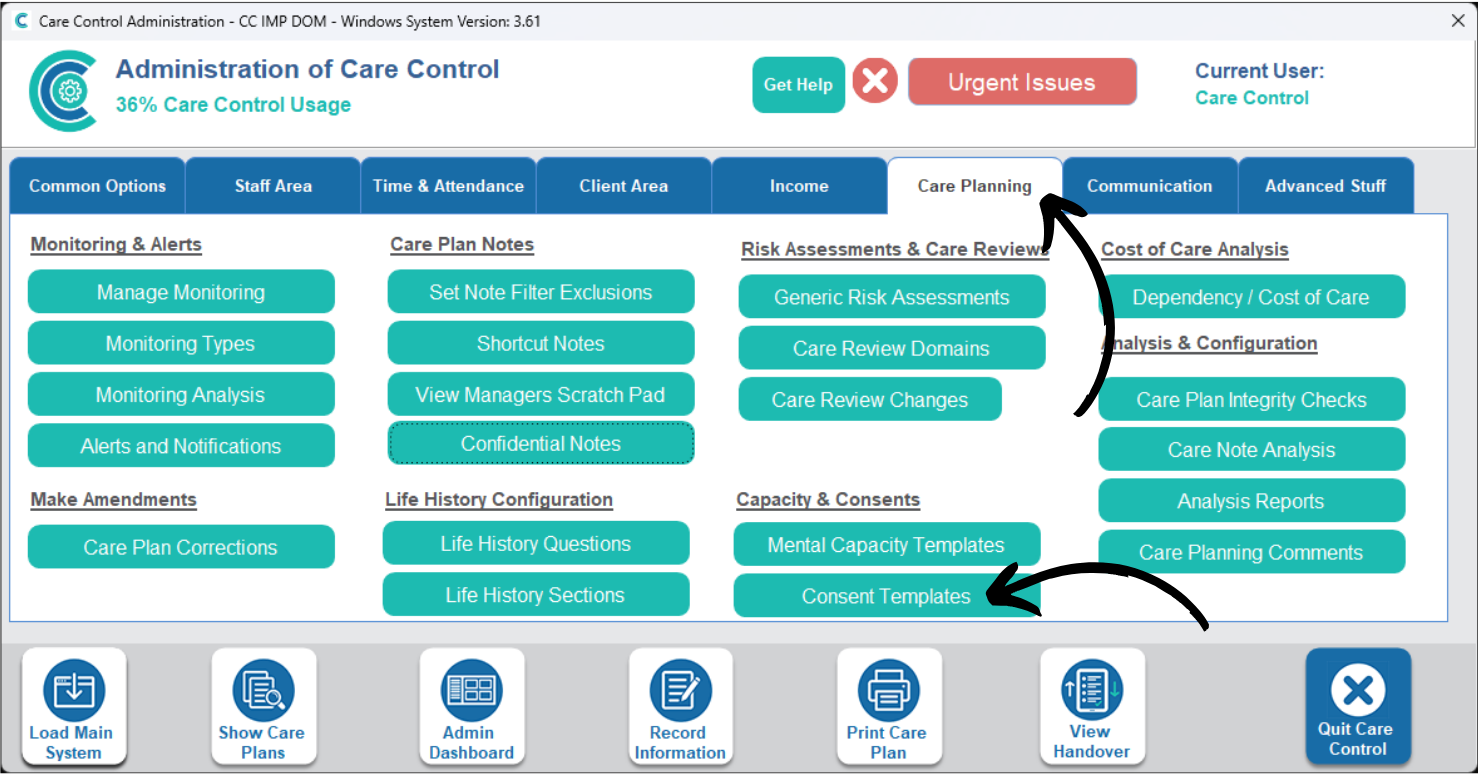
This guide will cover how to create and assign Consents on Care Control Windows
2
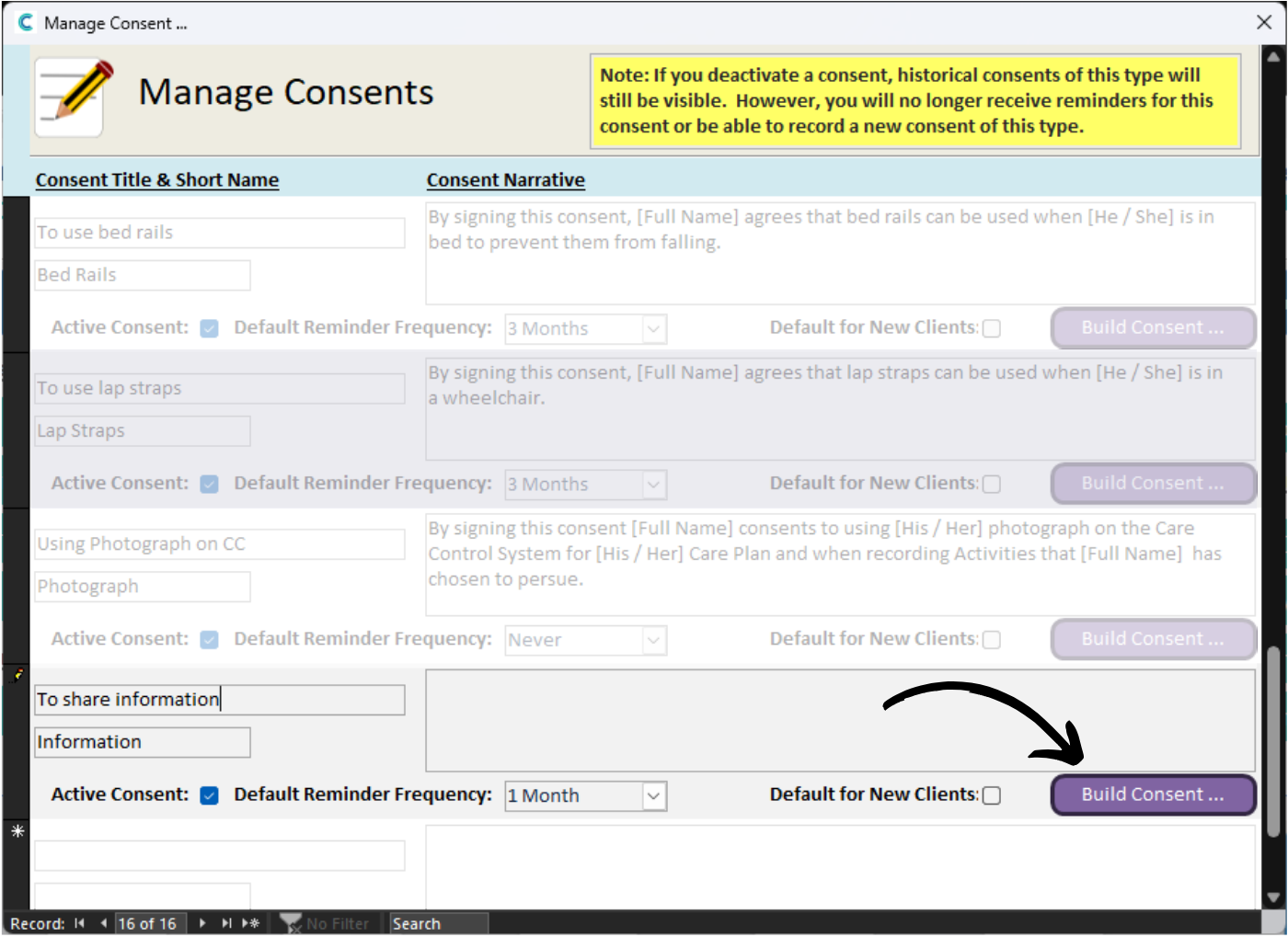
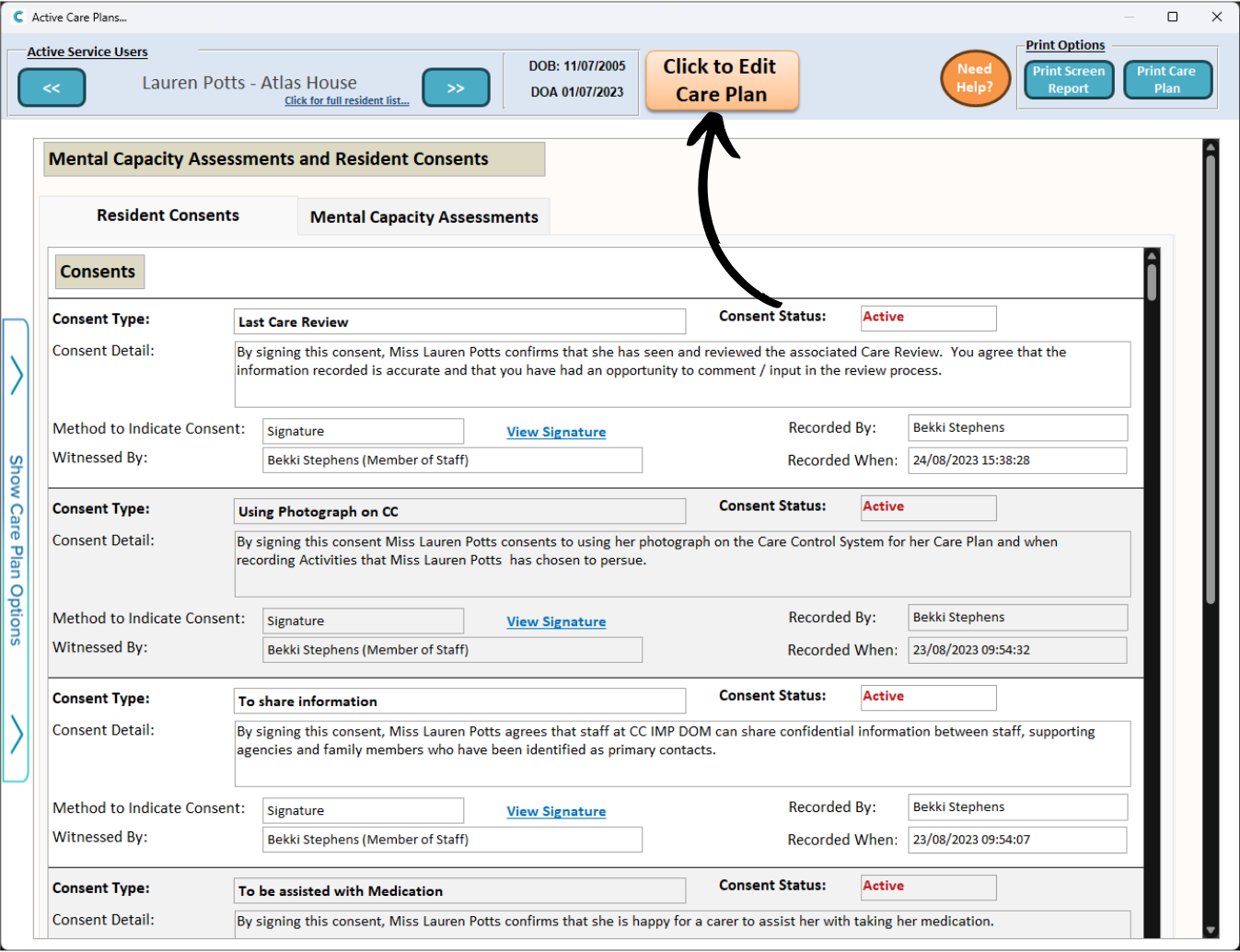
A new window will open. Here, a list of the consents currently active on your system will be displayed. You can create a new one by scrolling to the bottom of the list.
There will be a blank row in which you can enter the name and category of the consent as well as set the frequency and default status.
4
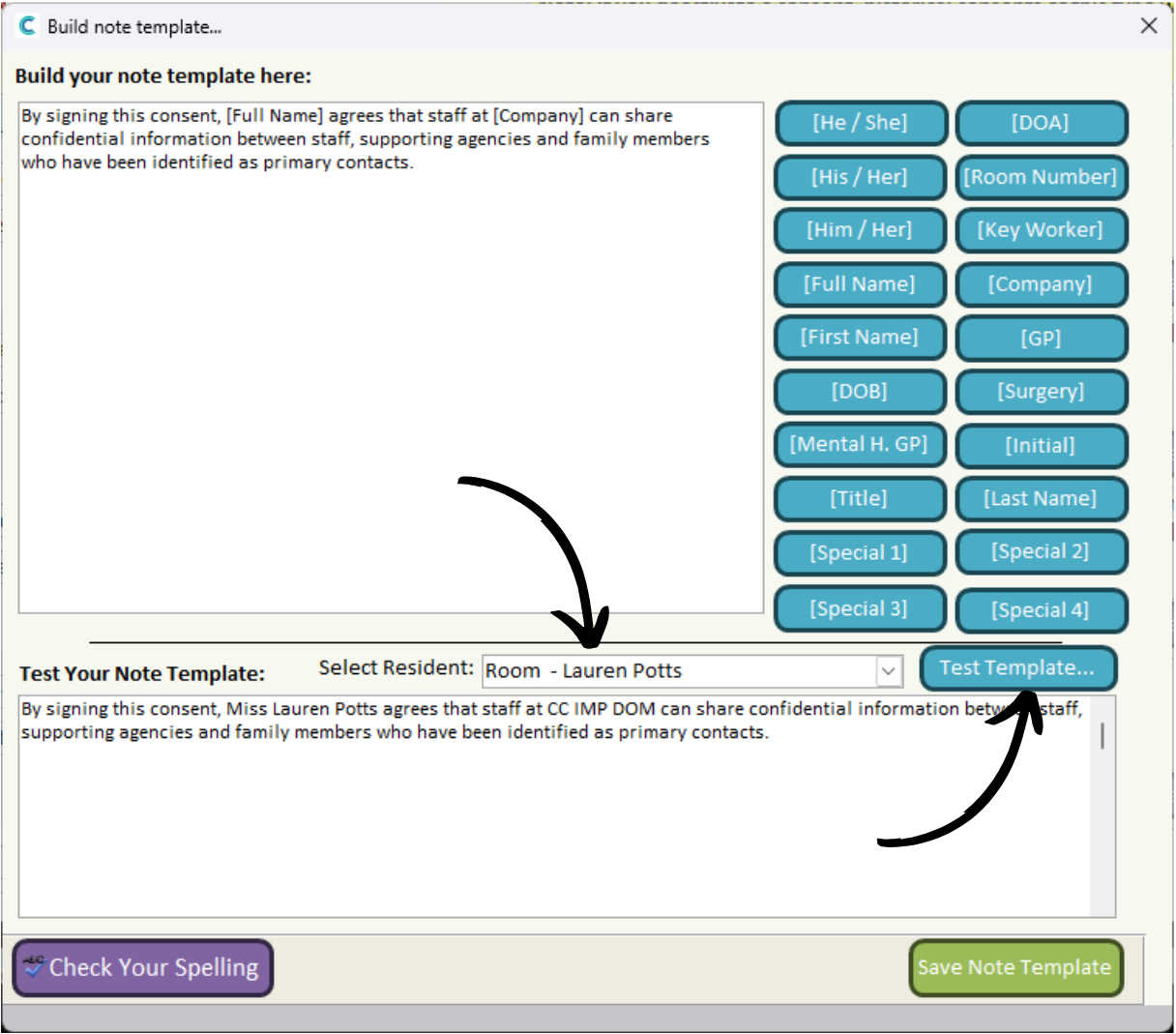
A note builder window will open. Here you can type in the large text box as well as use prompt fillers from the blue options on the right hand side.
These prompts appear as square brackets in the template, [x], but are replaced by specific information when the note is completed. For example, the prompt ‘[Full Name]’ is replaced by the service users full name when the consent is recorded.
11
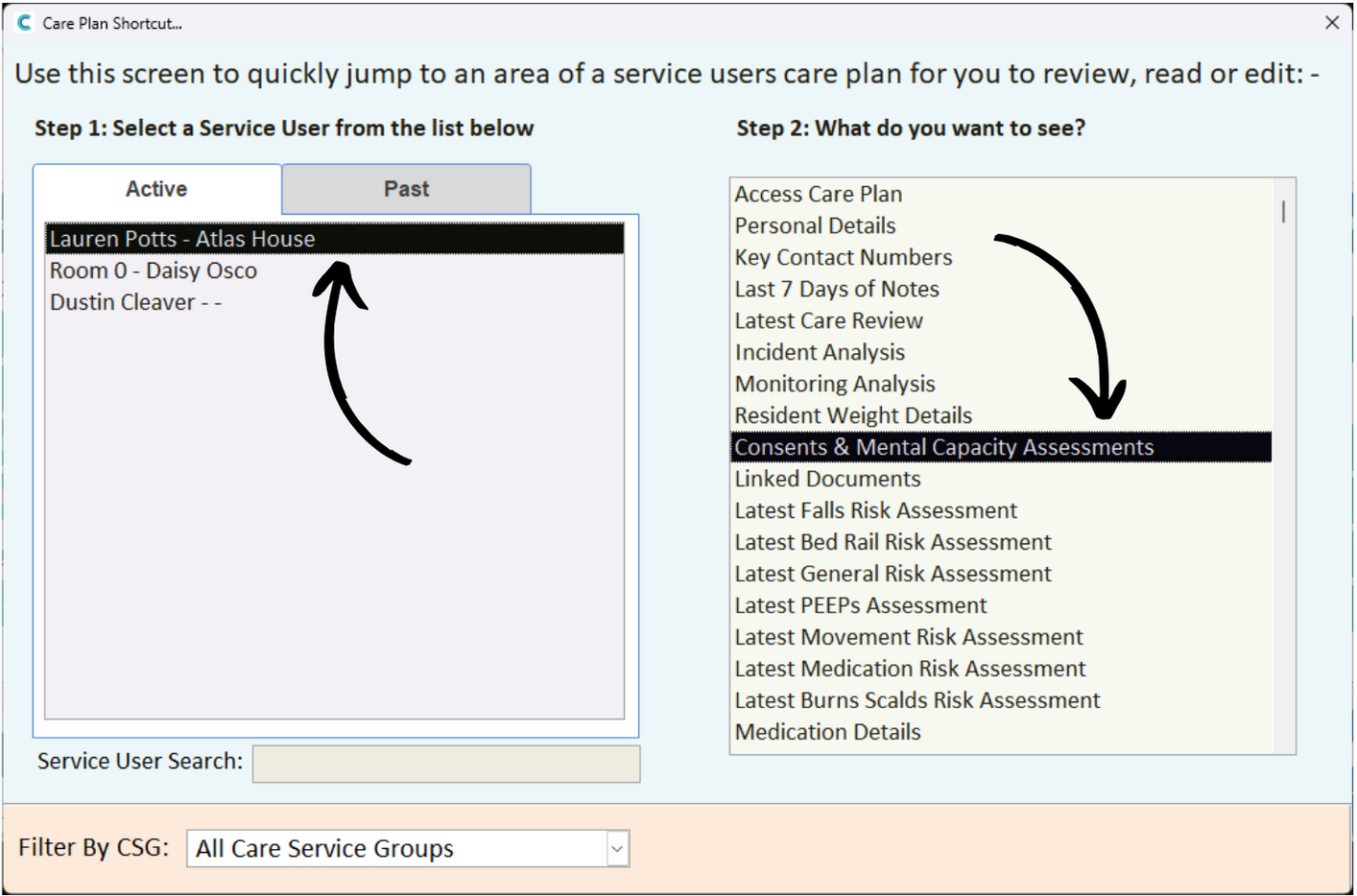
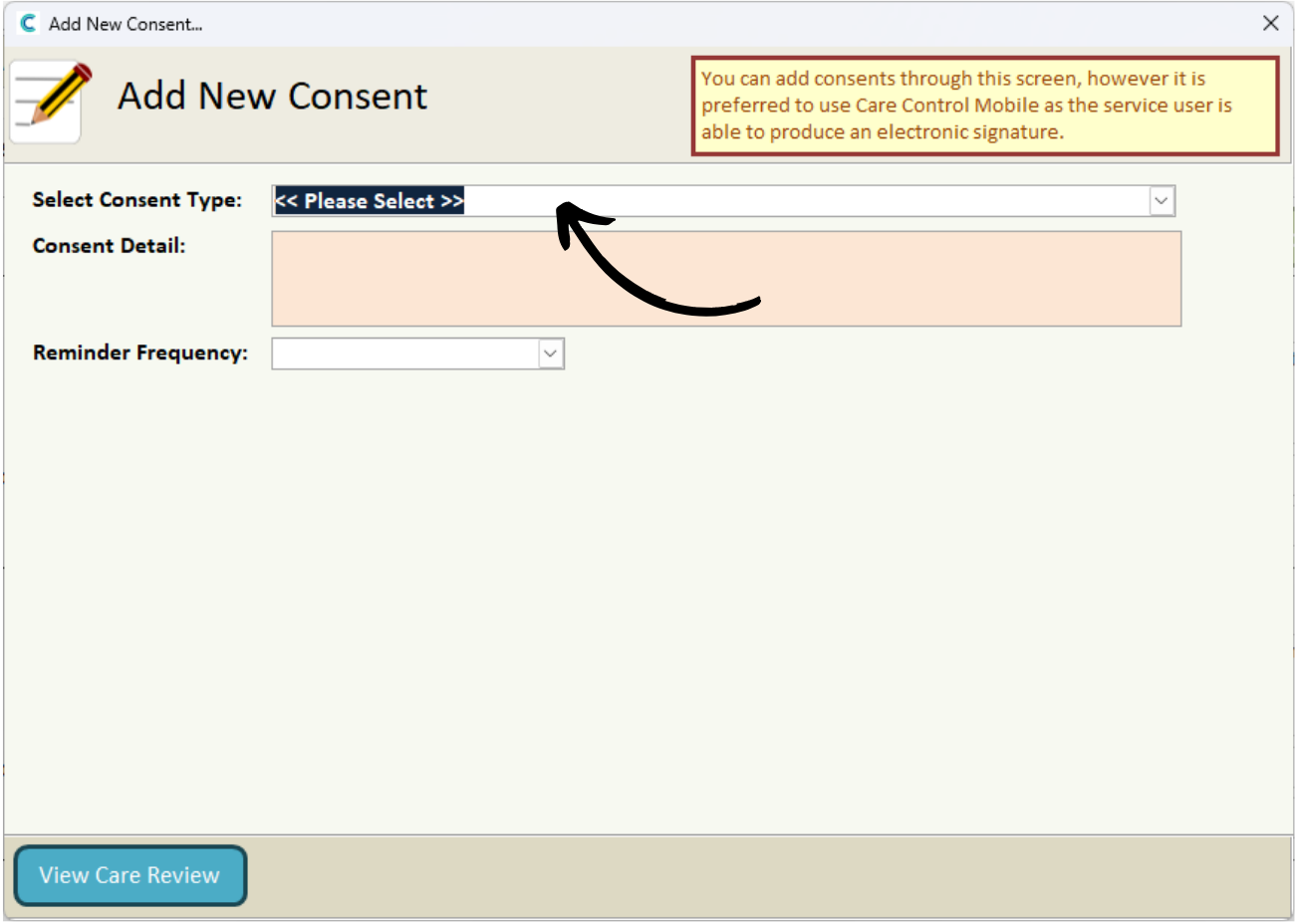
Next, select the Reminder Frequency – this is the period of time until the consent will need to be re-done.
Next, choose whether the service user has the capacity to provide the consent, and whether the service user can sign the consent.
Then, enter who witnessed the consent and press Save Consent to complete the process.
Please note – signatures can be recorded digitally when completing consents on Care Control Mobile.