⚠️ System update: We are aware of an issue affecting certain areas and user roles within the system following the new Navigation Menu release. Please note that Super Admin access is working as expected. Our Development Team is actively investigating the issue and working to implement a resolution as quickly as possible. We appreciate your patience and understanding while we work to restore full functionality.

View Categories

Copy shifts to other weeks in Cloud Roster

To make creating multiple week rotas easier, you can copy the shifts to other weeks.

Step 1:

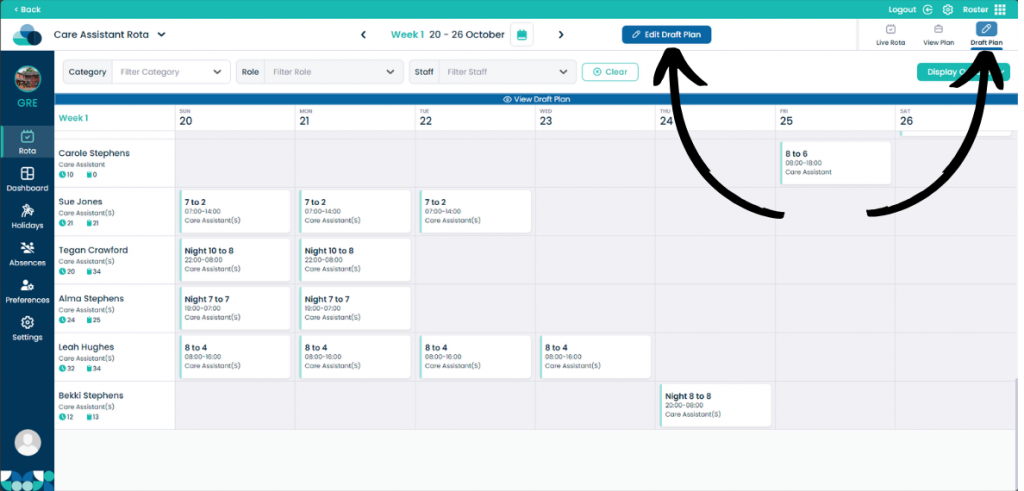
On the Rota page, navigate to Draft Plan and then select Edit Draft Plan.

Step 2:

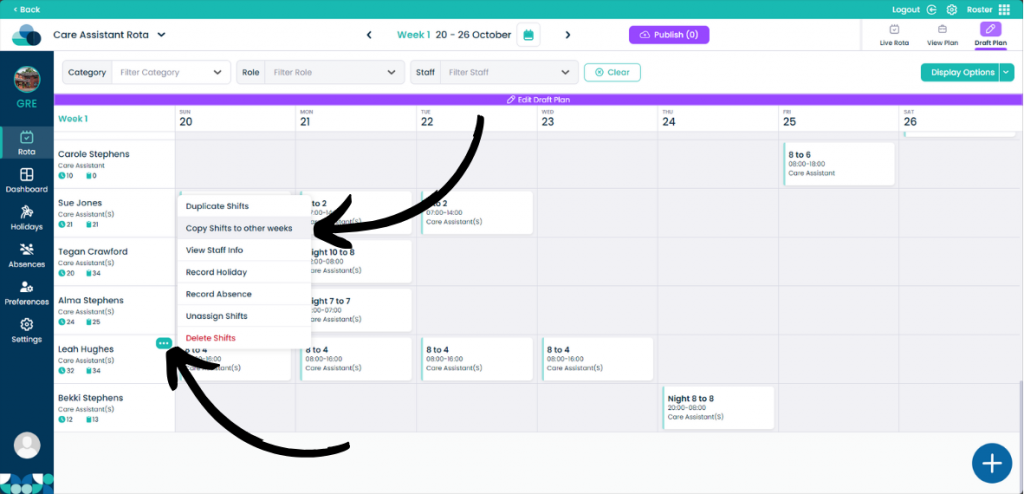
When your mouse is over a staff member, select the three dots in the top right corner of the staff member’s name. Then select Copy Shifts to other weeks.

Step 3:

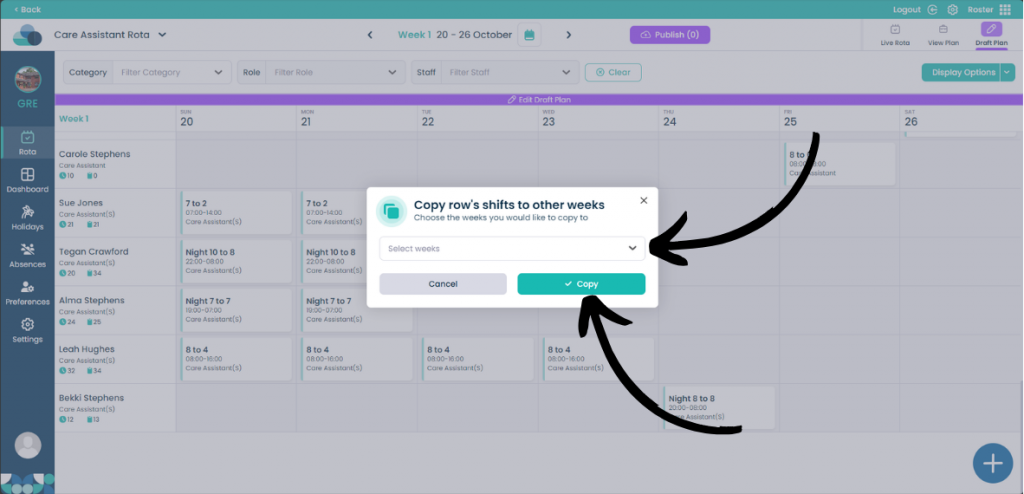
You can then select the week you wish to copy the shifts to. Once you have decided on the weeks, click Copy to copy the shifts.