🚀 UPCOMING WEBINAR: See Payroll in Care Control Cloud in action on Thursday 18th June and discover how to manage payroll more efficiently from one connected system. Click here to find out more!

View Categories

Cover a shift on Pocket from Rota Select Home page

This guide will show how to cover a shift when the Pocket Home Page is set to Staff Rota.

1

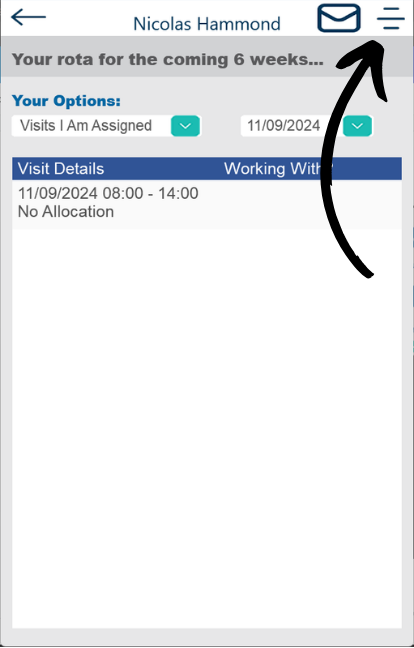
From the Rota Select screen, tap the three lines in the top right of the screen.

2

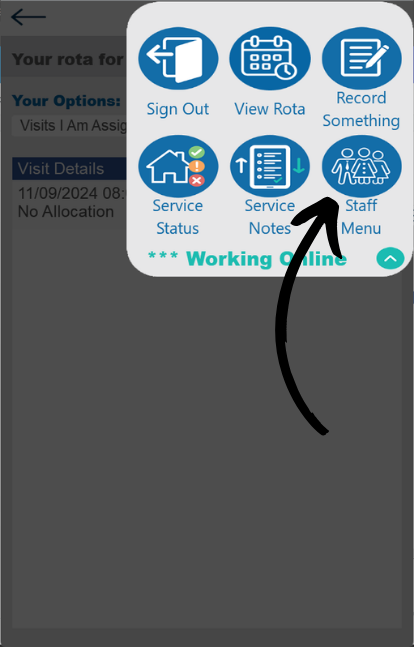
This menu will now open. From within this menu tap the Staff Menu icon.

3

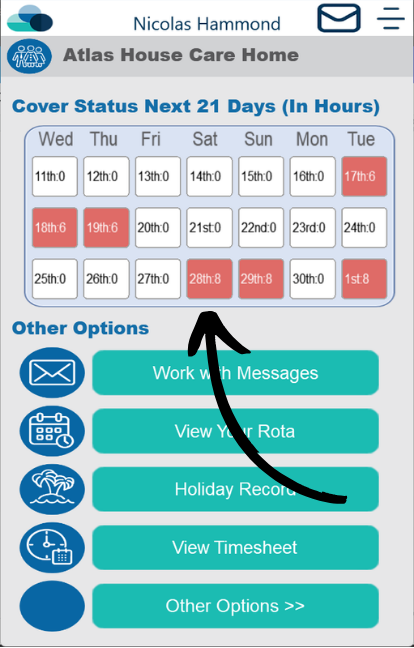
The Cover Status screen will now show. The calendar dates highlighted in orange will show shifts that need cover.

Tap one of the orange boxes to open the next menu.

4

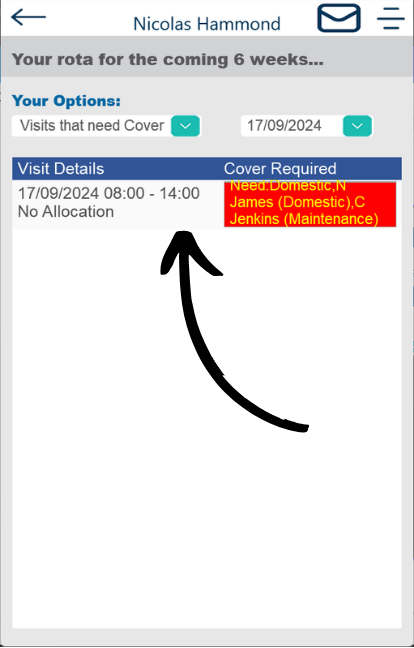
The Visits that need cover will be highlighted on this page. 

Tap the Date and time underneath the Visit Details and Cover Required.

5

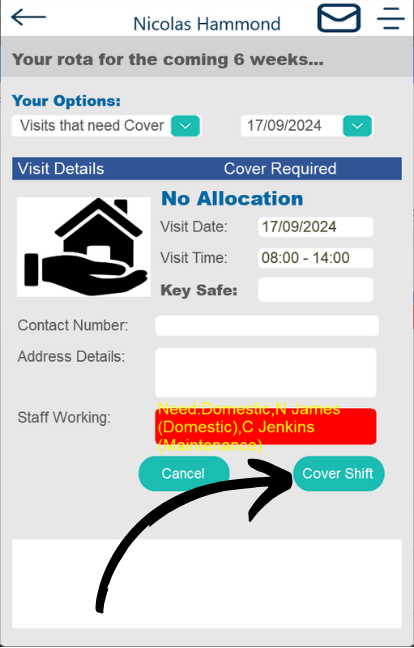
Further details about the cover required will then show on your screen.

Once you are happy with the information, tap Cover Shift.

6

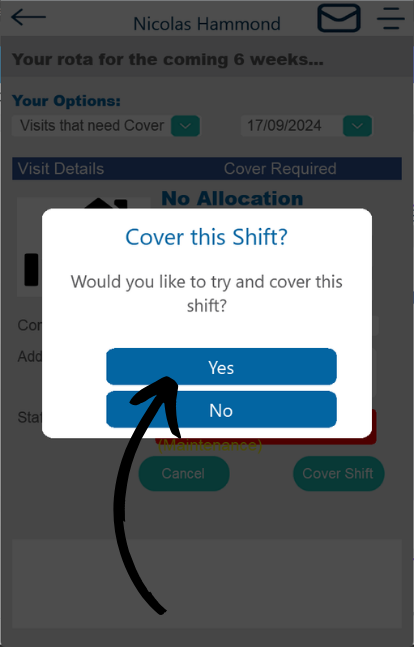
Tap Yes to confirm the cover.

Tap No if you would like to cancel the cover.

7

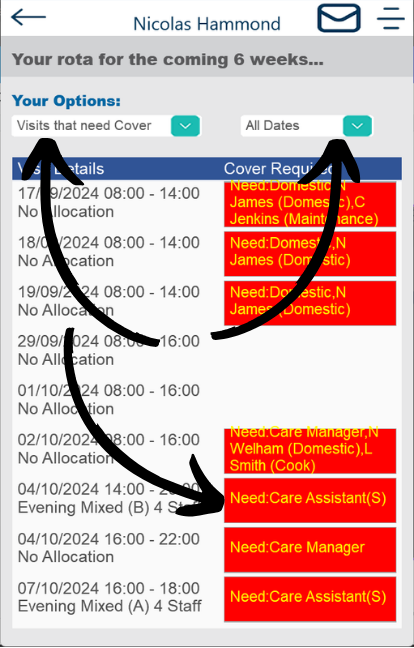
From the Rota screen you can also view all shifts that need cover.

Under the Your Options header you can filter by Visits that need cover, Visits I am assigned and Show All.

You can also filter by All Dates and selecting Specific Dates.

To cover a shift tap the shift you would like to cover and follow the previous steps.