Bank Holiday Closure Notice: We will be closed on the 3rd April for the Easter bank holiday, so our customer service team will not be available on this day. If you need to get in touch, you can still use our customer contact form and we will get back to you as soon as possible. Even better, Margo will still be available on our phone lines to help with your queries whenever you need support. We hope you have a lovely Easter weekend 🐣
View Categories
Creating a Generic Risk Assessment
This guide will cover how to create a risk assessment on Care Control Windows, as well as explain the different options available when creating one.
1
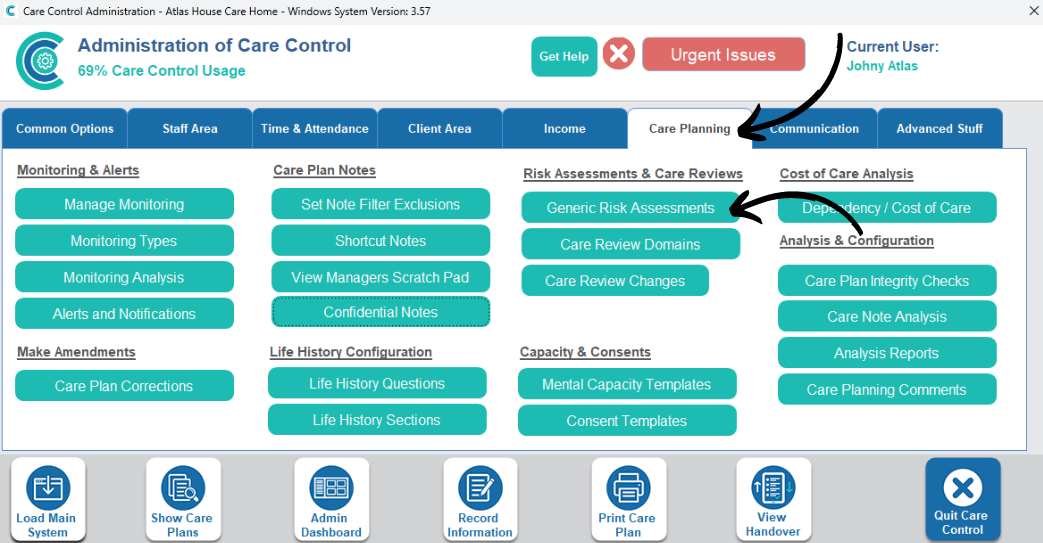
In the Administration of Care Control Windows, navigate to the Generic Risk Assessment tool, which can be found under the Care Planning tab.
2
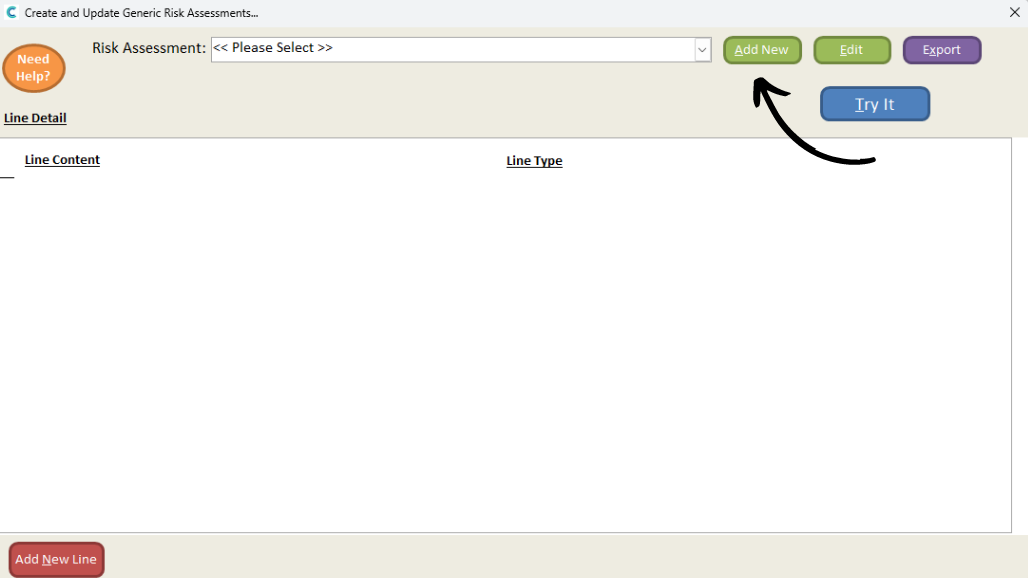
A new window will open. Press Add New.
3
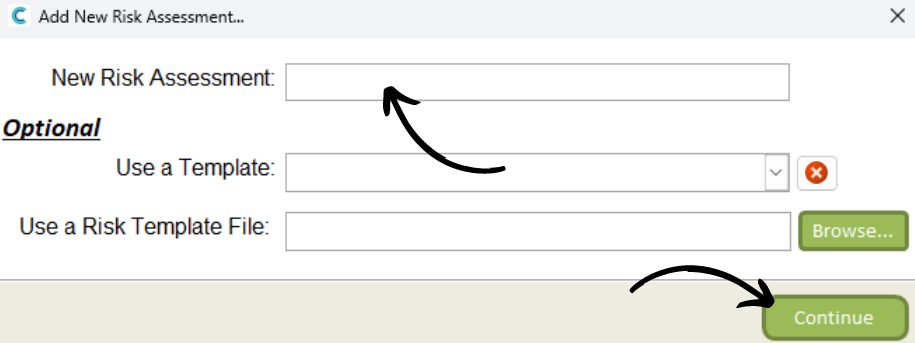
Here, enter the name for your new risk assessment. You can choose to base it off another, existing RA as well as upload a template file.
Press Continue to begin.
4
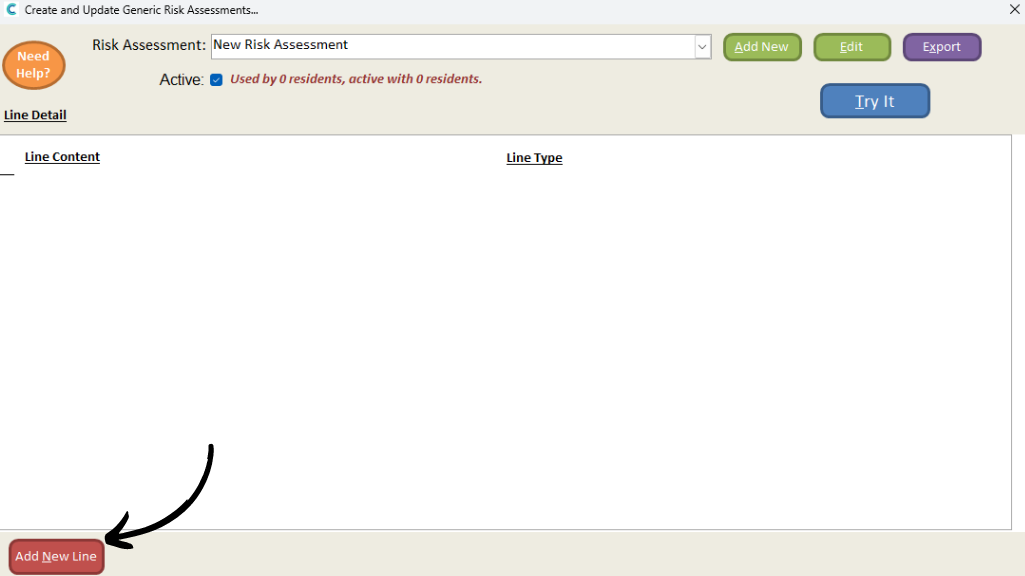
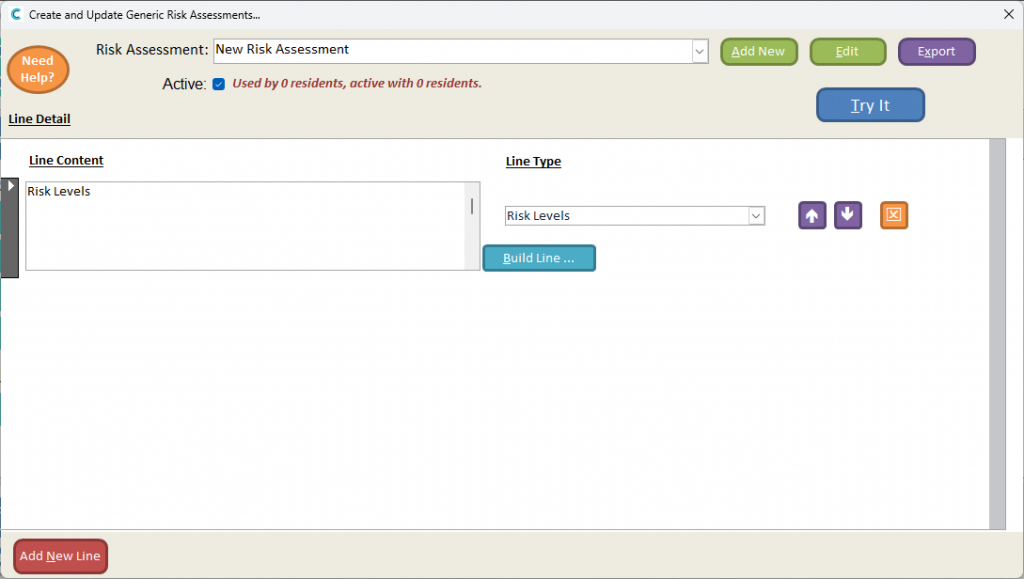
The blank (or templated) risk assessment will open. Press Add New Line to create a section.
5
You can enter the text content of the line in the left hand box. Then, select the Line Type from the drop-down list:
Risk Levels – A description box, the Low-Very High-risk rank options and a mitigation text box.
Three Column Page Header – three titled columns.
Yes / No, Yes / No / Not Applicable – description box, Yes/No options and risk mitigation text box.
Two Field Entry – two text entry boxes.
Two Column Page Header – two titled columns.
Guidance – a single text box to input information to assist those recording the risk assessment.
Single Field Entry – a single text entry box.
One Column Page Header – one titled column.
You can build the content of the line, with pre-set parameters for messages, by pressing Build Line.
6
The note template window will open. You can build it using the blue buttons on the right hand side, and test is using the Test Template button. Make sure to Save Note Template after making any changes.
7
You can continue to build your risk assessment by adding new lines. After doing so, make sure to save it.
A risk assessment will remain editable until it is activated and assigned to service users. You can edit your RA by selecting it from the drop down list, and pressing Edit.