The Document Library has some pre-set options for document type when uploading to the system. This guide will cover how you can create a new document type.
1
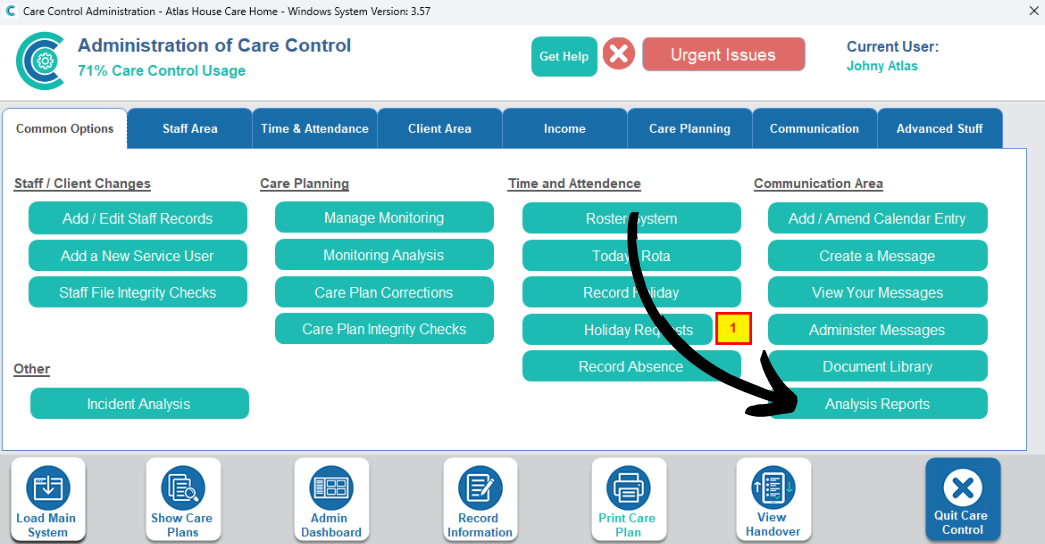
In the Administration of Care Control Windows, navigate to the Analysis Reports tool, which can be found under the Common Options tab.
2
A new window will open. Here, choose Communication for the Report Category, and Document Library Types for the Report Name.
Then, press Run Report.
3
A list of the current document types will be displayed. Press Add Row to create a new one.
4
Enter the new name in the blank row. Then, press Save Records.
5
Now, when uploading a new document to the document library, your new option will appear in the document type drop-down list.