Bank Holiday Closure Notice: We will be closed on the 3rd April for the Easter bank holiday, so our customer service team will not be available on this day. If you need to get in touch, you can still use our customer contact form and we will get back to you as soon as possible. Even better, Margo will still be available on our phone lines to help with your queries whenever you need support. We hope you have a lovely Easter weekend 🐣
View Categories
Creating Menus - Part 1
Care Control contains a food menu tool which works in conjunction with food intake and meal choices. The system includes some default menu’s which are ready to use, but it is possible to create your own to suit your organisation. This guide is Part 1 of 2.
Note: Admin access or Kitchen manager access is required to create and edit menus.
1
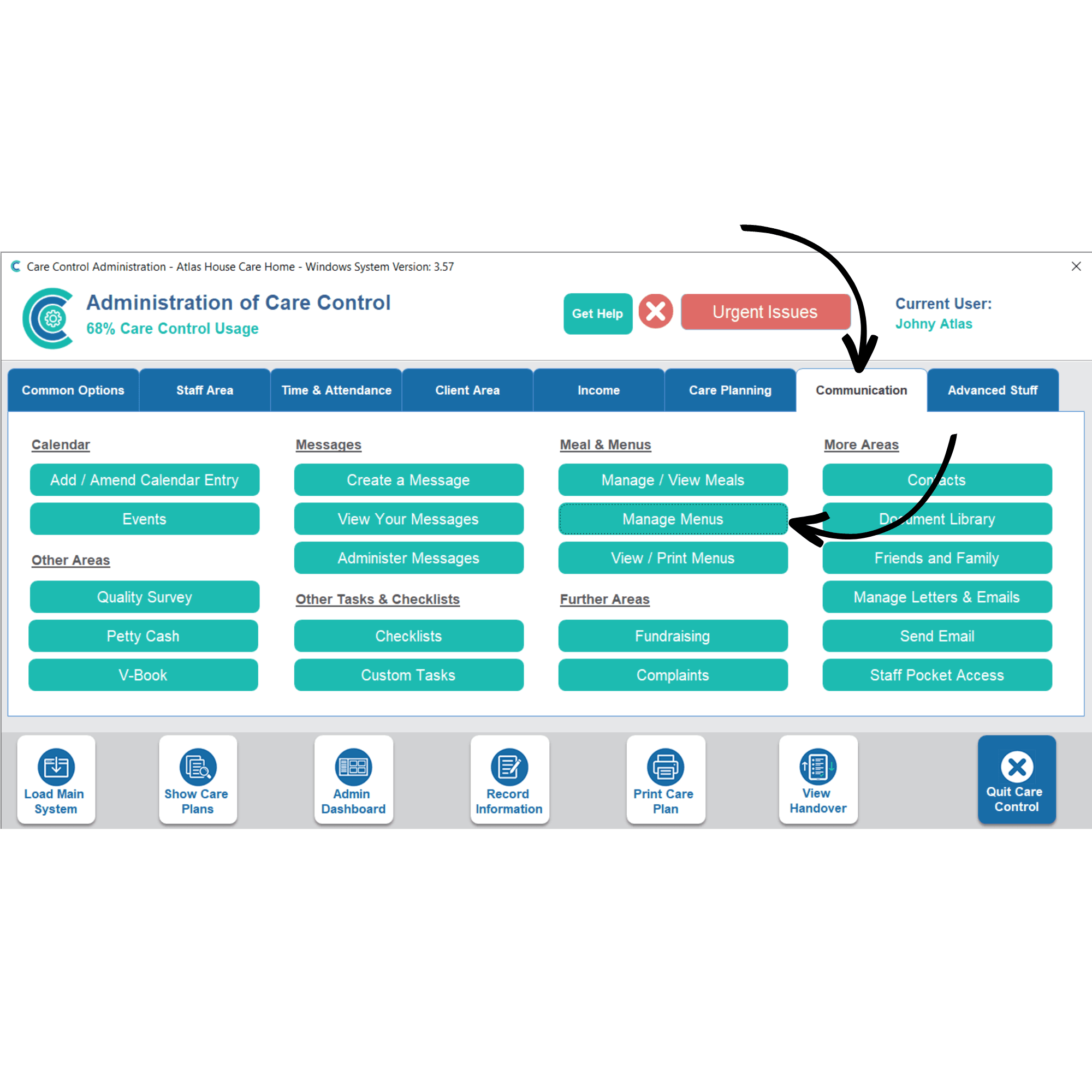
In the Administration of Care Control Windows, navigate to the Manage Menus tool, which can be found under the Communication tab.
2
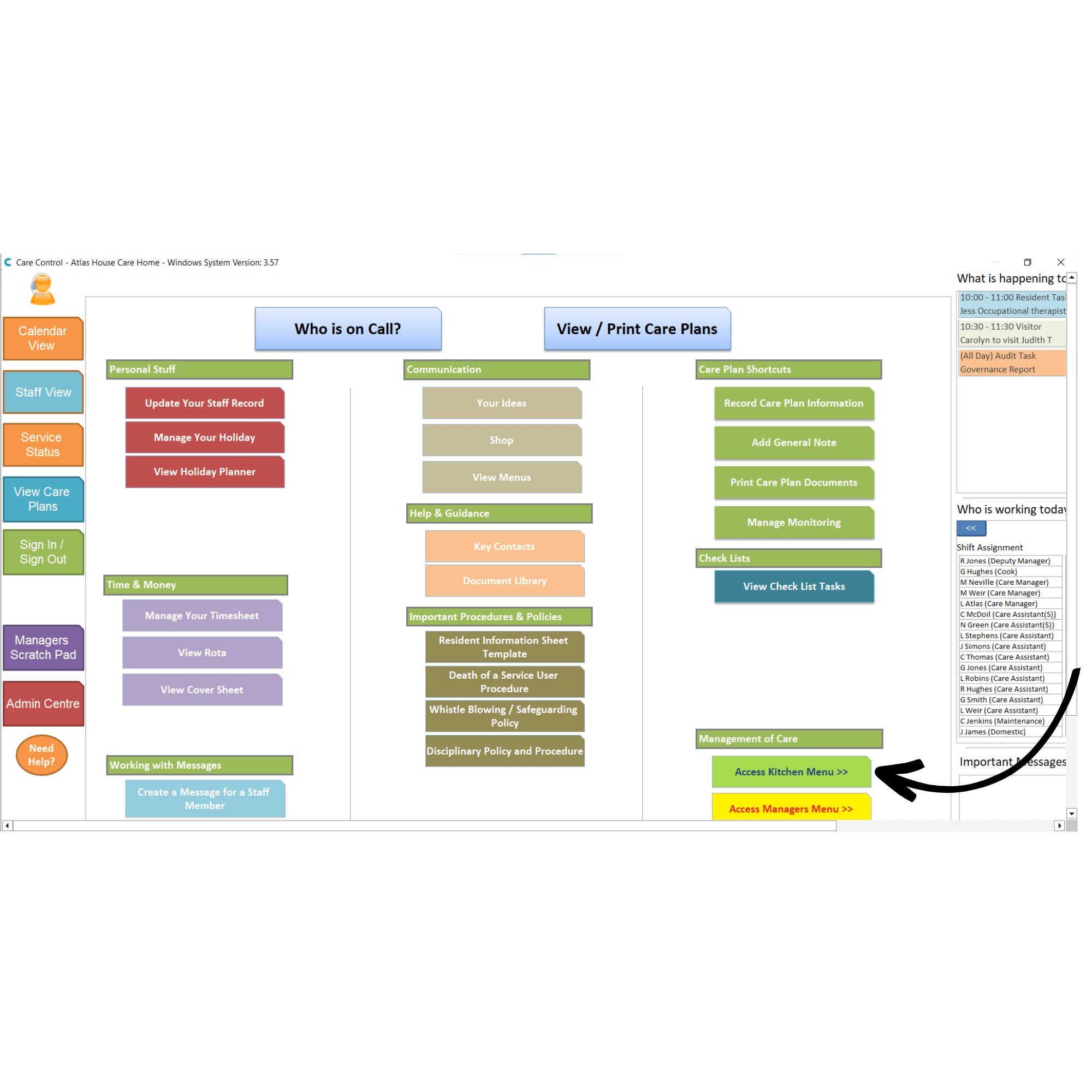
This can also be accessed from the Staff View of CC Windows. Press Access Kitchen Menu.
3
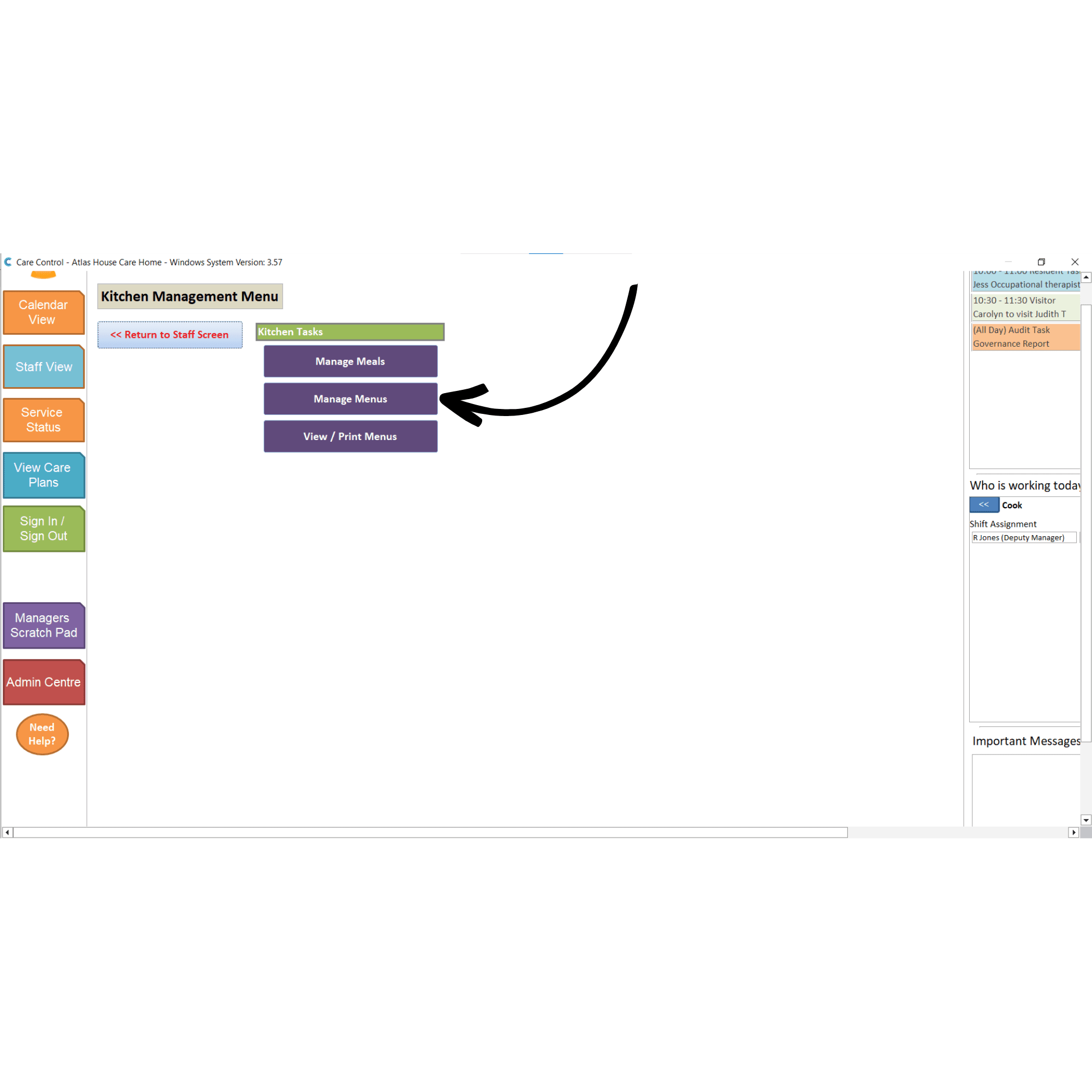
Next, select Manage Menus.
4
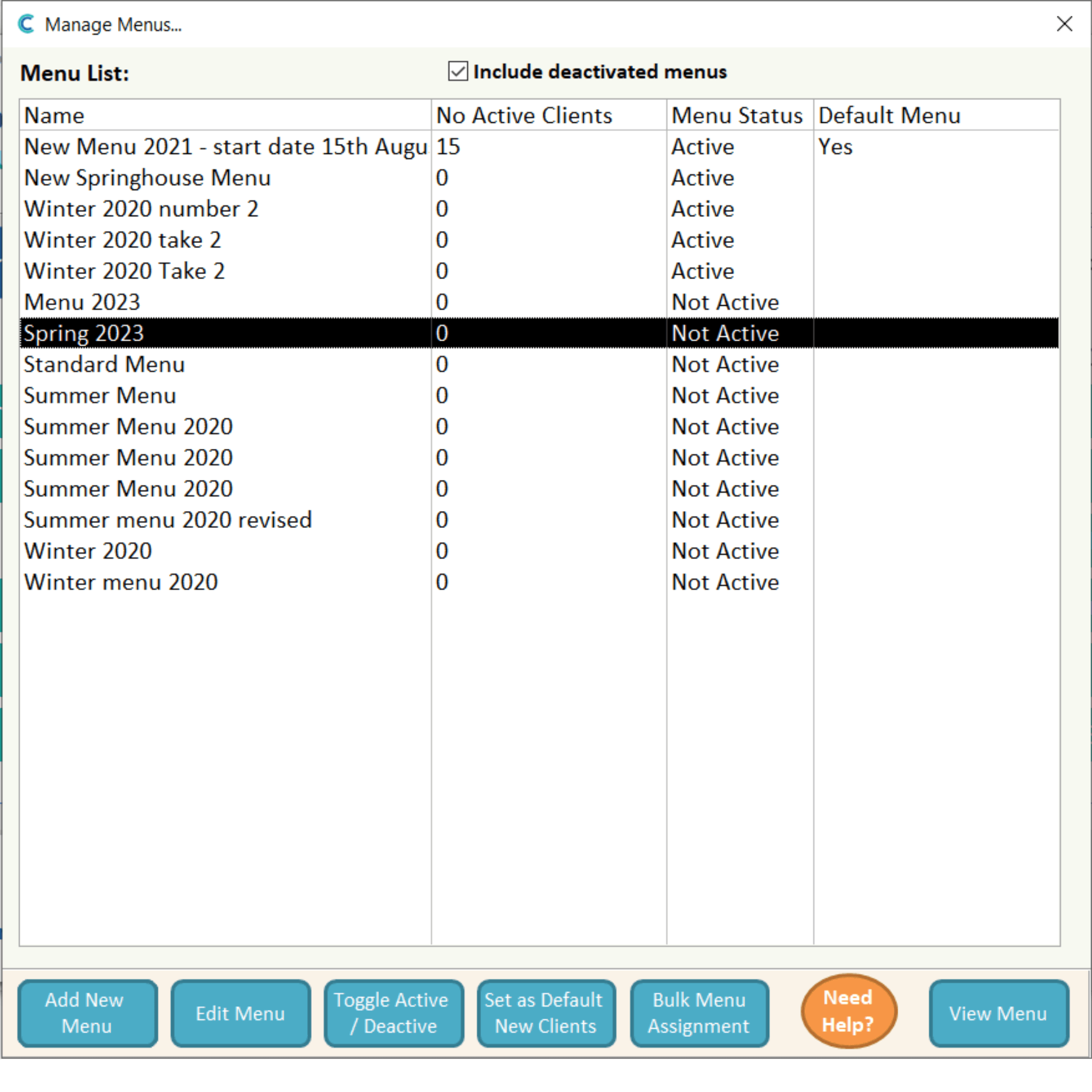
The same Manage Menus window will open from either method. A list of the current menus on your system will be shown. To add a new one, select Add New Menu from the options at the bottom of the window.
5
You can base your new menu on an existing one by using it as a template. Enter a Menu Name and Description as well as a Start Day, Start Date and the number of weeks this menu will last for before repeating. Finally, press Create Menu.
6
Your new menu will appear in the list. Part 2 of this guide will cover how to structure and build your menu.