⚠️ System update: We are aware of an issue affecting certain areas and user roles within the system following the new Navigation Menu release. Please note that Super Admin access is working as expected. Our Development Team is actively investigating the issue and working to implement a resolution as quickly as possible. We appreciate your patience and understanding while we work to restore full functionality.

View Categories

Delete a rota in Cloud Roster

If a rota is no longer required, you can delete it with these simple steps.

Step 1:

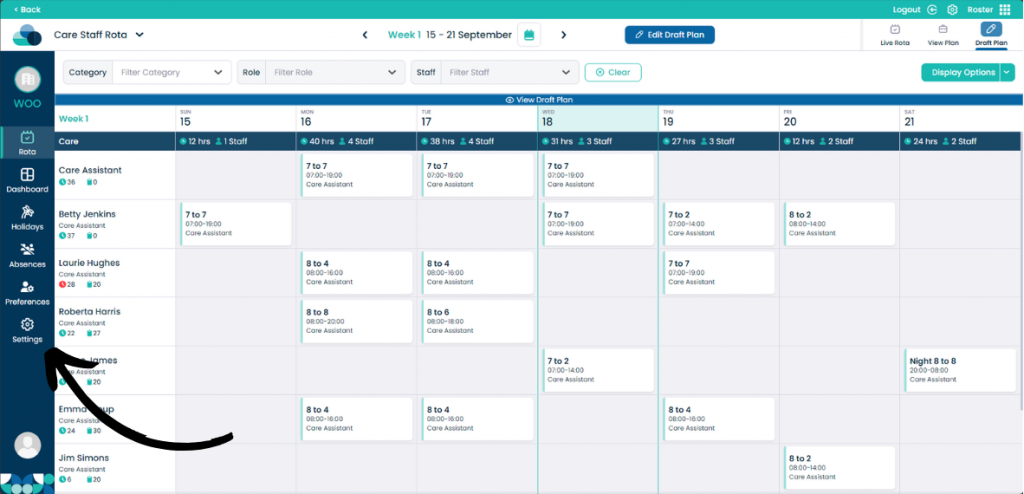
When looking at the rota screen, click the Settings button on the left hand pane.

Step 2:

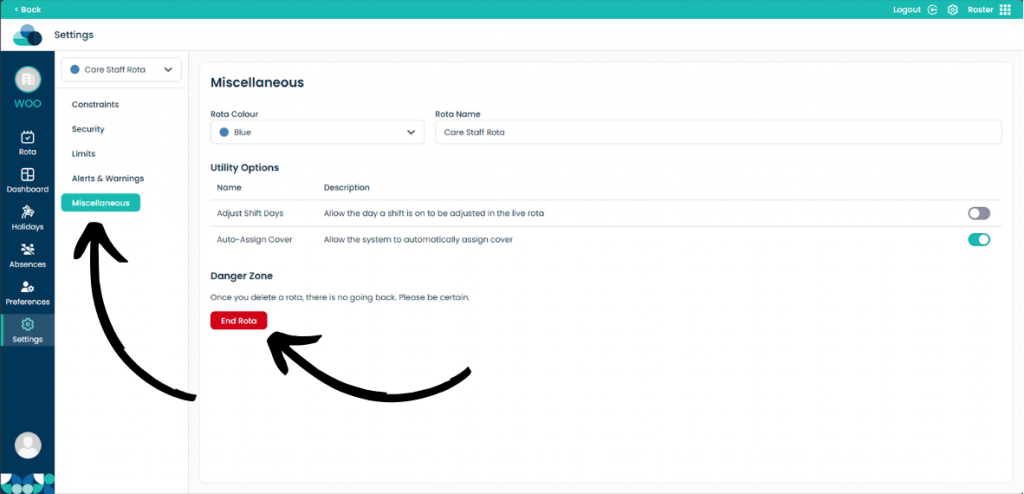
Ensure your rota is selected and then click Miscellaneous to open the new tab.

In here you can now click End Rota.

Step 3:

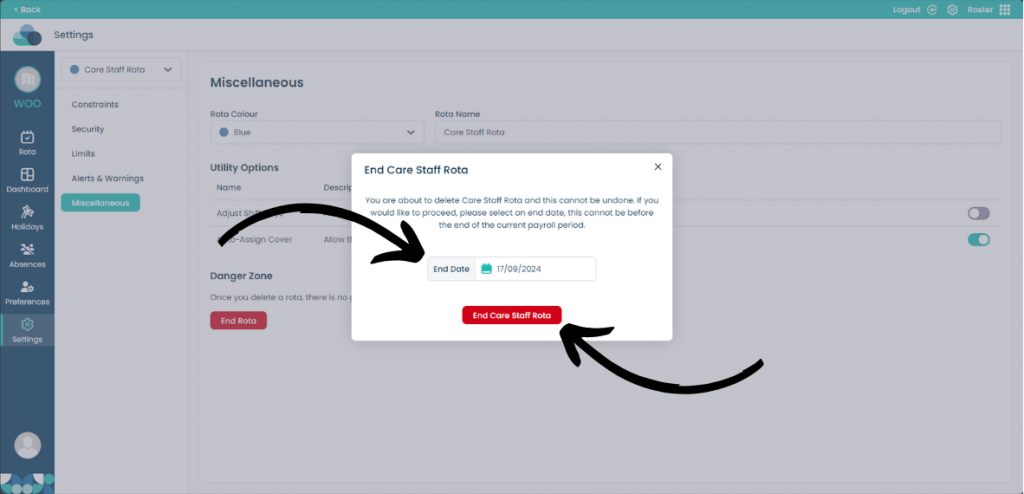
On this page you can select the End Date for the rota. This can be in the future on the same day. If selected on the same day, the rota will be deleted straight away.

When ready, click End Care Staff Rota.