Moving shifts in Roster Cloud is easy and fast allowing you to easily cover shifts and move them between days.
Step 1:
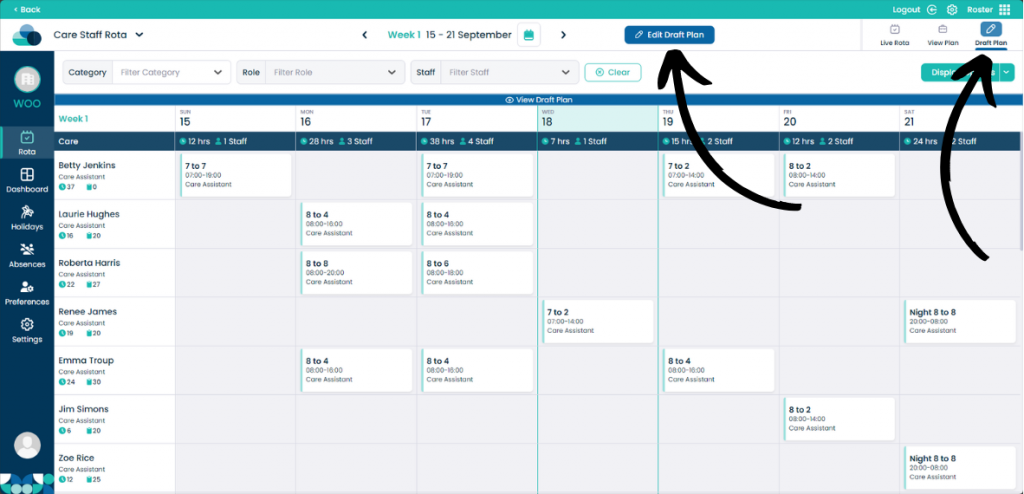
When on your rota screen, select Draft Plan and then Edit Draft Plan.
Step 2:
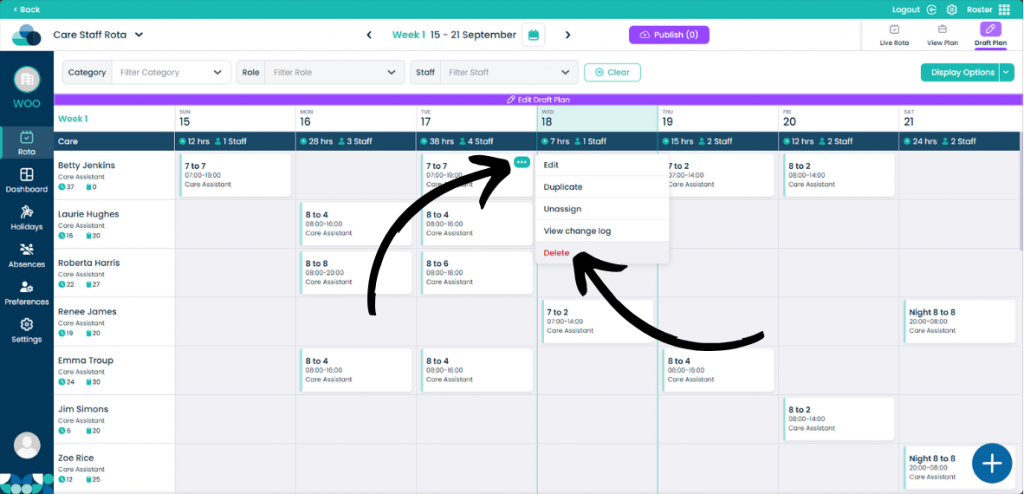
Over a shift, click the 3 dots in the top right of the shift. Then click Delete to remove the shift from the cell.
Step 3:
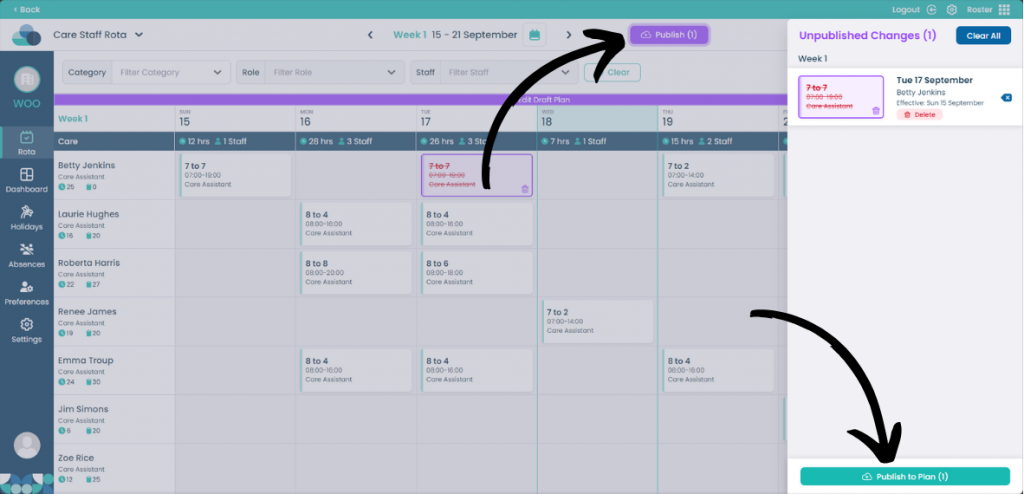
The Deleted shift will now appear crossed out. This is to easily show that the shift has been deleted. In order to remove the shift fully, click Publish and then click Publish to Plan.