Bank Holiday Closure Notice: We will be closed on the 3rd April for the Easter bank holiday, so our customer service team will not be available on this day. If you need to get in touch, you can still use our customer contact form and we will get back to you as soon as possible. Even better, Margo will still be available on our phone lines to help with your queries whenever you need support. We hope you have a lovely Easter weekend 🐣
View Categories
Health Issues on CC Pocket
This guide will cover how to create and view Health Issues on the Care Control Pocket application.
1
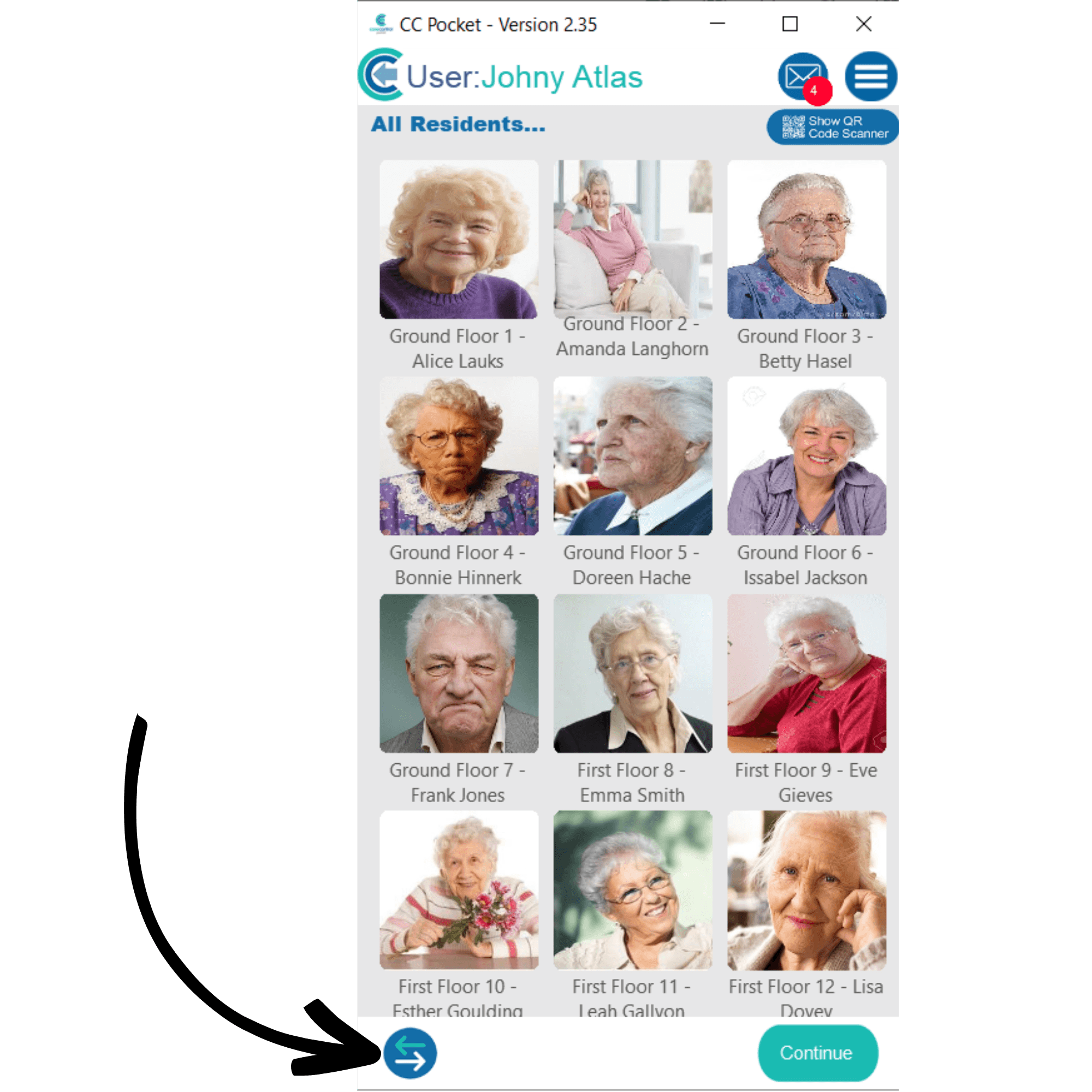
After logging into Care Control Pocket, press the 2 arrows in the bottom left corner of the screen to view care recording options.
2
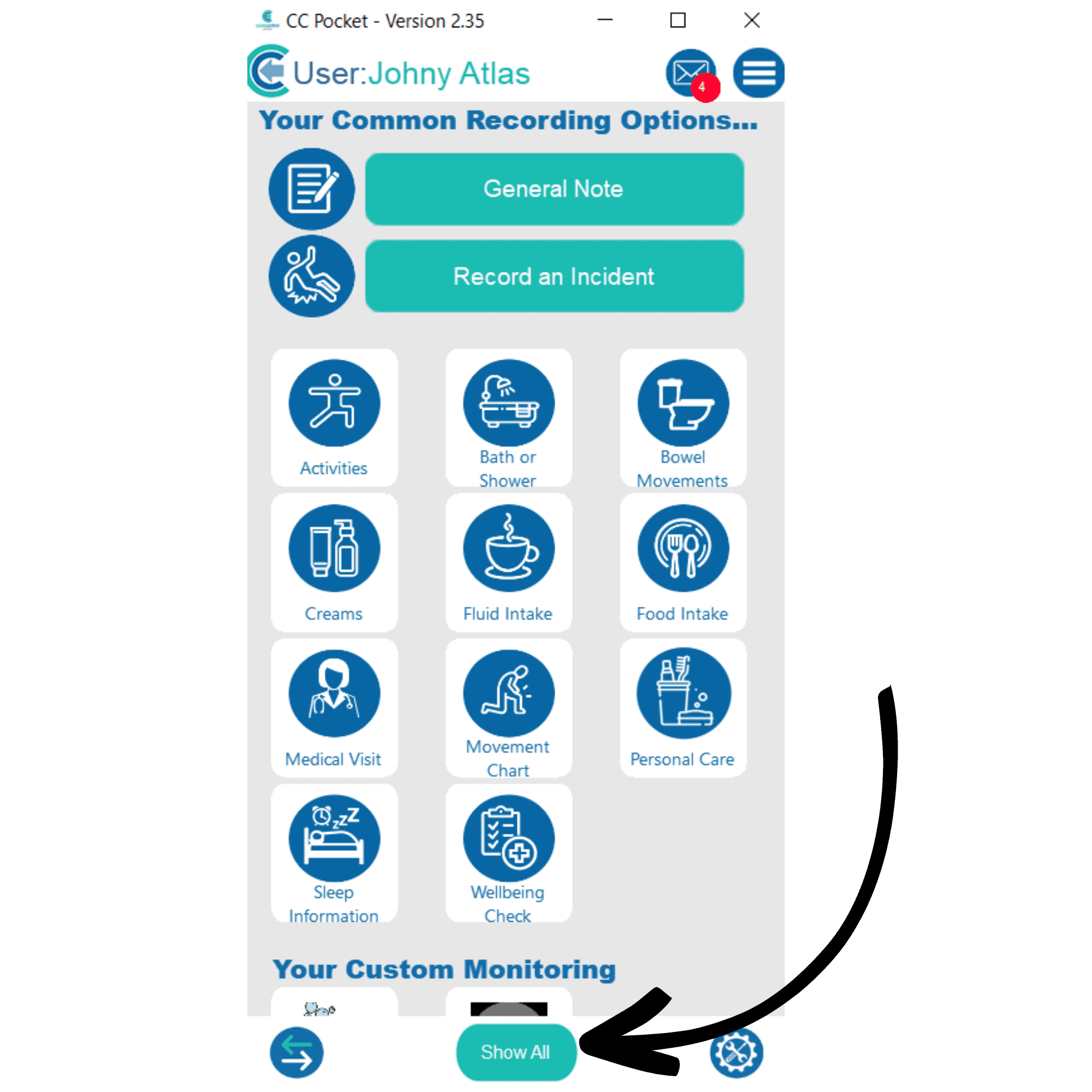
The common recording options will be displayed. To view more, press Show All at the bottom of the screen.
3
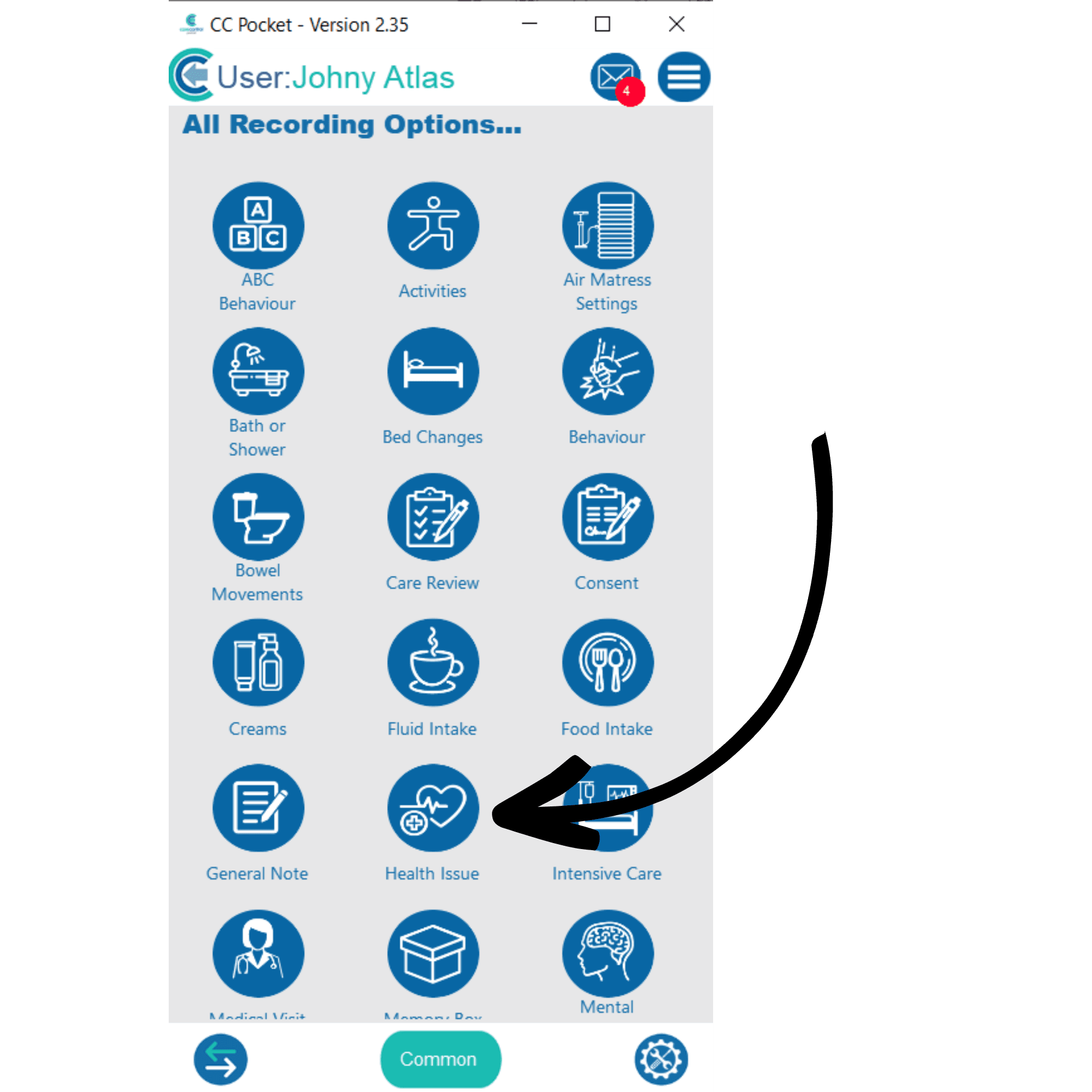
From this list, find and select Health Issues.
4
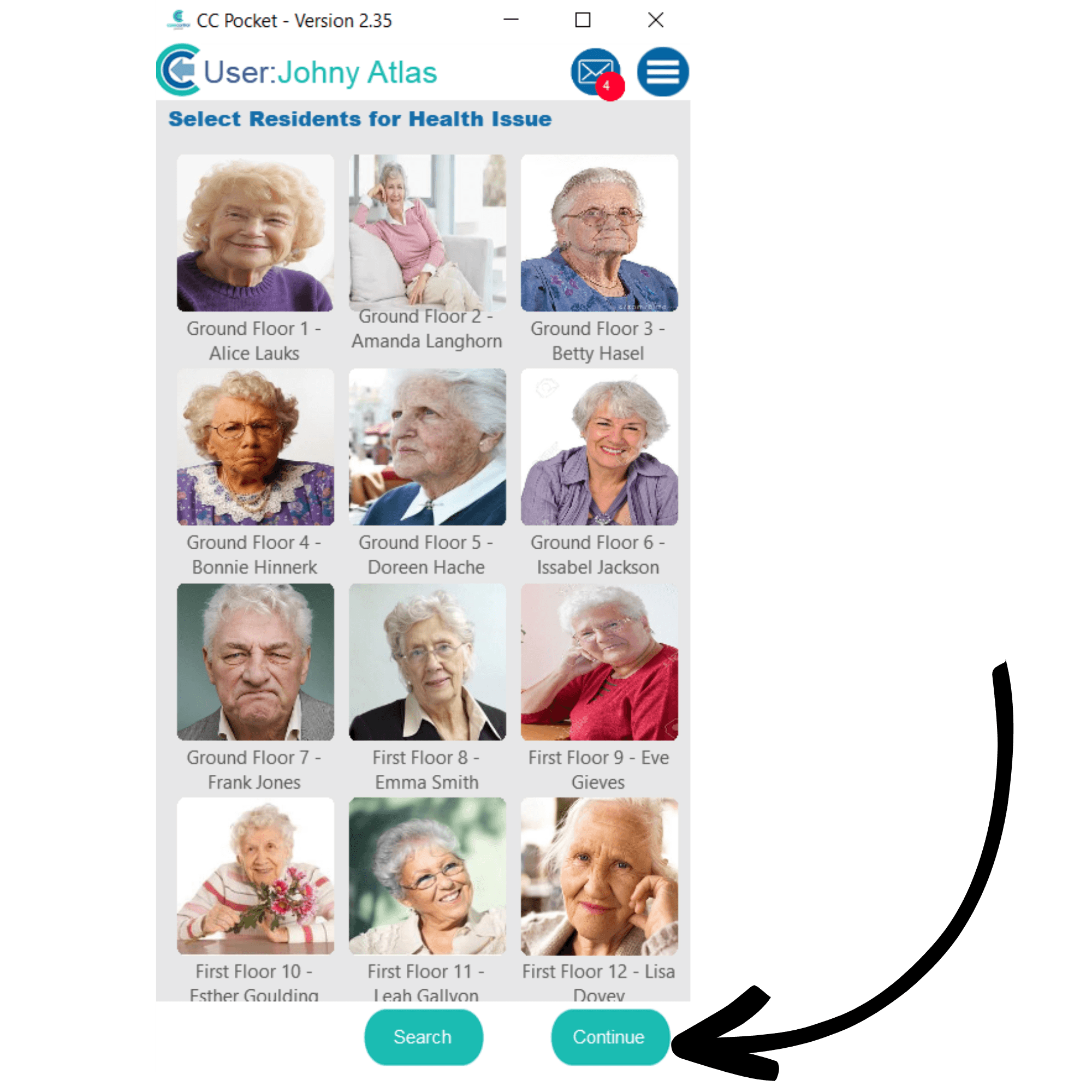
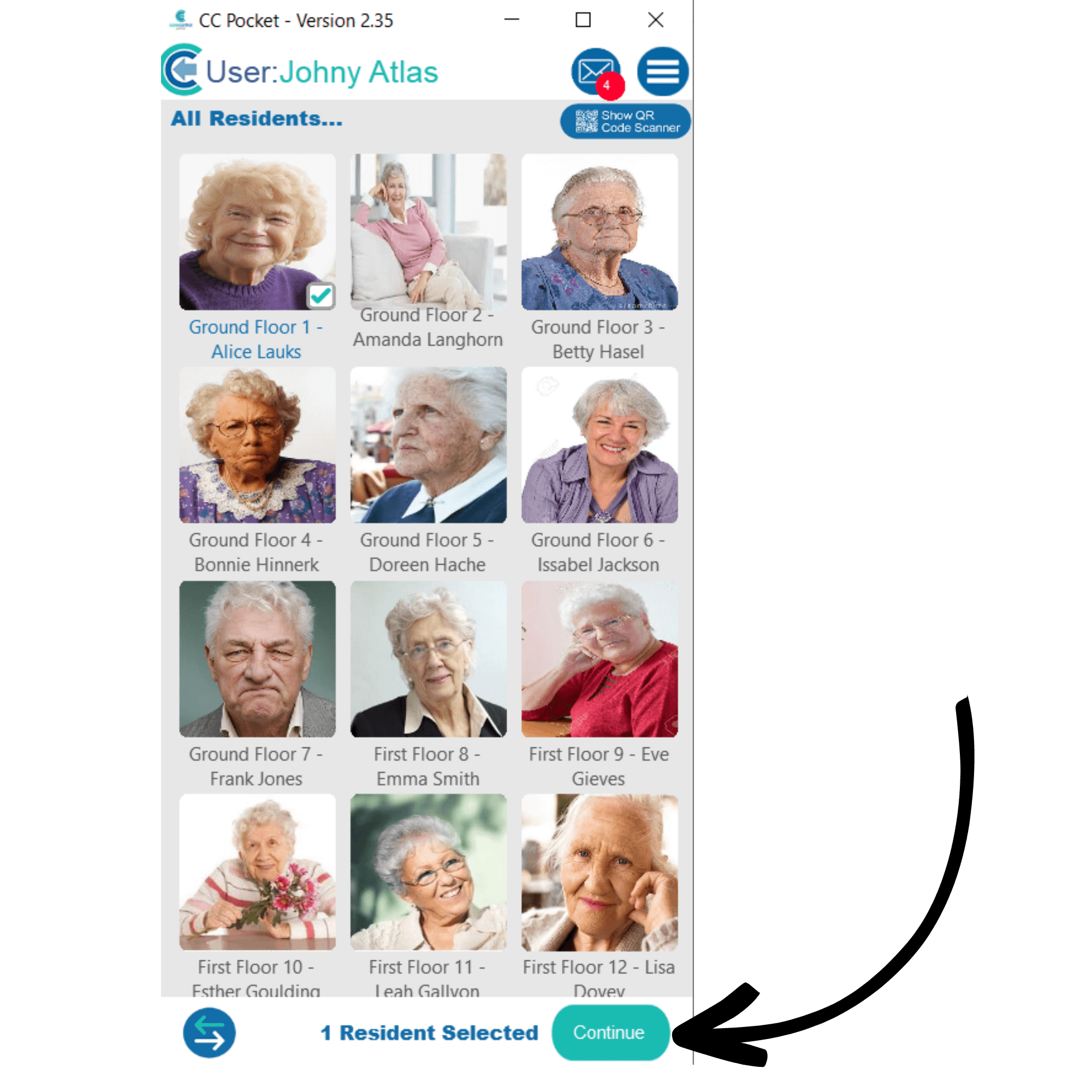
A list of your service users will be displayed, select one and press Continue.
5
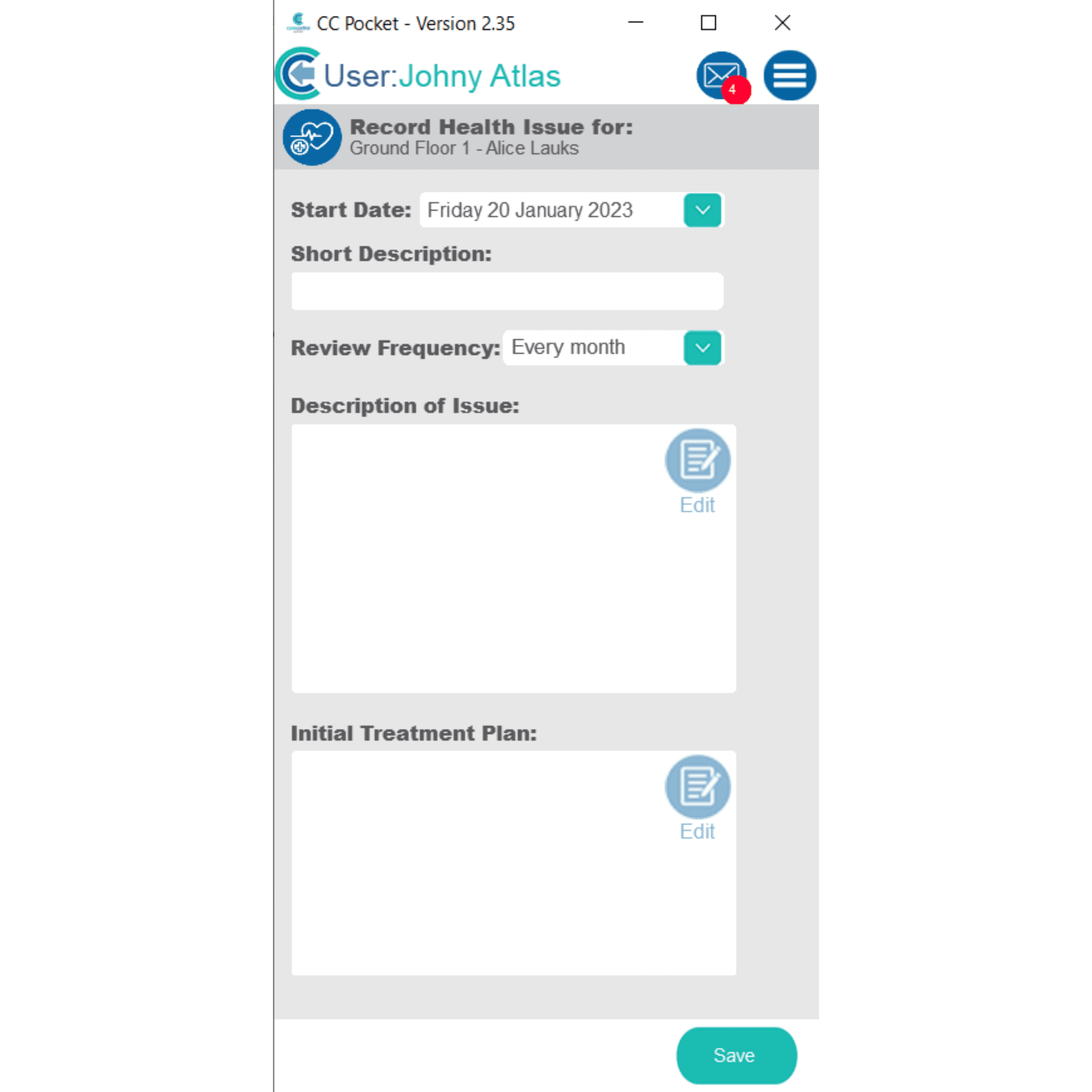
A blank Health Issue form will open. Here, you can enter the information about the issue, including the date, a short description and an initial treatment plan.
Note: the review frequency will determine when this issue flags on the home status to be reviewed.
6
You can also use a body map to mark where this health issue is to help other staff members identify it. Finally, you can add photos of the health issue.
Press Save after completing this form.
7
In order to view the health issue just created, navigate to the service user list (home page). Select the service user and press Continue.
8
From the service user overview page, select Care Plan from the toolbar at the bottom of the screen.
9
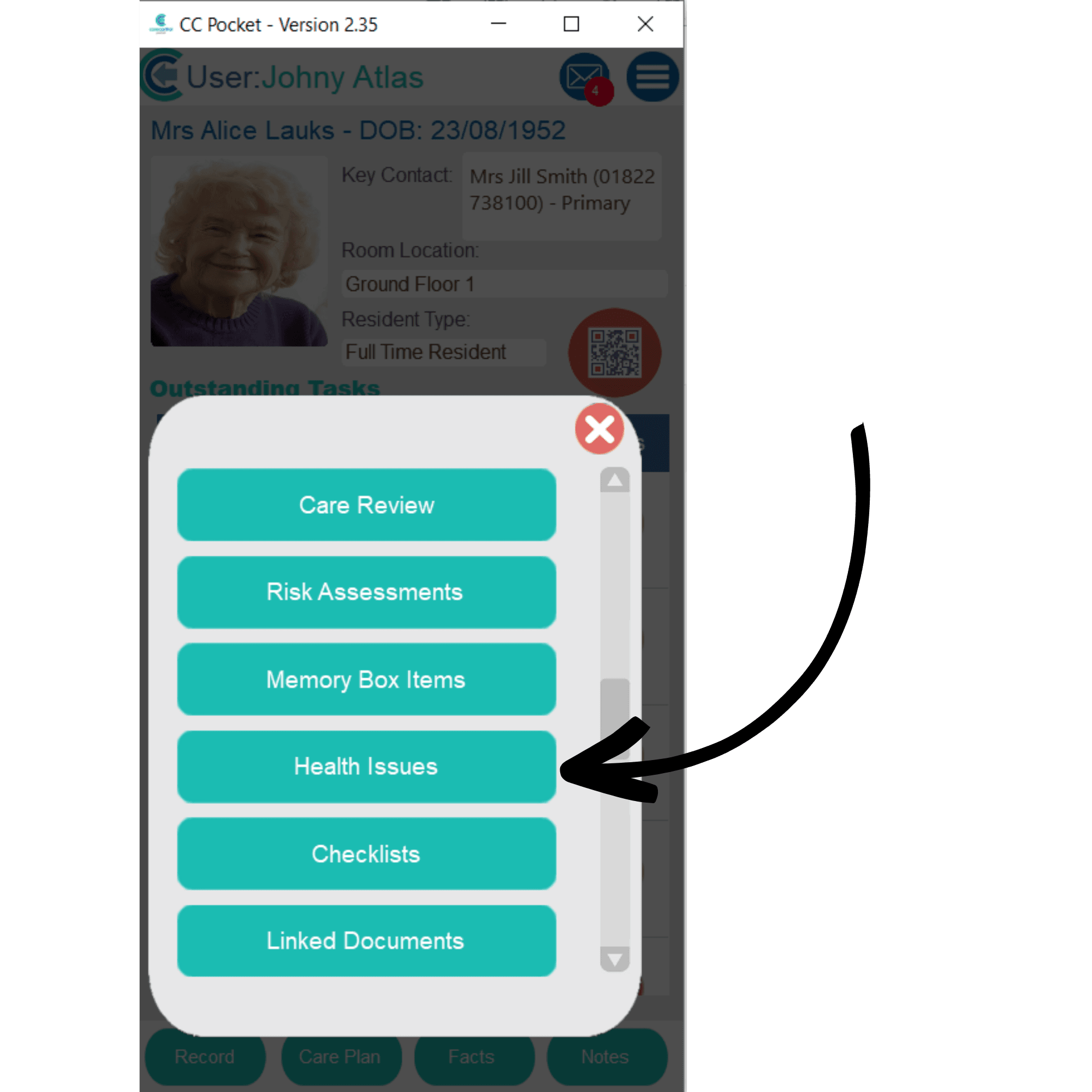
From this menu, press Health Issues.
10
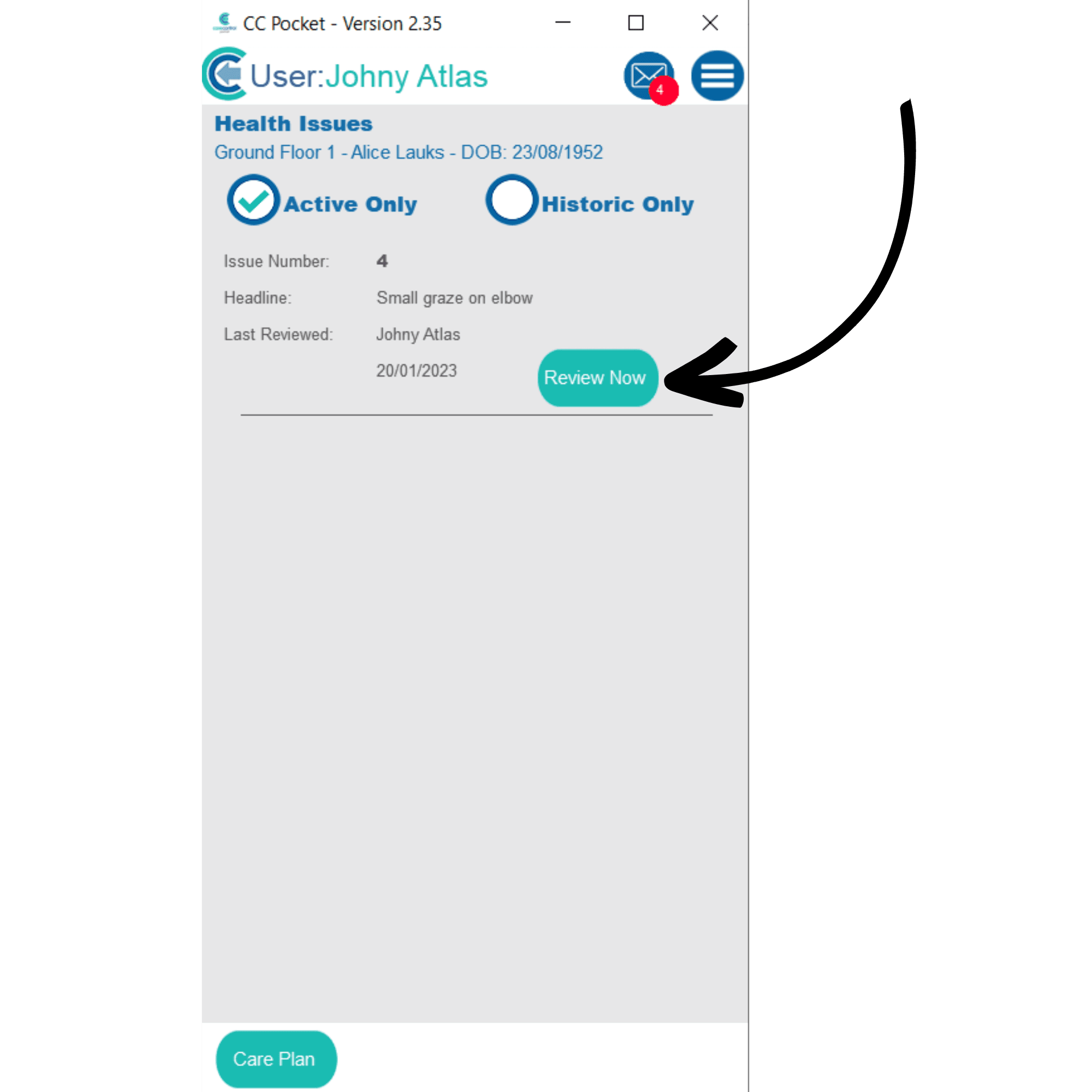
A list of both active and historic issues is shown here. Press ReviewNow next to an issue to open it.
11
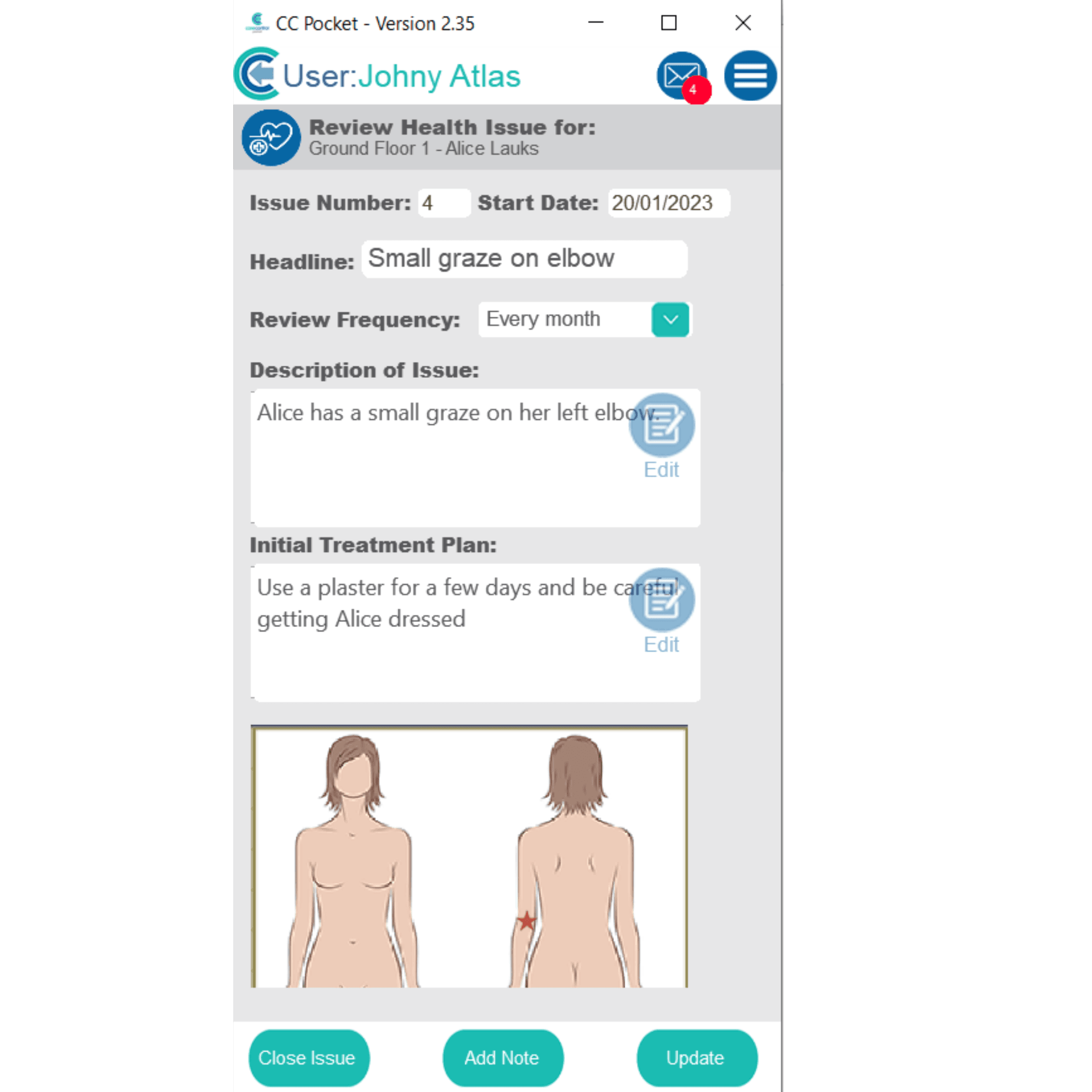
Here you can see the information about the health issue. The issue can be closed or updated using the dedicated buttons at the bottom of the screen. You can also add a note to this issue.