How to Add a User and Register via Email Invitation
This guide will walk you through creating a new user account and completing the first-time registration process.
Takes 10 minutes
For: Managers & Seniors
Updated: 4th June 2026
Introduction
User Management allows administrators to create new staff accounts and control access to Care Control Cloud. Once a user is created, they receive an email invitation to complete registration, set a password, and verify their mobile number before accessing the system.
In this guide you'll learn how to:
- Create a new user account
- Assign user details
- Complete first-time registration
- Verify a mobile number
- Access Care Control Cloud
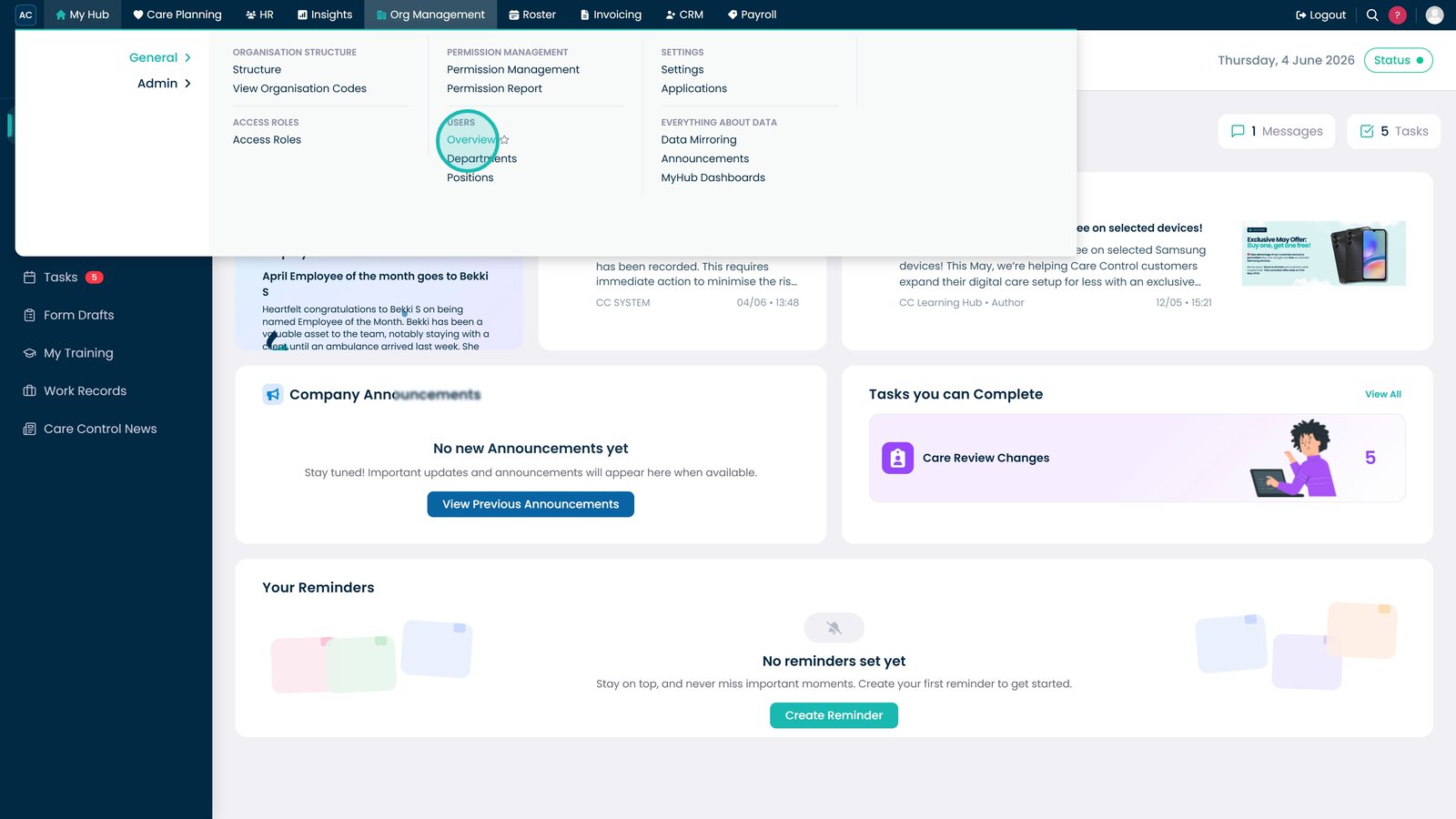
Open Users Overview from the Admin menu.

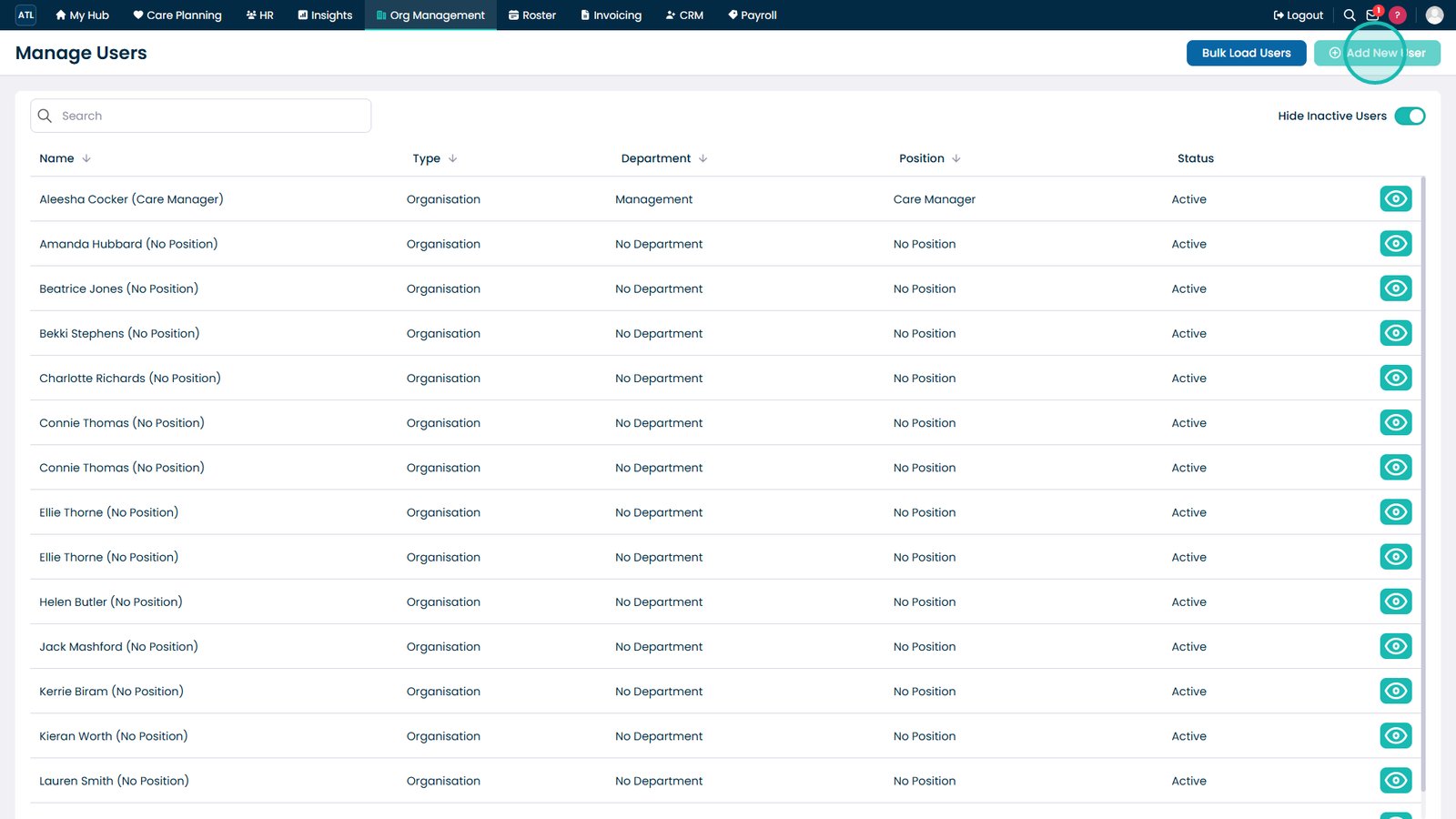
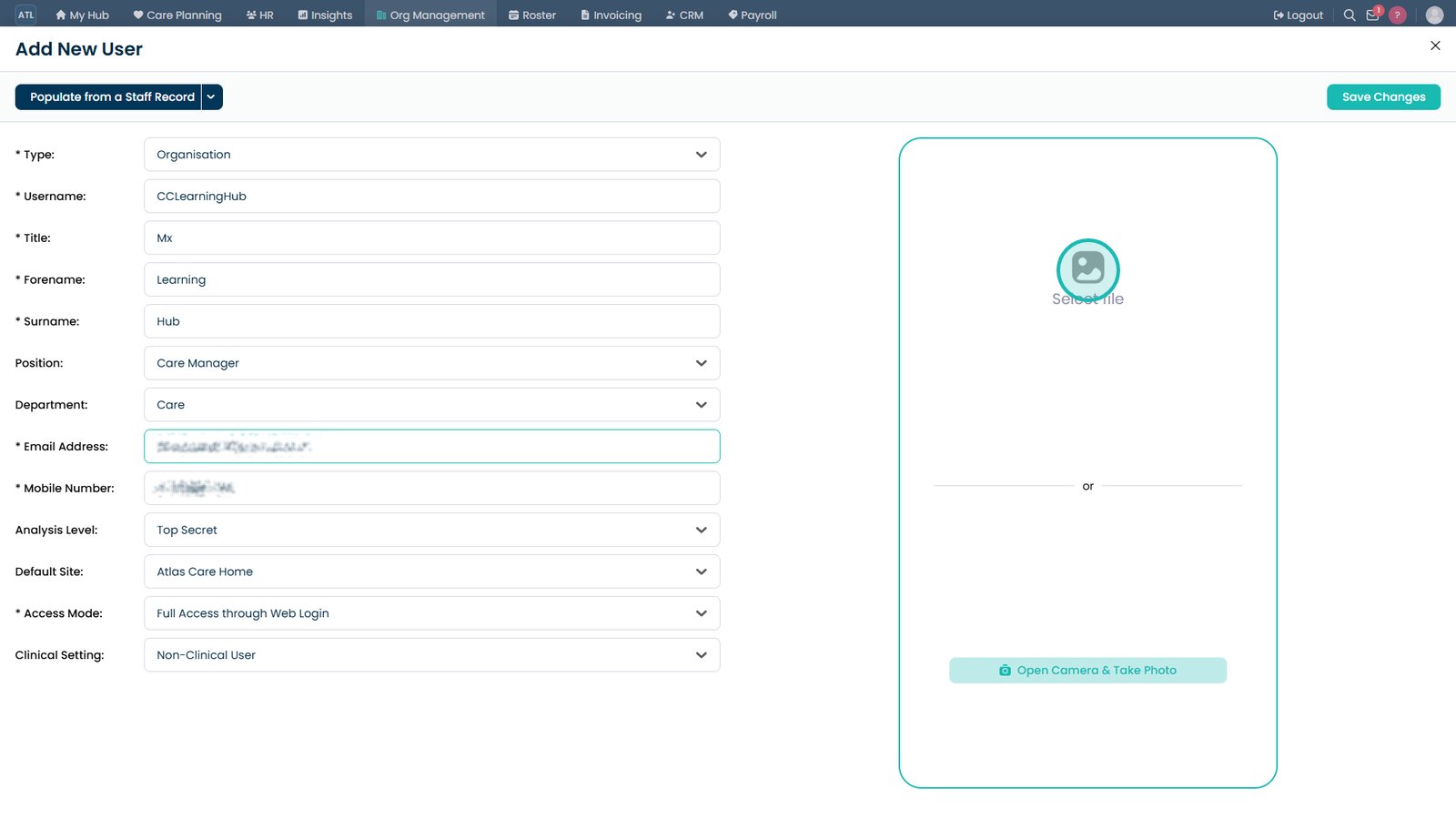
Select Add New User to create a new account.

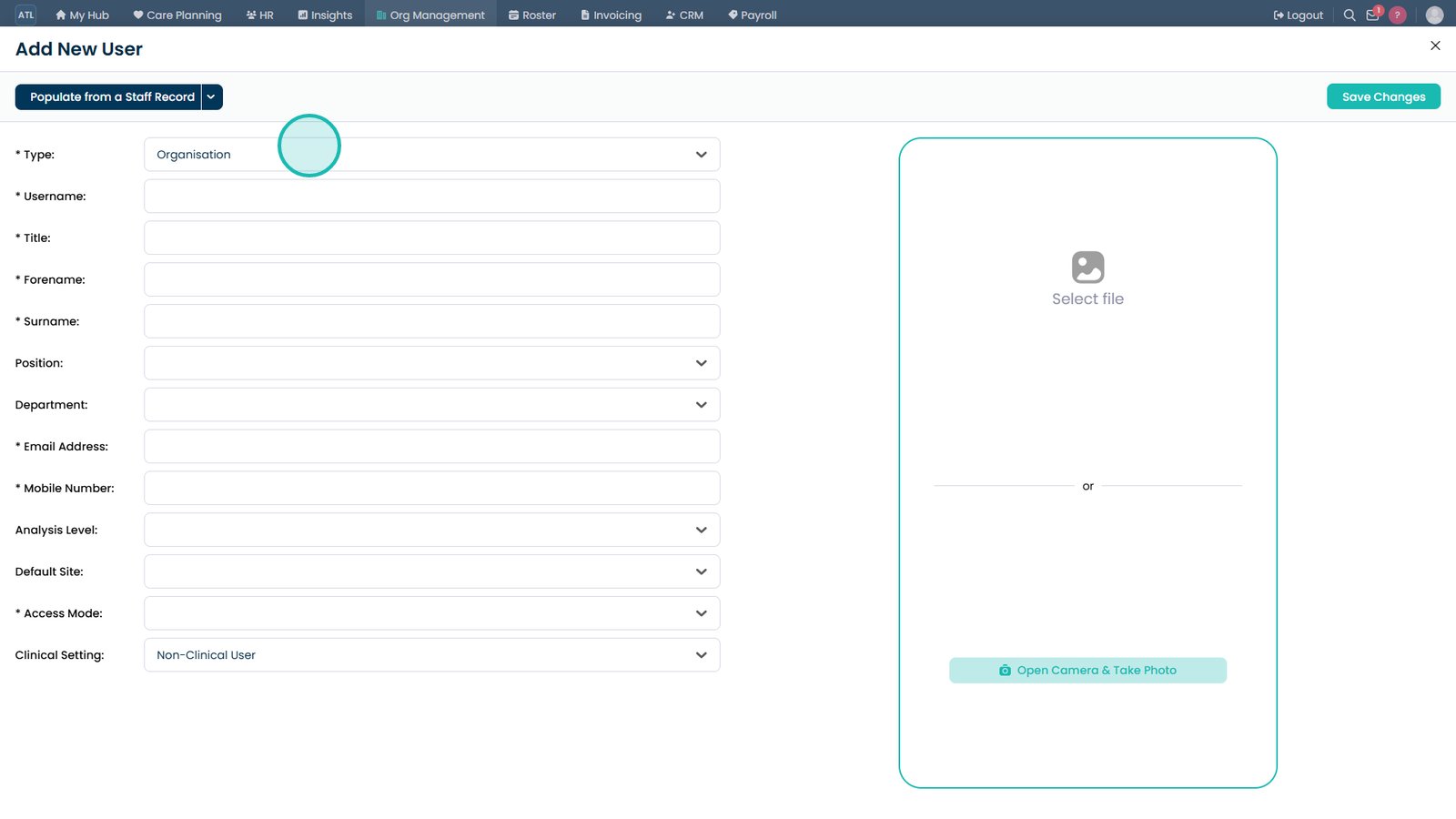
Enter the user's personal and employment details.

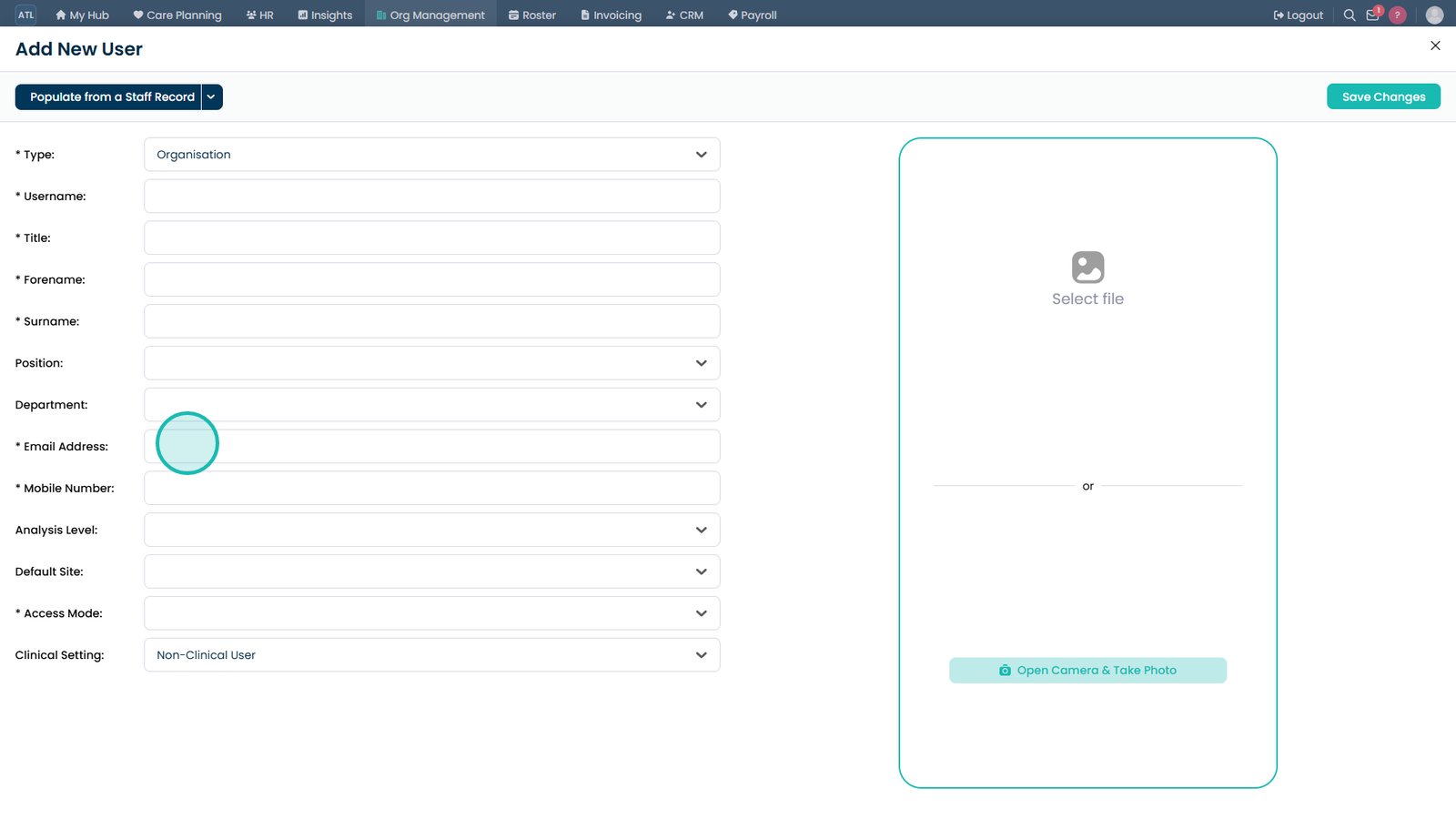
Enter a valid email address and mobile number for registration.

Upload a profile photo if required.

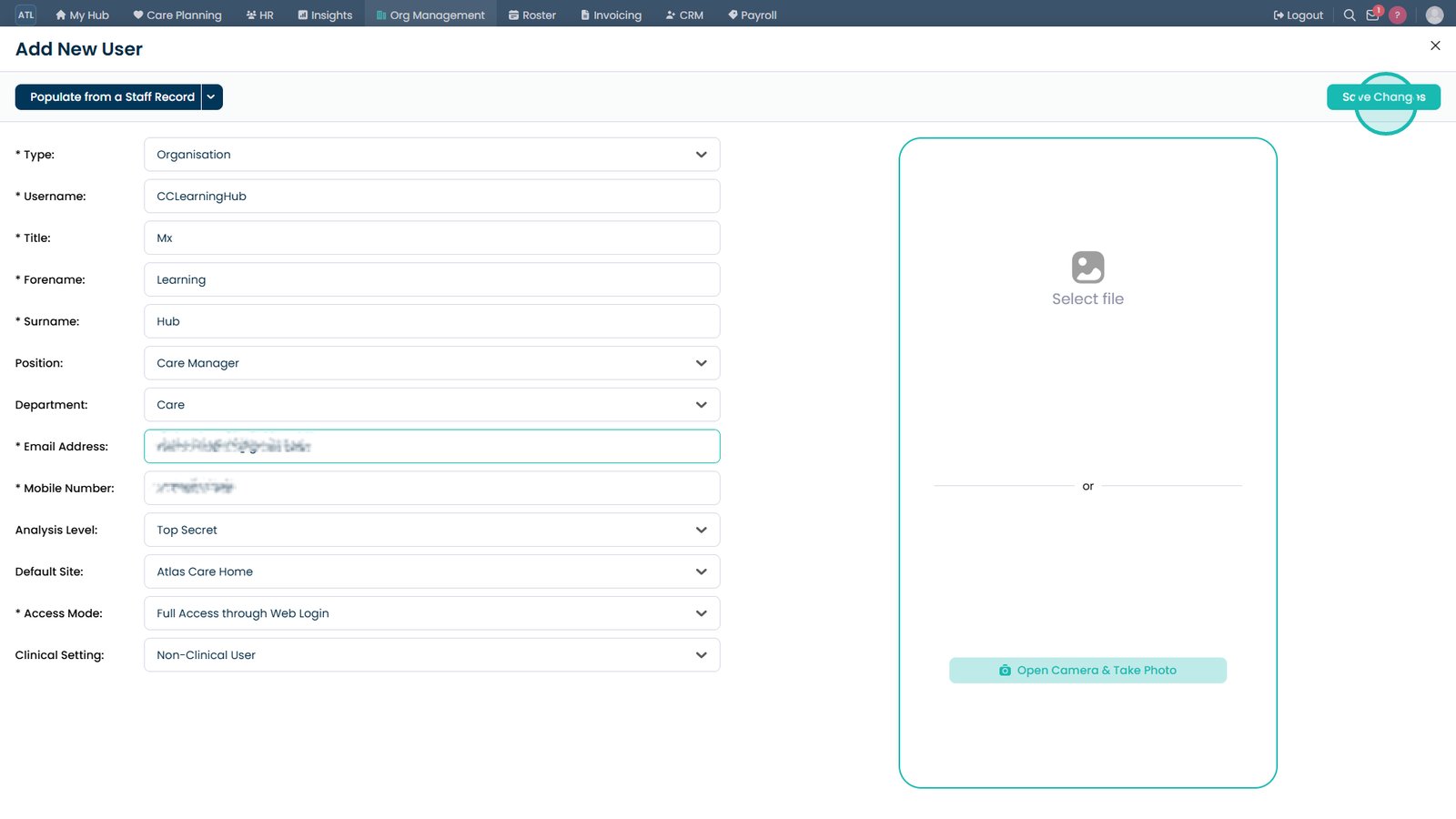
Save the new user once all required details are complete.

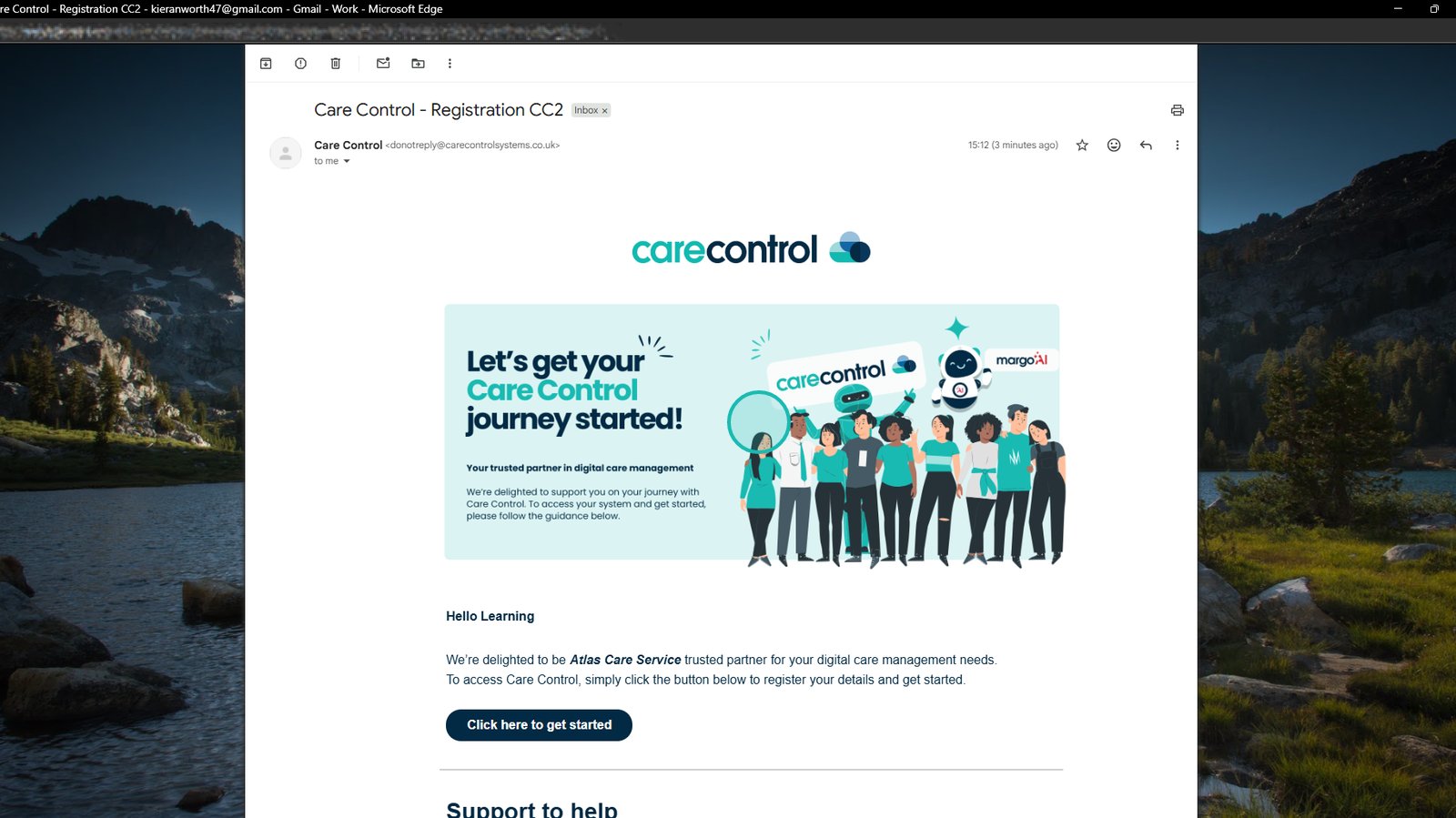
The user will receive an invitation email to complete registration.

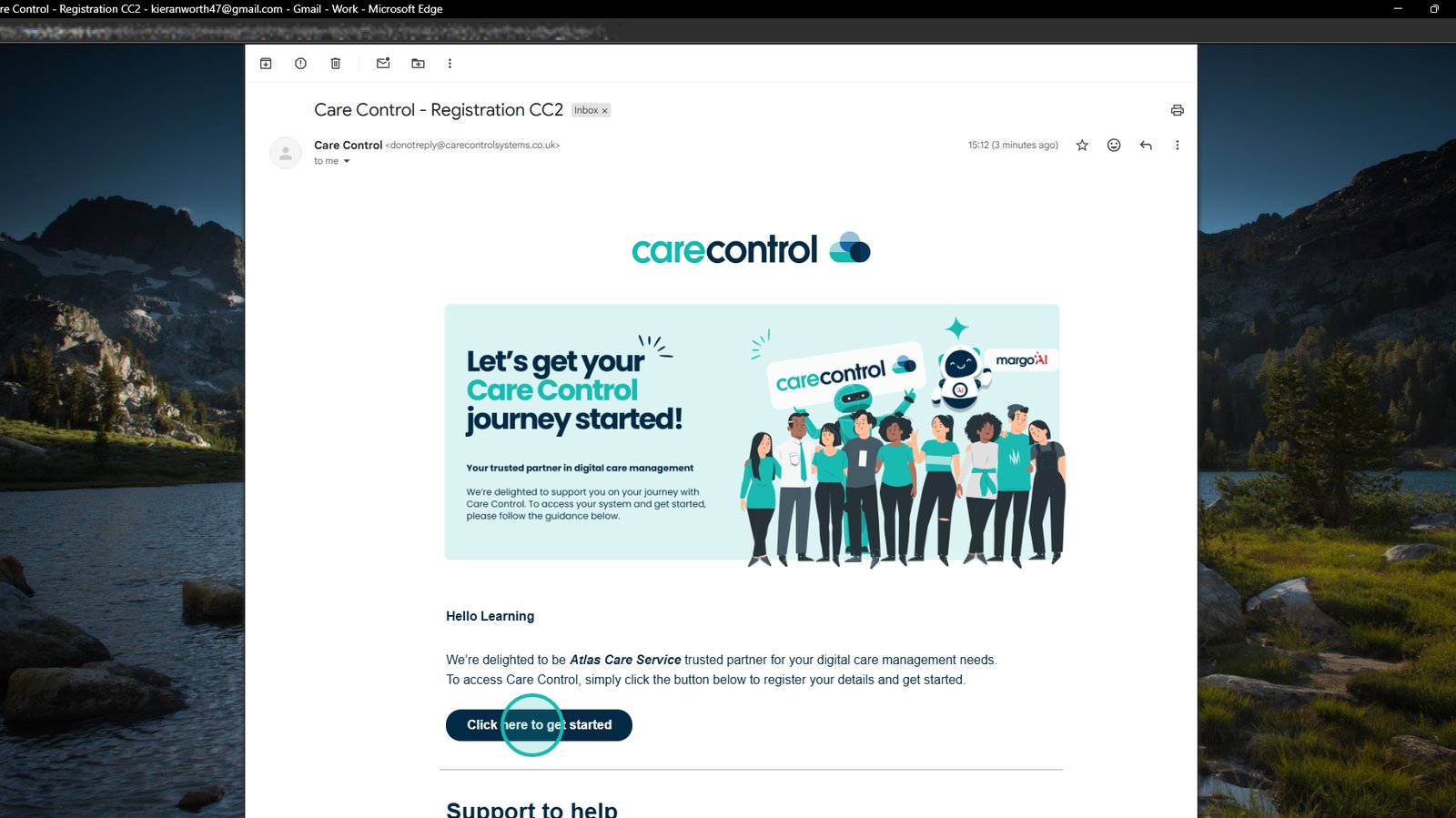
Select the registration link within the email.

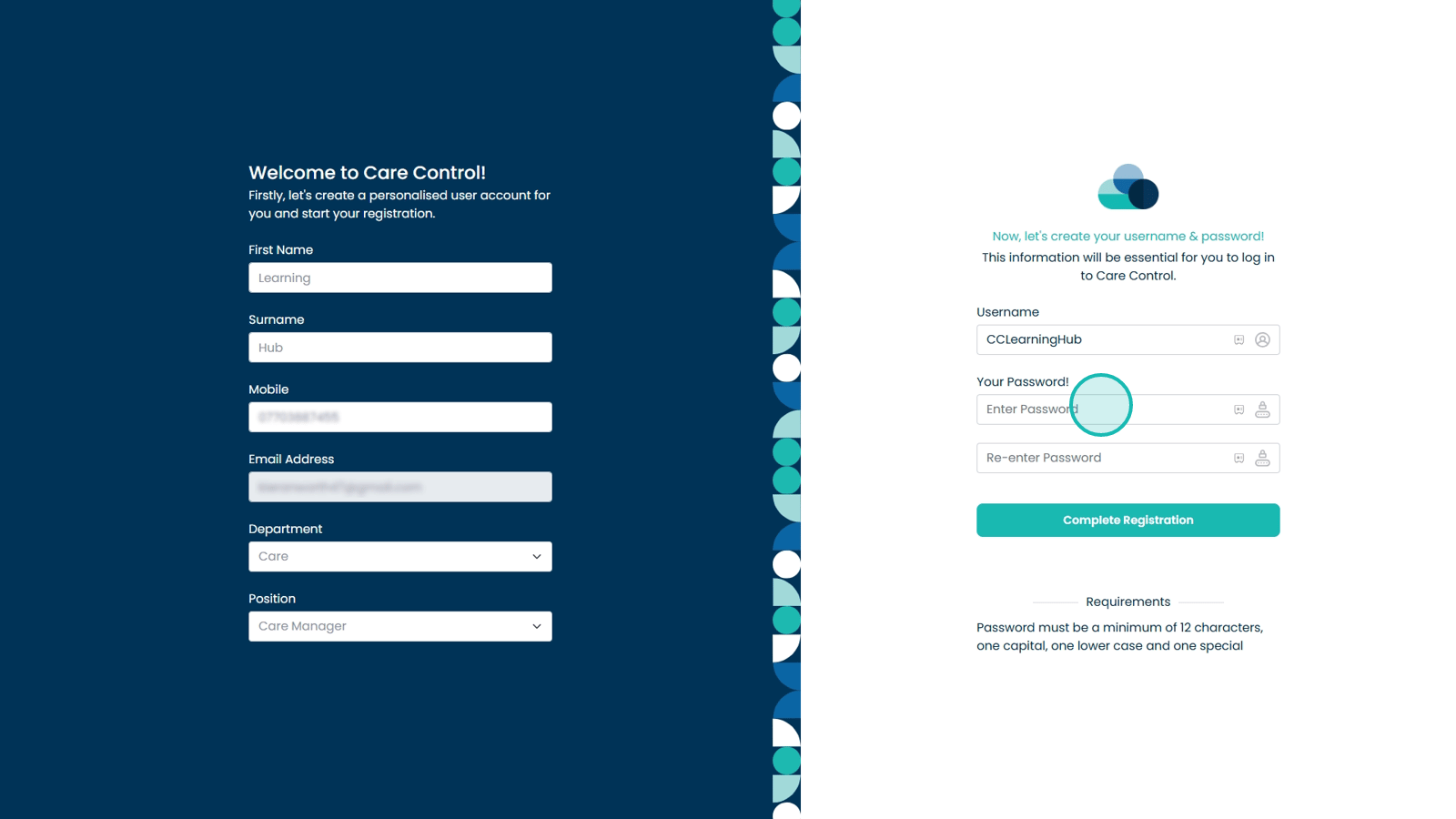
Create a password to complete the account setup.

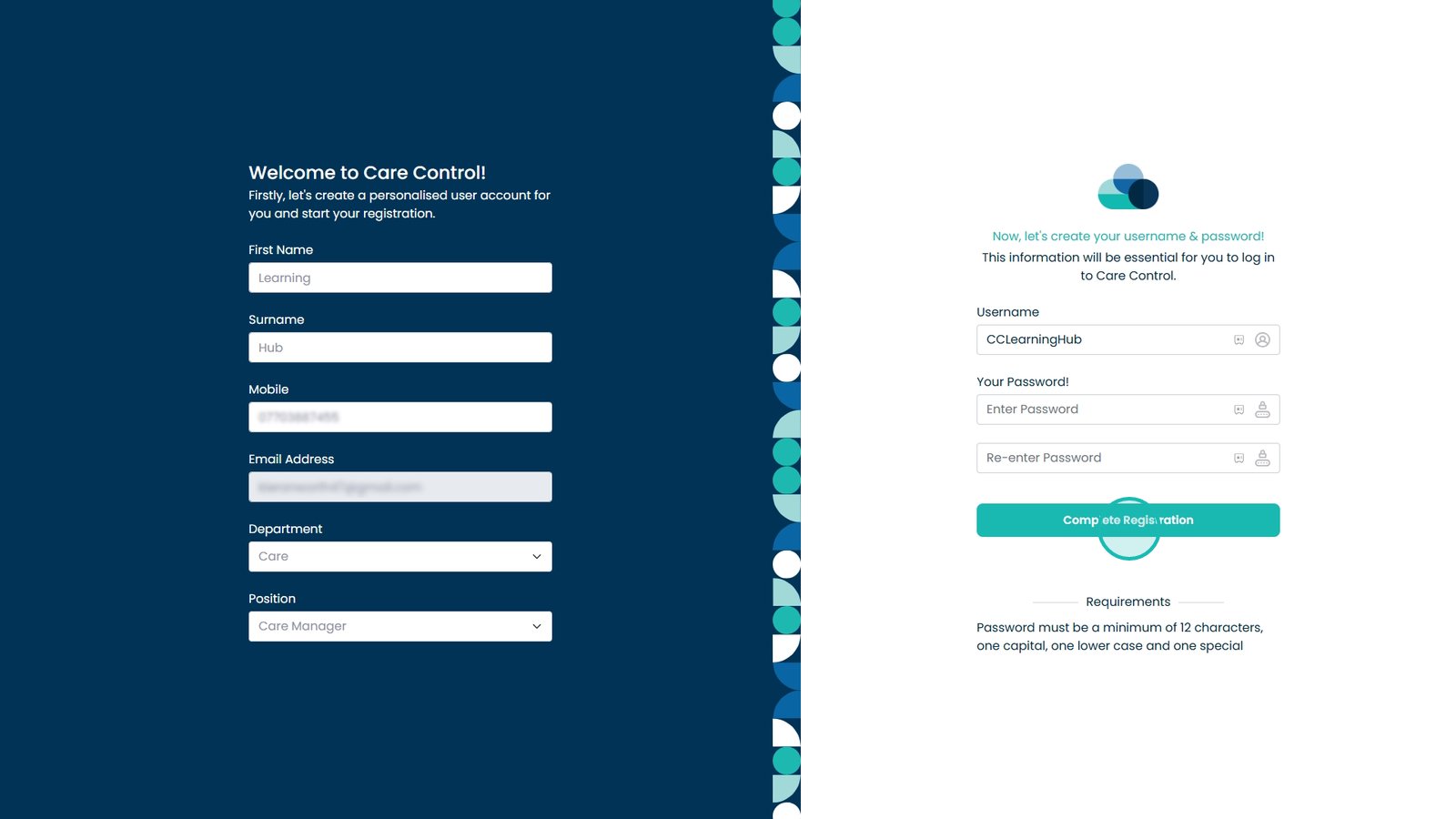
Select Complete Registration to continue.

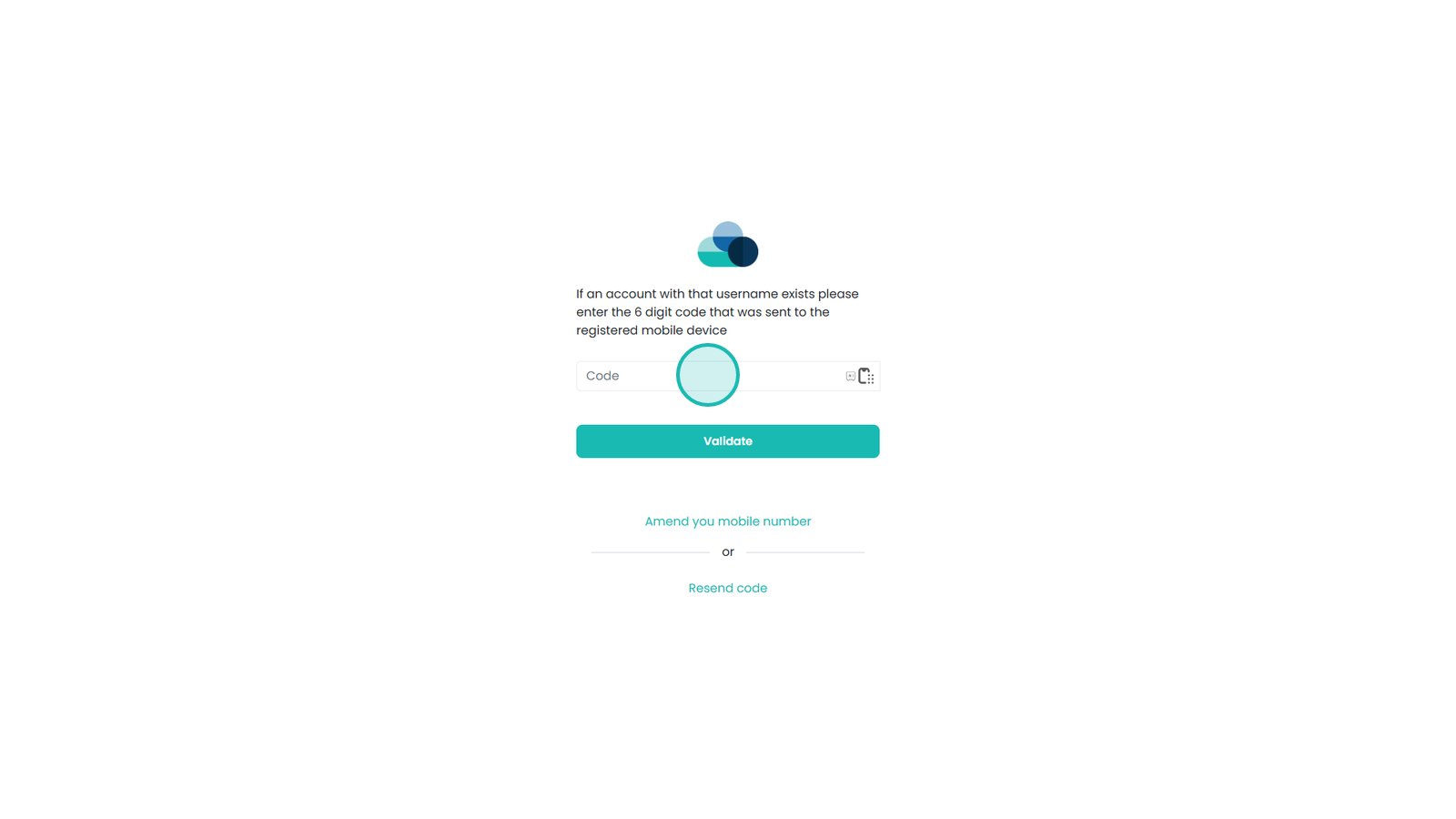
Enter the verification code sent to the user's mobile phone.

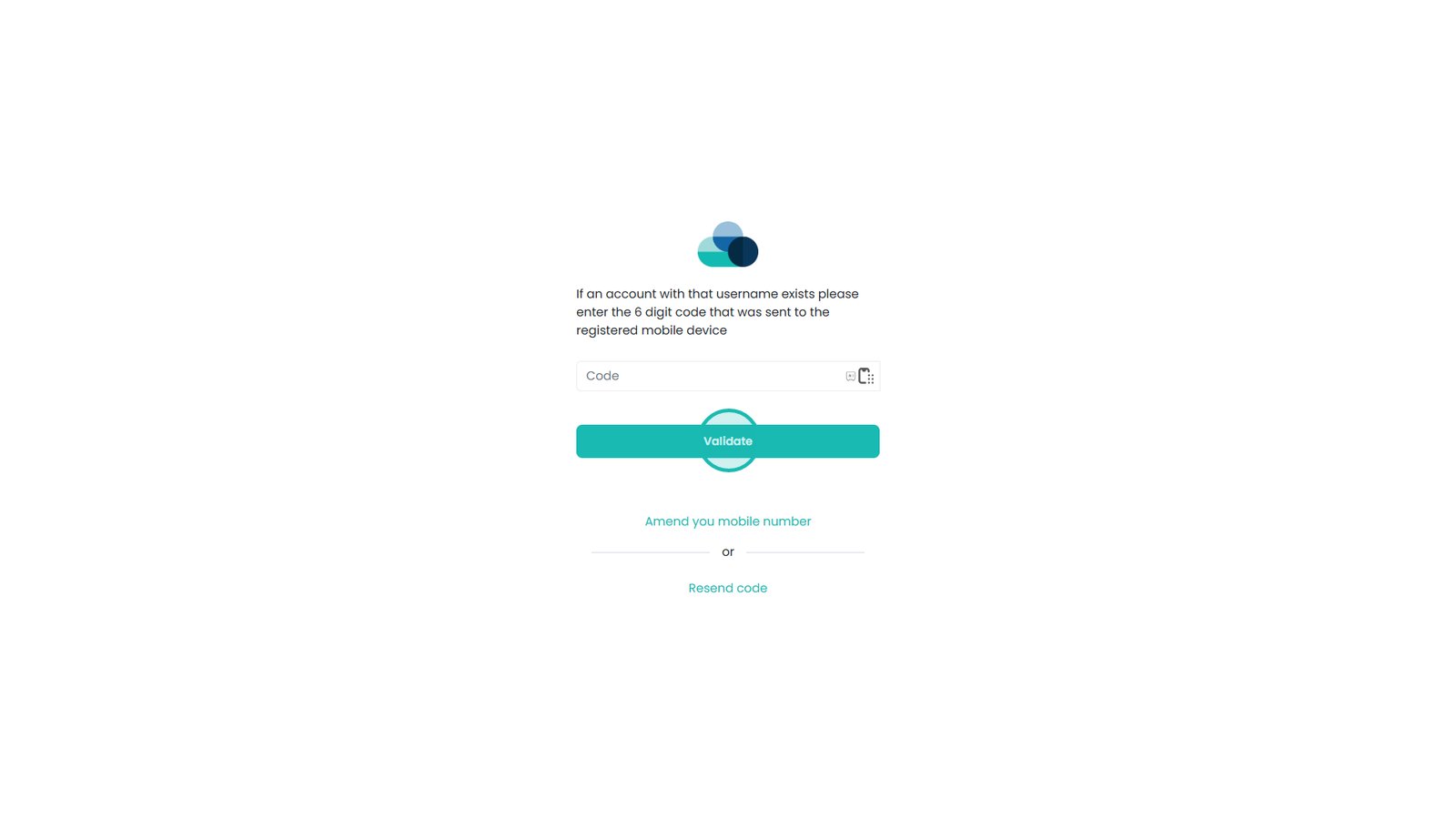
Validate the code to complete mobile verification.

The new user can now sign in and access Care Control Cloud.

Top tip
Always double-check the email address and mobile number before saving the user, as these are required for registration and two-factor authentication.
Need more help?
Can't find what you're looking for? Our support team is here to help.
Contact SupportOr call us on