How to Add, Edit and Remove Personal Belongings
This guide explains how to add and manage personal belongings for a service user, including item details, photographs, editing, viewing, and deleting records
Takes 5 minutes
For: Care Staff & Seniors
Updated: 27th July 2026
Introduction
The Personal Belongings area allows you to record and manage items owned by a service user. You can categorise each belonging, add a description and photograph, review existing records, and update or remove items when required.
In this guide you'll learn how to:
- Open Personal Belongings and select a service user
- Add and categorise a new belonging
- Record a description and photograph
- View and edit existing belongings
- Delete a belonging that is no longer required
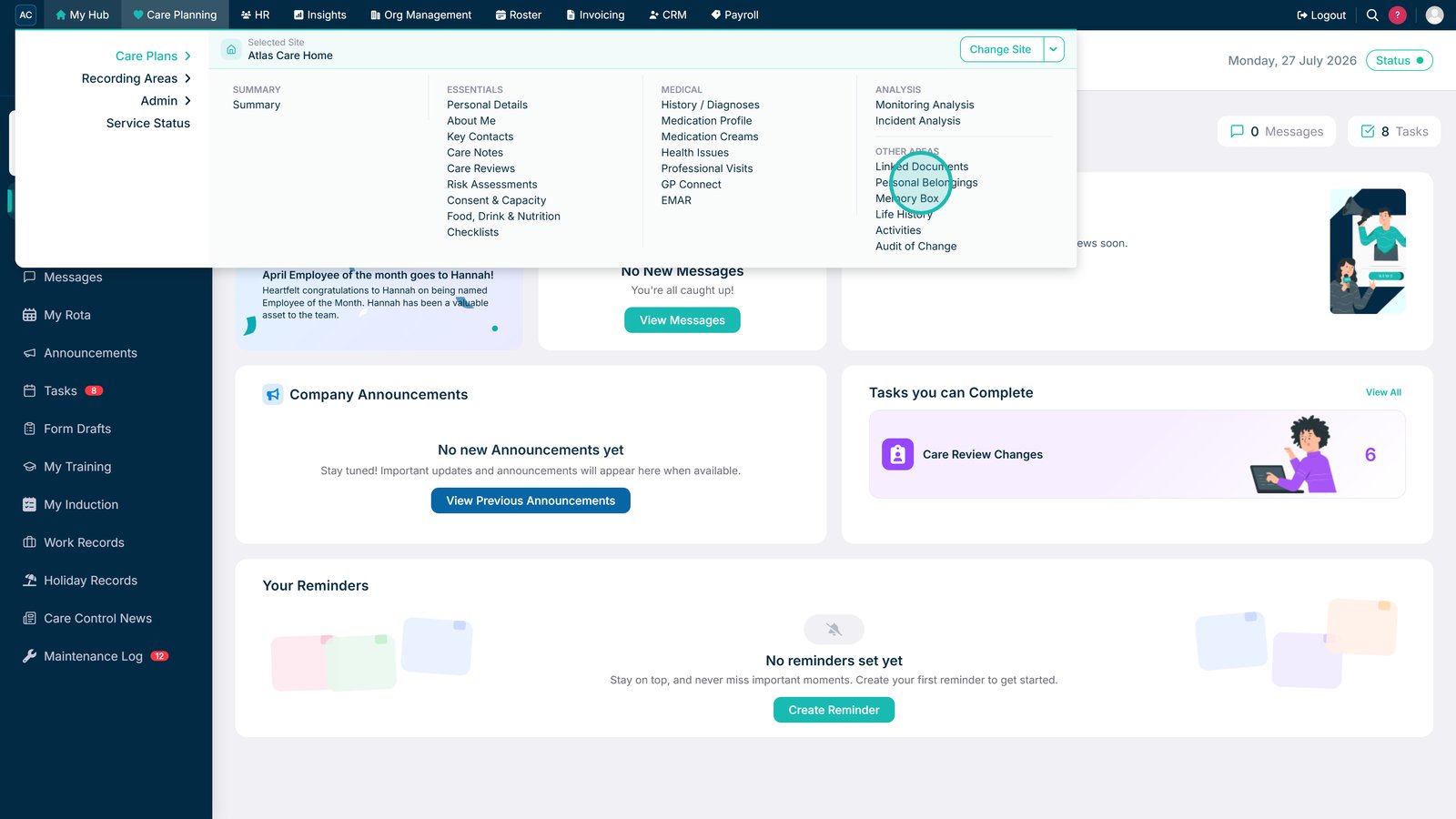
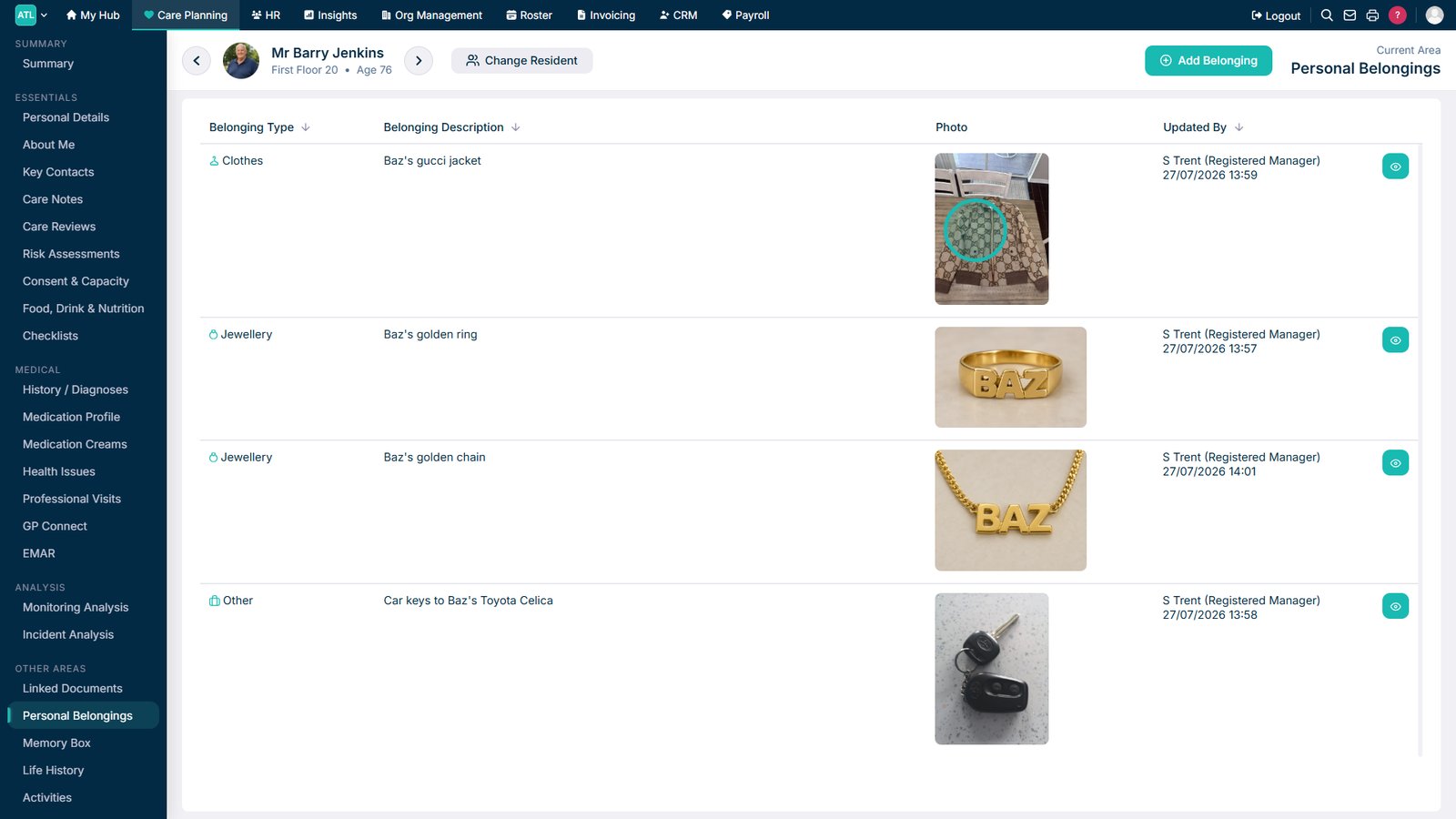
Open Personal Belongings from the left-hand menu.

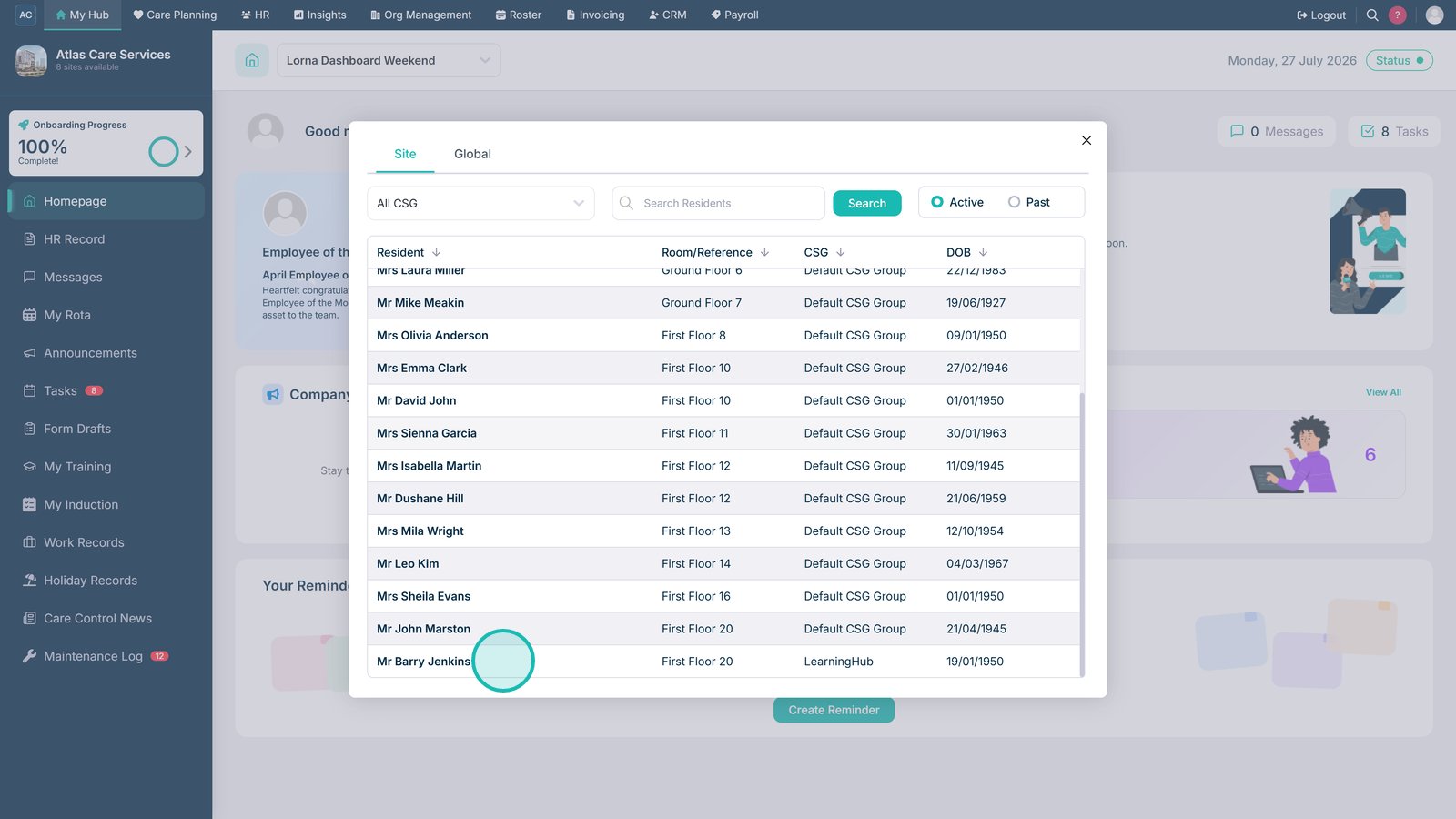
Select the service user whose belongings you want to manage.

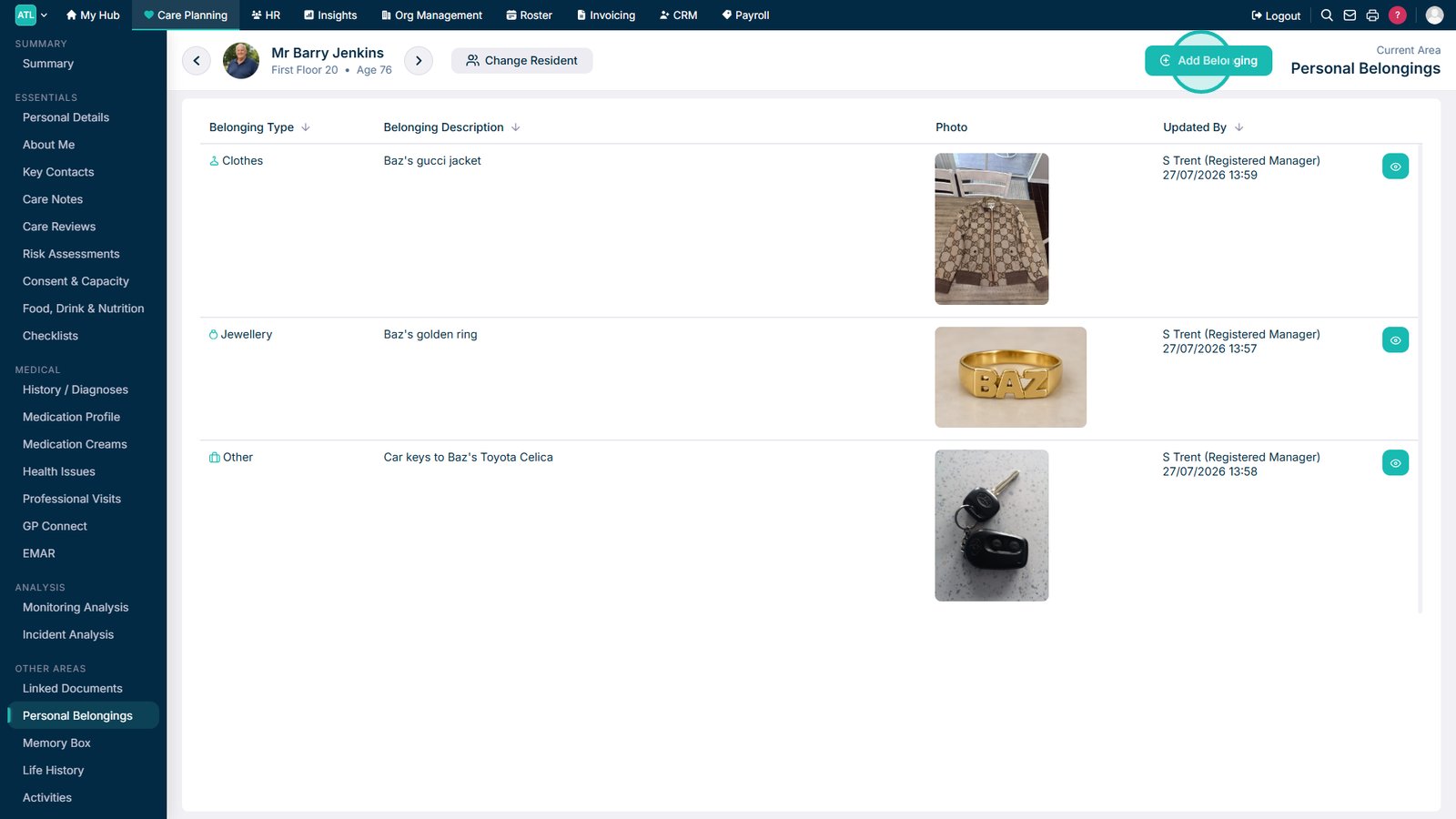
Select Add Belonging.

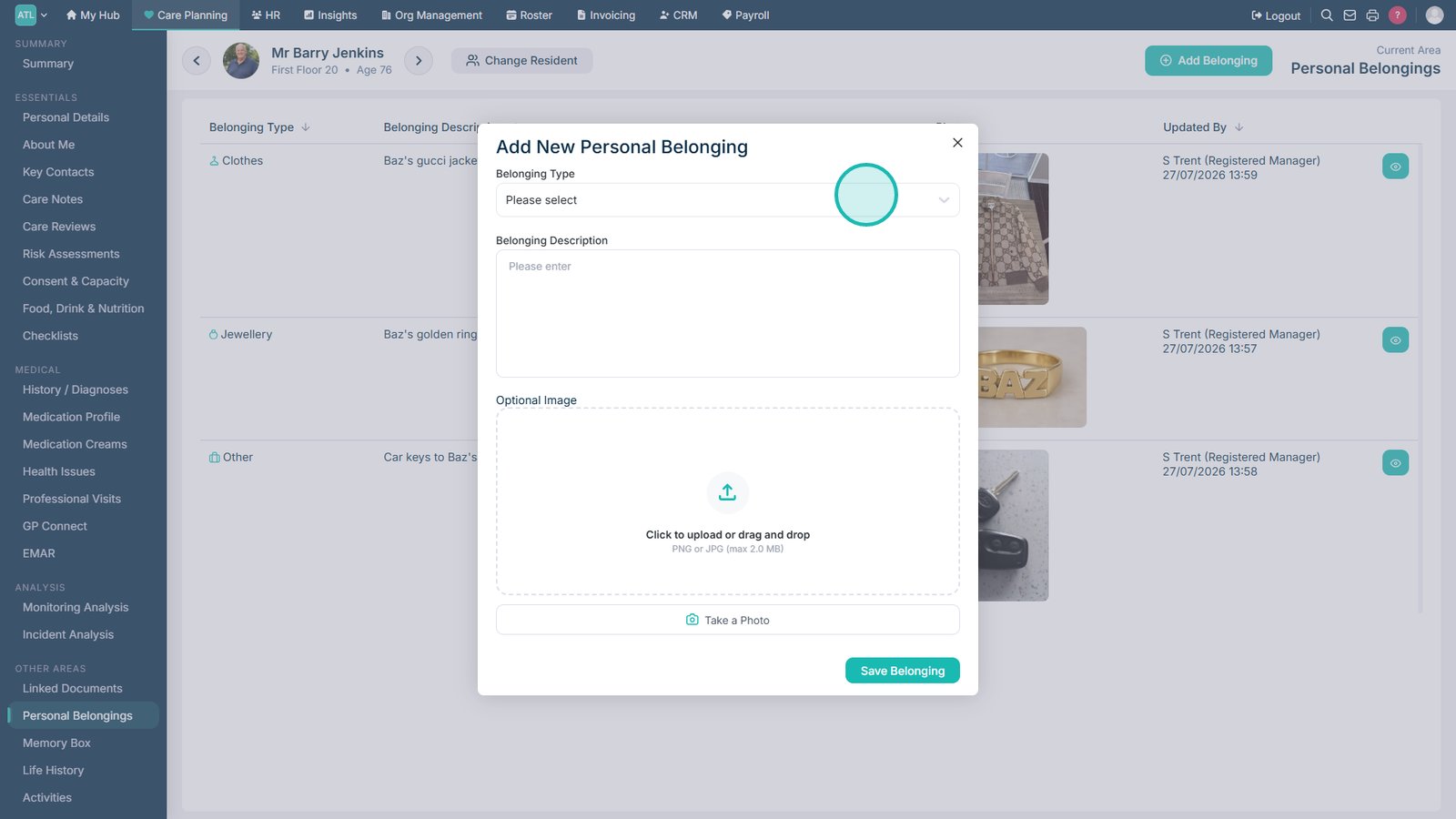
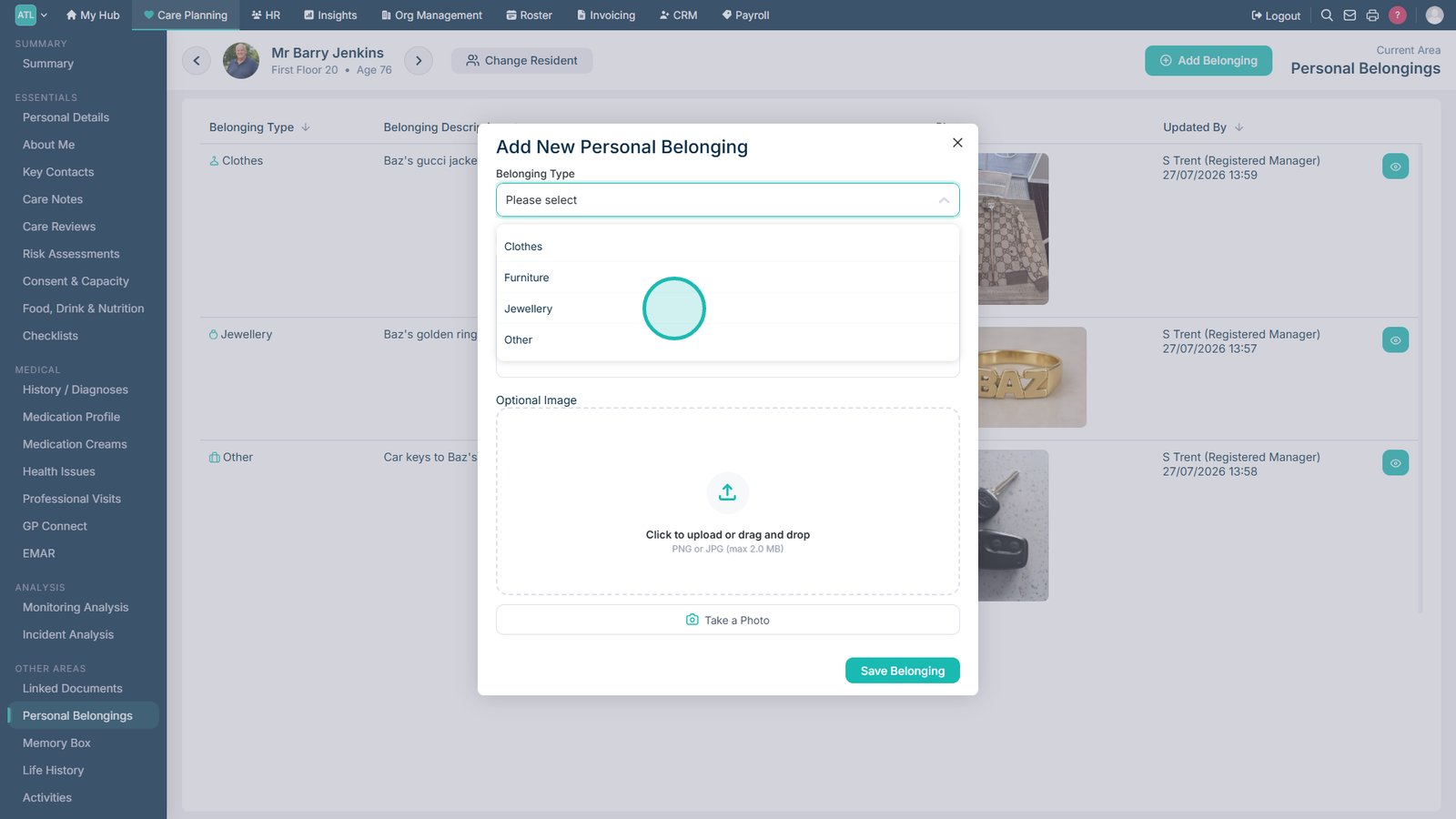
Open the Belonging Type drop-down list.

Select the most appropriate belonging type.

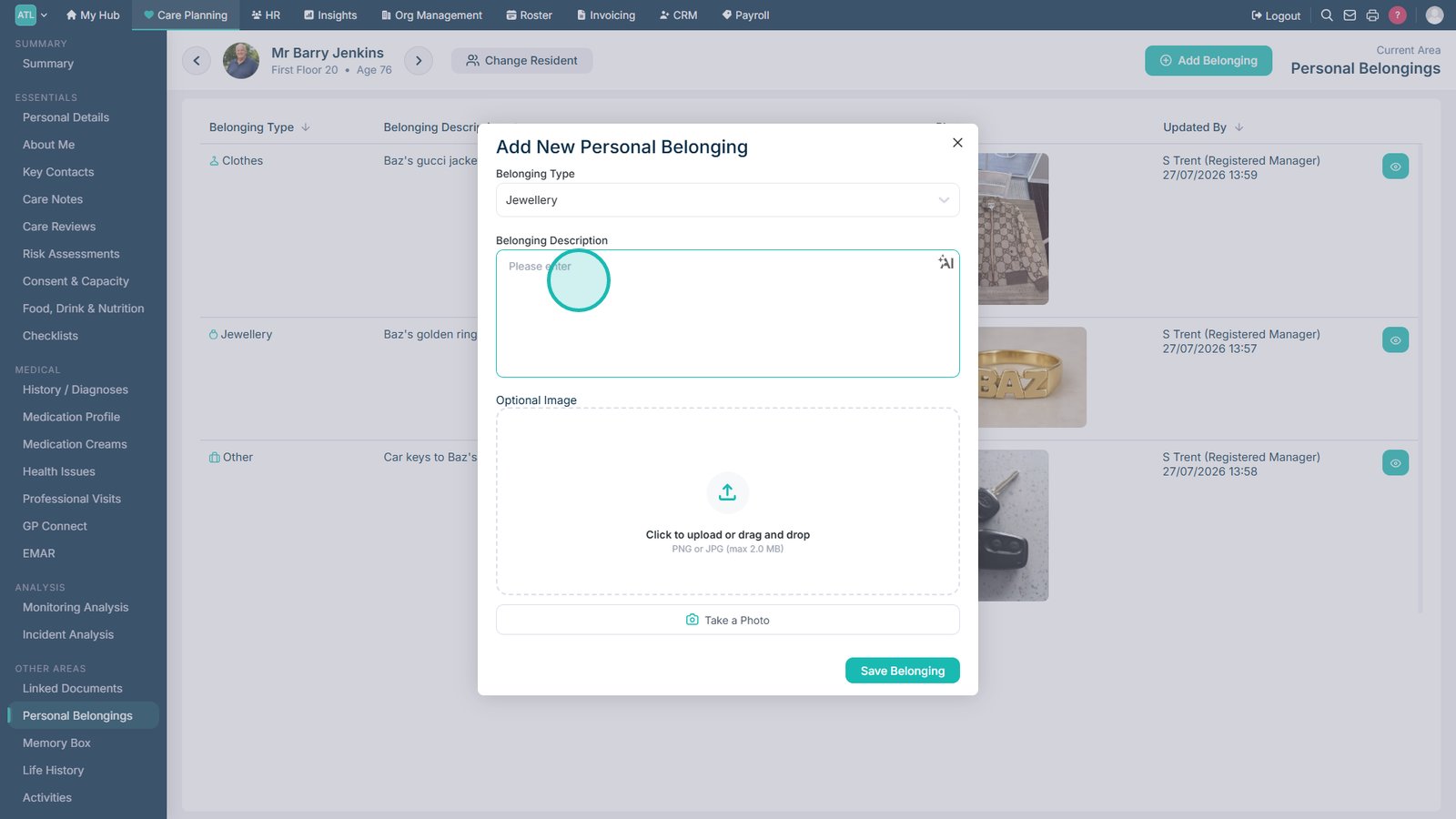
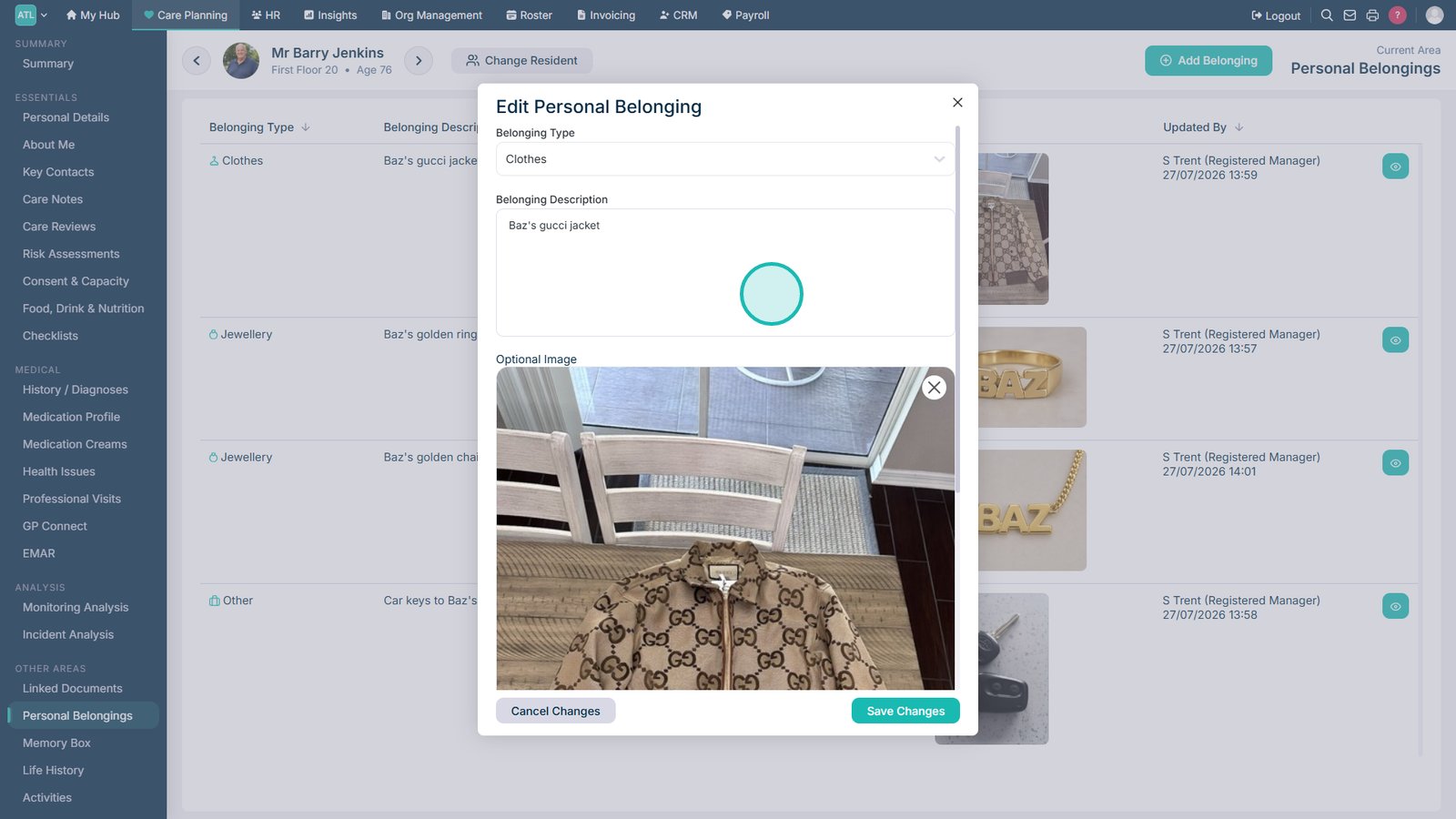
Enter a clear description of the belonging.

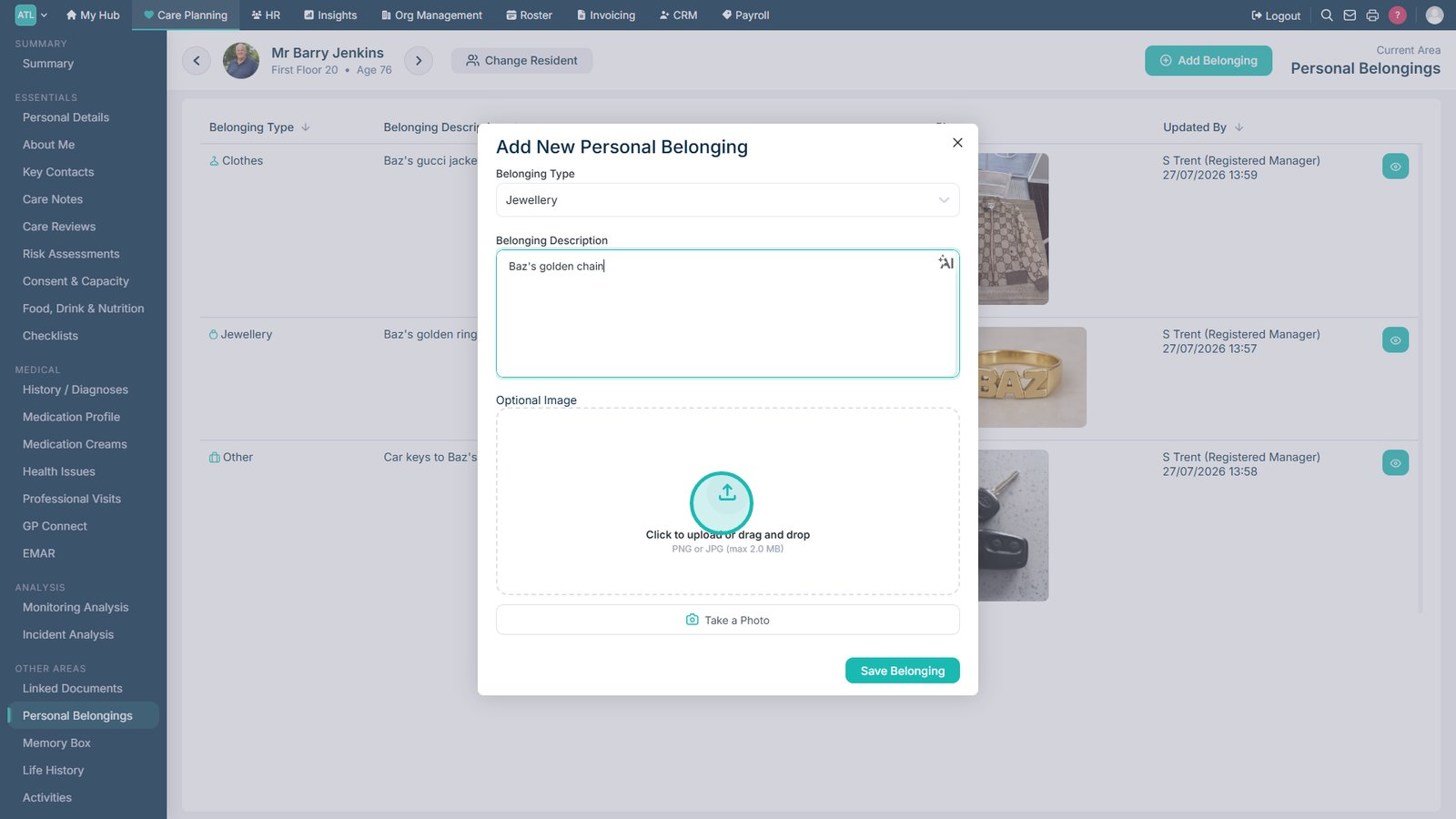
Upload a photograph of the belonging.

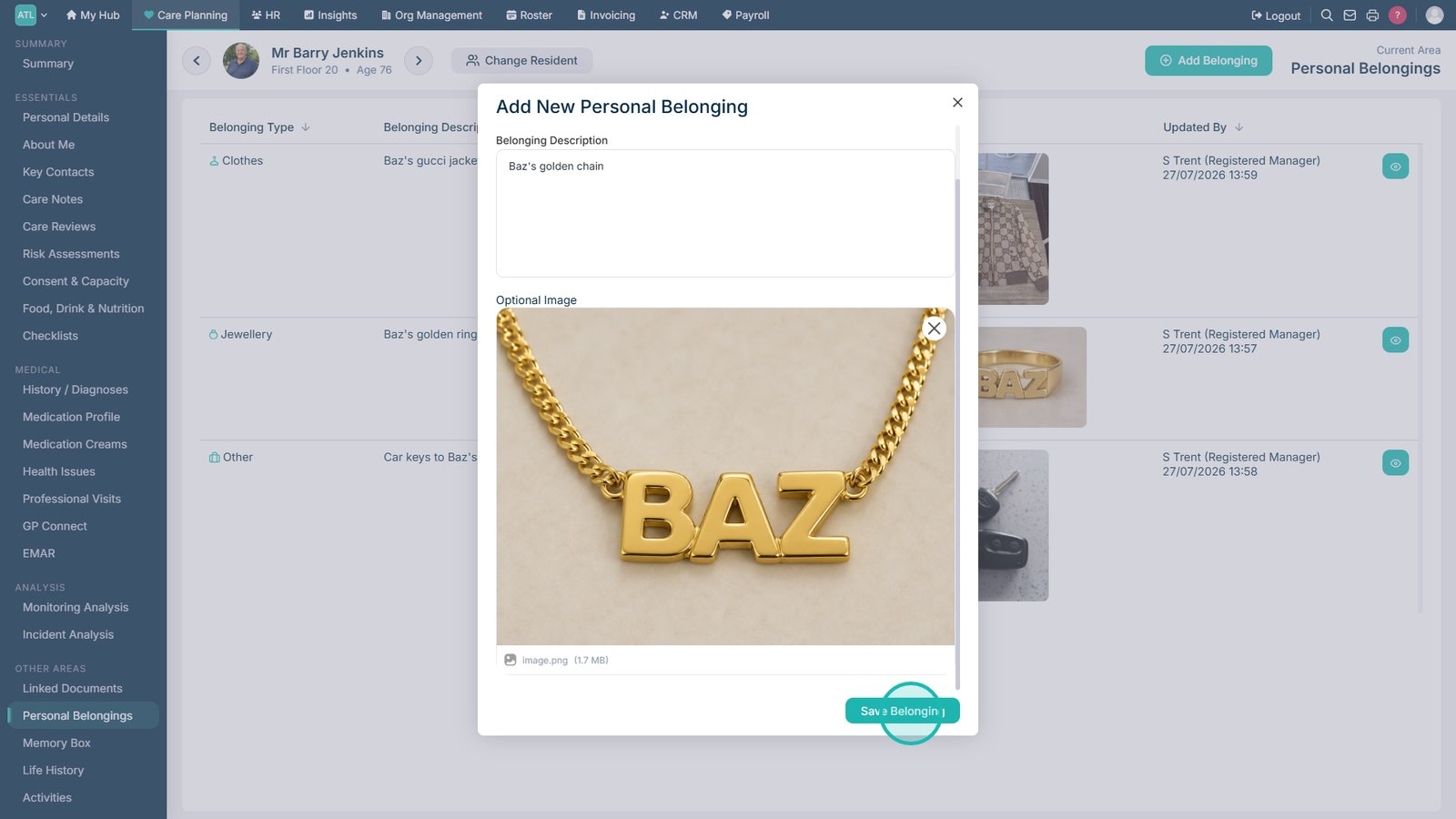
Select Save Belonging to add the item to the service user's record.

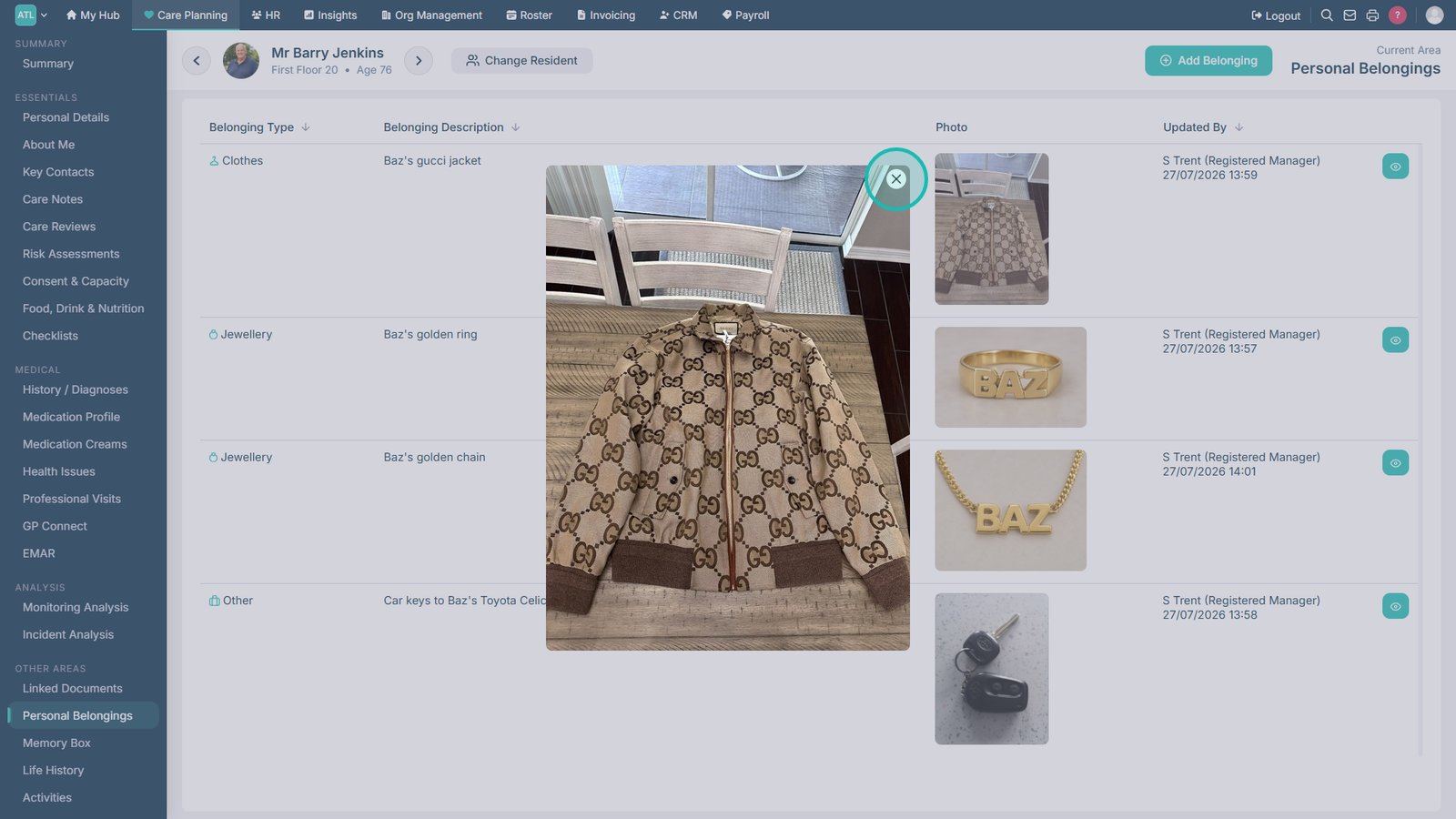
Select an item's photograph to view a larger image.

Close the image to return to the belongings list.

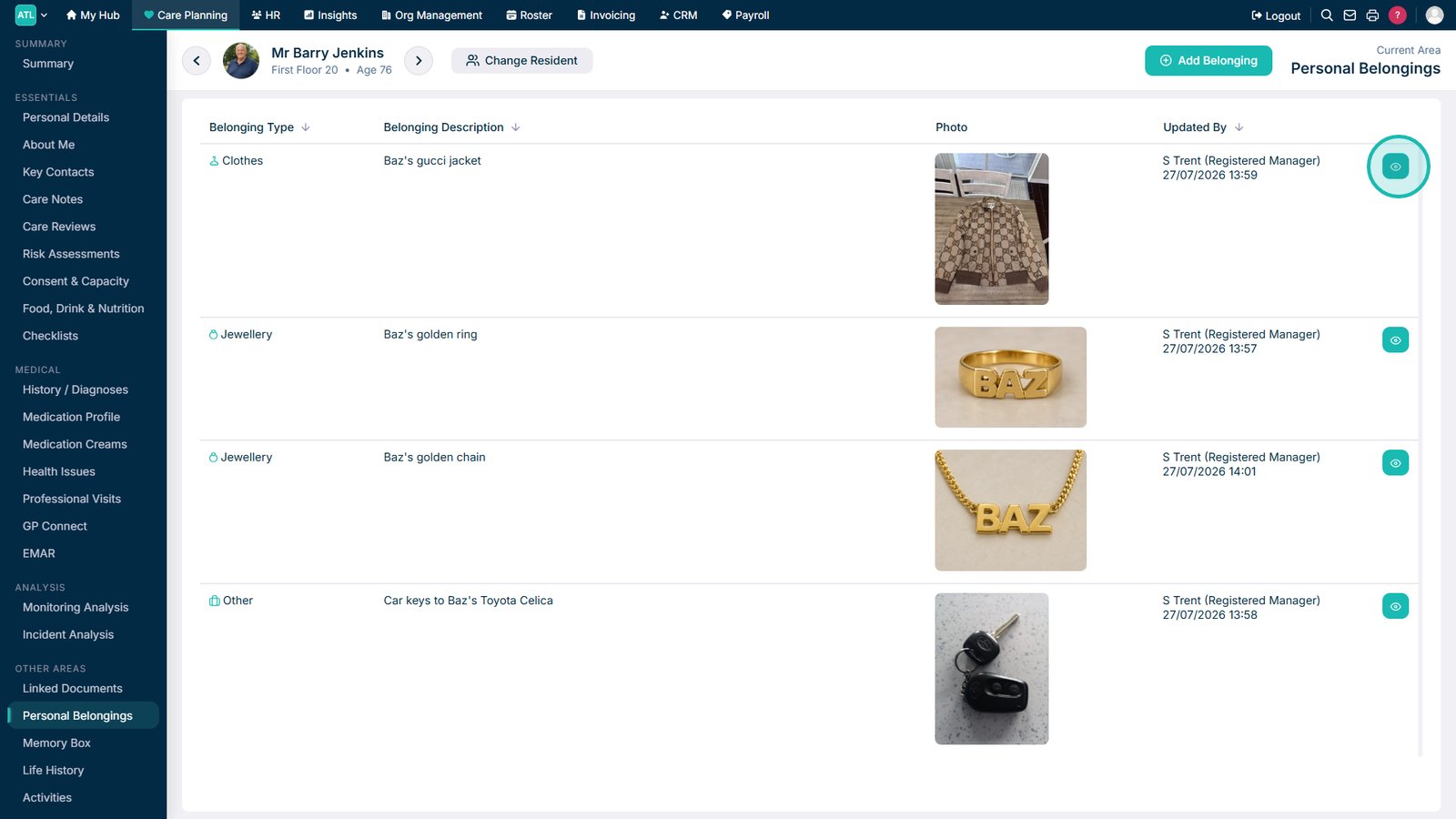
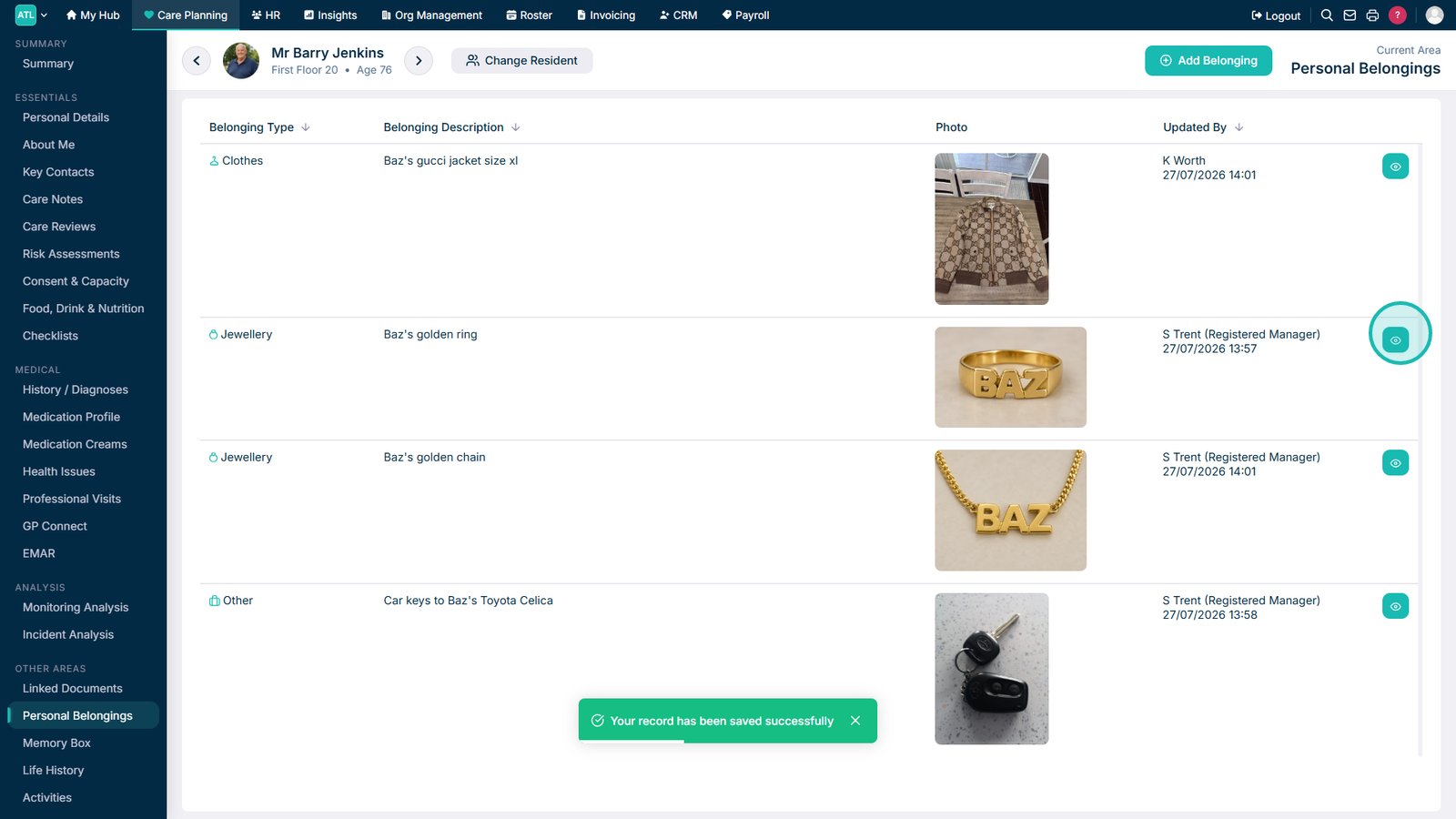
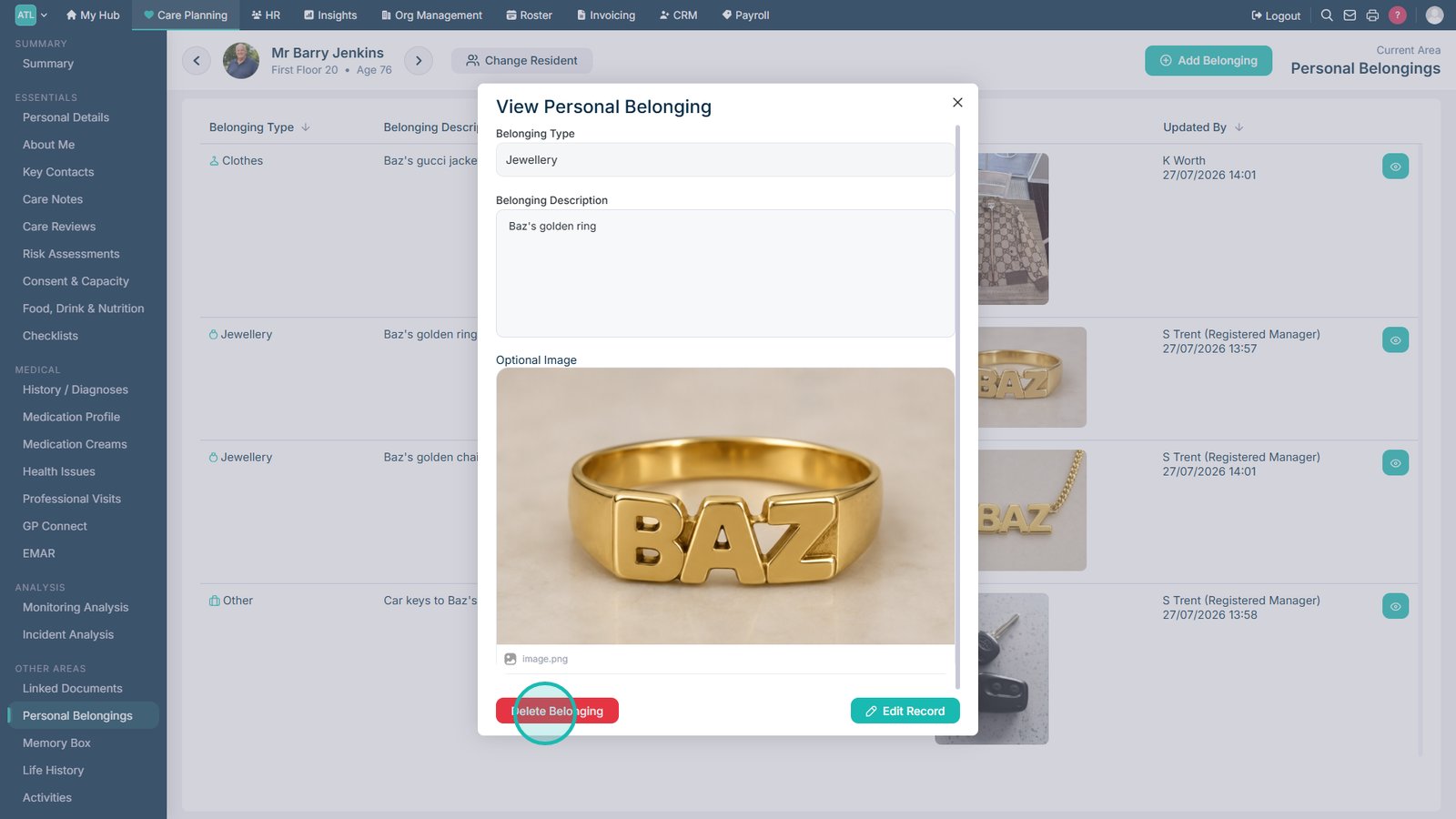
Select the view icon to review the belonging details.

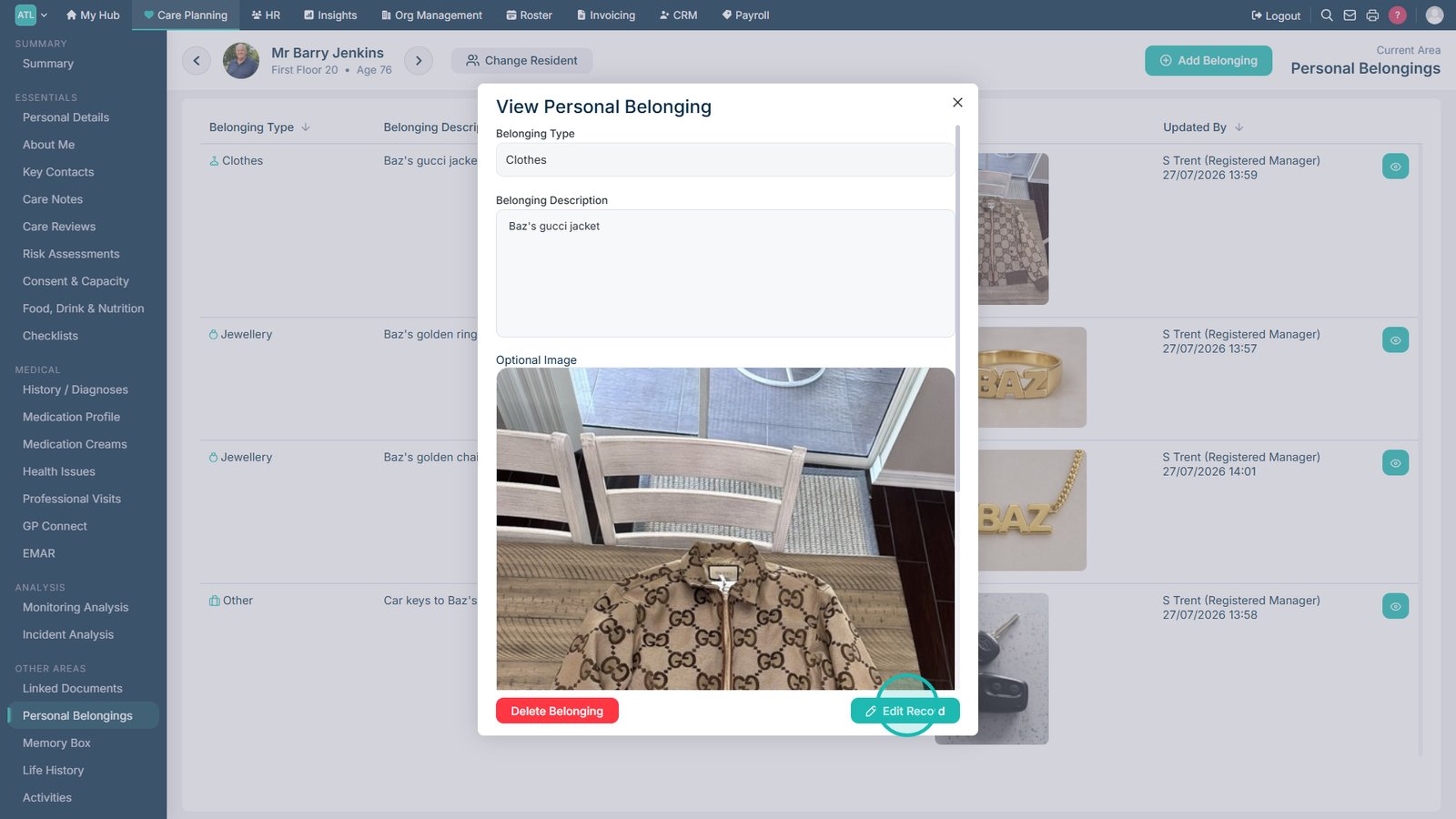
Select Edit Record to update the belonging.

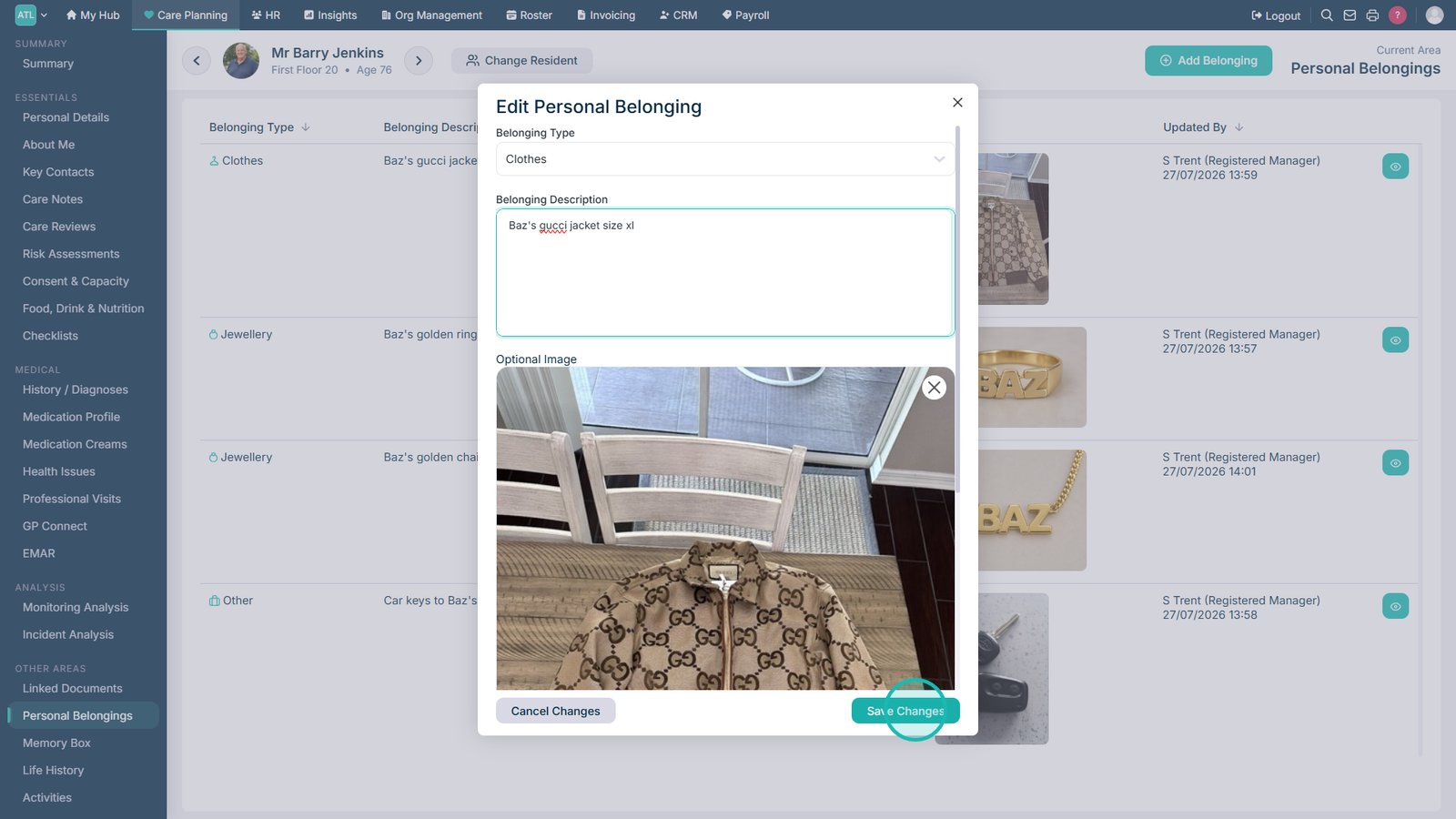
Update the belonging's description as required.

Select Save Changes to update the belonging record.

Select the view icon to review another belonging.

Select Delete Belonging if the item is no longer required.

Top tip
Add a clear description and photograph to each belonging to make the item easier to identify.
Need more help?
Can't find what you're looking for? Our support team is here to help.
Contact SupportOr call us on