View Categories

How to Add, View and Edit Medication Profile

This guide explains how to add a medication to a service user’s Medication Profile, including the medication type, strength, dose information, PRN status, and reason for prescribing. It also covers how to view, edit, and delete an existing medication record.
Takes 5 minutes
For: Care Staff
Updated: 31st July 2026

Introduction

The Medication Profile allows you to record and manage the medications prescribed for a service user. You can add medication details, specify the dosage and timing, record whether it is required as needed, and review or update existing entries.

In this guide you'll learn how to:

  • Open a service user’s Medication Profile
  • Add a new medication
  • Record the medication type, strength, dosage, and timings
  • Identify medication that is administered as required
  • View, edit, and delete medication records

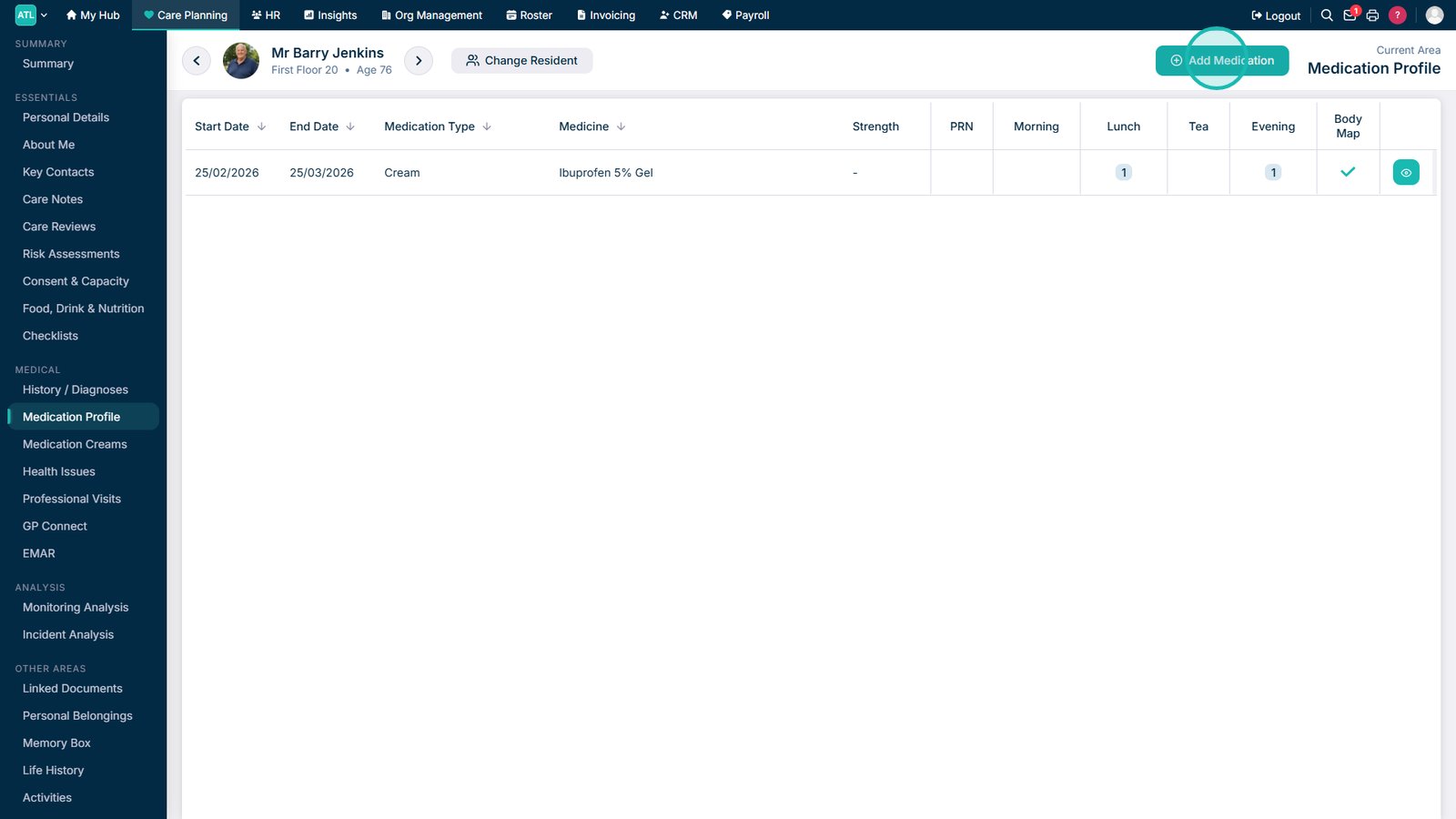
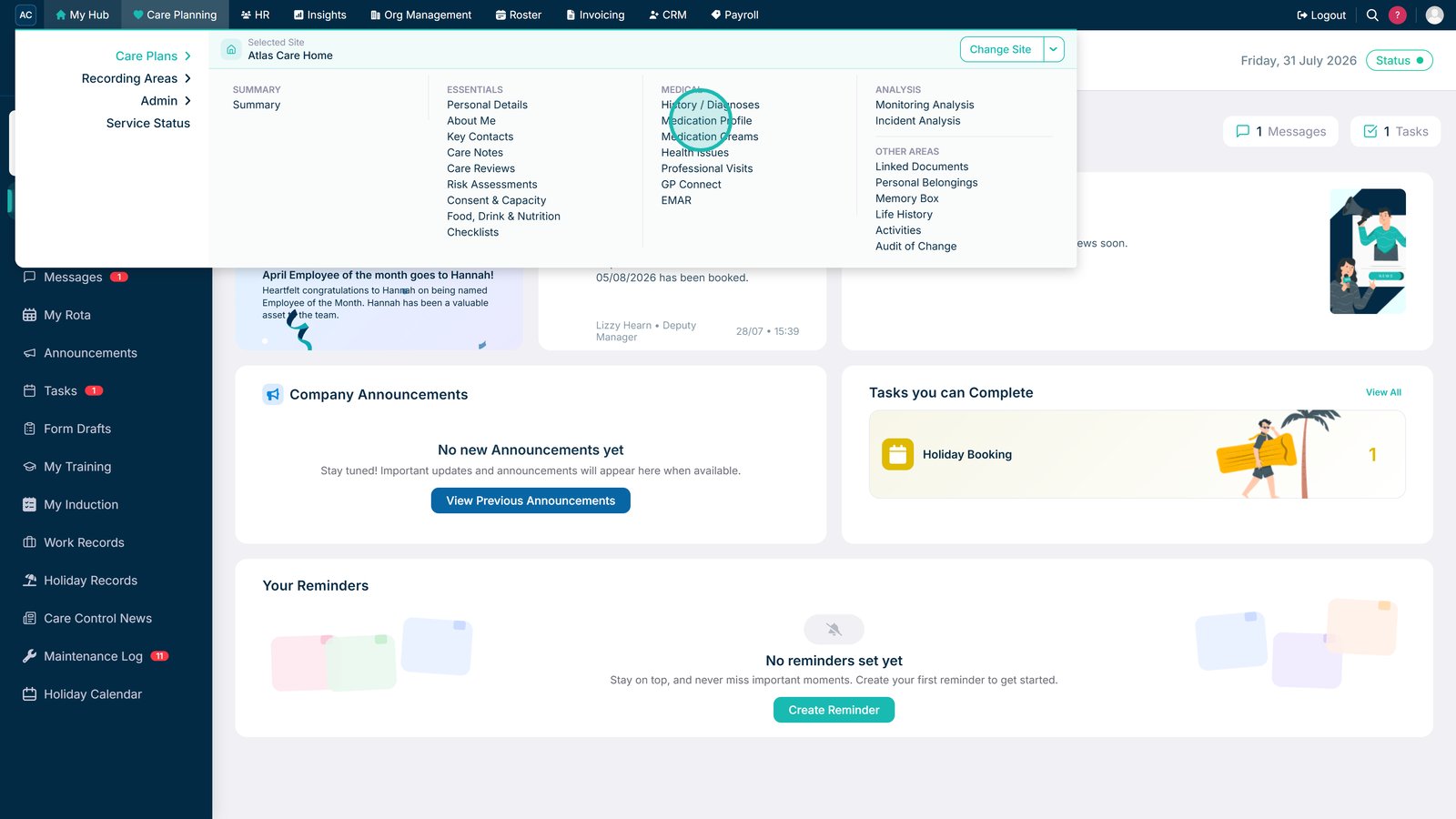
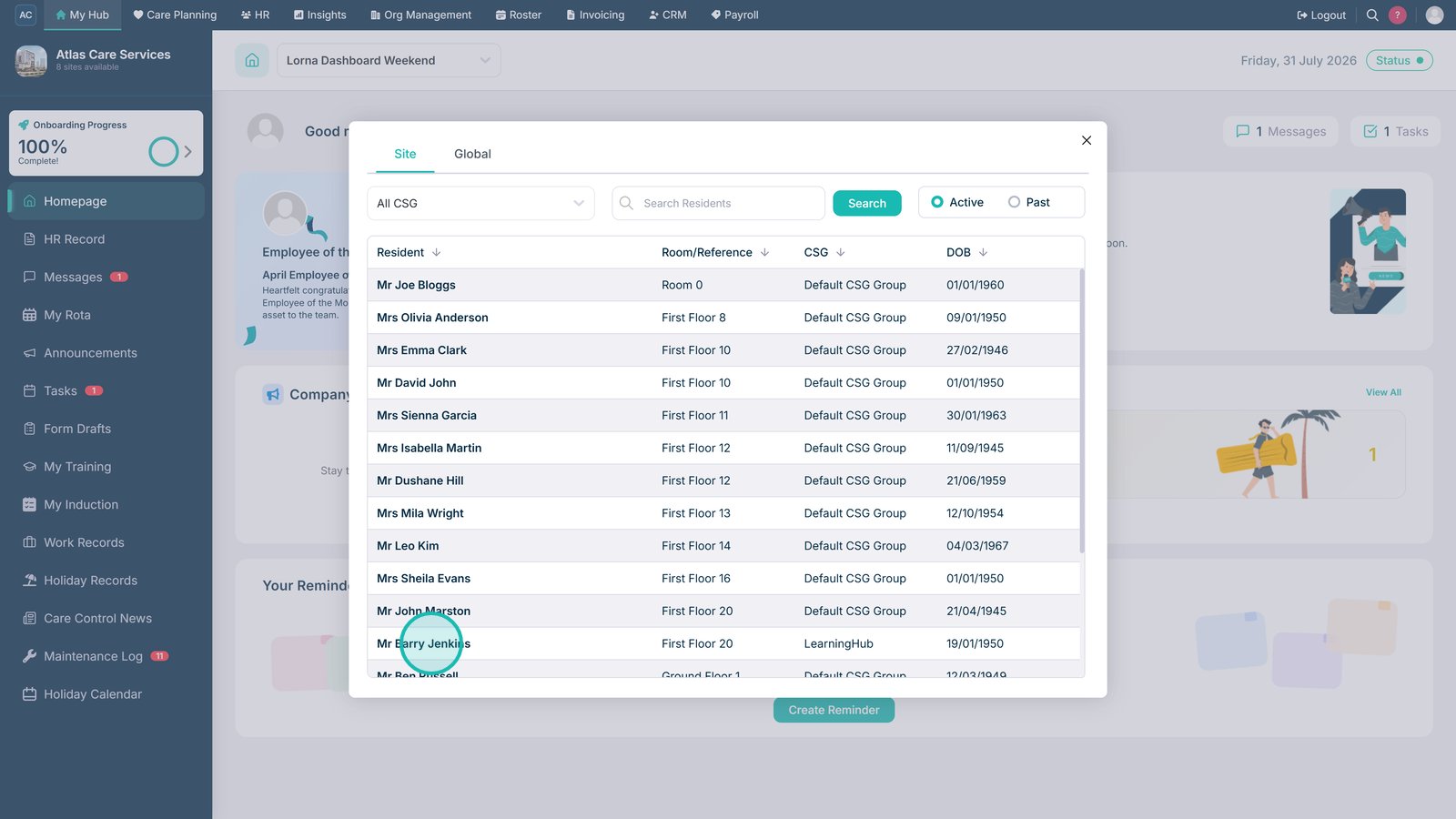
Open Medication Profile from Care Plans.

Select the required service user.

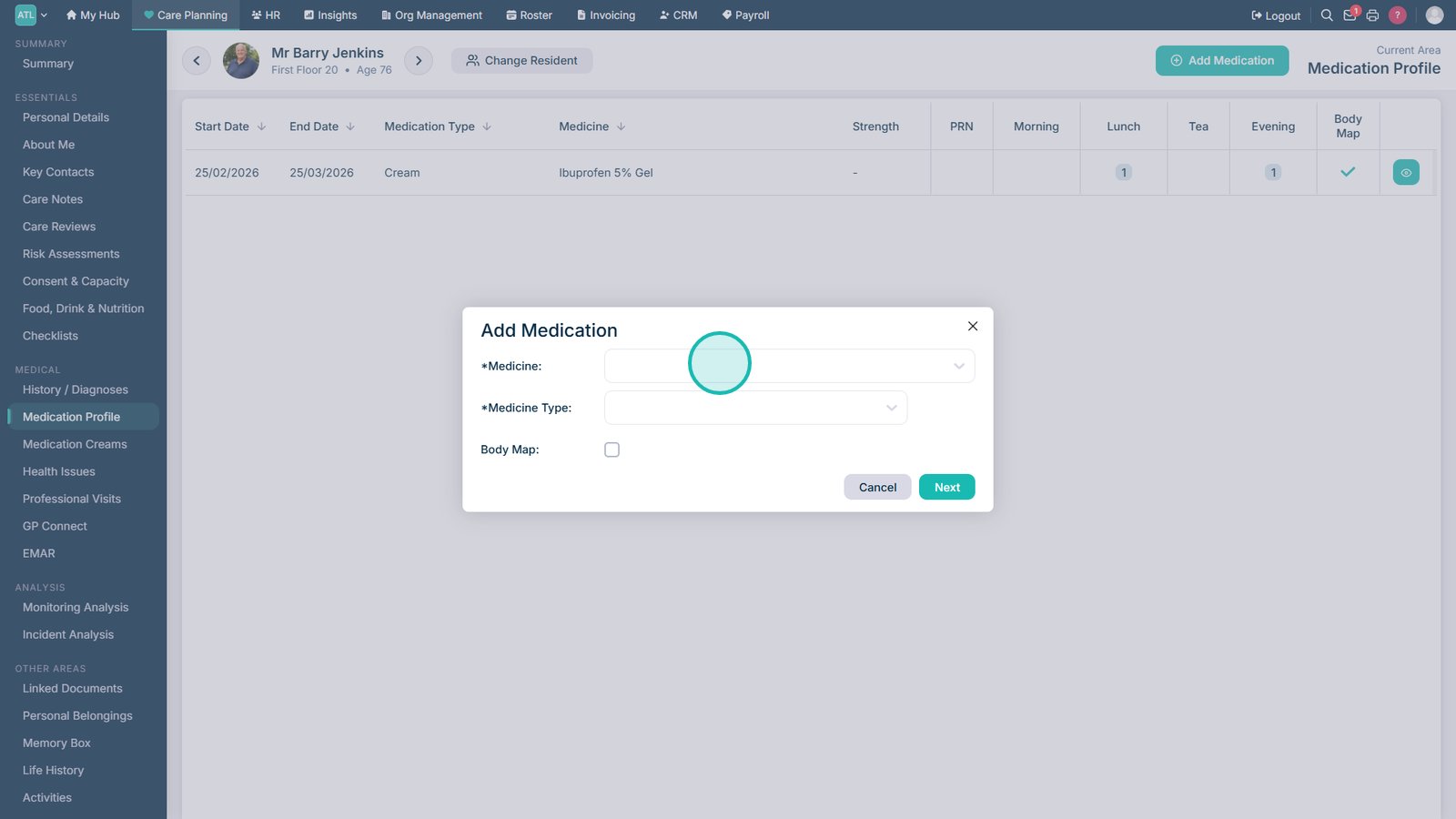
Select Add Medication.

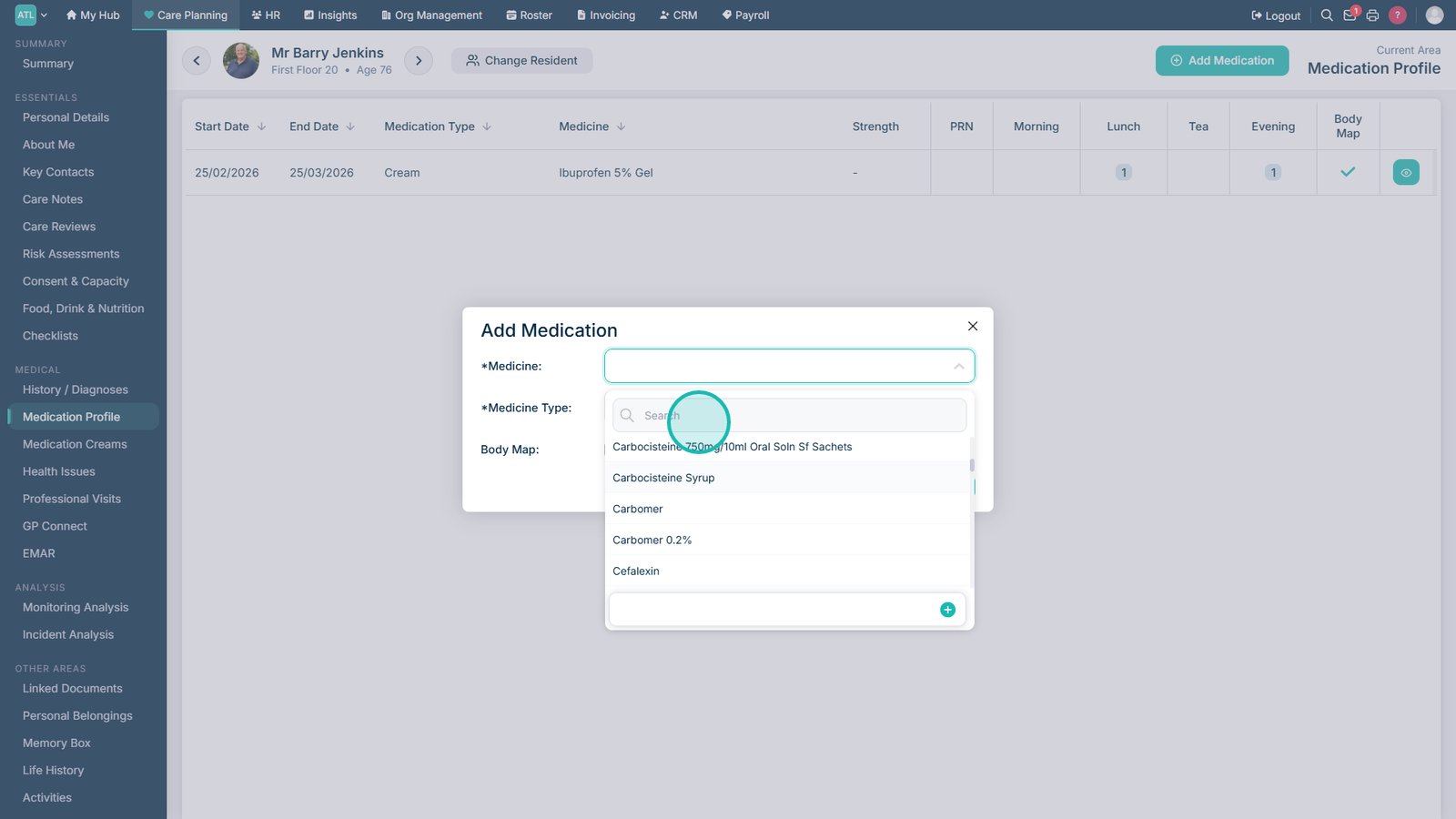
Open the Medication Name drop-down list.

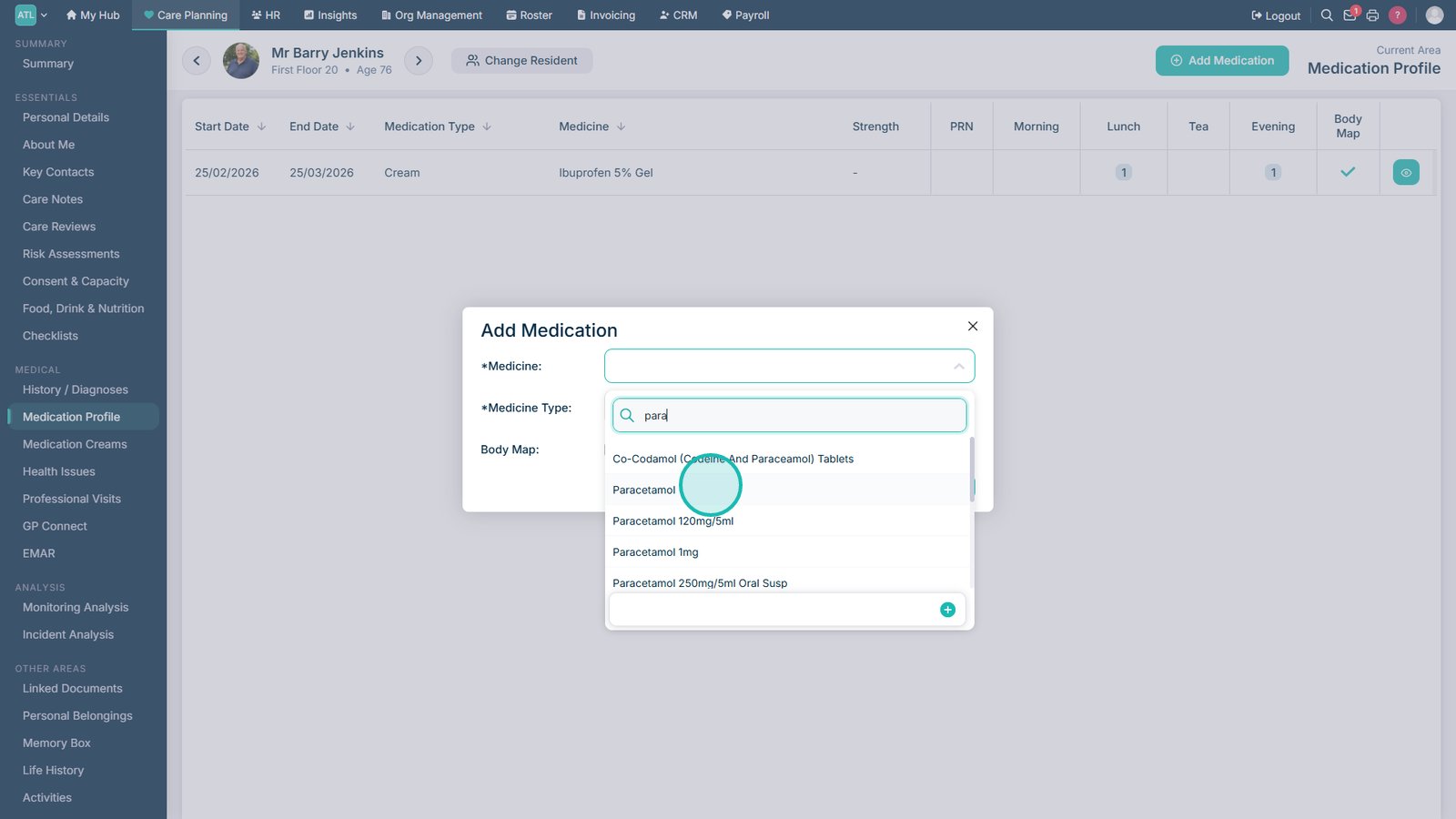
Use the search field to find the medication.

Select the required medication from the results.

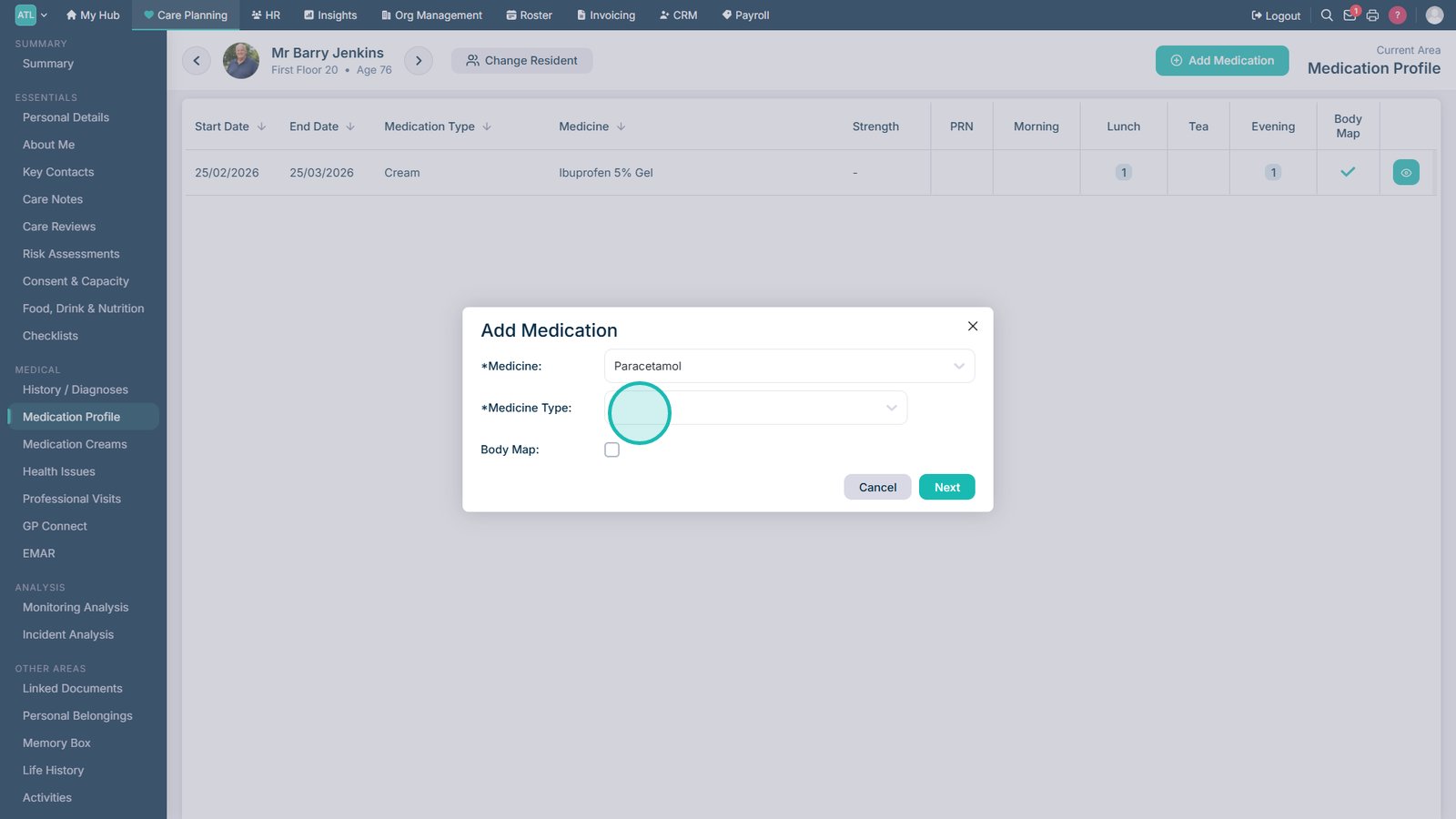
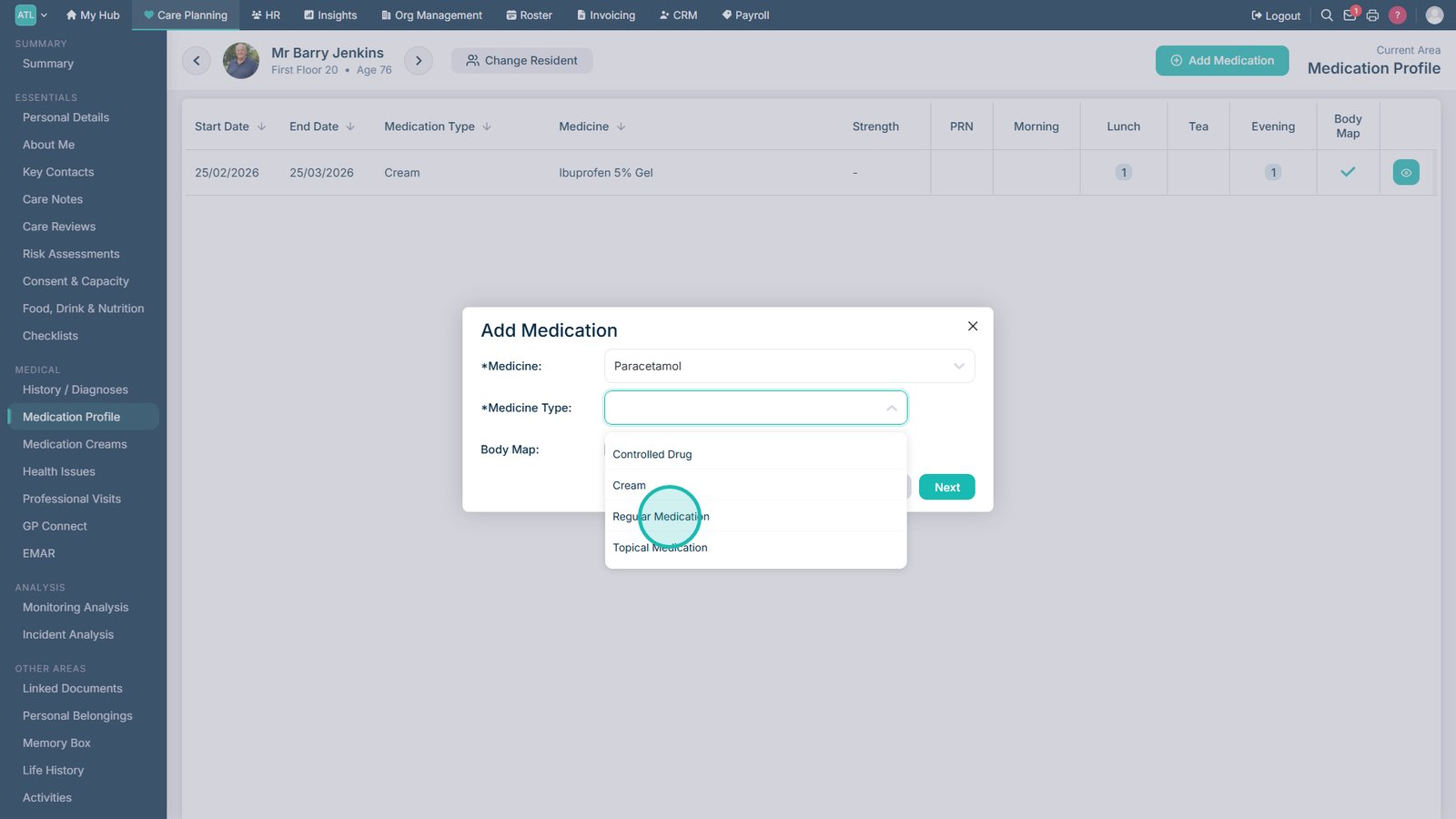
Open the Medicine Type drop-down list.

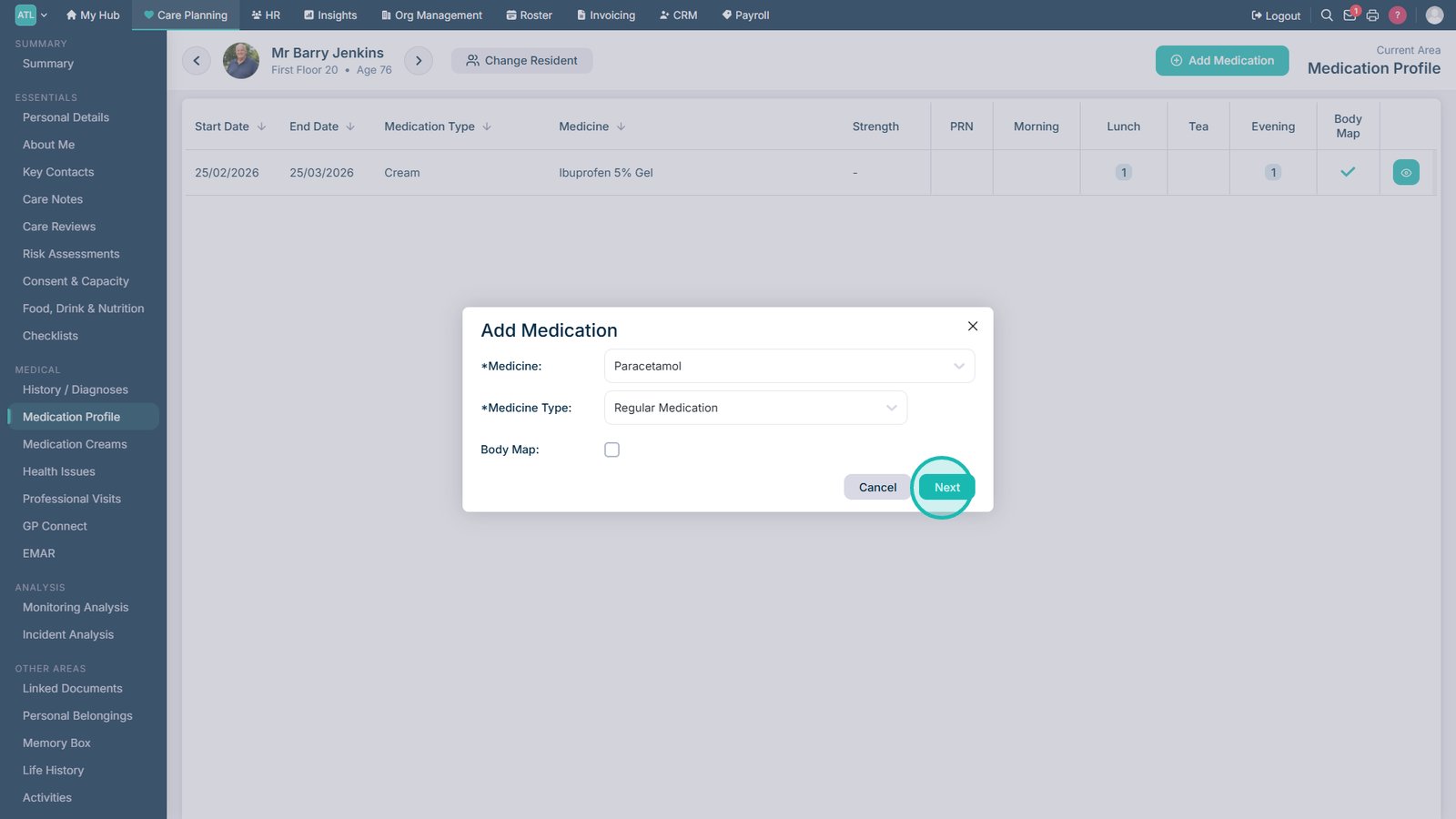
Select the appropriate medicine type.

Select Next.

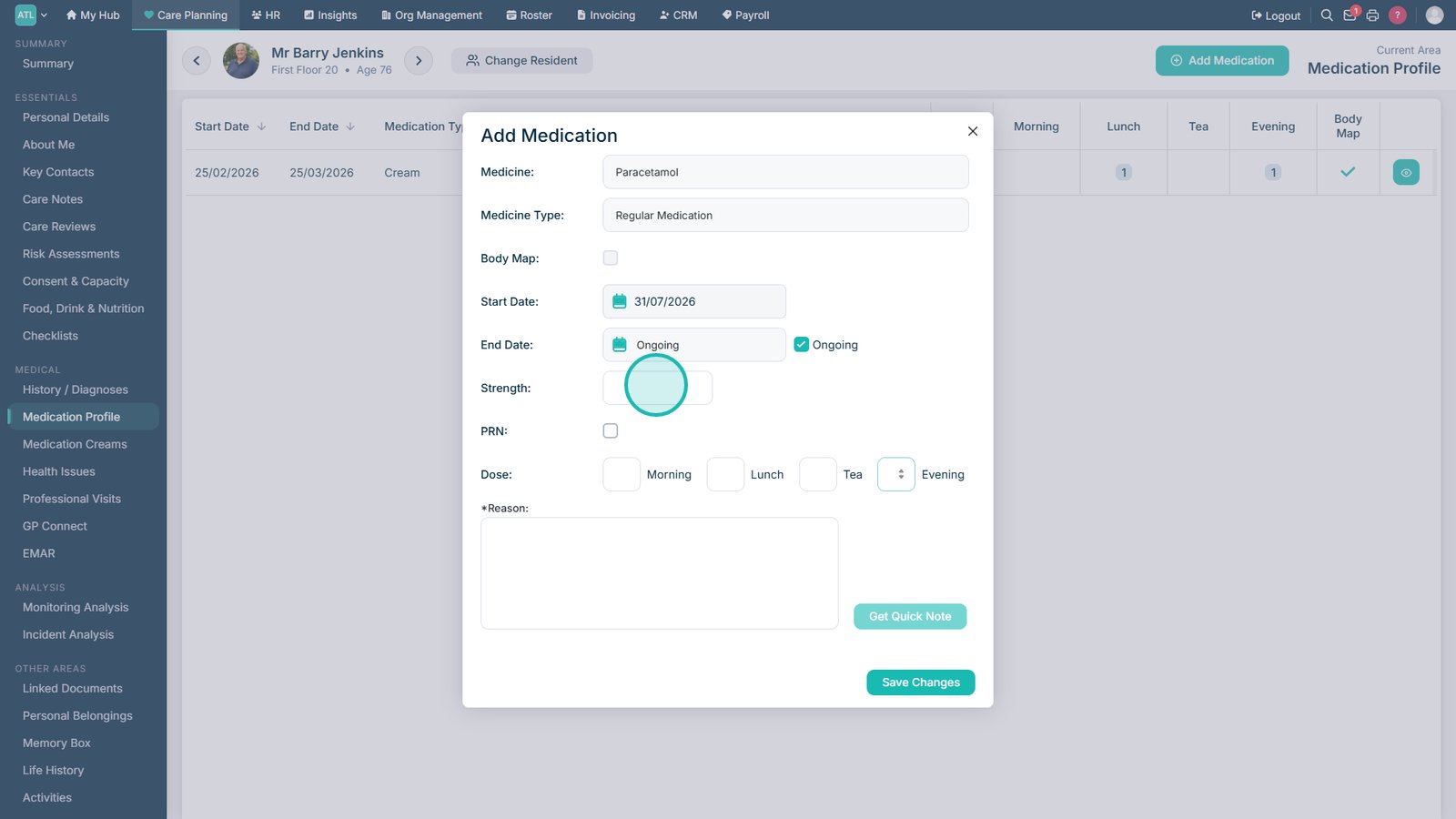
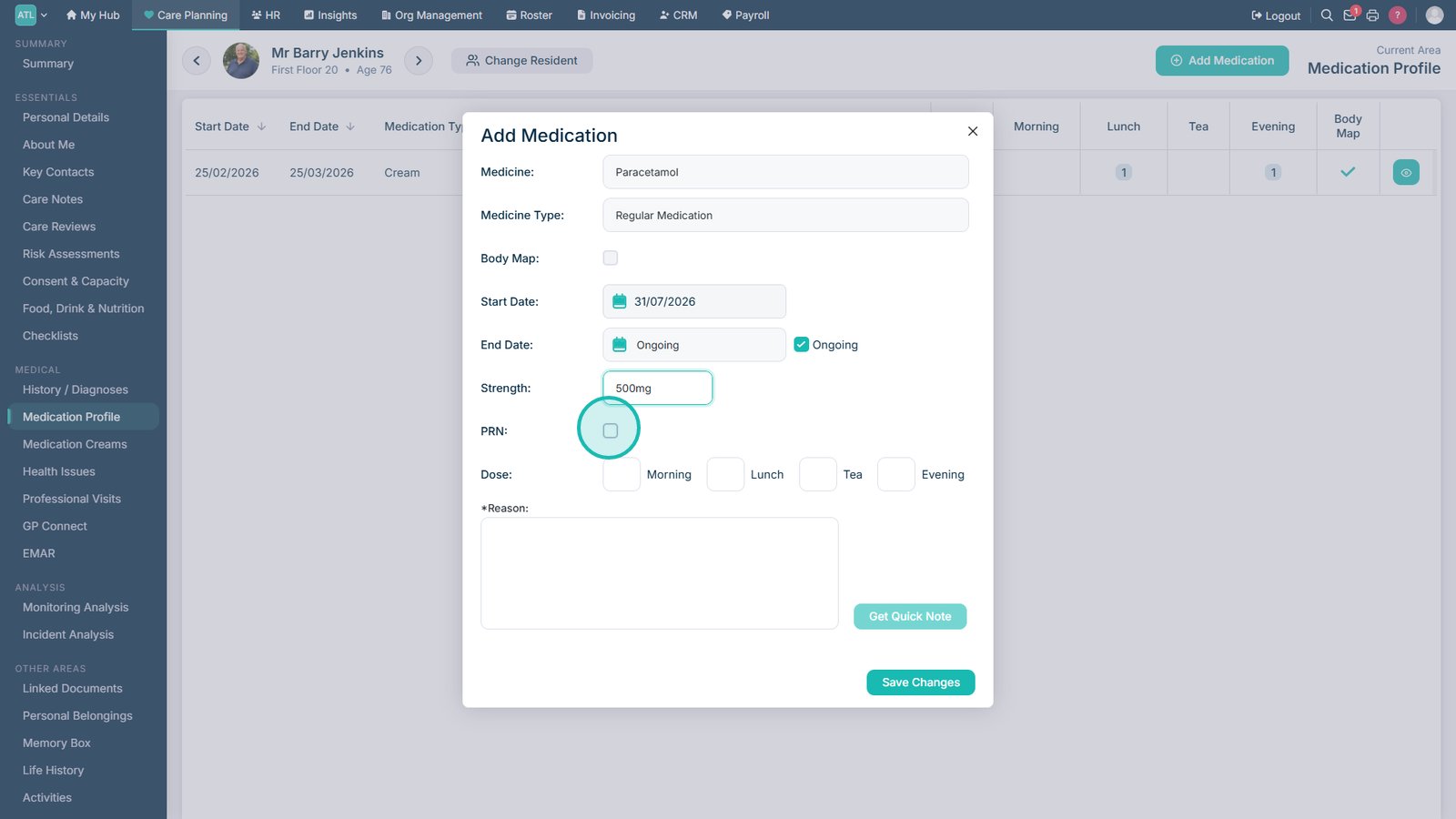
Enter the medication strength.

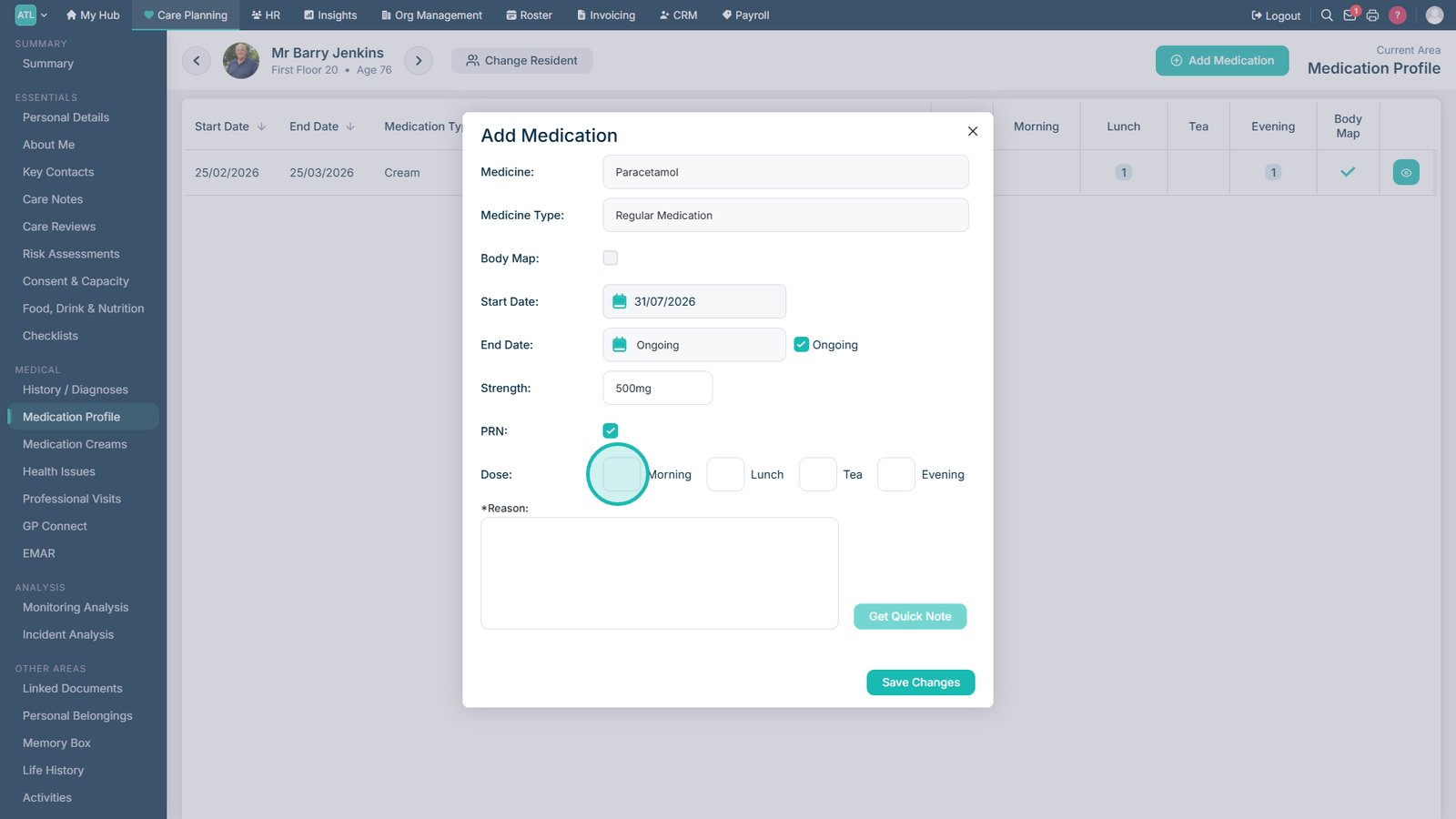
Select PRN if the medication is administered as required.

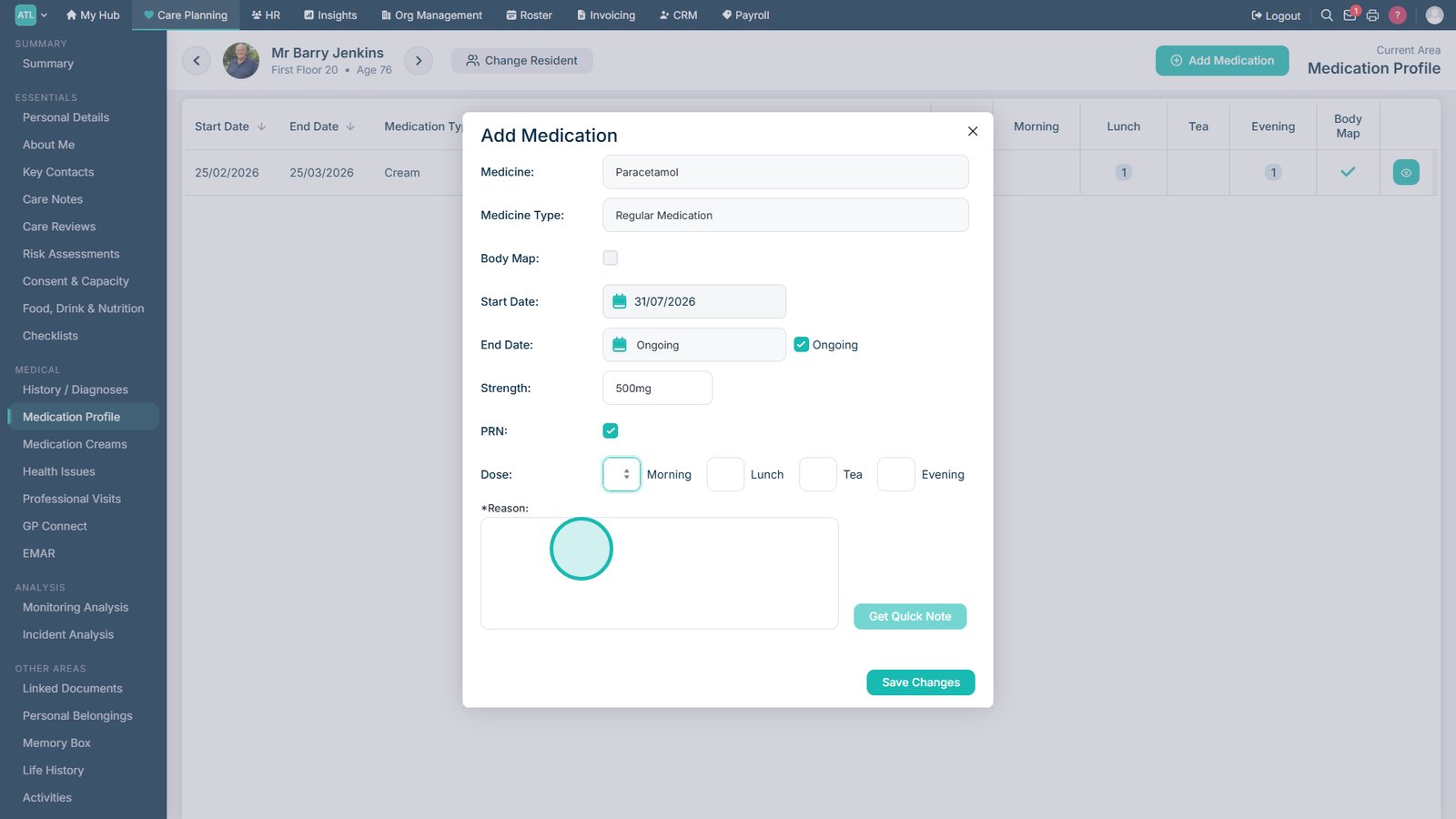
Enter the required dose amounts and timings.

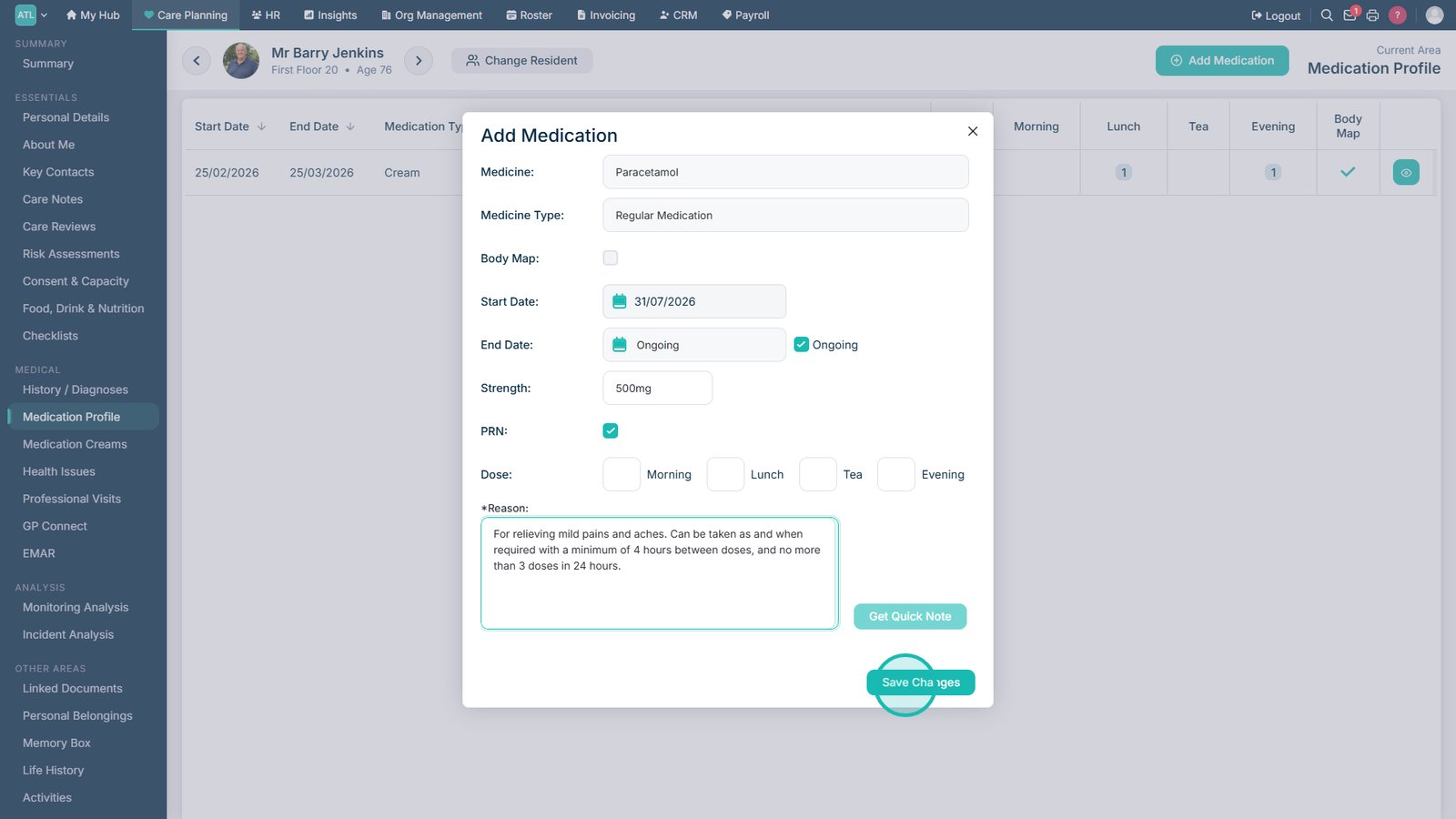
Enter the reason the medication has been prescribed.

Select Save Changes.

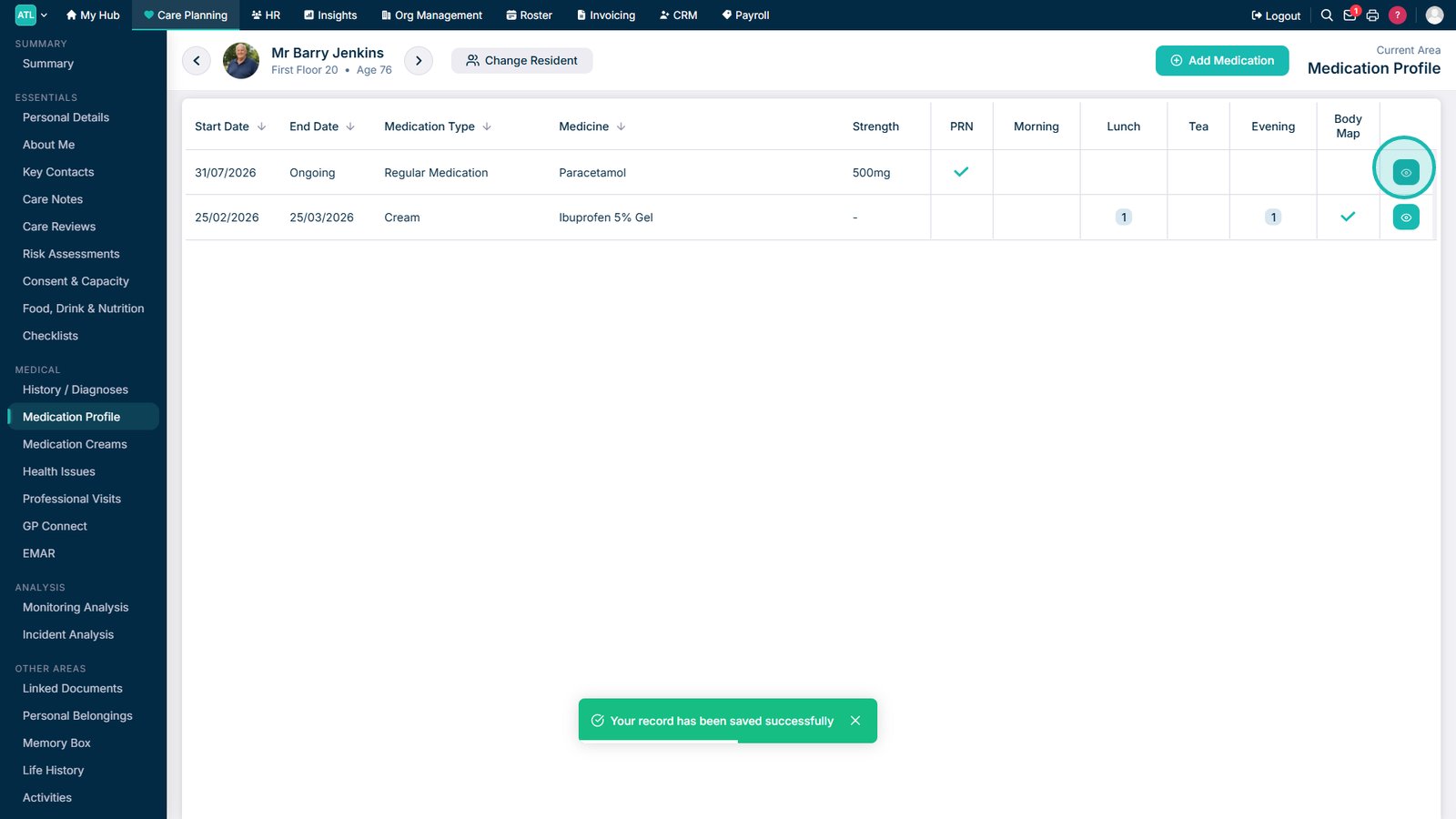
Select the view icon to review the medication details.

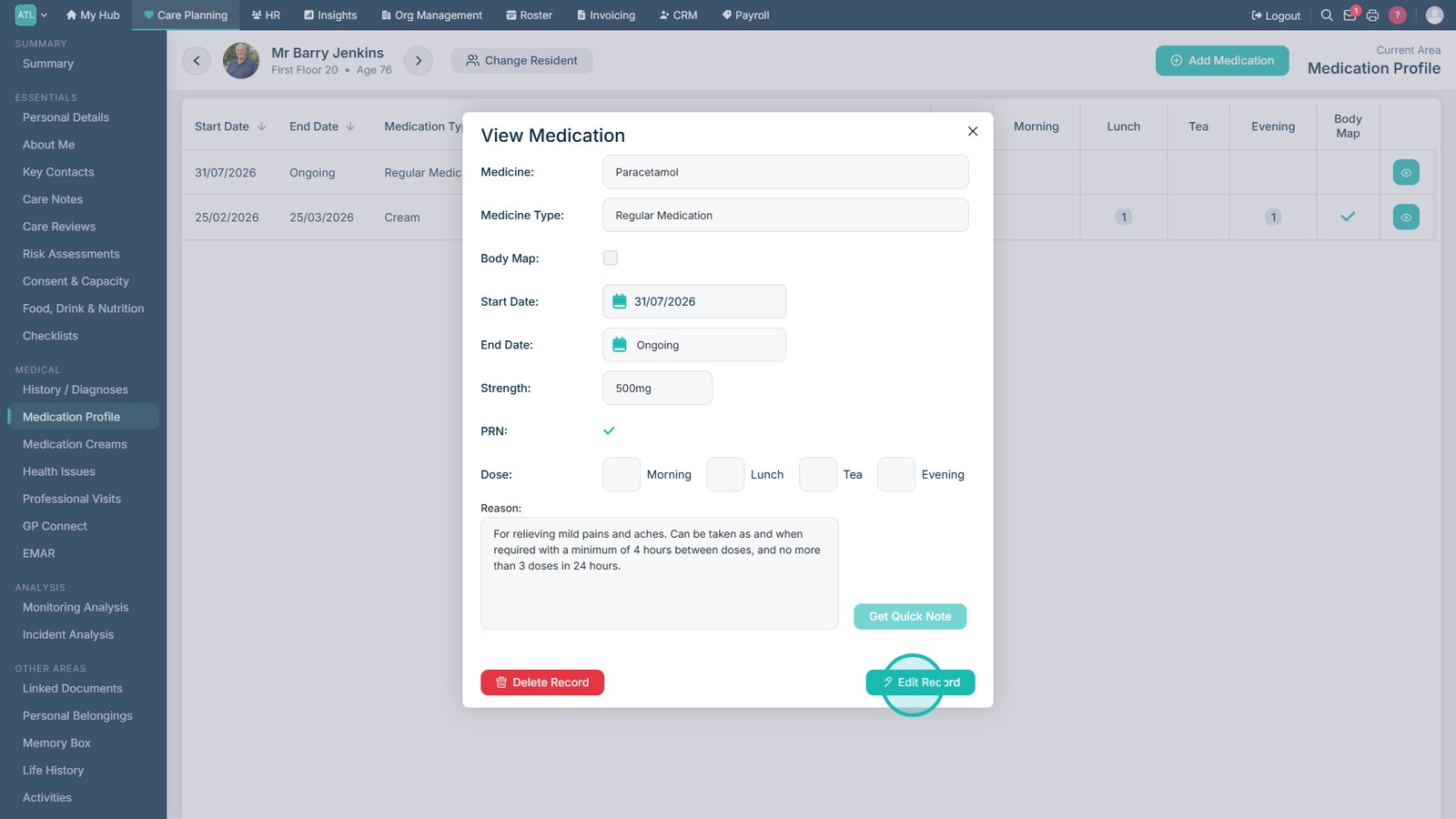
Select Edit Record to update the medication details.

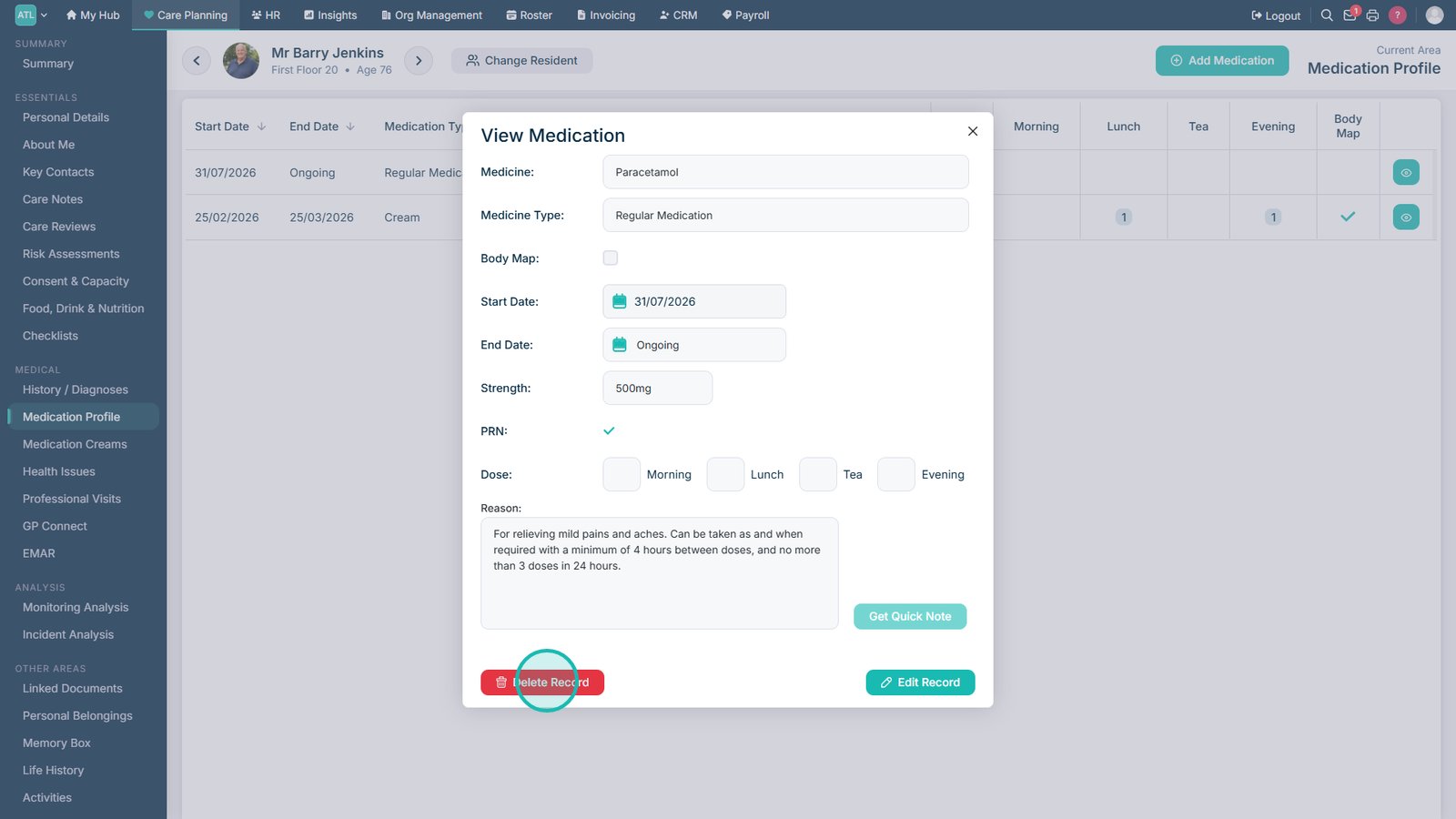
Select Delete Record to remove the medication from the profile.

Top tip

Check the medication name, strength, dosage, timings, and PRN status carefully before saving to make sure the service user’s medication profile is accurate.

Was this guide helpful?

Need more help?

Can't find what you're looking for? Our support team is here to help.

Contact Support

Or call us on

On this page