View Categories

How to Complete a Pre-Assessment on Mobile

This guide explains how to access, update, and complete a pre-assessment within the Care Management system, including reviewing details, editing information, and progressing through assessment stages.

Completing pre-assessments accurately is essential for ensuring all service user information is up to date, supporting informed care decisions, and maintaining compliance with care standards. Following this process helps improve efficiency, reduces the risk of missing key information, and ensures a smooth transition from initial enquiry to full assessment.

By following this guide, you will learn how to:

  • Access and open pre-assessment records
  • Edit and update service user details
  • Complete care review and assessment sections
  • Review and communicate cost of care information
  • Finalise and process the assessment

This ensures all pre-assessment information is accurately recorded, properly reviewed, and ready for progression within the care management process.
Interactive Guide

Text based guide

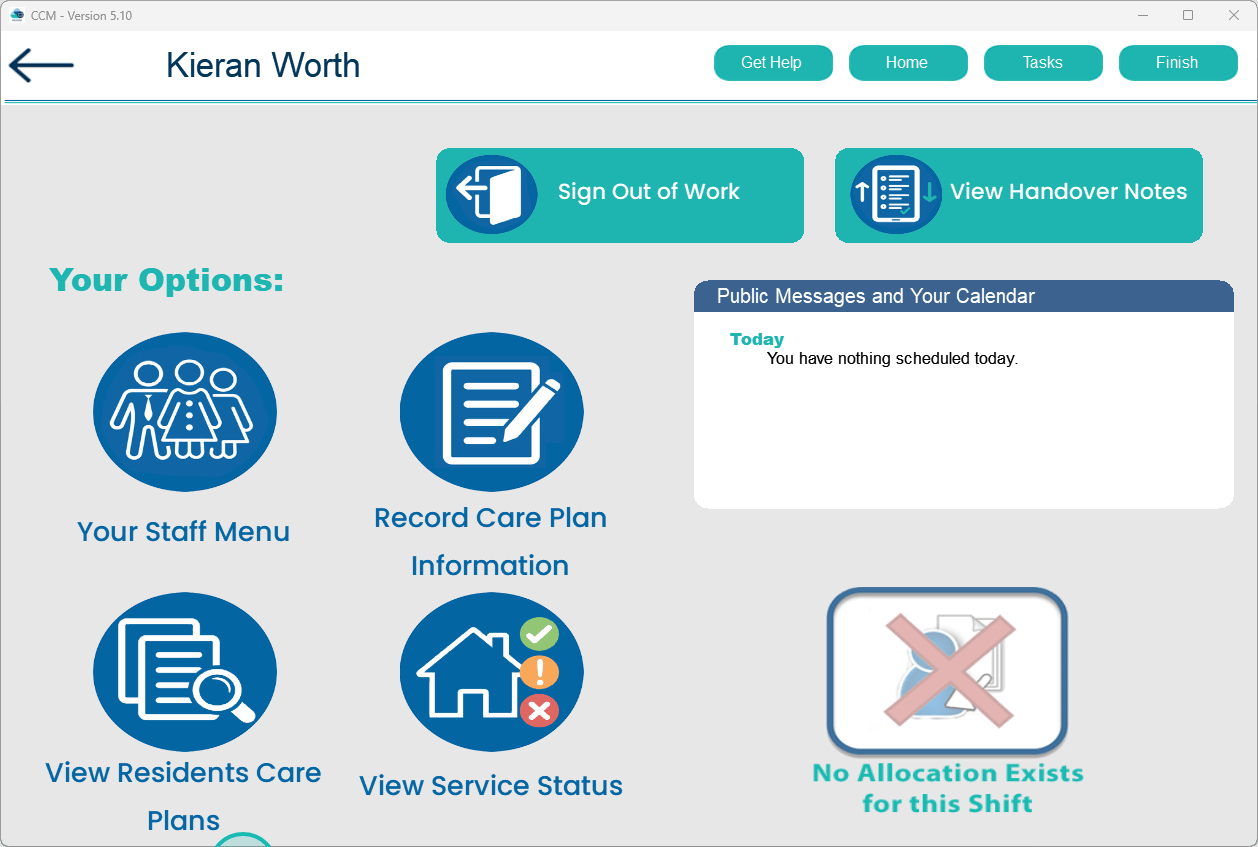
Select View Residents Care Plans to access resident records

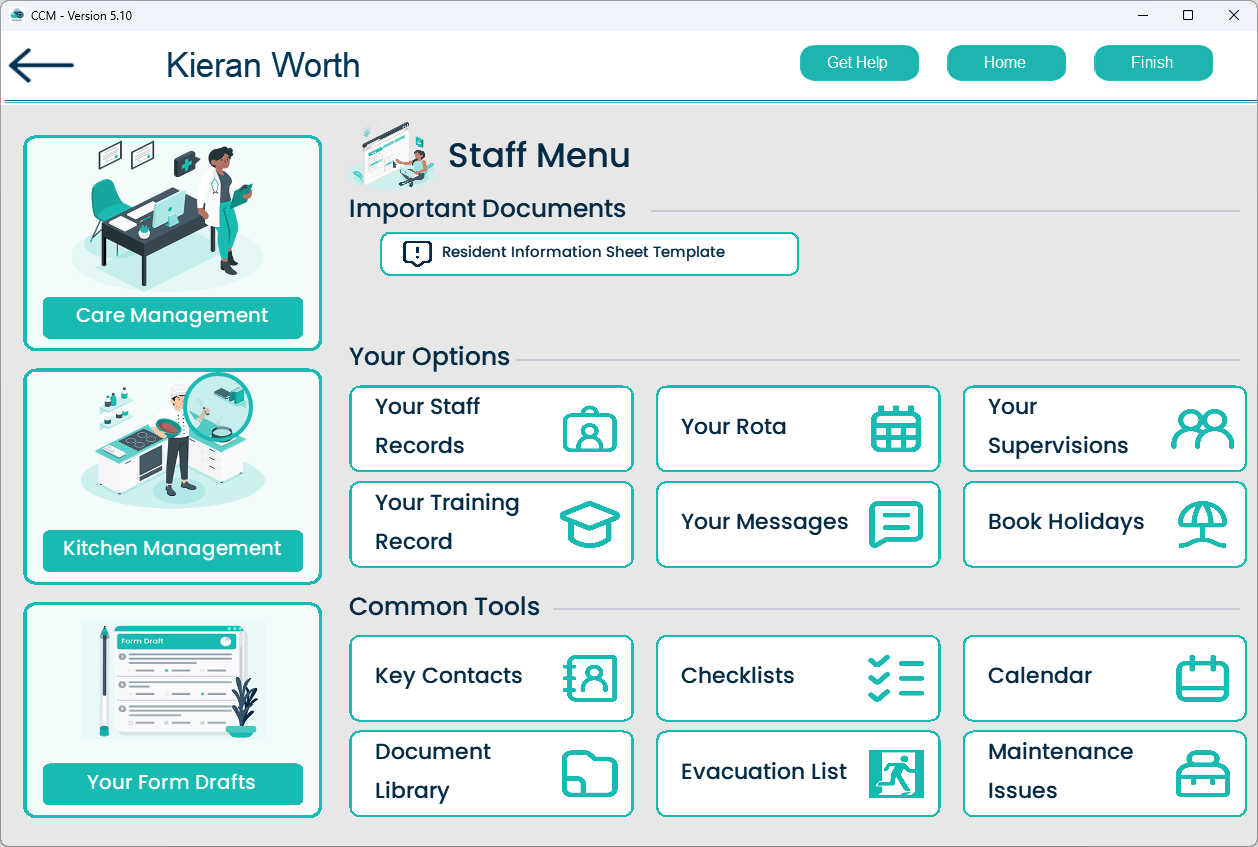
Select Care Management to open care management options

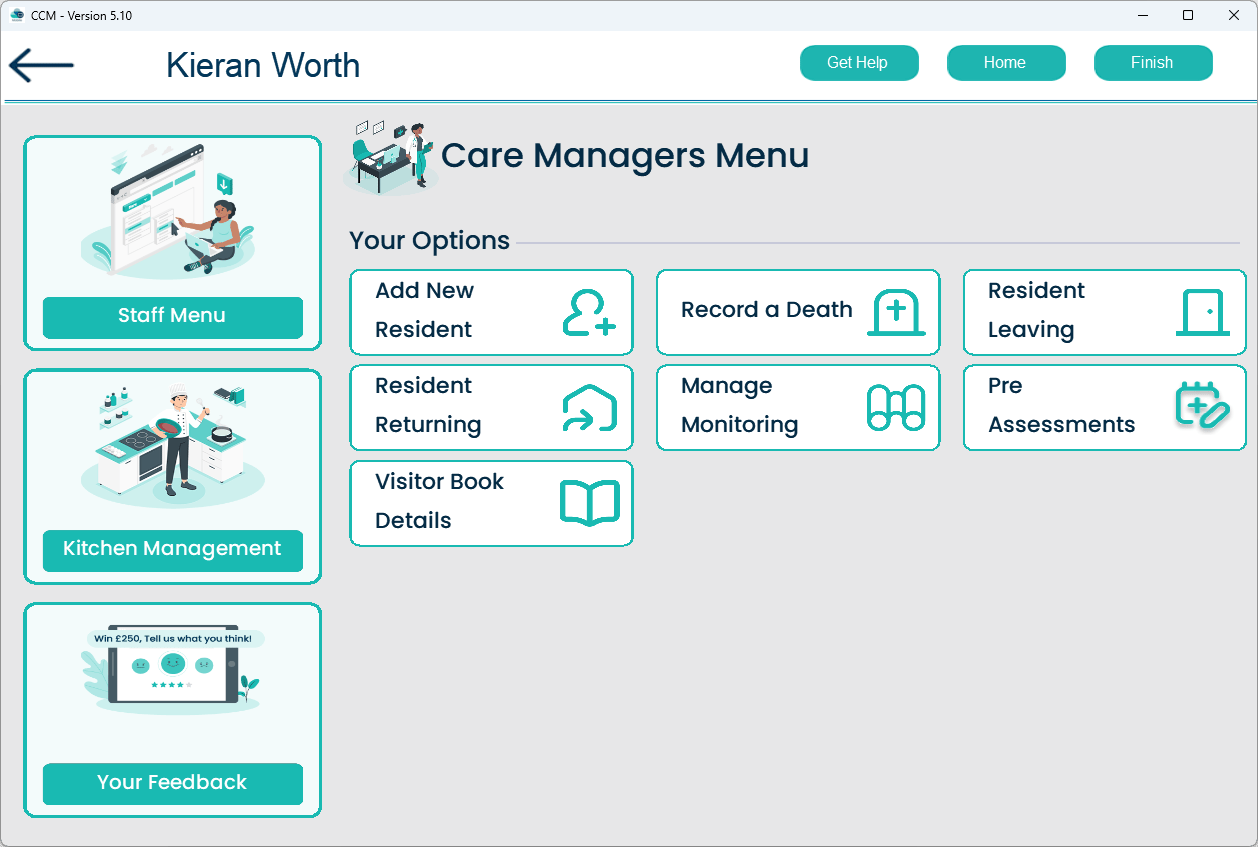
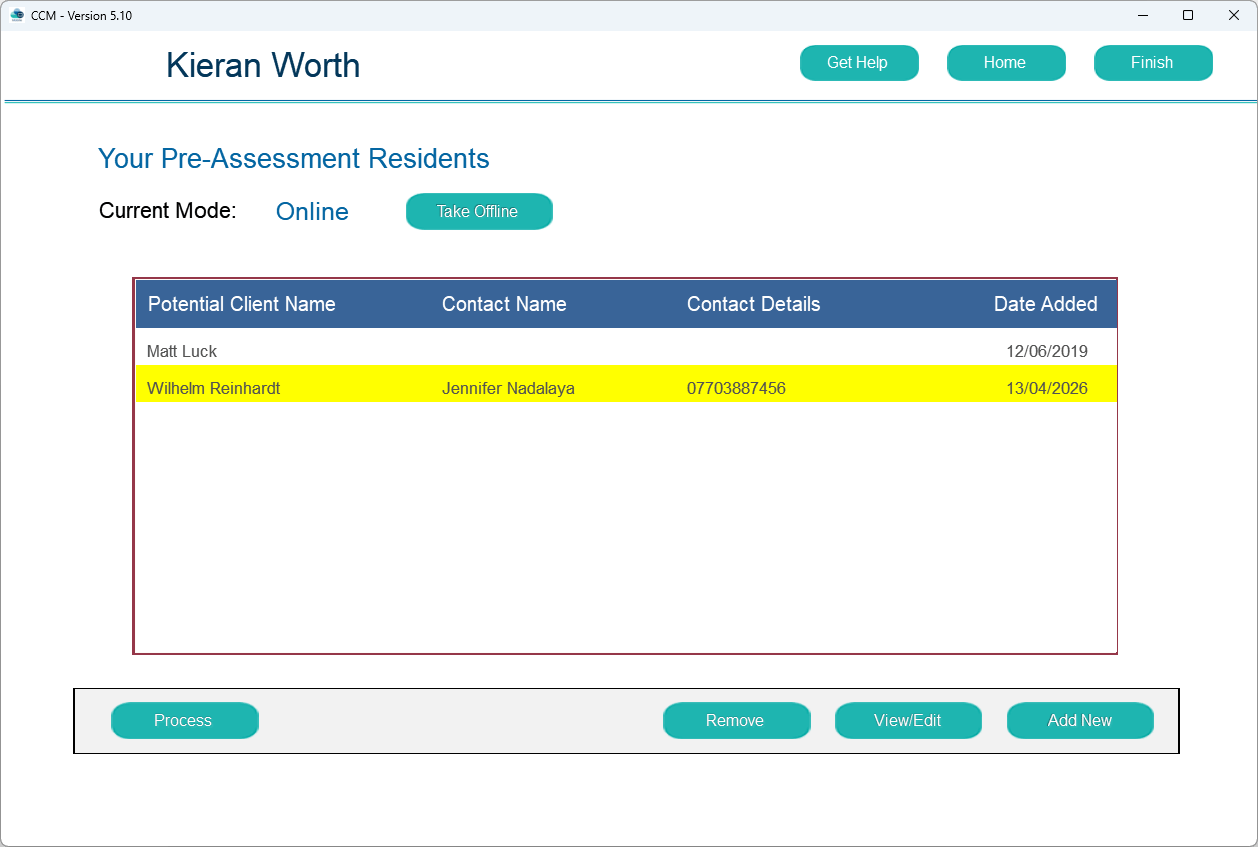
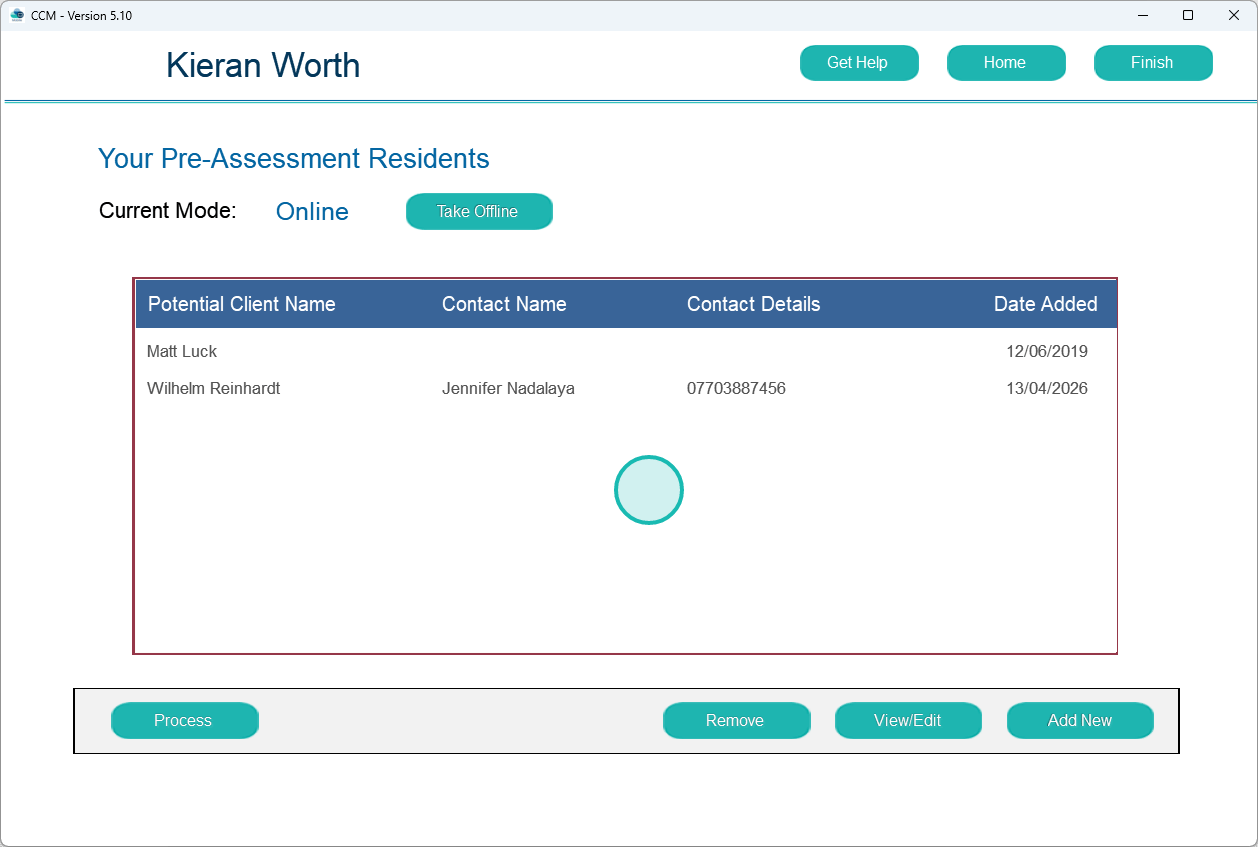
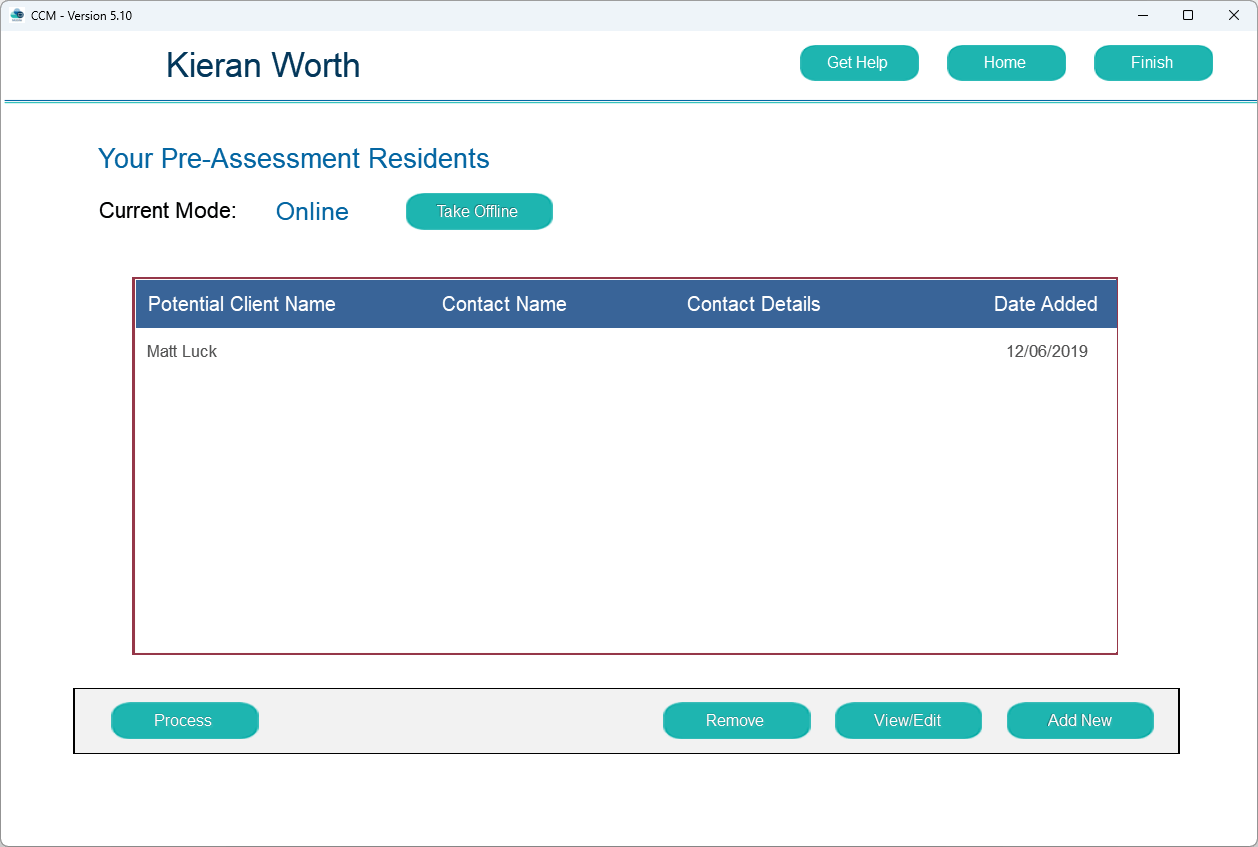
Select Pre Assessments to view available pre-assessment records

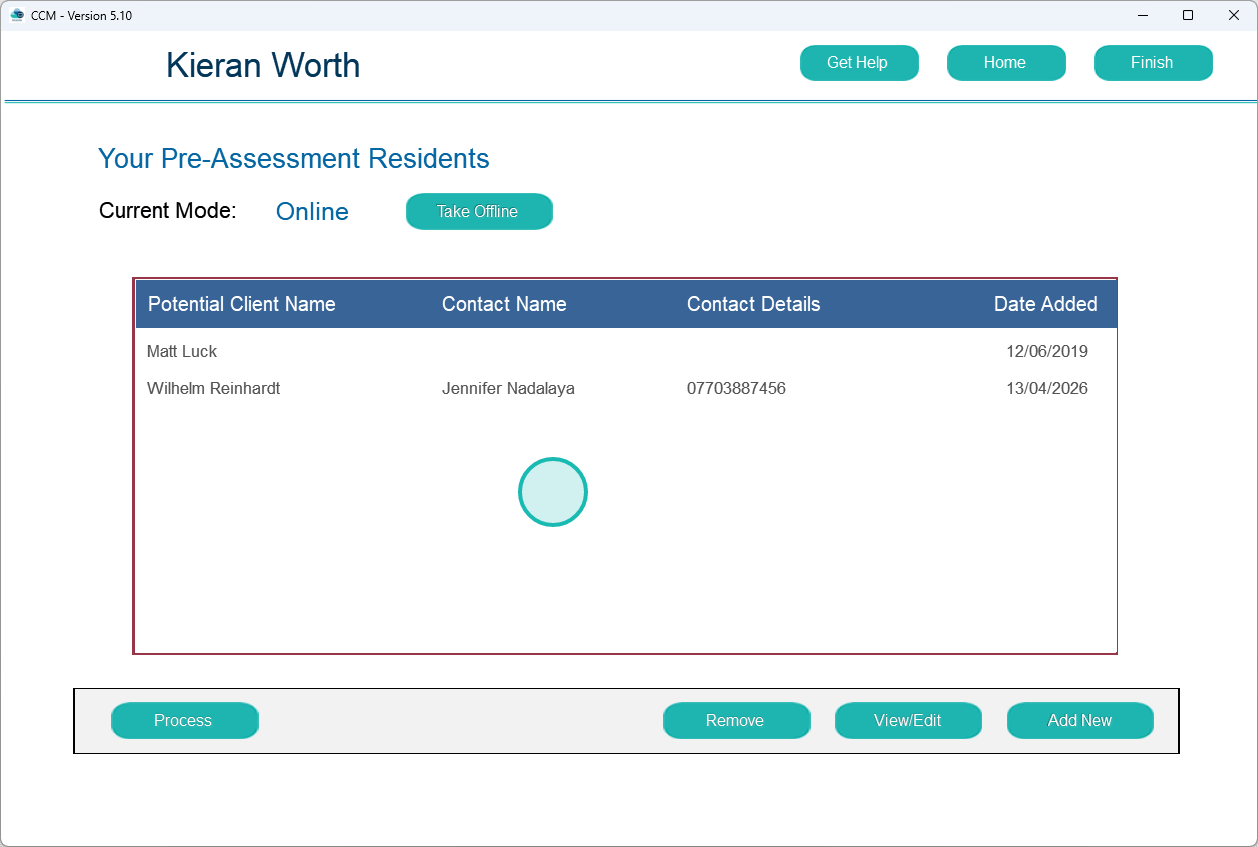
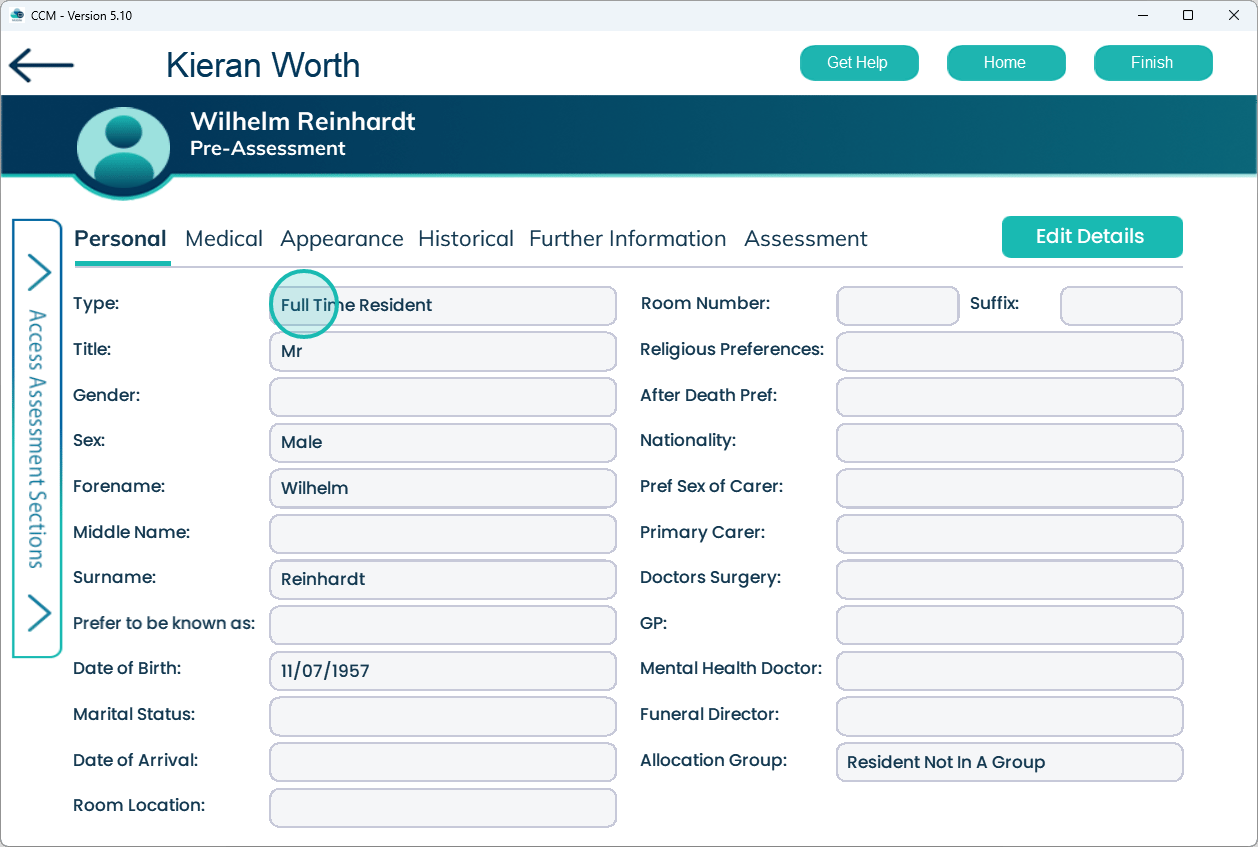
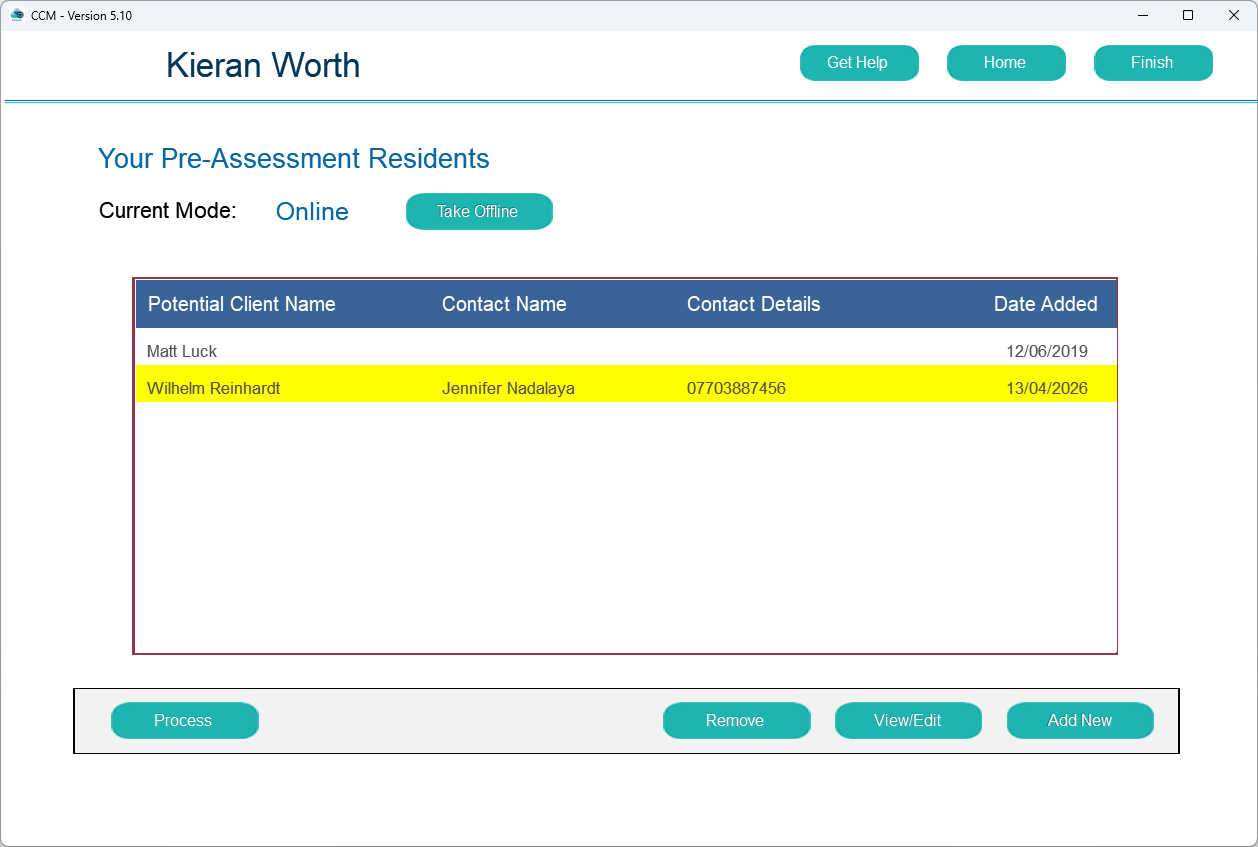
Select the pre-assessment record you want to view or edit

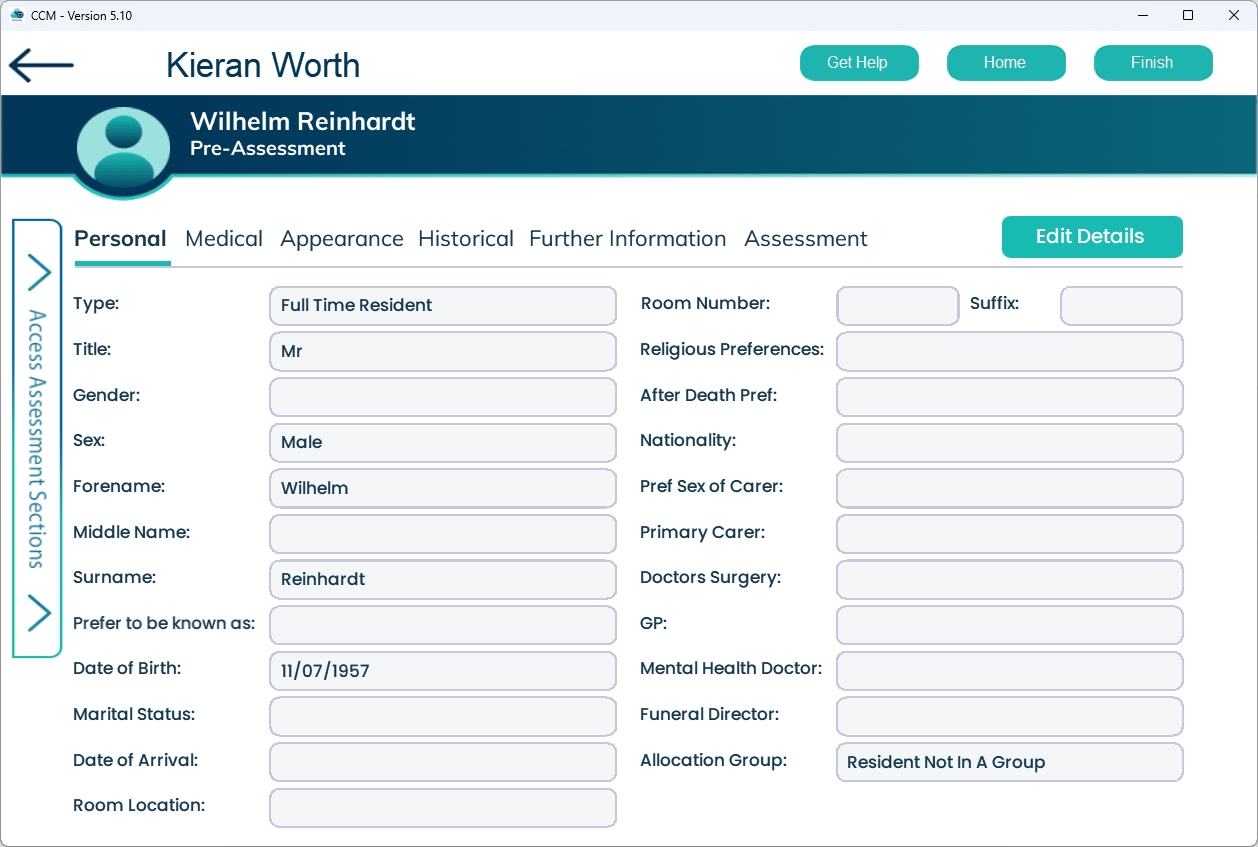
Review the pre-assessment details before making any changes

Select Edit Details to update the personal information of the potential service user

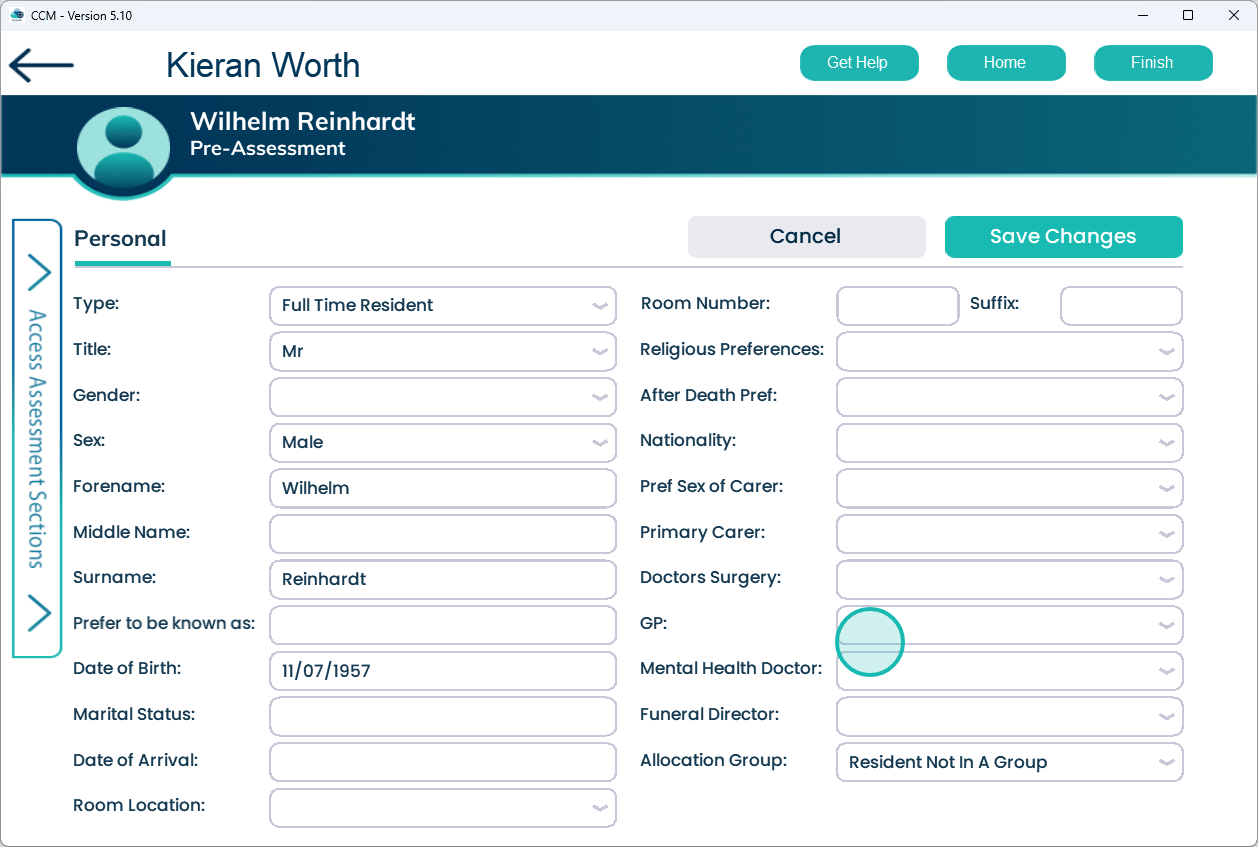
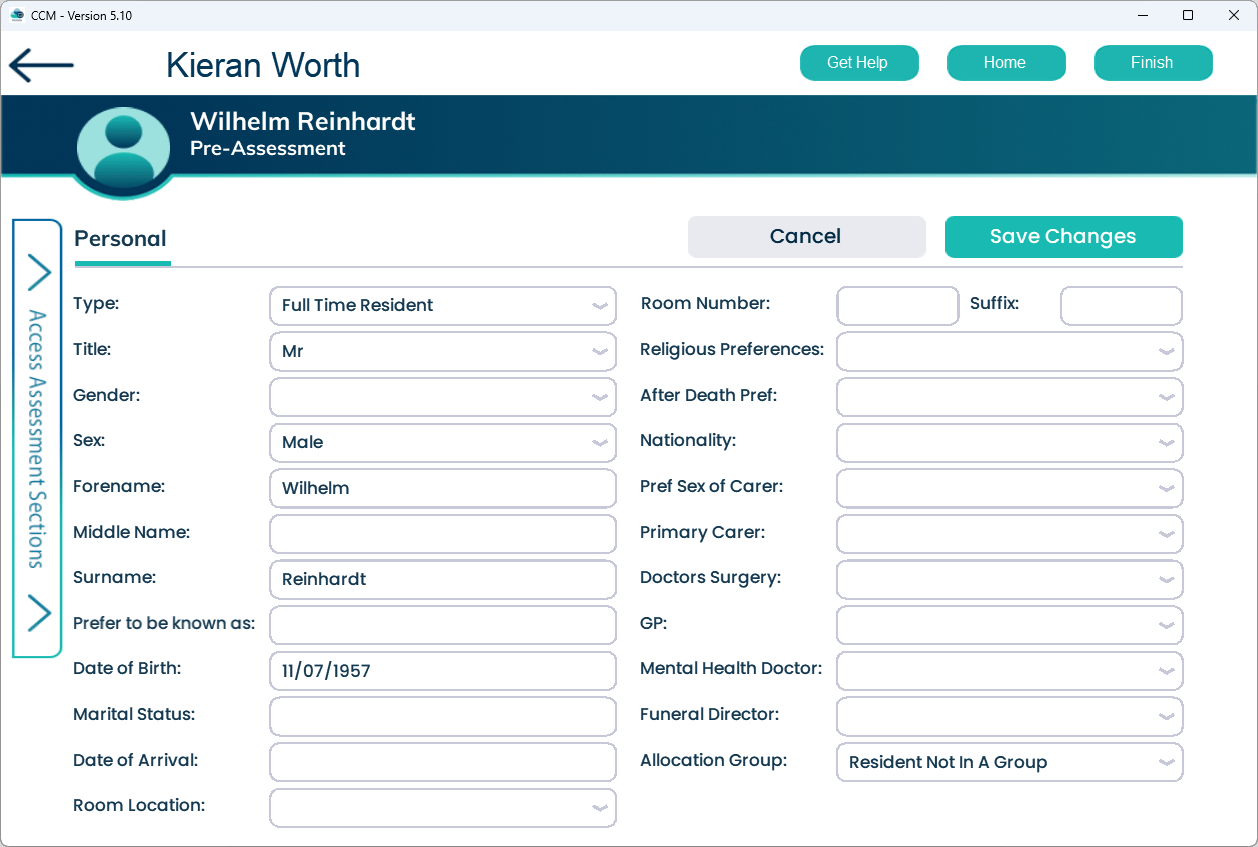
Update the required details using the form fields provided

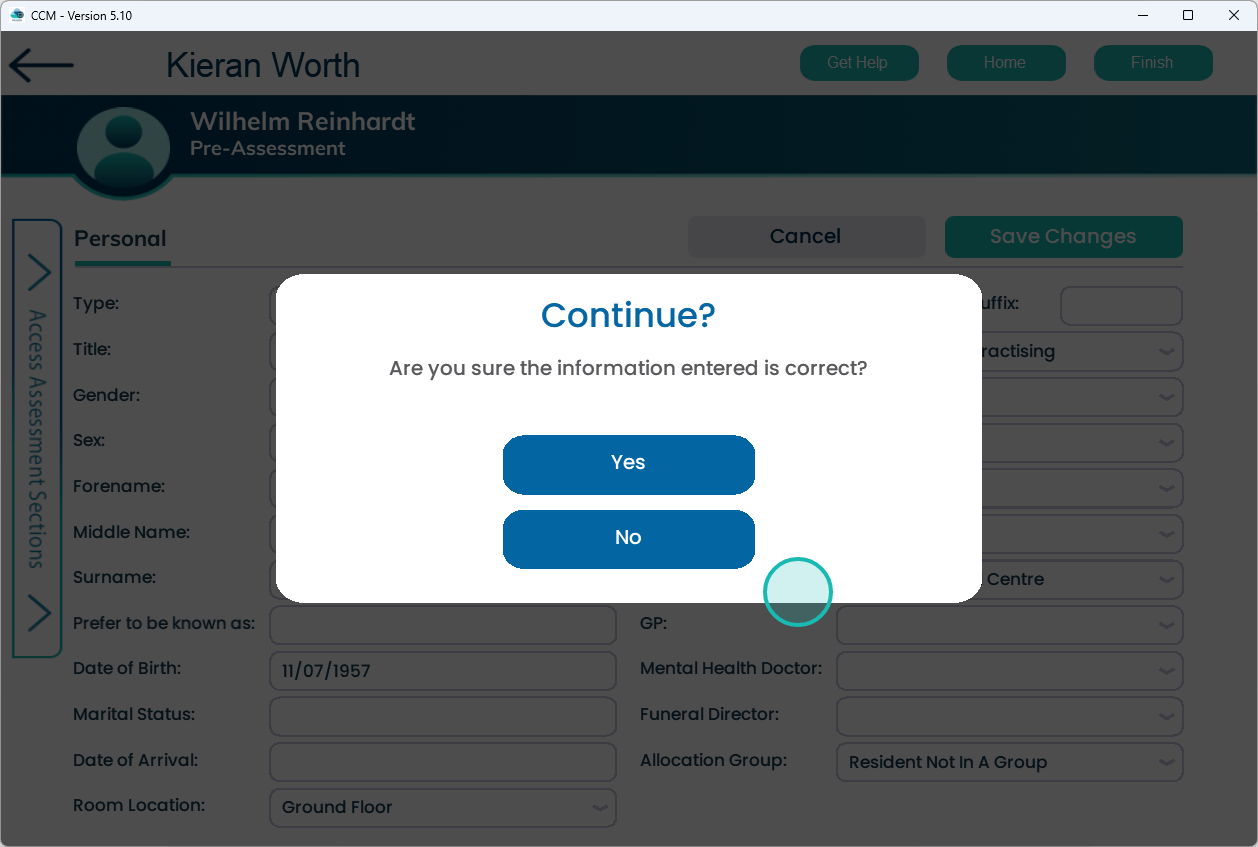
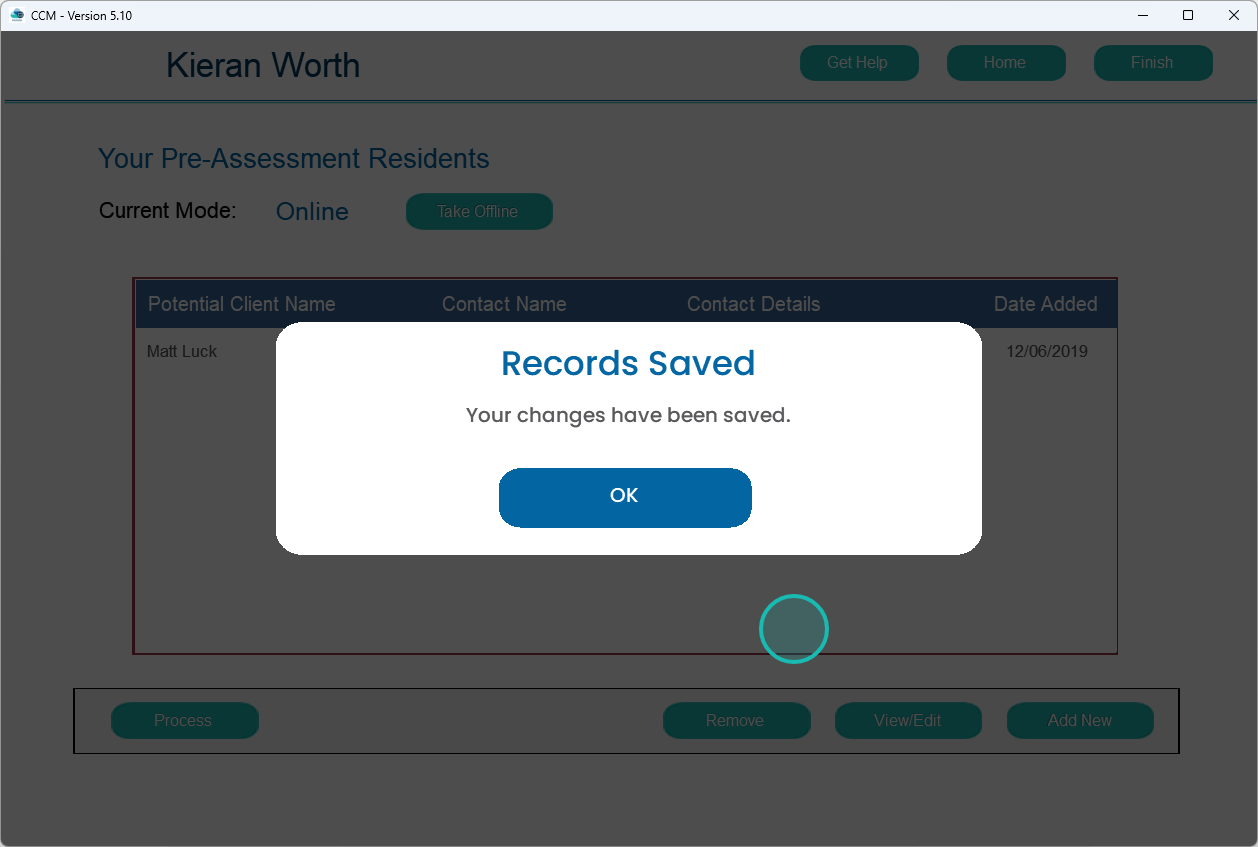
Select Save Changes to apply and store your updates

Select Yes to confirm and finalise the changes

Select each tab and repeat the process to complete all relevant information

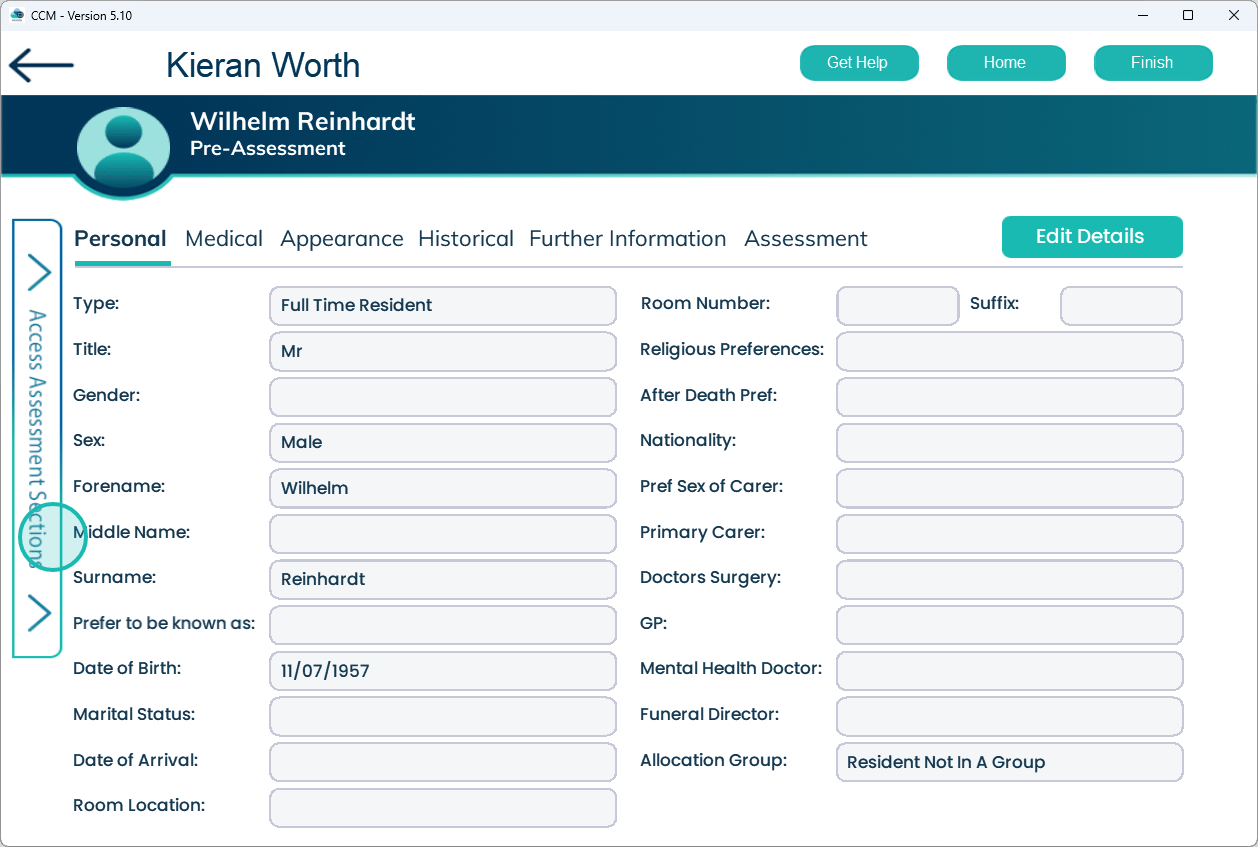
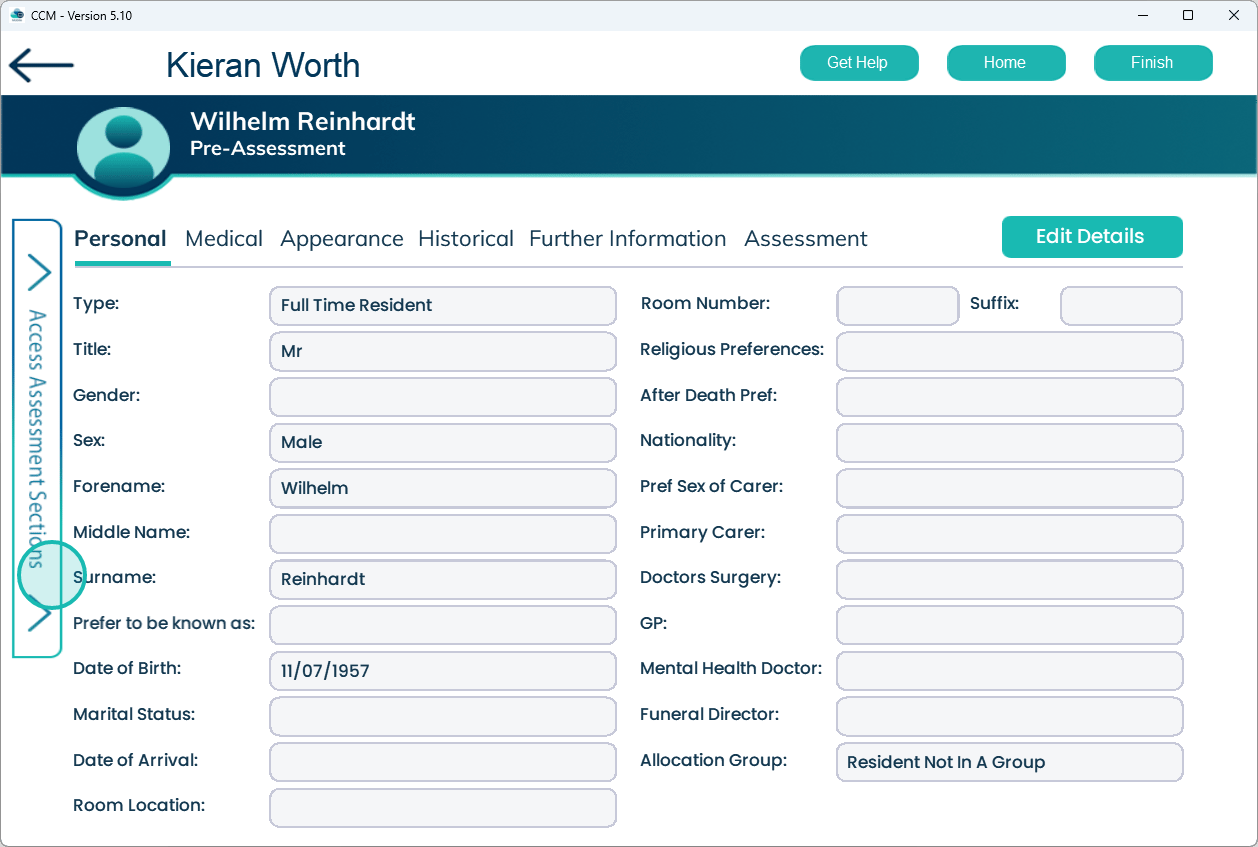
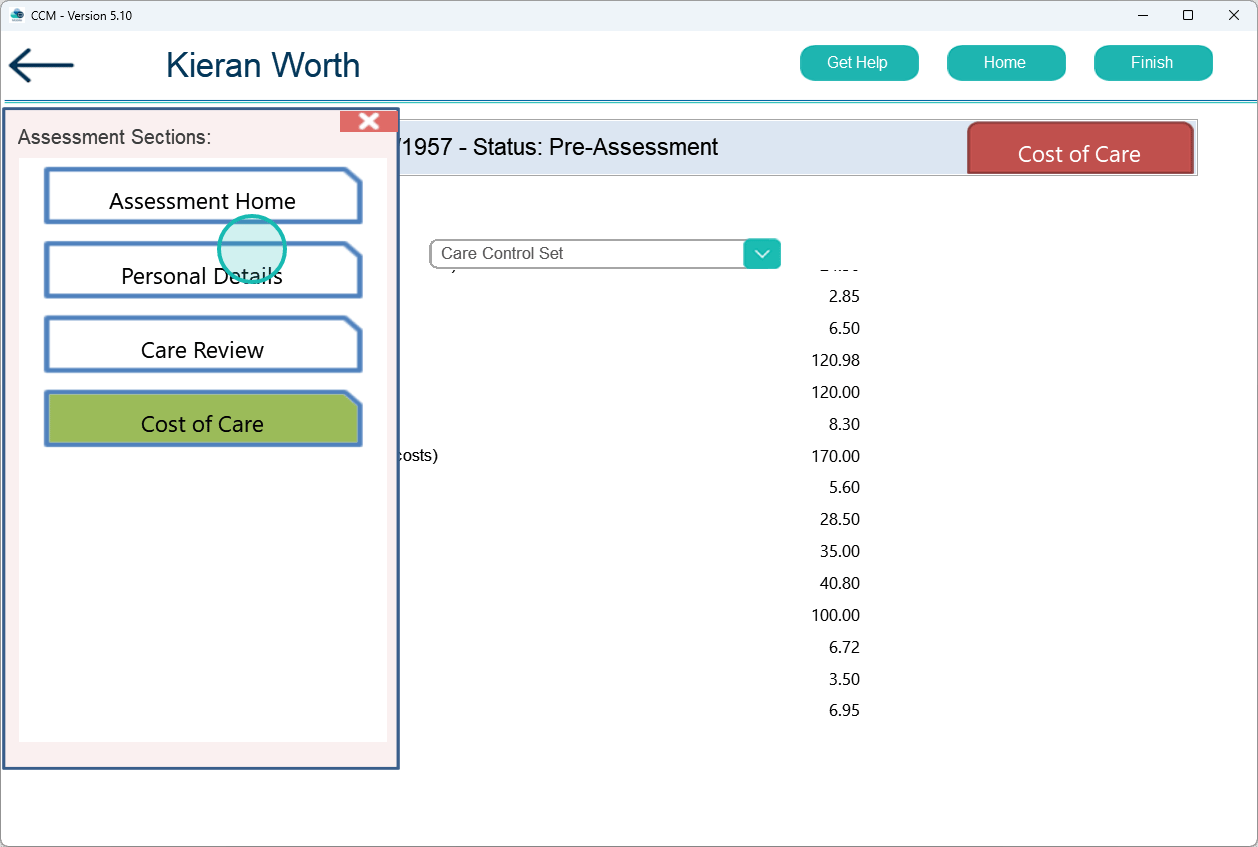
Open the Access Assessment section to view additional assessment options

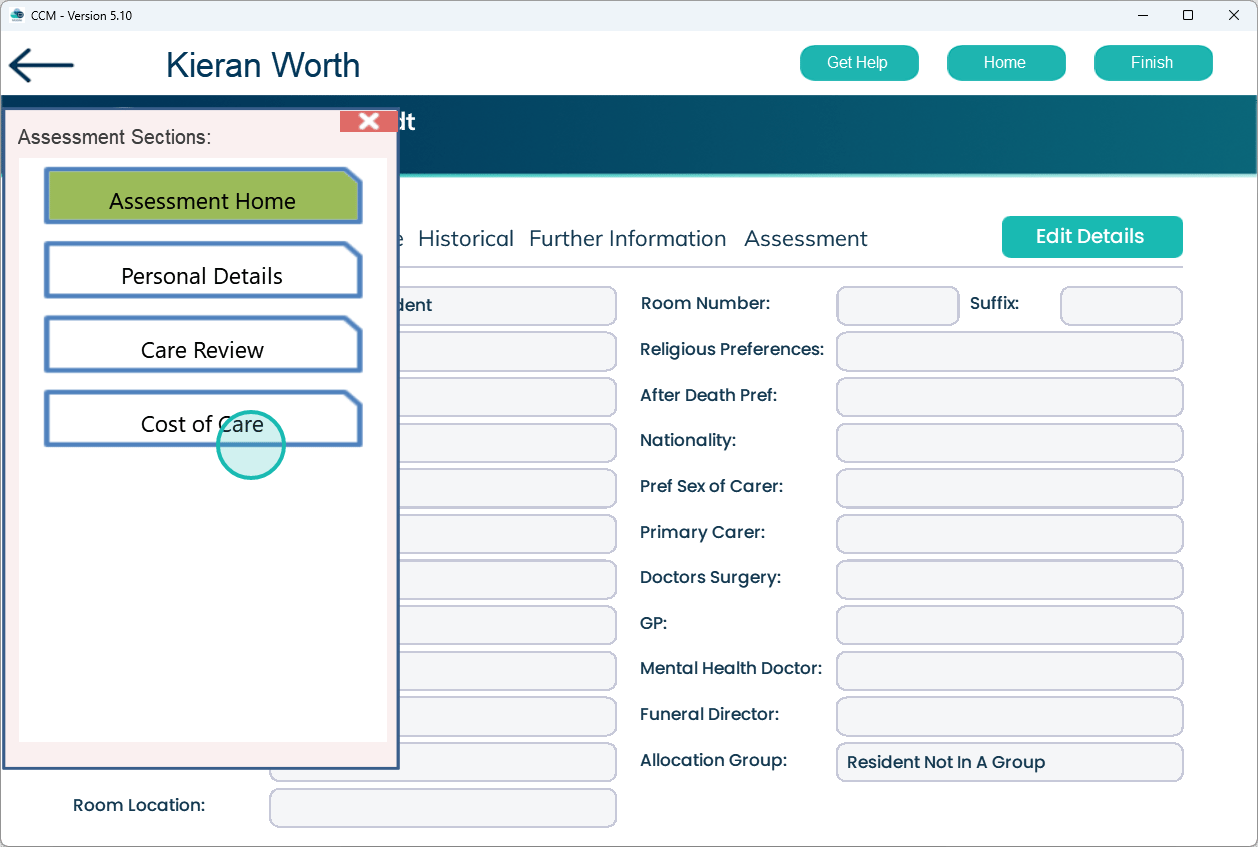
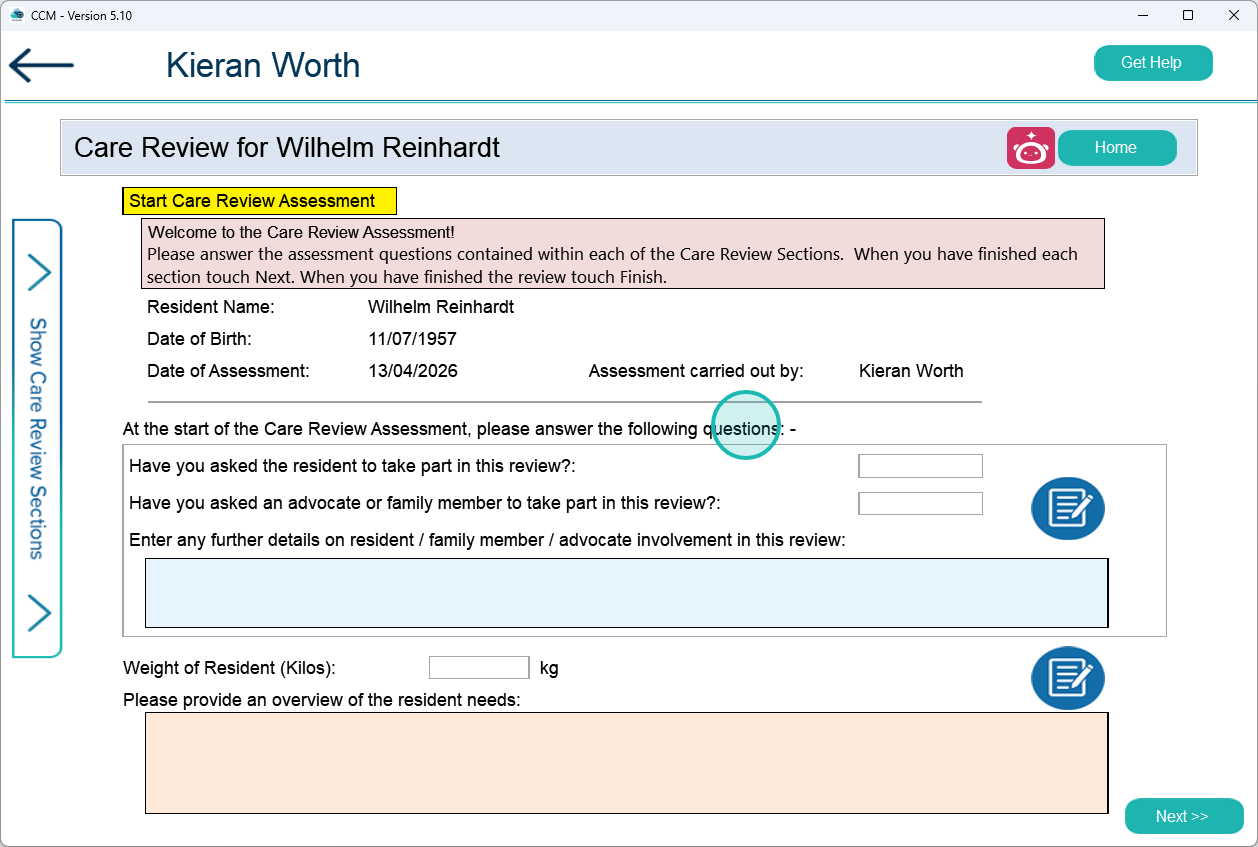
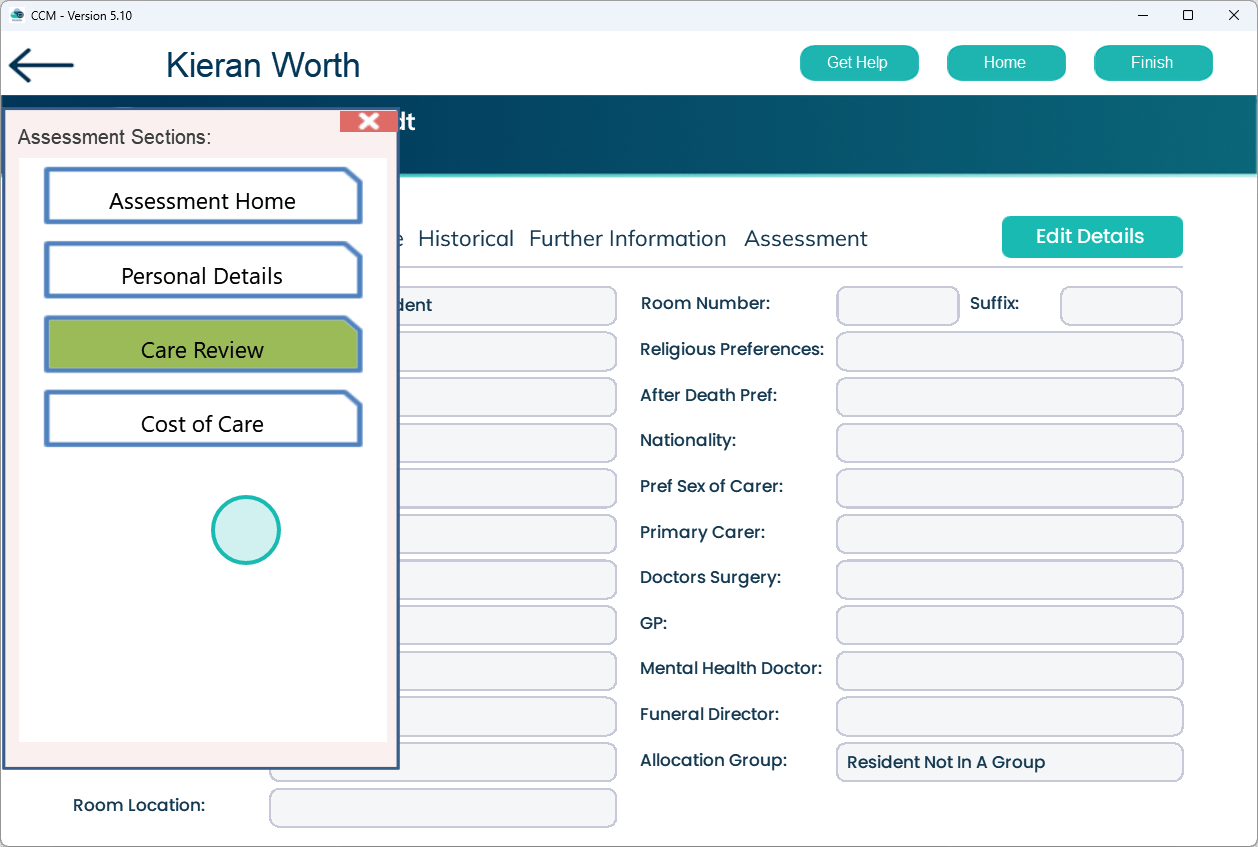
Select Care Review to access the care review section

Complete the Care Review if required

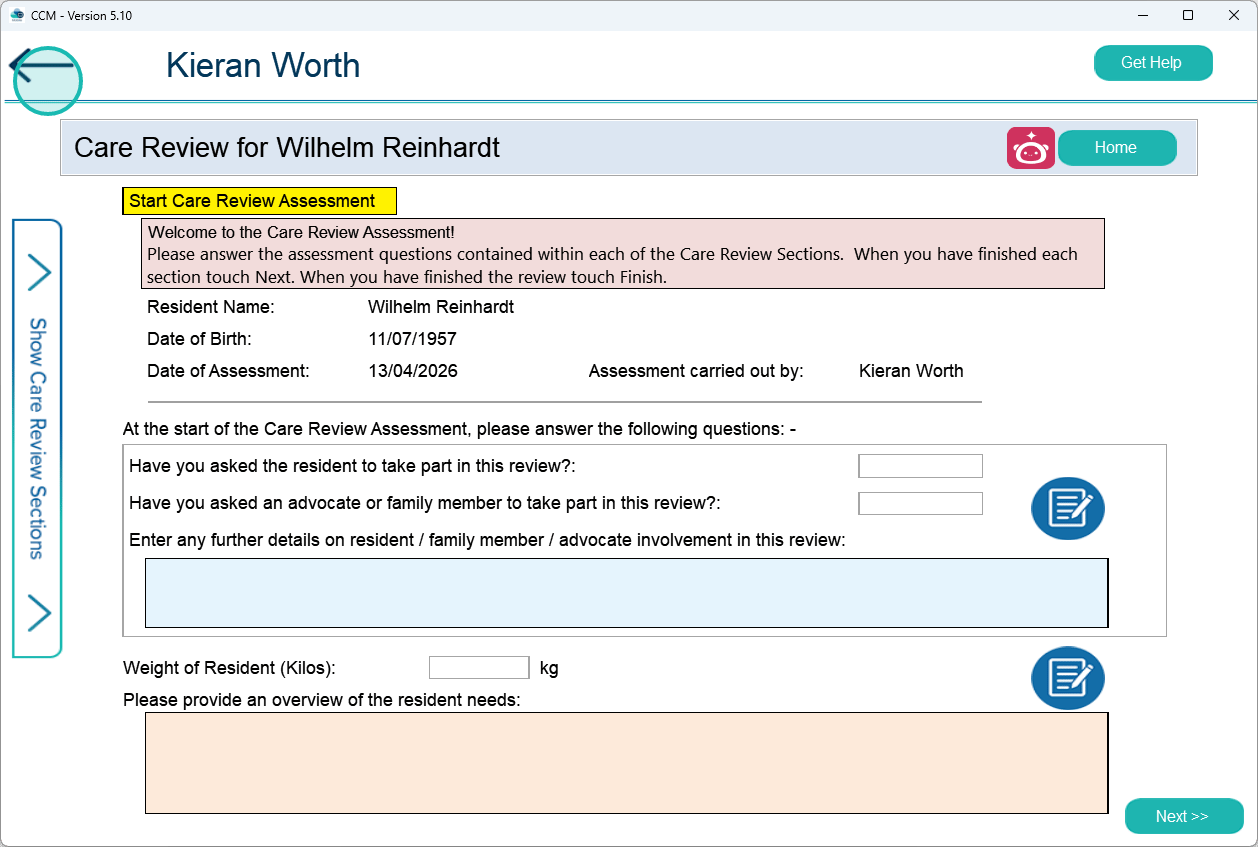
Select the back button to return if a Care Review is not required

Reopen the Access Assessment menu

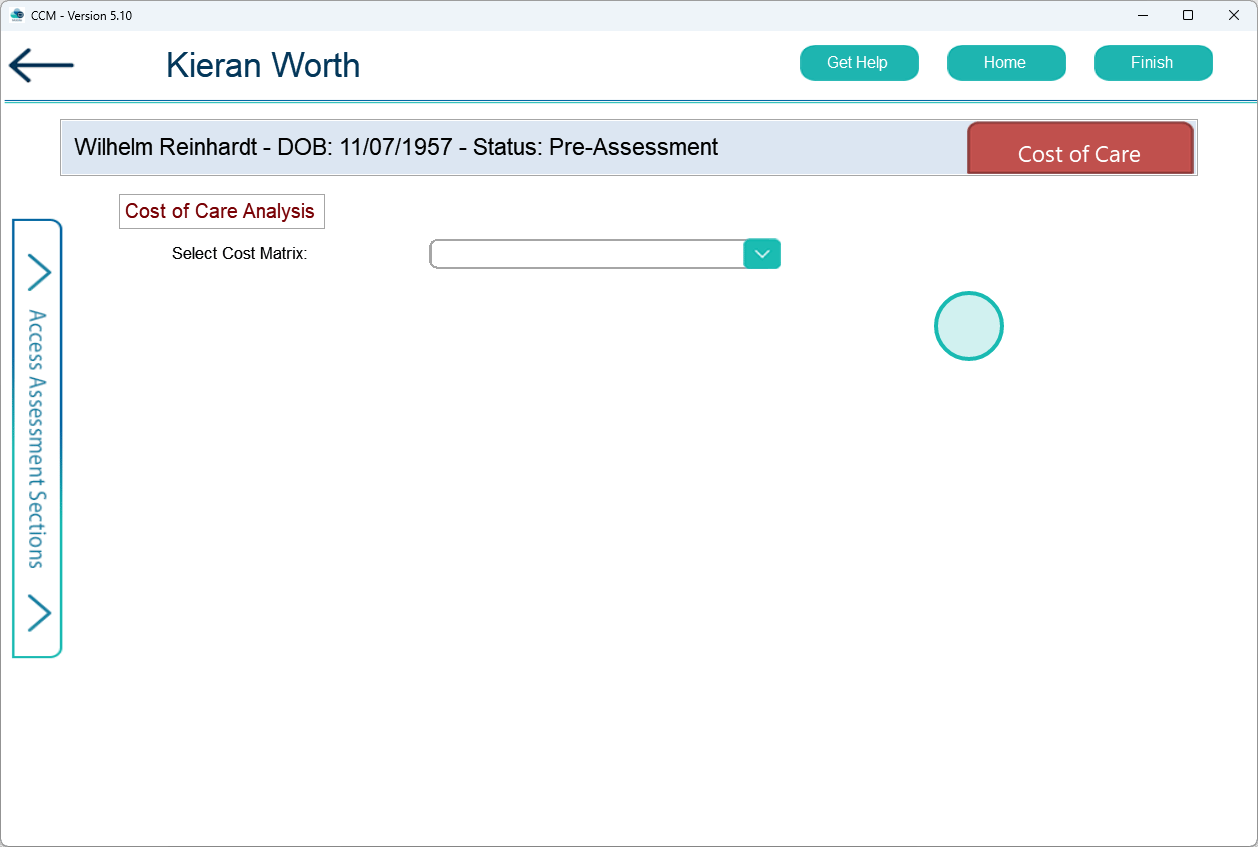
Select Cost of Care to view pricing information

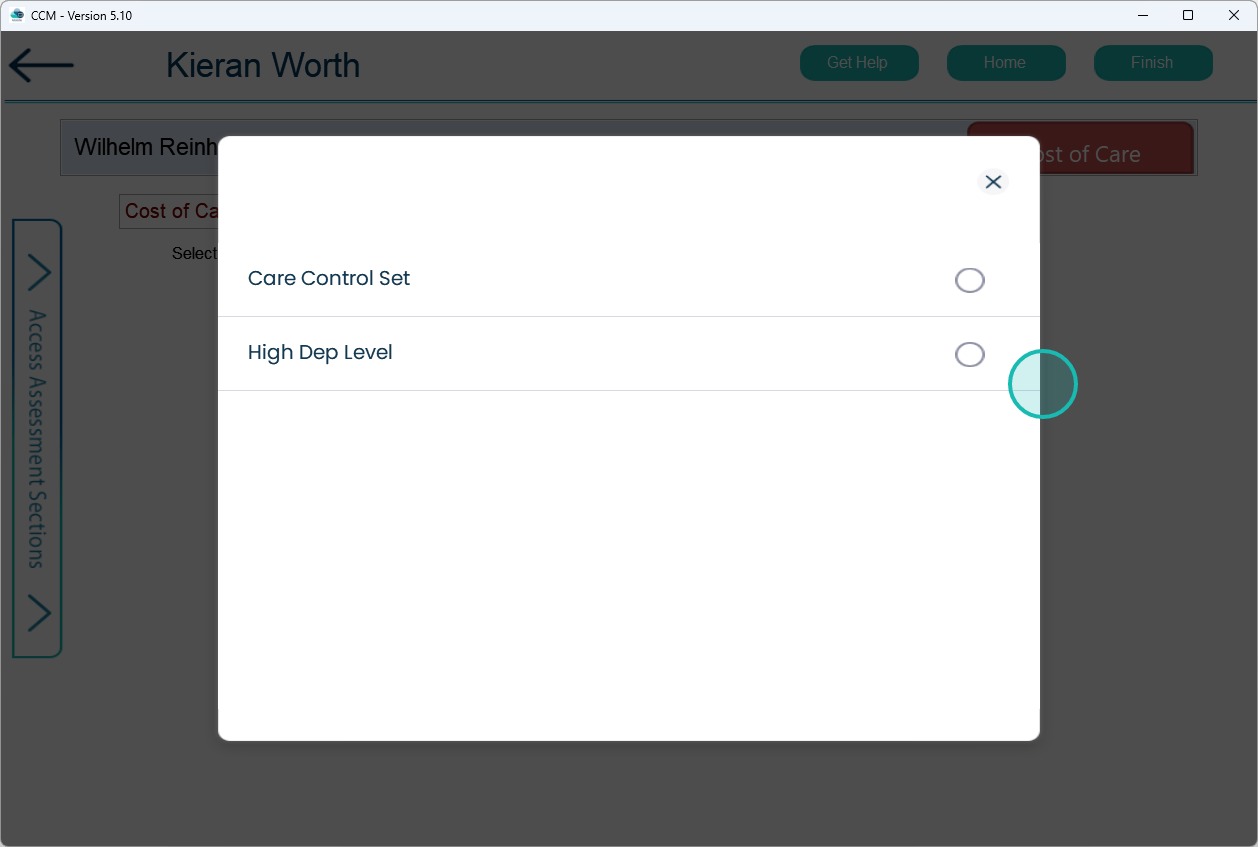
Open the Cost Matrix dropdown to view available pricing options

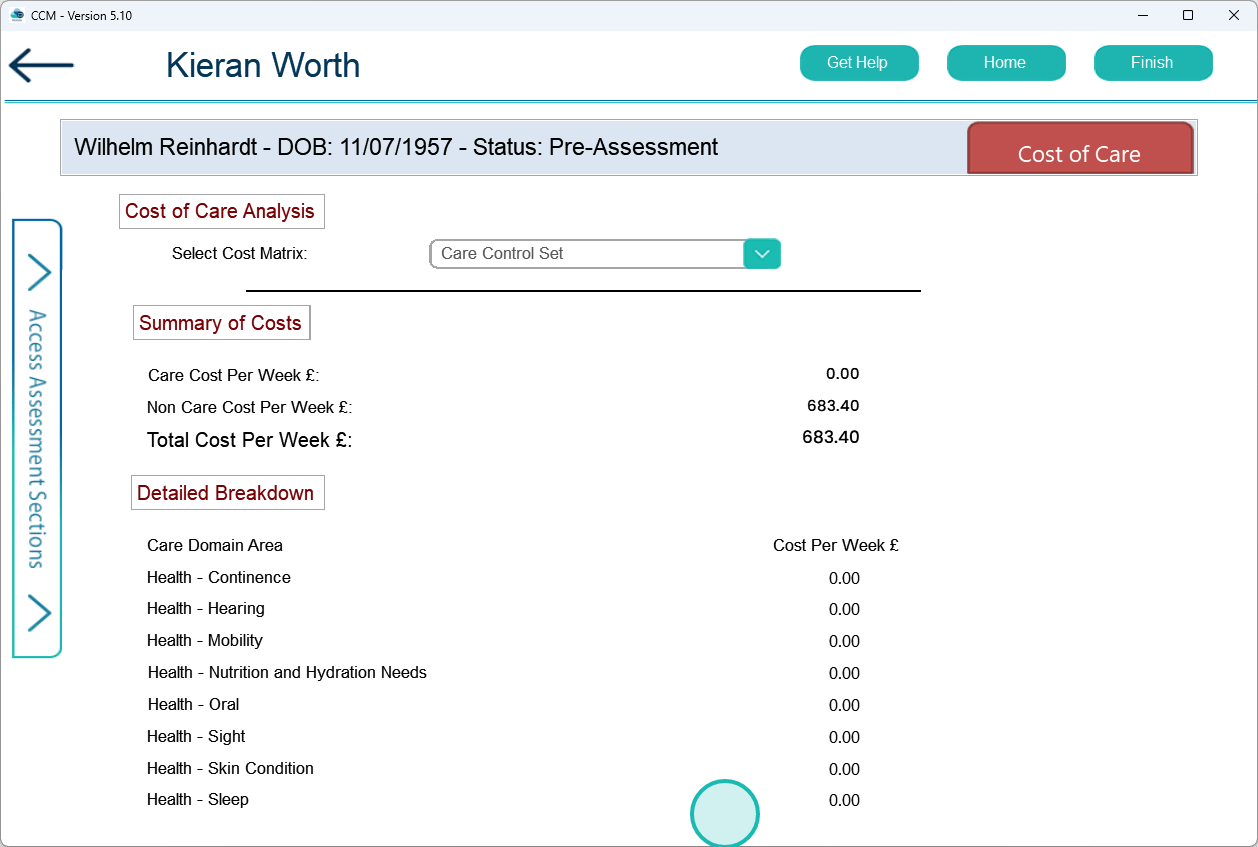
Select the appropriate cost option to discuss with the service user or enquirer

Review and explain the cost of care details to the service user or enquirer

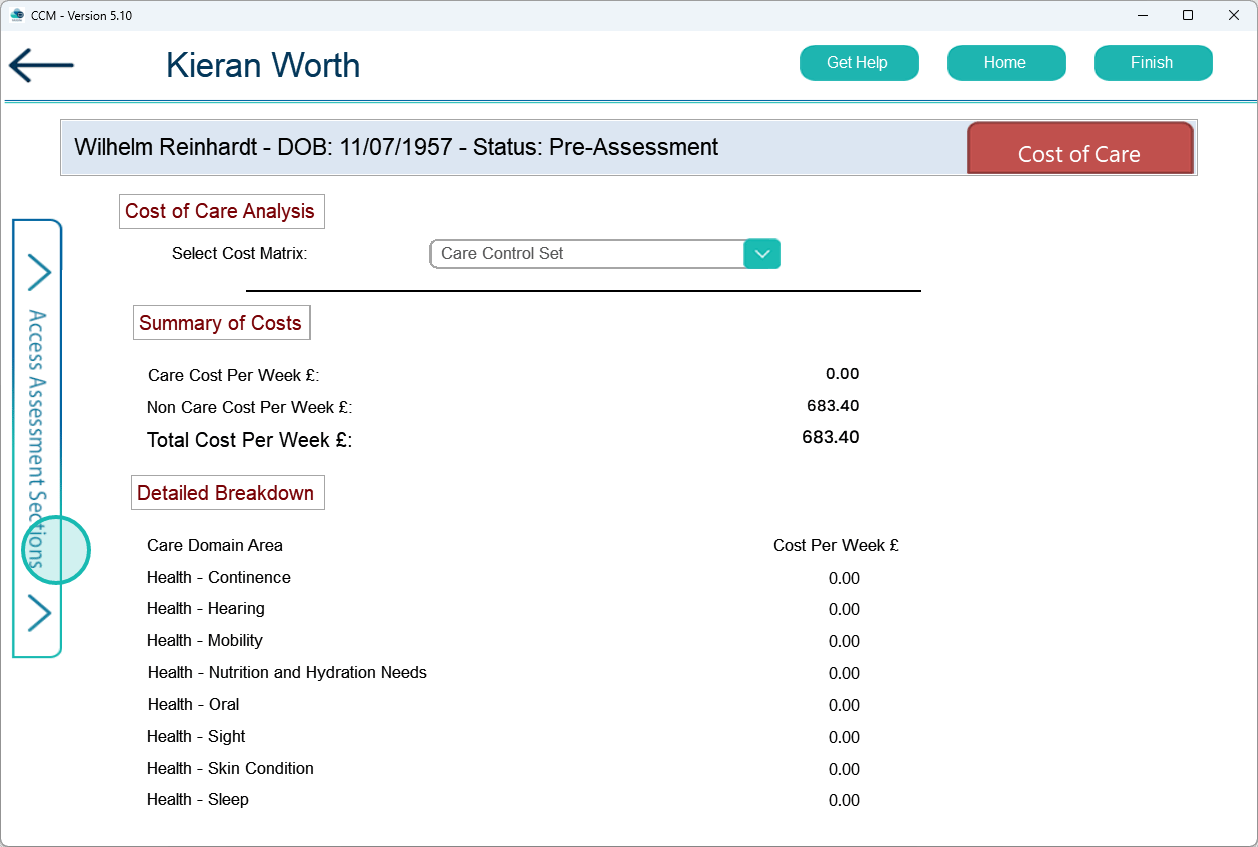
Open the Access Assessment menu again

Select Assessment Home to return to the main assessment screen

Select the potential client name again to continue the process

Review the assessment details before proceeding

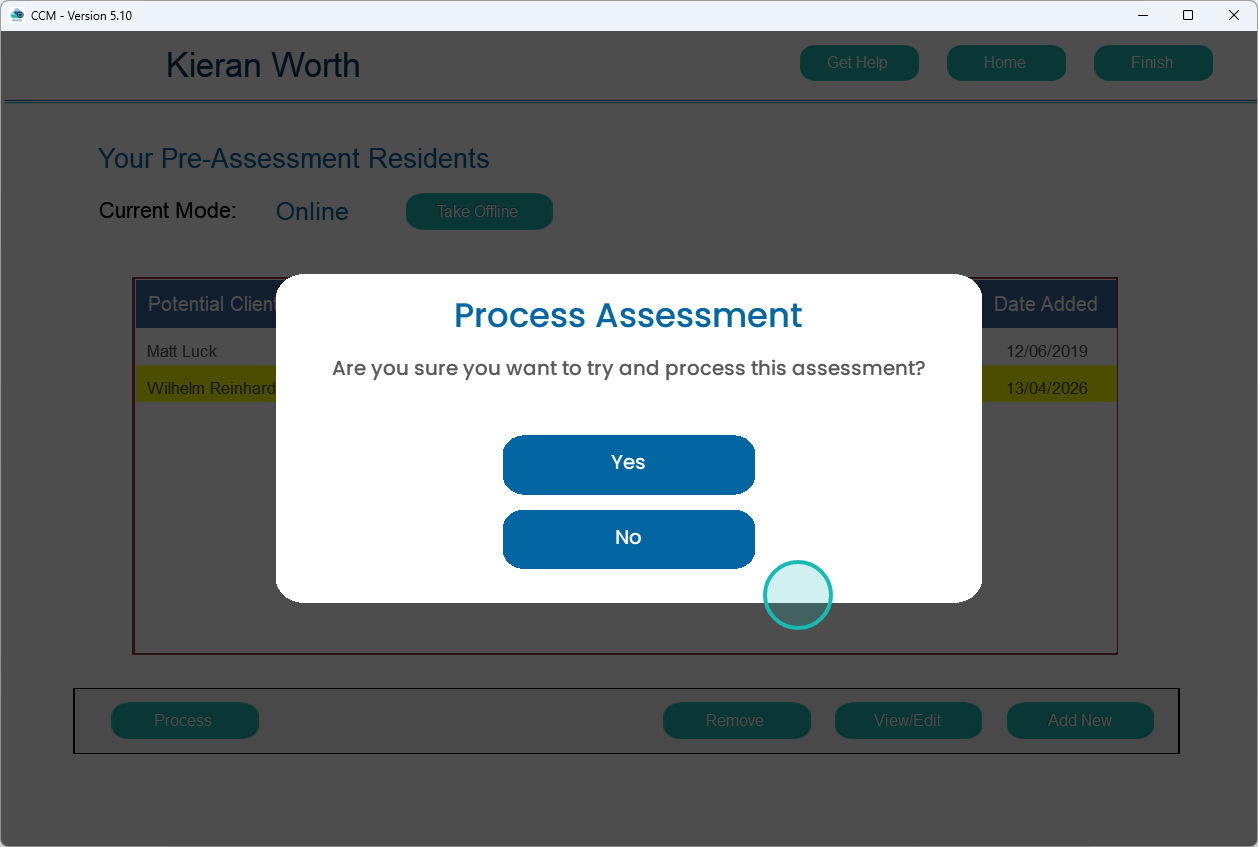
Select Yes to confirm and process the assessment

Allow the system to save the record and return to the CRM platform to continue setup

Confirm the assessment has been processed and continue in the CRM system

Was it helpful ?
Table of Contents
↑ Top