View Categories

How to Create a New MyHub Dashboard

This guide explains how to create, customise, and manage dashboards within the Org Management system, allowing you to organise and display key information effectively.

Understanding how to build and configure dashboards is essential for improving visibility, streamlining workflows, and ensuring the right users see the right data. Proper setup reduces manual effort, improves accuracy, and helps teams stay aligned with real-time information.

By following this guide, you will learn how to:

  • Create a new dashboard from scratch
  • Configure dashboard settings such as name, description, and default status
  • Assign dashboards to specific sites, roles, and users
  • Add, remove, and customise widgets within the dashboard layout
  • Manage grid layouts and organise dashboard content effectively
  • Finalise and publish dashboards for use across your organisation

This ensures your dashboards are structured, relevant, and tailored to your organisation’s needs, helping users access the most important information quickly and efficiently.

Interactive Guide

Text based guide

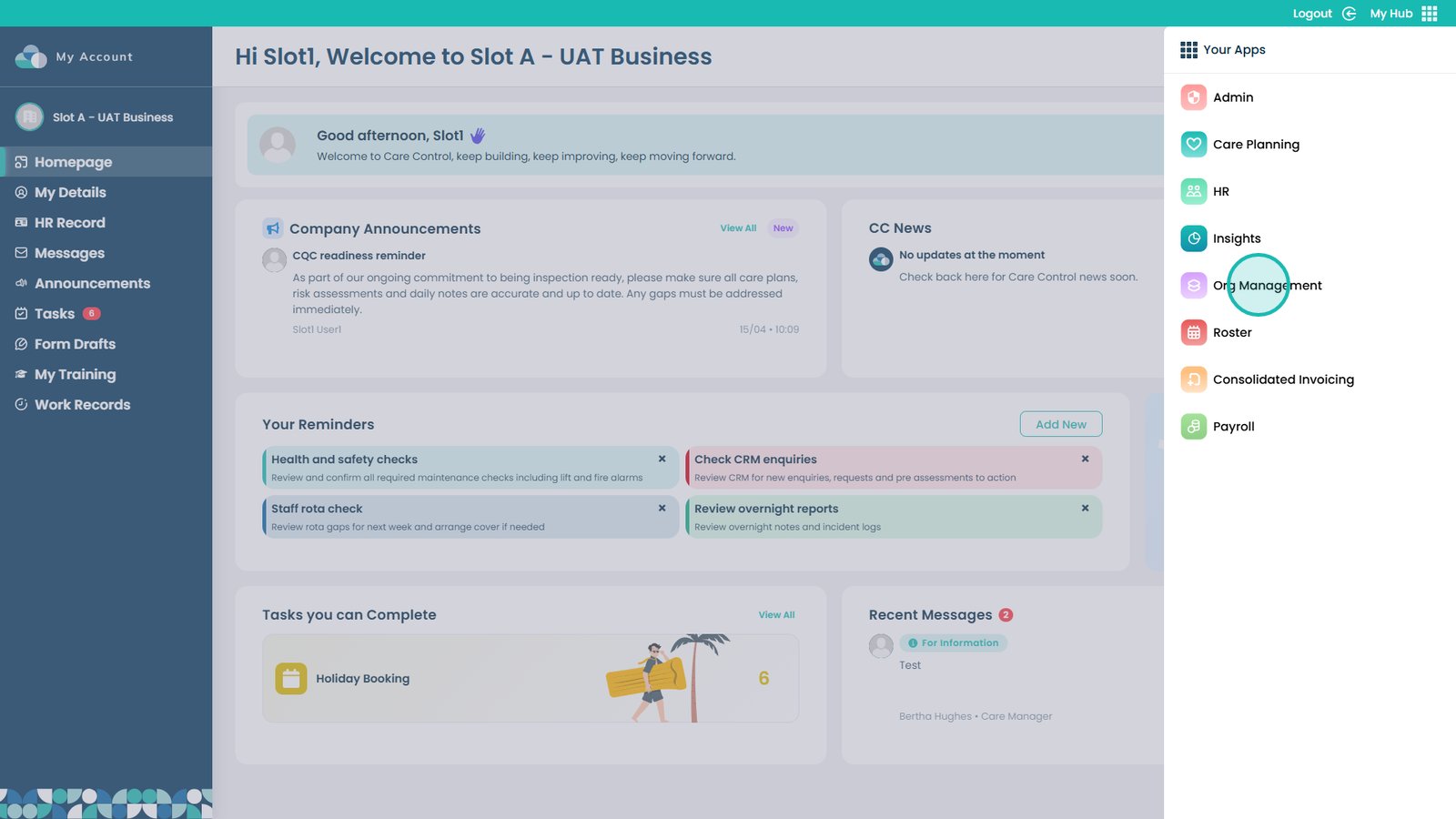
Start by launching the app.

Enter the Org Management app.

Click ‘Visit’ to access dashboard management features.

Select ‘Everything About Data’ to access dashboard tools.

Go to ‘MyHub Dashboards’ to manage your dashboards.

Select ‘Create New Dashboard’ to begin.

Enter a name for your new dashboard.

Add a short description to help identify the dashboard.

Set the dashboard as active using the toggle if required.

Optionally set the dashboard as the default for all users.

Select which site the dashboard applies to.

Assign the dashboard to specific staff members if needed.

Allow specific roles to view the dashboard.

Set different dashboards for individual users if required.

Filter by department, position, or category for targeted visibility.

Click ‘Create Dashboard’ to save your new dashboard.

Select ‘Edit’ to customise your dashboard layout.

Note that some widgets, such as CC News, cannot be modified.

Select a widget from the left panel to begin editing.

Place the widget on your grid where required.

Open widget settings to customise its behaviour.

Adjust widget settings such as auto-cycling and intervals.

Click ‘Done’ to confirm widget changes.

Add widgets using the plus icon in empty grid areas.

Select the widget you want to add.

Choose how many columns the widget should span.

Click ‘Add Widget’ to place it on your dashboard.

Open ‘Manage Grid’ to adjust layout rows.

Clear widgets from a row if needed.

Add extra rows to expand your dashboard layout.

Click ‘Done’ after adjusting the grid.

Remove individual widgets using the remove option.

Finish configuring your dashboard layout.

Click ‘Save’ to ensure all changes are stored.

Return to the dashboard management view.

Open dashboard settings to review configuration.

Ensure the dashboard is active and assigned correctly.

Click ‘Save Changes’ to confirm final settings.

Your new dashboard is now available on the MyHub homepage.

Was it helpful ?
Table of Contents
↑ Top