View Categories

How to Create an Analysis Report in Cloud

This guide explains how to access and run analysis reports within the Admin app to review care data across your organisation.

Using reports helps improve efficiency, ensures accurate oversight of care activity, and reduces the risk of missed insights. By analysing data at both site and business level, you can make more informed decisions and support better outcomes for residents and staff.

By following this guide, you will learn how to:

  • Access reports within the Admin app
  • Select the correct application, category, and report type
  • Run reports to generate real-time analysis
  • Filter and explore report data effectively
  • Export or copy report data for sharing and reporting
  • Use MargoAI for deeper insights and analysis

This ensures you can confidently generate, review, and share meaningful care data to support compliance, performance tracking, and continuous improvement.

Interactive Guide

Text based guide

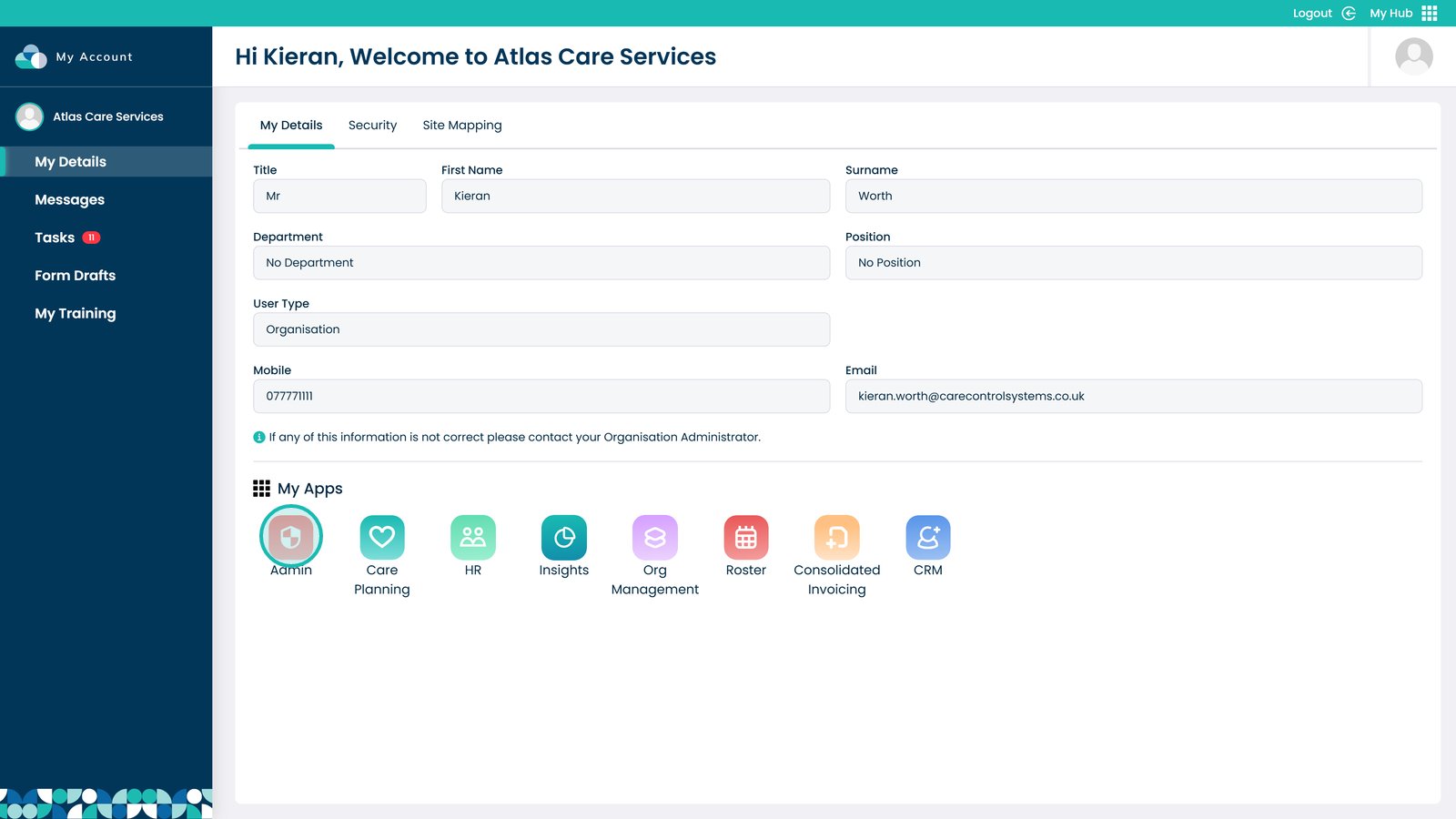
Start by launching the Admin app to access essential administrative tools.

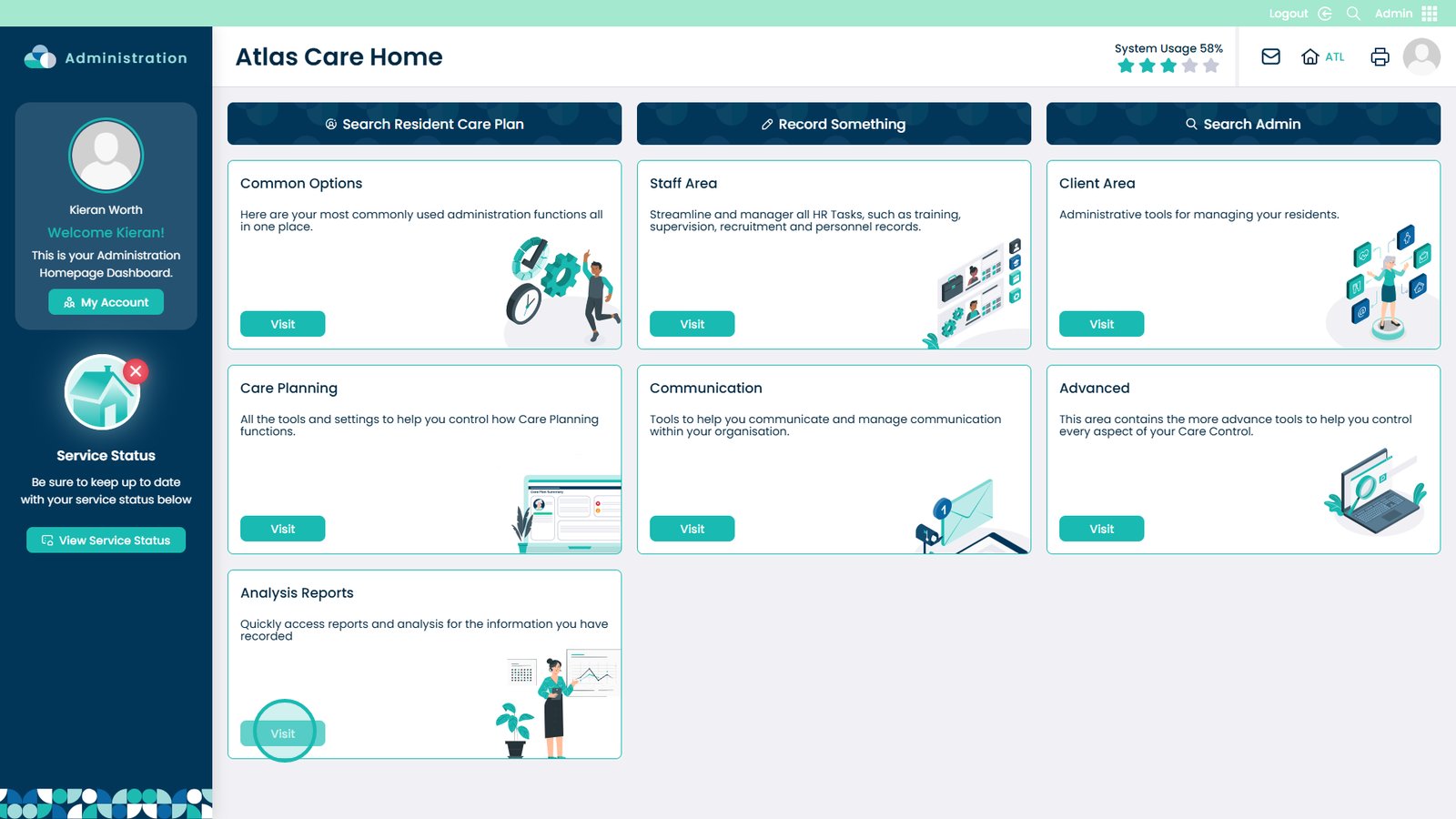
Select ‘Visit’ in the Analysis Reports section to access detailed care analytics.

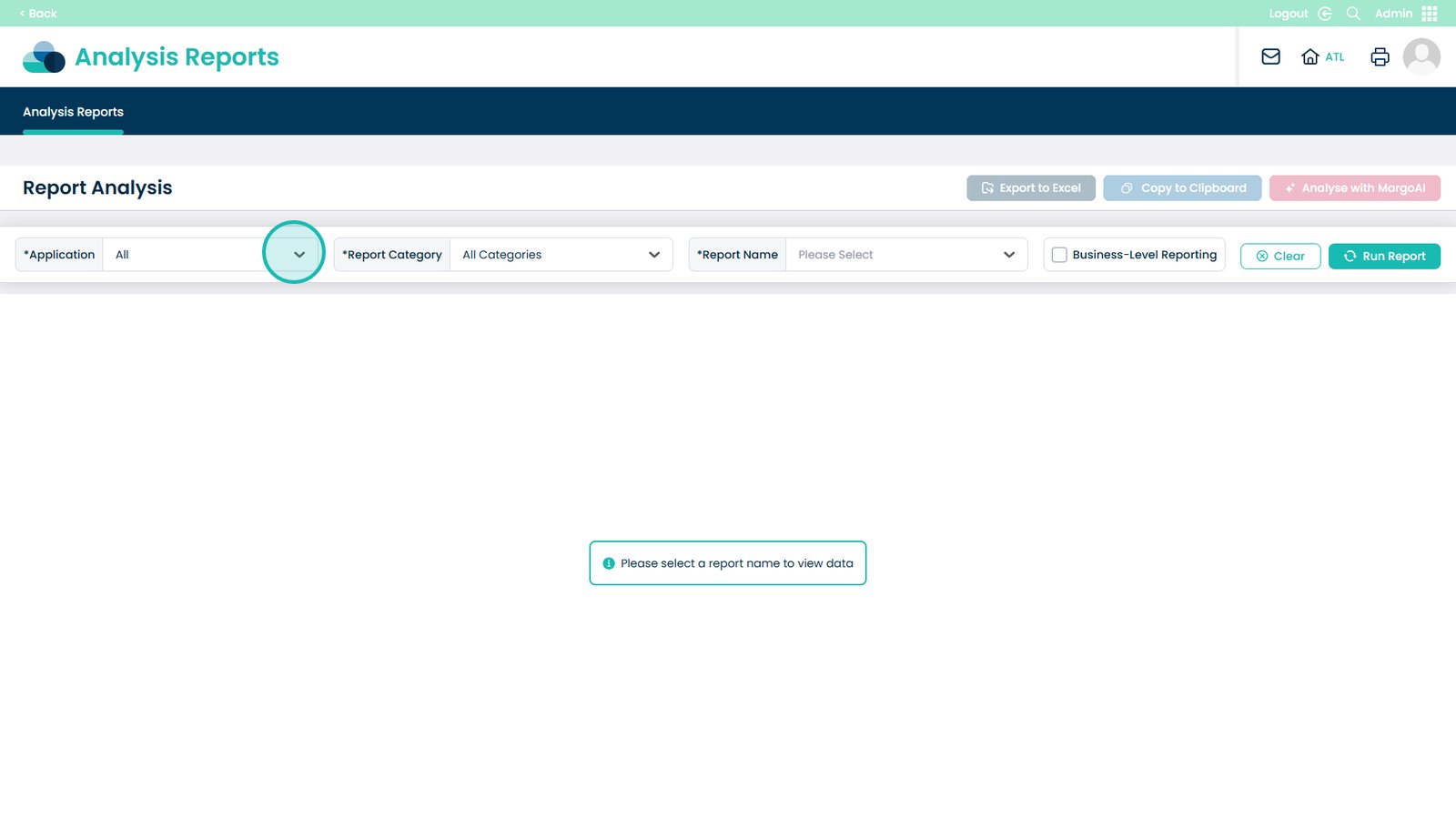
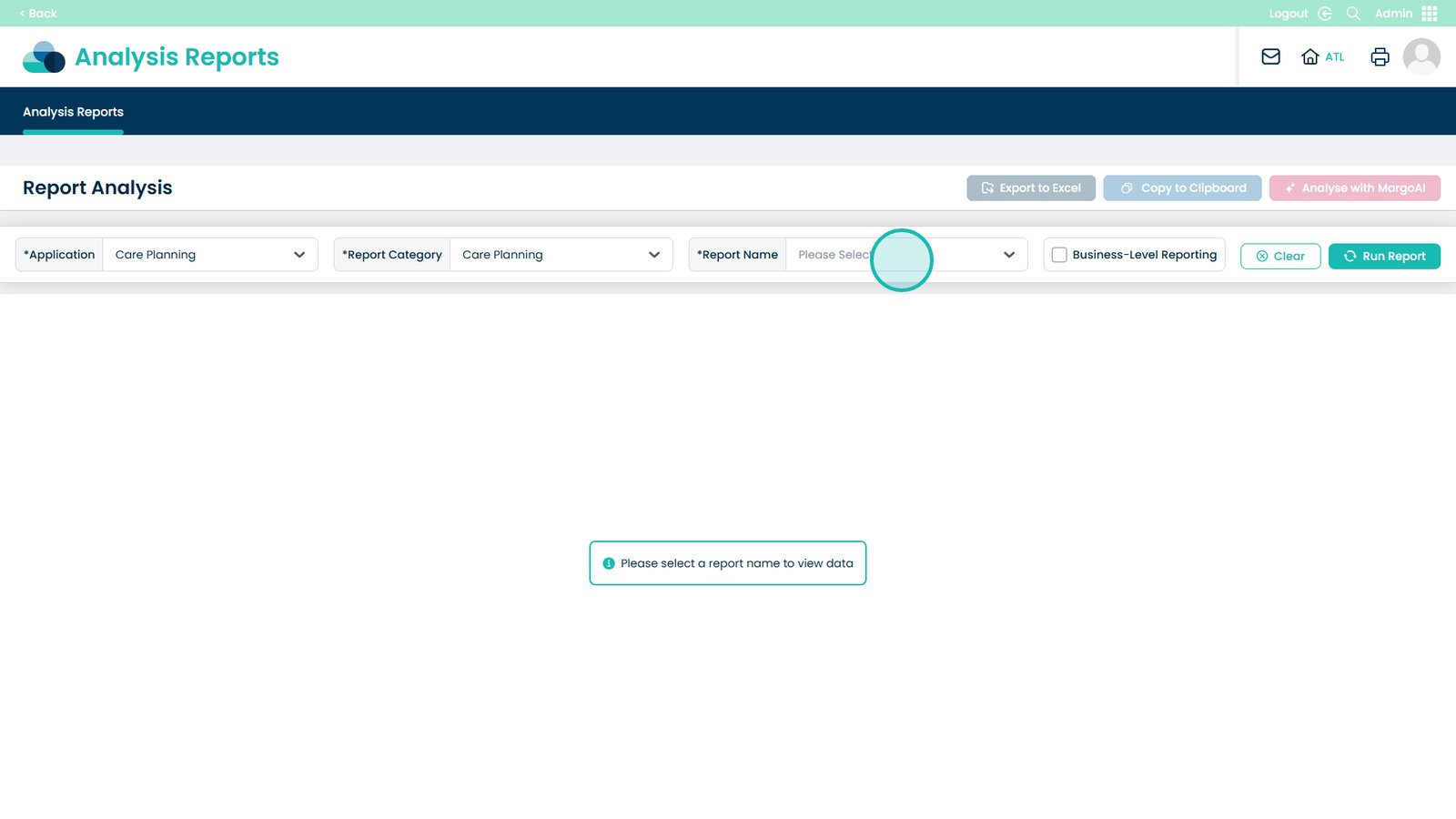
Click the Application dropdown to focus on reports from a specific part of your system.

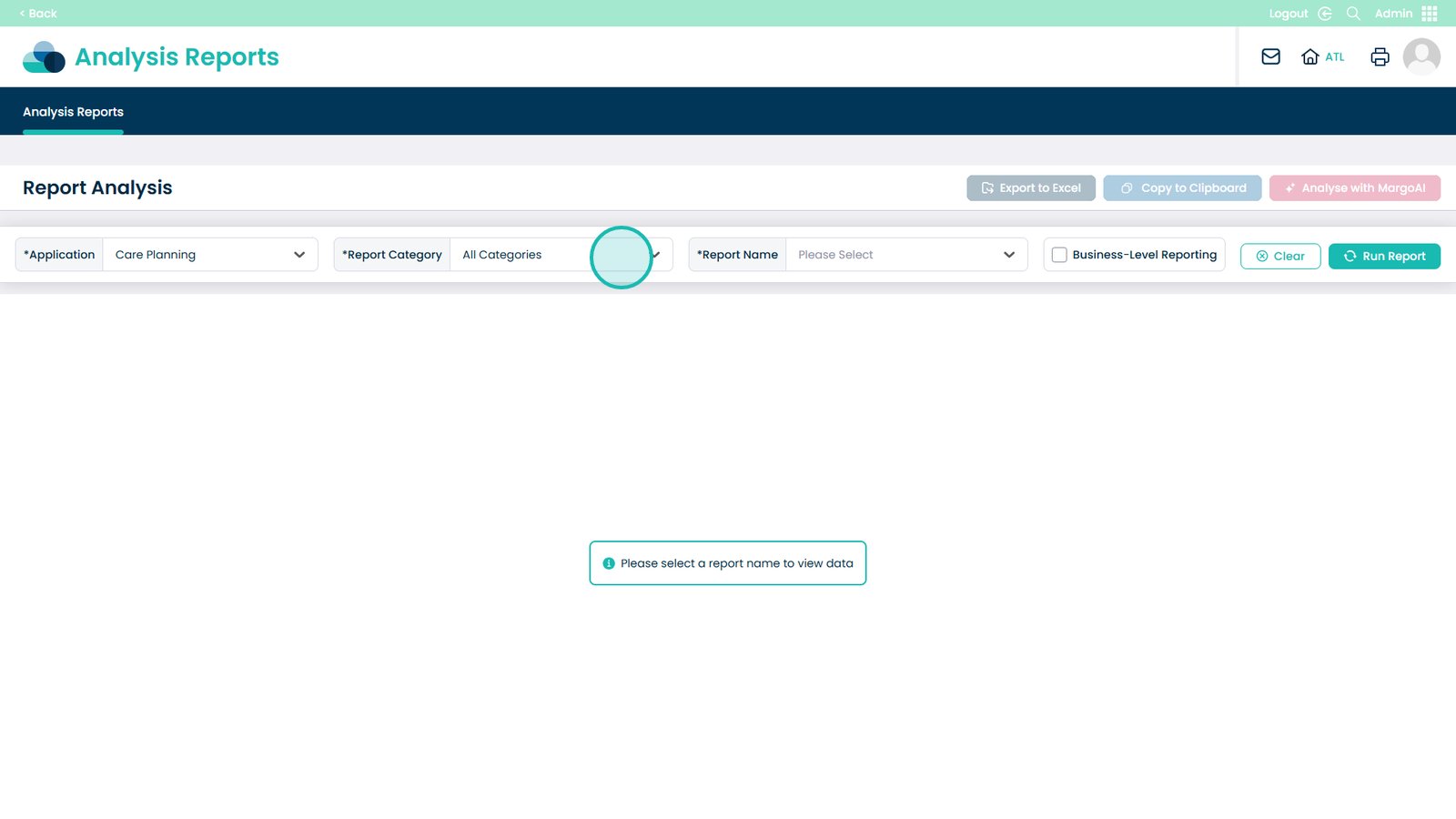
Open the Report Category dropdown to narrow down the report further.

Click the Report Name dropdown to pick the specific analysis you want to review.

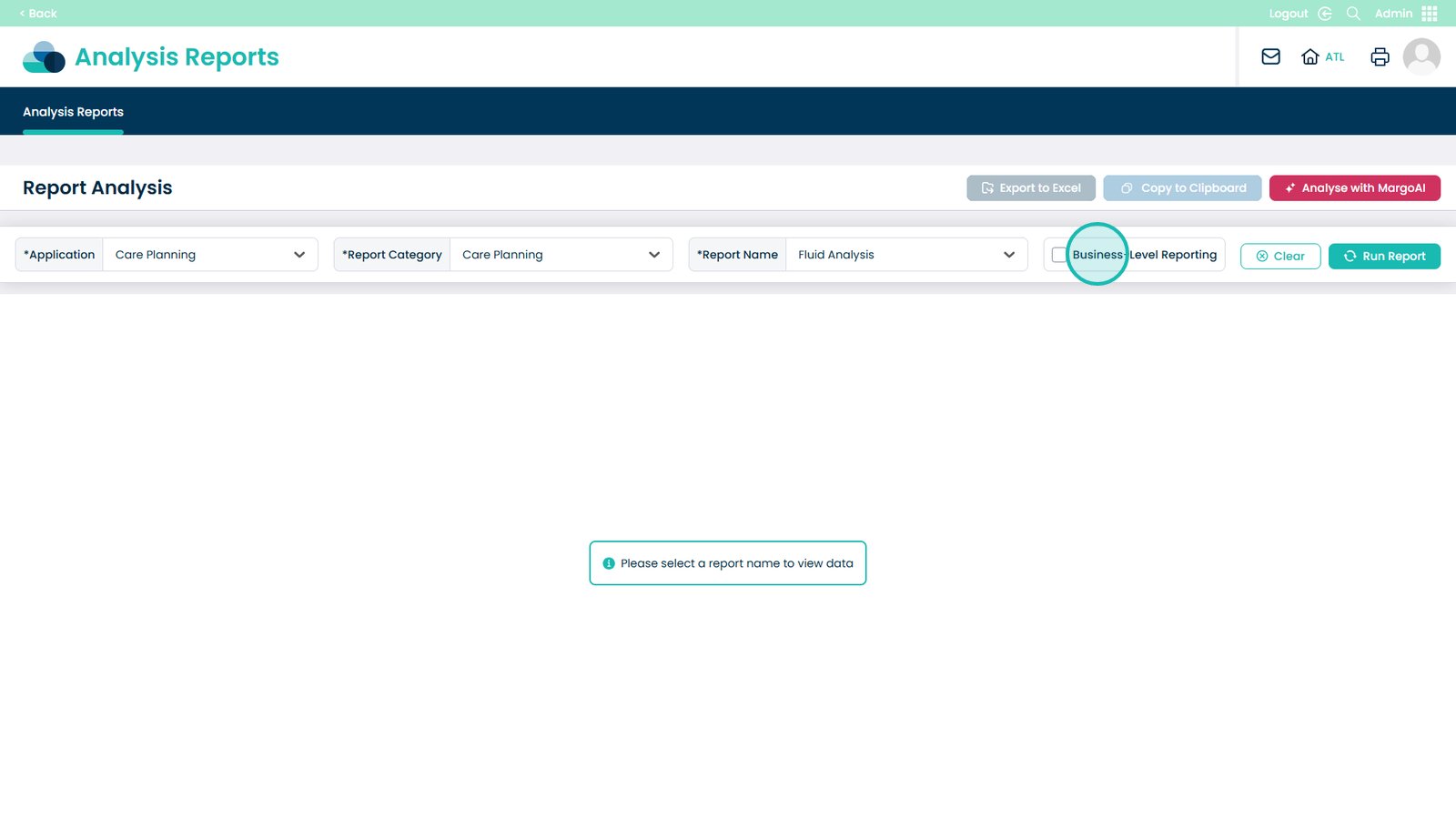
Select Business-Level Reporting to receive a report covering every site within your organisation.

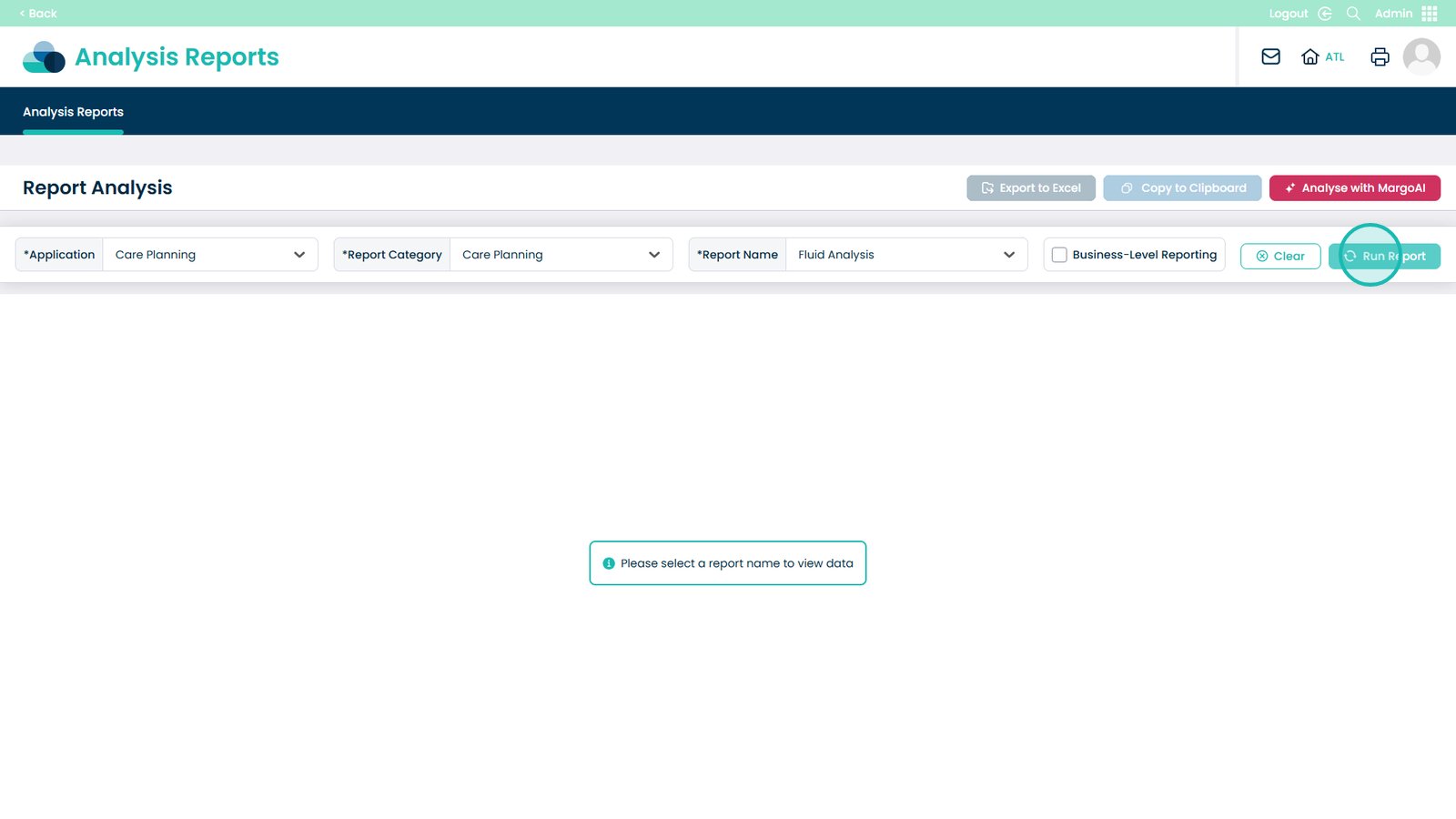
Click ‘Run Report’ to generate instant, actionable analysis based on your selected filters.

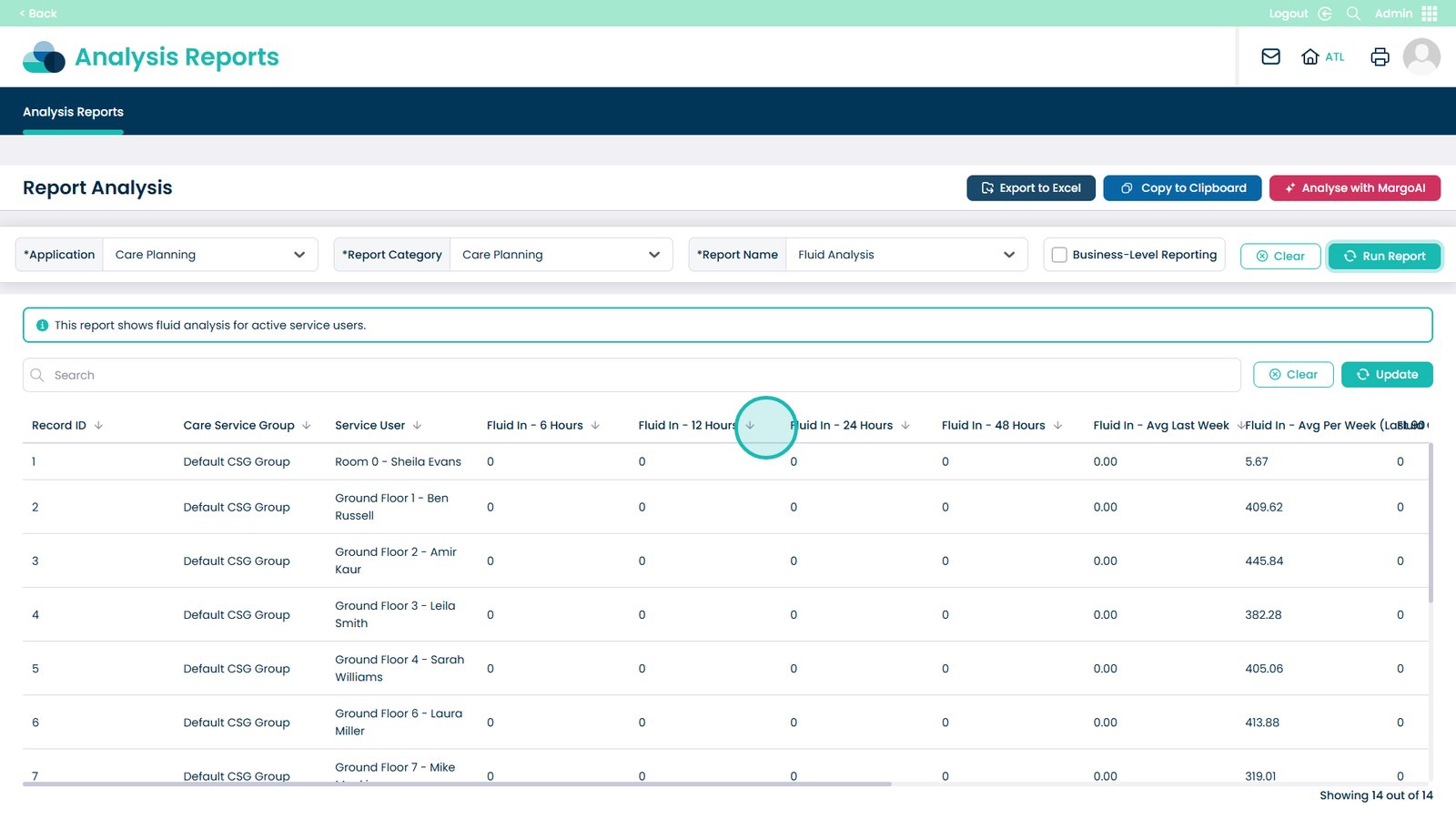
Review the generated data and use filters or toggles to refine your analysis.

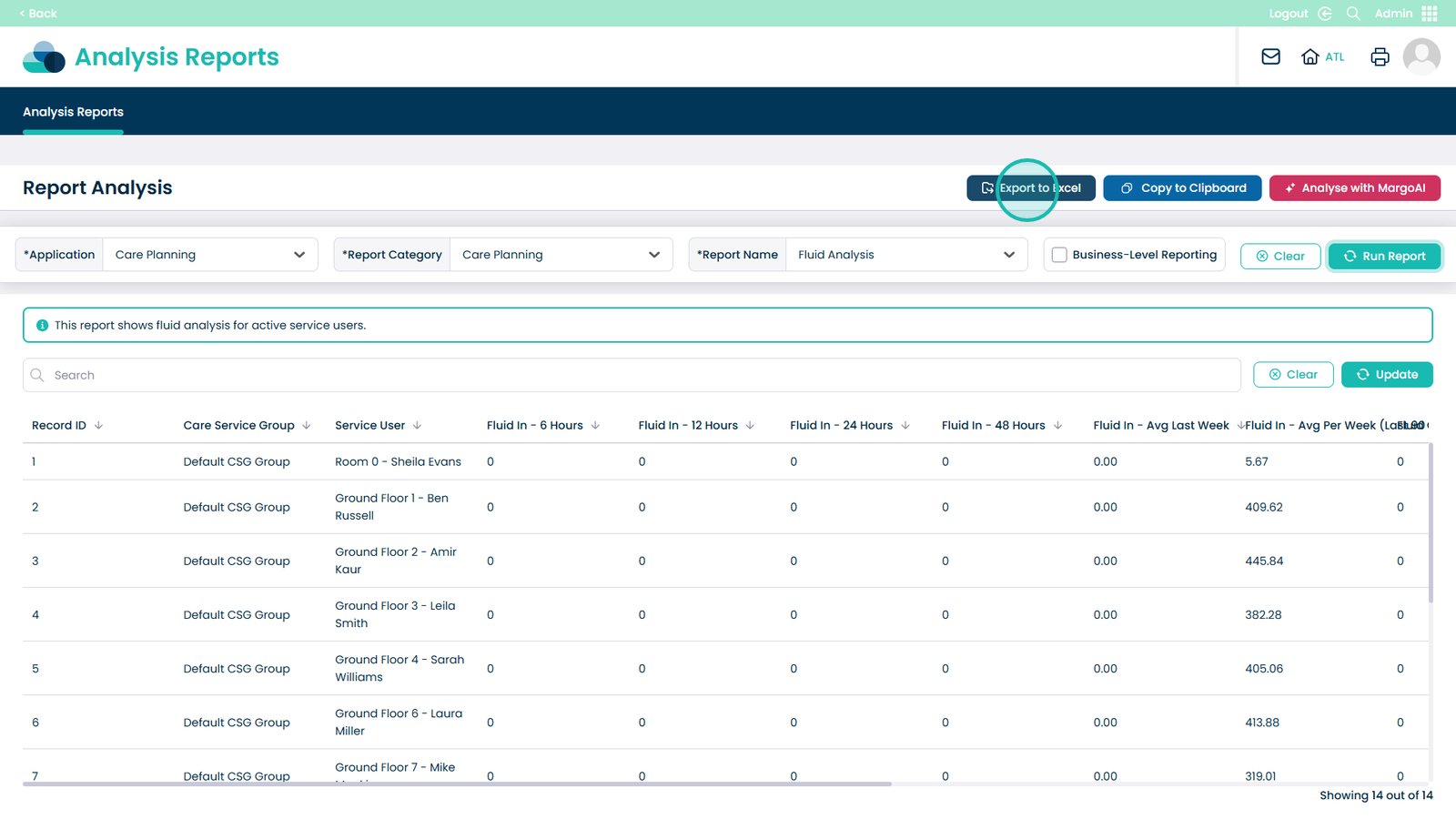
Export the analysis to an Excel spreadsheet for reporting or printing.

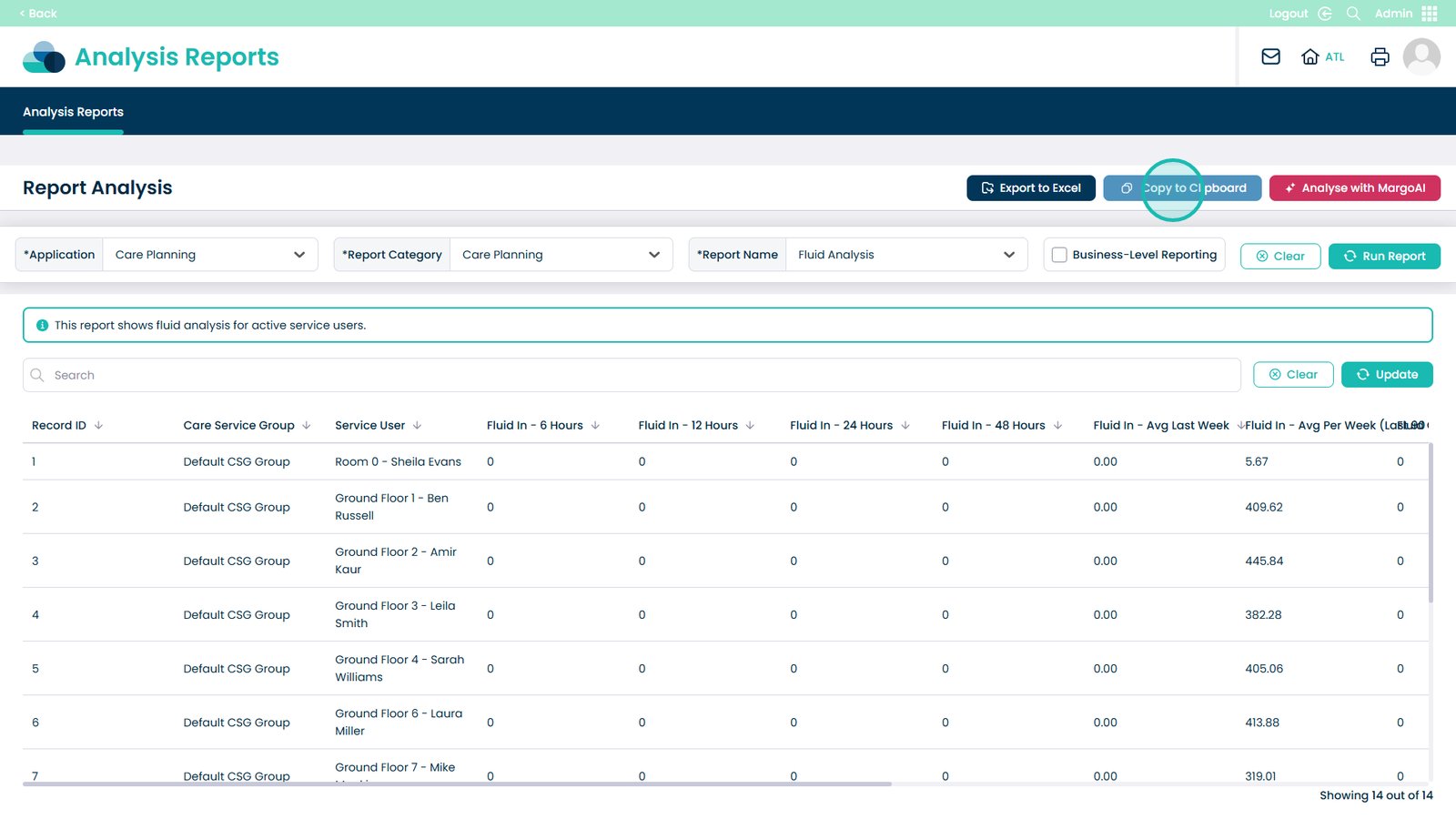
Use Copy to Clipboard to quickly paste the data into other systems or documents.

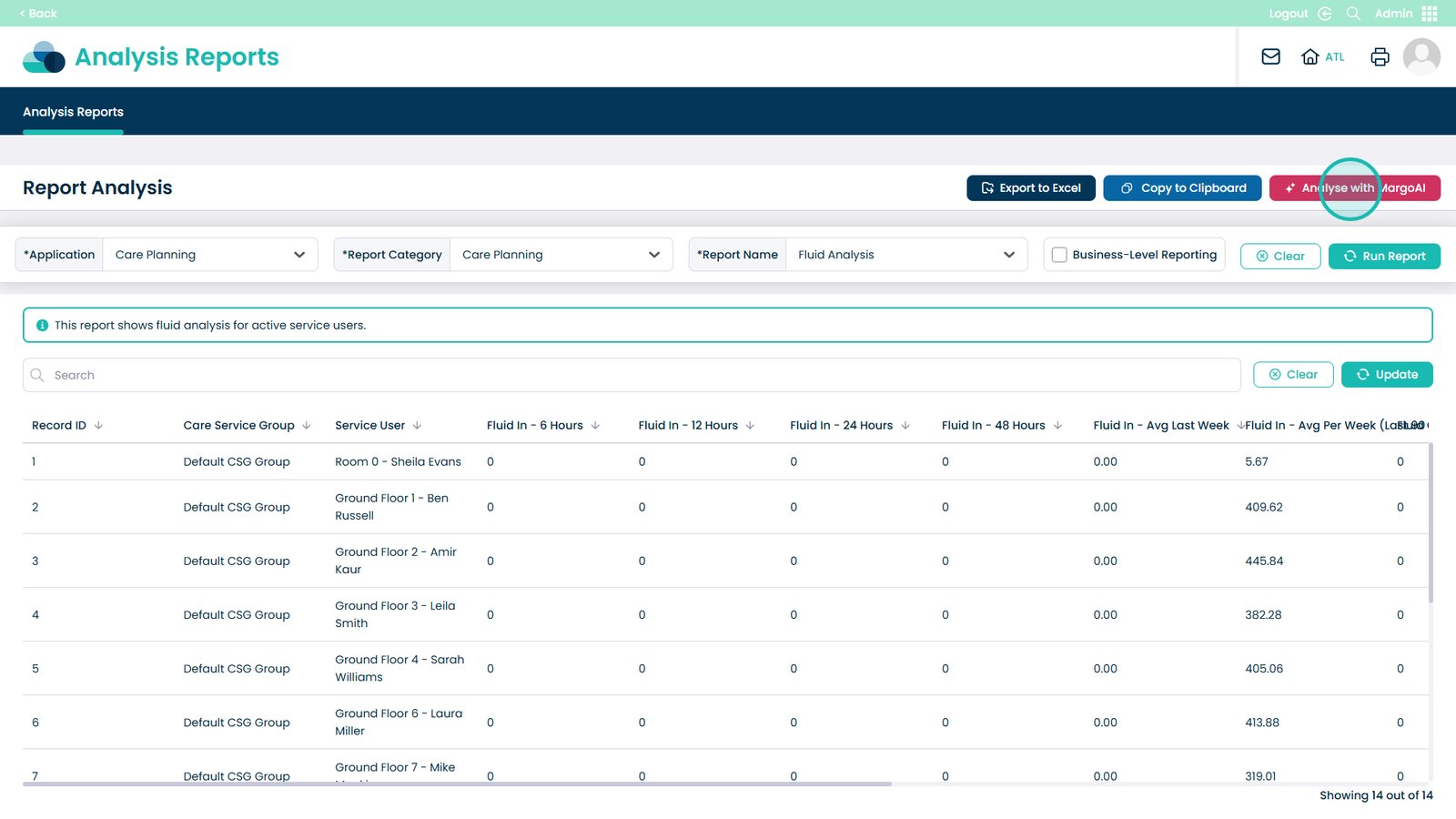
Use MargoAI analytics to gain deeper insights and enhanced reporting capabilities.

Was it helpful ?
Table of Contents
↑ Top