How to Create and Manage documents in Document Library
This guide will walk you through uploading, managing, and organising documents within the Document Library.
Takes 5 minutes
For: Seniors & Managers
Updated: 1st June 2026
Introduction
This guide explains how to upload, manage, and organise documents within the Document Library.
In this guide you'll learn how to:
- Upload individual documents
- Assign documents to staff or clients
- Apply document types and tags
- Edit and remove documents
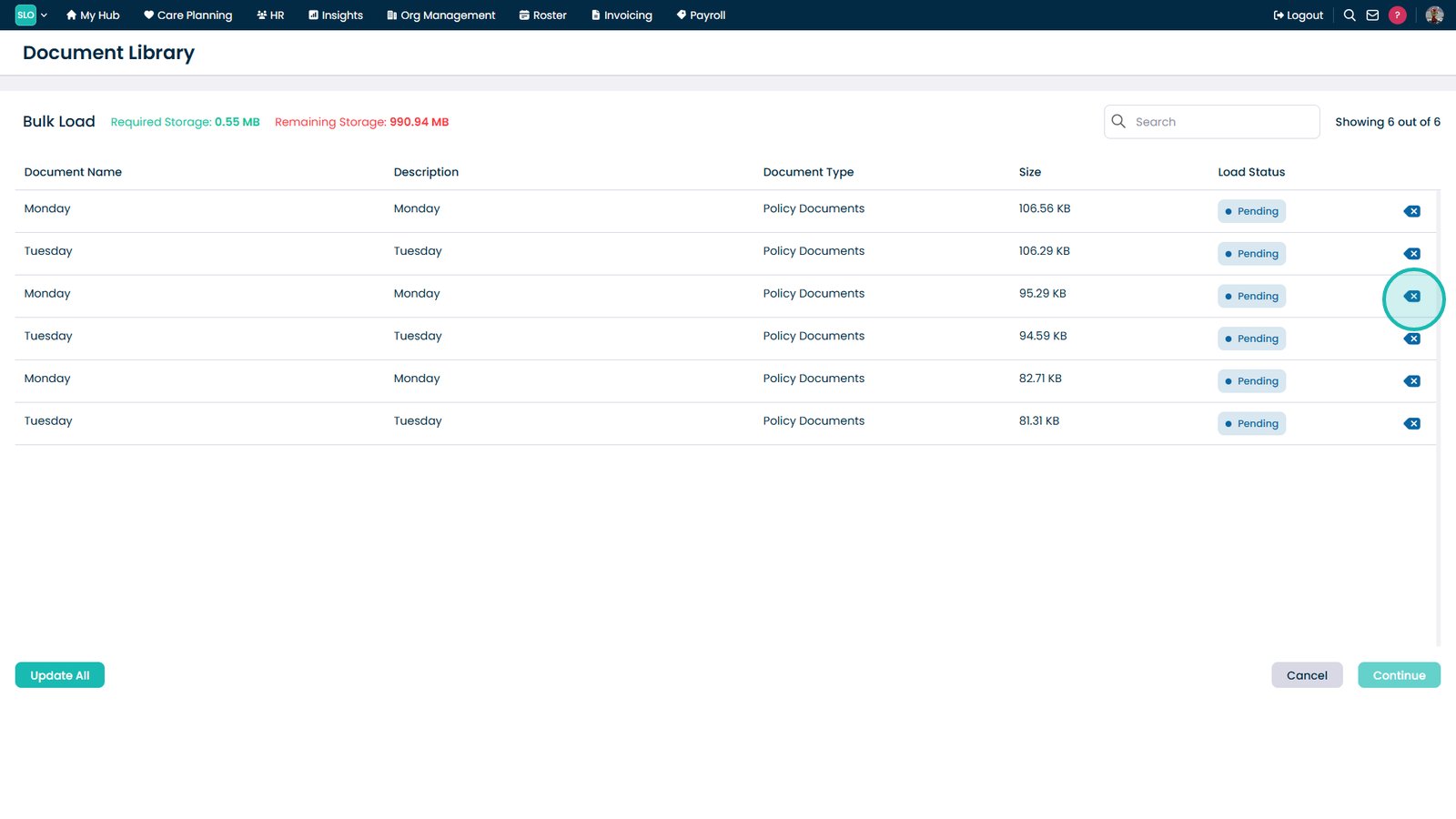
- Bulk upload multiple files
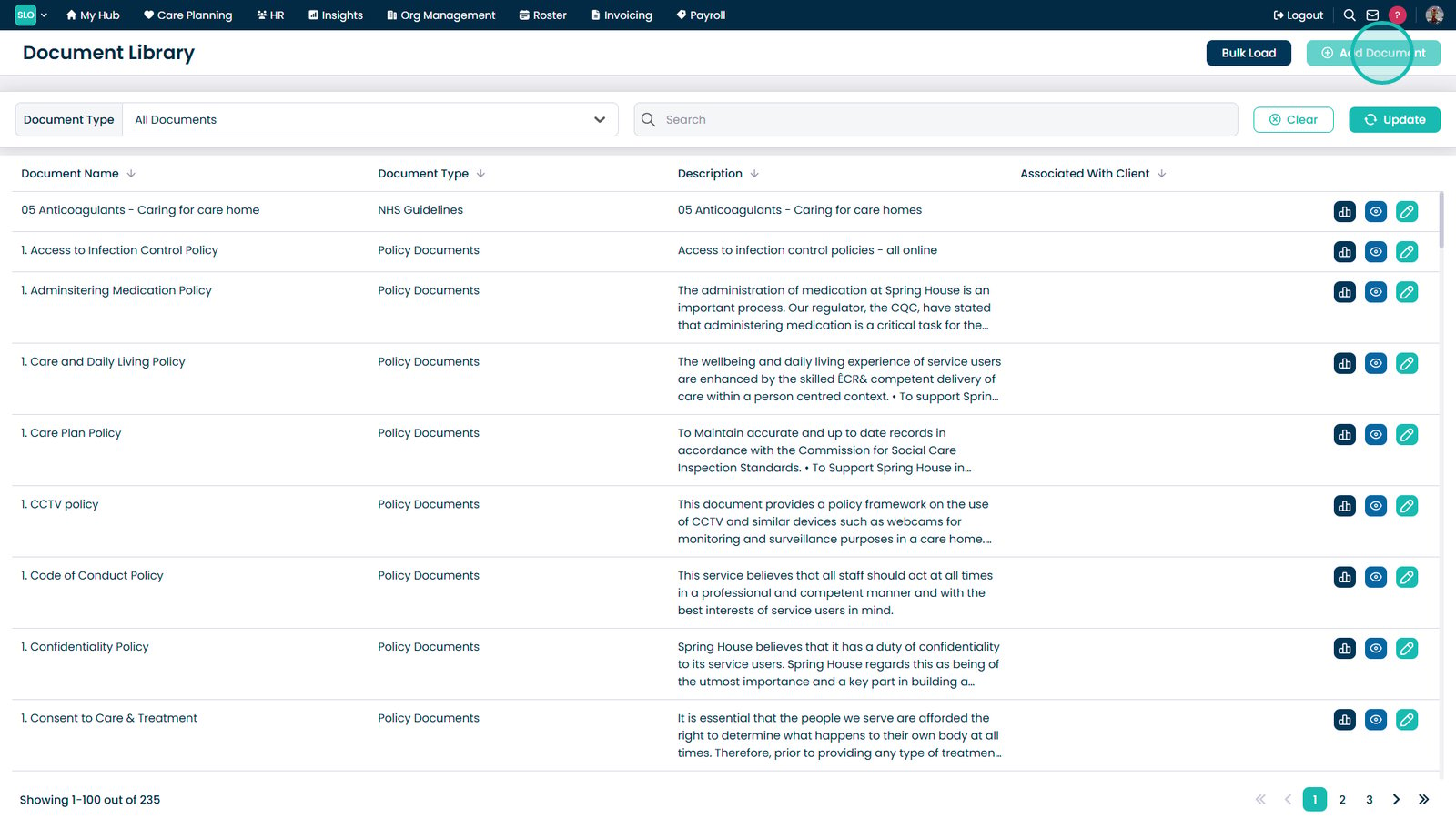
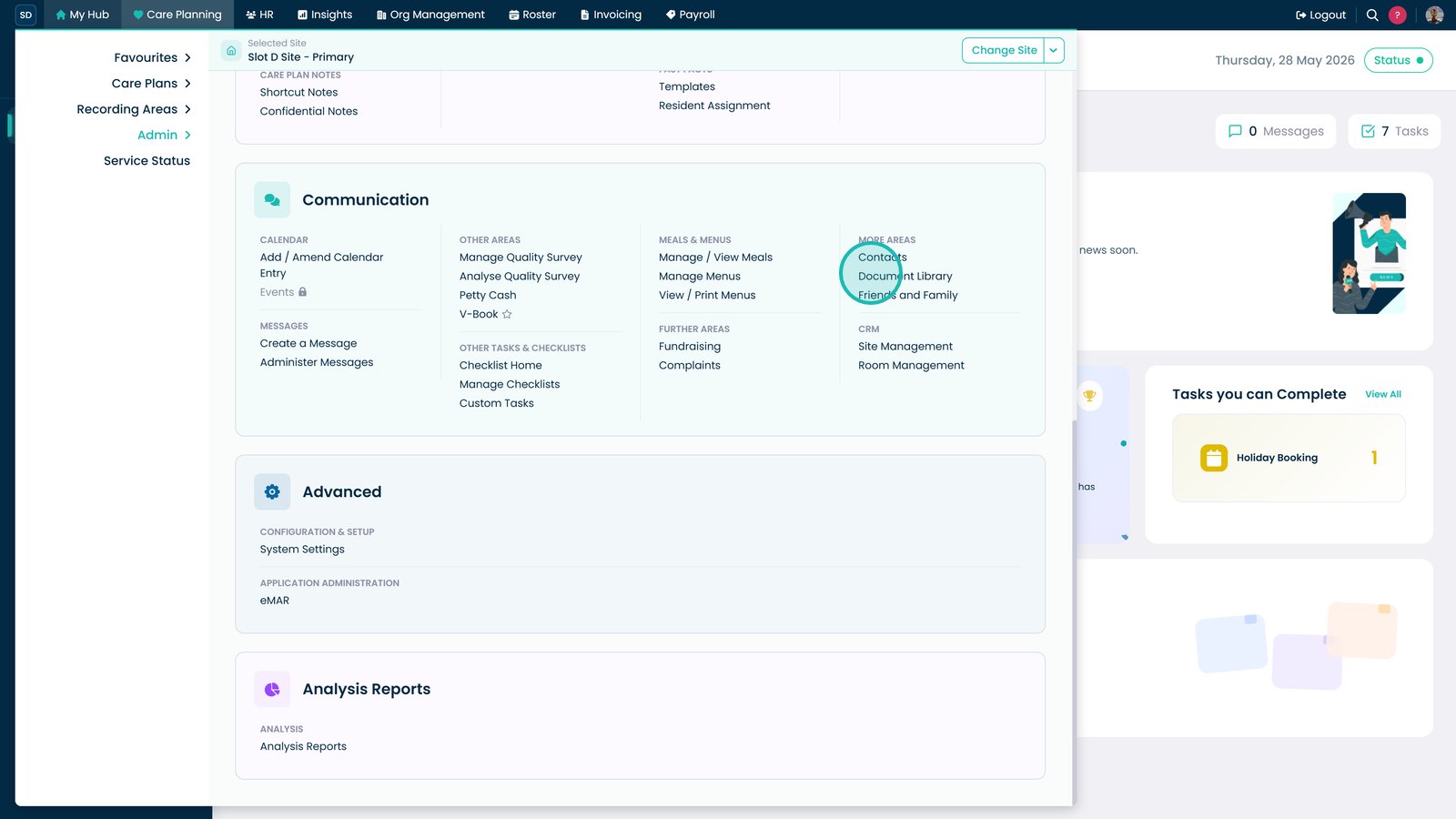
Open the Document Library.
Select Add Document.

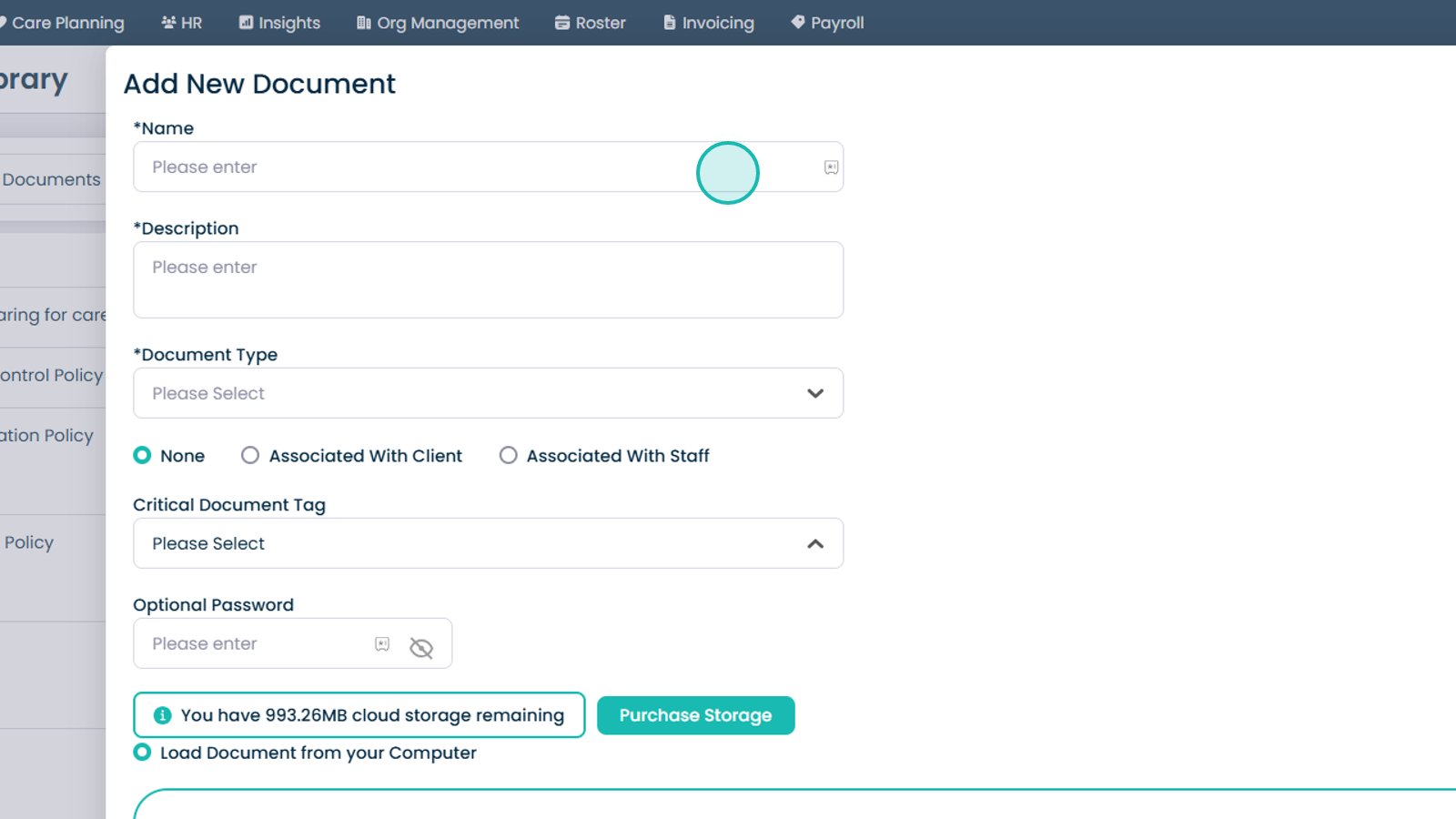
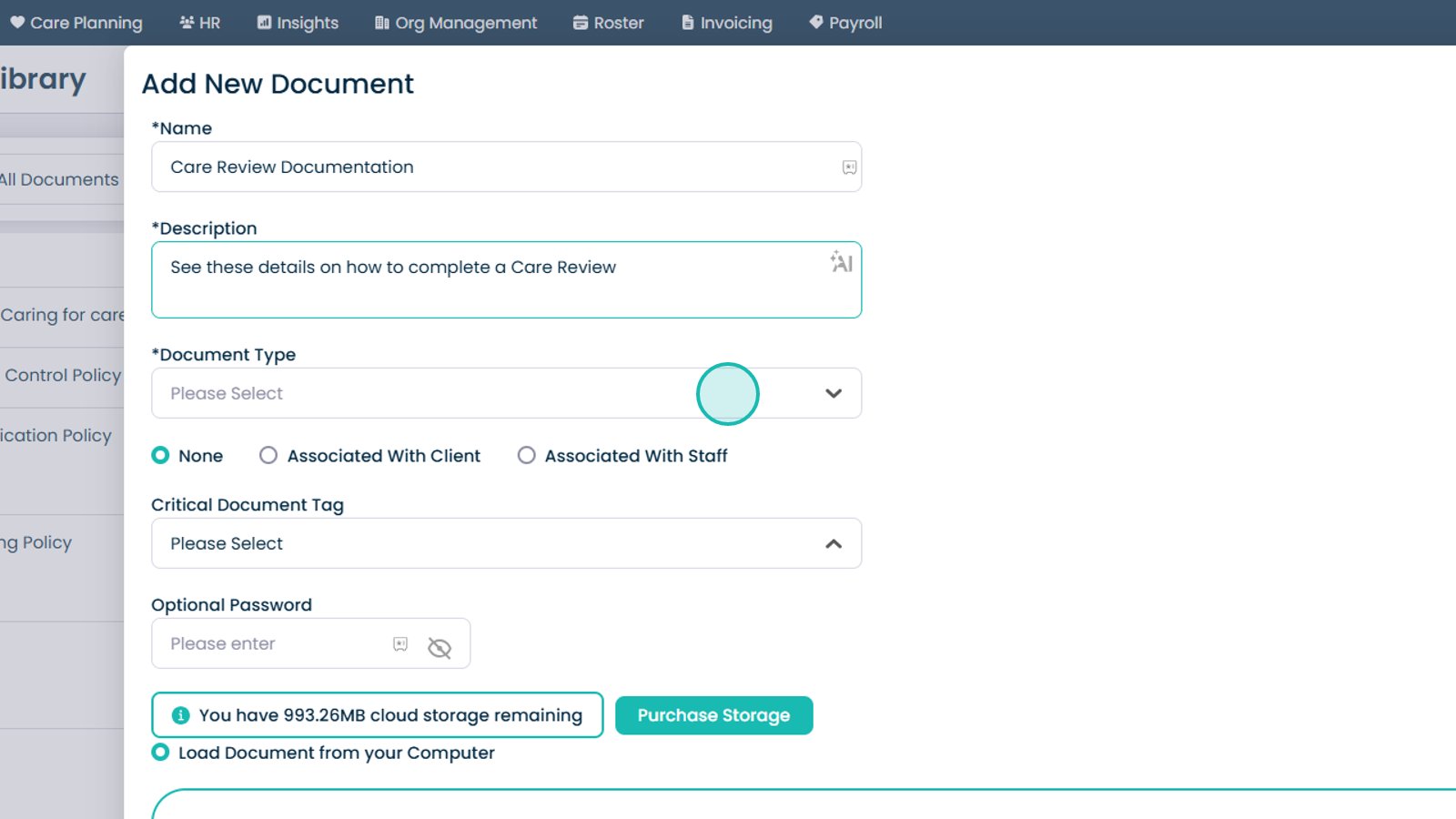
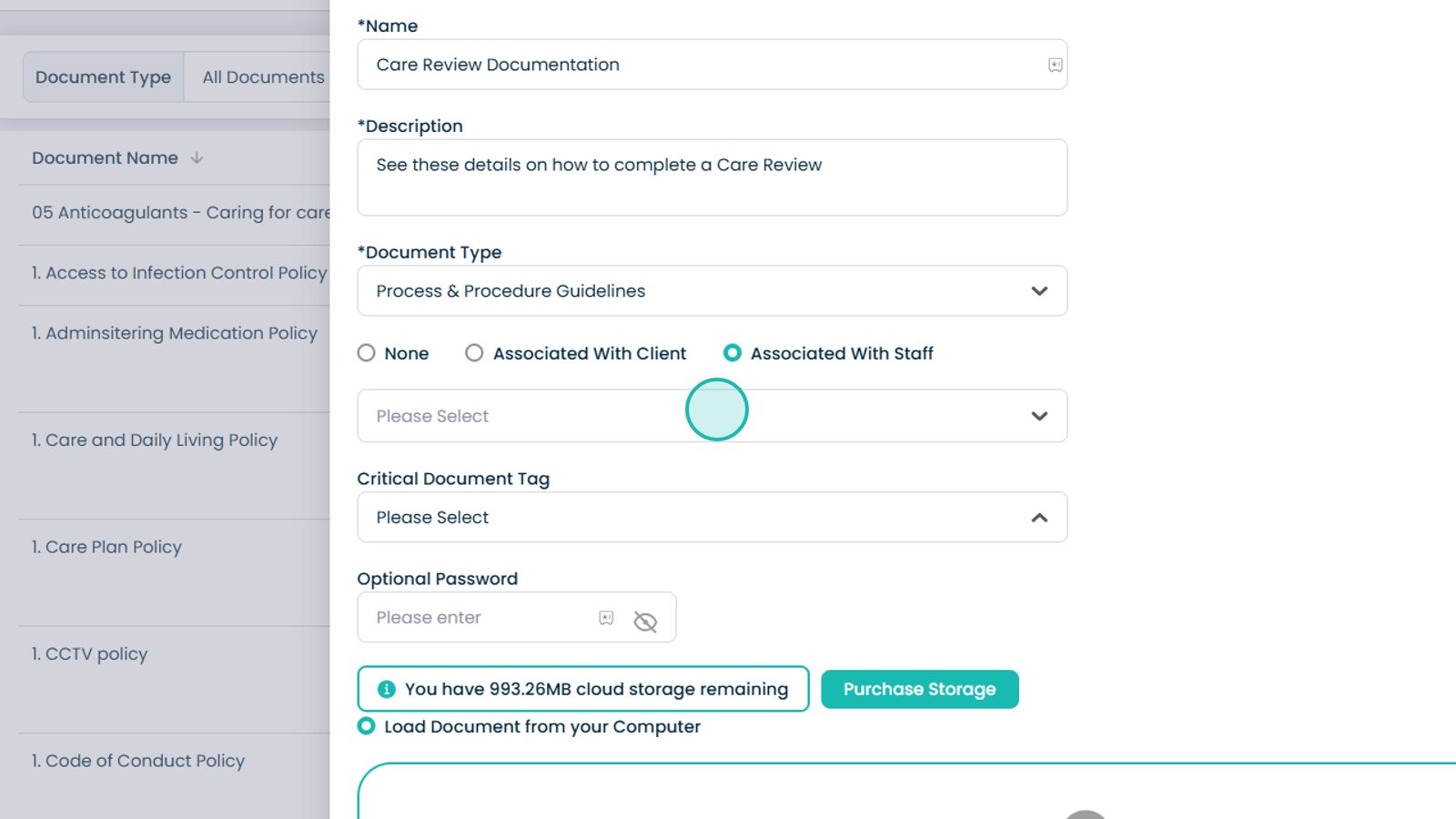
Enter the document details.

Select a document type.

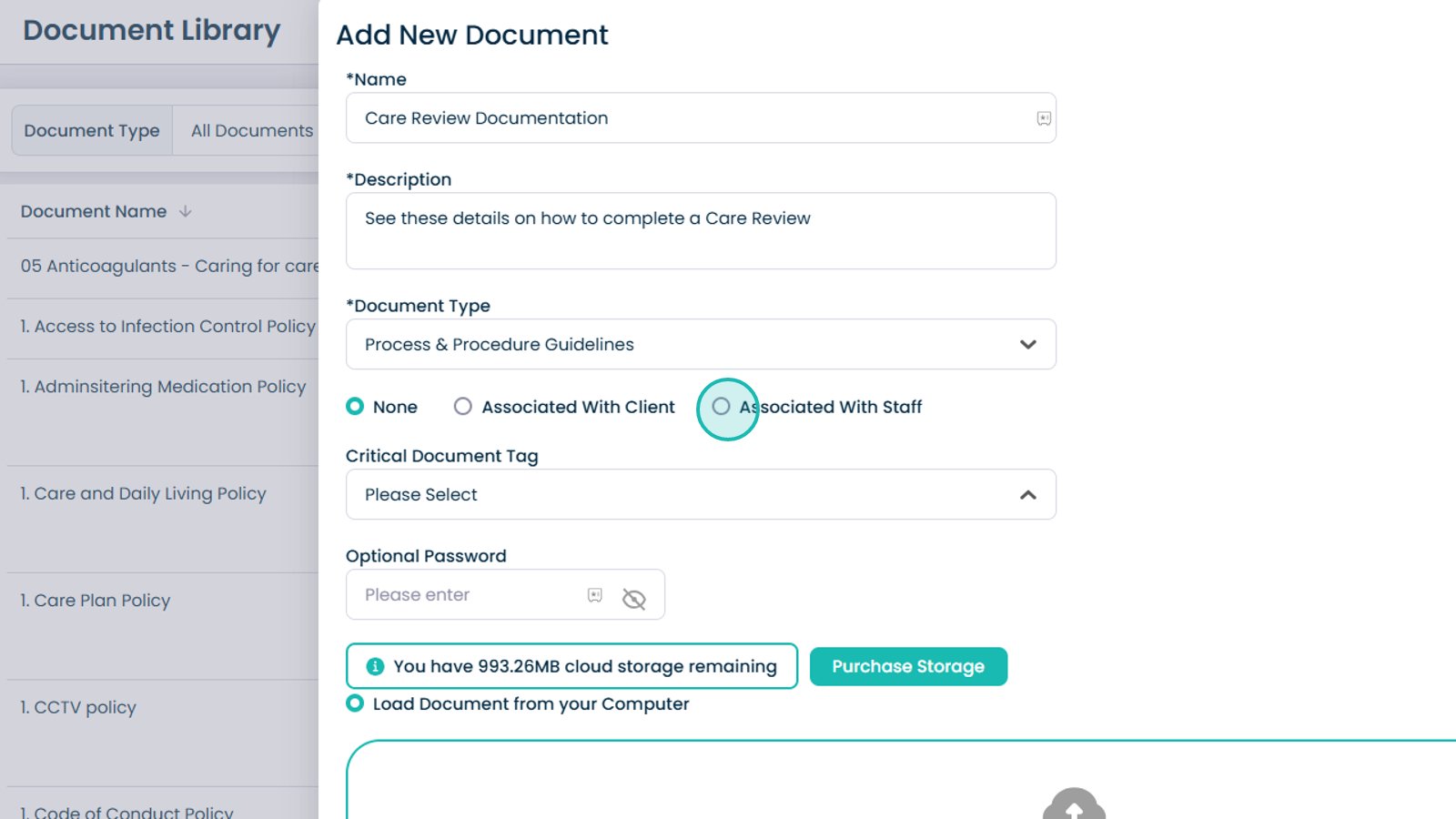
Select who the document relates to.

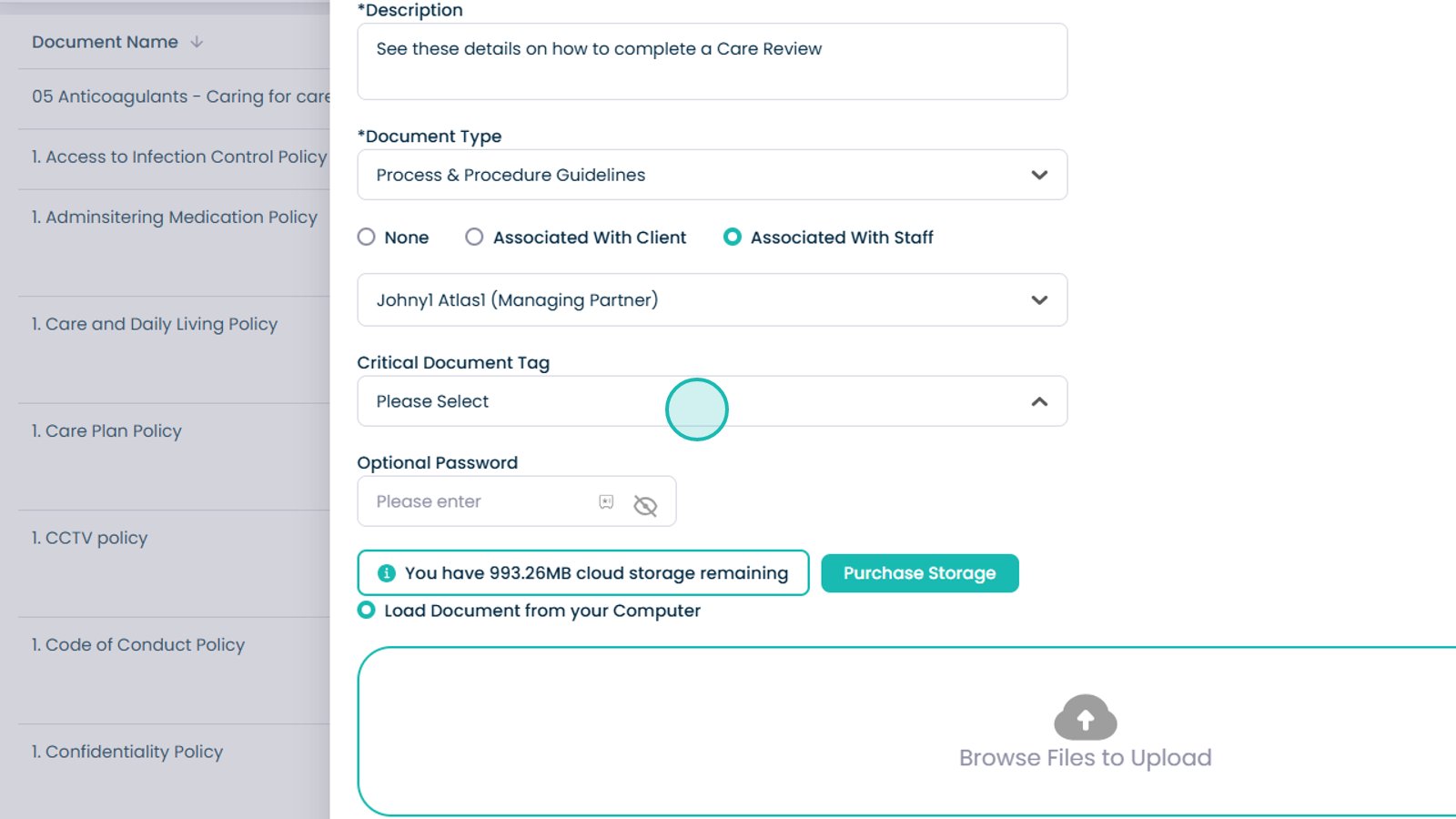
Select the relevant staff member.

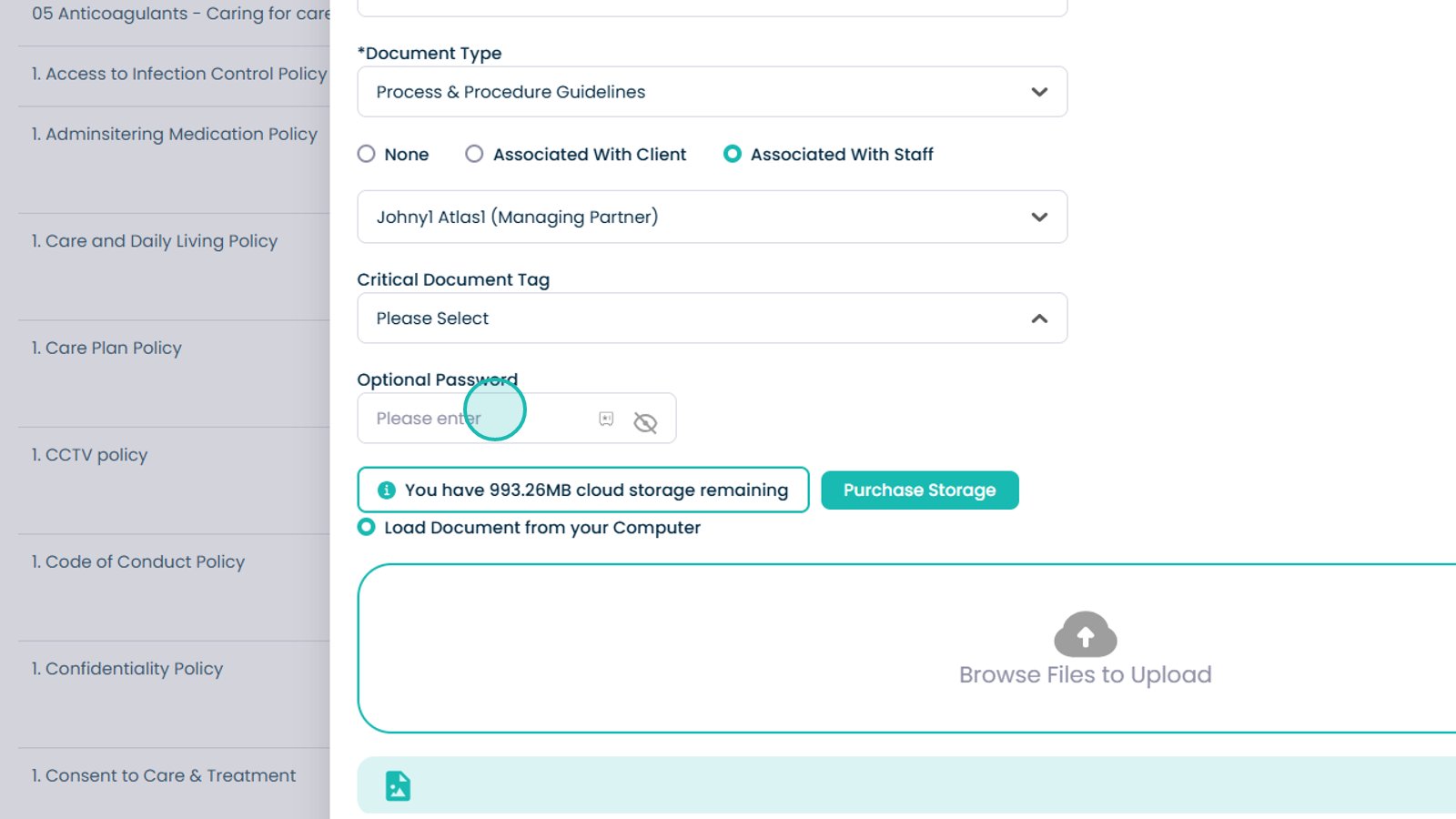
Add a critical tag if required.

Add a password if required.

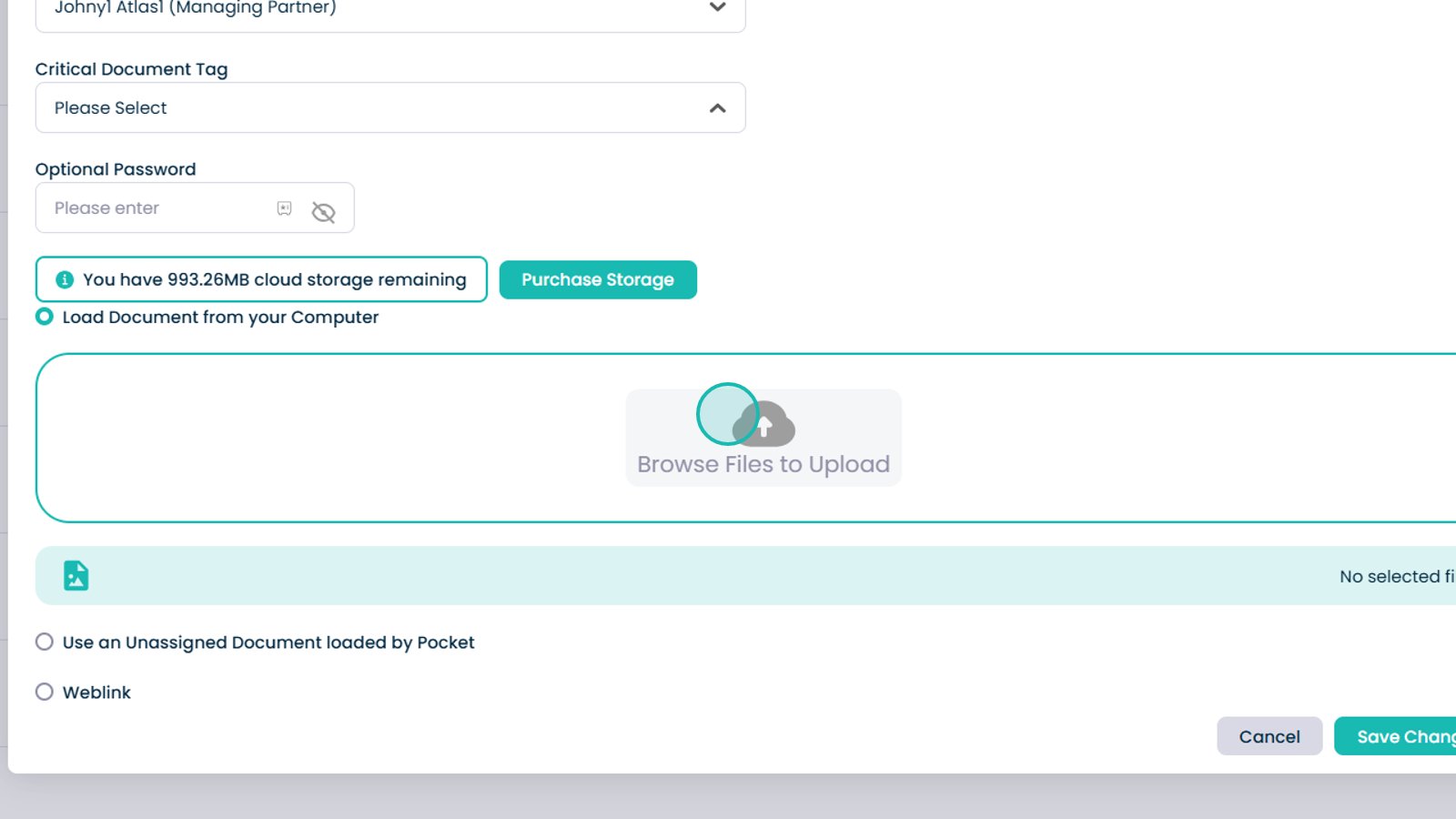
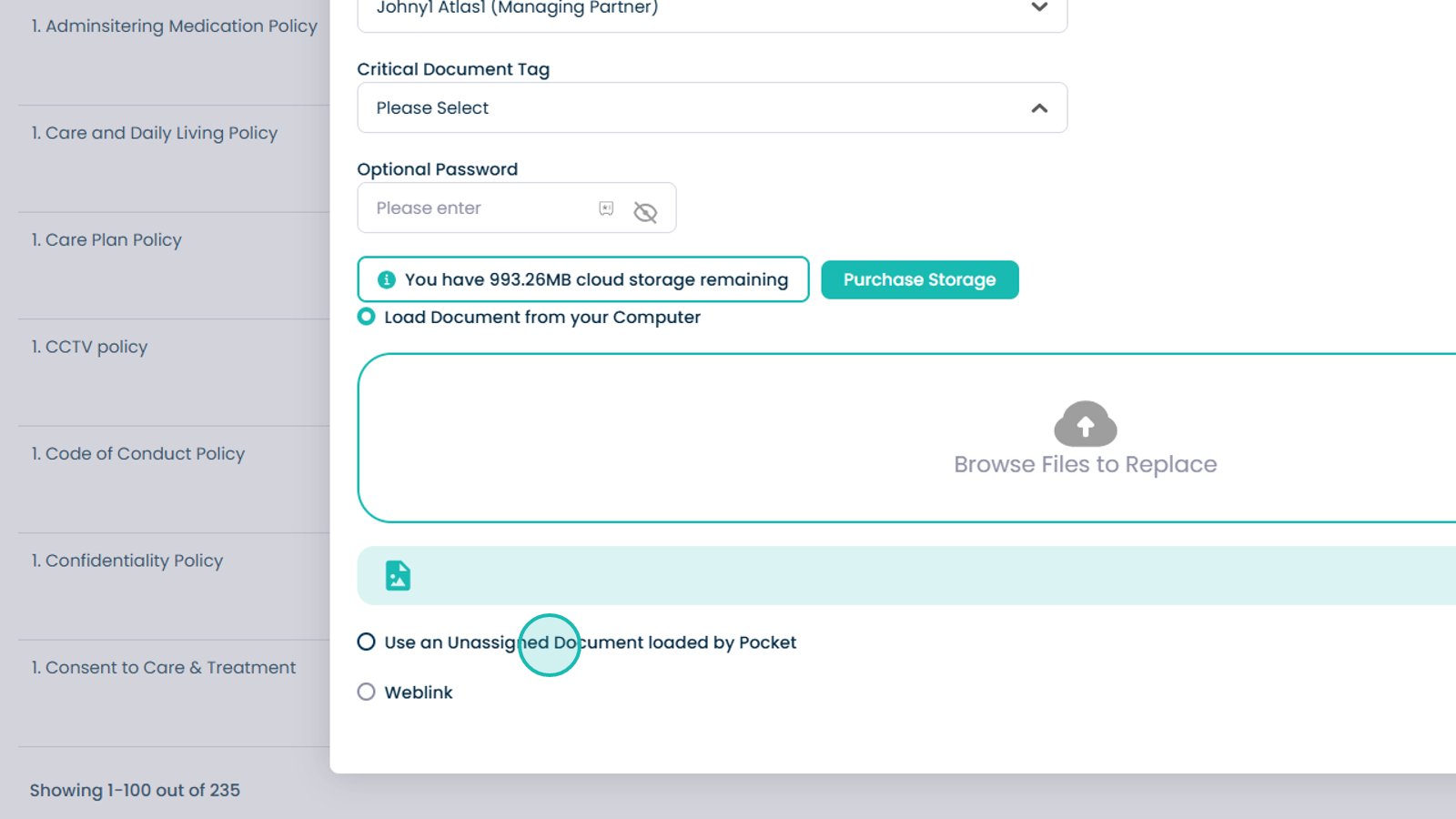
Browse and select a document.

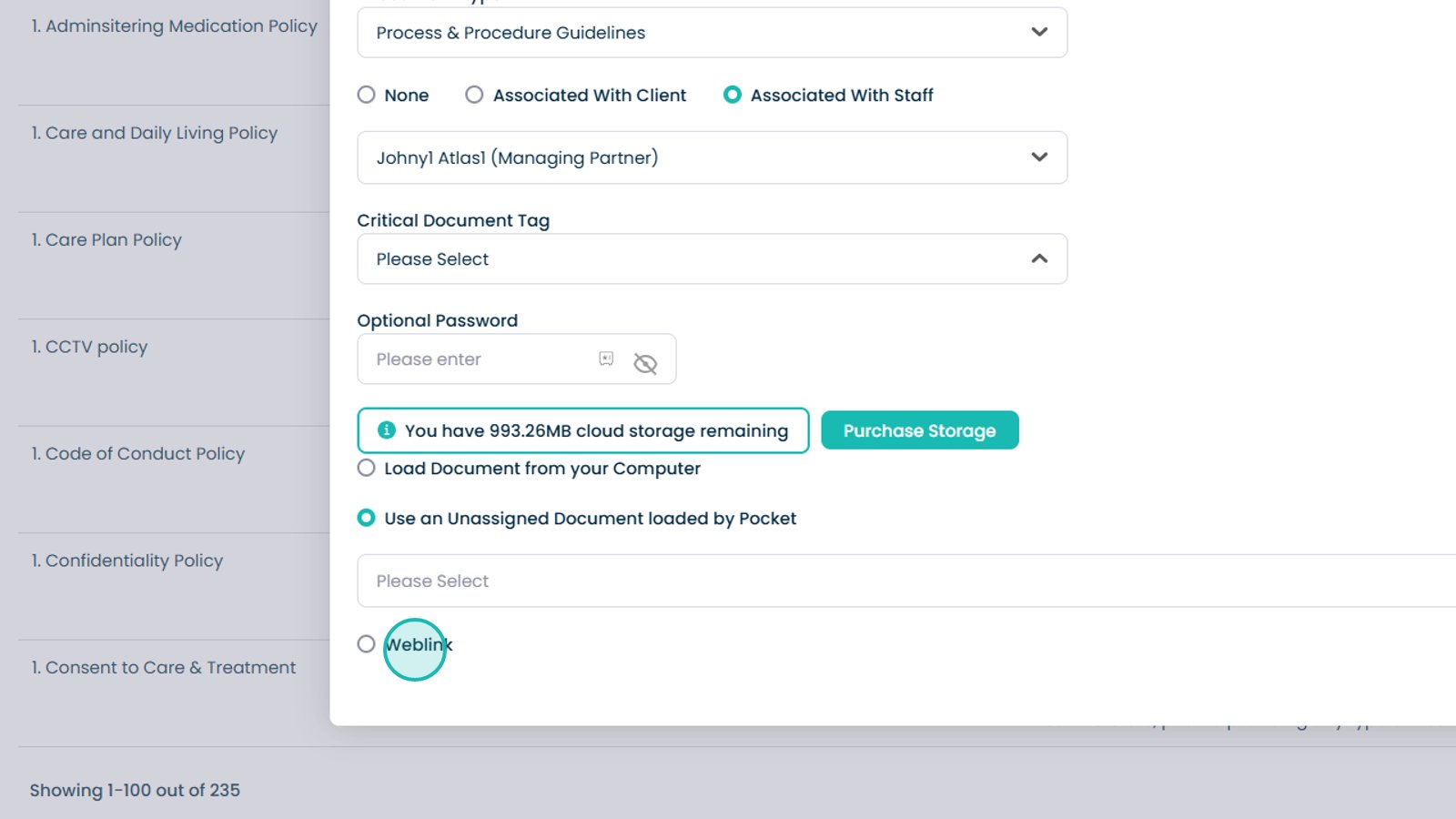
Select an unassigned uploaded document.

Add a web link instead of a file if required.

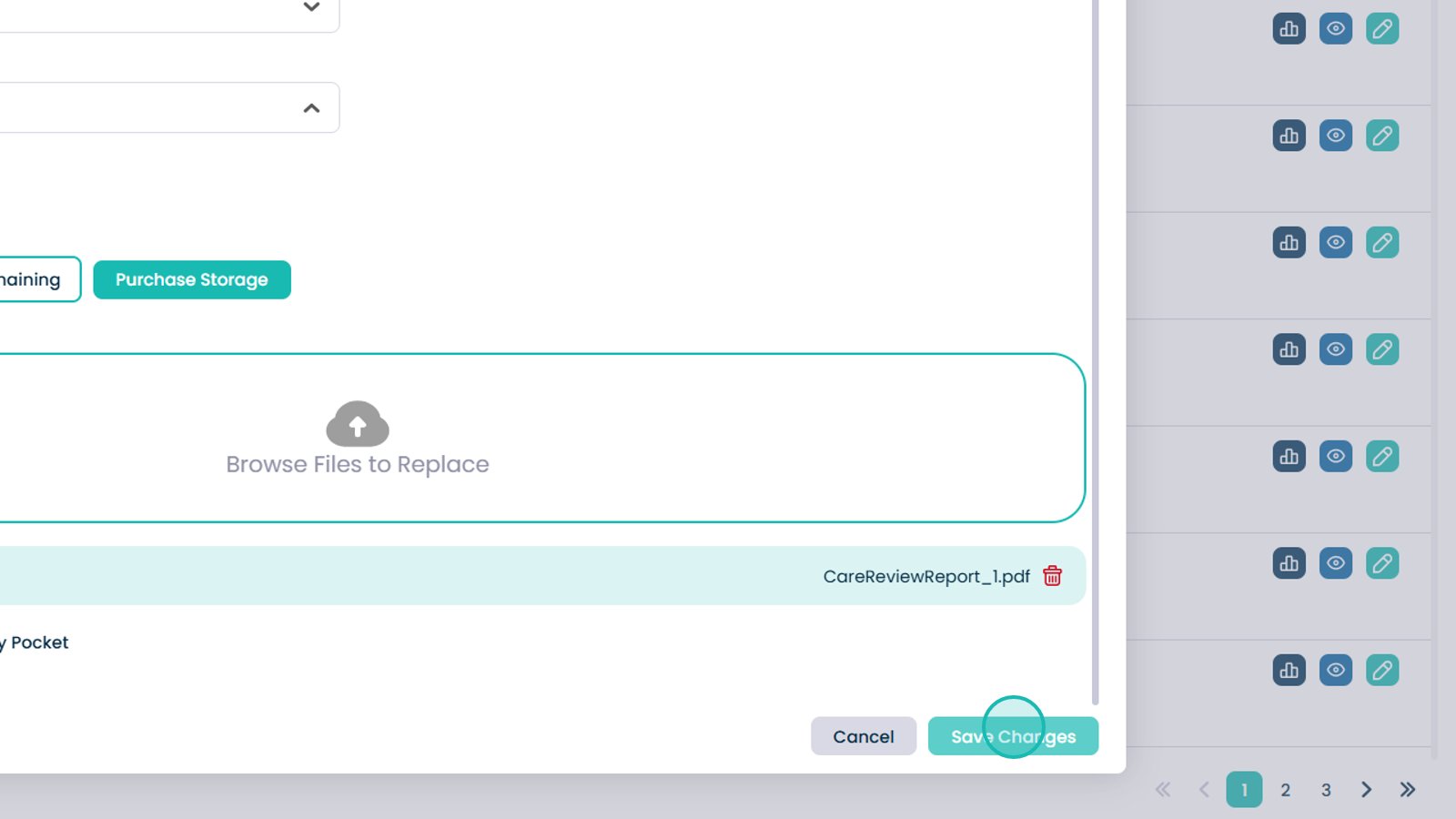
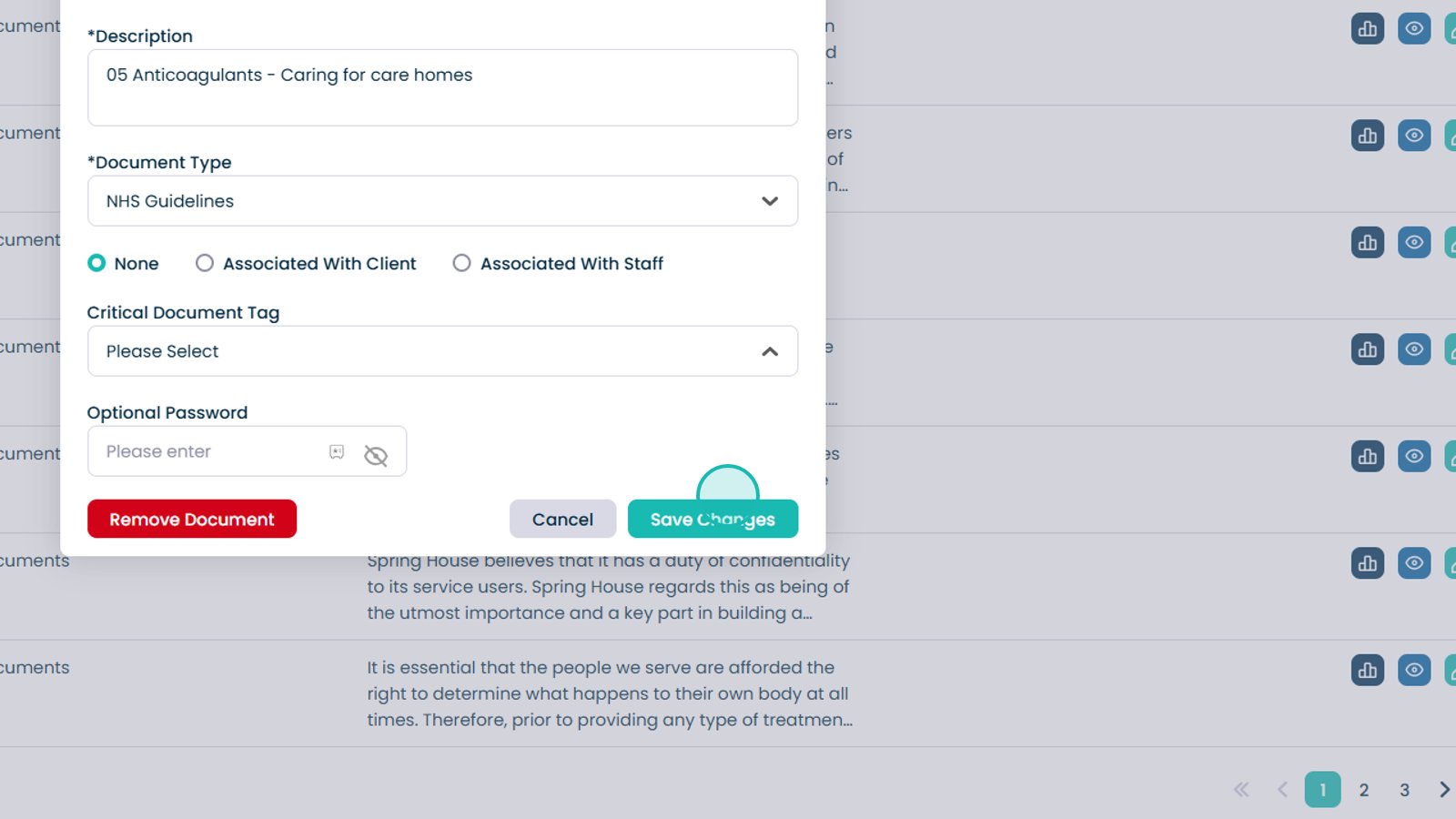
Select Save Changes.

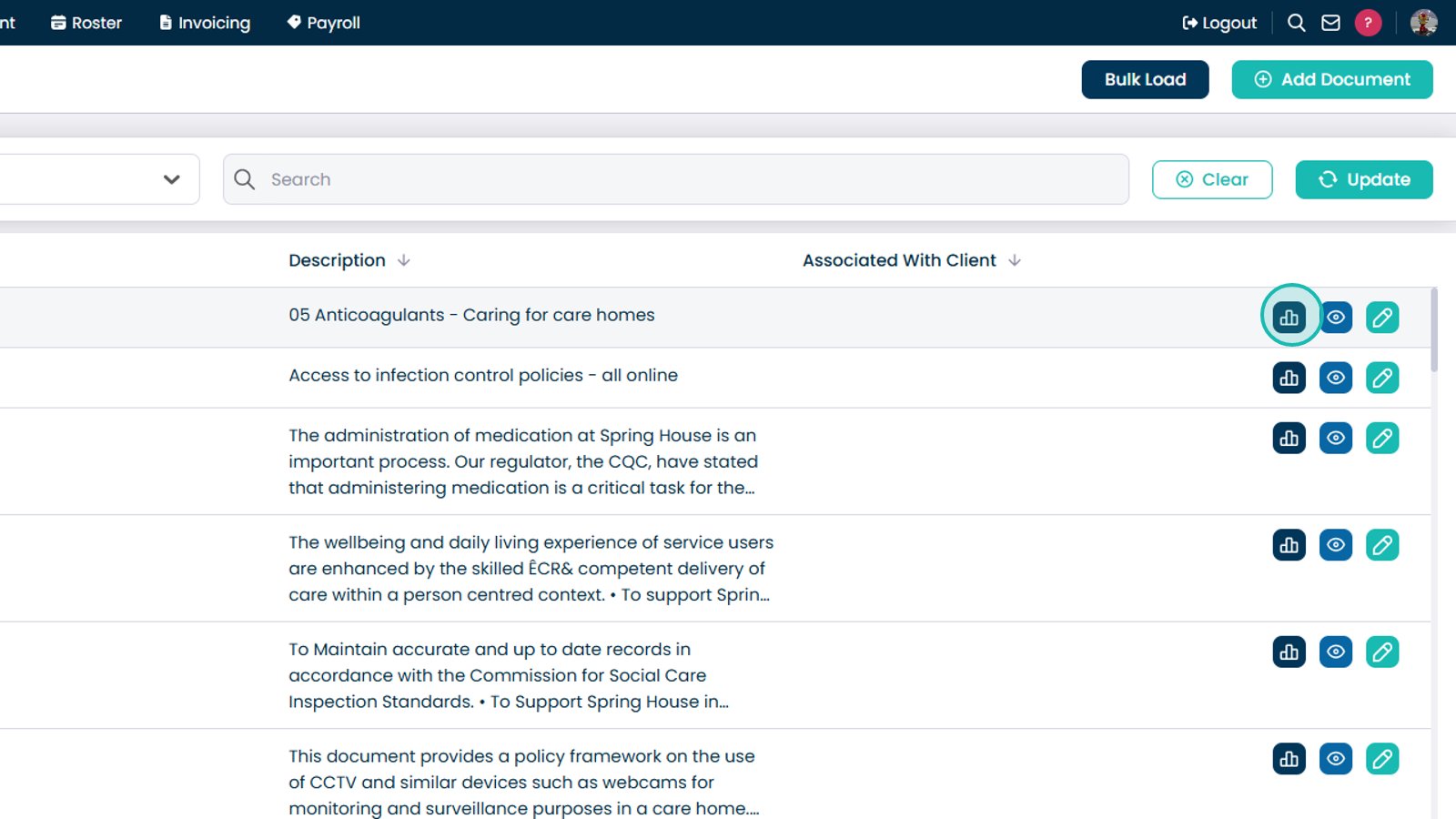
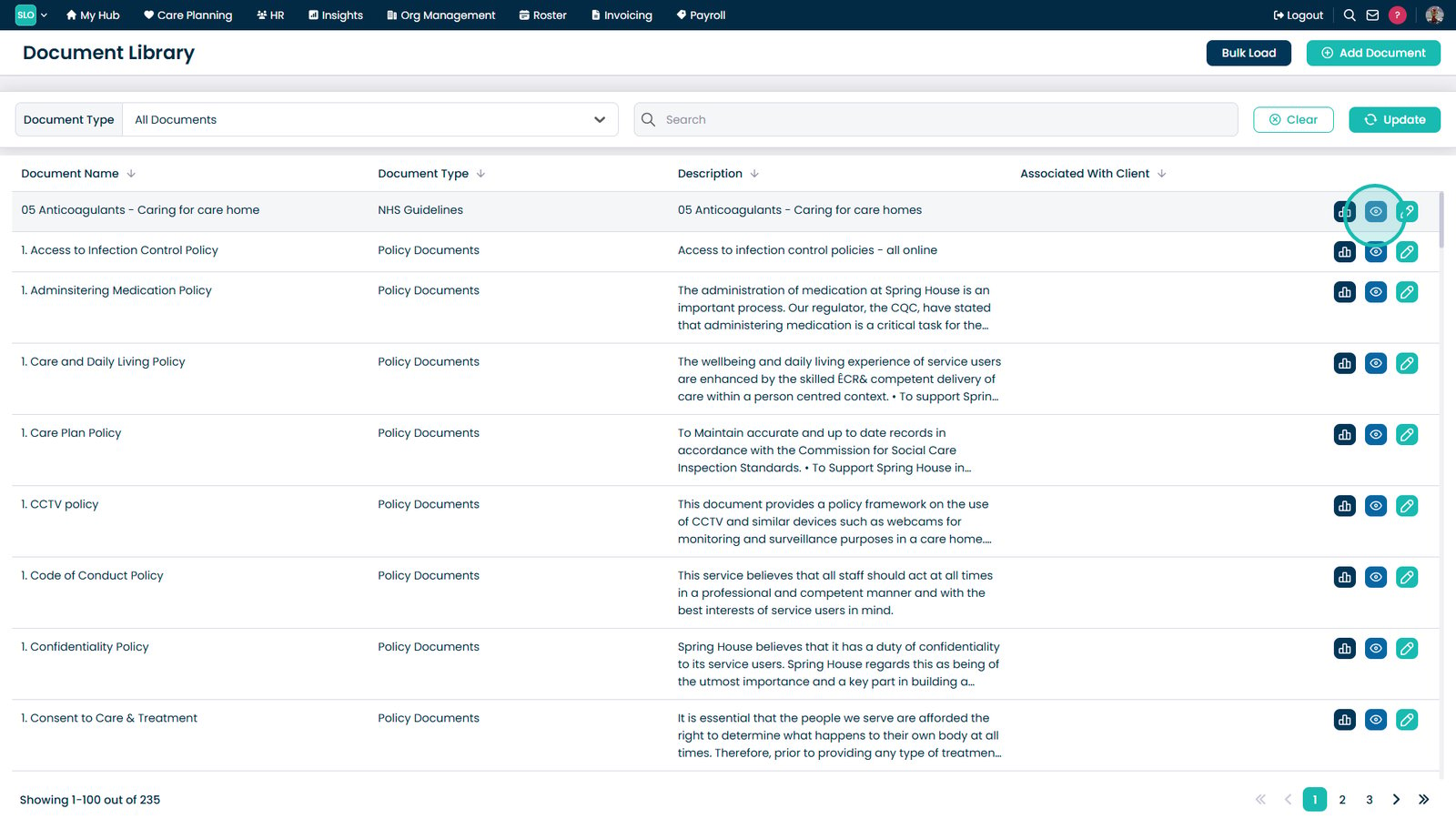
View document statistics.

View the document.

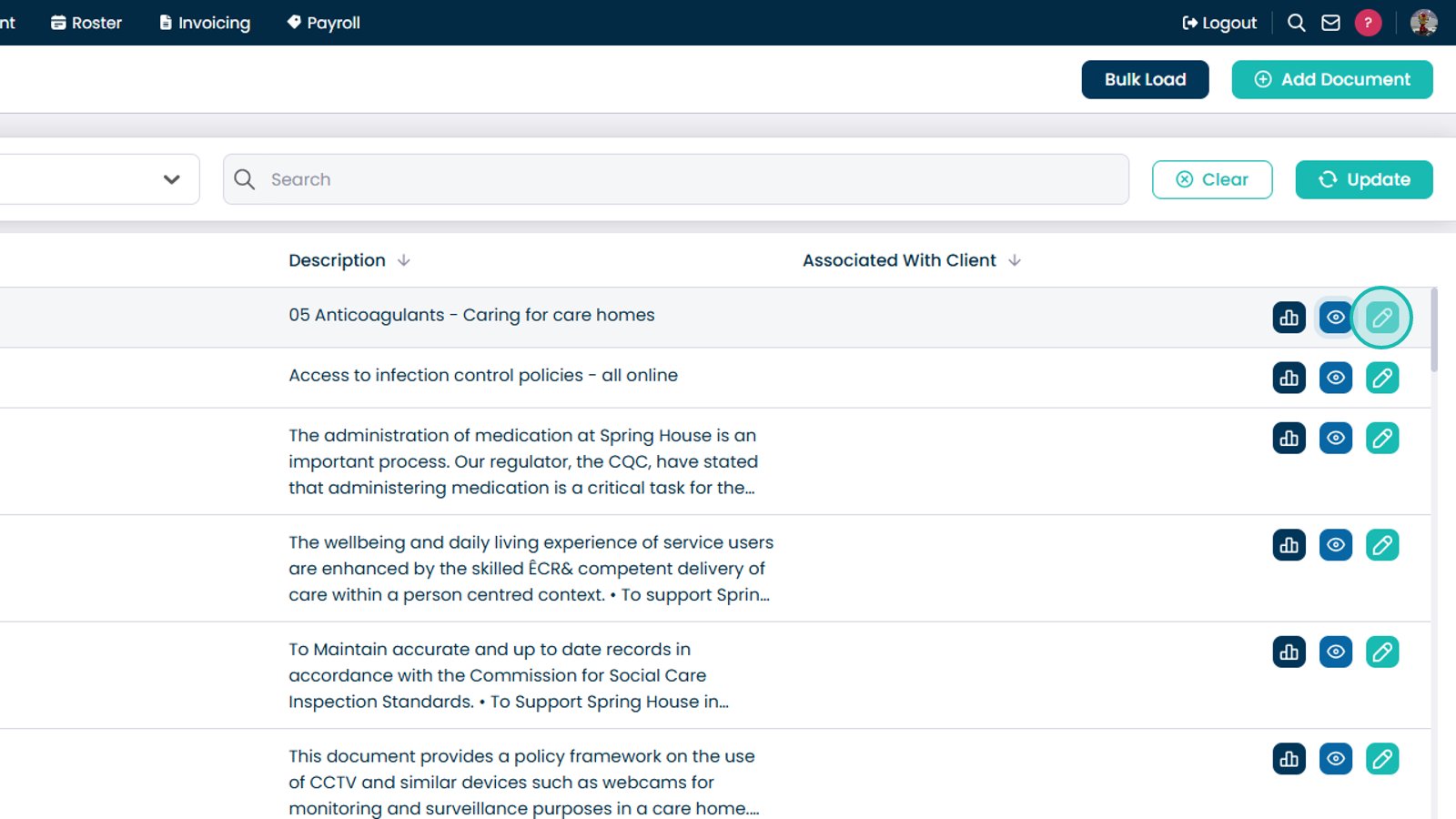
Edit the document.

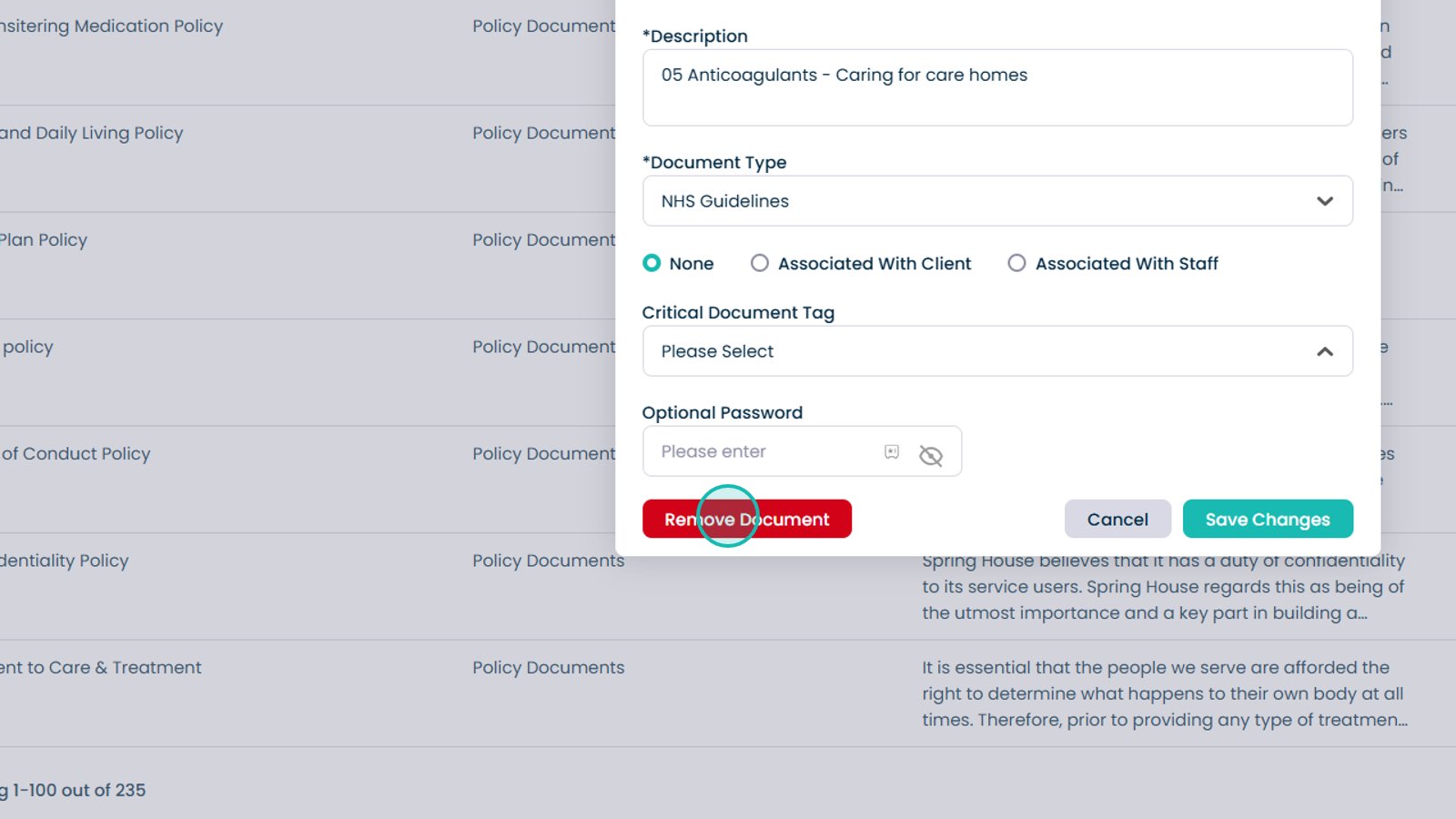
Remove the document if required.

Save any document changes.

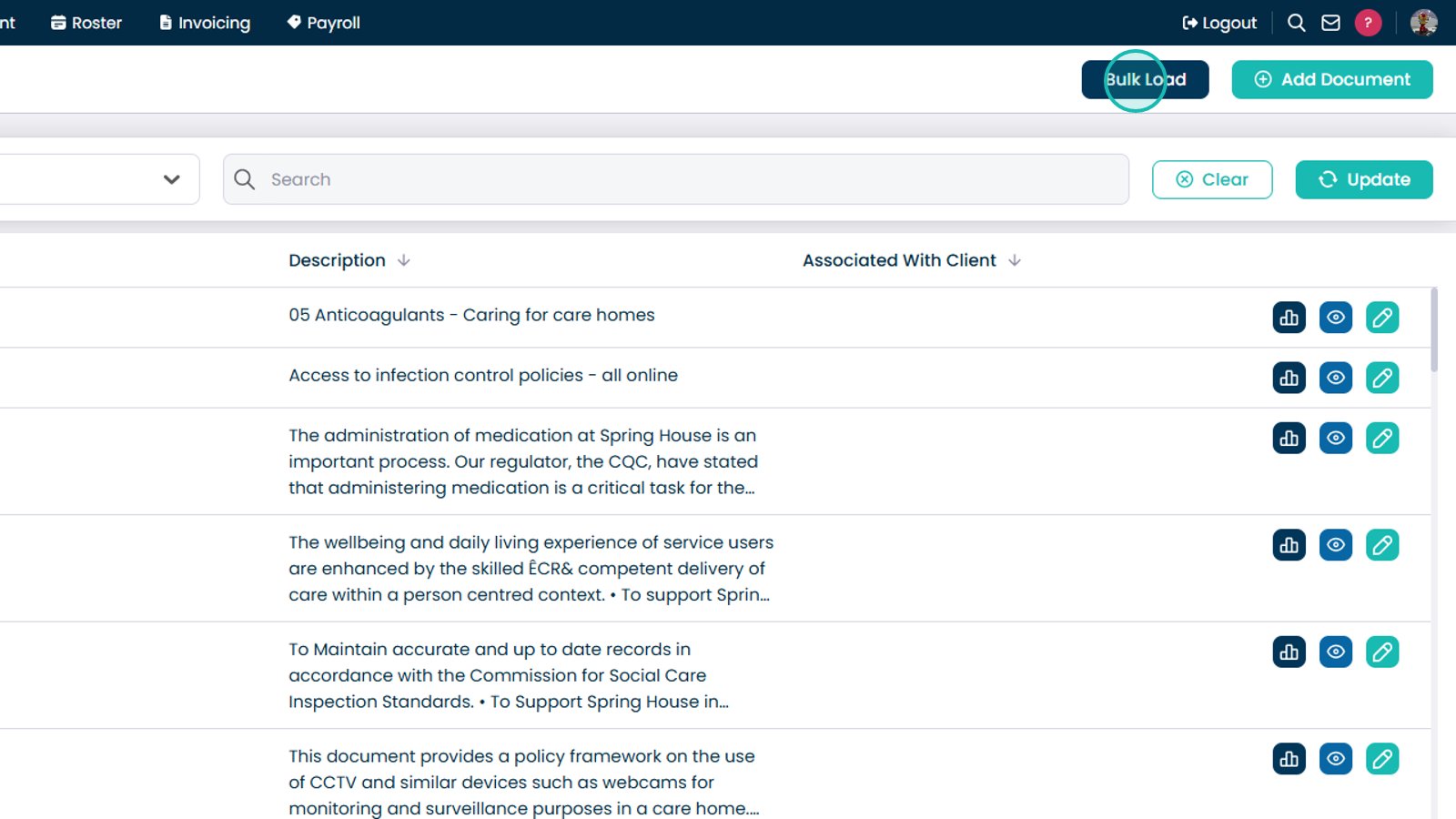
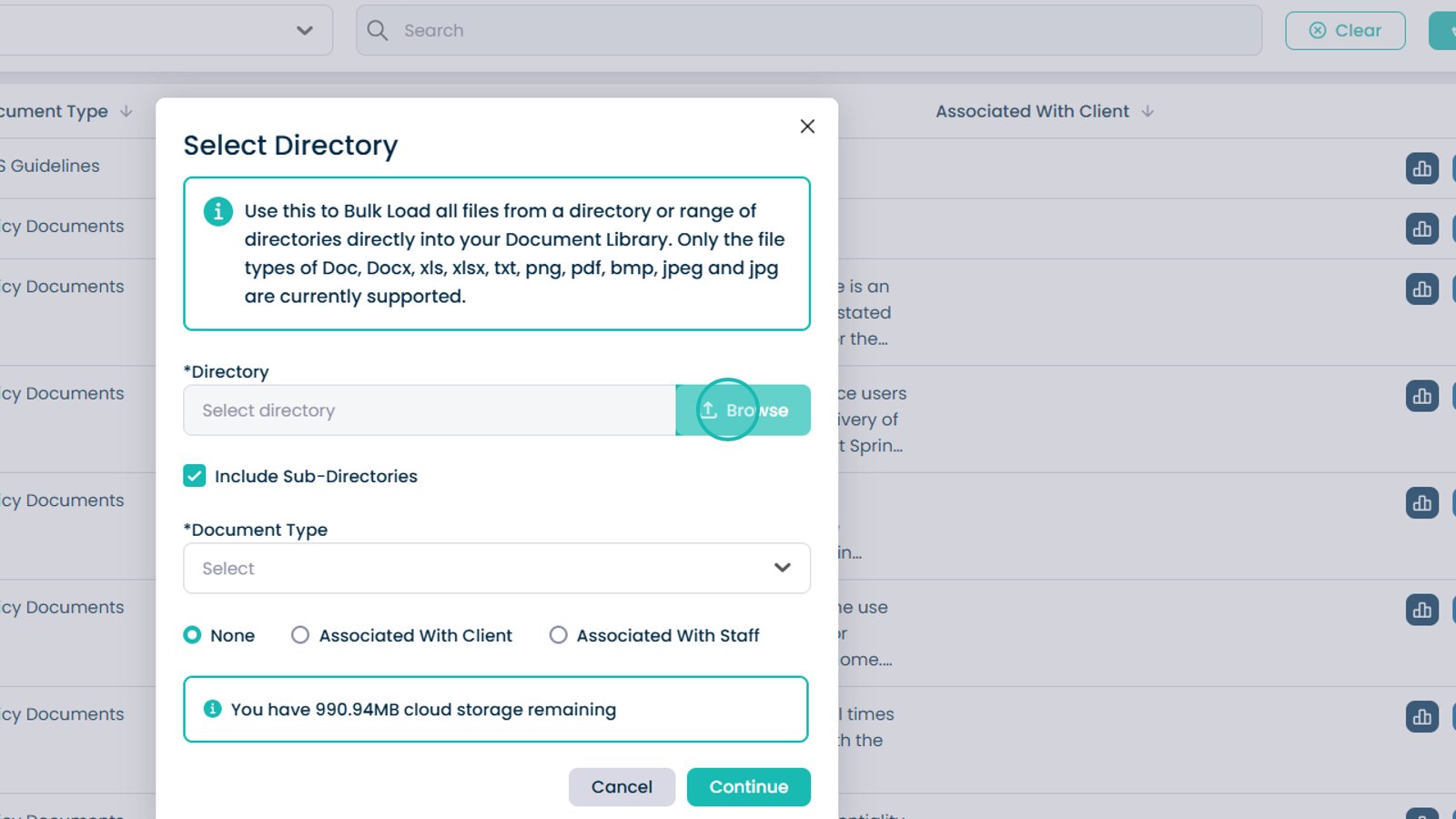
Select Bulk Load.

Select a folder to upload.

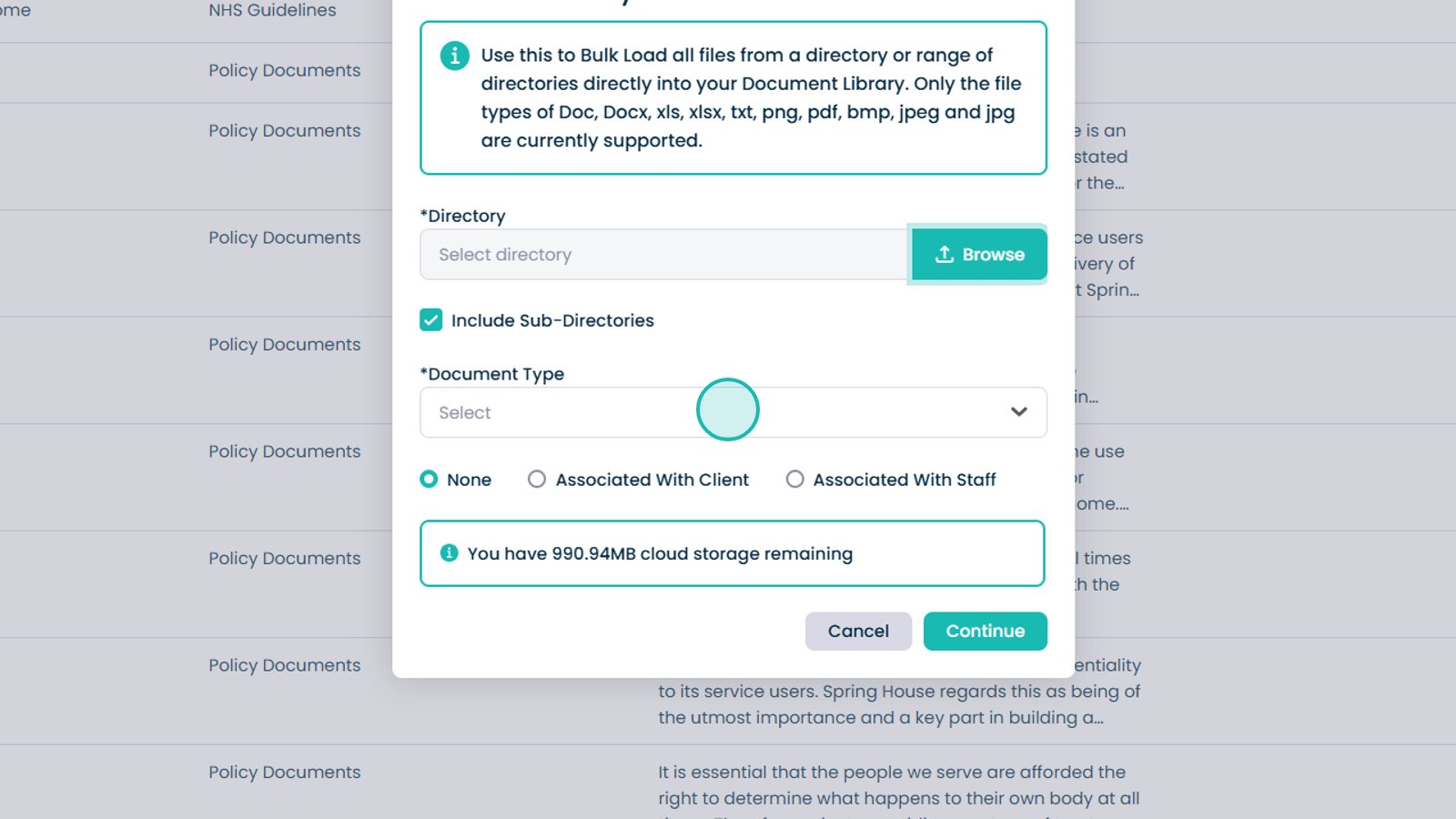
Select the document type.

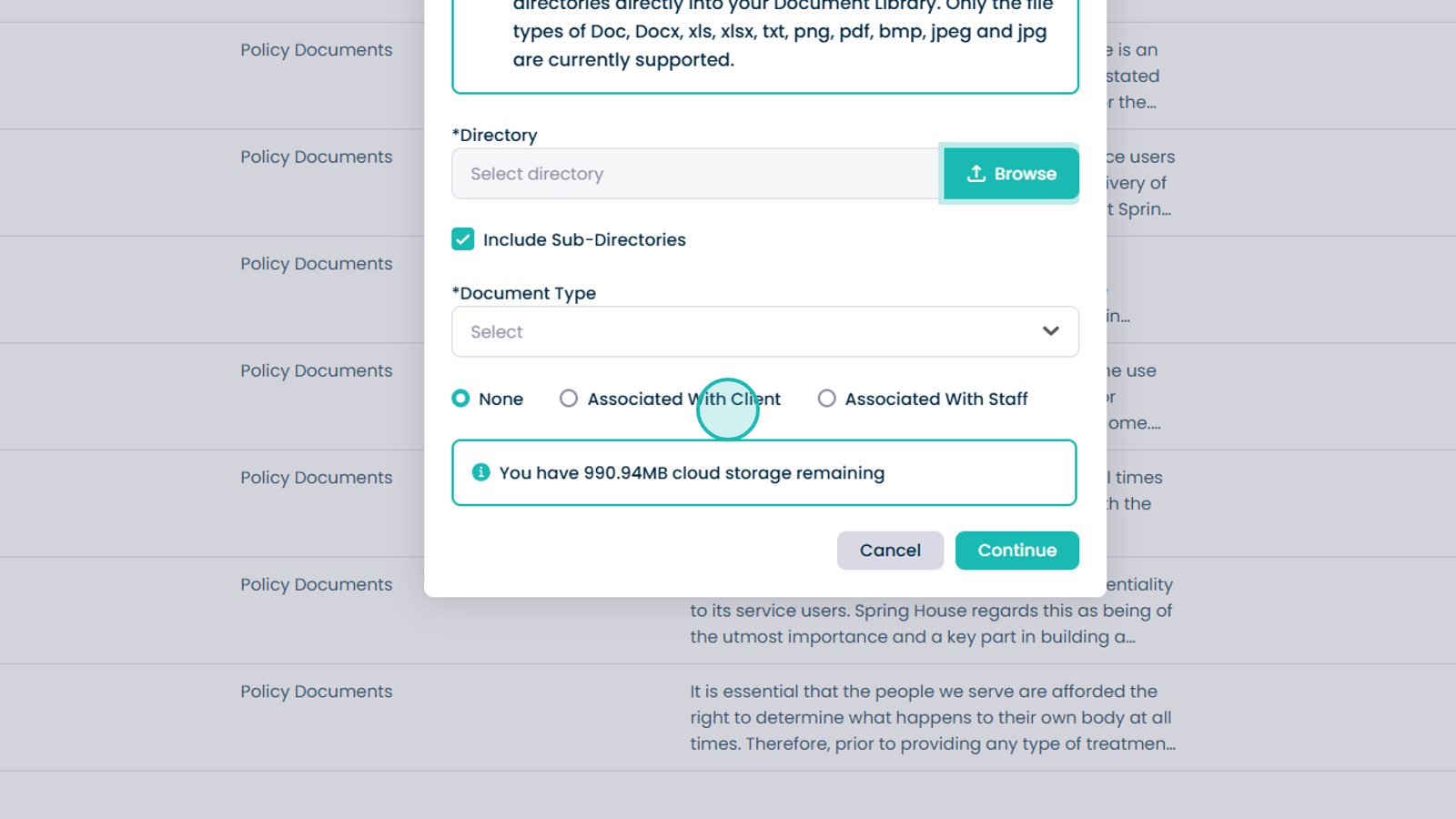
Select whether the documents relate to staff or clients.

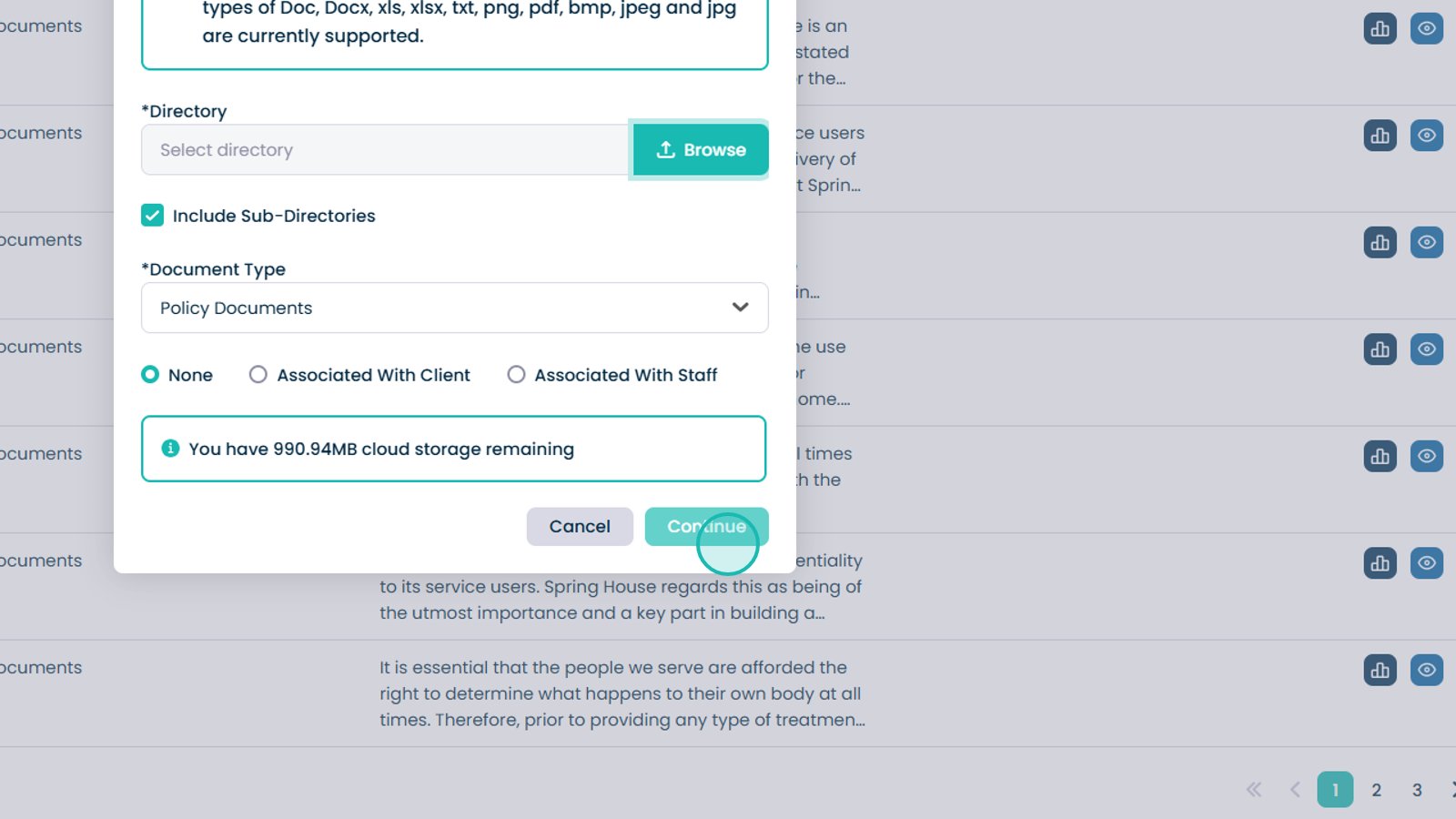
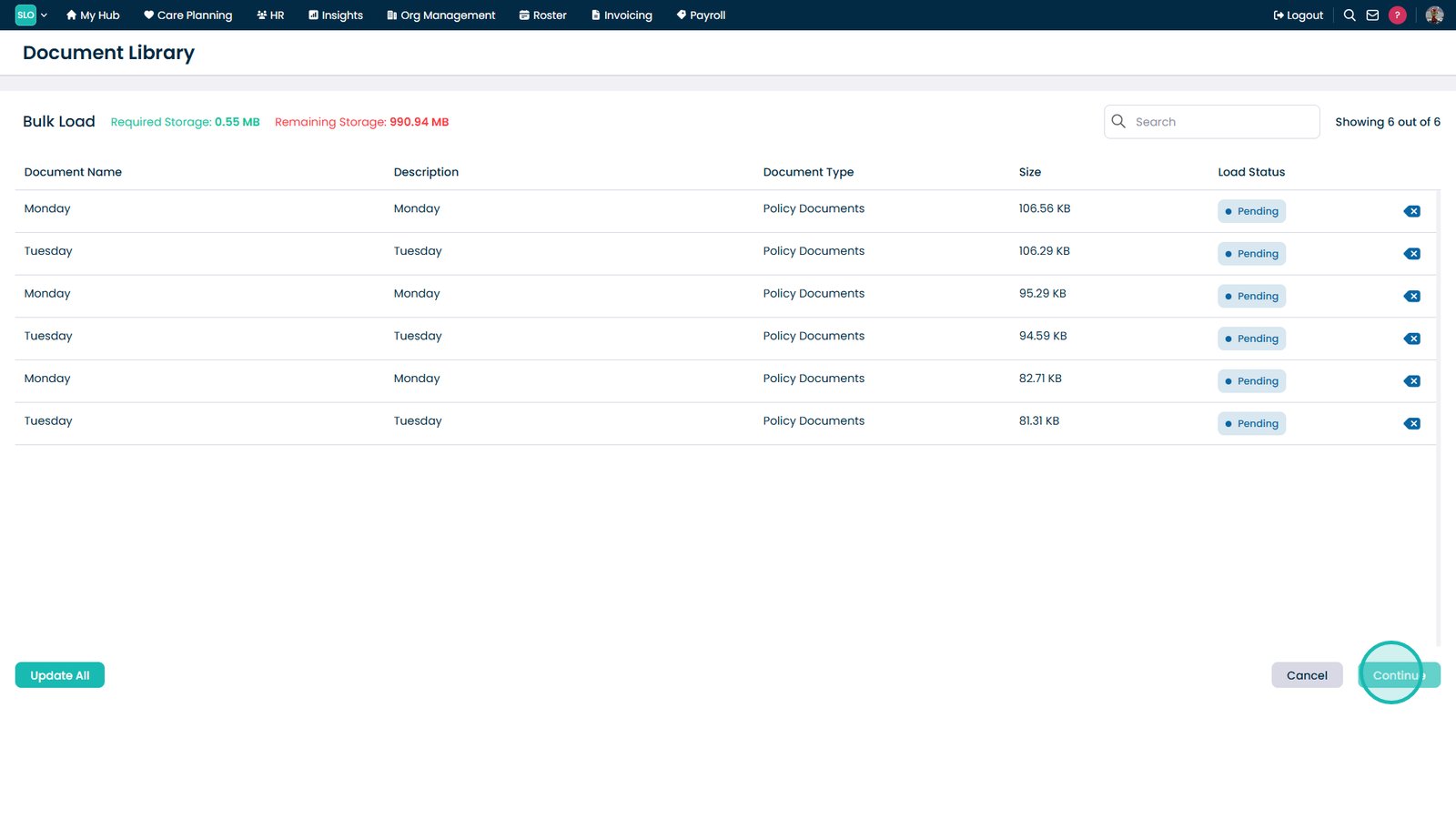
Select Continue.

Review the documents ready for upload.

Select Continue to upload all documents.

Top tip
Use document types and critical tags consistently to make important documents easier to find and manage later.
Need more help?
Can't find what you're looking for? Our support team is here to help.
Contact SupportOr call us on