🚀 UPCOMING WEBINAR: See Payroll in Care Control Cloud in action on Thursday 18th June and discover how to manage payroll more efficiently from one connected system. Click here to find out more!

View Categories

How to Create and Modify a Care Service Group in Cloud

This guide explains how to create and manage Care Service Groups, including assigning clients, staff members, and managing staff within Care Control Cloud.

Takes 2 minutes
For: Managers and Seniors
Updated: 29th May 2026

Introduction

This guide explains how to create and manage Care Service Groups within Care Control Cloud.
In this guide you'll learn how to:

  • Create a Care Service Group
  • Assign clients to a group
  • Assign staff members
  • Set managing staff
  • Update existing groups

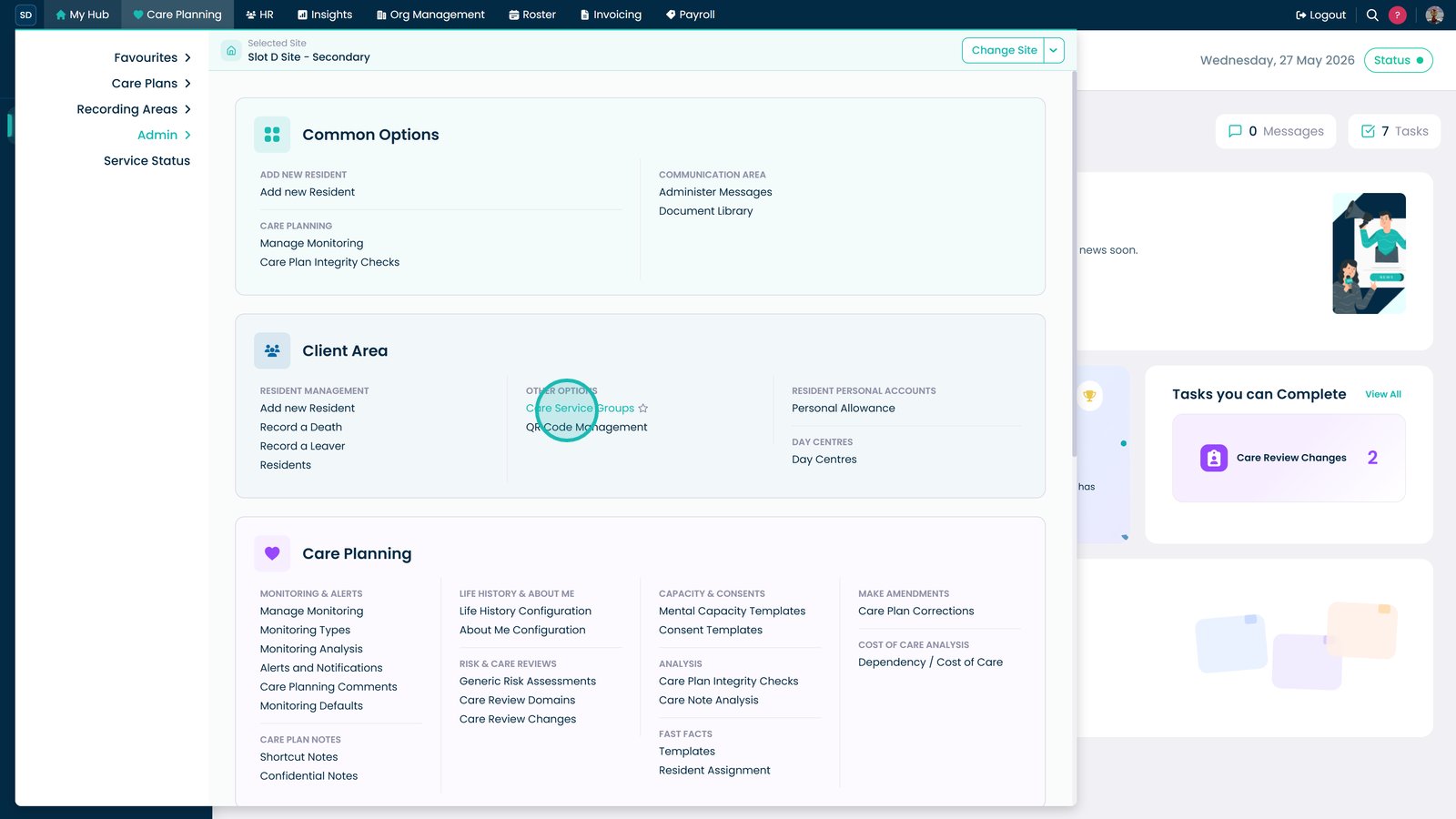
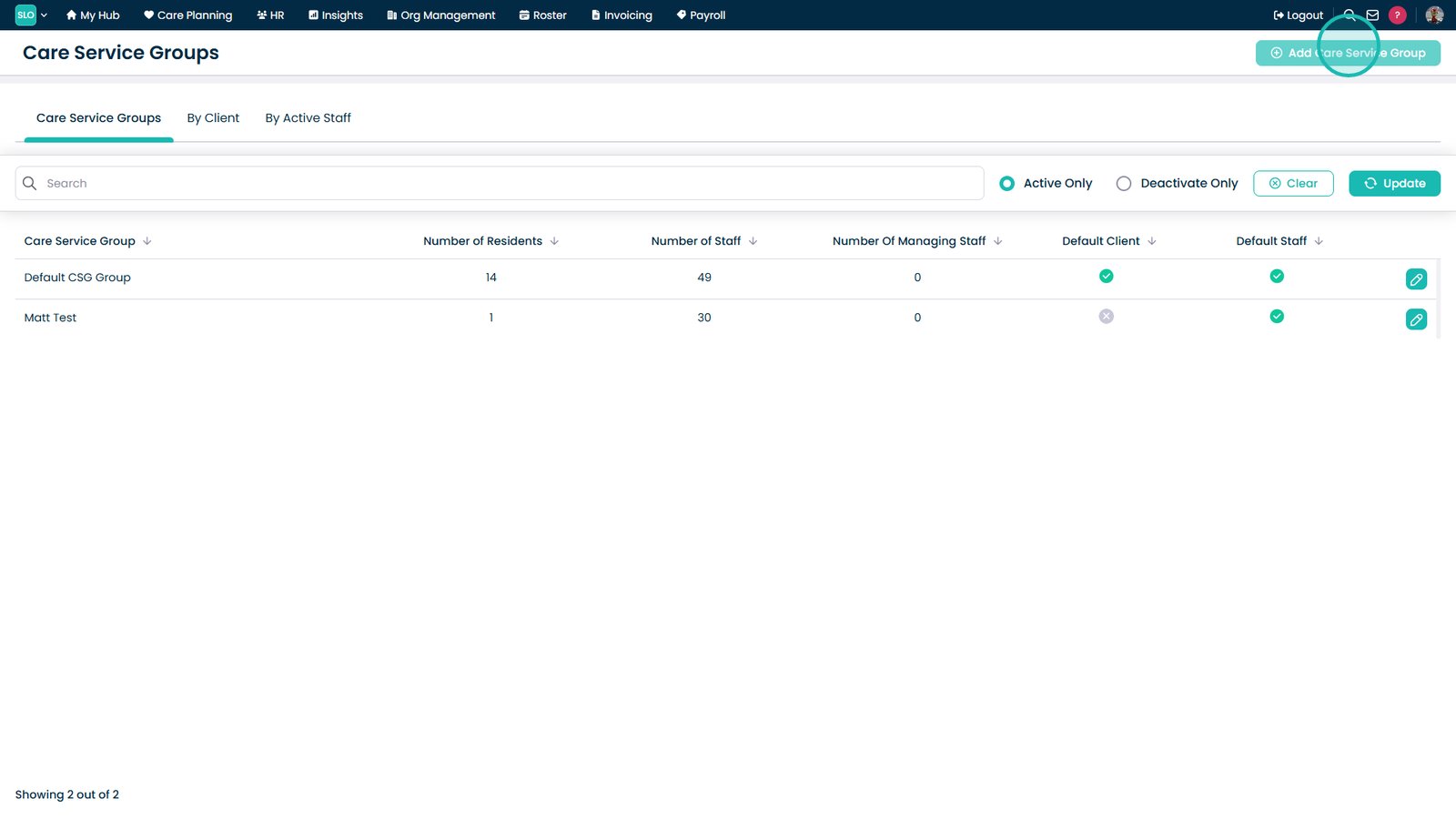
From the Navigation Menu, go to Care Planning, Admin, then select Care Service Groups.

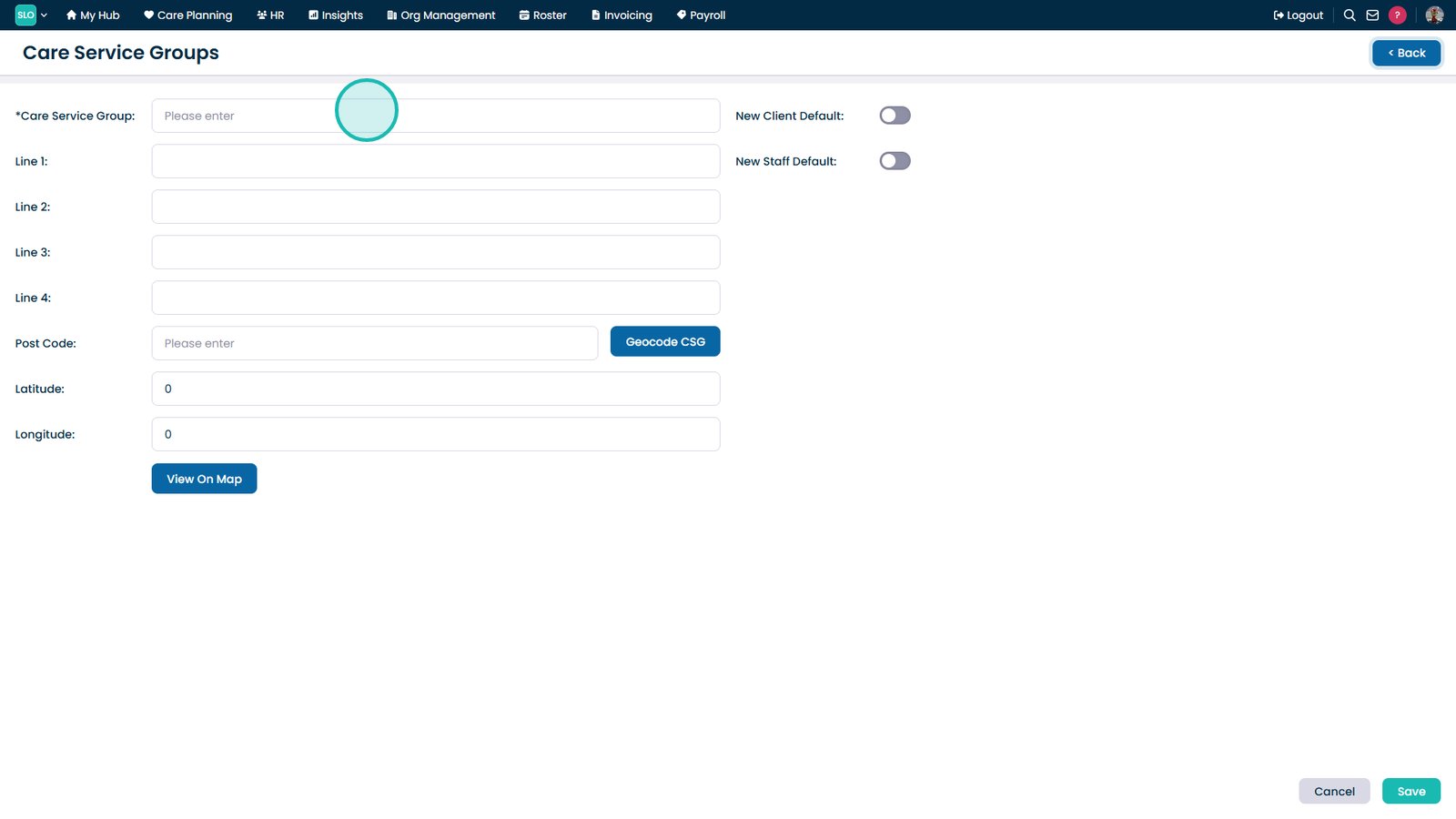
Select Add Care Service Group.

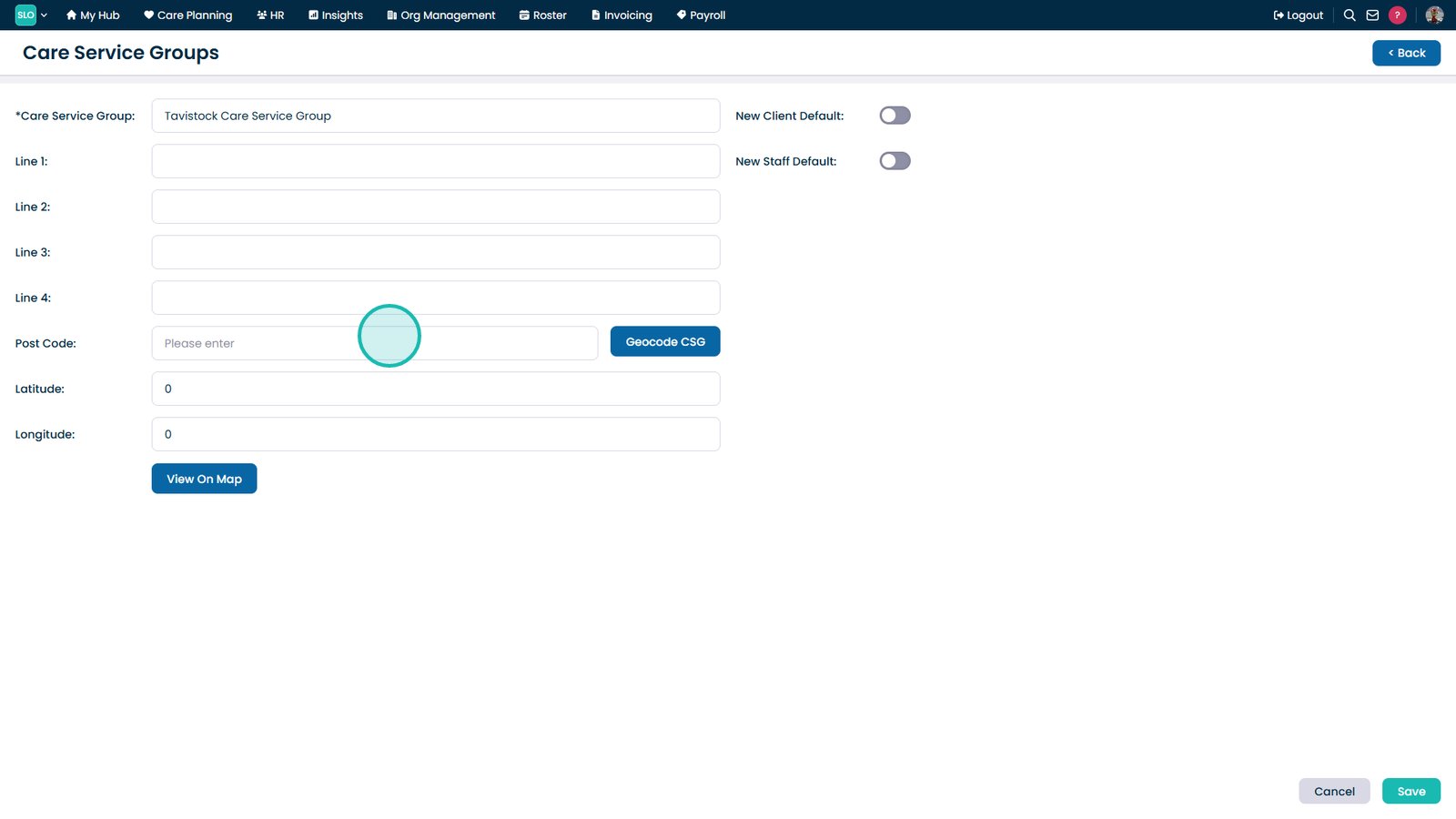
Enter a name for the Care Service Group.

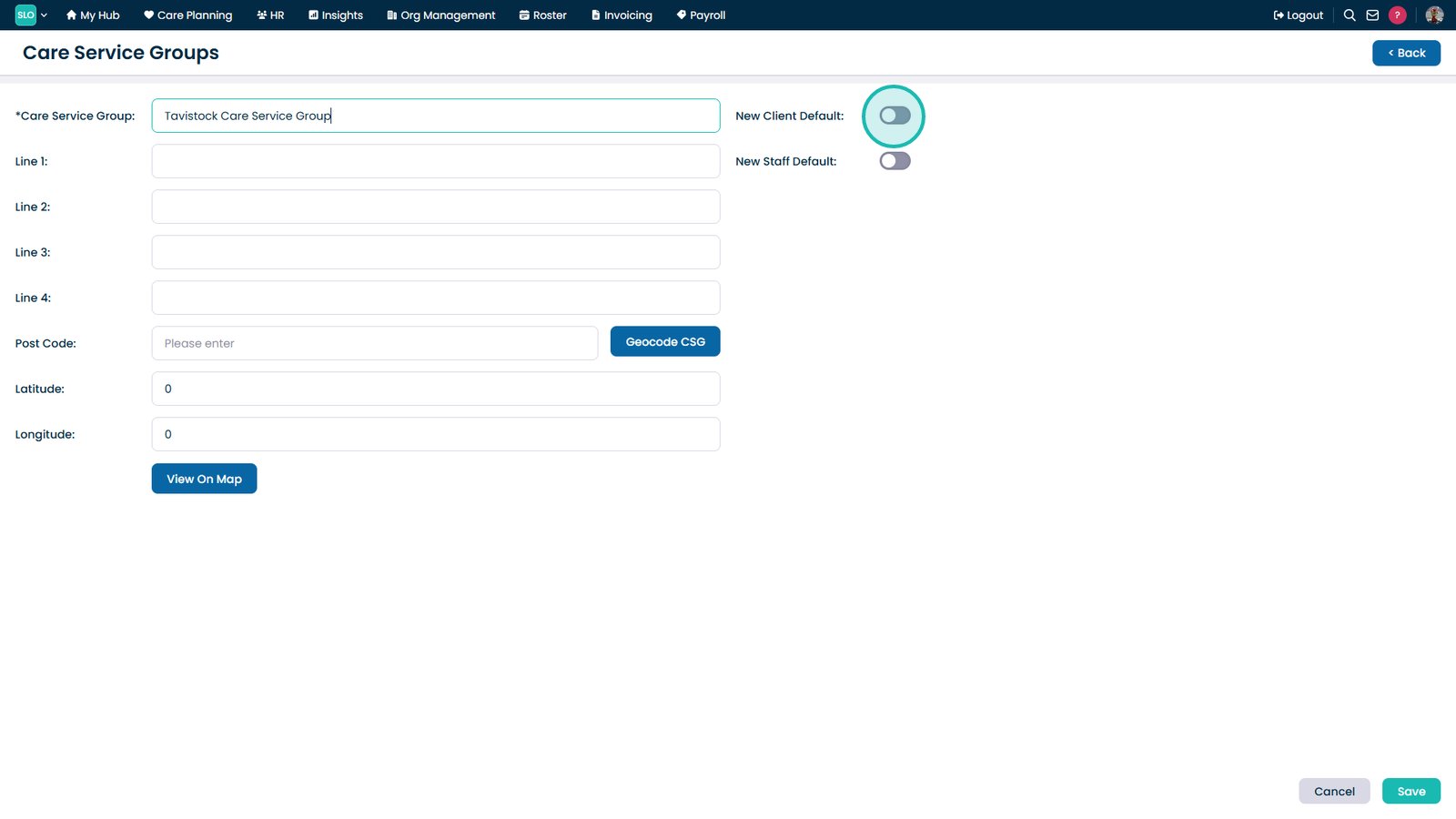
Enable New Client Default if required.

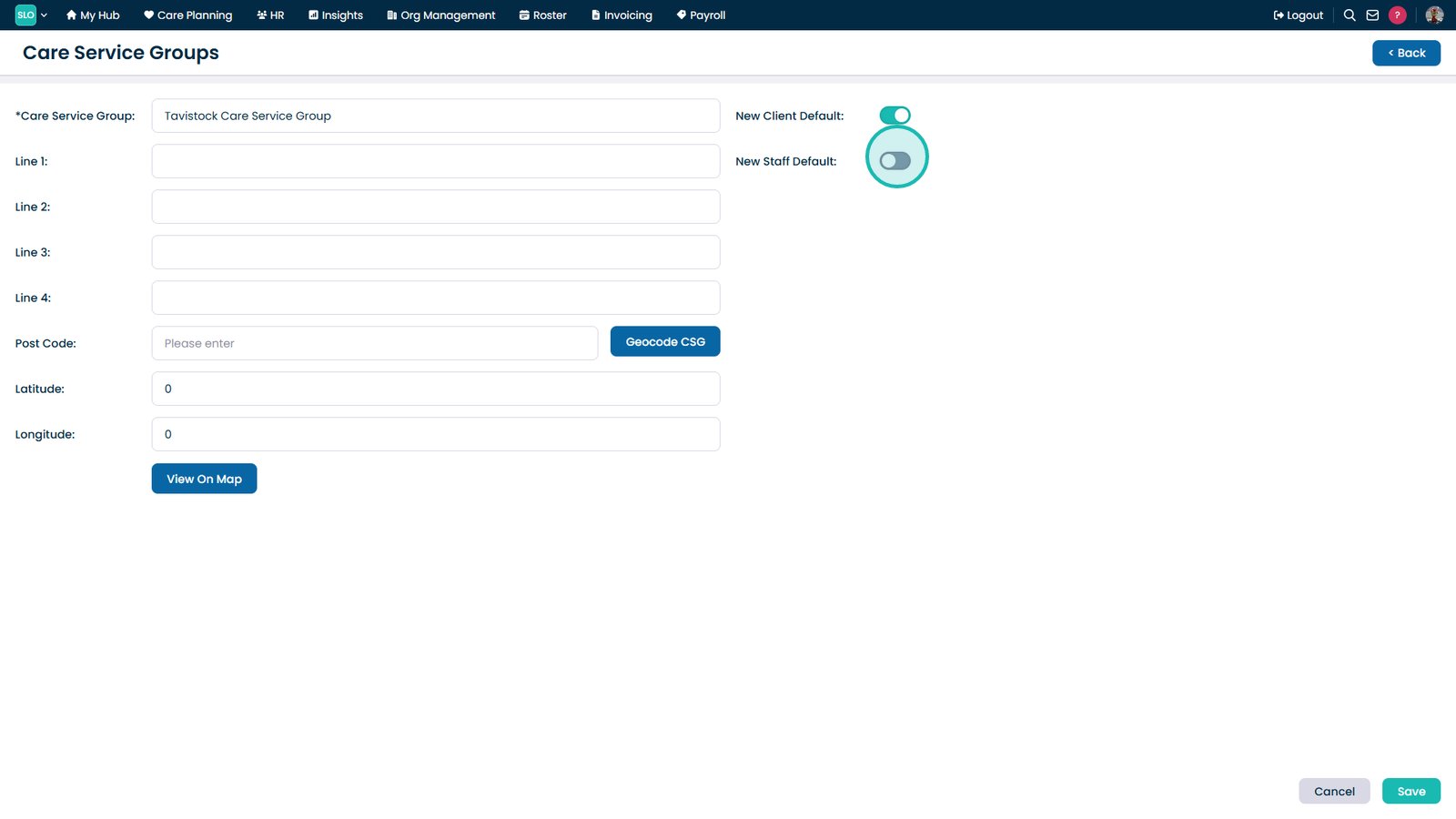
Enable New Staff Default if required.

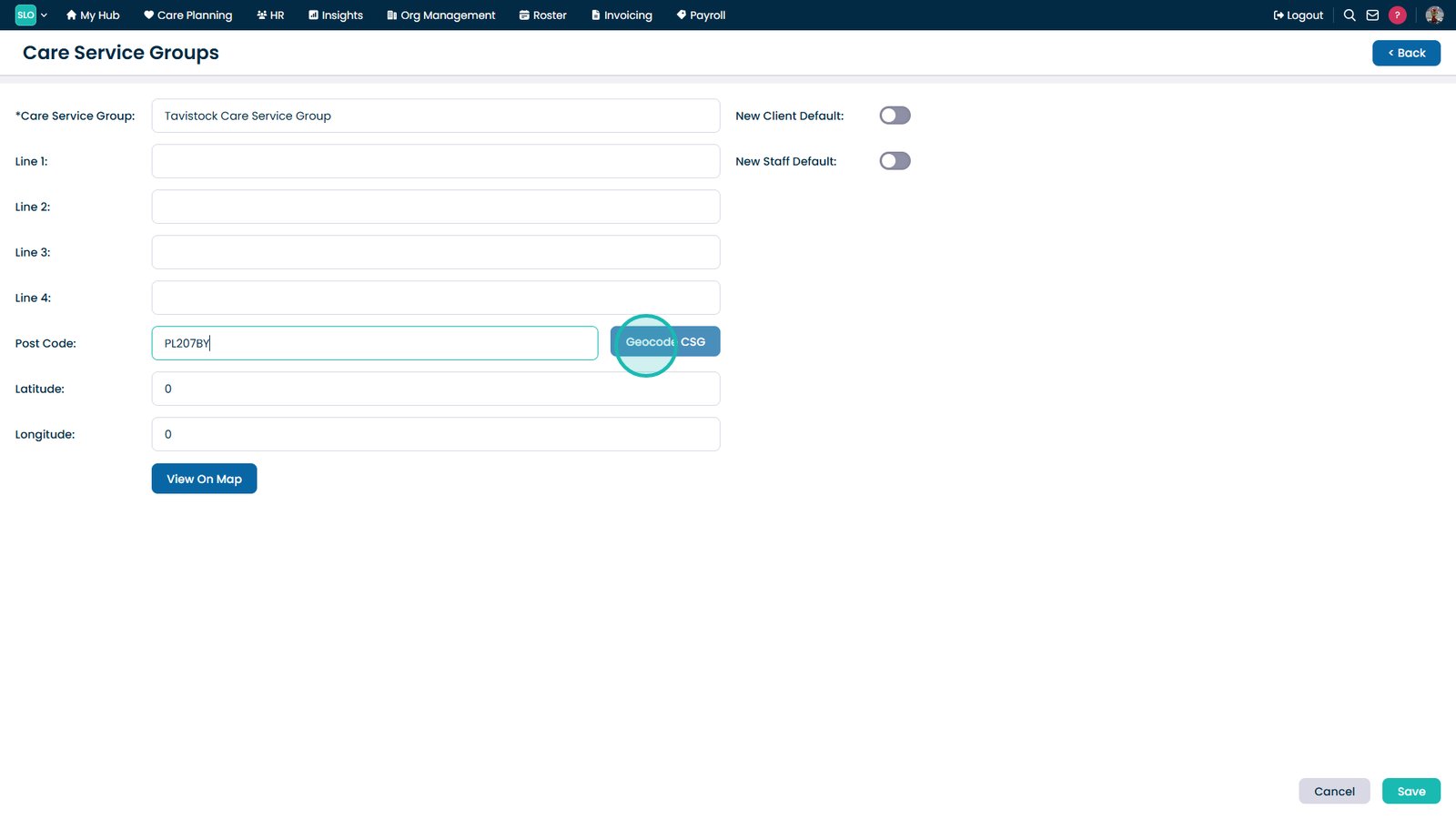
Enter the group's postcode.

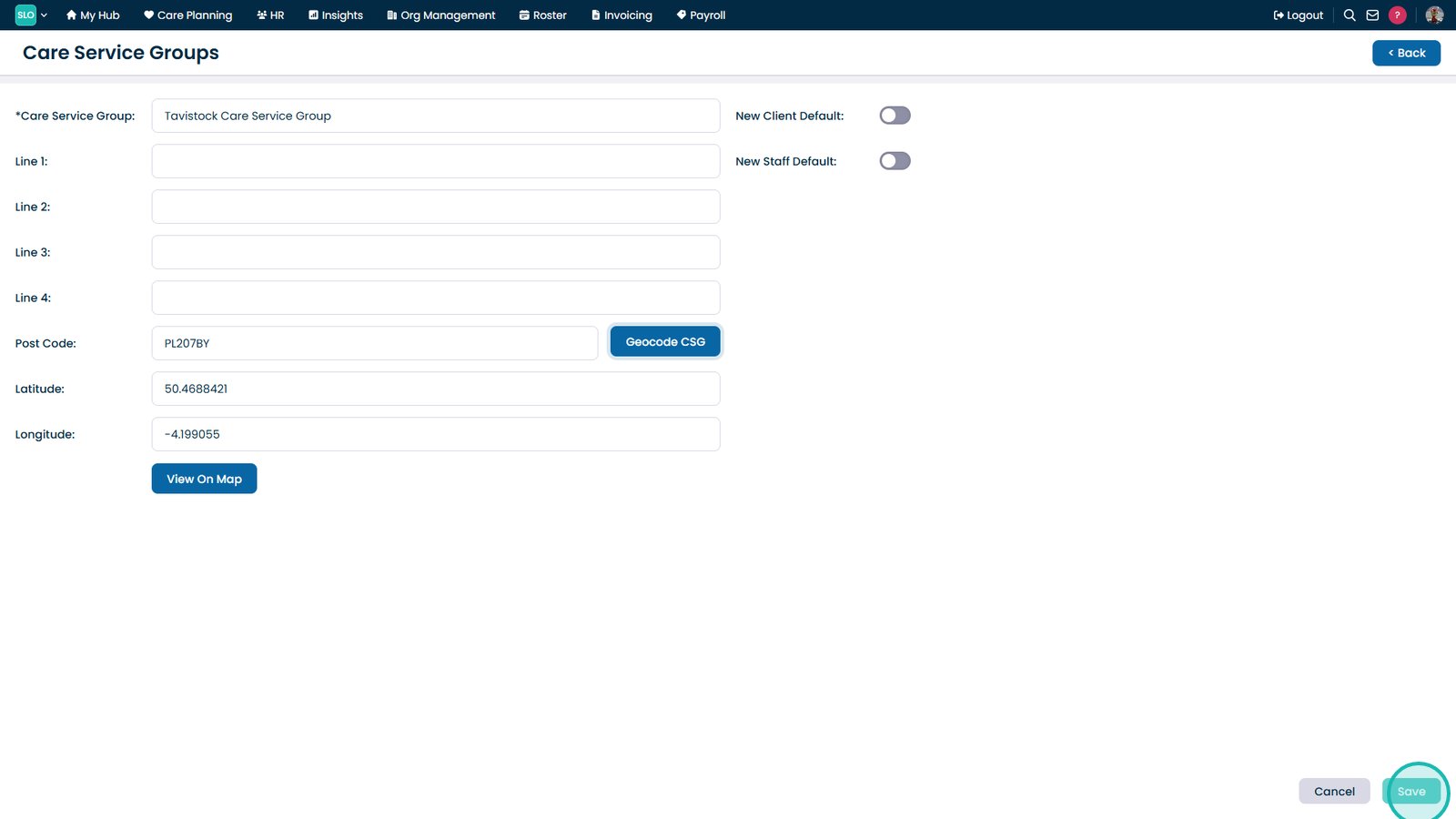
Select Geocode CSG to populate location details.

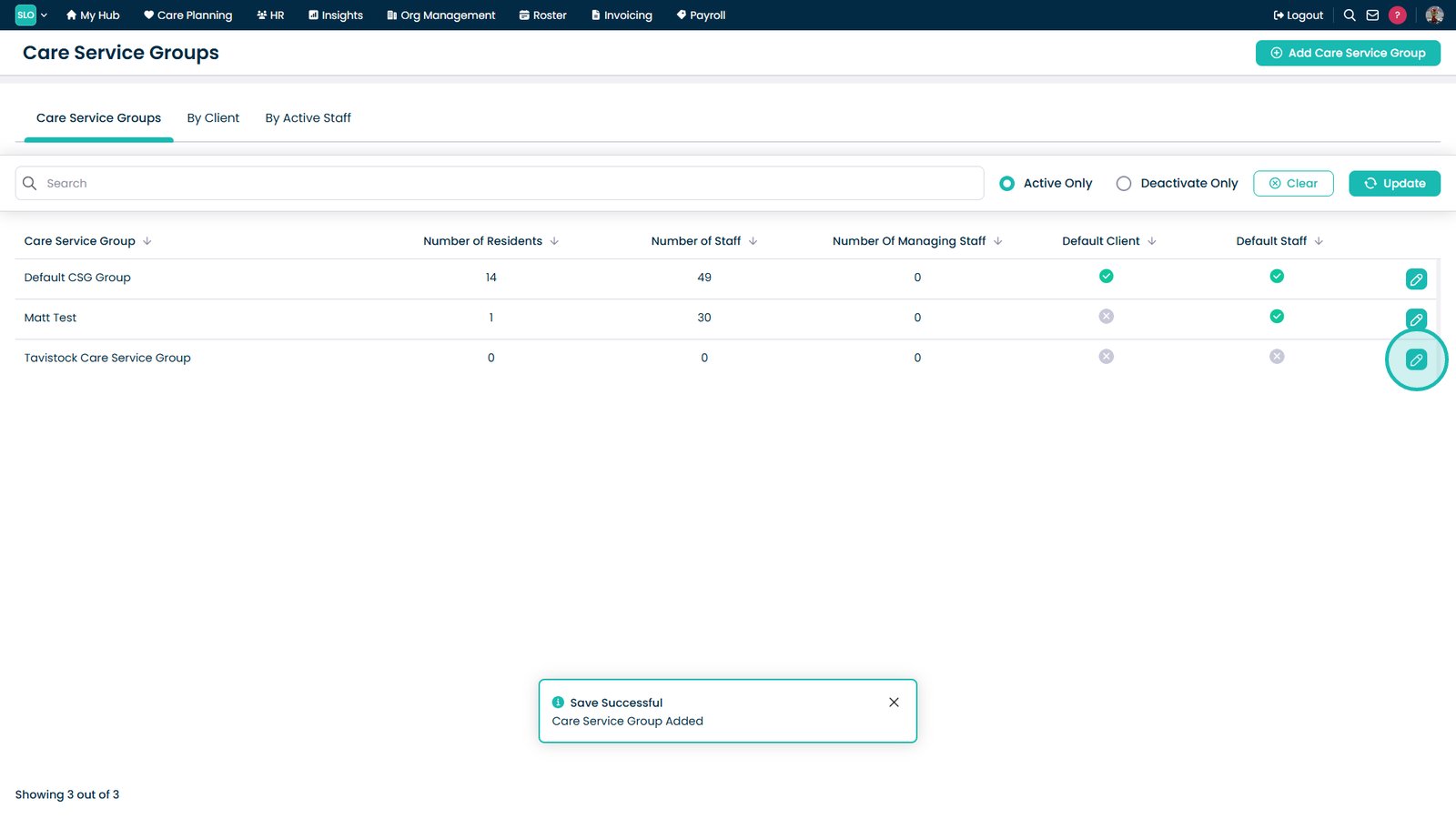
Select Save to create the Care Service Group.

Select the edit icon to update an existing group.

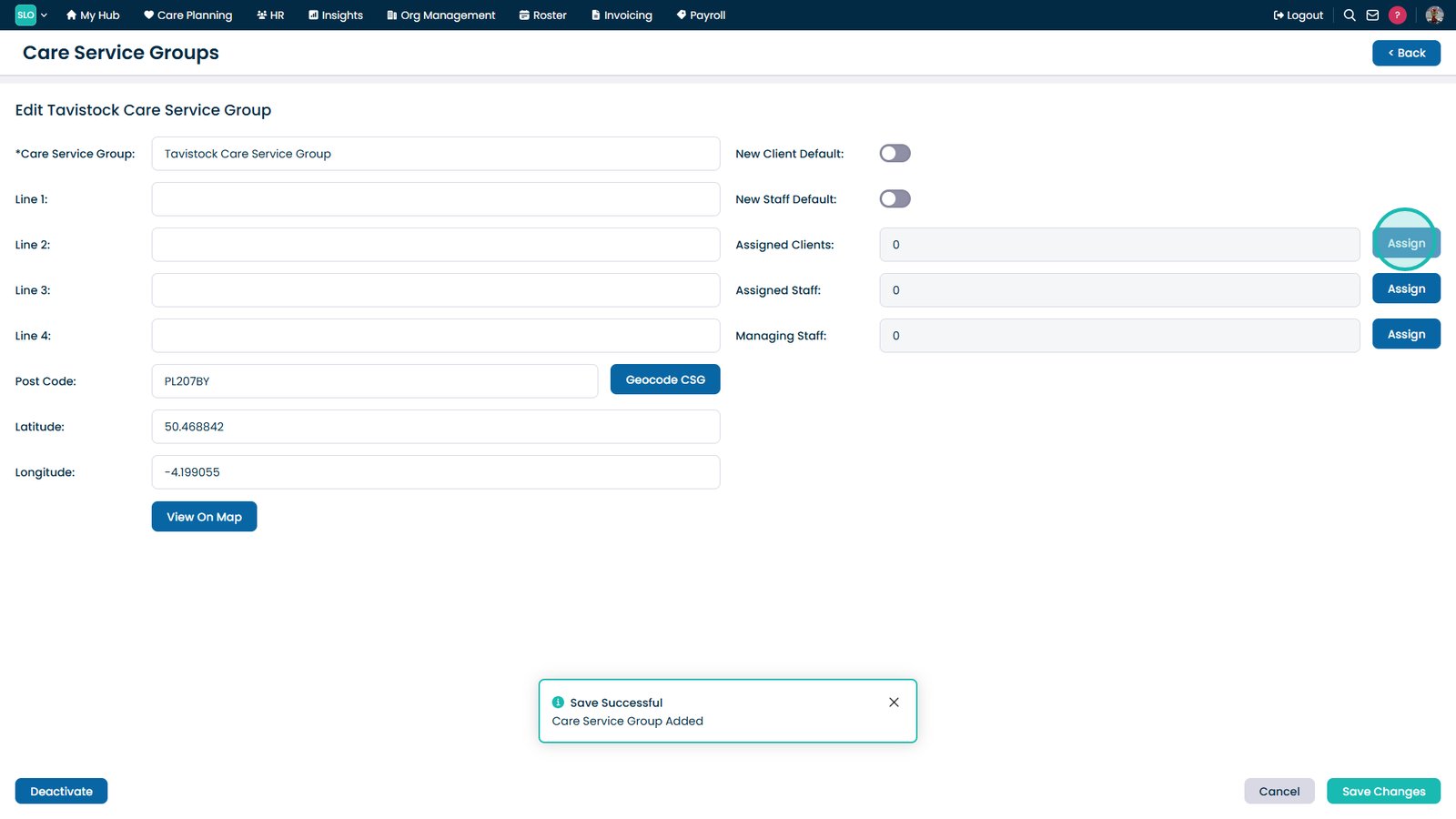
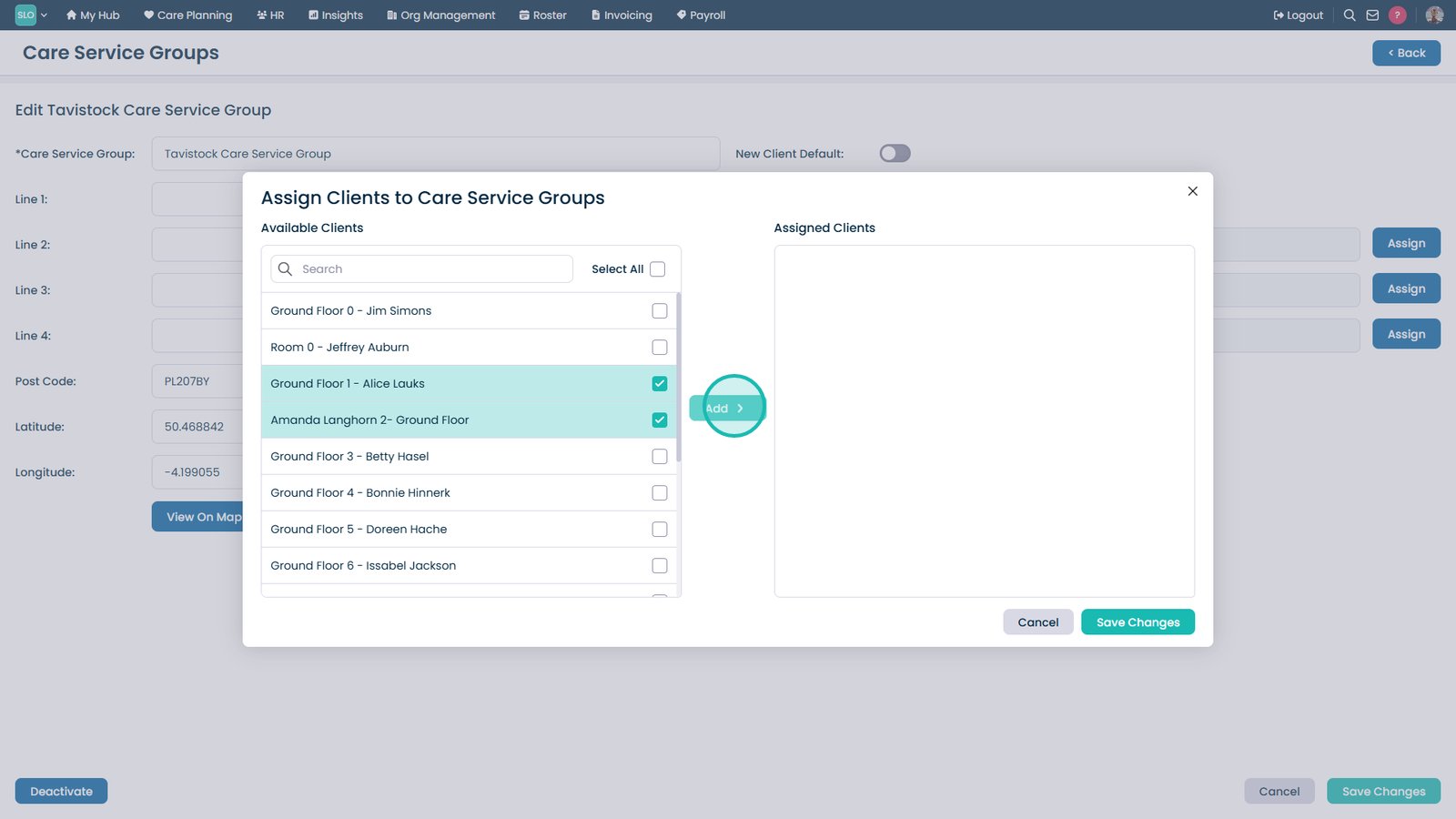
Select Assign beside Assigned Clients.

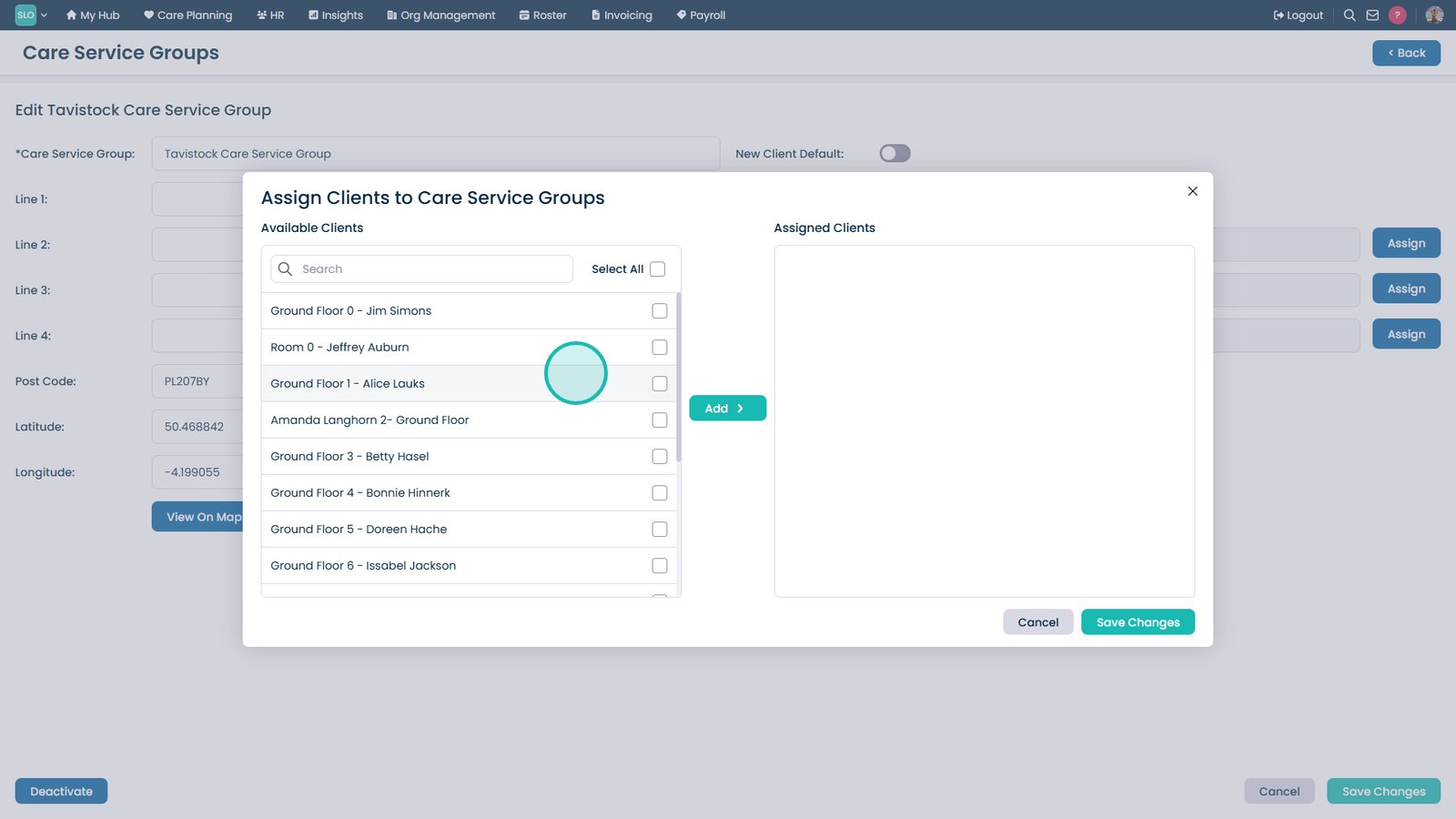
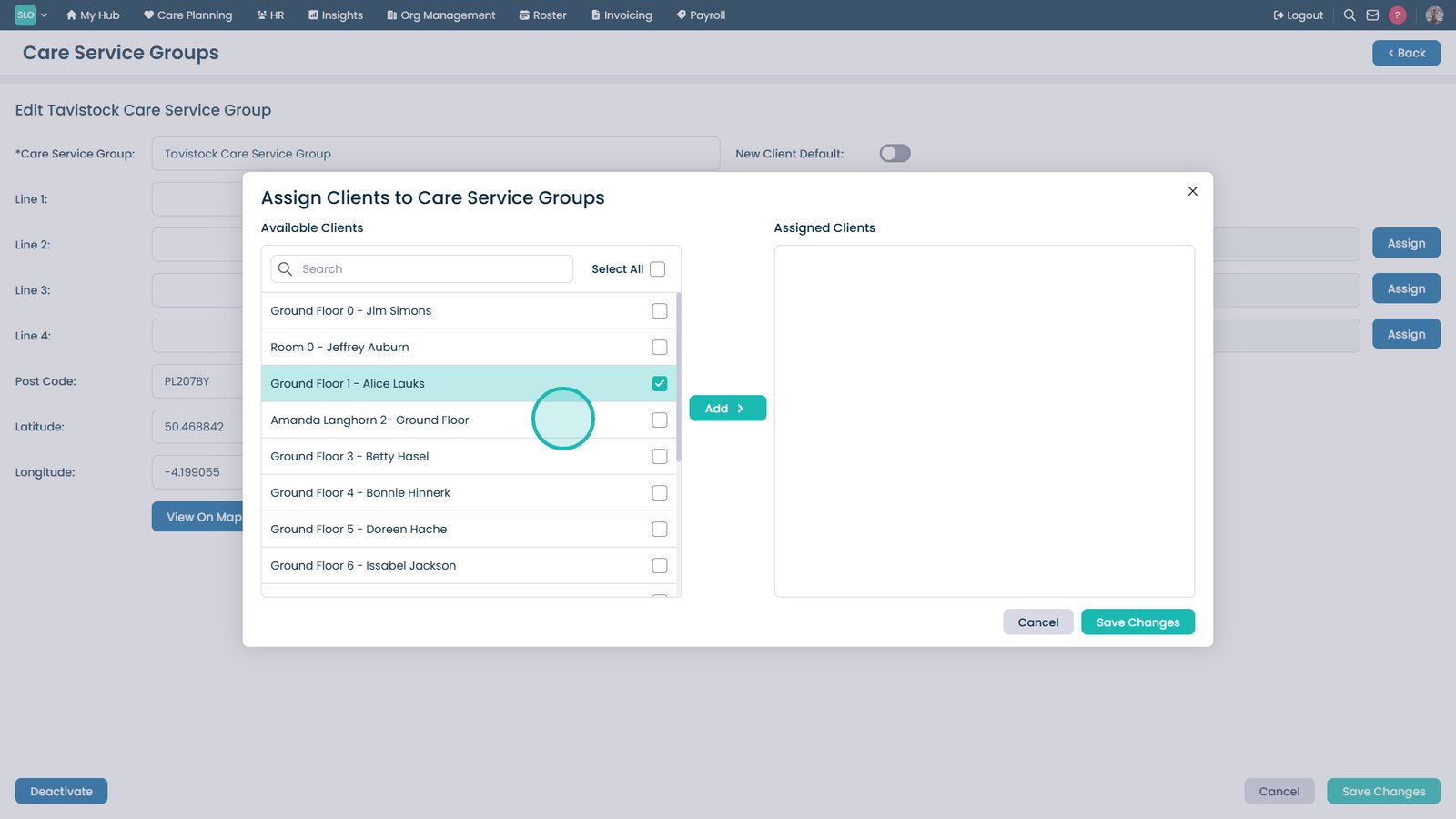
Select a client to assign.

Select any additional clients required.

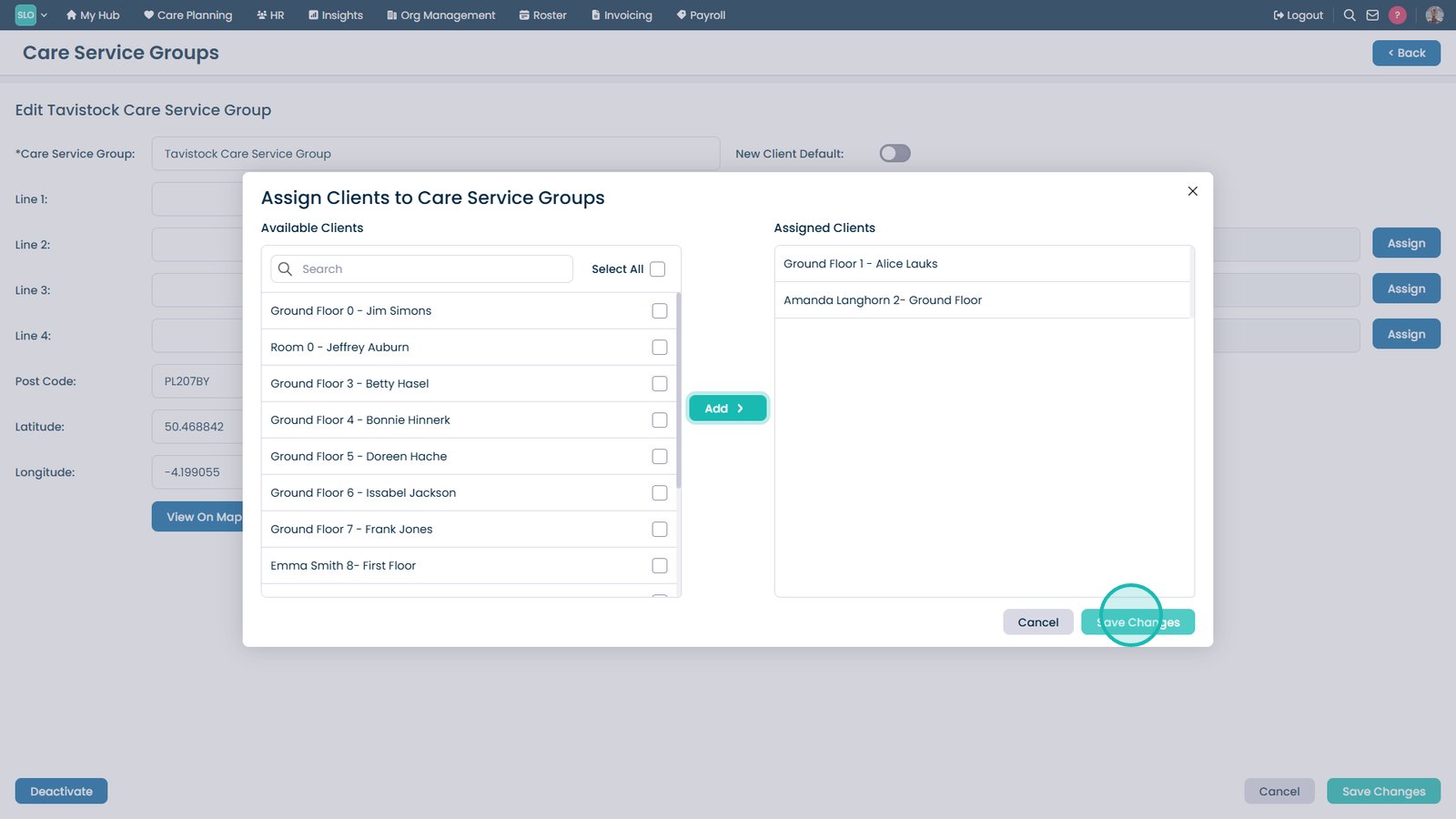
Select Add to assign the selected clients.

Select Save Changes.

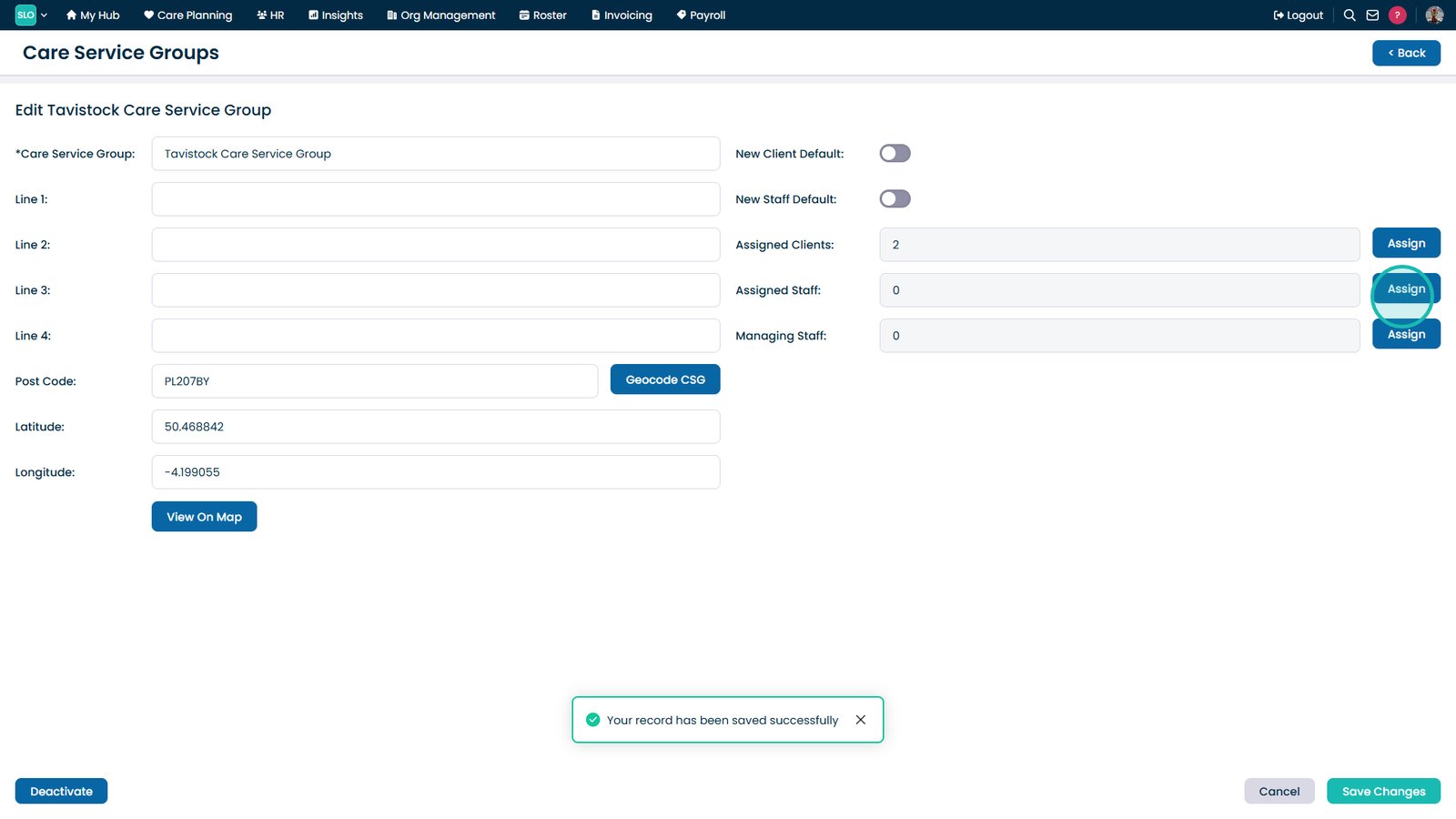
Select Assign beside Assigned Staff.

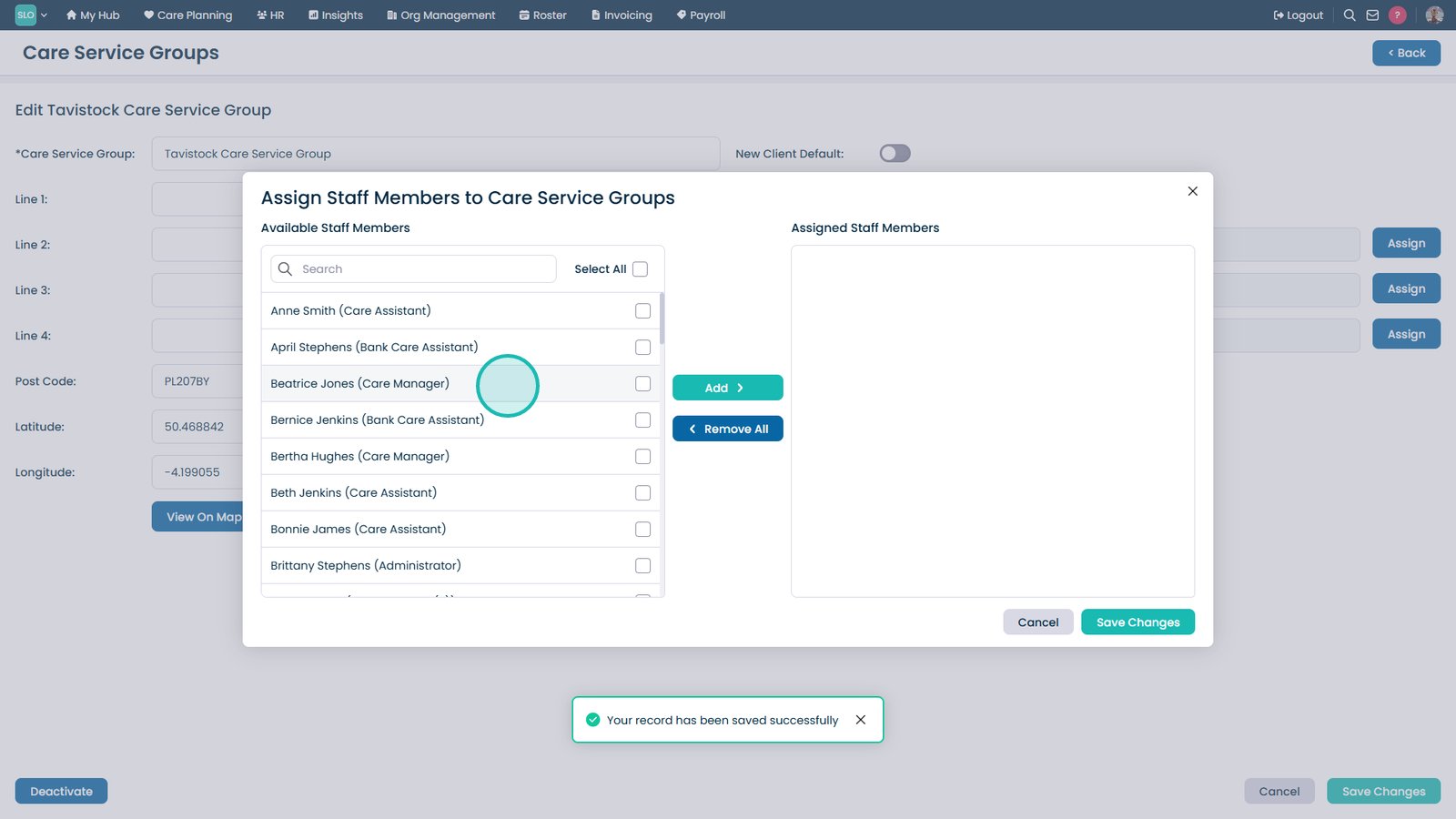
Select one or more staff members.

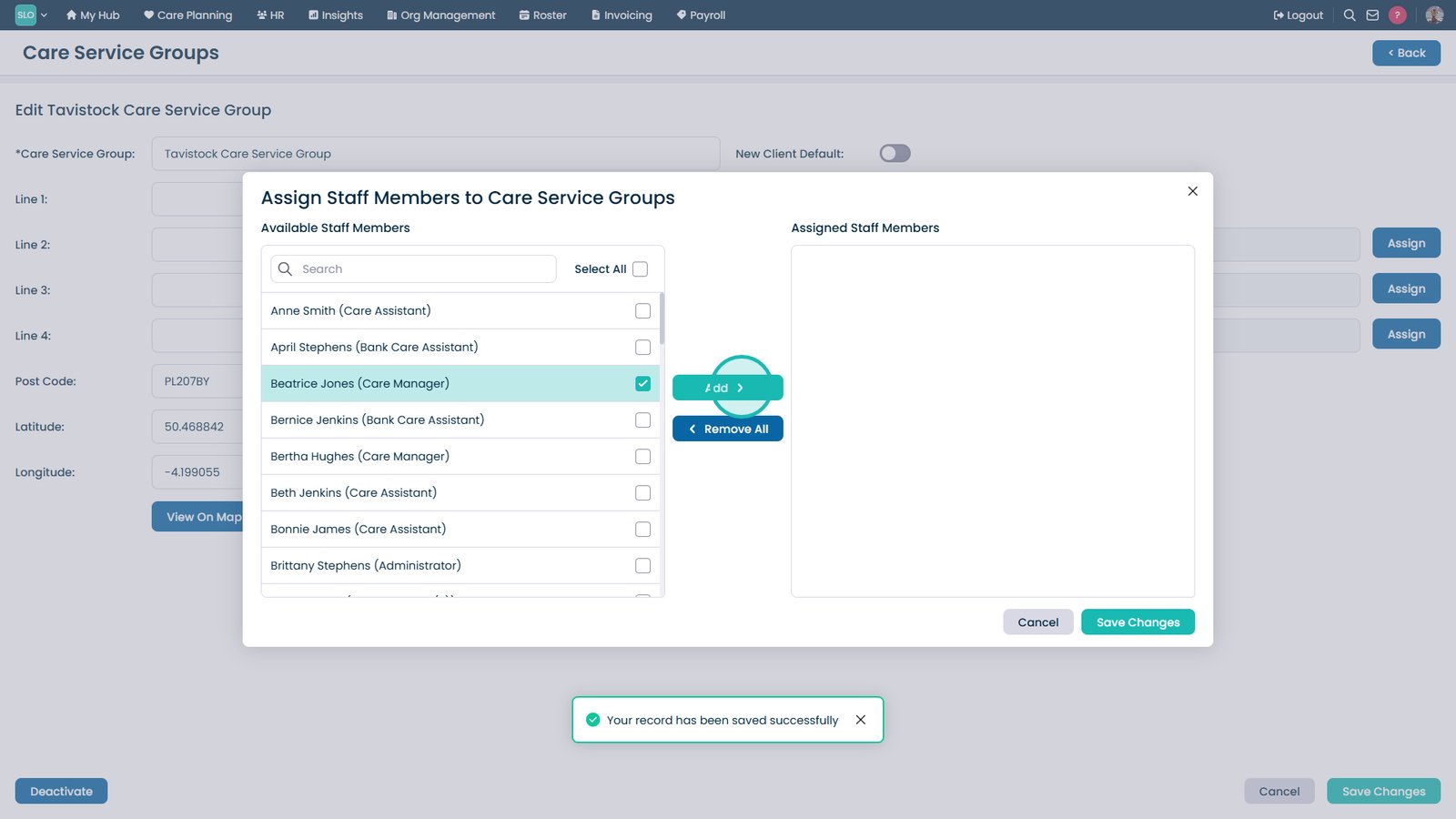
Select Add to assign the selected staff.

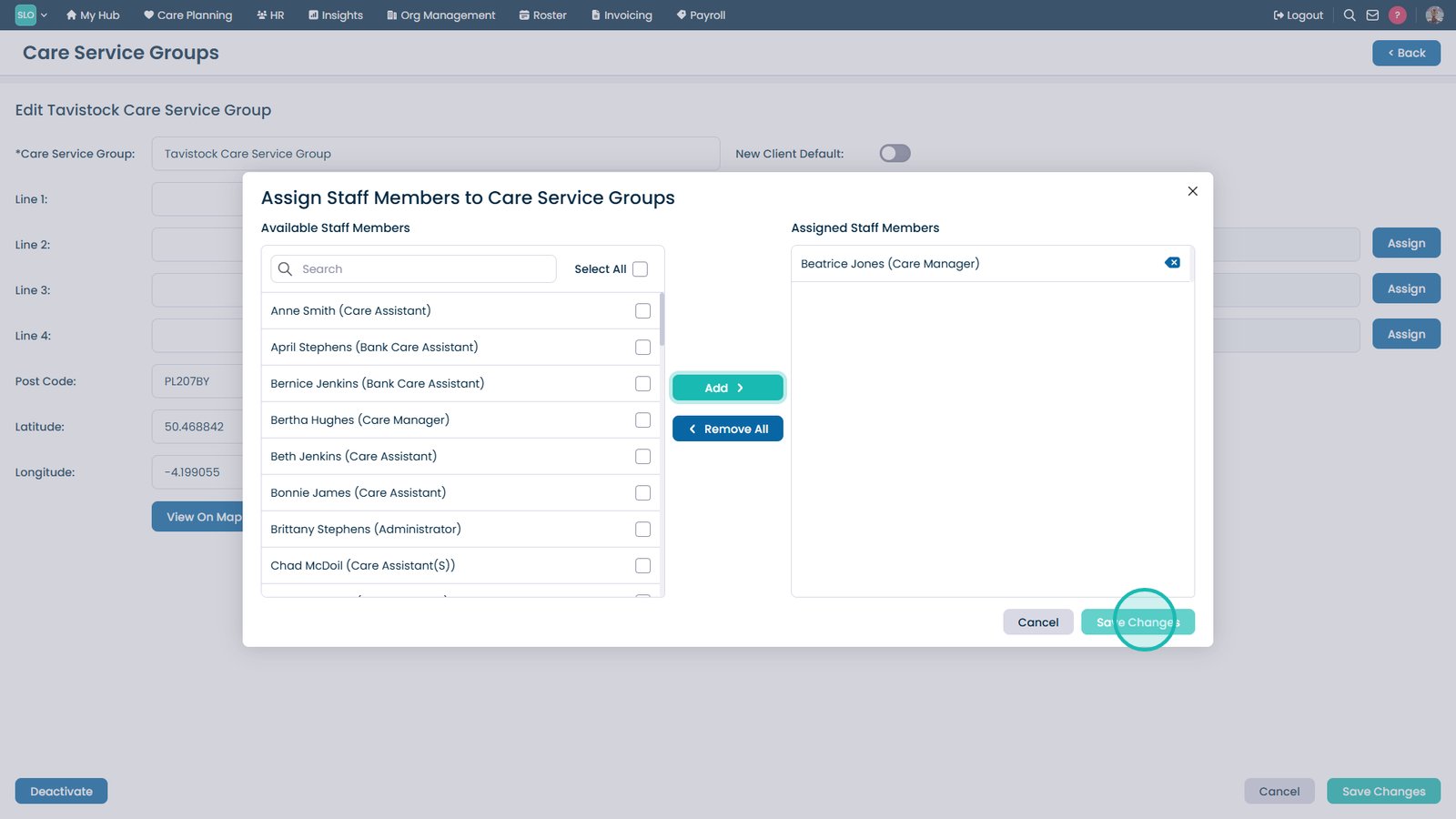
Select Save Changes.

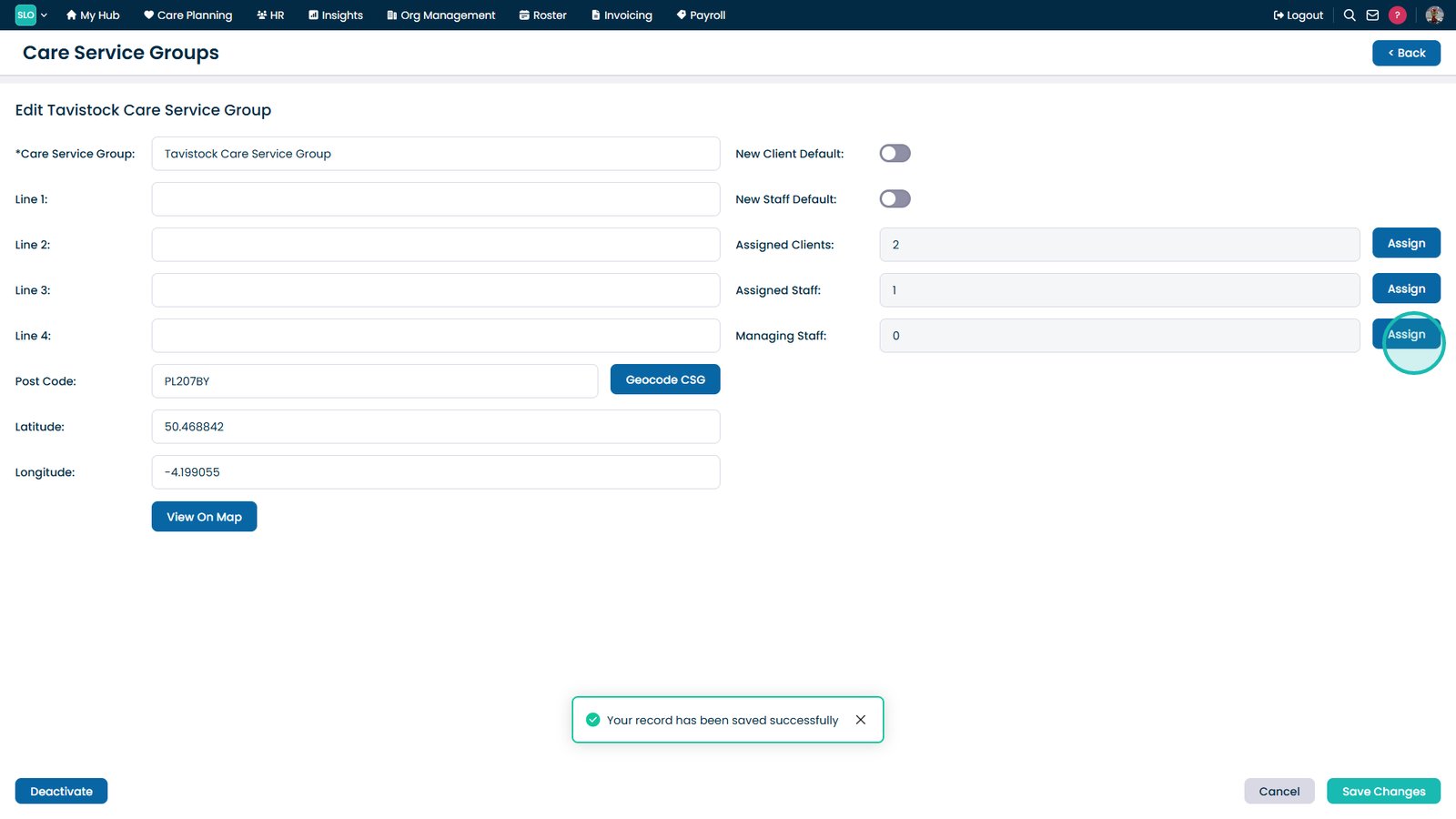
Select Assign beside Managing Staff.

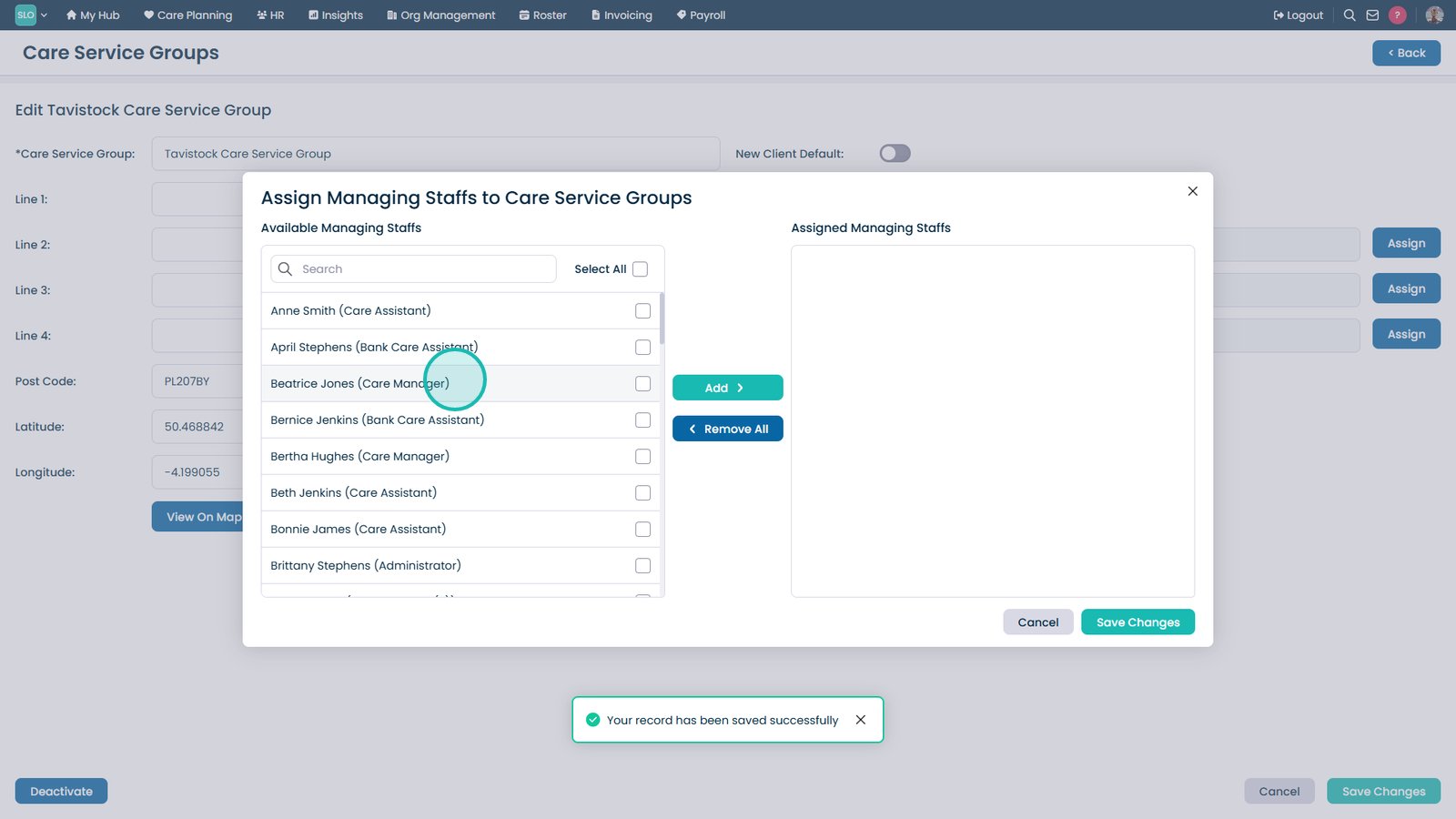
Select the managing staff member.

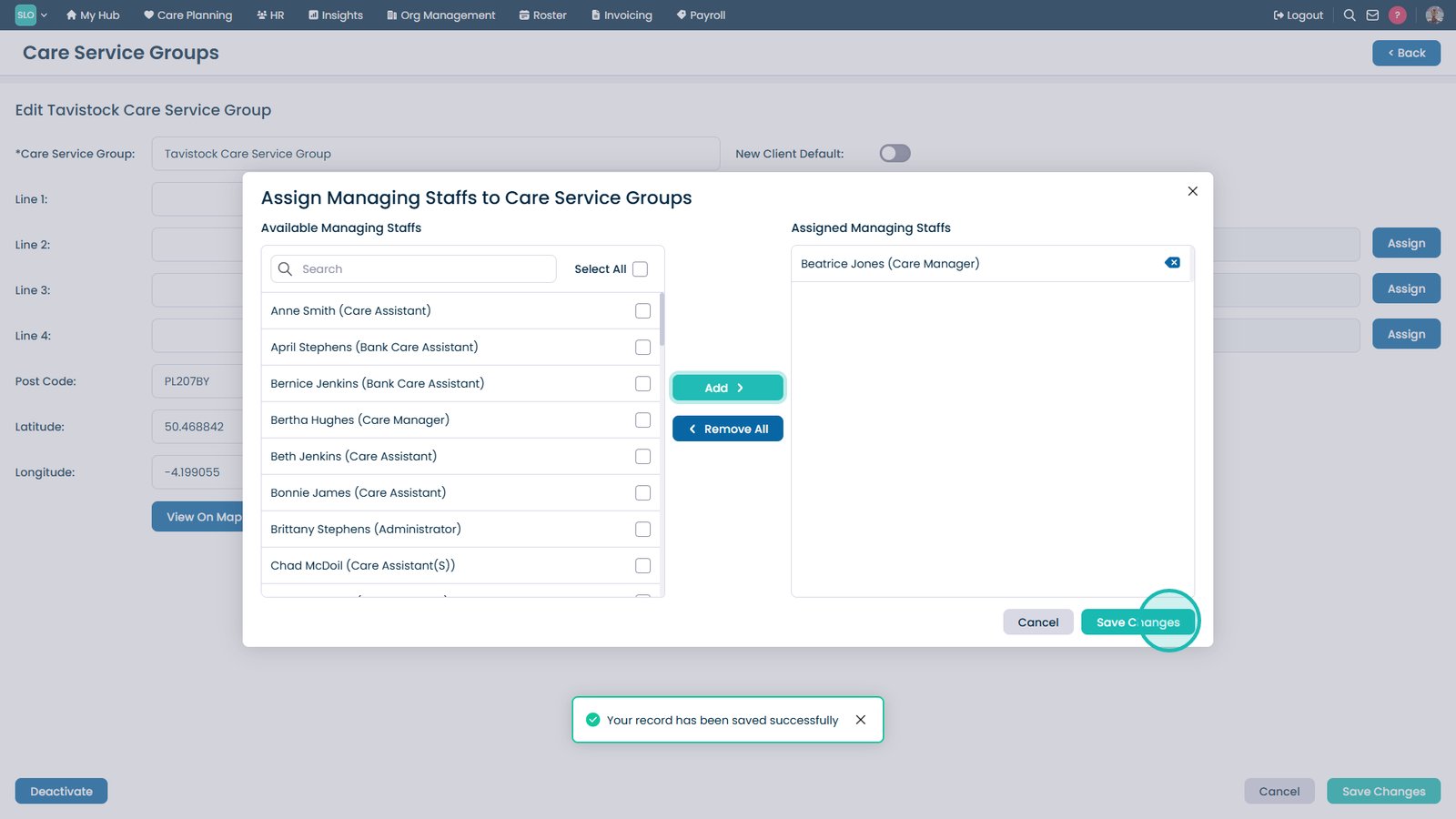
Select Save Changes.

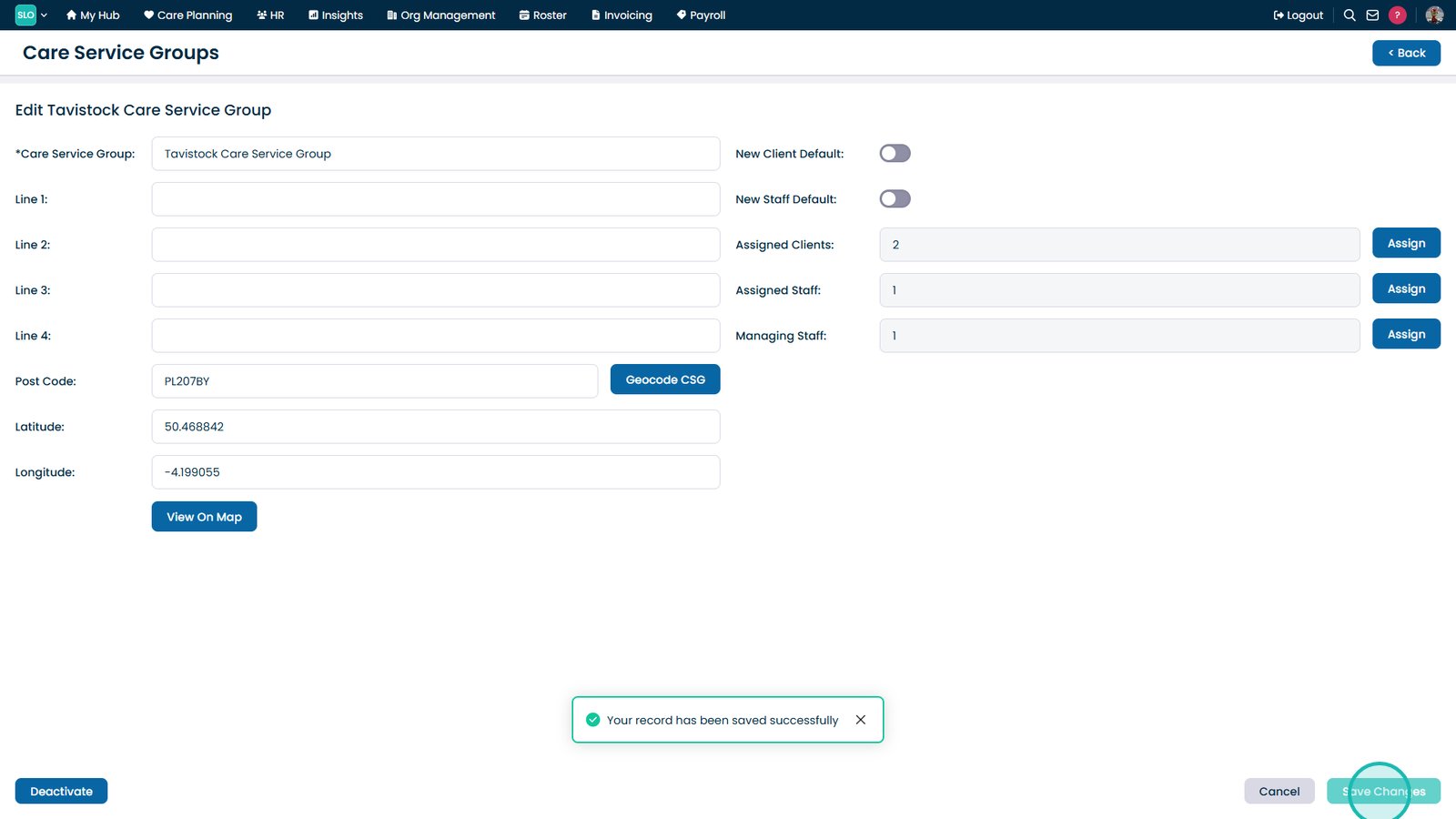
Select Save Changes to save all updates.

Top tip

Always make sure to include all staff that will need to access the information of the individuals within the group. Staff can be in as many CSGs as required, and Service Users will only ever be in one. Each site starts with a Base Care Service Group.

Was this guide helpful?

Need more help?

Can't find what you're looking for? Our support team is here to help.

Contact Support

Or call us on

On this page