How to Enable or Disable the Sleep Shift Setting
This guide explains how to manage whether sleep shift hours are excluded from contracted hours within the Roster settings.
Takes 1 minute
For: Managers
Updated: 30th July 2026
Introduction
The Miscellaneous Roster settings allow you to control how sleep shift hours are treated when calculating contracted hours. You can enable or disable the exclusion of these hours based on your organisation’s requirements.
In this guide you'll learn how to:
- Open the Miscellaneous Roster settings
- Locate the Sleep Shift setting
- Choose whether sleep shift hours are excluded from contracted hours
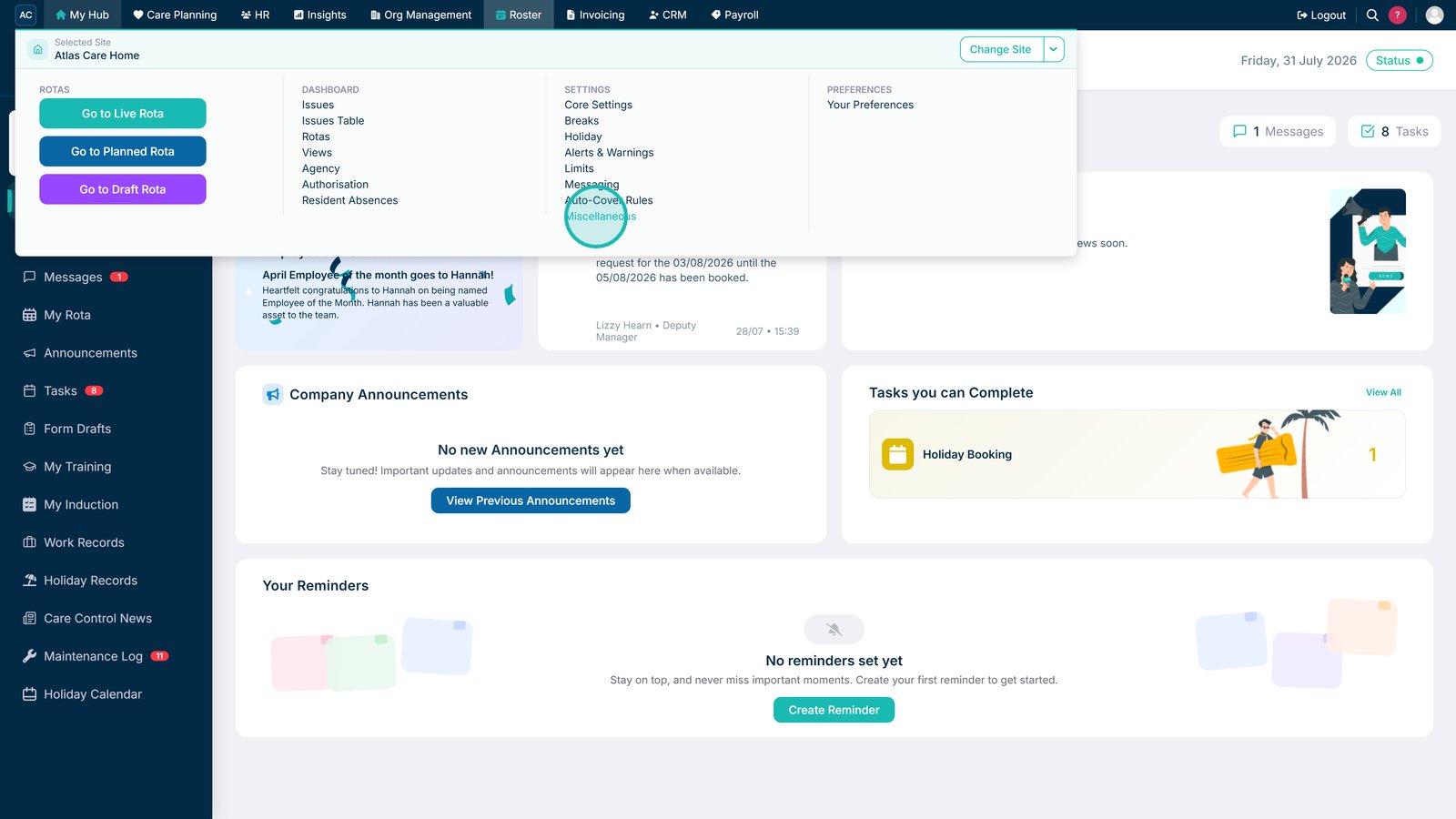
Open Miscellaneous from the Roster settings.

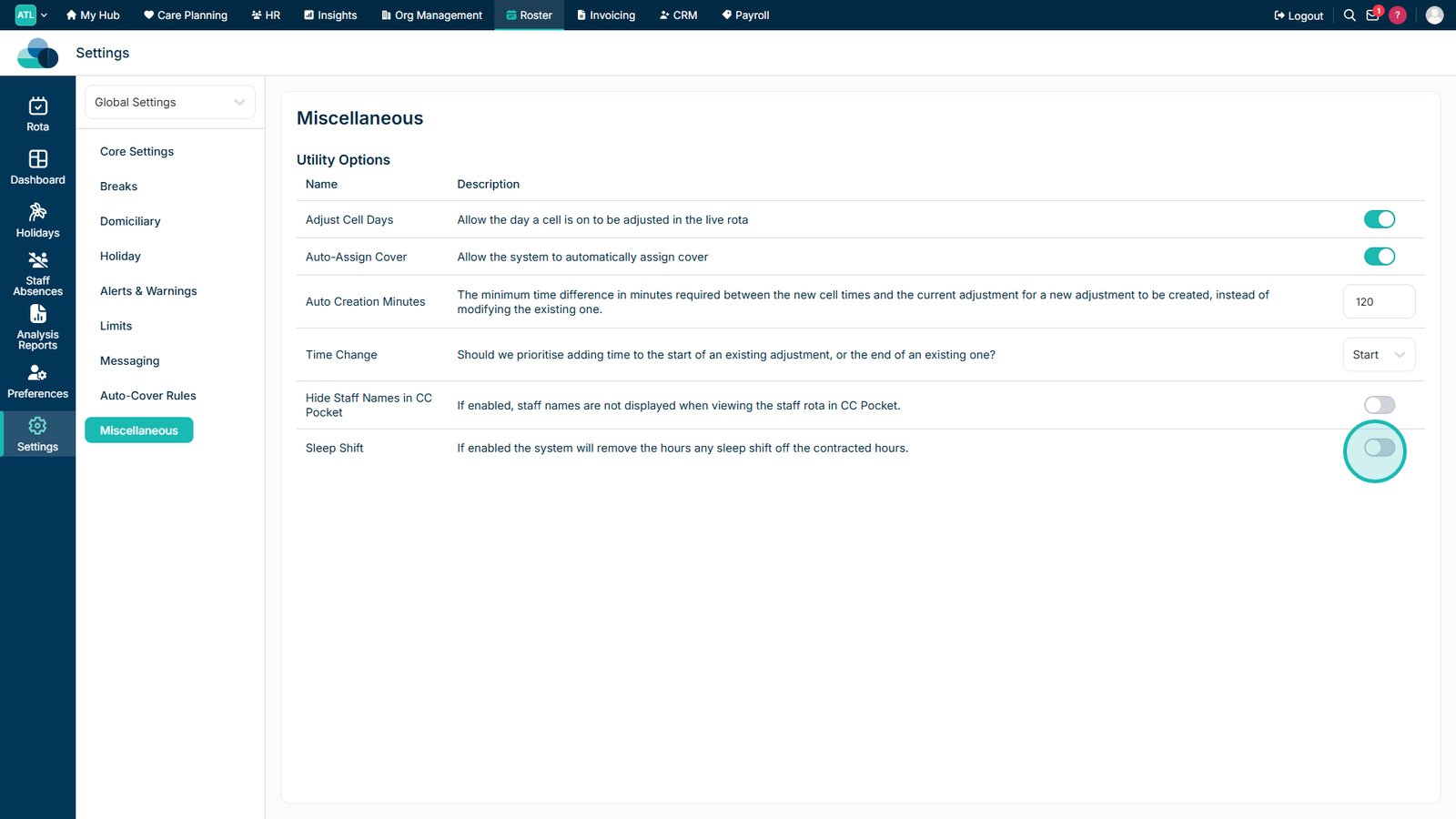
Use the Sleep Shift setting to choose whether sleep shift hours are excluded from contracted hours.

Top tip
Review your organisation’s contracted-hours policy before changing this setting, as it affects how sleep shift hours are counted.
Need more help?
Can't find what you're looking for? Our support team is here to help.
Contact SupportOr call us on