How to Manage MyHub Dashboards
This guide explains how to manage and customise MyHub dashboards within the Org Management app.
Effective dashboard management ensures the right information is delivered to the right people, improving efficiency, reducing confusion, and helping teams stay focused on what matters most.
By following this guide, you will learn how to:
- Access and navigate dashboard management settings
- Edit dashboard names, descriptions, and status
- Control who can view dashboards using assignment filters
- Assign dashboards to sites, roles, and individual users
- Set default dashboards and manage visibility
- Save and review your dashboard configurations
This ensures your dashboards are structured, relevant, and tailored to support your team’s daily workflows.
Interactive Guide
Text based guide
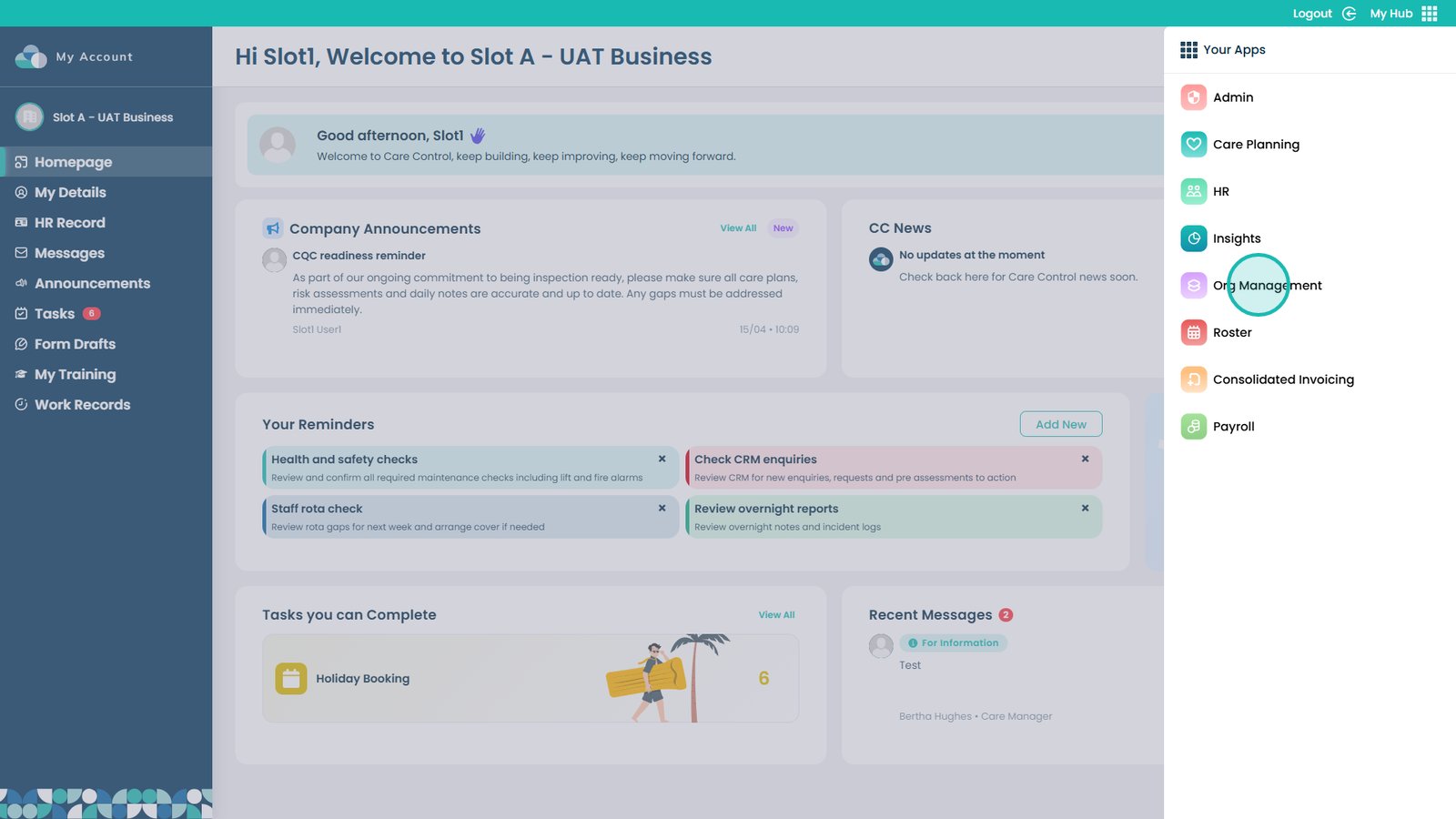
Launch the app from your main dashboard to begin.
Open the Org Management app to access dashboard controls.
Select Visit to access dashboard management features.
Open Everything About Data to view dashboard configuration options.
Navigate to MyHub Dashboards to locate and manage dashboards.
Open an existing dashboard to begin editing its settings.
Edit the dashboard name and description to keep it clear and relevant.
Deactivate the dashboard using the toggle if it should no longer be in use.
Control whether the dashboard is set as default for users.
Adjust assignment filters to control who can access the dashboard.
Select which site the dashboard should be assigned to.
Assign the dashboard to specific staff members if required.
Assign dashboards by role to control visibility across different teams.
Customise dashboards for individual users where needed.
Apply department, position, or category filters to refine access further.
Set the dashboard as default if it should be the primary view.
Click Save Changes to apply and confirm your updates.
Use the Users icon to view who is assigned to the dashboard.
Edit existing dashboards if needed, but avoid modifying the default—create a new one instead.