🚀 UPCOMING WEBINAR: See Payroll in Care Control Cloud in action on Thursday 18th June and discover how to manage payroll more efficiently from one connected system. Click here to find out more!

View Categories

How to Manage Payroll Access

This guide explains how to manage Payroll access within Care Control Cloud. Payroll access controls which users can view or modify payroll data, allowing you to securely assign permissions based on roles and responsibilities within your organisation.

You can update existing users’ access levels, add new managers, and review detailed permission settings to ensure each user has the appropriate level of access. This helps maintain data security while ensuring the right staff can carry out payroll tasks effectively.

By following this guide, you will learn how to:

  • View current payroll access levels across your organisation
  • Update permissions for existing users
  • Add new users and assign payroll access
  • Understand the different payroll permission levels
  • Ensure access is aligned with staff roles and responsibilities

This process helps ensure payroll access is controlled, secure, and tailored to your organisation’s operational needs.

Interactive Guide

Text based guide

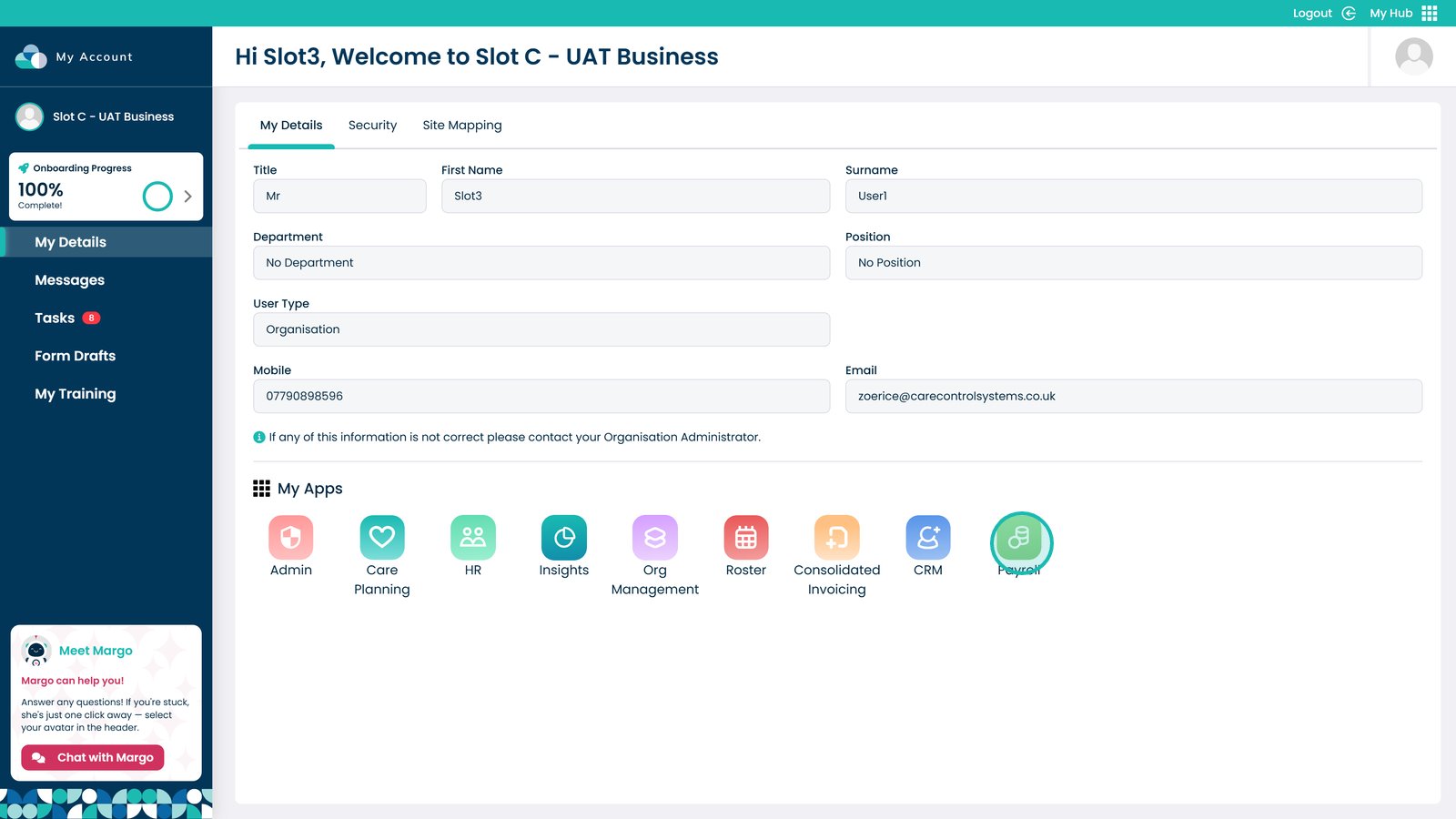
Enter the Payroll app

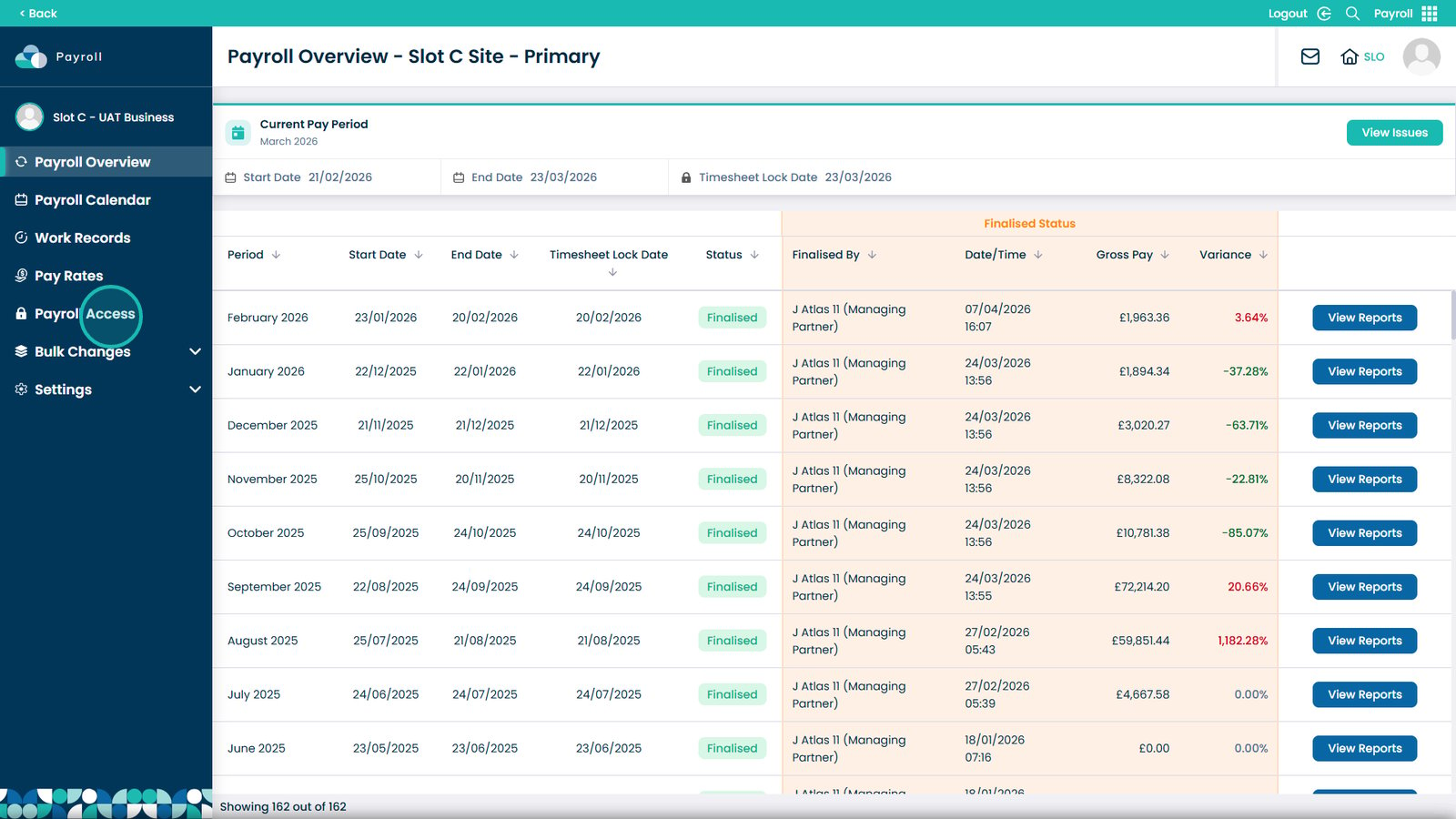
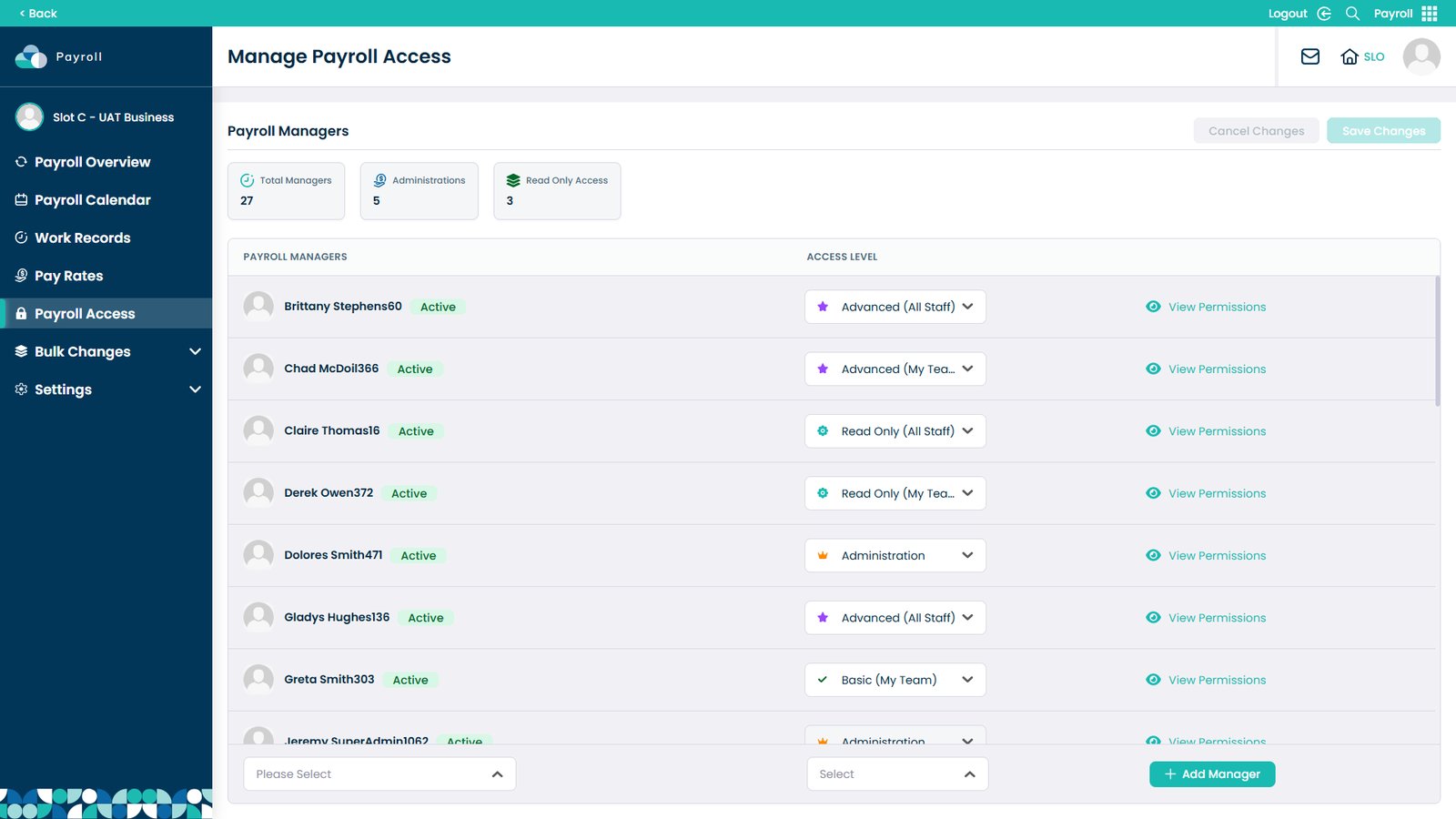
Select the Payroll Access area

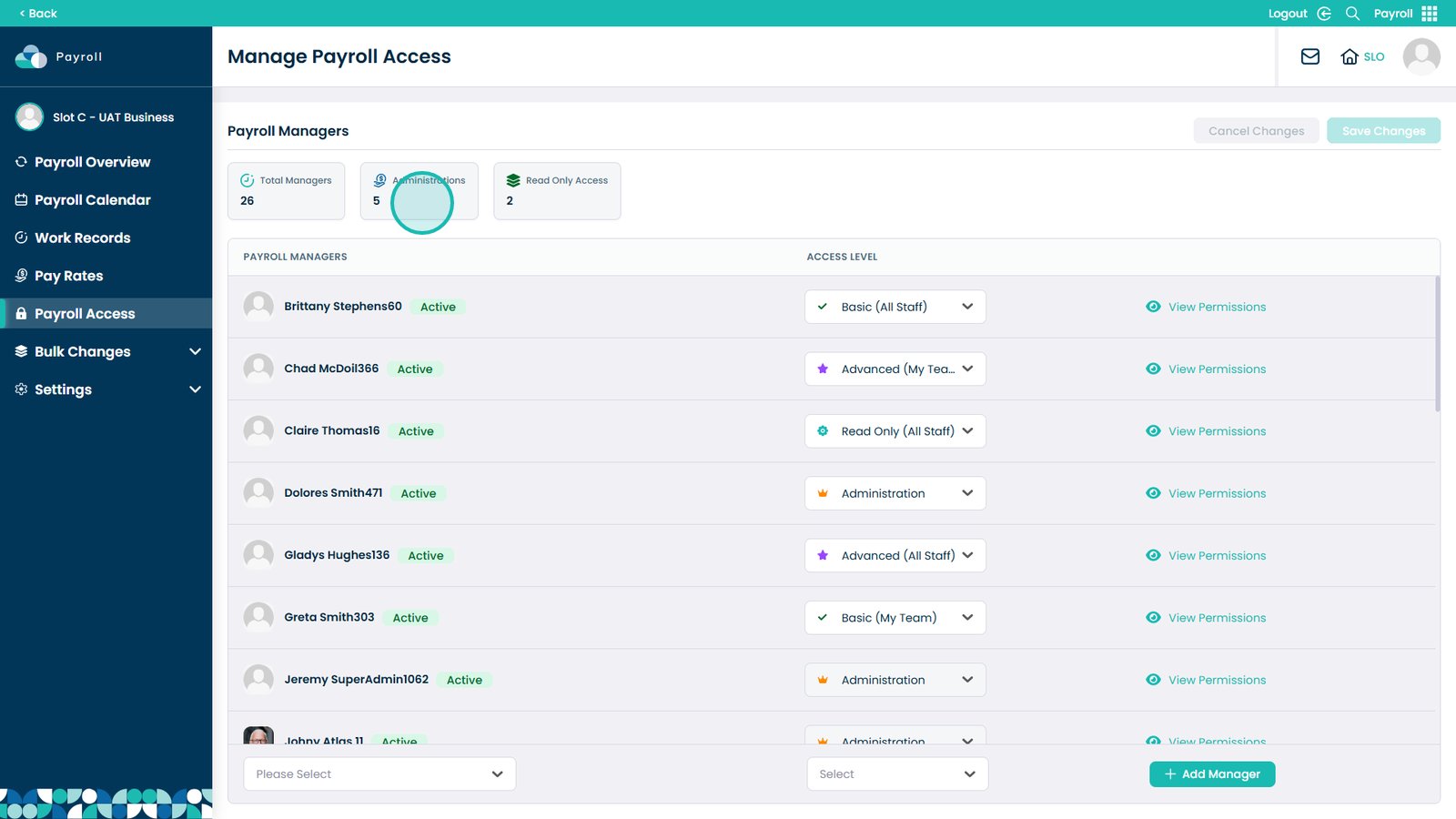
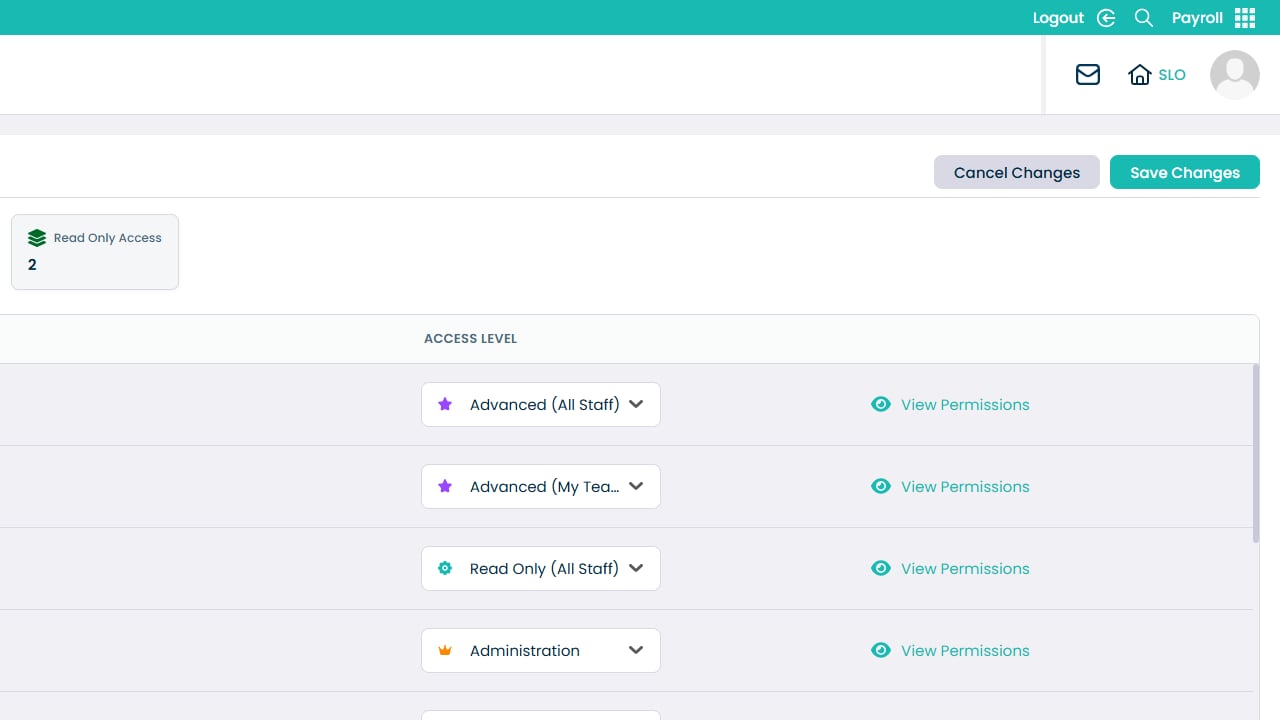
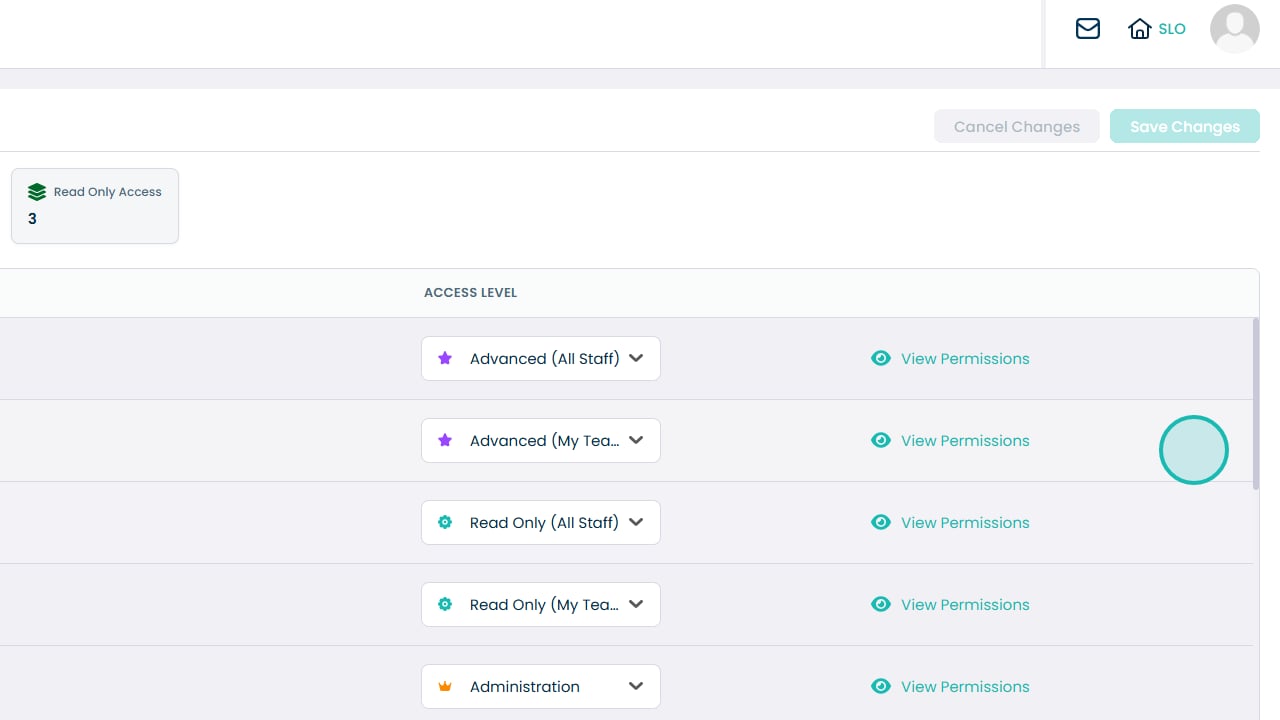
The summary boxes show the number of administrators and read-only users

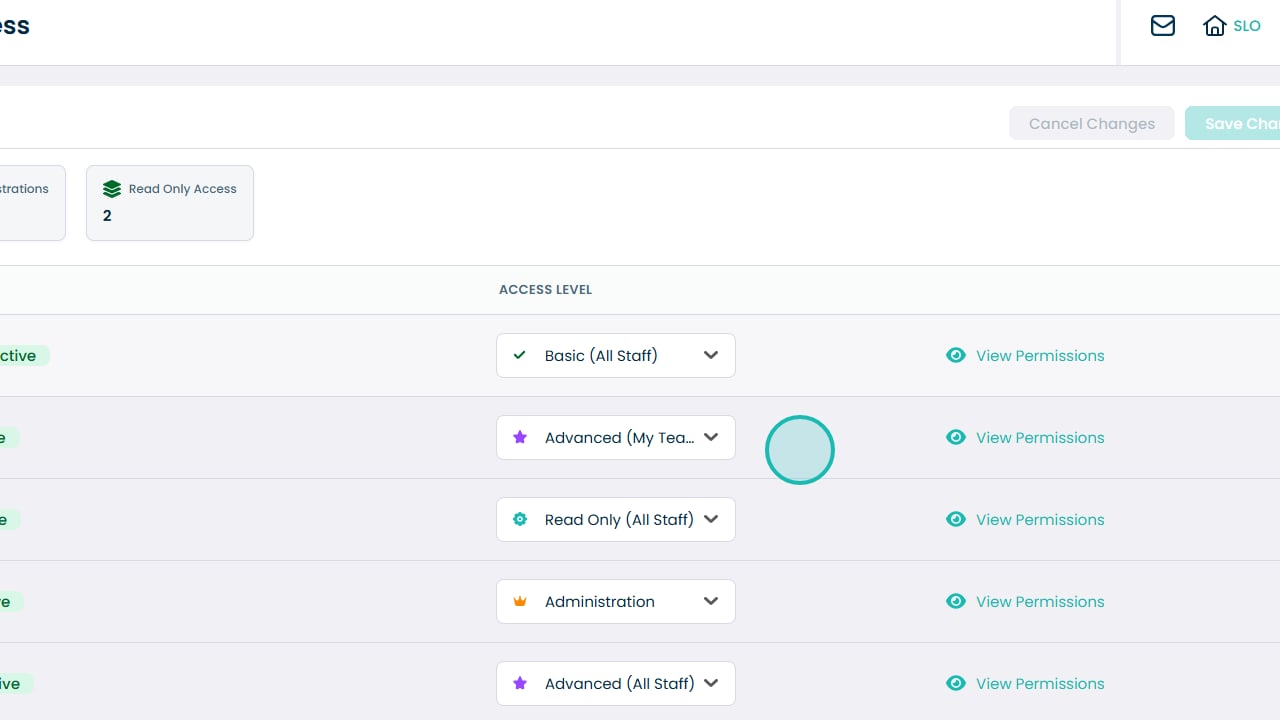
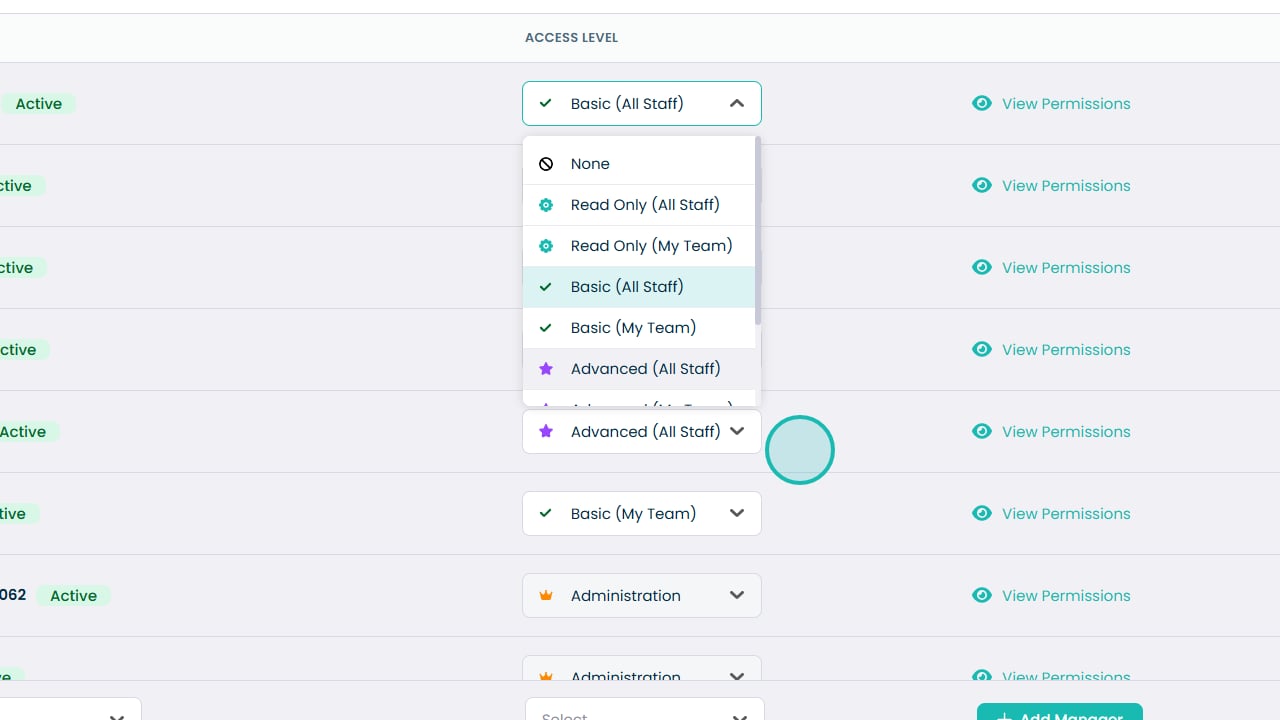
Click a user’s access level to change their permissions

Select a new access level from the pop-up

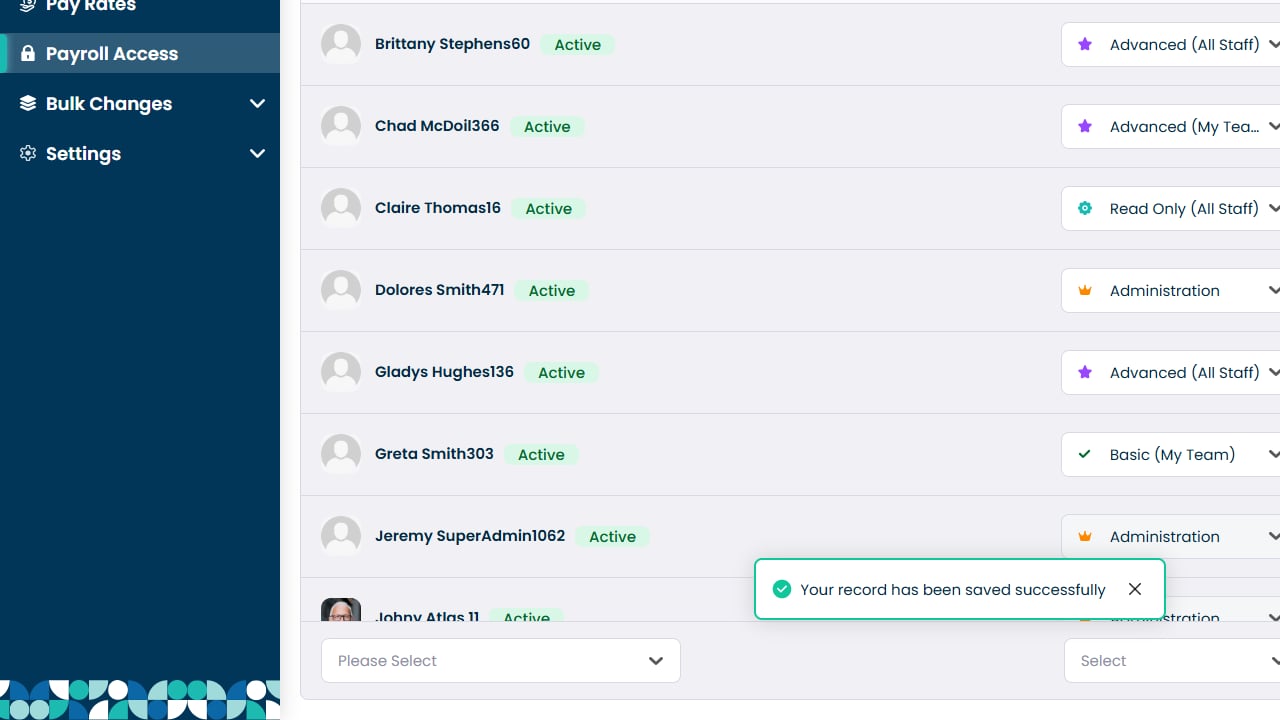
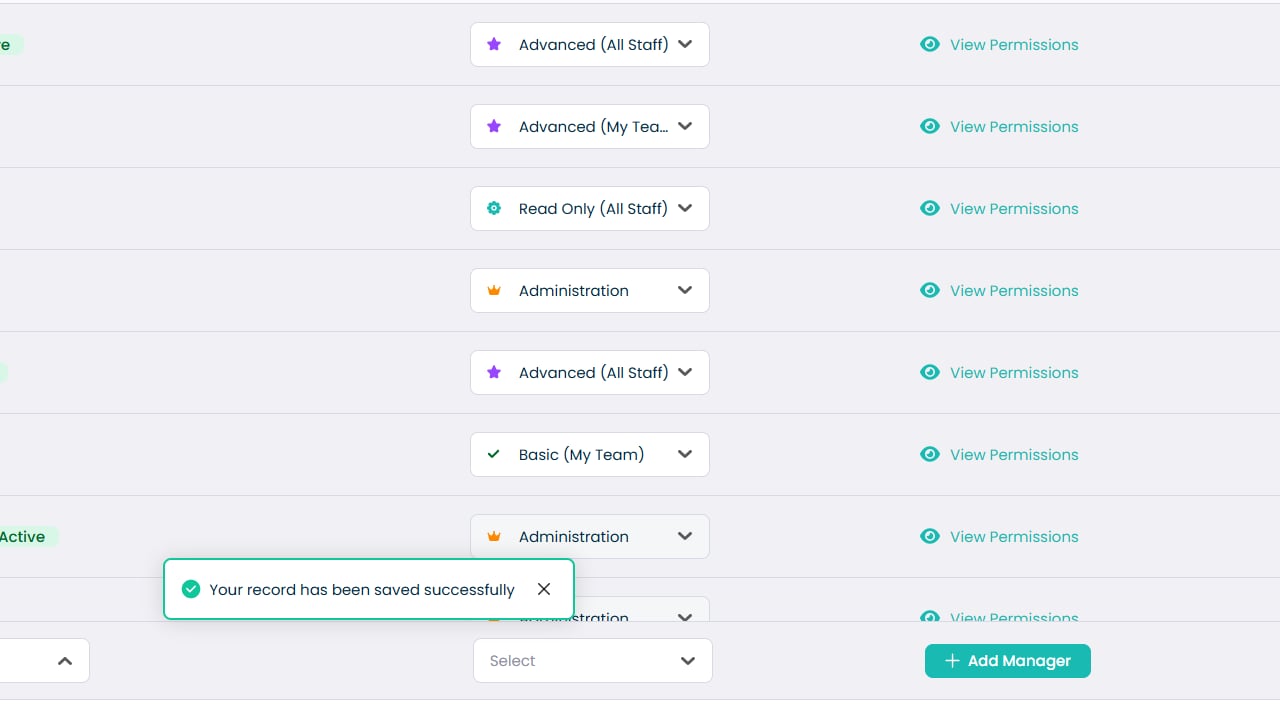
Click Save Changes once you have updated access levels

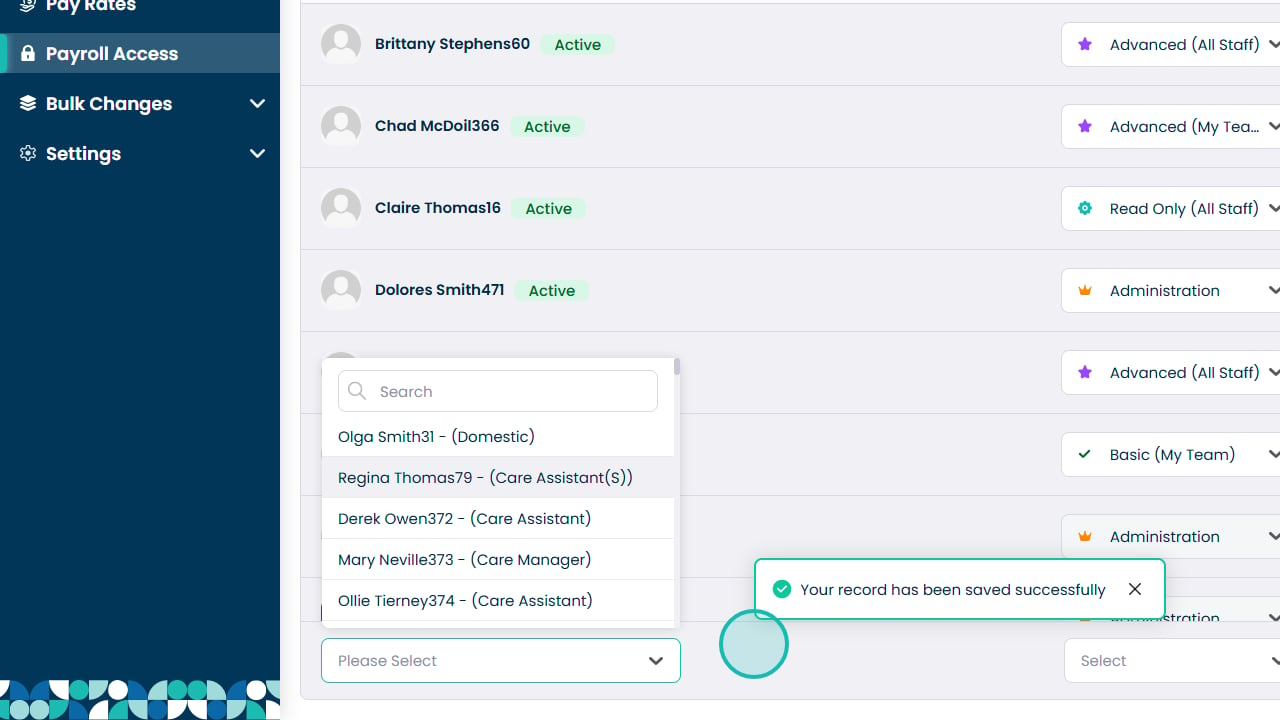
To add a new manager, open the staff dropdown

Select a staff member to add

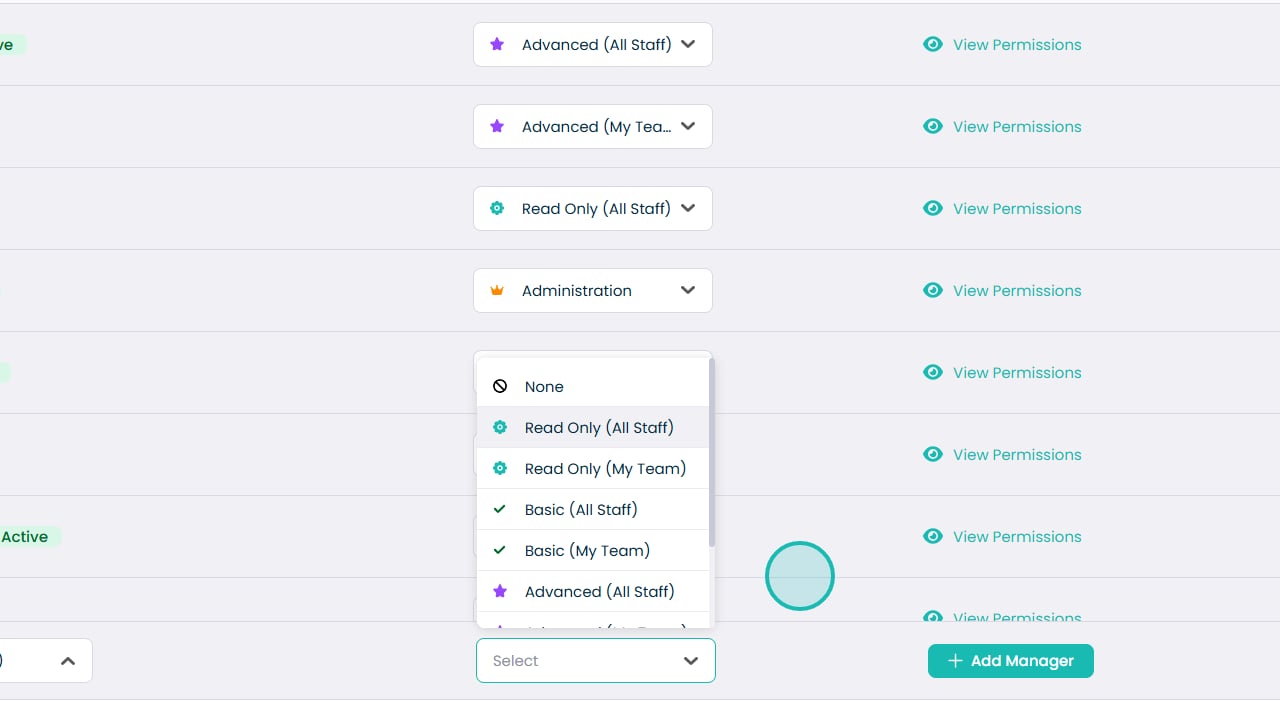
Open the permissions dropdown

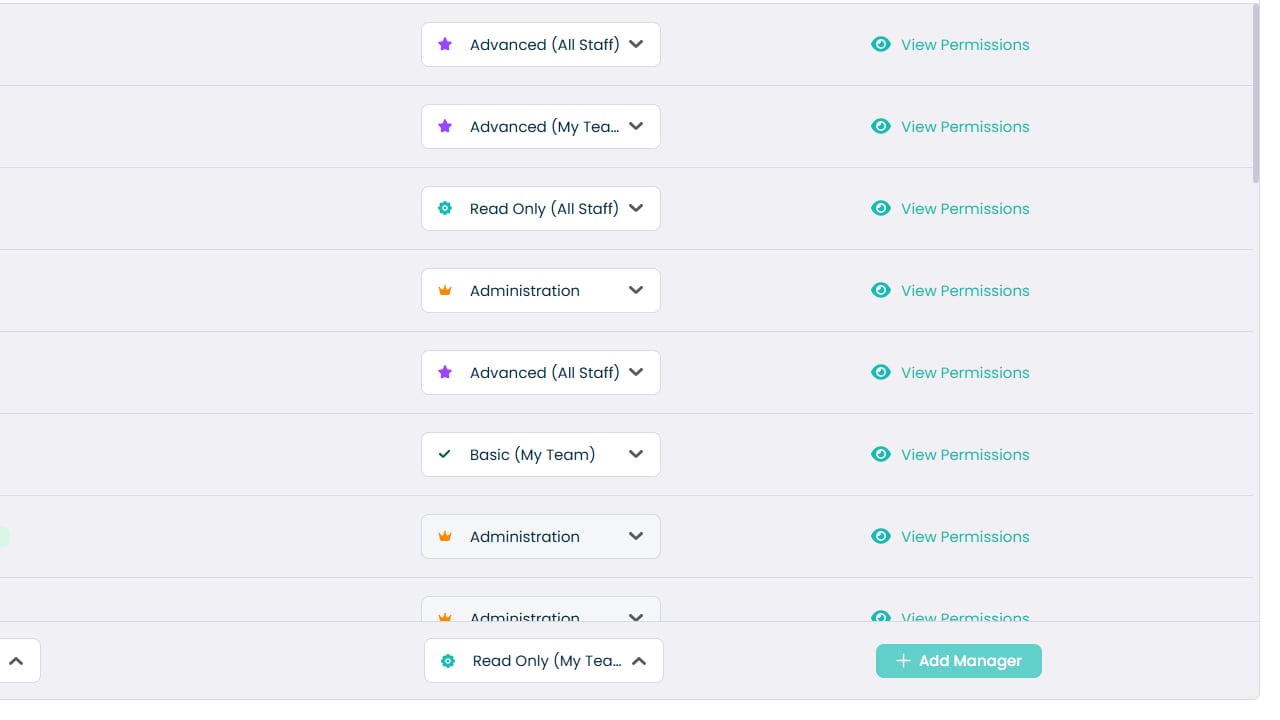
Select an access level

Click Add Manager to grant payroll access

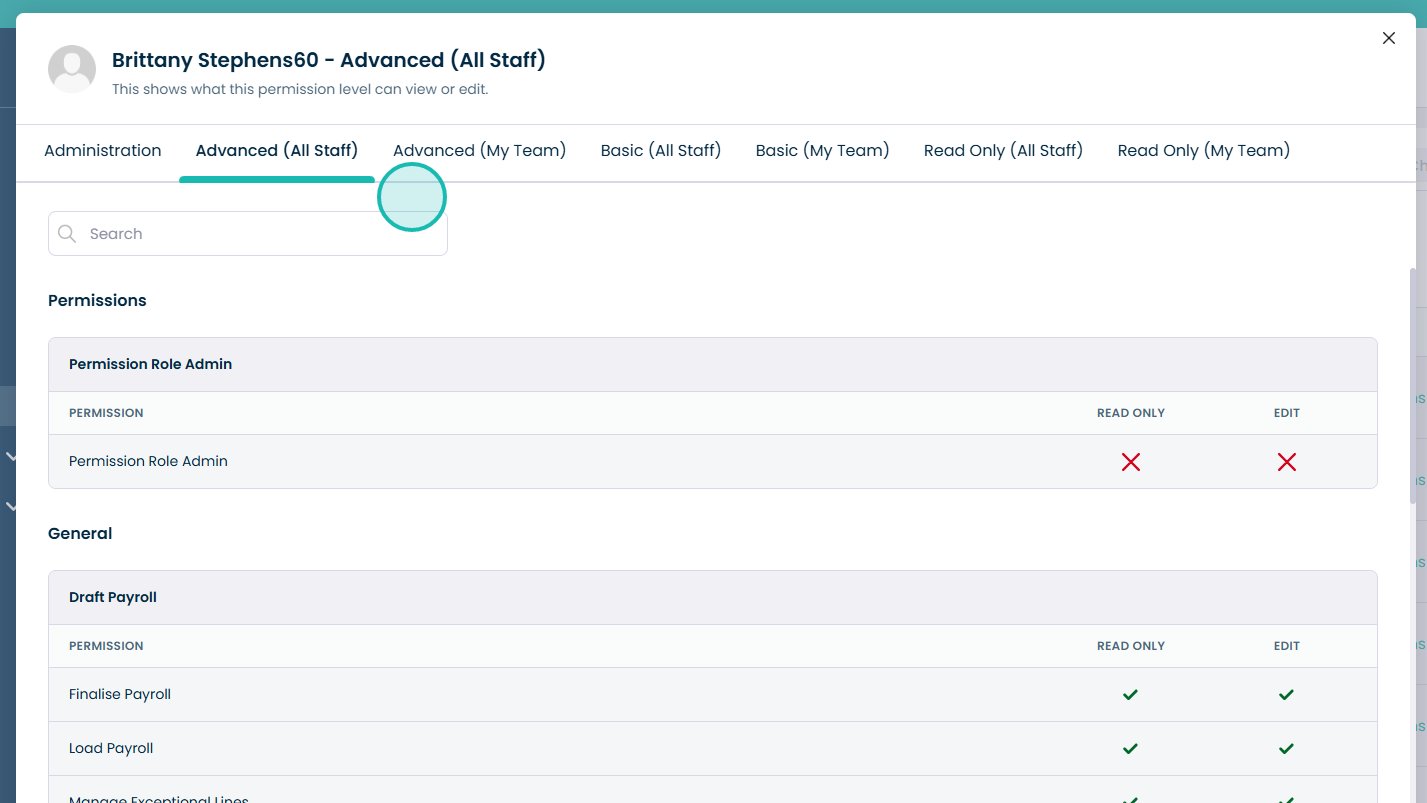
Click View Permissions to see details of each access level

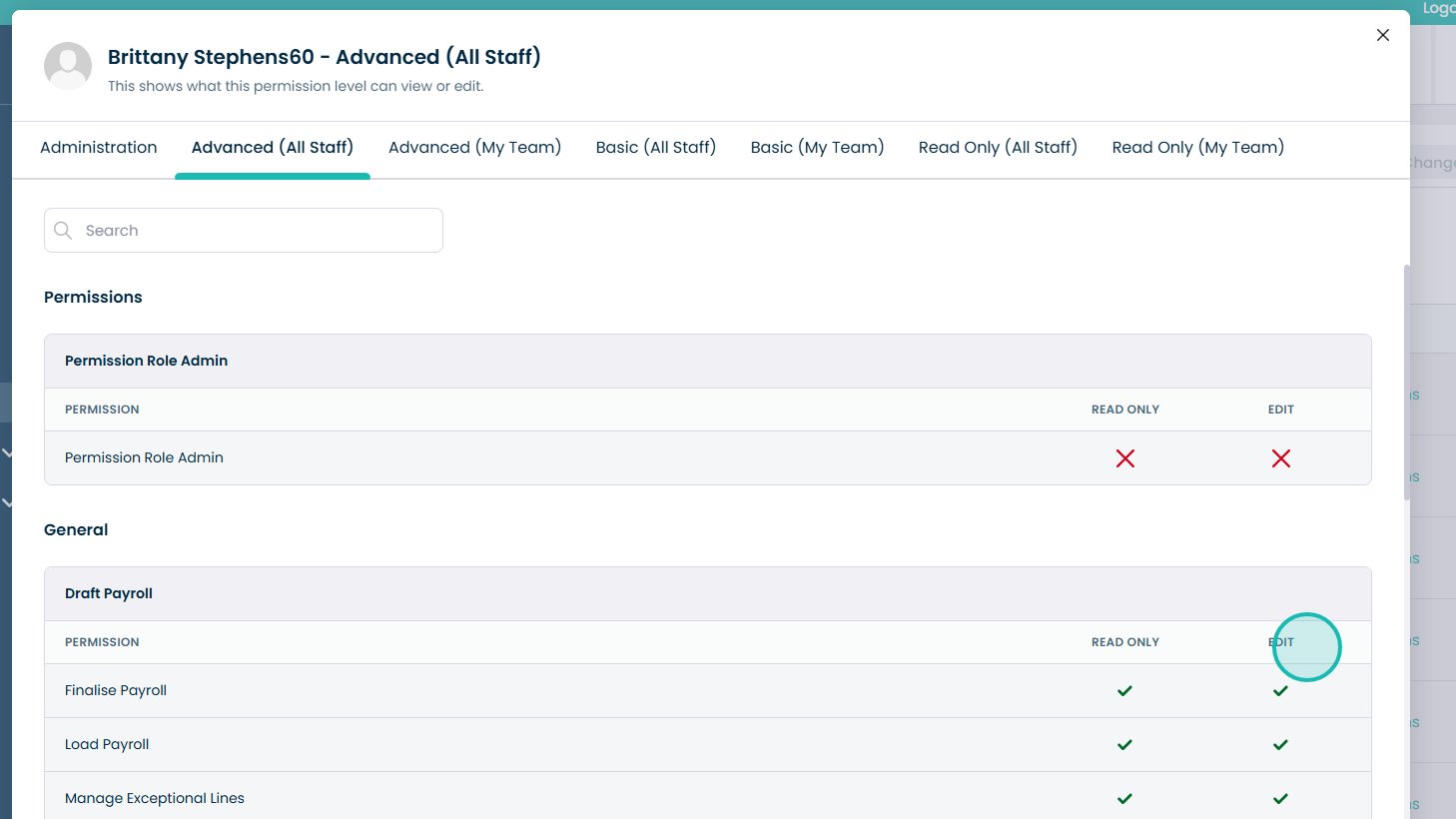
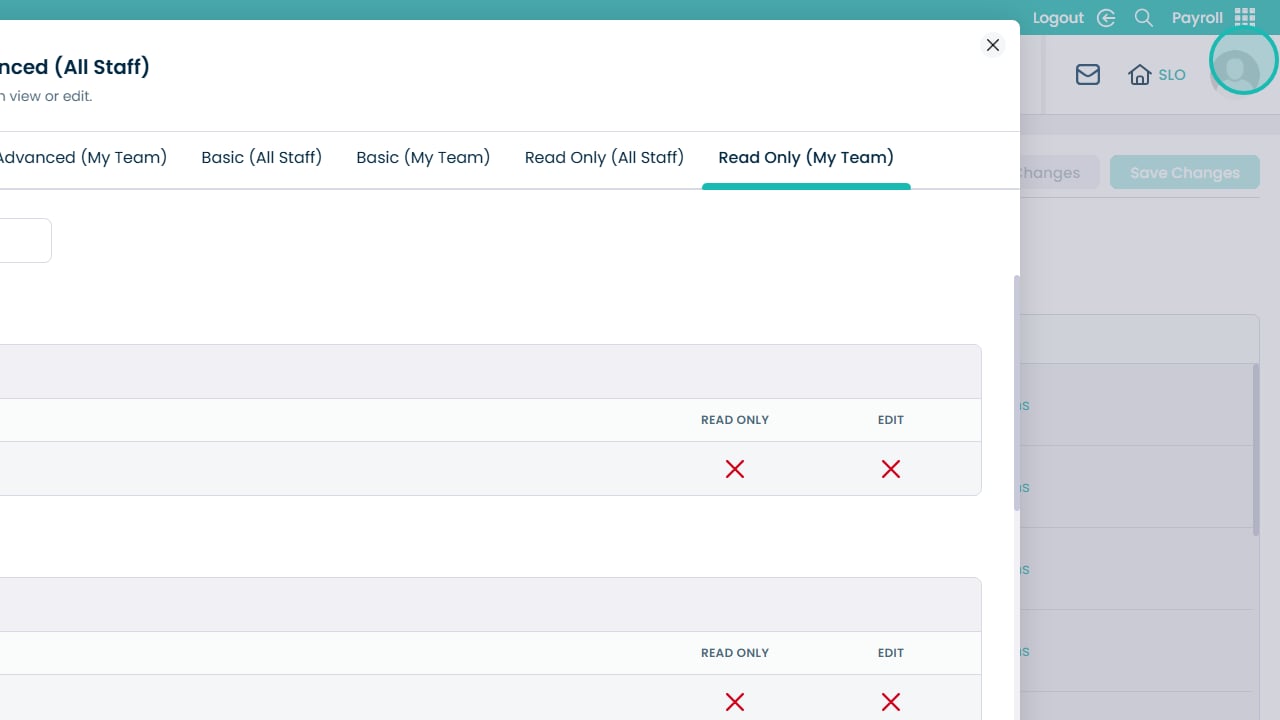
Select each permission tab to compare access levels

Scroll down to view all permissions

Click X to close the permissions window

Was it helpful ?
Table of Contents
↑ Top