How to Manage Staff PIN Viewing Permissions
Learn how to manage whether different HR roles can view other staff members' PINs. This guide shows you where to find the relevant permission and how to disable access for a selected role.
Takes 2 minutes
For: Administrators
Updated: 1st Sep 2026
Introduction
Permission Management allows you to control what different roles can access within Care Control. Within the HR permissions, you can manage whether users assigned to a particular role are able to view other staff members' PINs.
In this guide you'll learn how to:
- Access Permission Management.
- Select an HR role to manage.
- Locate the permission for viewing other staff PINs.
- Disable access to other staff members' PINs.
- Save your permission changes.
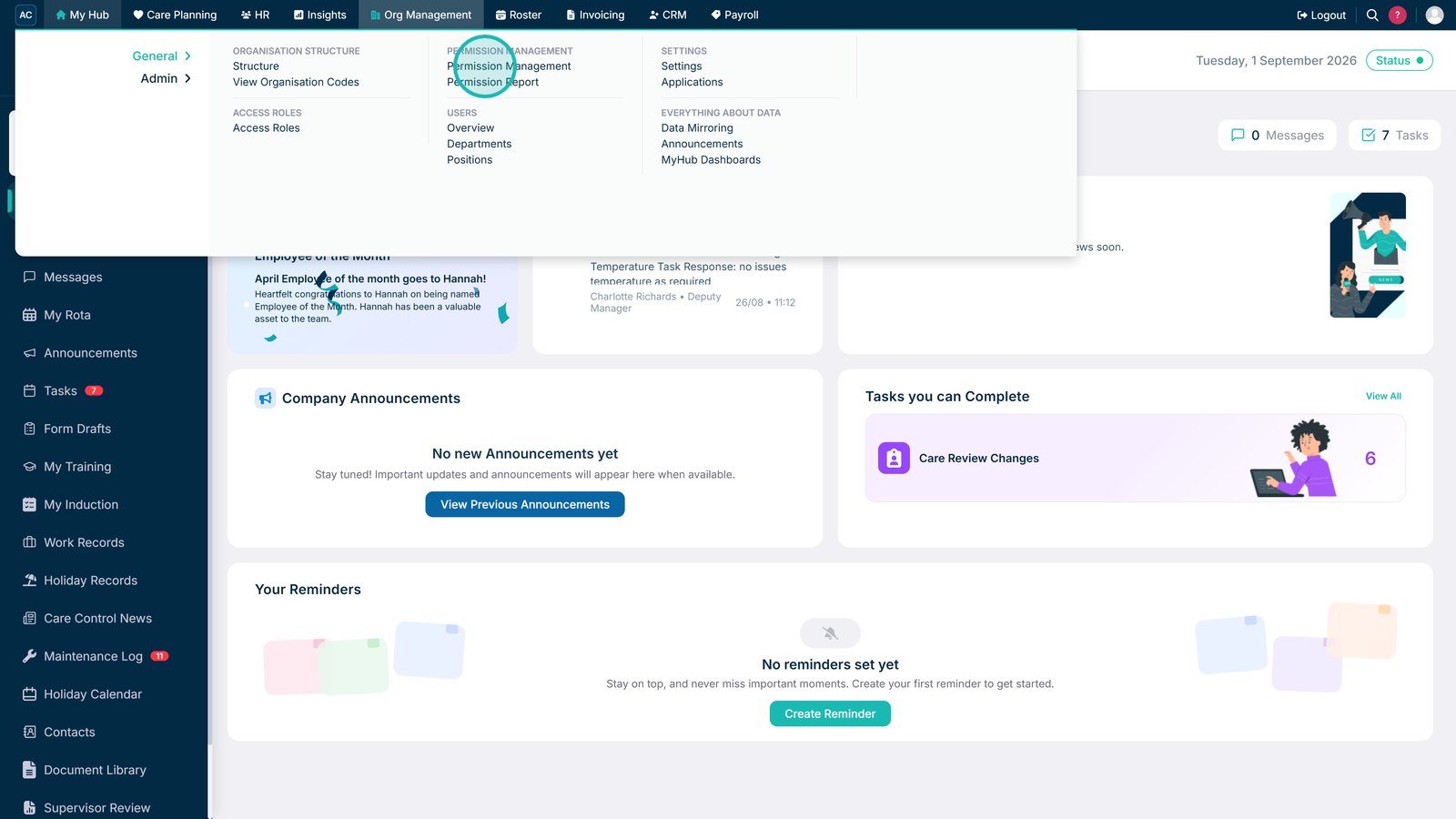
Open Permission Management from the navigation bar.

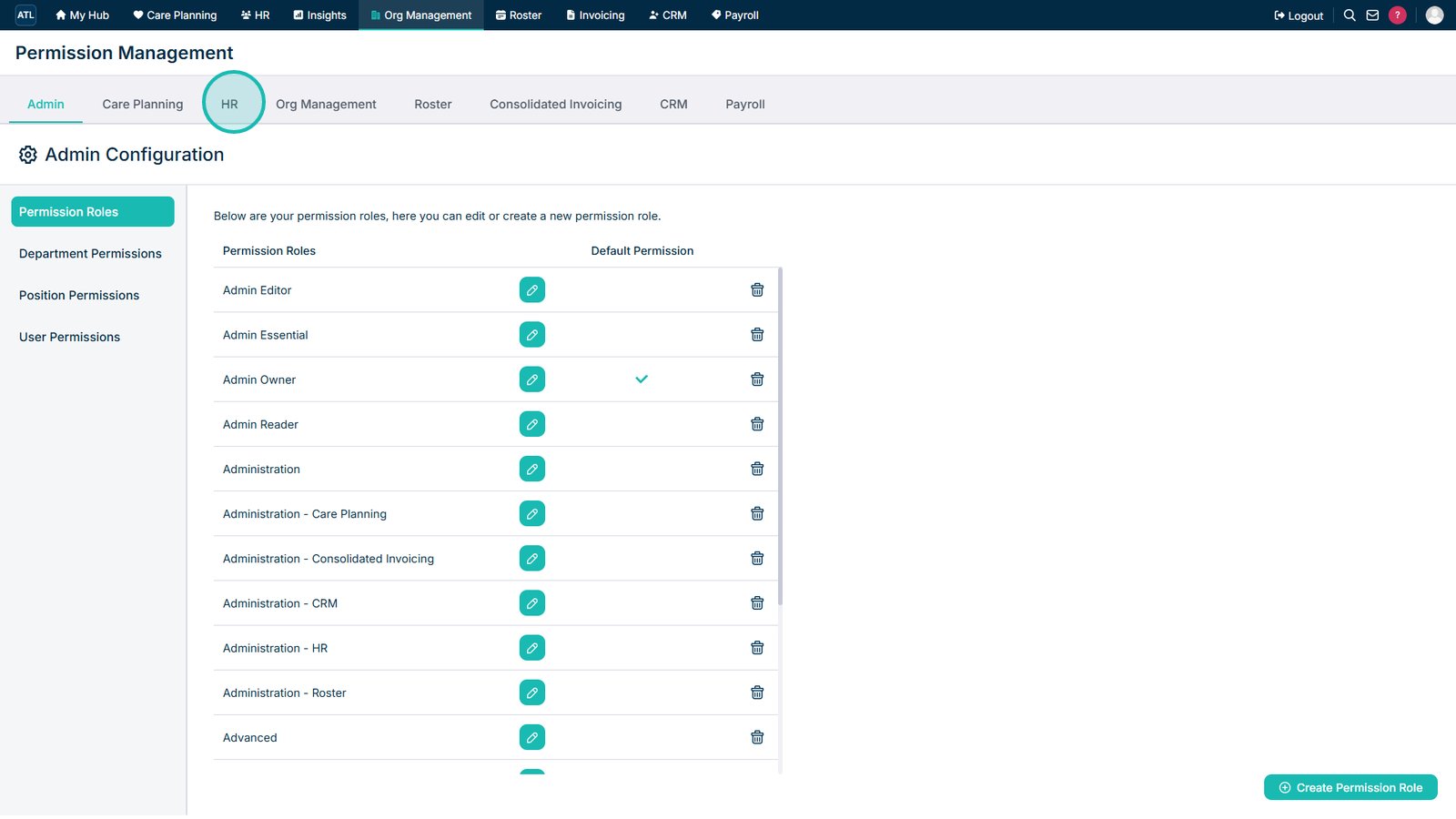
Select the HR tab.

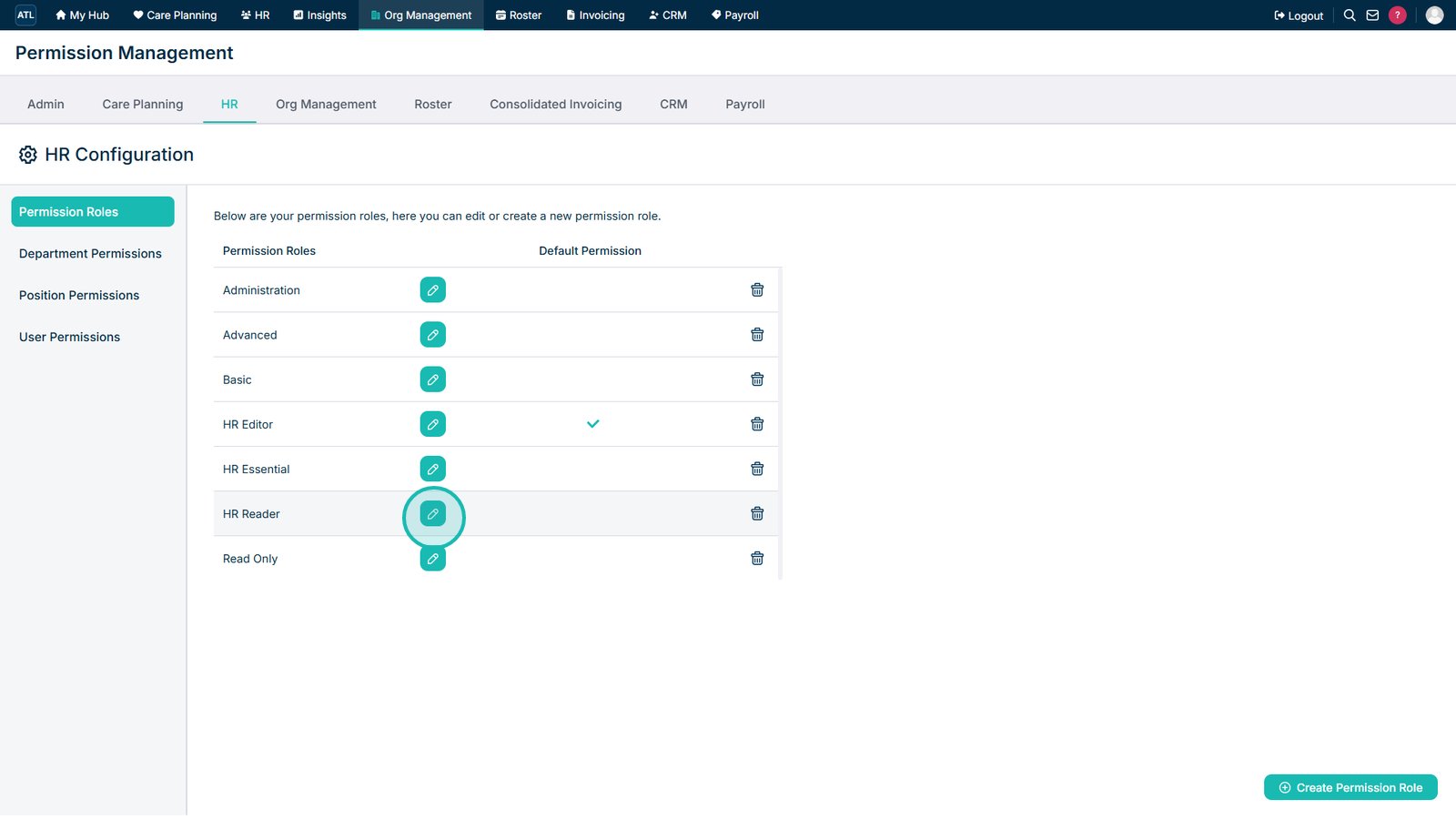
Select the edit icon next to the role you want to update.

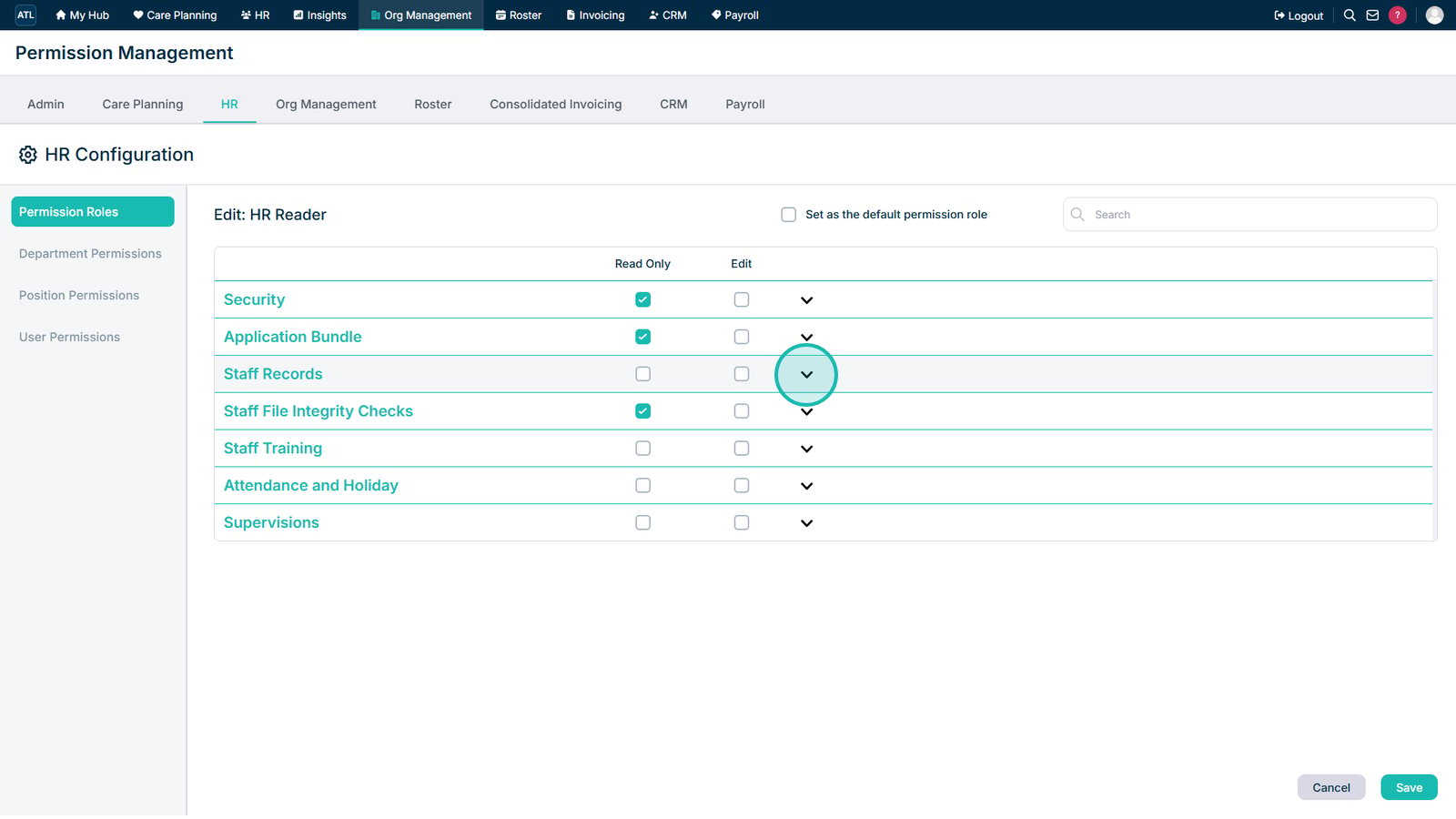
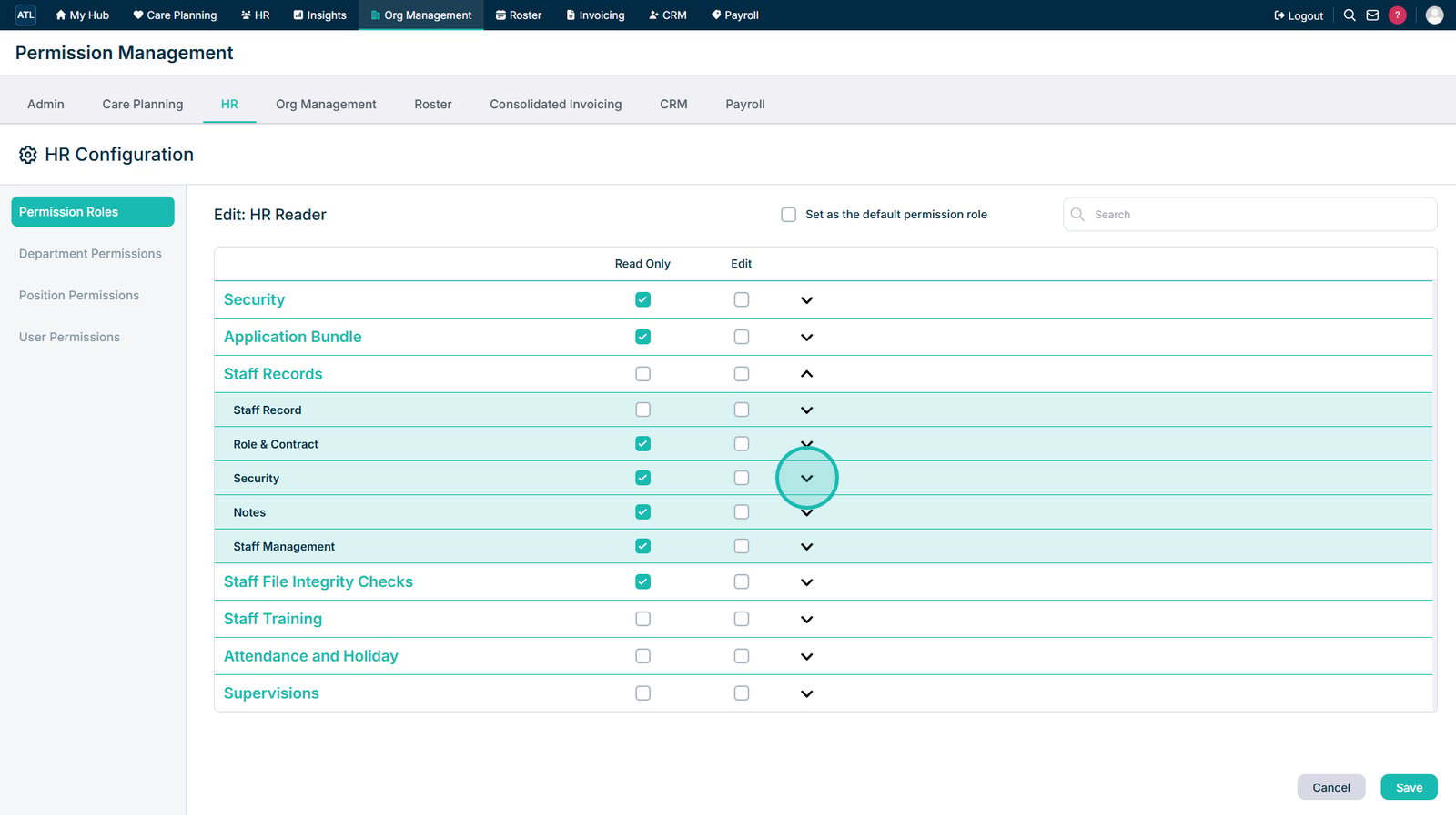
Expand the Staff Records section.

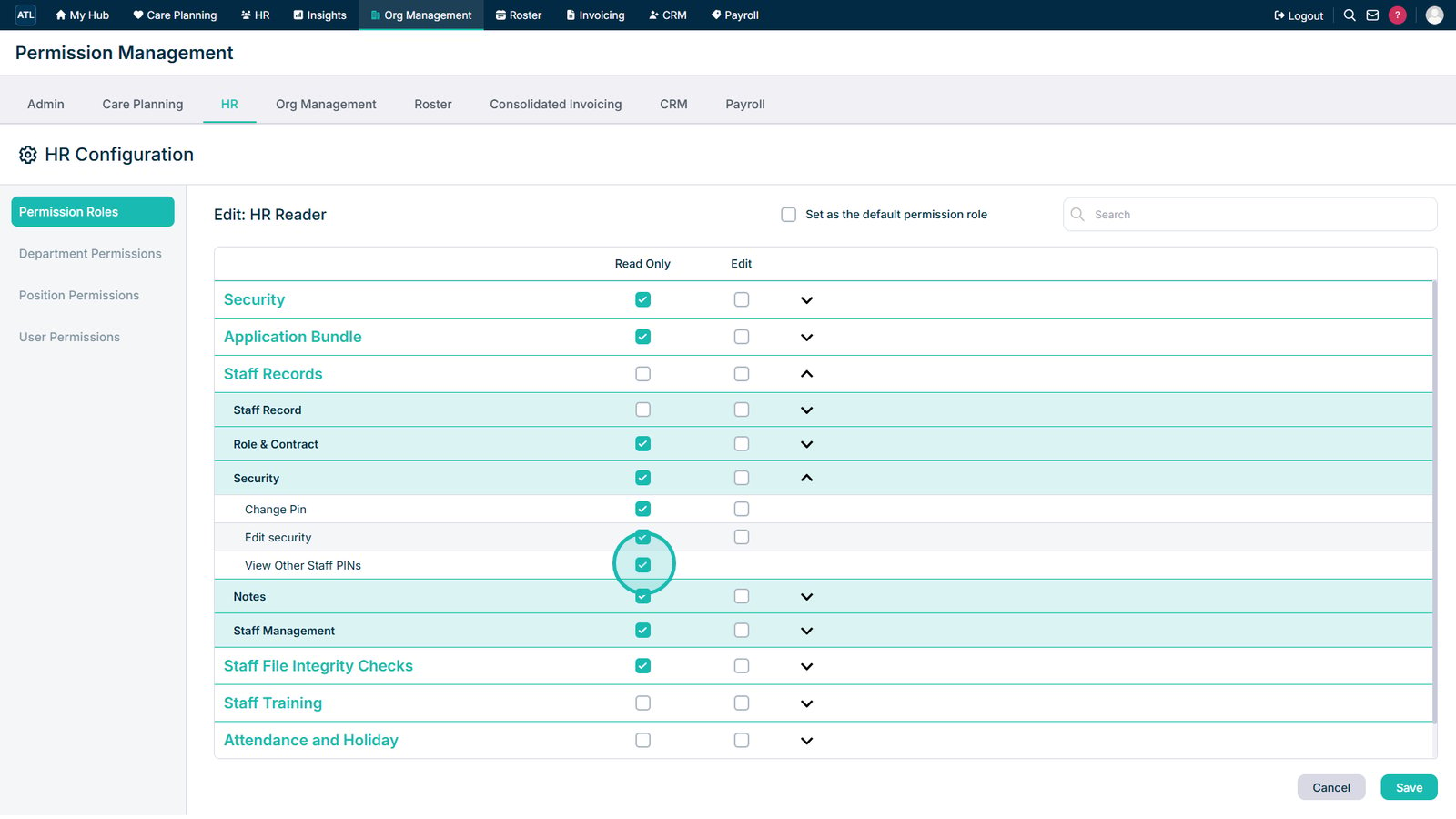
Expand the Security section.

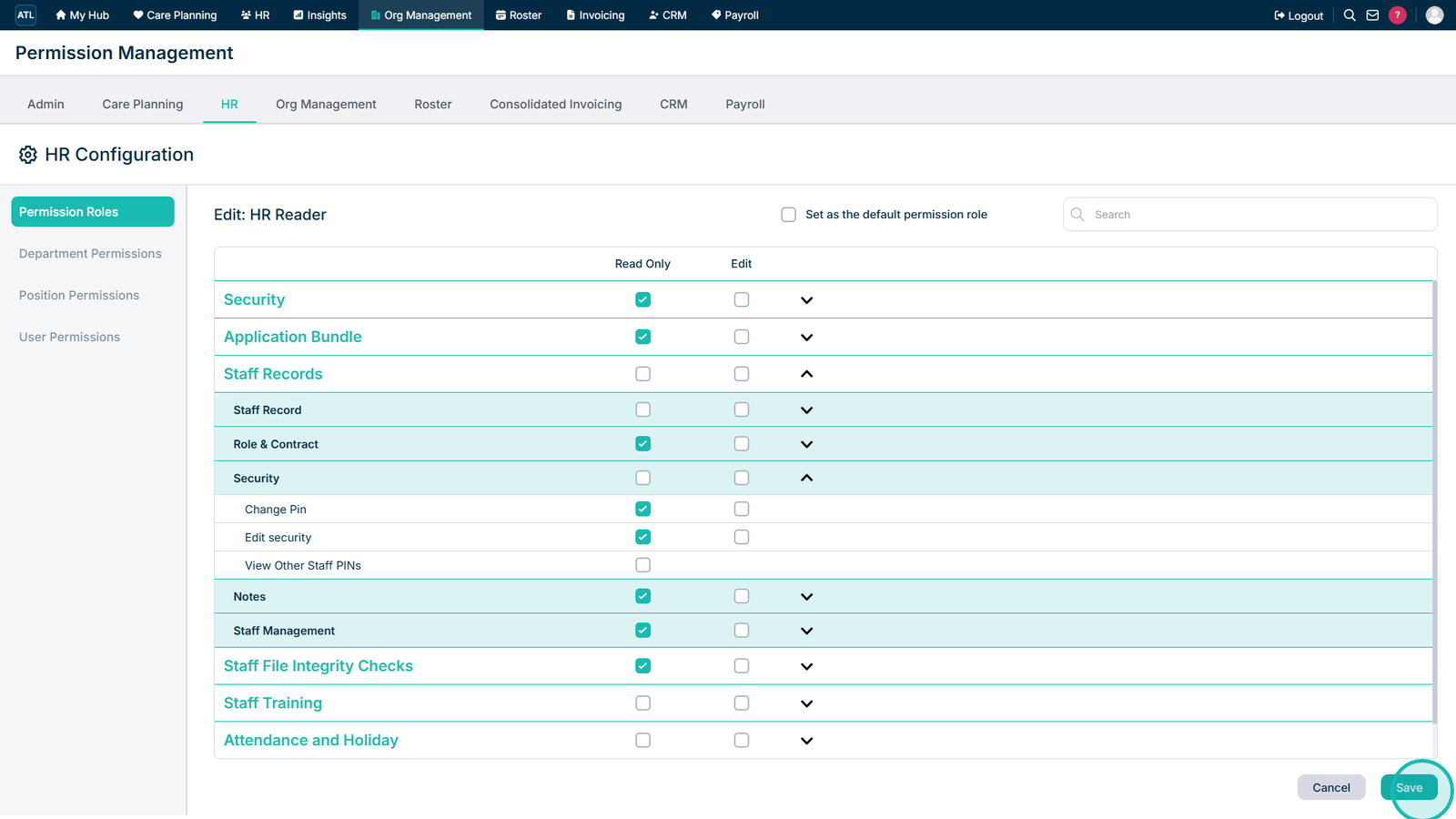
Select the Read Only checkbox next to View Other Staff PINs to prevent the role from viewing staff PINs.

Select Save to apply the permission changes.

Top tip
Review this permission for each relevant HR role to make sure staff PINs are only visible to users who require access.
Need more help?
Can't find what you're looking for? Our support team is here to help.
Contact SupportOr call us on