How to Perform an Incident Analysis
This guide explains how to use Incident Analysis to review incident trends, filter results, generate reports, and use MargoAI to gain deeper insights into a service user's incidents
Takes 5 minutes
For: Managers & Seniors
Updated: 27th July 2026
Introduction
Incident Analysis provides a comprehensive view of incidents recorded for a service user. You can review incident trends, apply filters, view detailed records, generate reports, and use MargoAI to identify patterns and produce AI-powered summaries.
In this guide you'll learn how to:
- Open Incident Analysis and select a service user
- Review incident summaries and trends
- Filter analysis by date, incident type, and location
- View detailed incident records
- Generate reports and analyse incidents with MargoAI
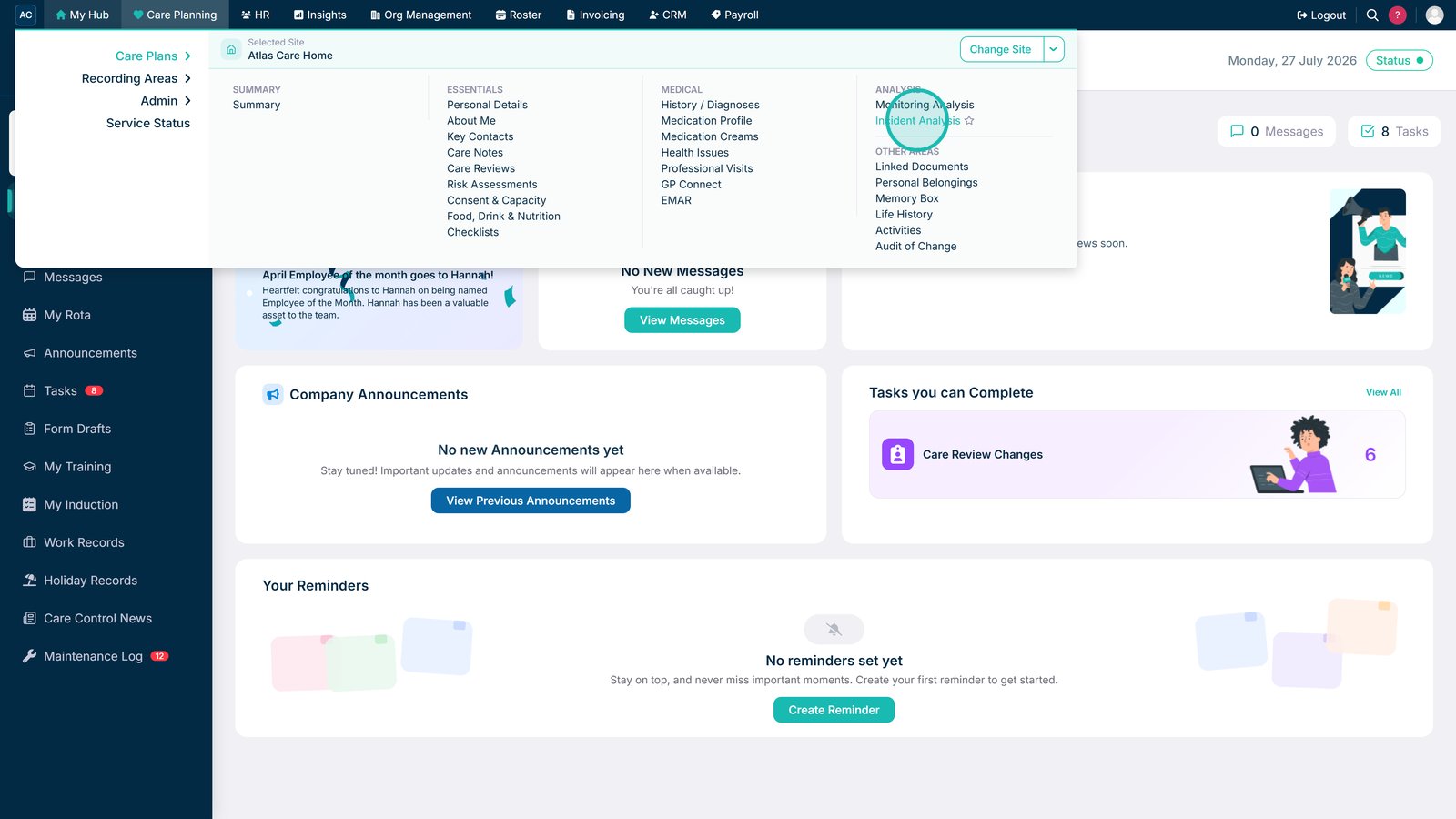
Open Incident Analysis from the left-hand menu.

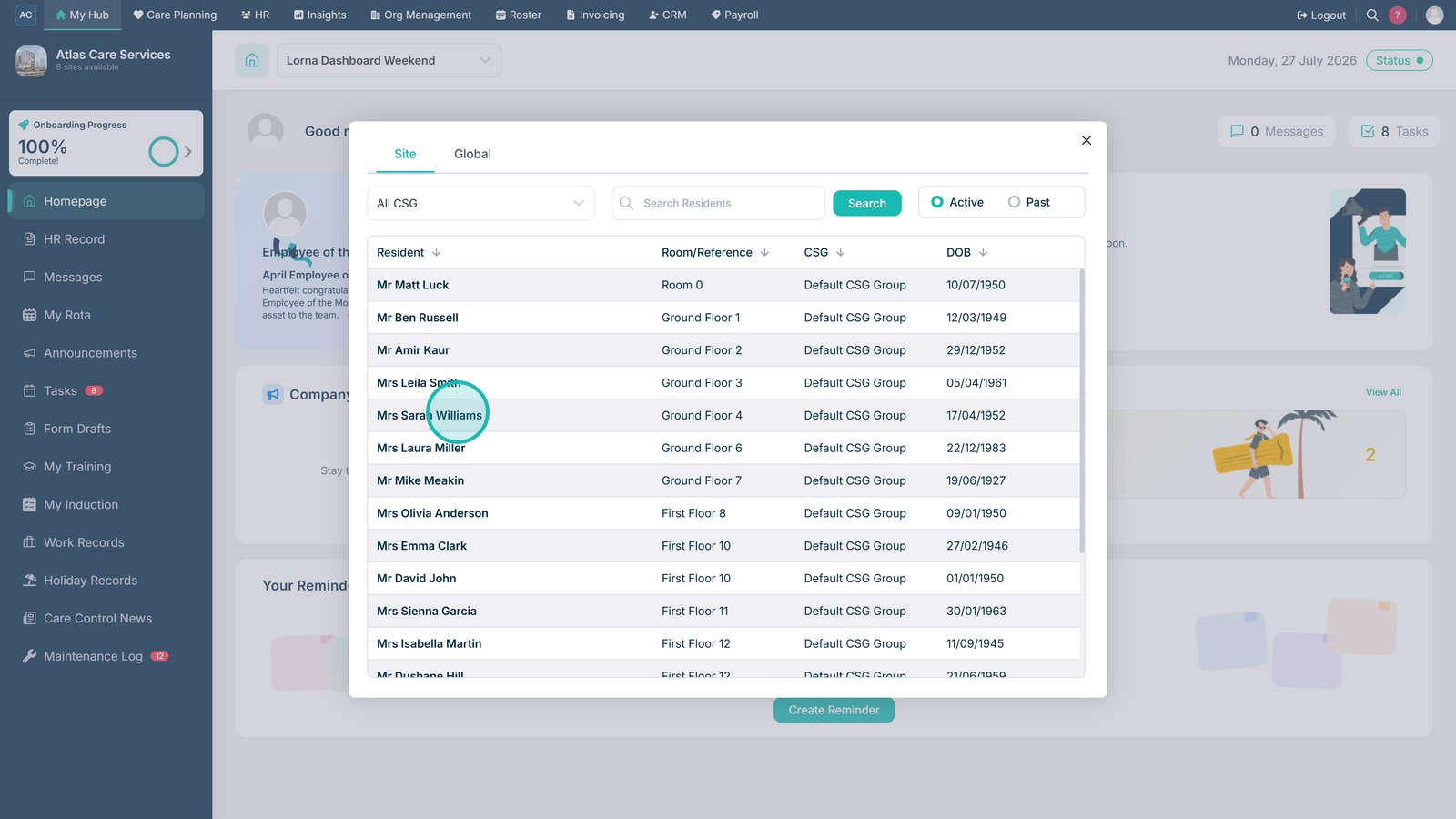
Select the service user you want to analyse.

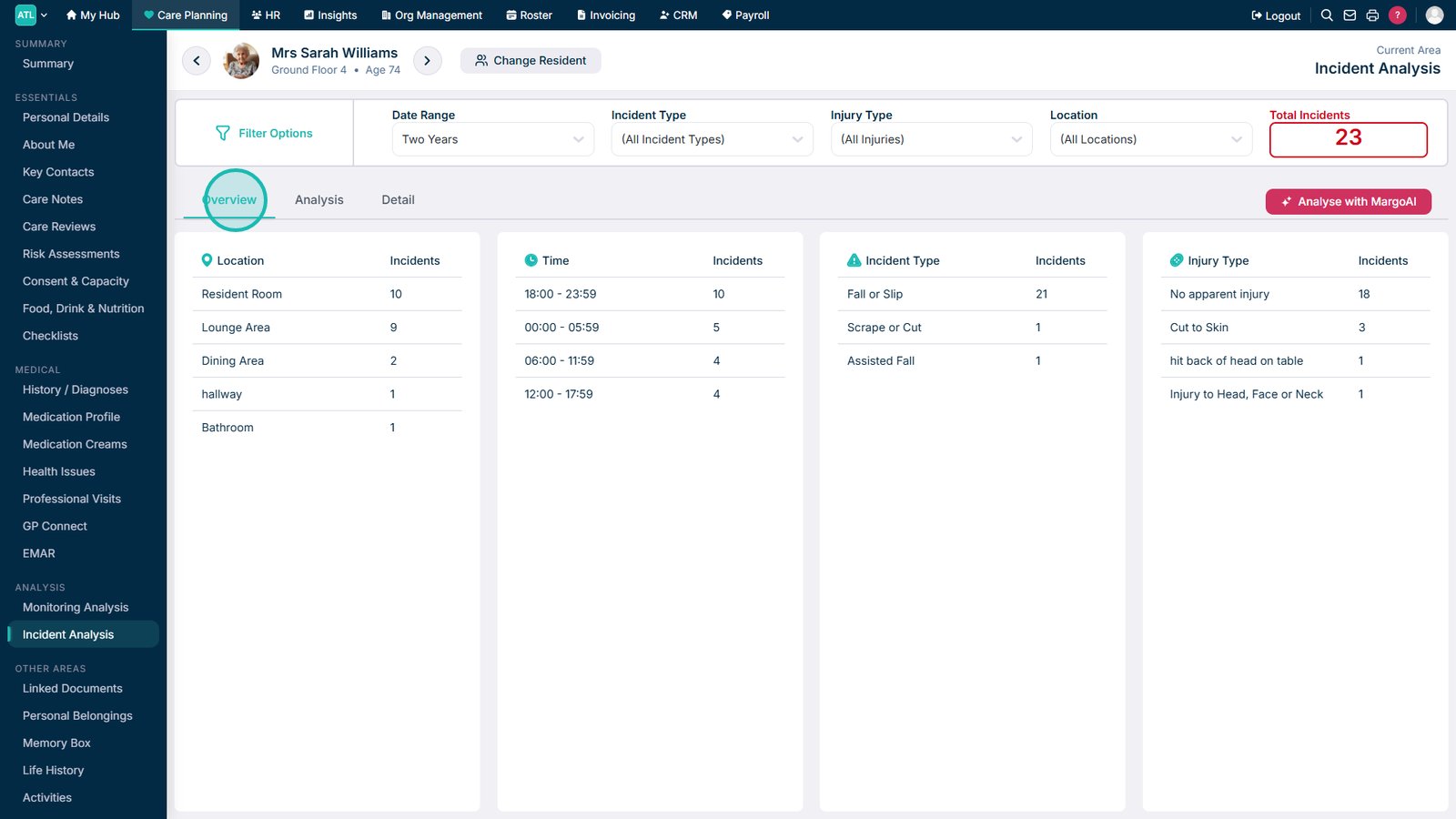
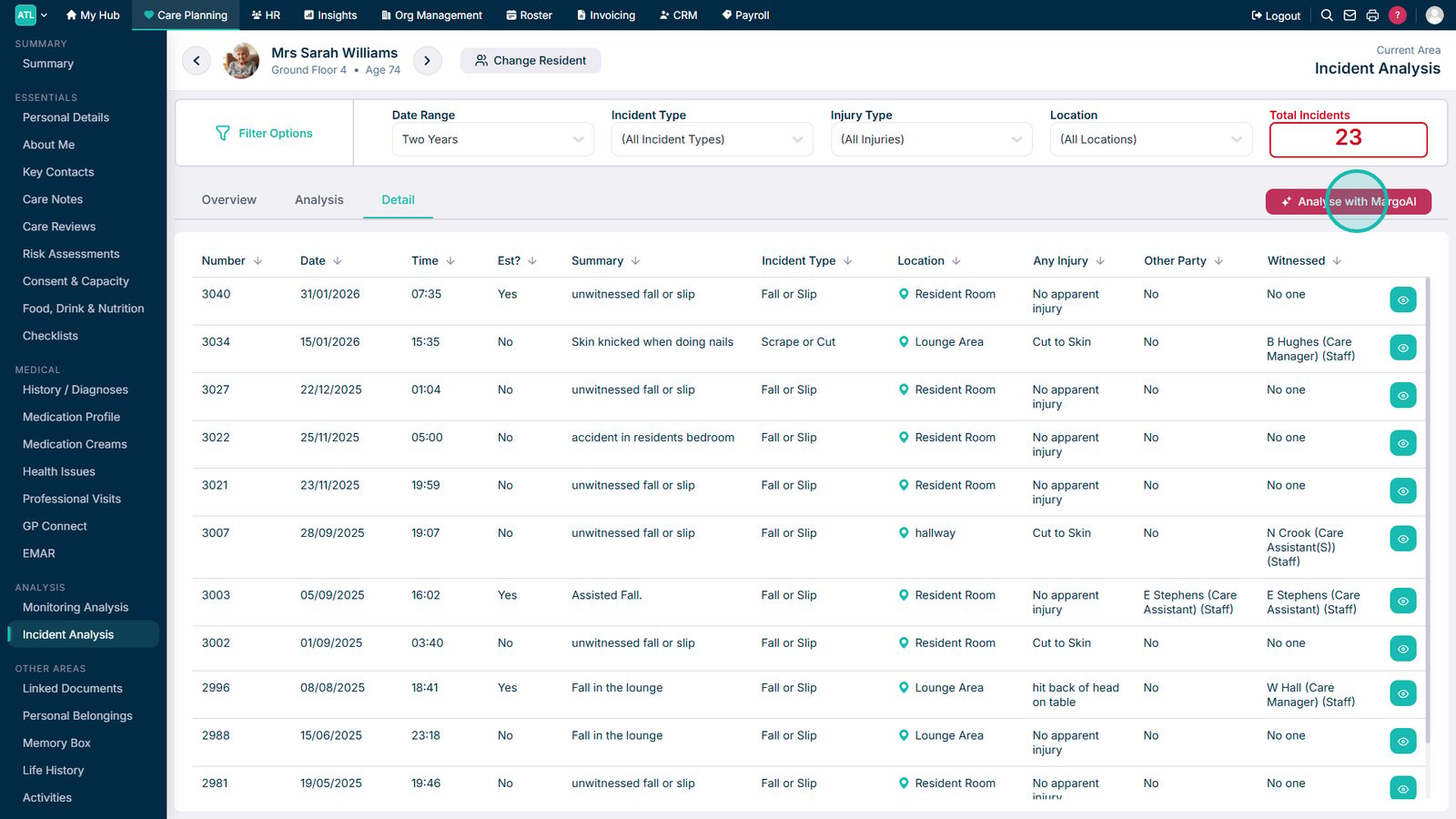
Review the incident overview, including location, time, incident type, and injury.

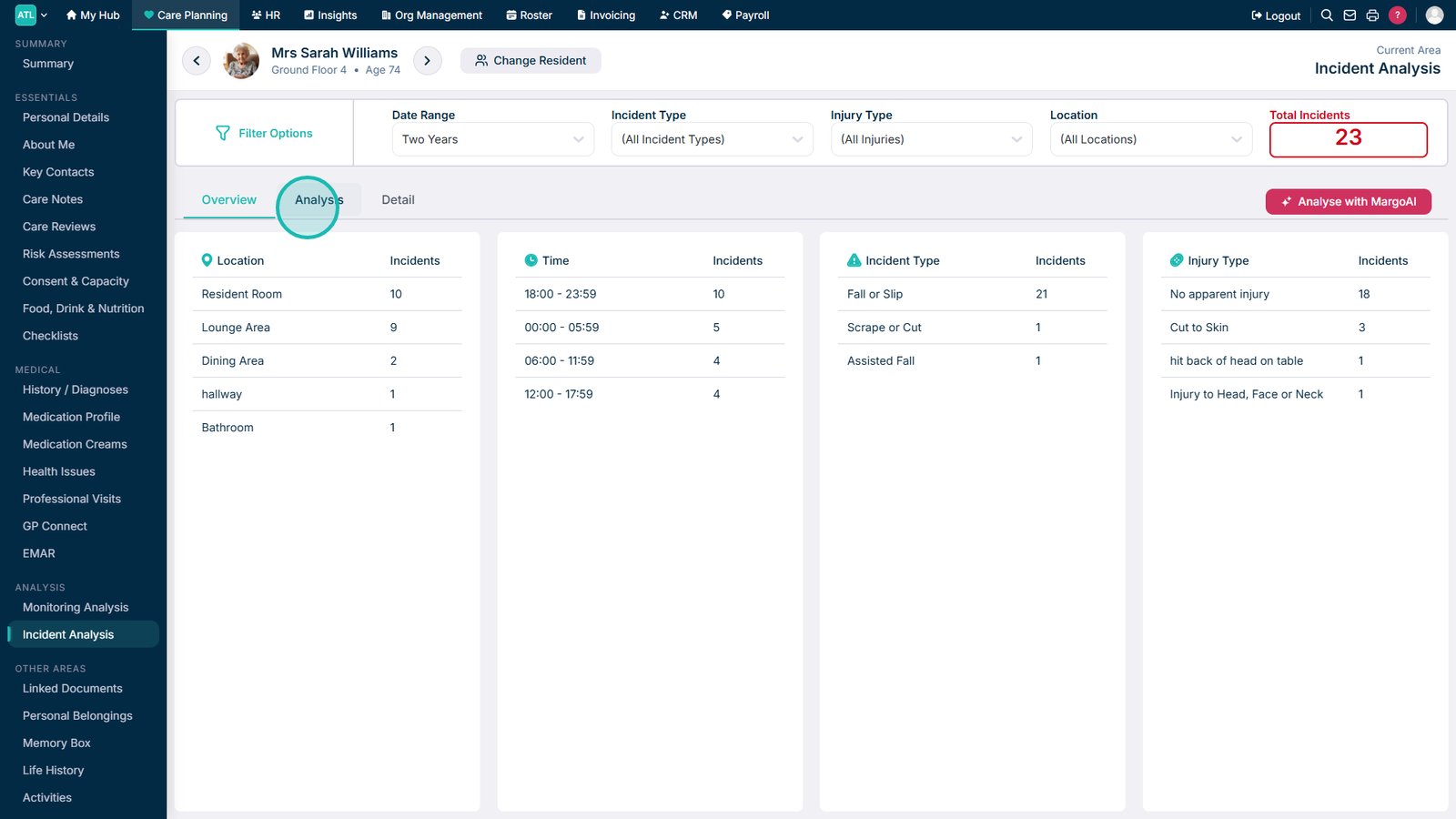
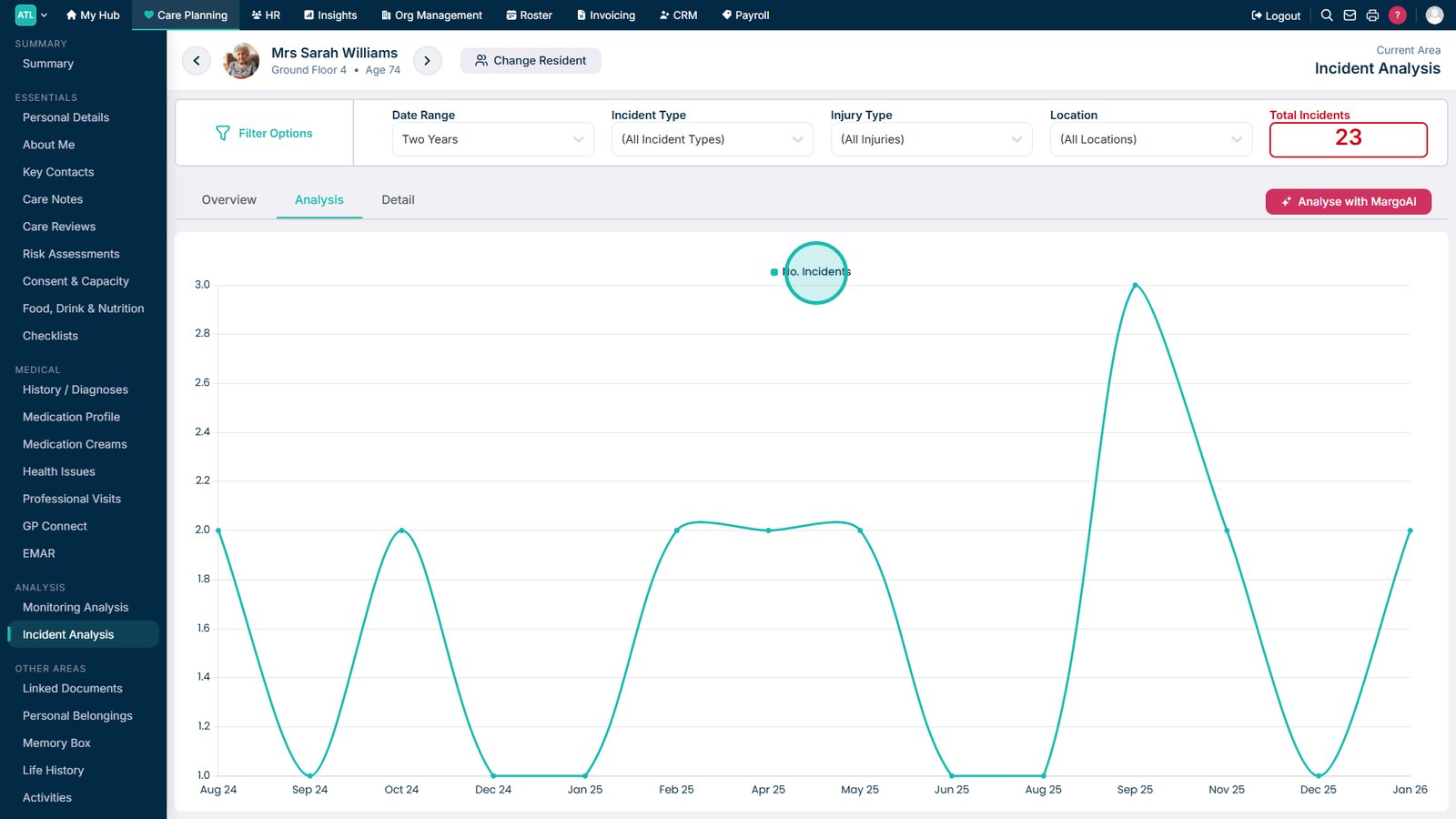
Open the Analysis tab to view incident trends and statistics.

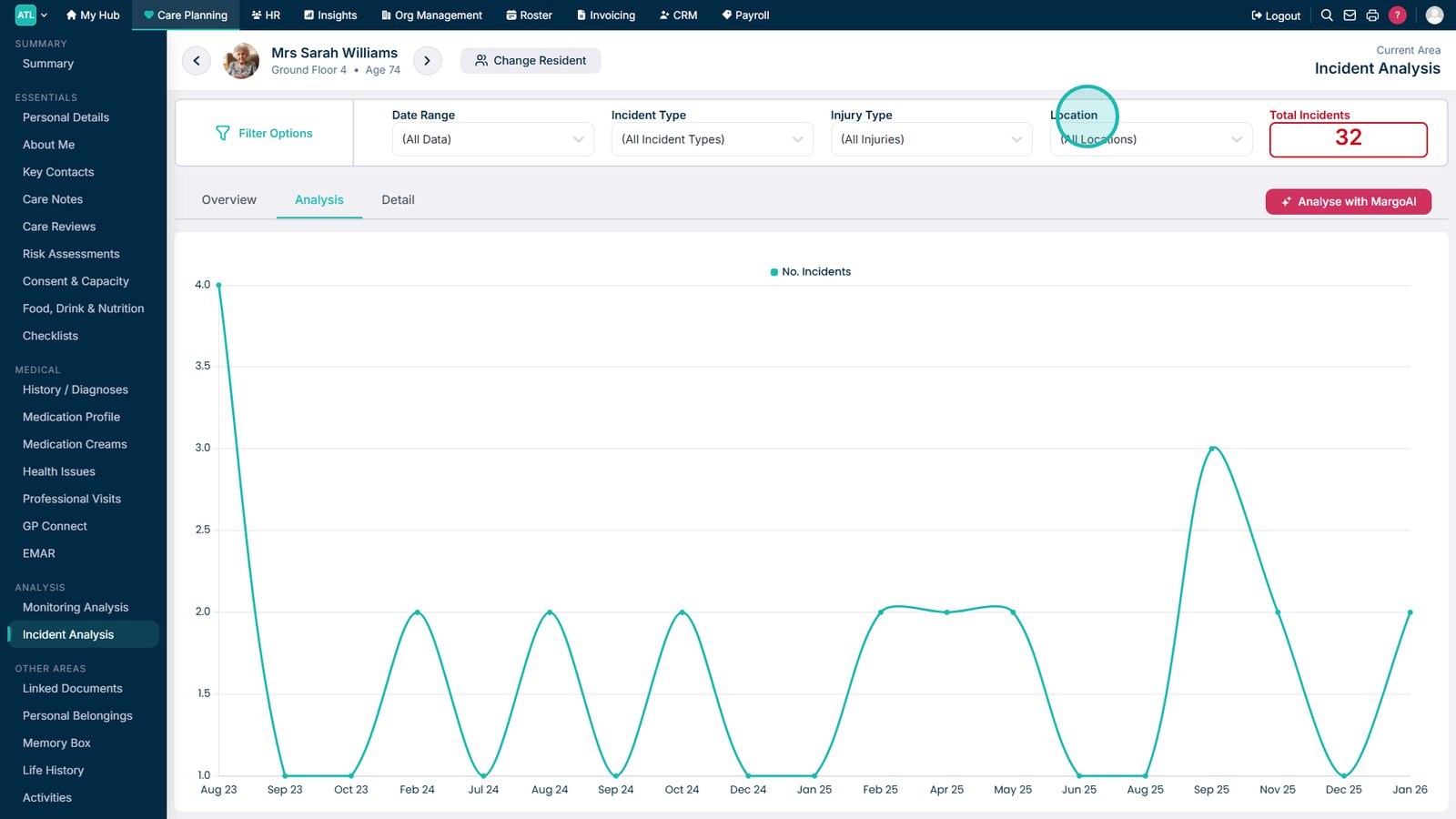
Review the incident trend chart for the selected period.

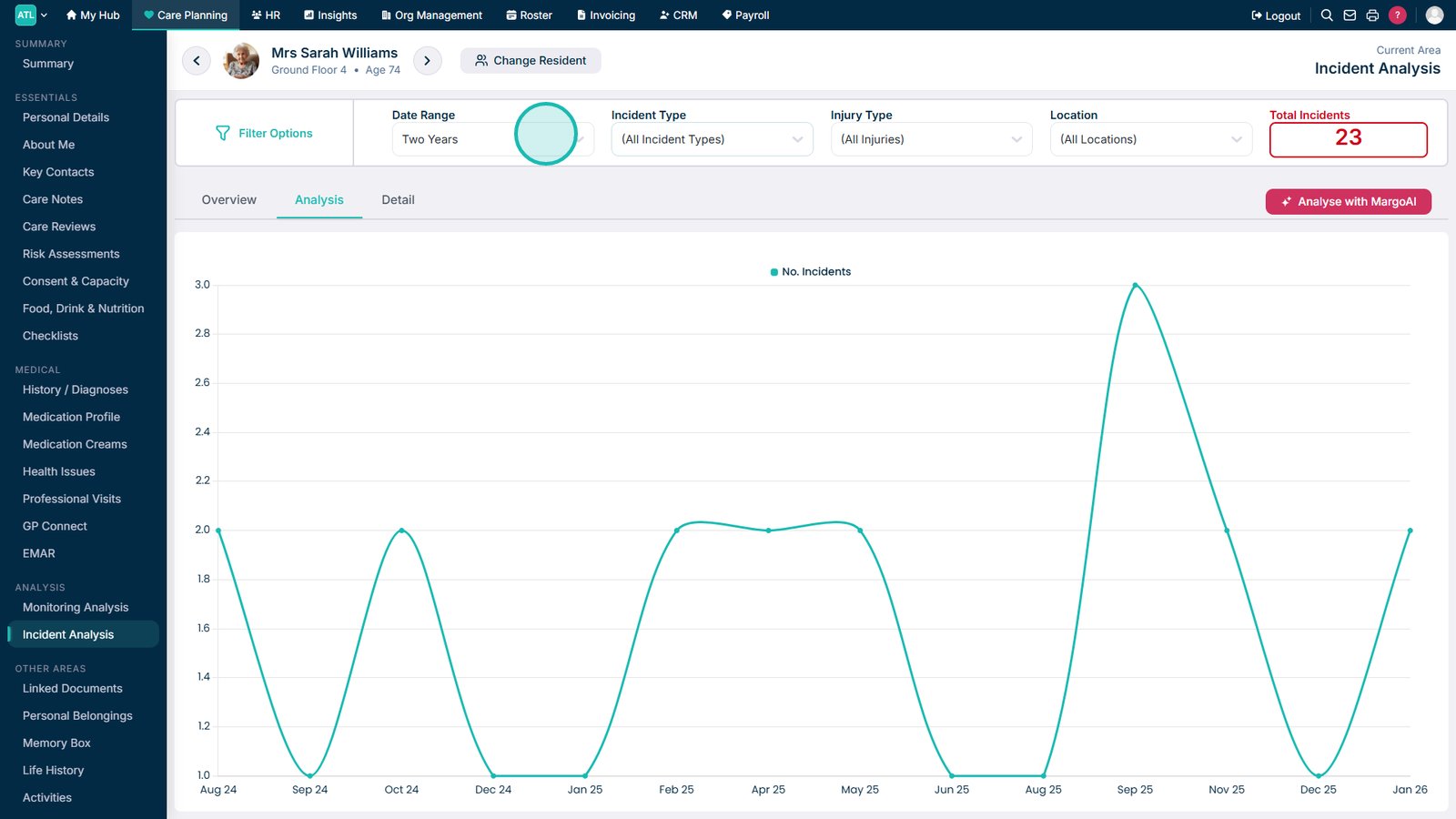
Select a date range to change the analysis period.

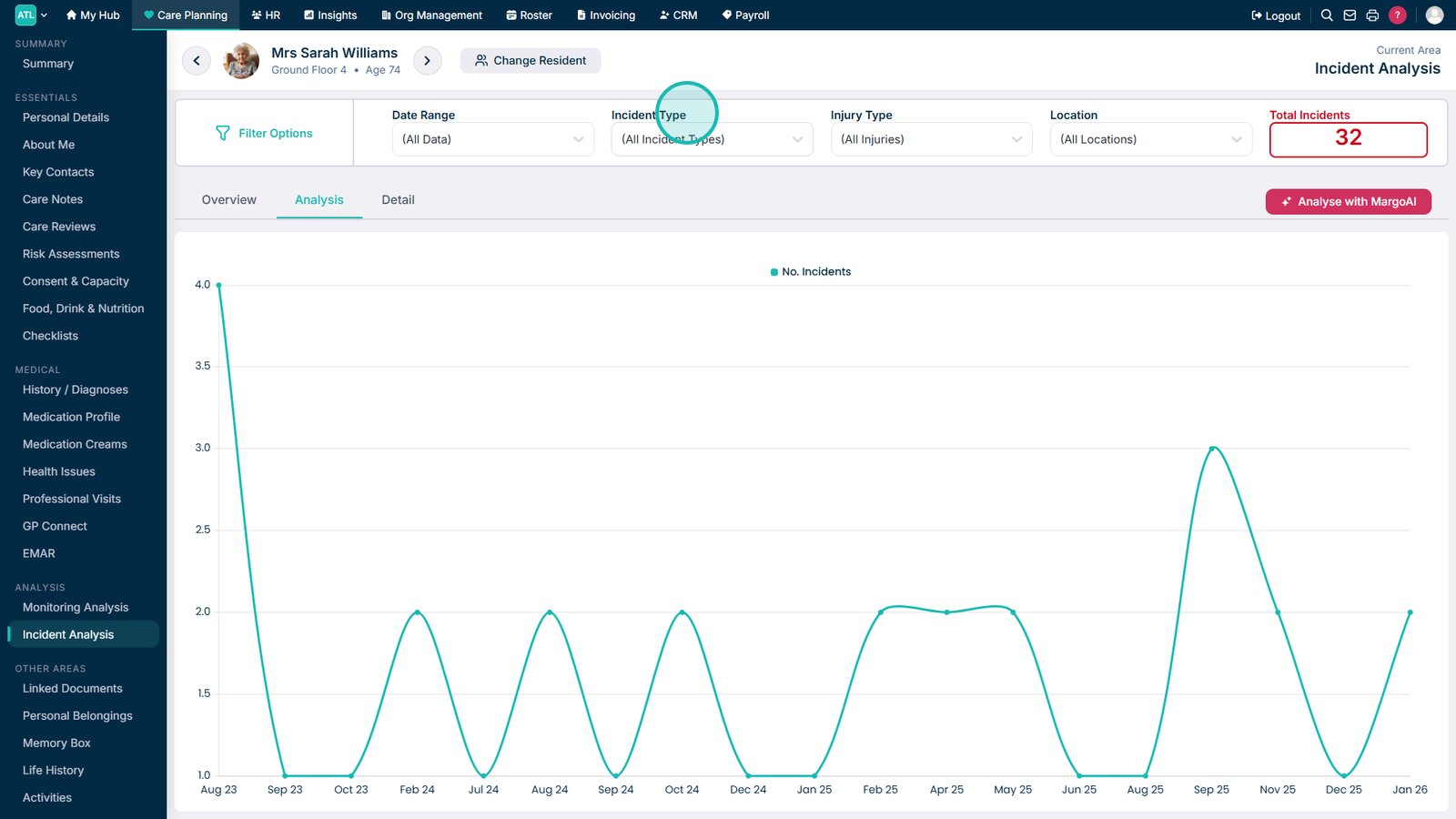
Select an incident type to filter the analysis.

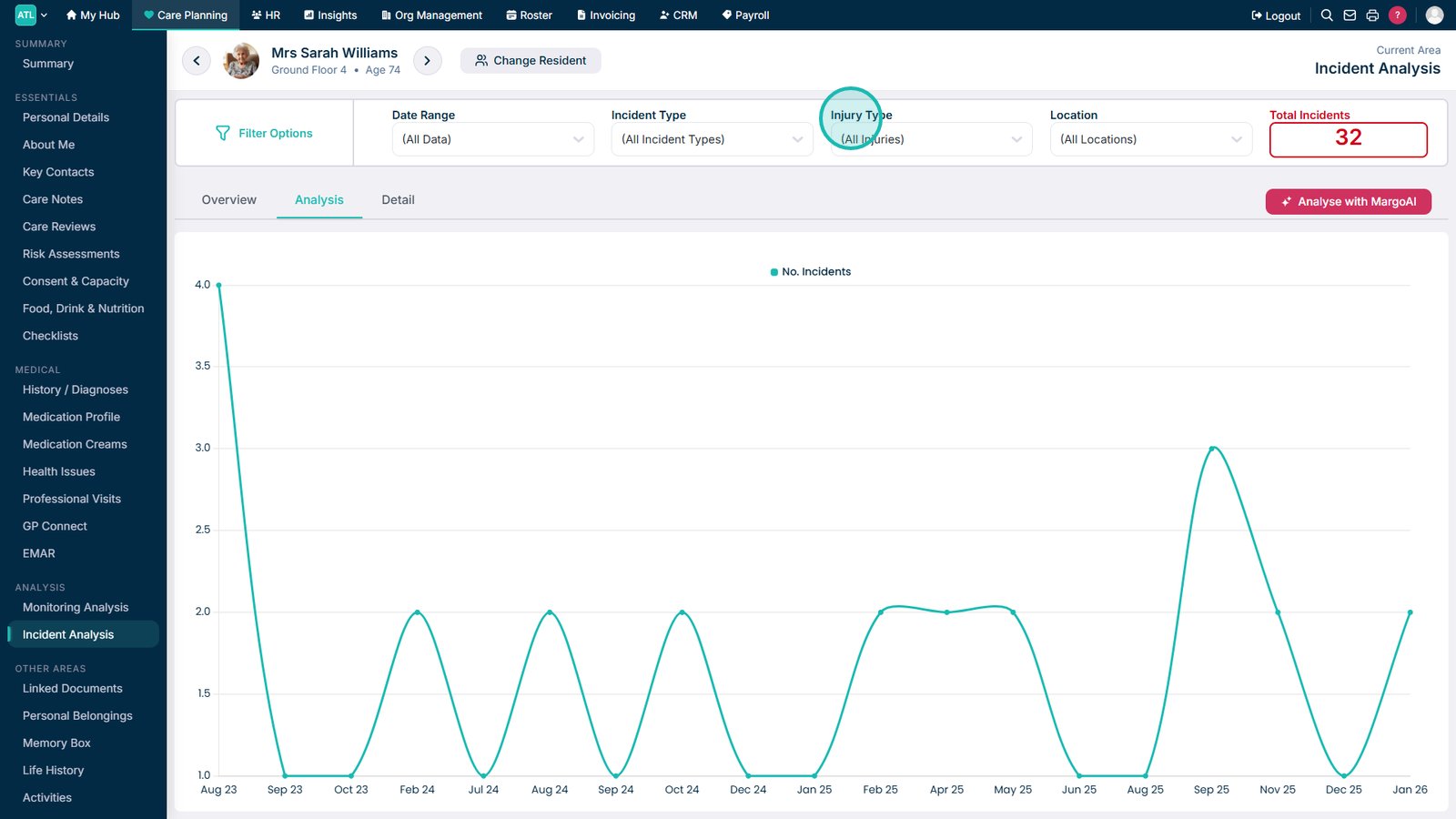
Review the Incident Analysis dashboard.

Select a location to filter incidents by area.

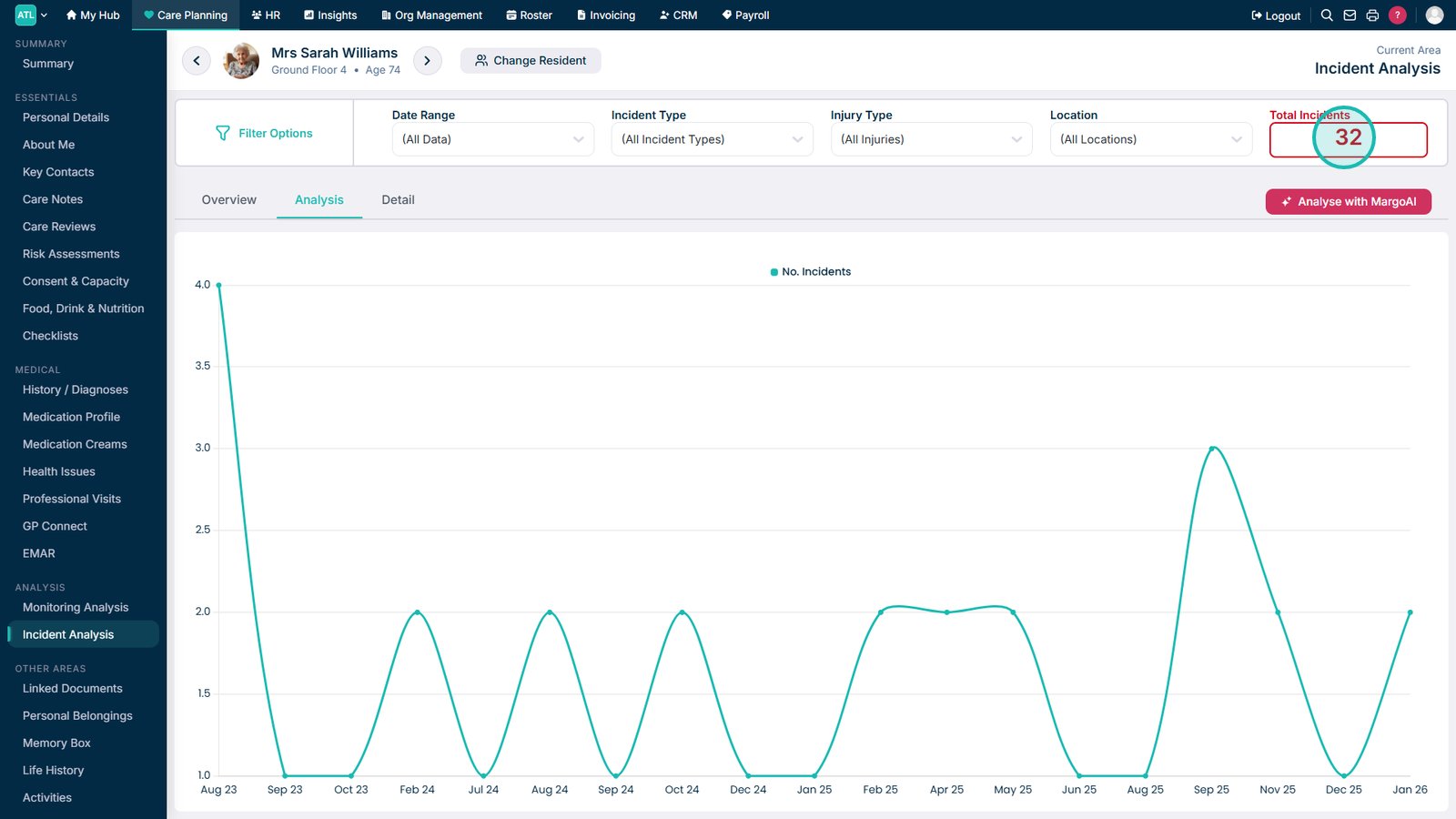
Review the total number of incidents for the selected filters.

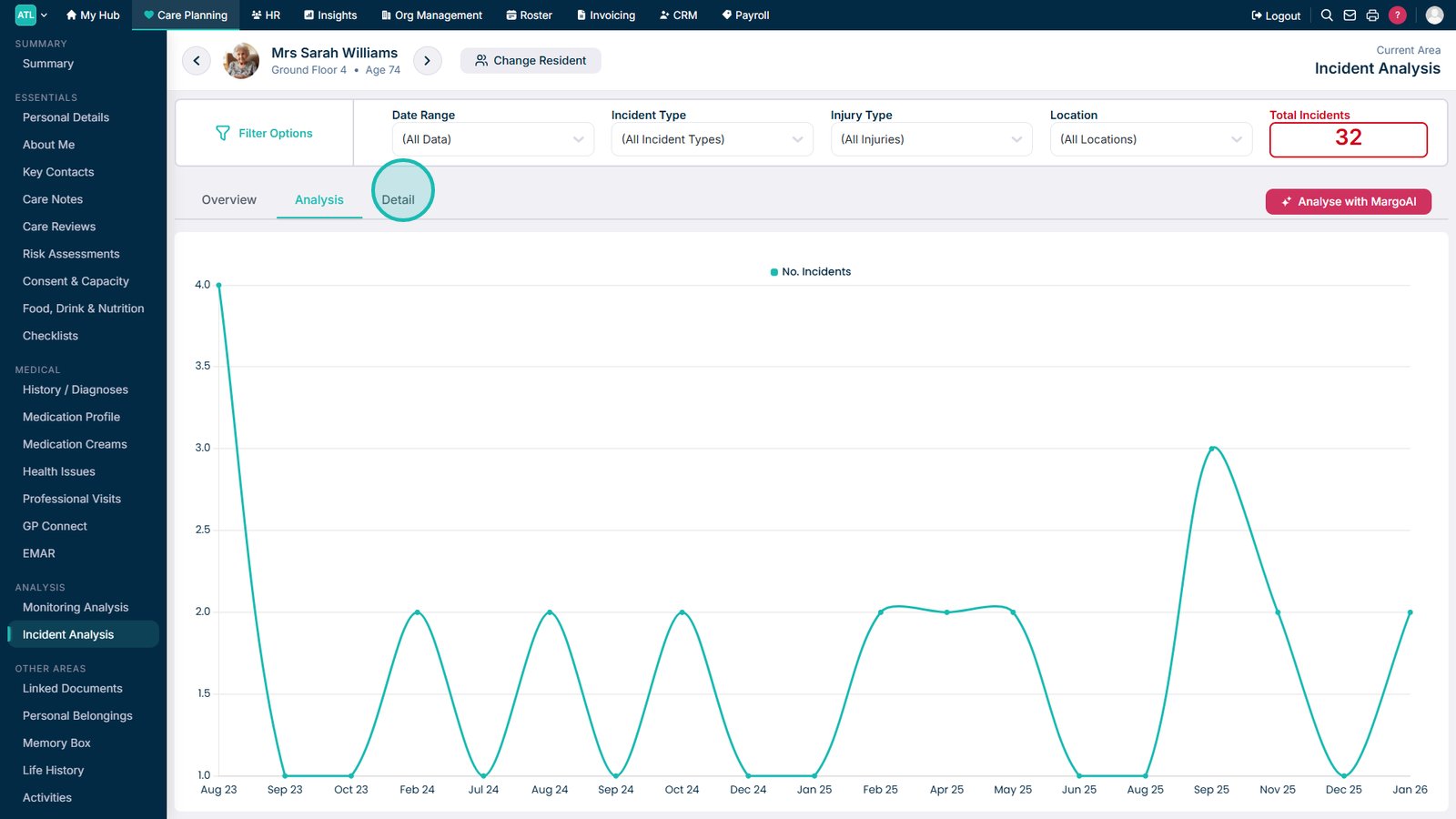
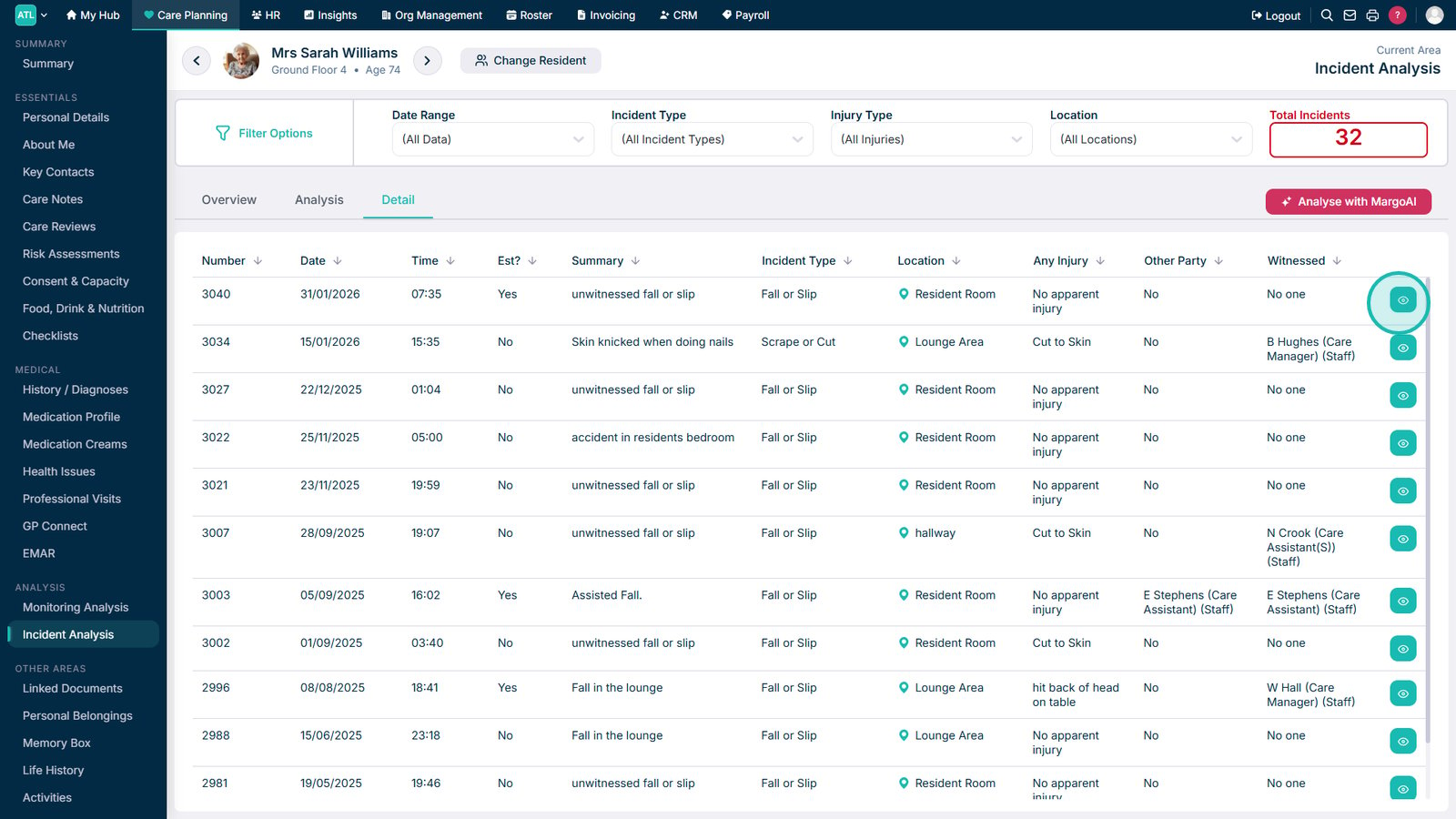
Open the Detail tab to review individual incidents.

Select View to open a detailed incident record.

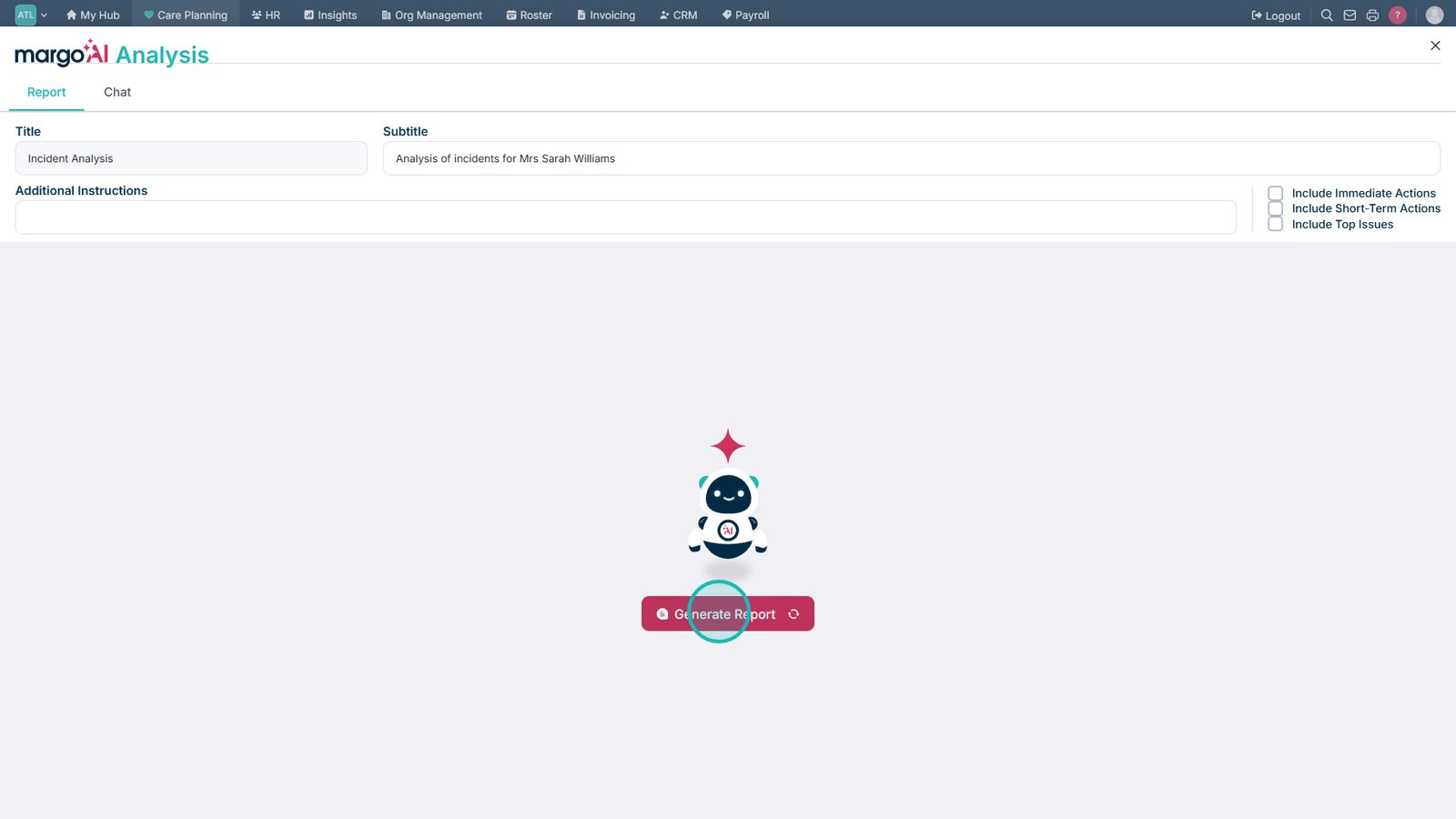
Select Analyse with MargoAI to generate AI-powered insights.

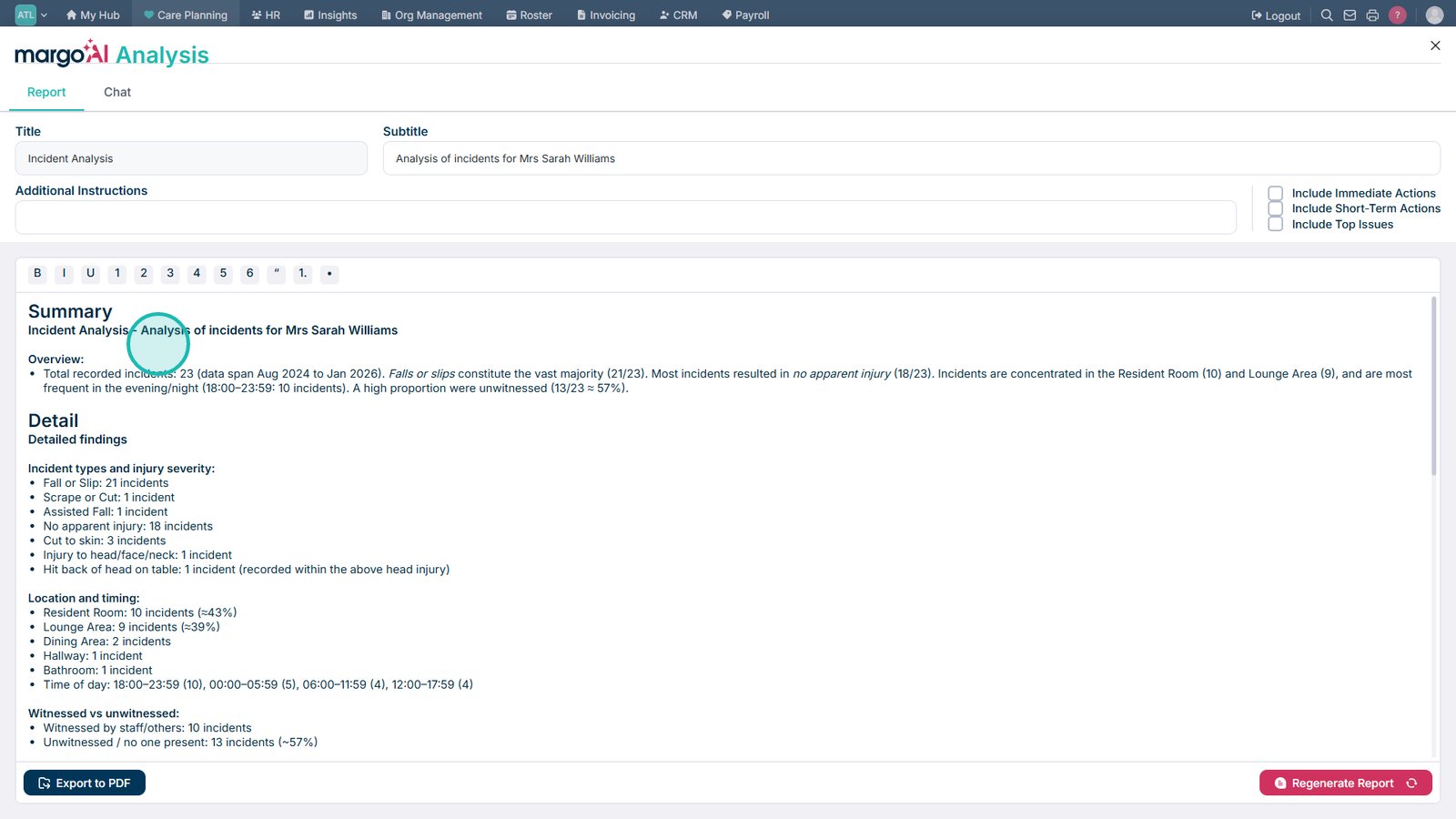
Select Generate Report to create an incident analysis report.

Review the completed incident analysis report.

Top tip
Use the filters to narrow your analysis before generating reports or using MargoAI for more targeted insights.
Need more help?
Can't find what you're looking for? Our support team is here to help.
Contact SupportOr call us on