This guide explains how to record a general note for one or more service users
Takes 3 minutes
For: Care Staff
Updated: 27th July 2026
Introduction
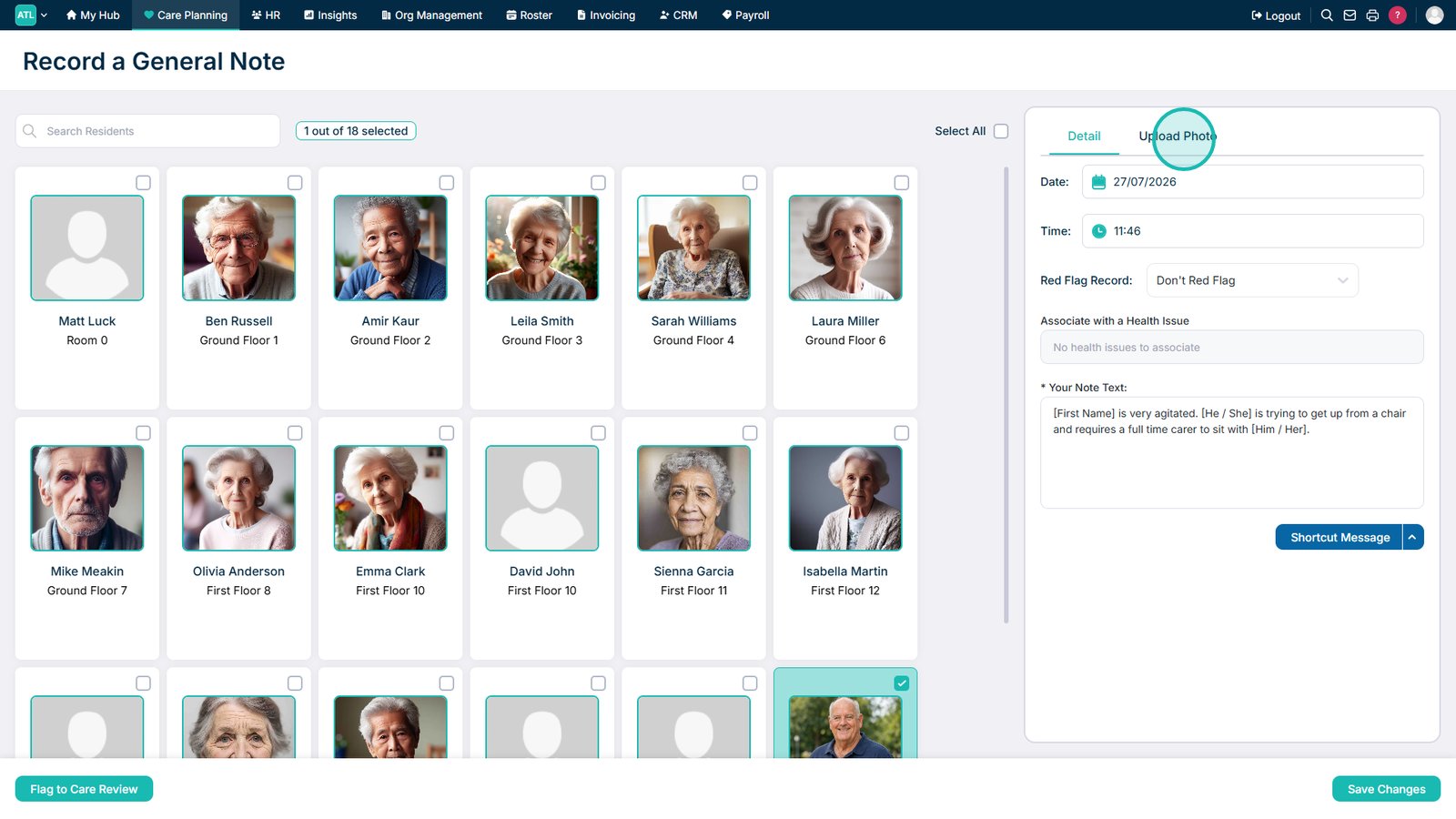
The General Note recording area allows you to add observations, updates, and other relevant information to a service user's record. You can record a note for one or more service users, apply a red flag, select a category, use a shortcut message, and attach a photo if required.
In this guide you'll learn how to:
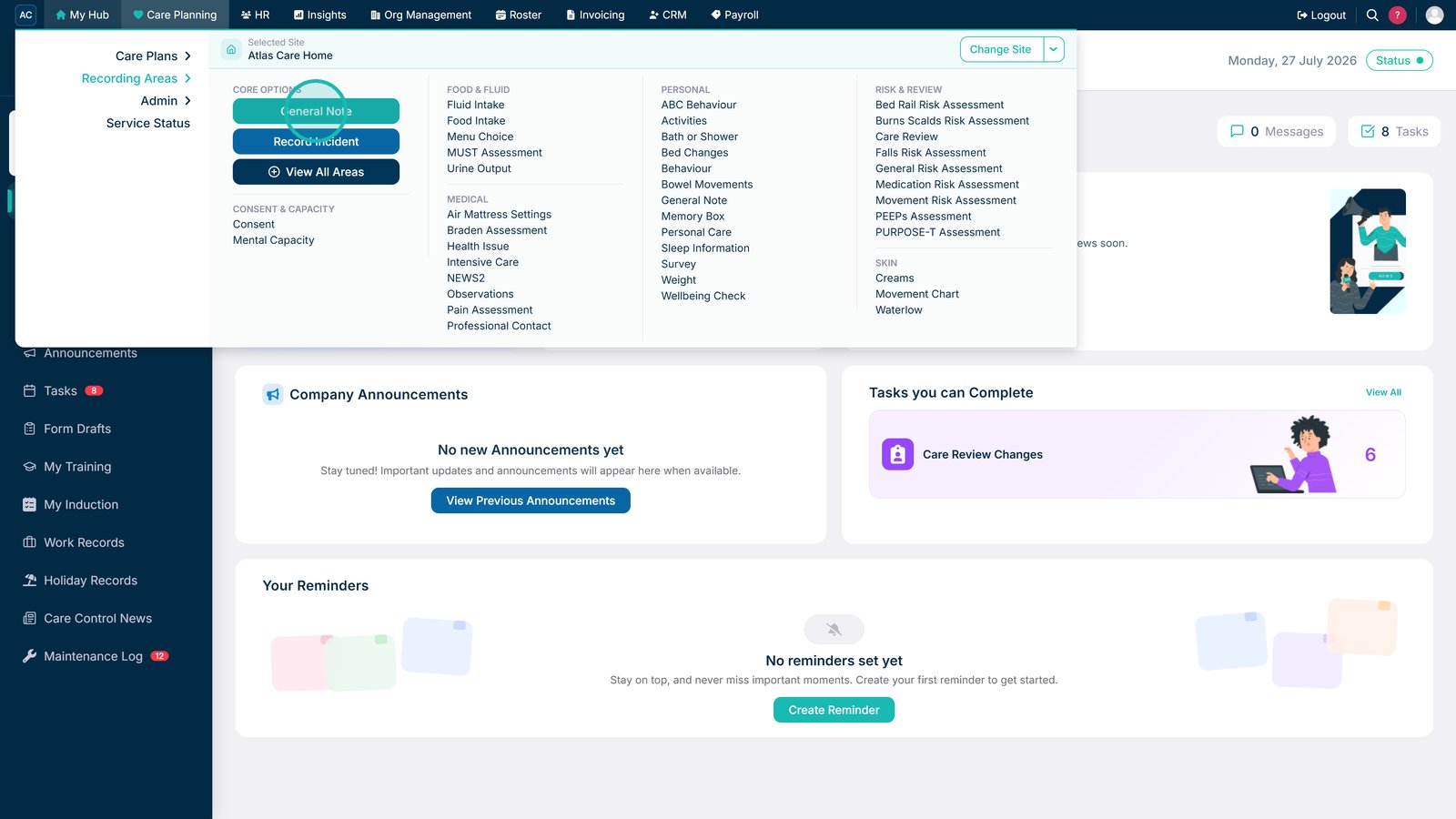
Open the General Note recording area
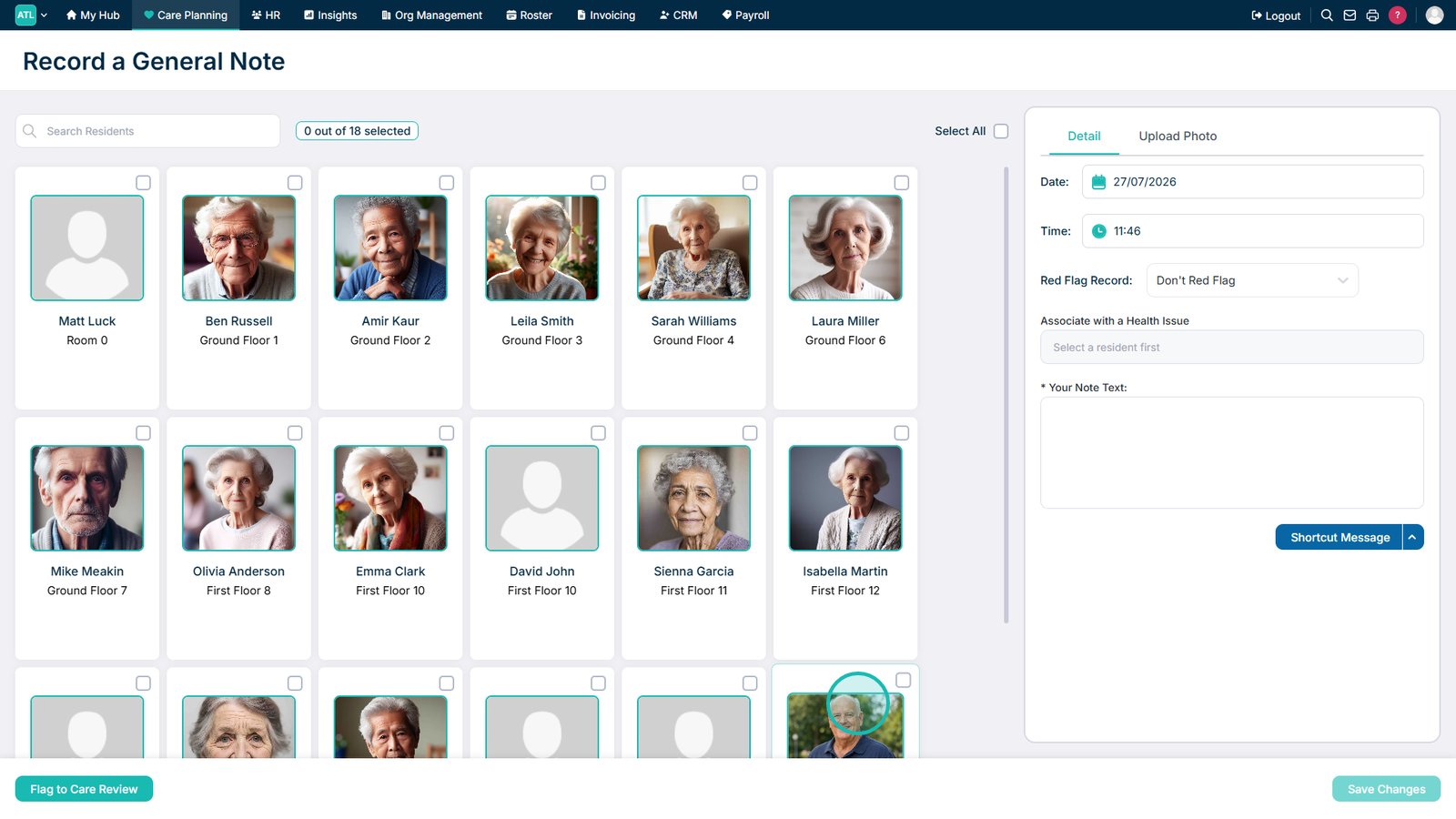
Select one or more service users
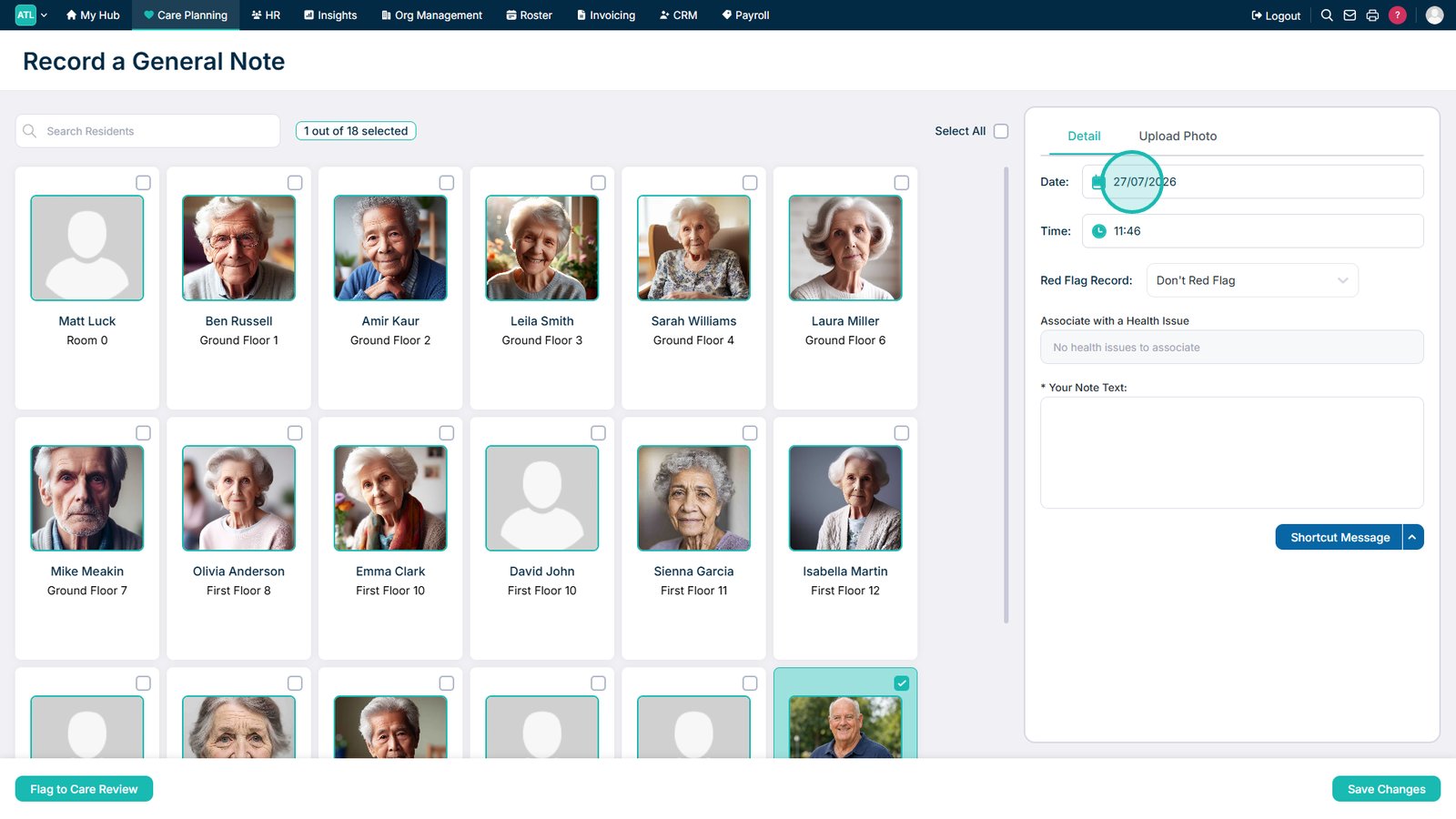
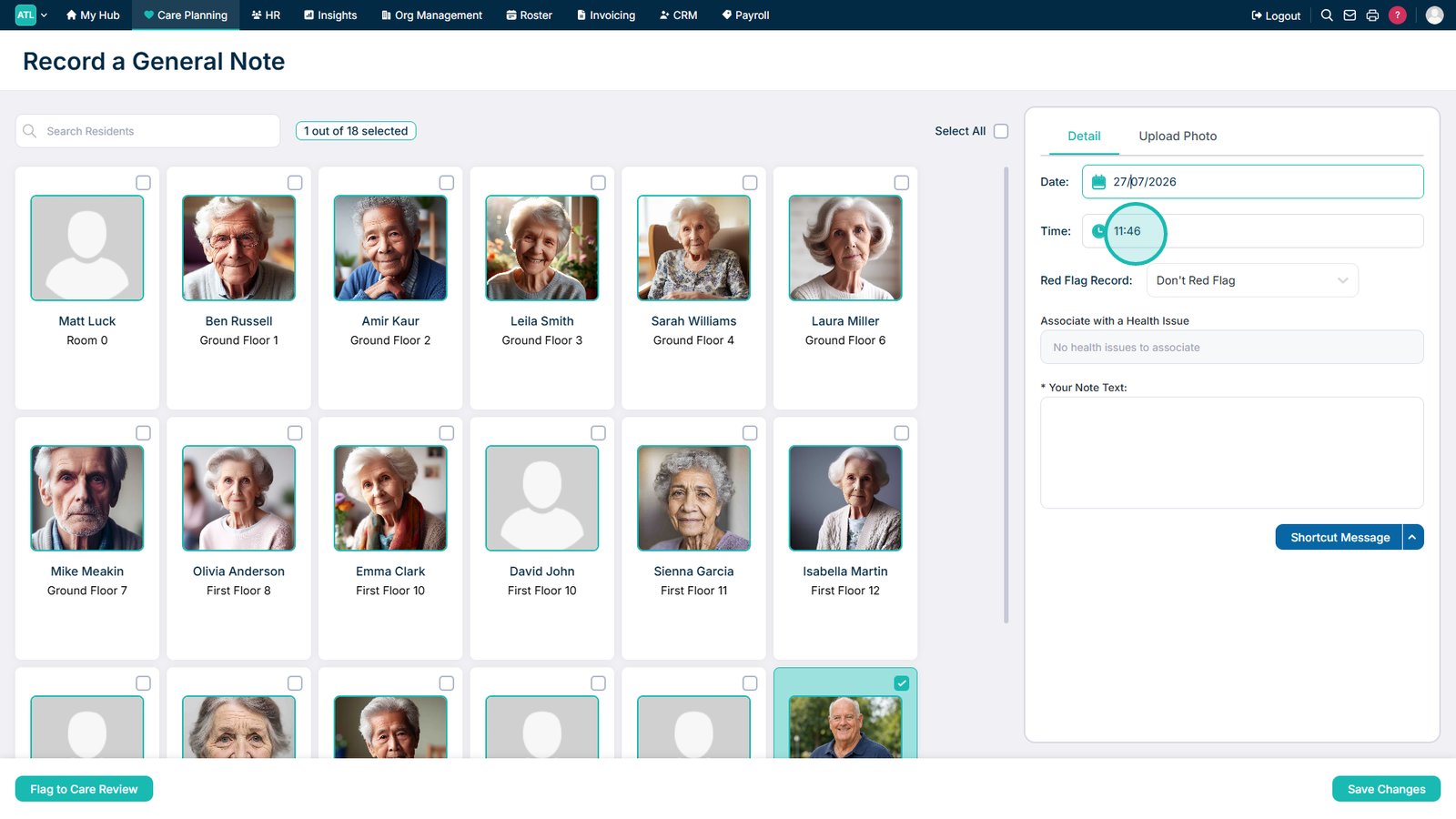
Record the date, time, and note details
Apply a red flag and category
Add a shortcut message or photo
Save the completed note
Open the General Note recording area.
Select the service users you want to record the note for.
Review or amend the date for the note.
Review or amend the time for the note.
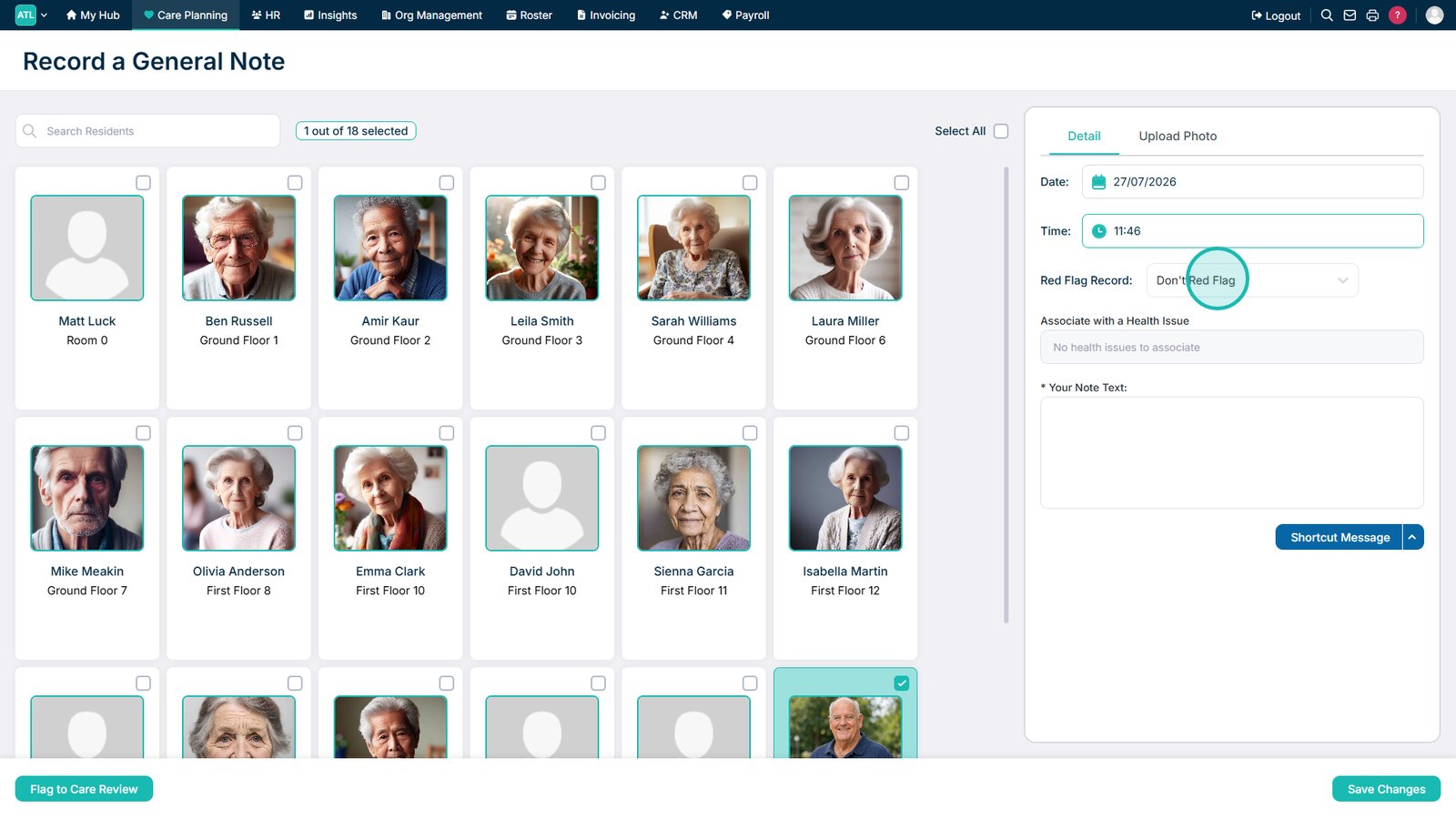
Apply a red flag if the note requires additional attention.
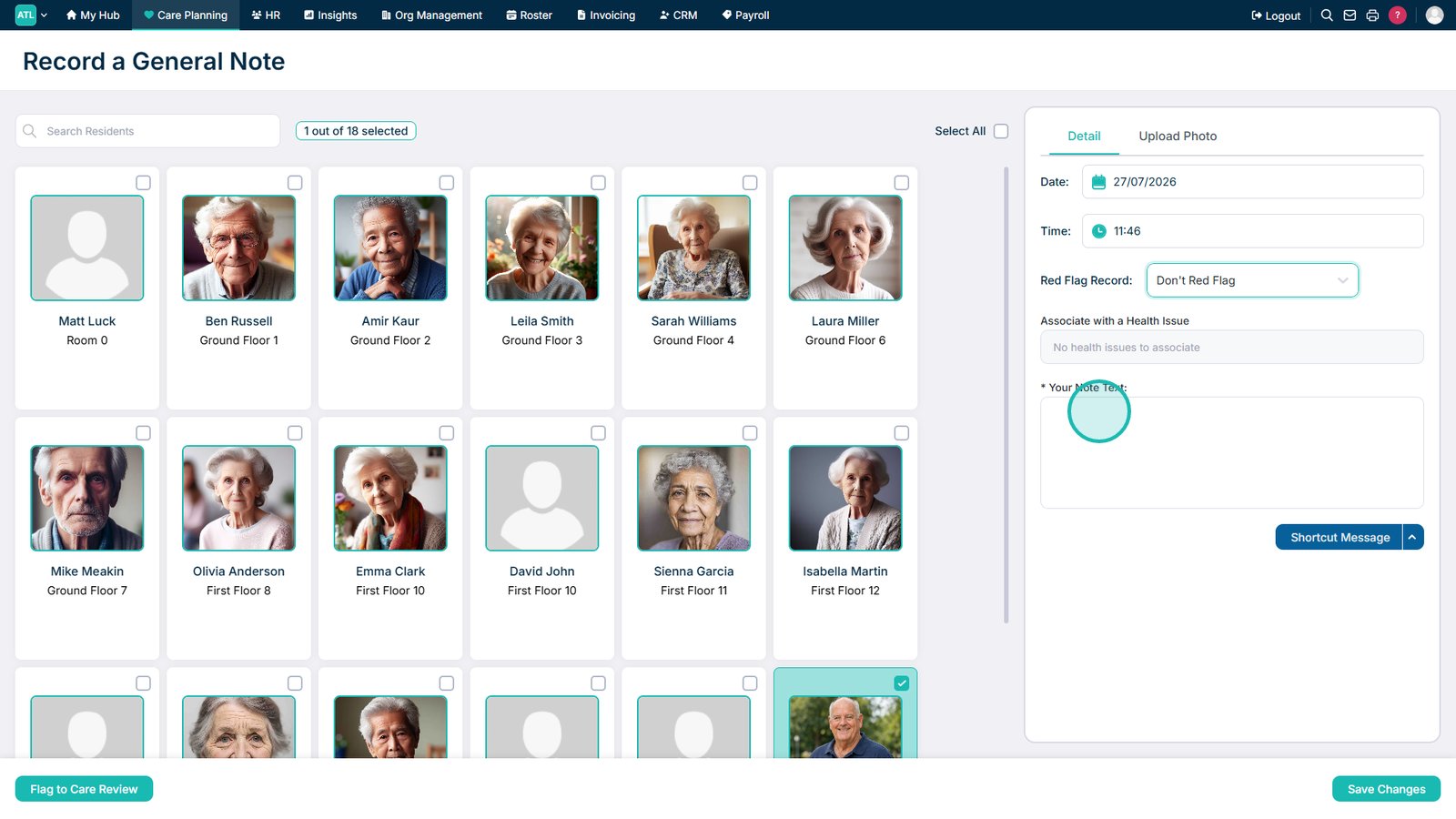
Enter the general note details.
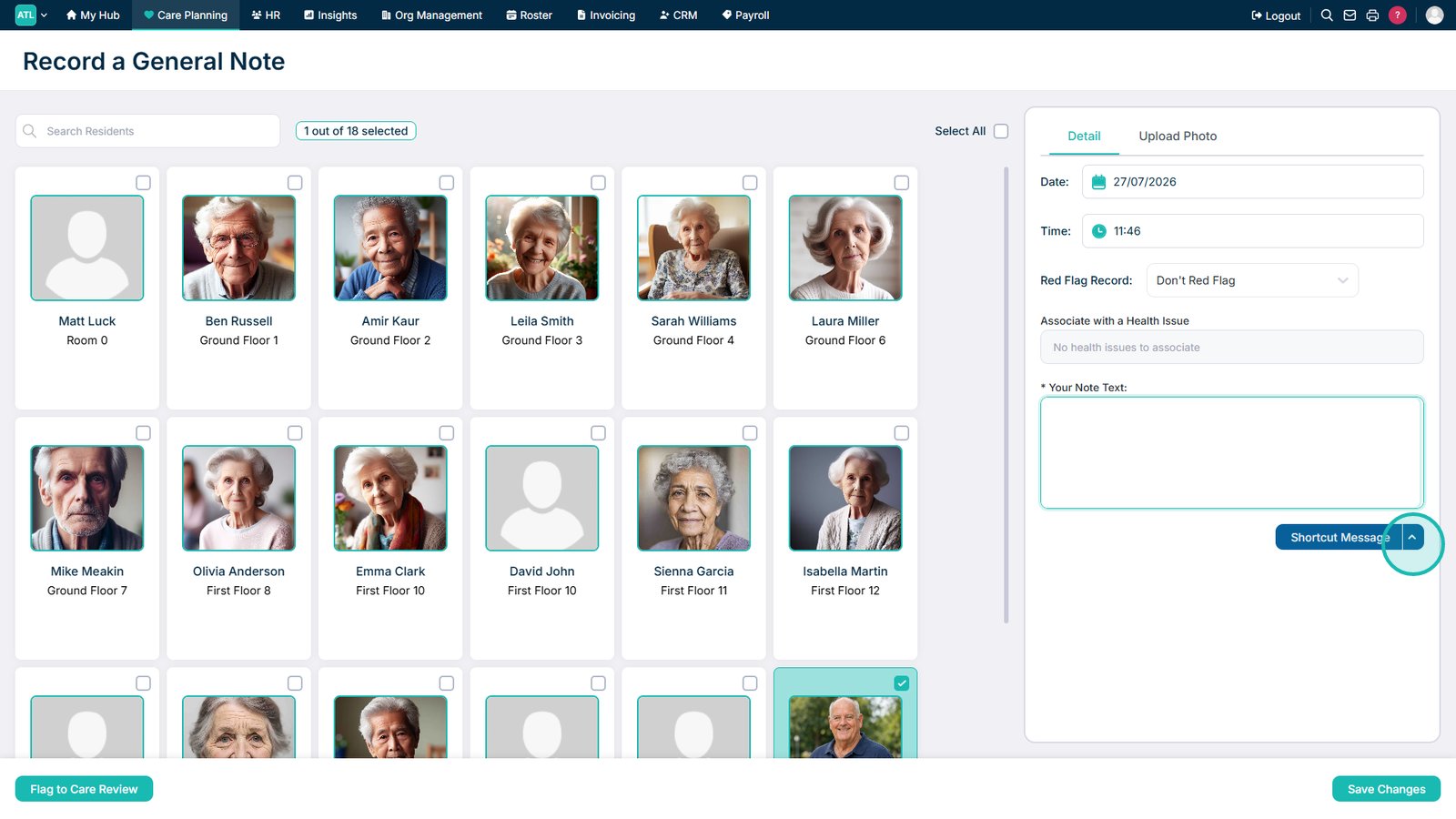
Select a shortcut message if you want to use an existing template.
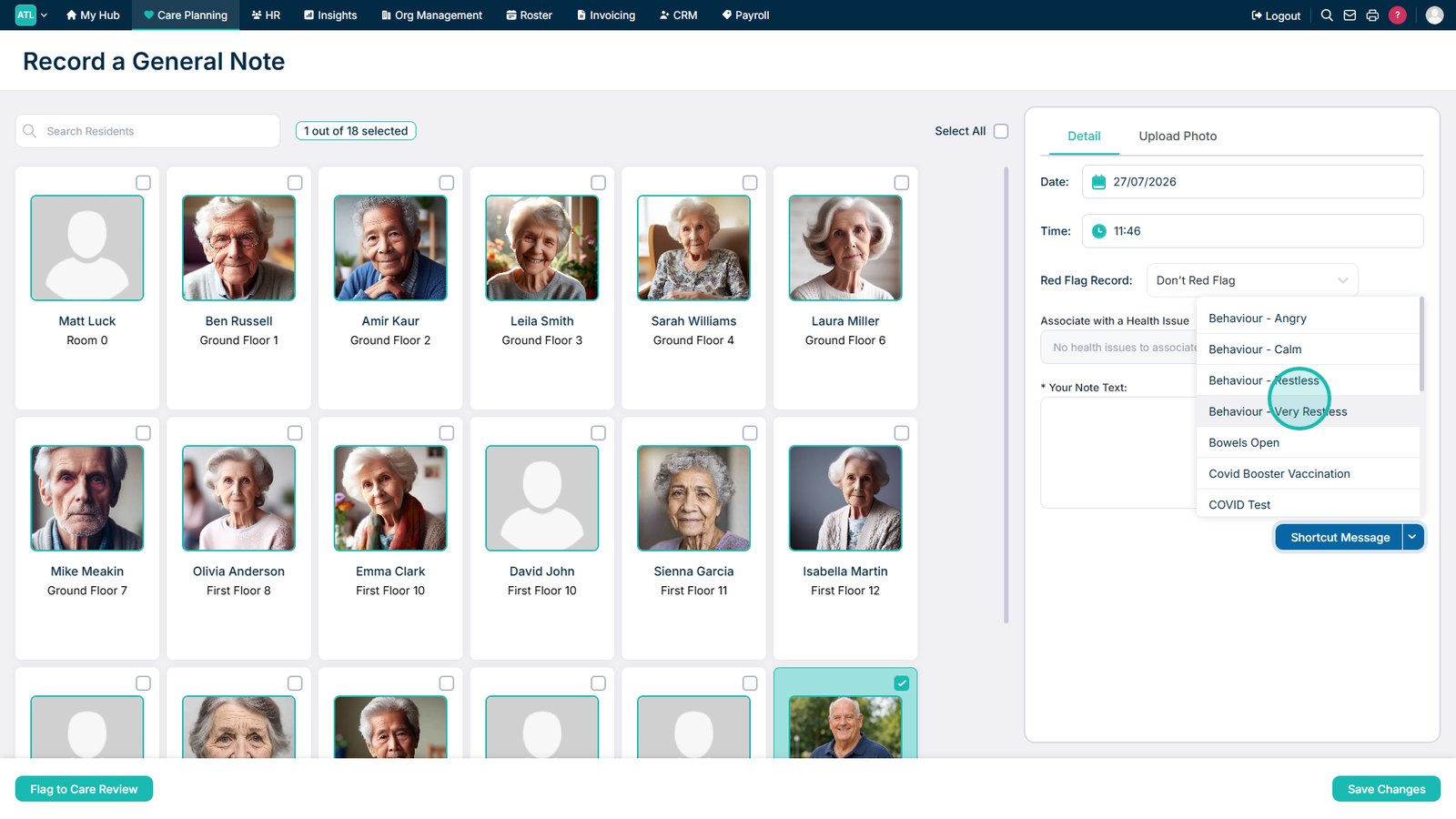
Select the shortcut message from the drop-down list.
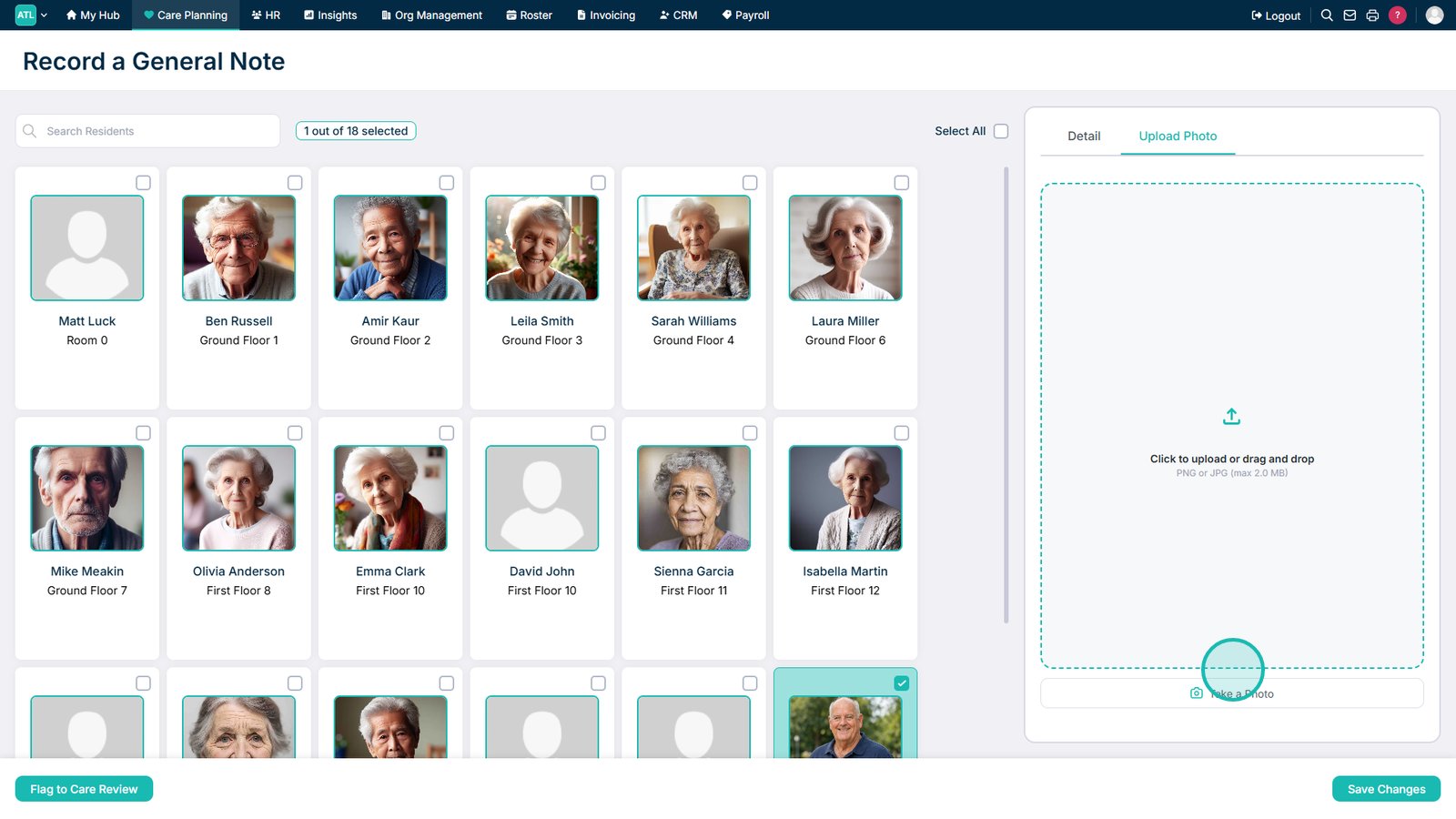
Select the photo option if you want to attach an image.
Take a photo using your device or upload an existing image.
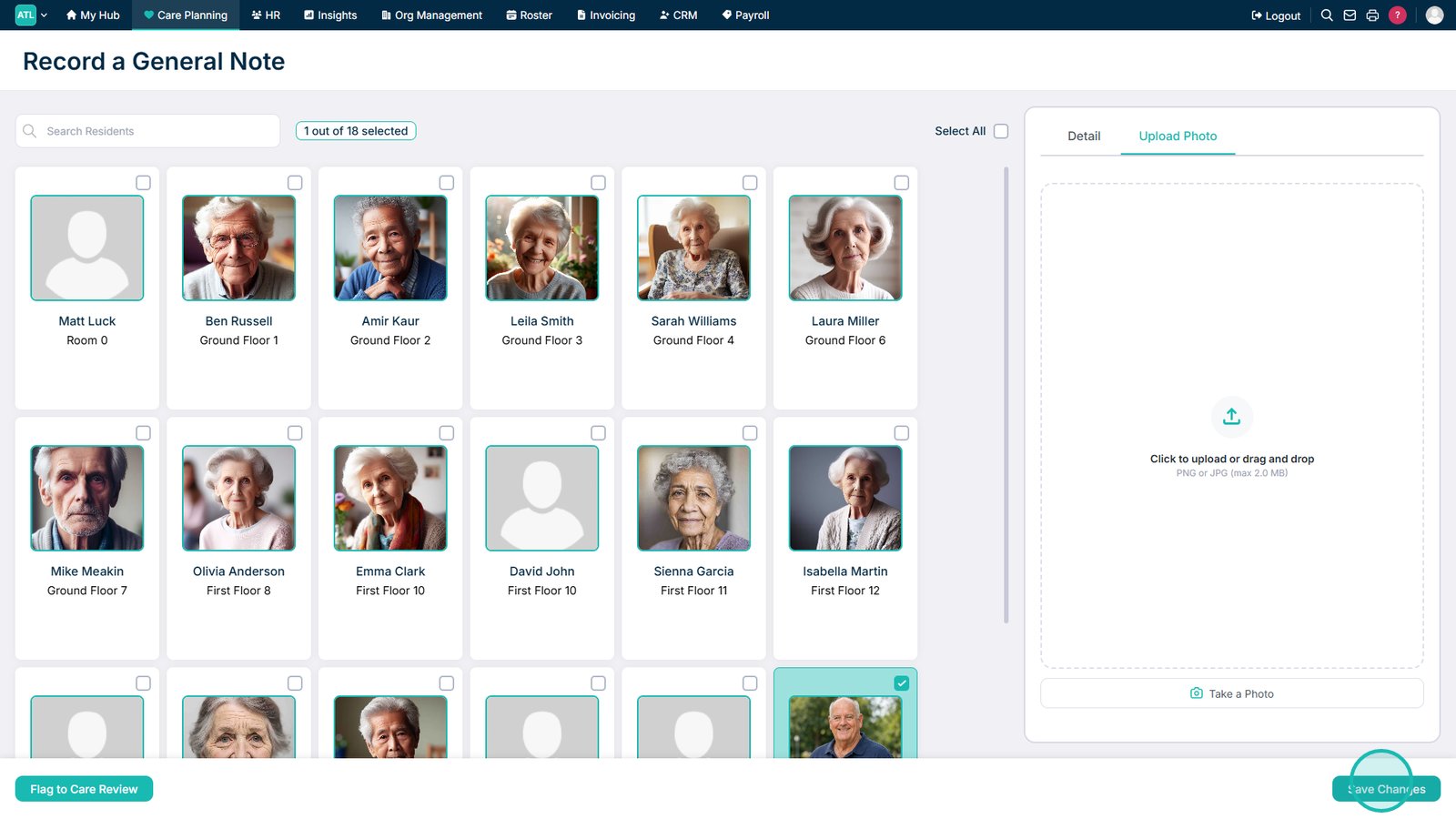
Select Save Changes to save the general note.
Top tip
Keep general notes clear, factual, and relevant, and use a red flag where the entry requires additional attention.