How to Record a Consent
This guide will walk you through creating, signing, and managing consent records within Care Control Cloud.
Takes 3 minutes
For: Everyone
Updated: 1st June 2026
Introduction
This guide explains how to create and manage Consent & Capacity records within Care Control Cloud.
In this guide you'll learn how to:
- Add a new consent record
- Record consent types and review frequencies
- Capture and save signatures
- Record witness details
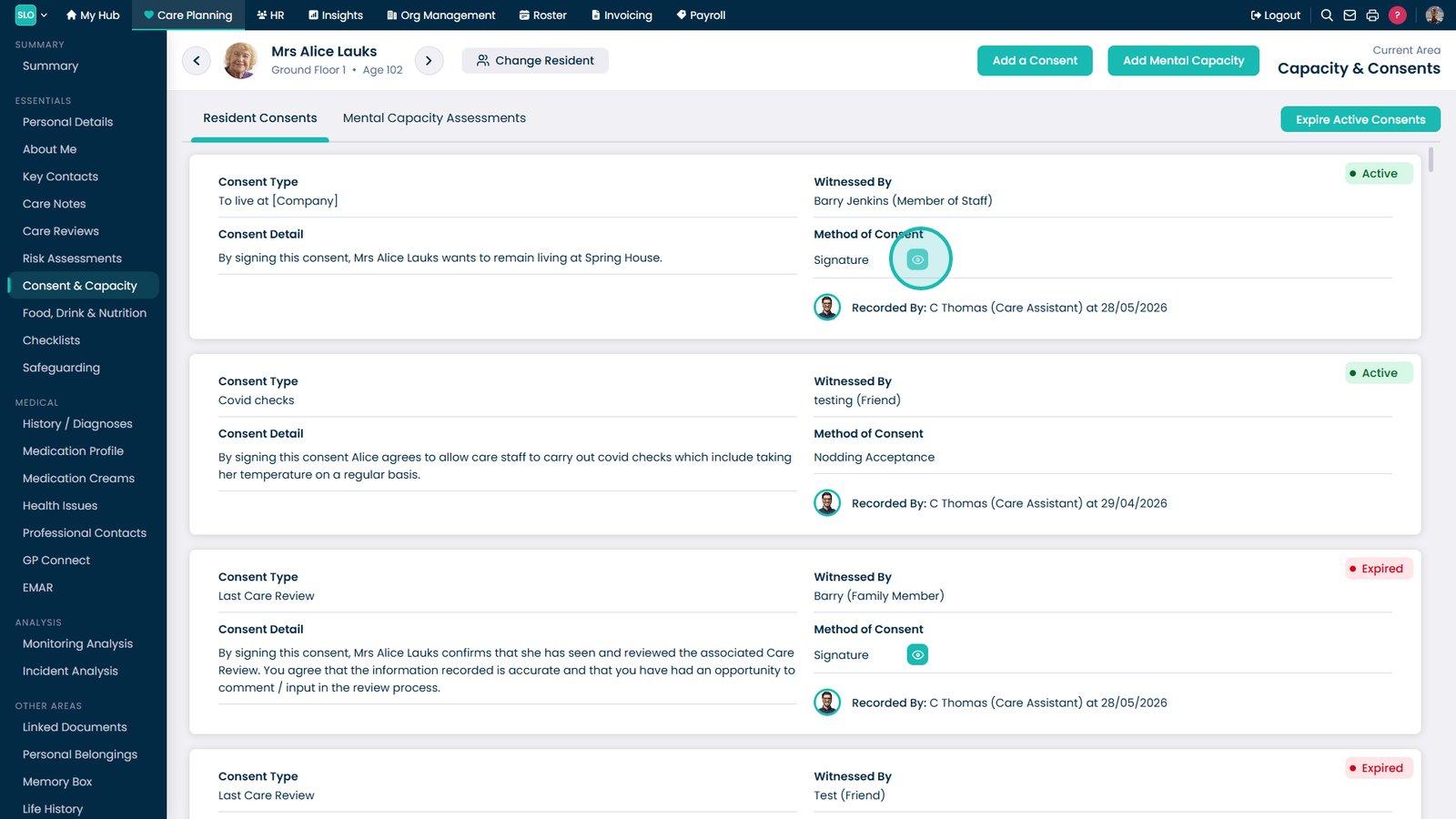
- Review completed consent records
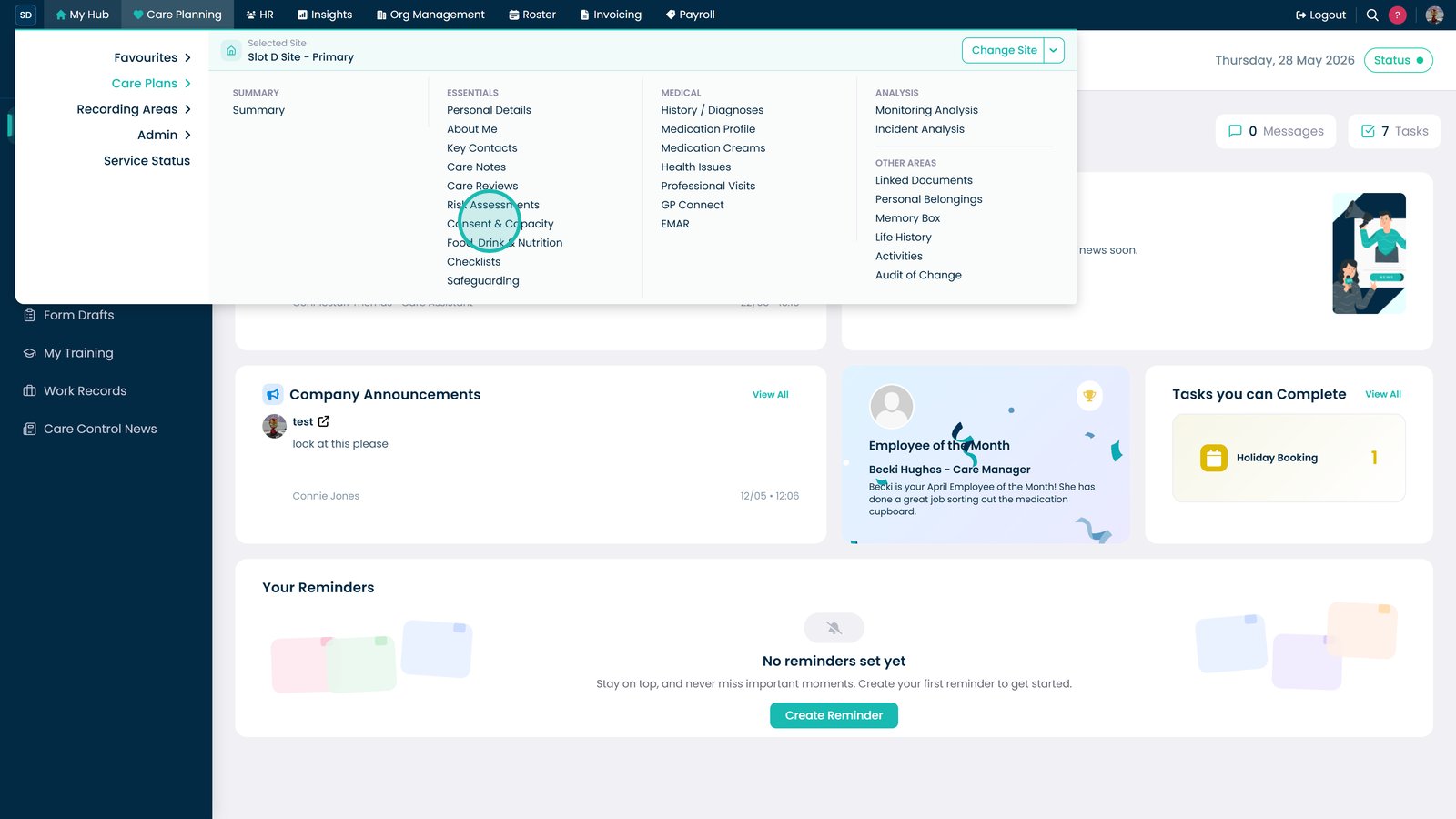
Open Consent & Capacity from the Care Planning menu.

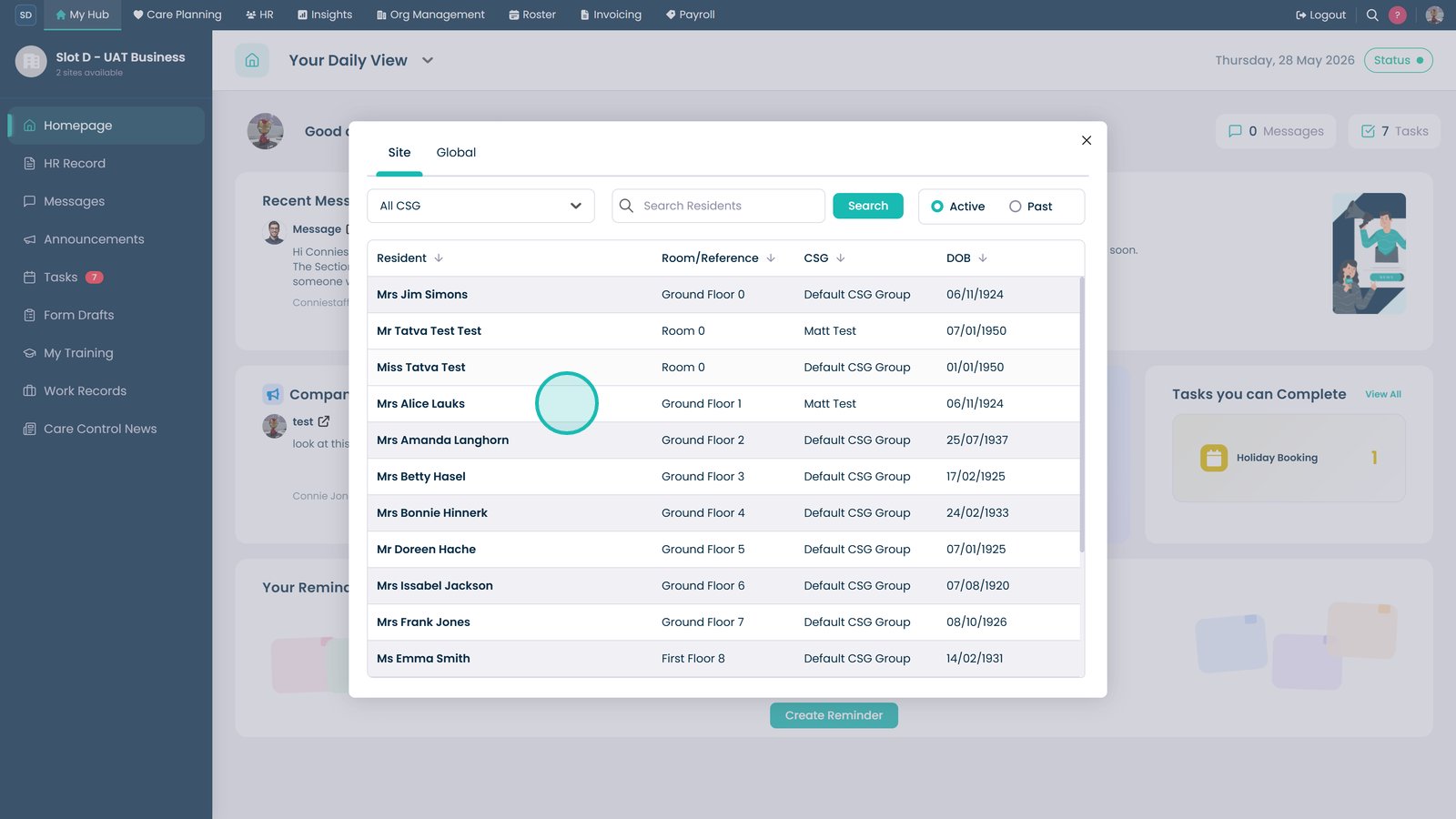
Select the resident.

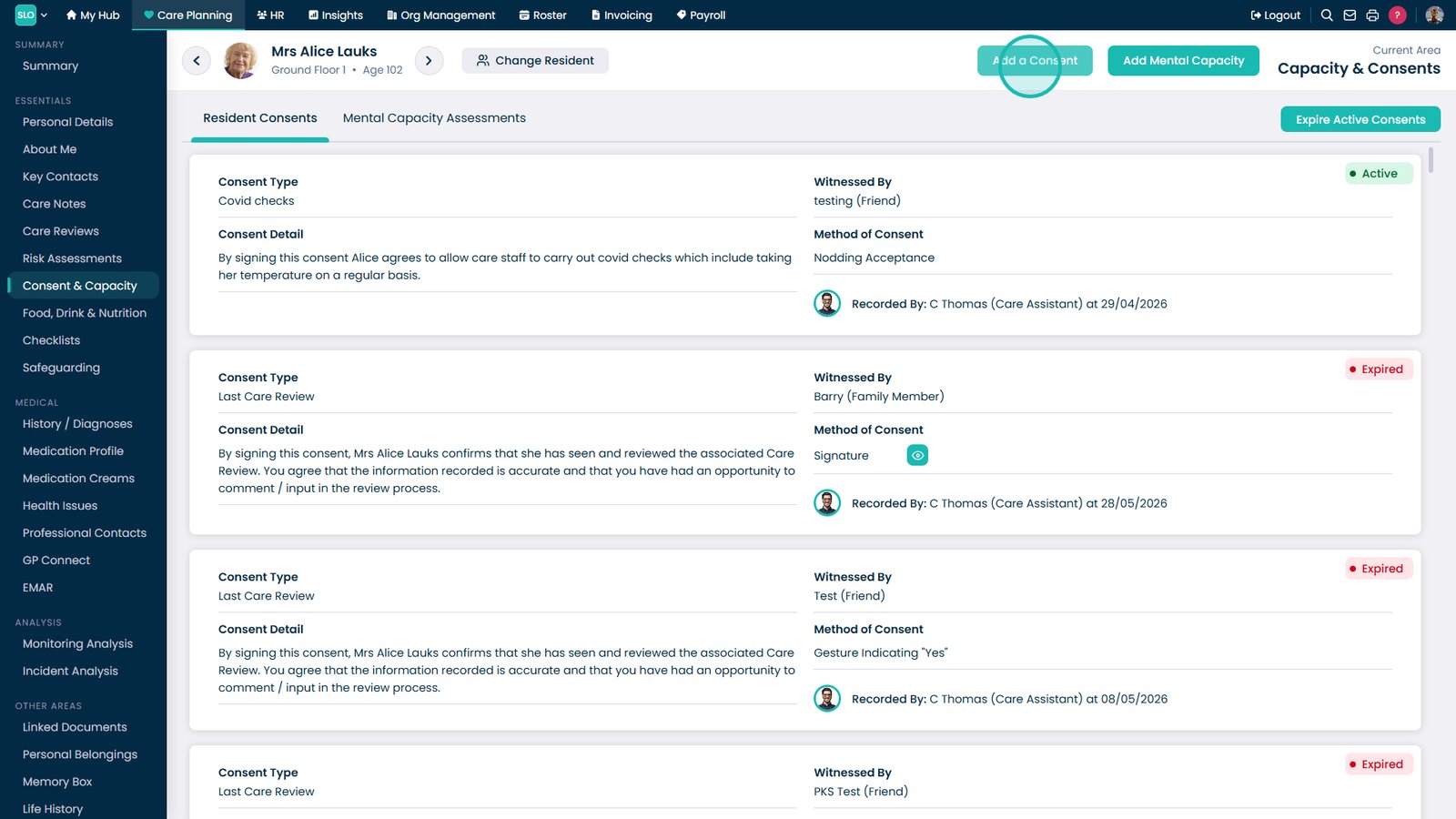
Select Add a Consent.

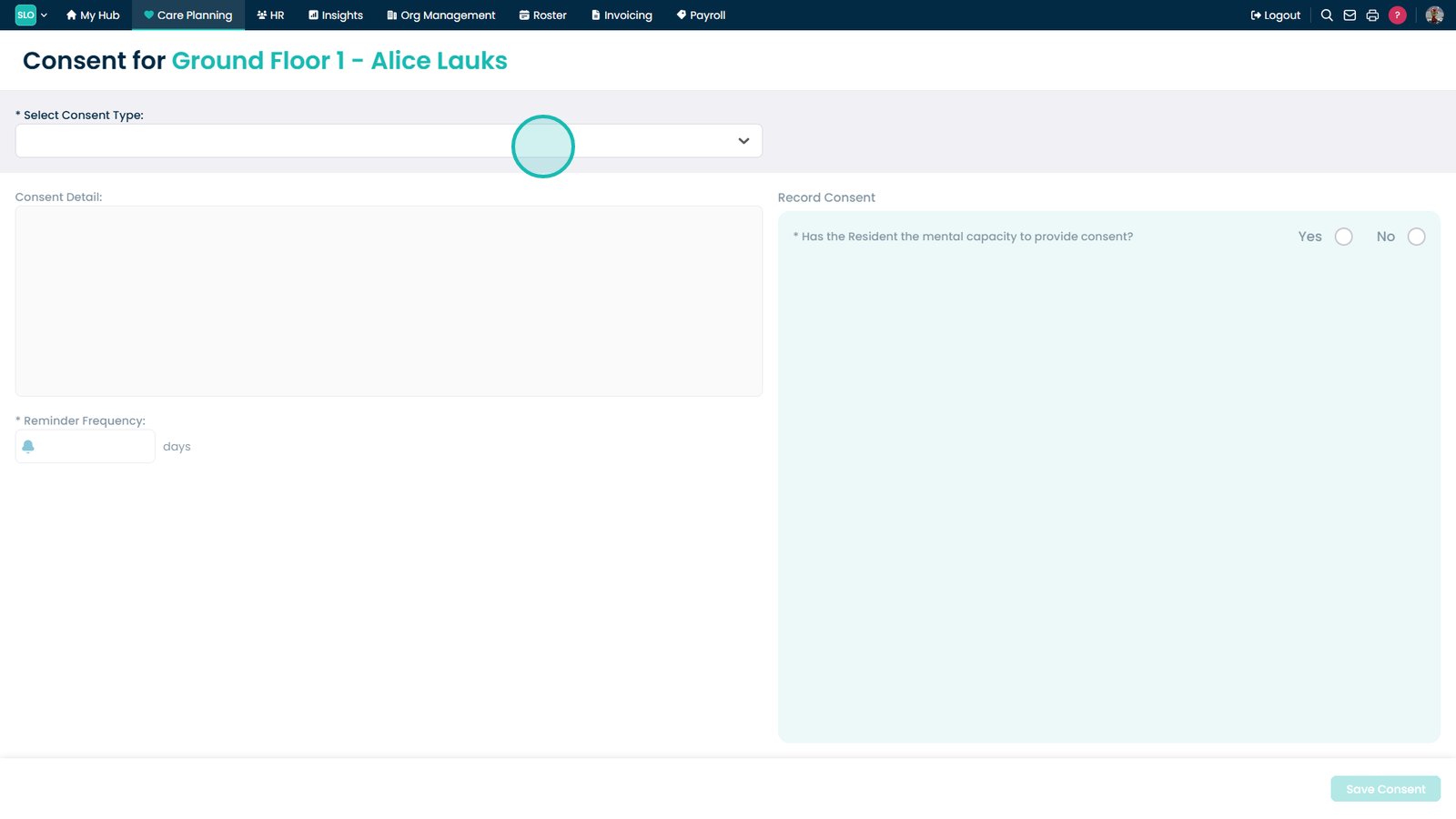
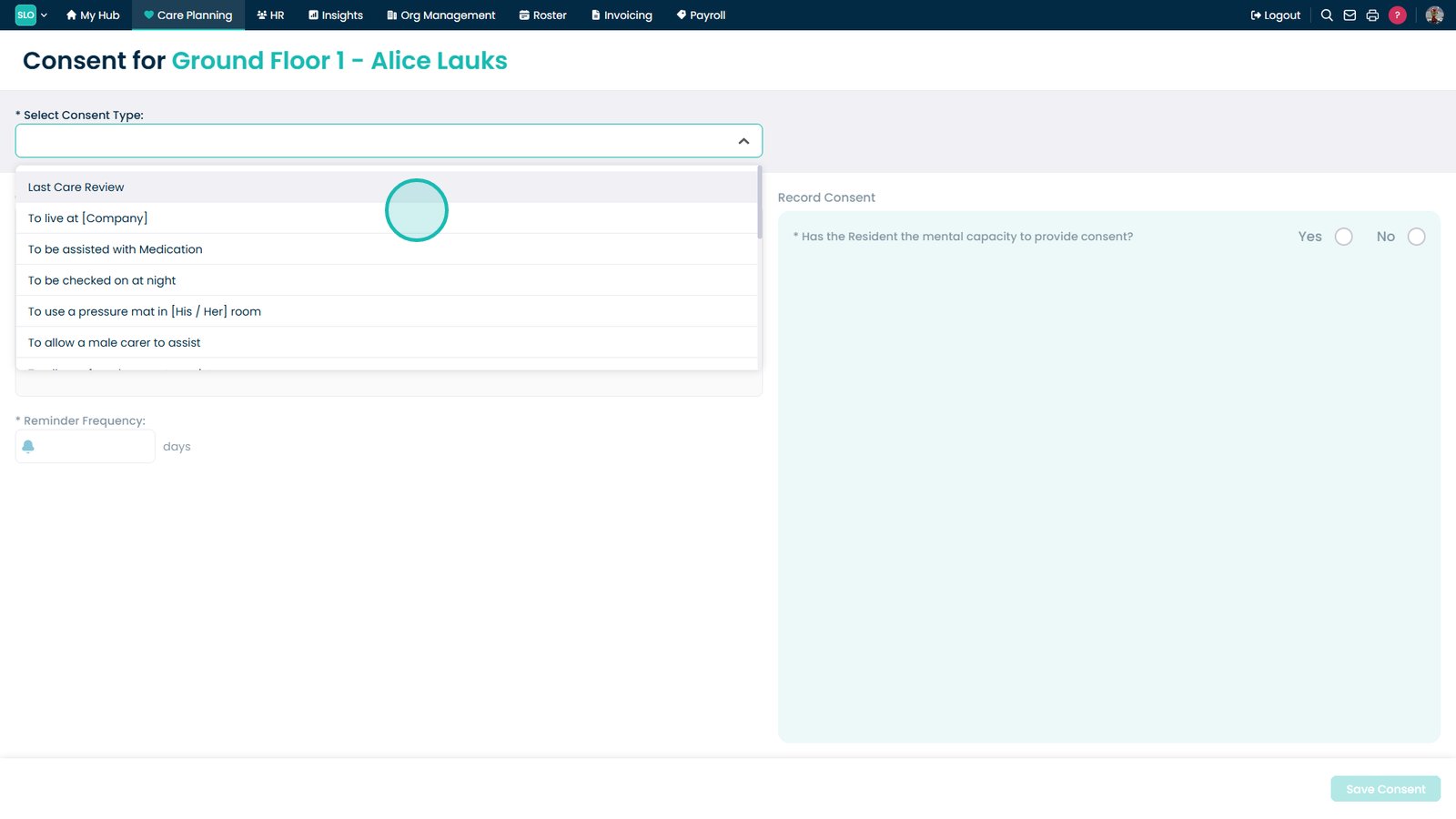
Open the Consent Type dropdown.

Select the required consent type.

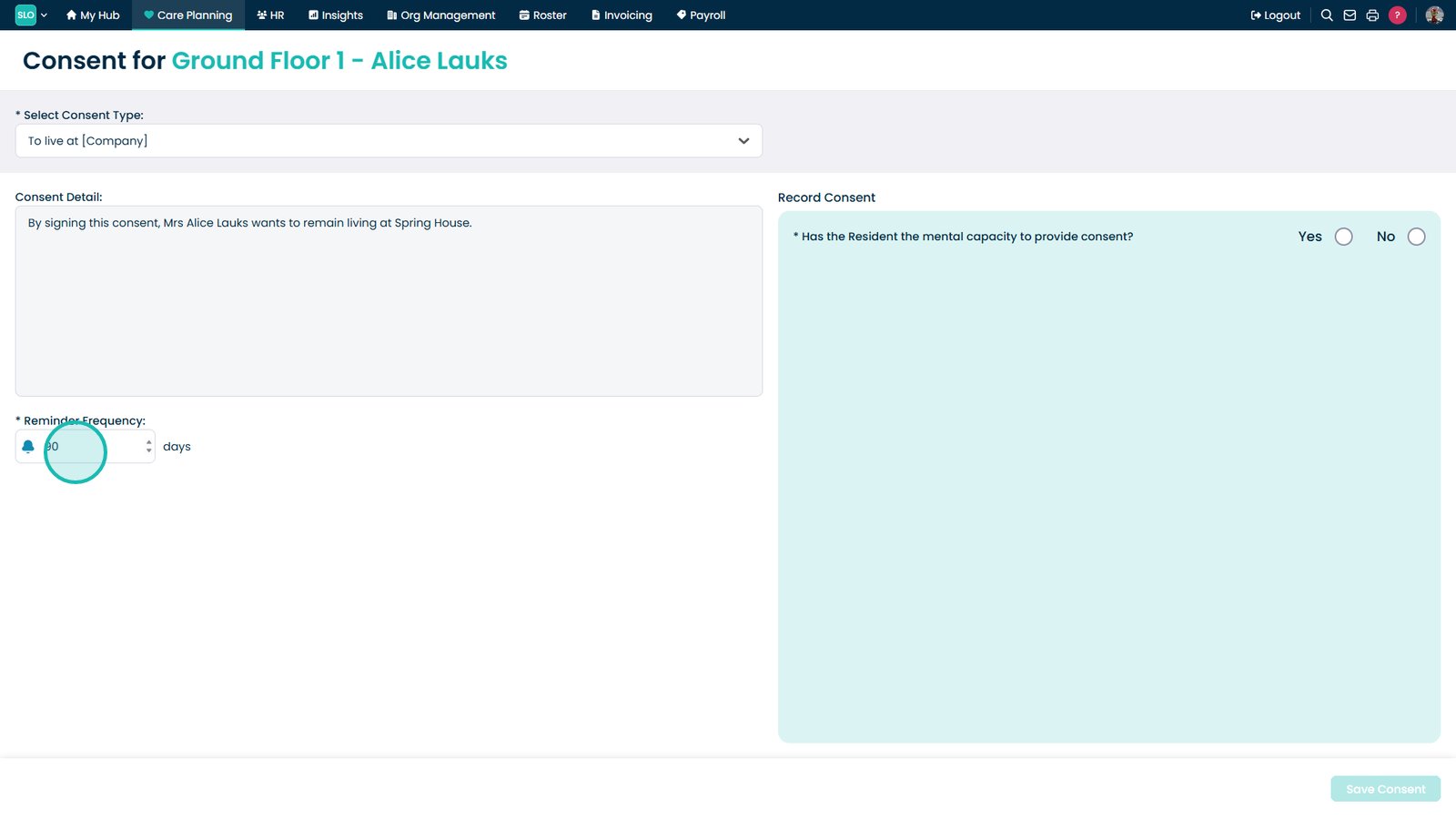
Set the reminder frequency.

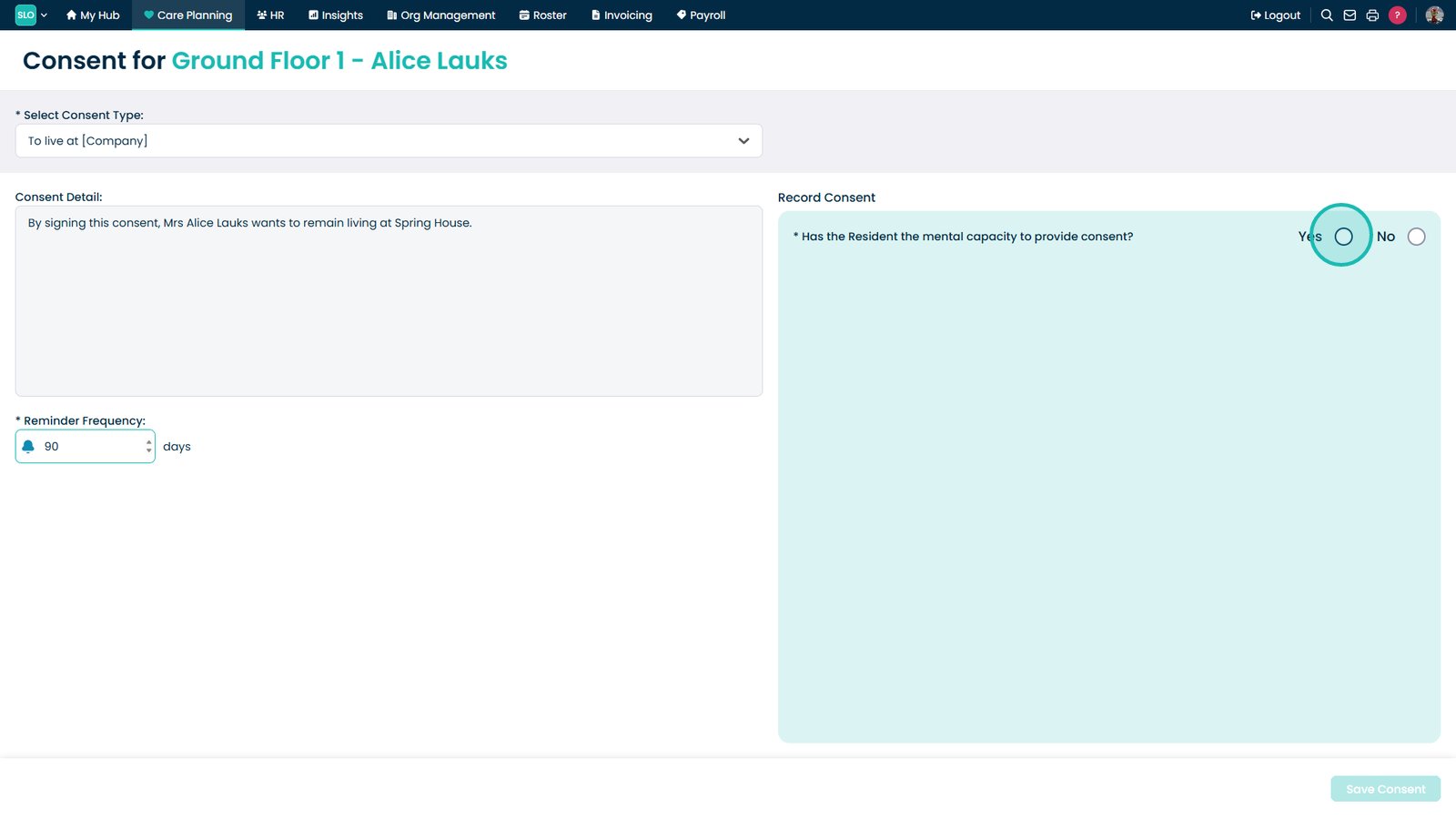
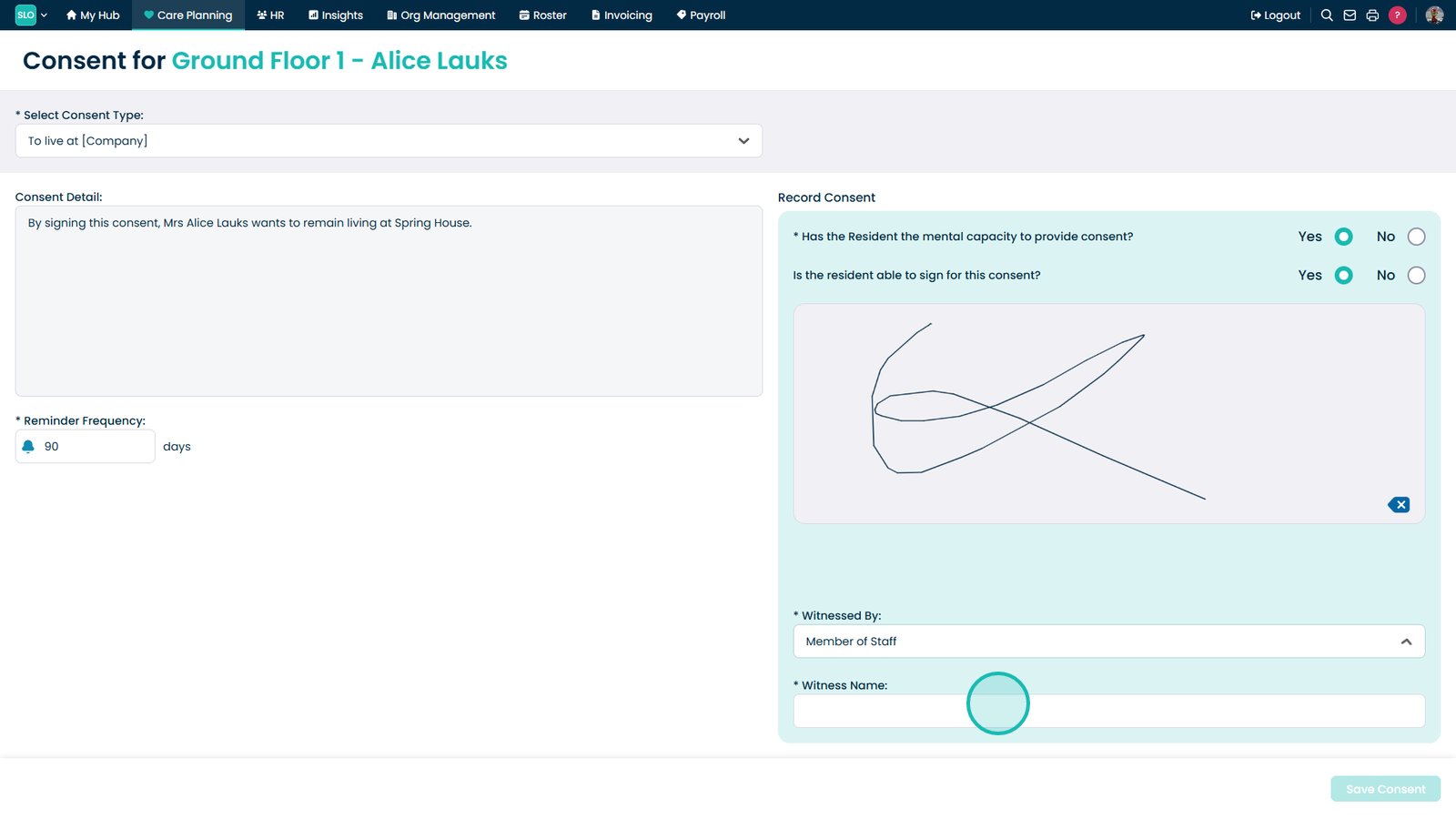
Confirm the resident has capacity to consent.

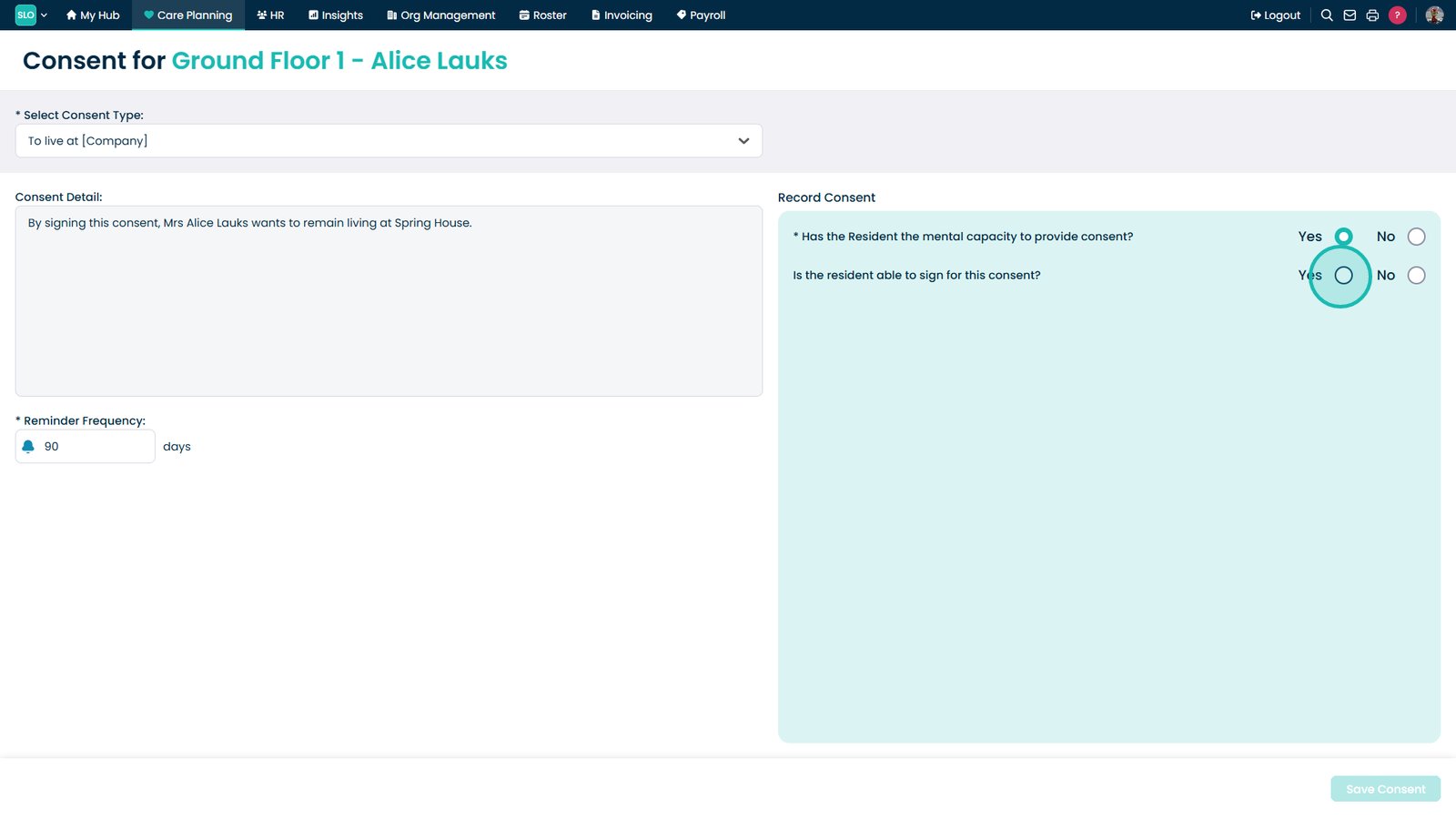
Confirm whether the resident can sign.

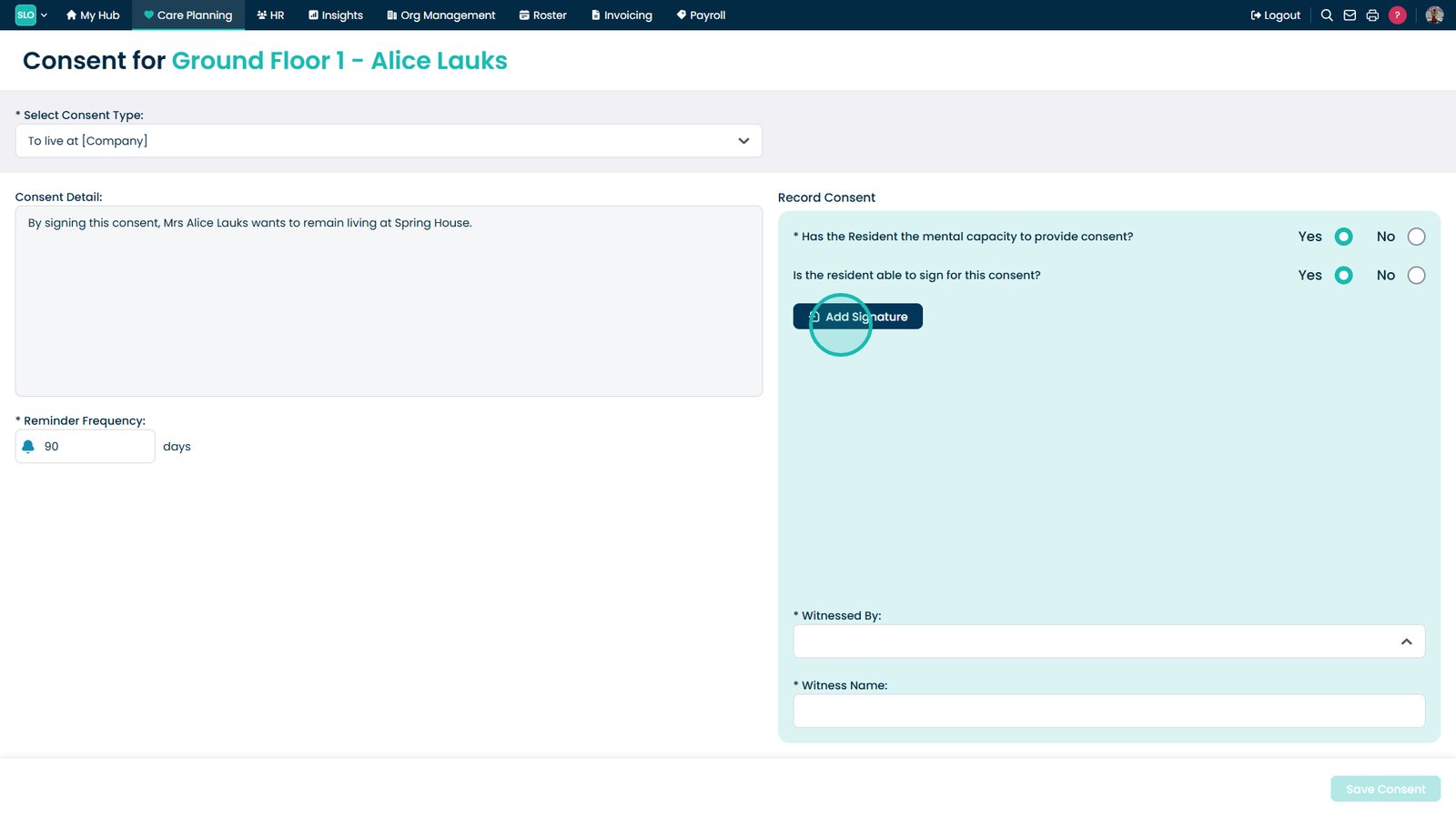
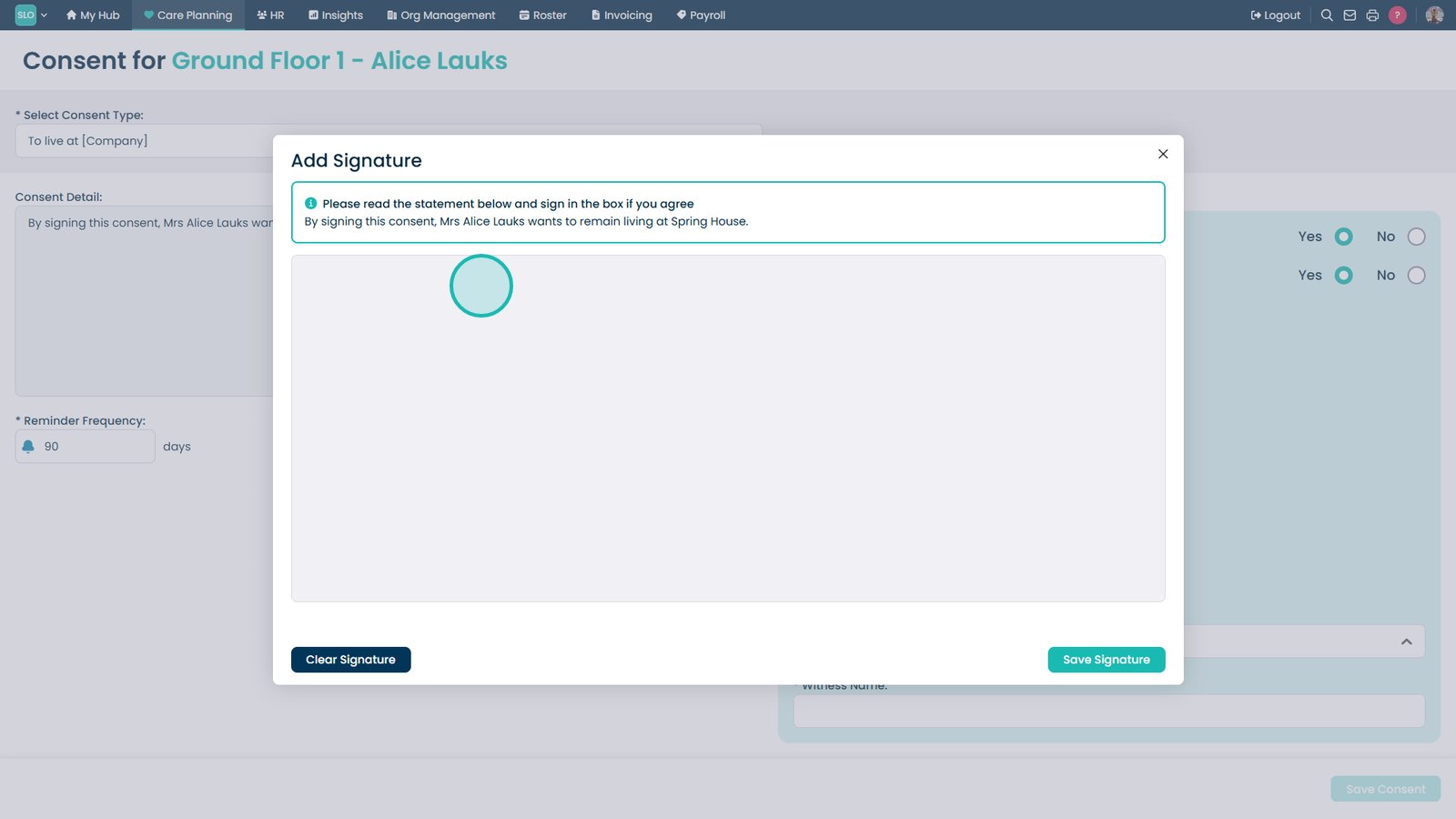
Select Add Signature.

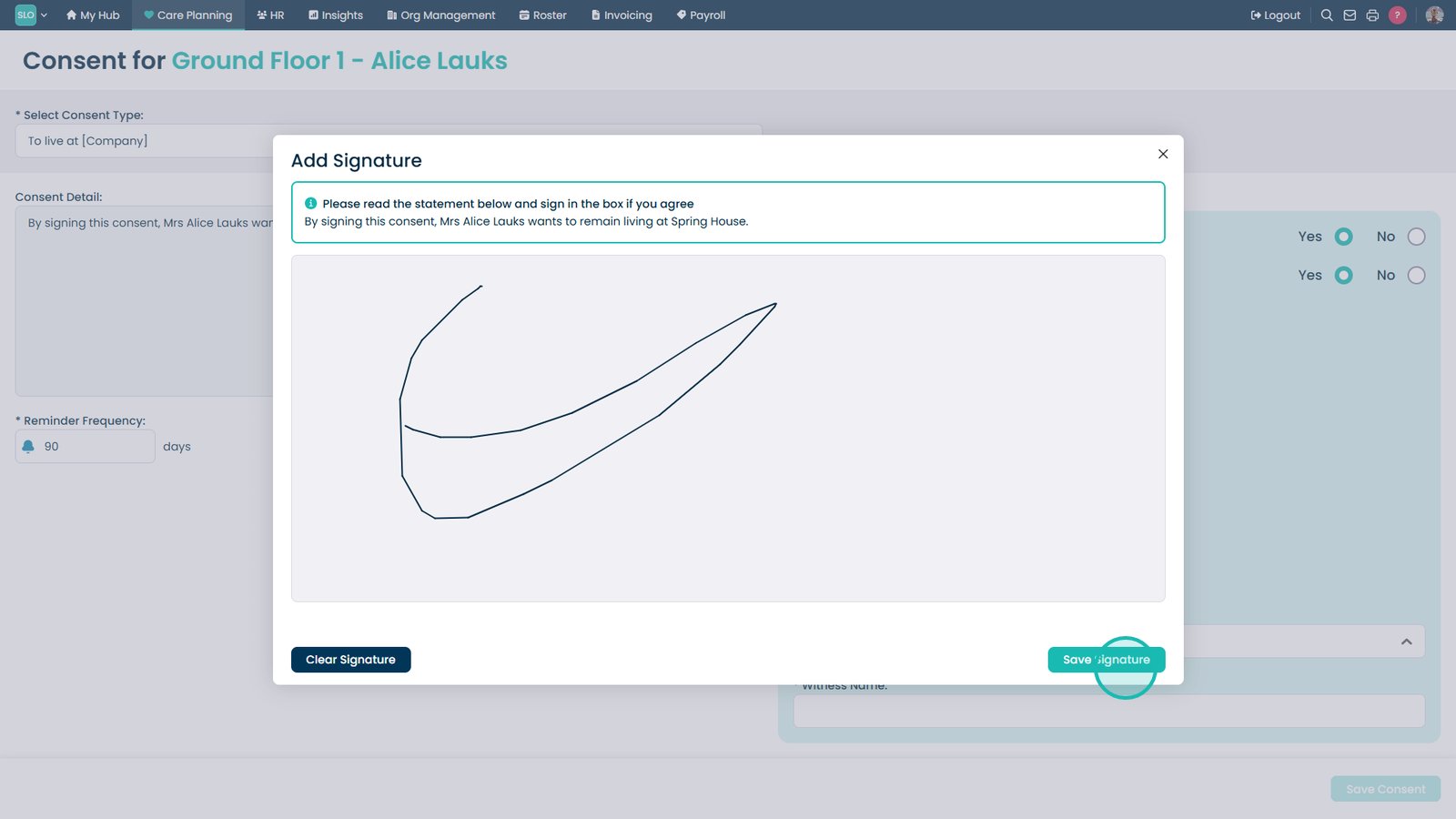
Add the signature.

Select Save Signature.

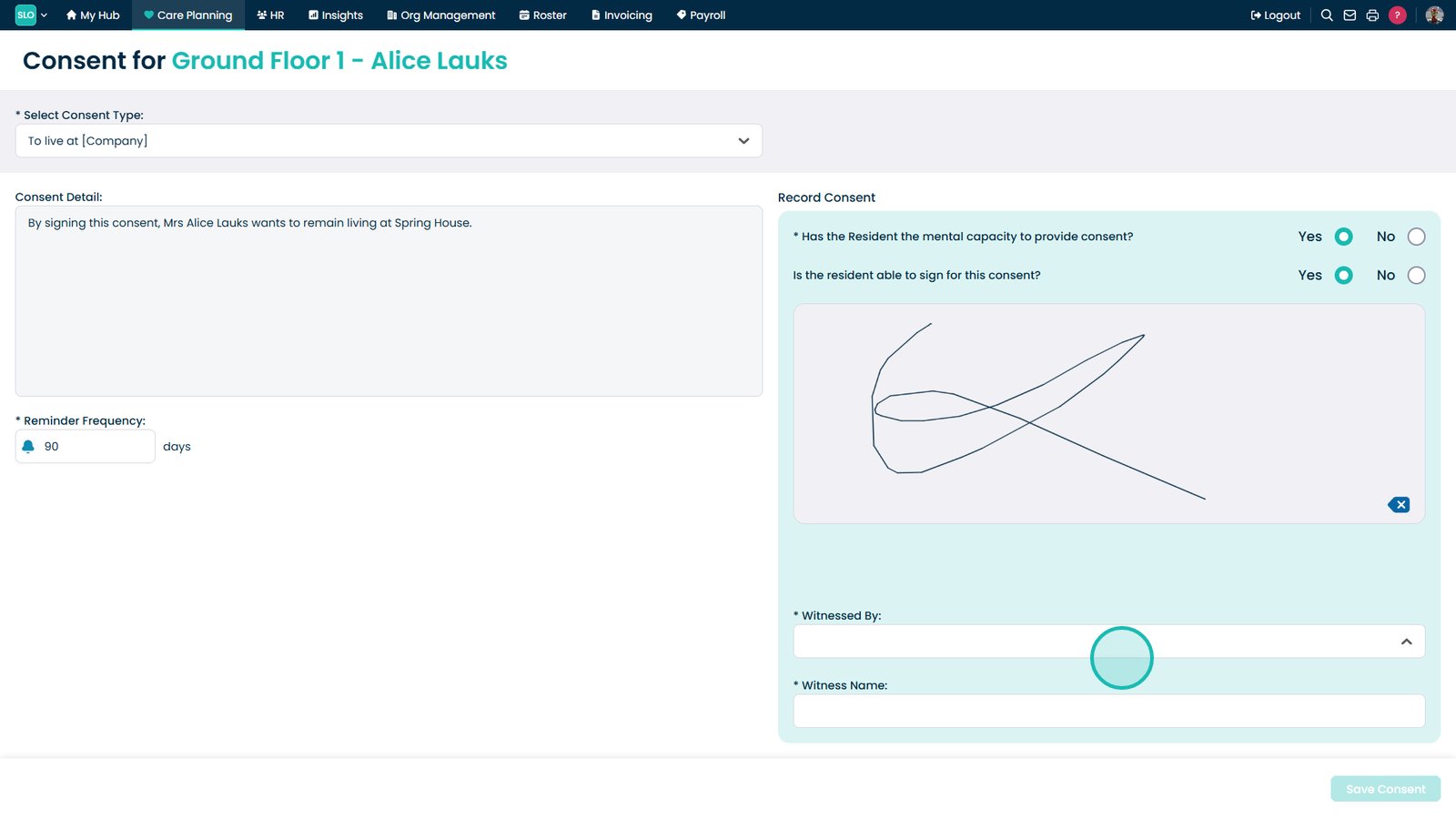
Open the Witnessed By dropdown.

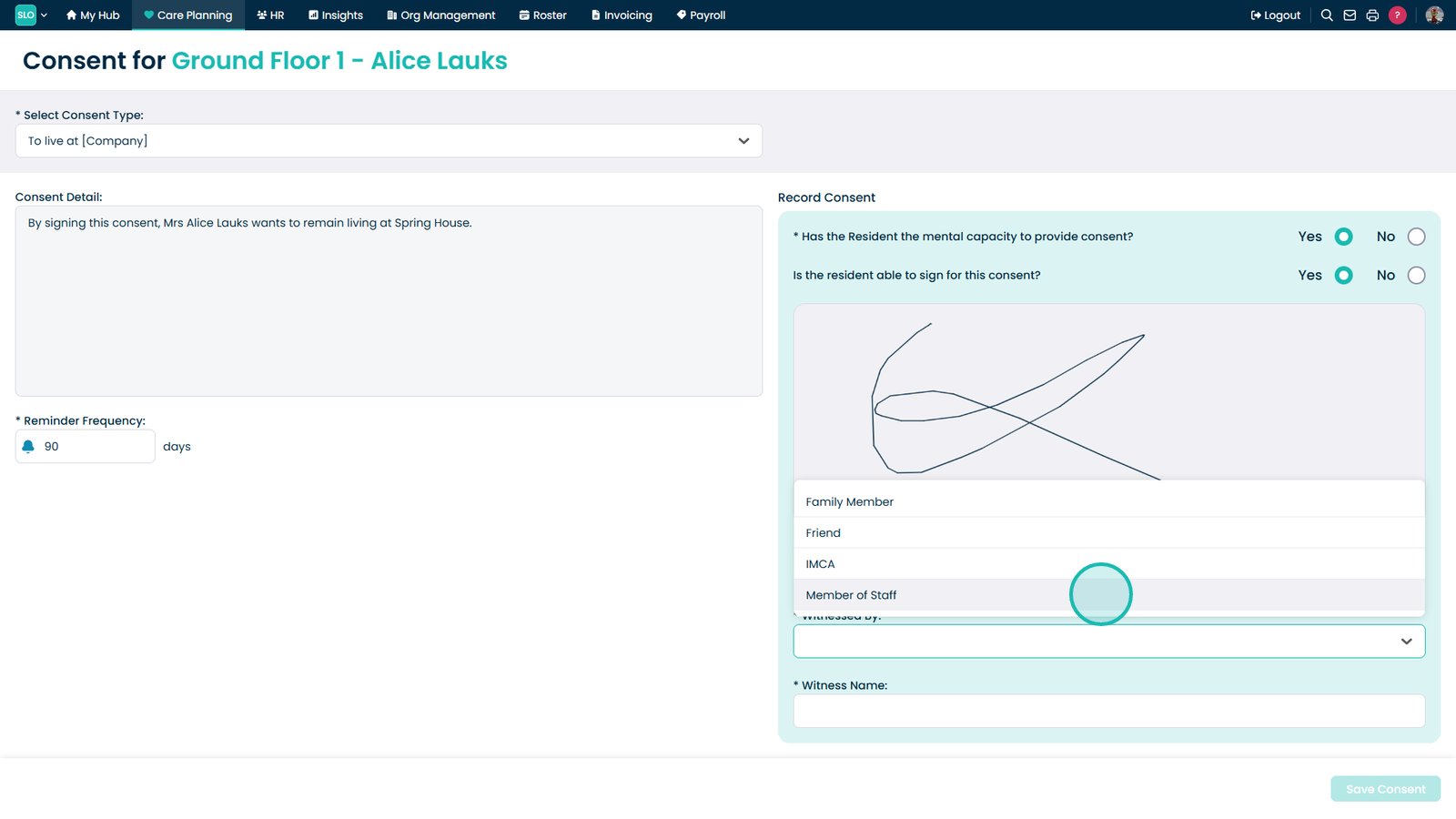
Select the witness relationship.

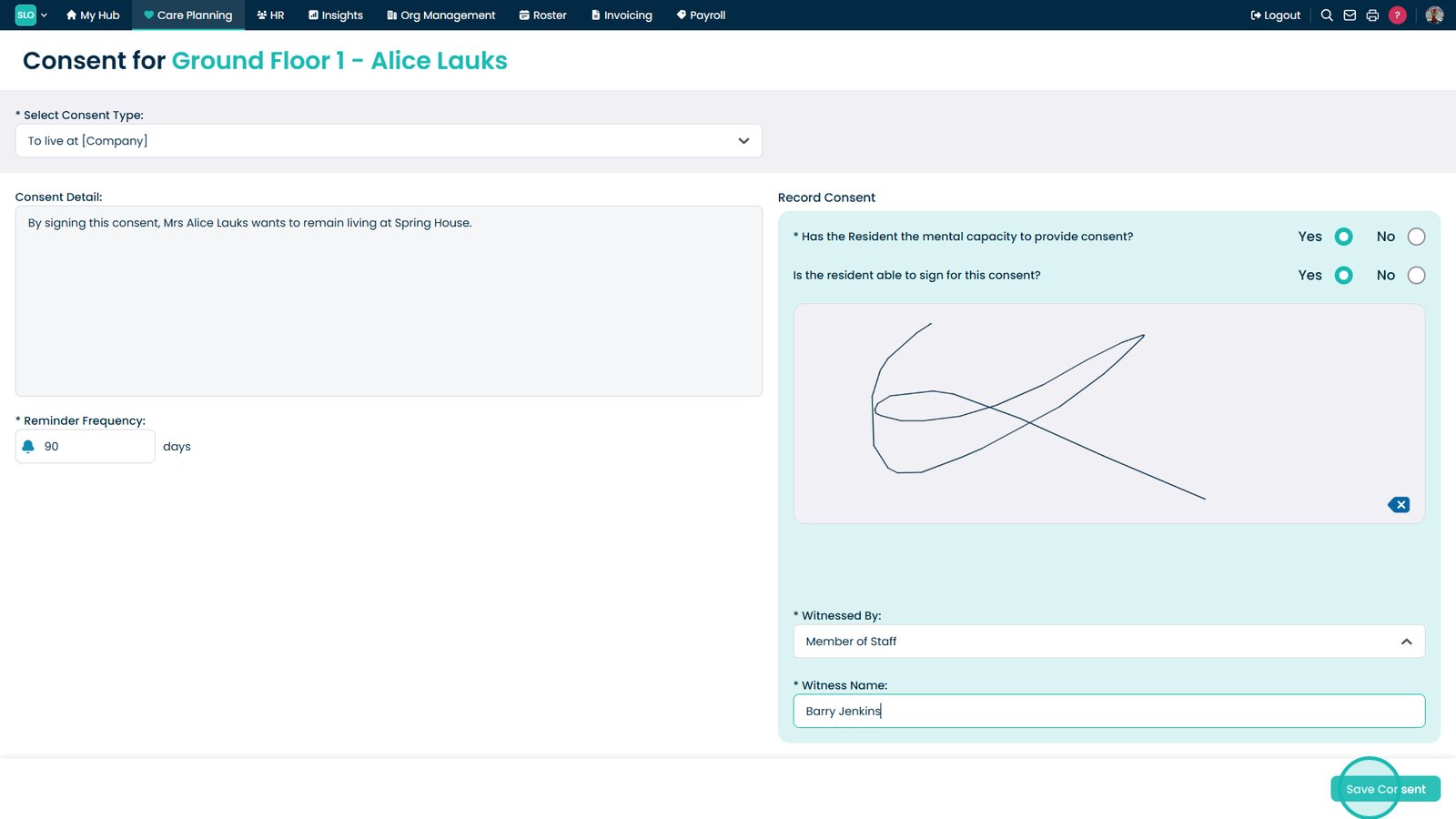
Enter the witness name.

Select Save Consent.

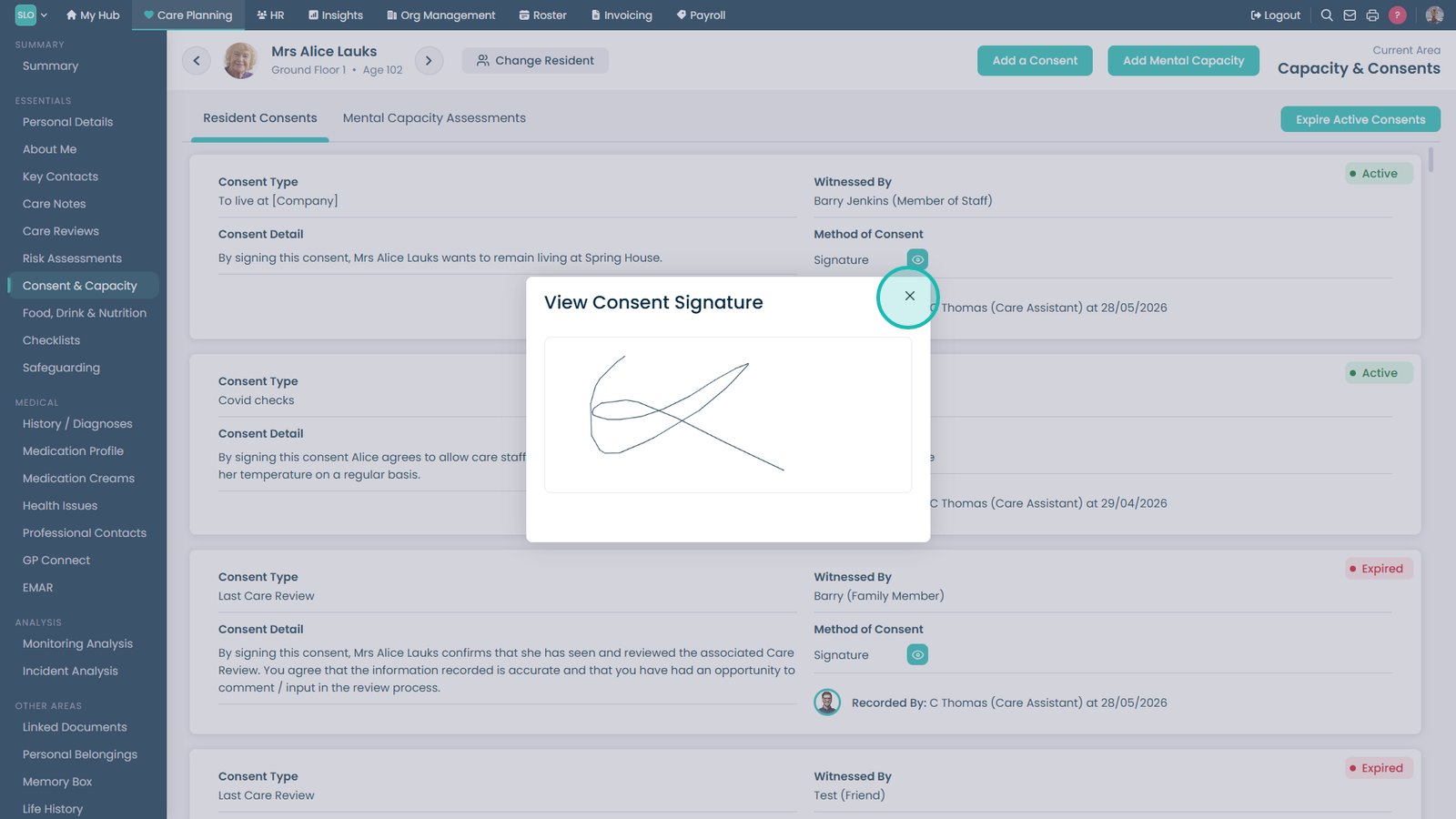
Select the signature icon to view the consent.

Select Close to return to the consent record.

Top tip
Ensure consent records are reviewed regularly and reminder frequencies are set appropriately to help maintain compliance and accurate resident records.
Need more help?
Can't find what you're looking for? Our support team is here to help.
Contact SupportOr call us on