How to Record Observations
This guide explains how to record observations for a service user by selecting the required observation types.
Takes 5 minutes
For: Care Staff
Updated: 16th July 2026
Introduction
The Observations module allows you to record clinical and wellbeing observations for a service user. You can select one or more observation types, enter the recorded values, review previous entries, add comments or a red flag if required, and save the completed record.
In this guide you'll learn how to:
- Open the Observations recording area
- Select a service user
- Record observation values
- Add comments or a red flag
- Save the completed observation record
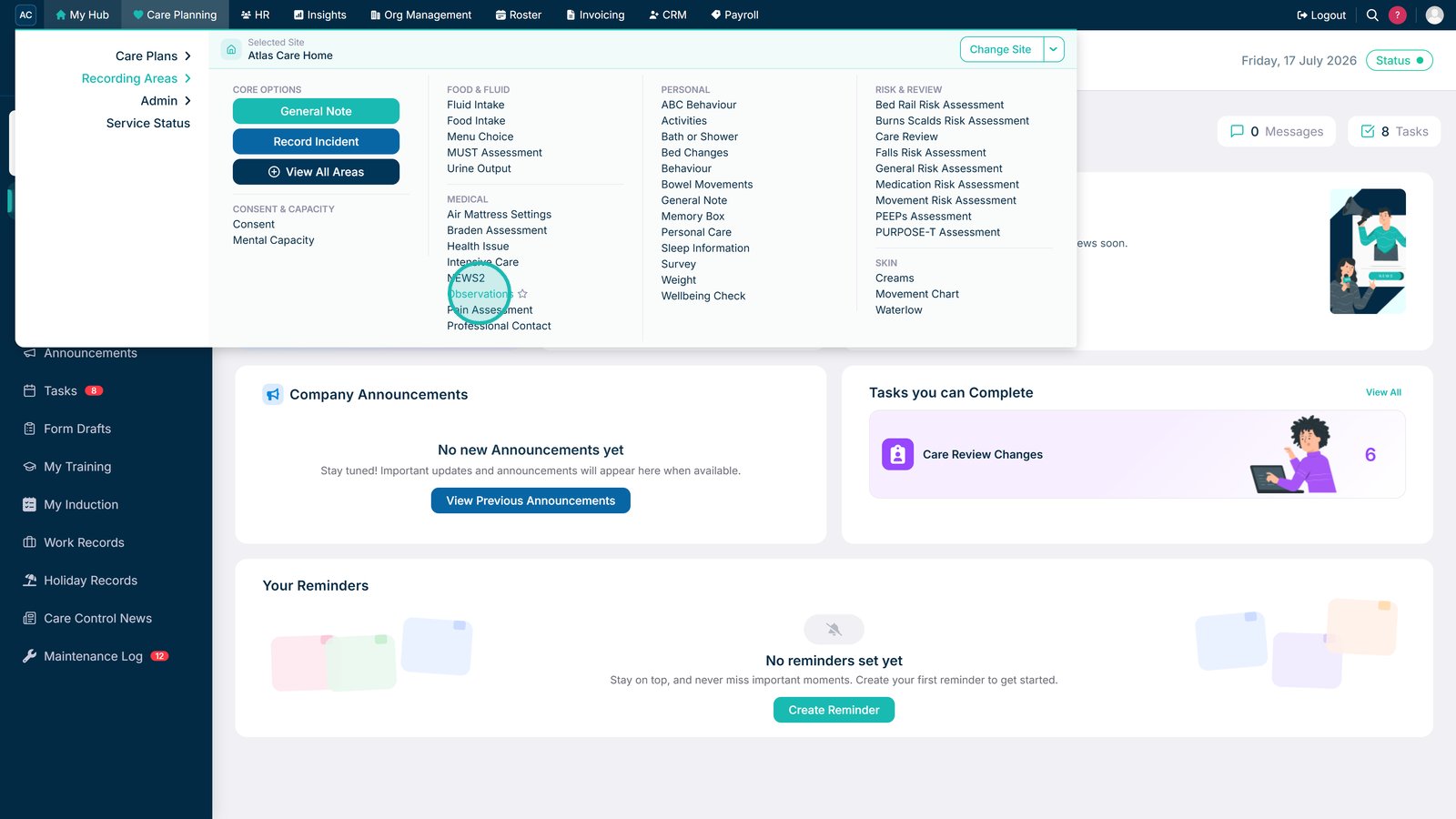
Select Observations under Recording Areas in Care Planning.

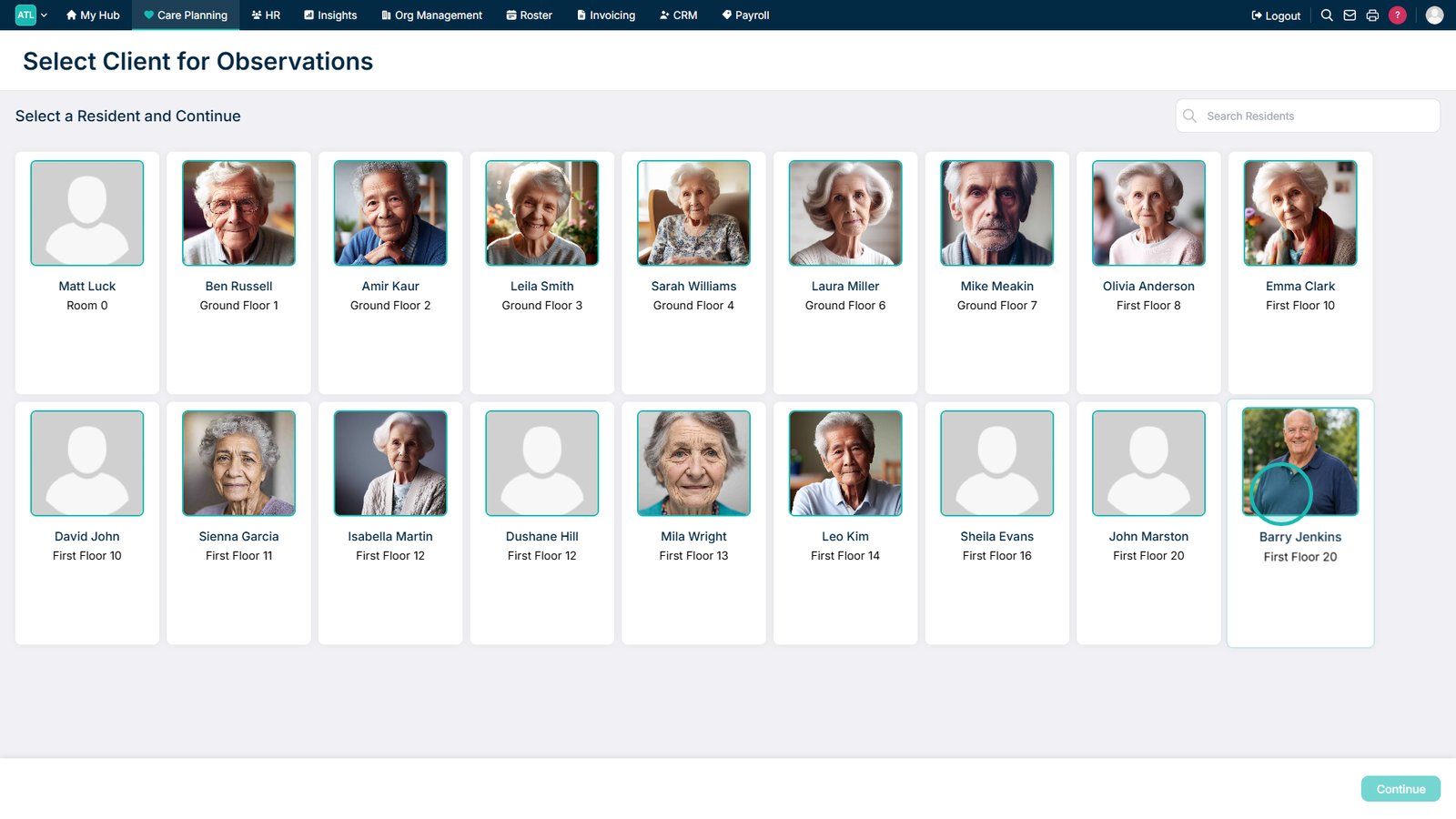
Select a service user.

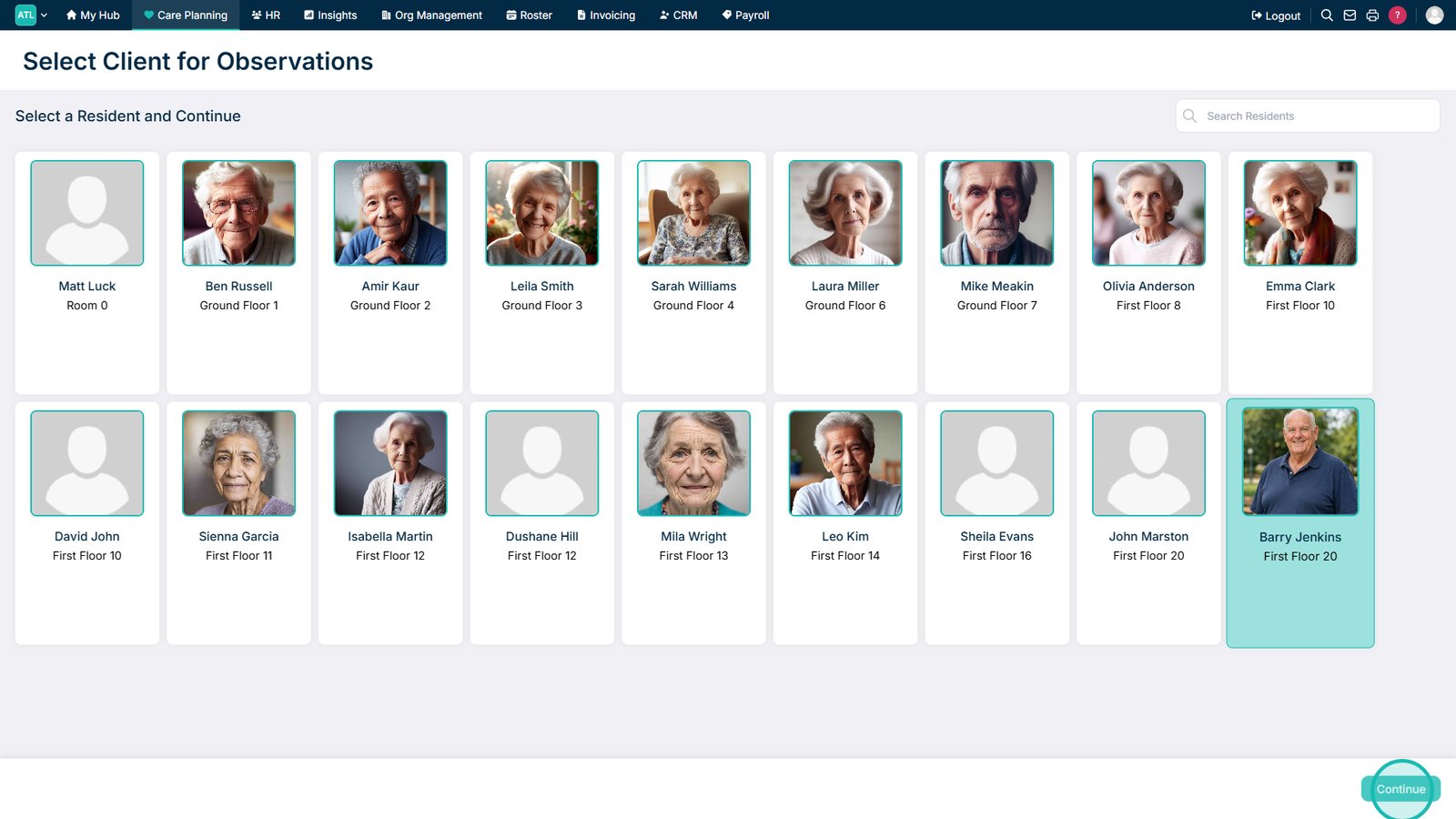
Select Continue to open the Observations recording area.

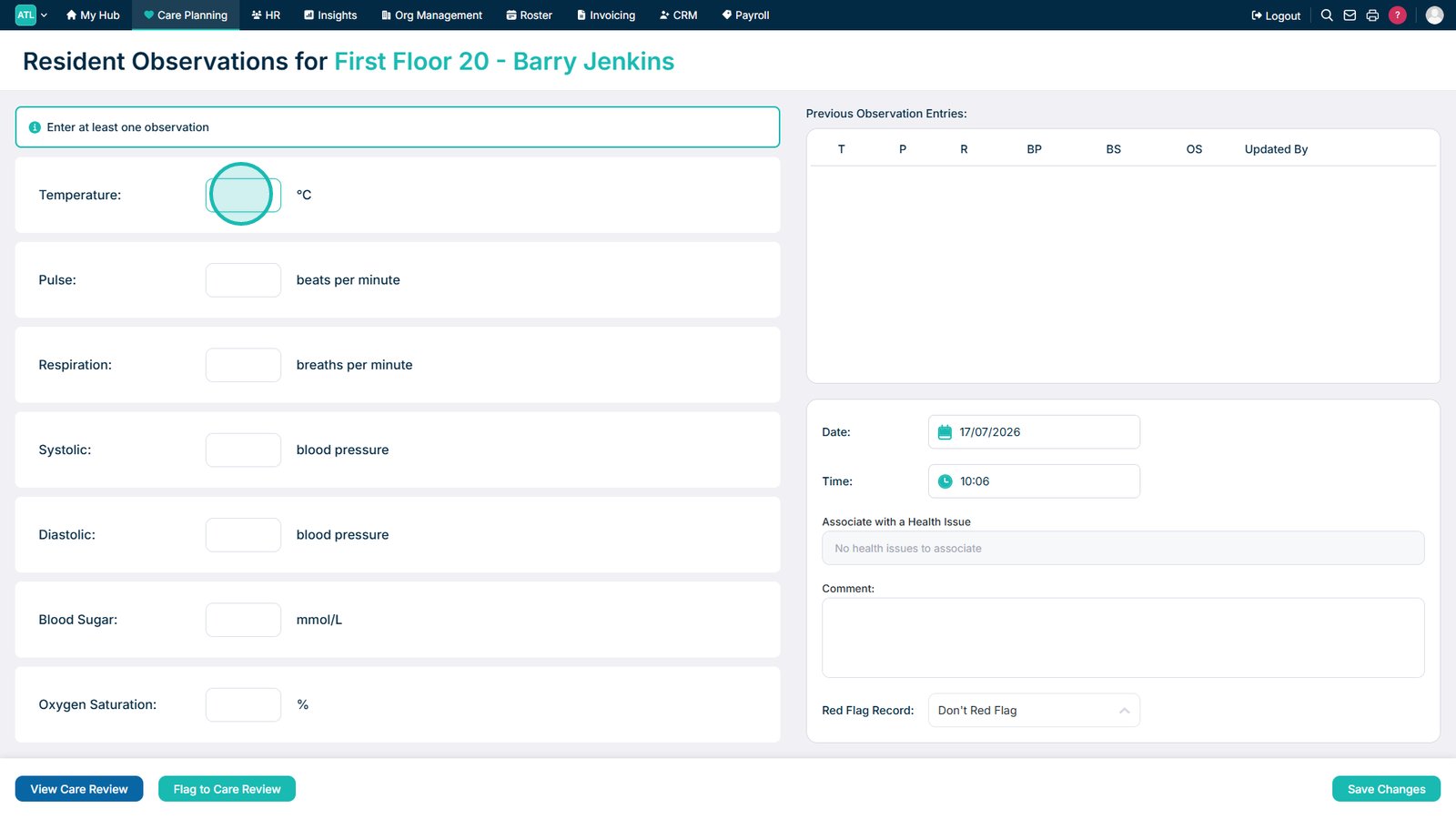
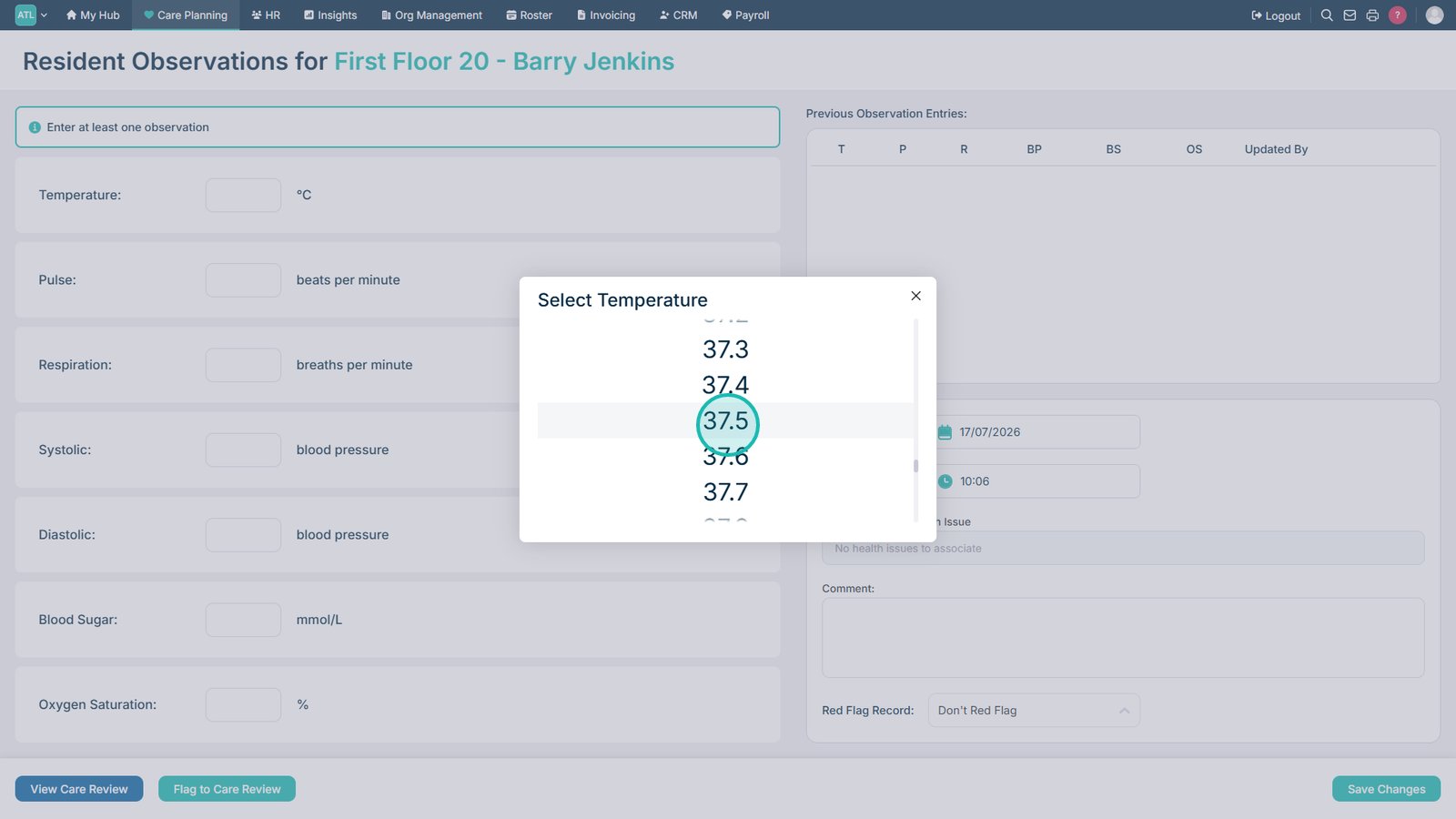
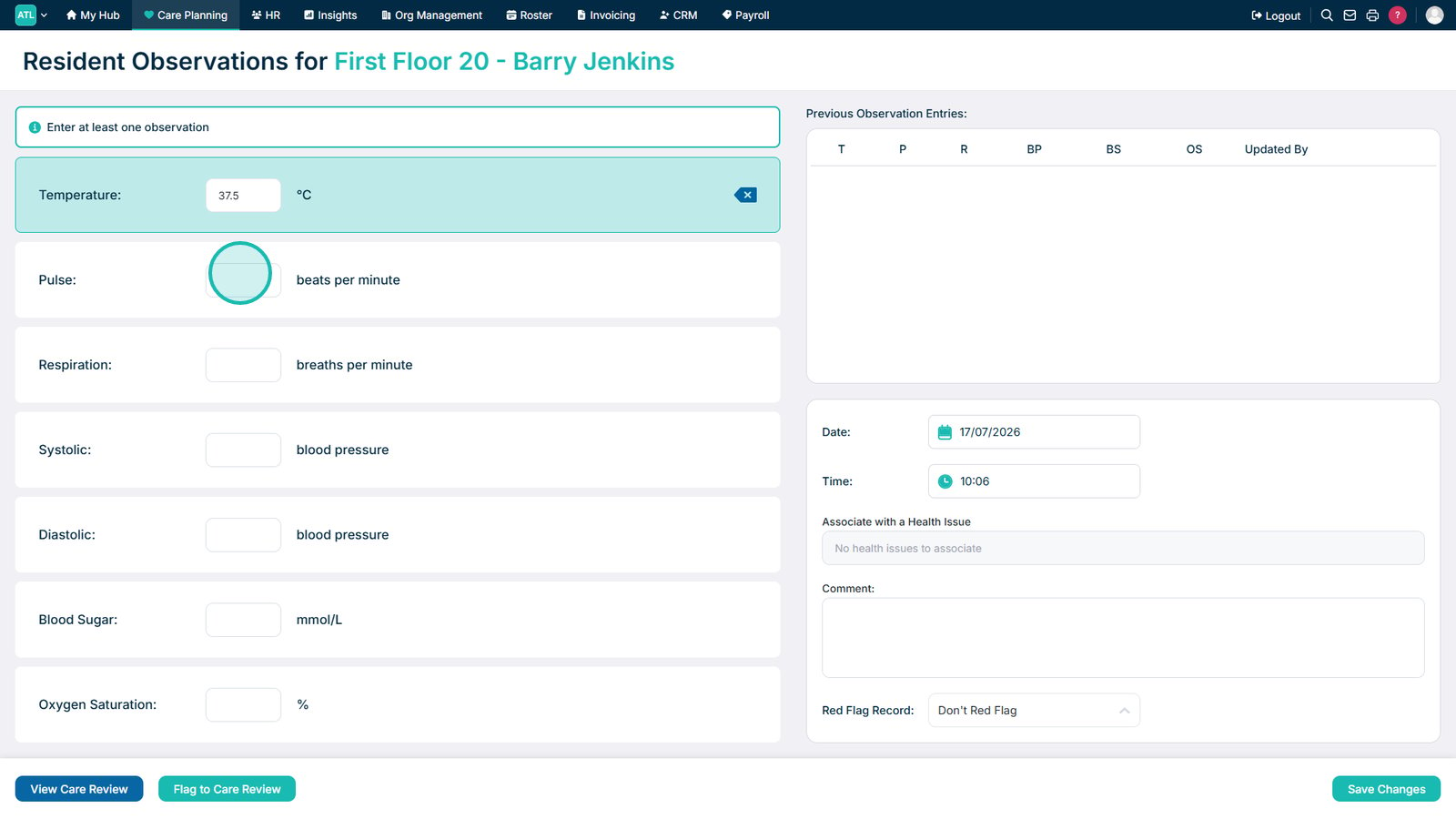
Select one or more observations to record.

Select the recorded value for the observation.

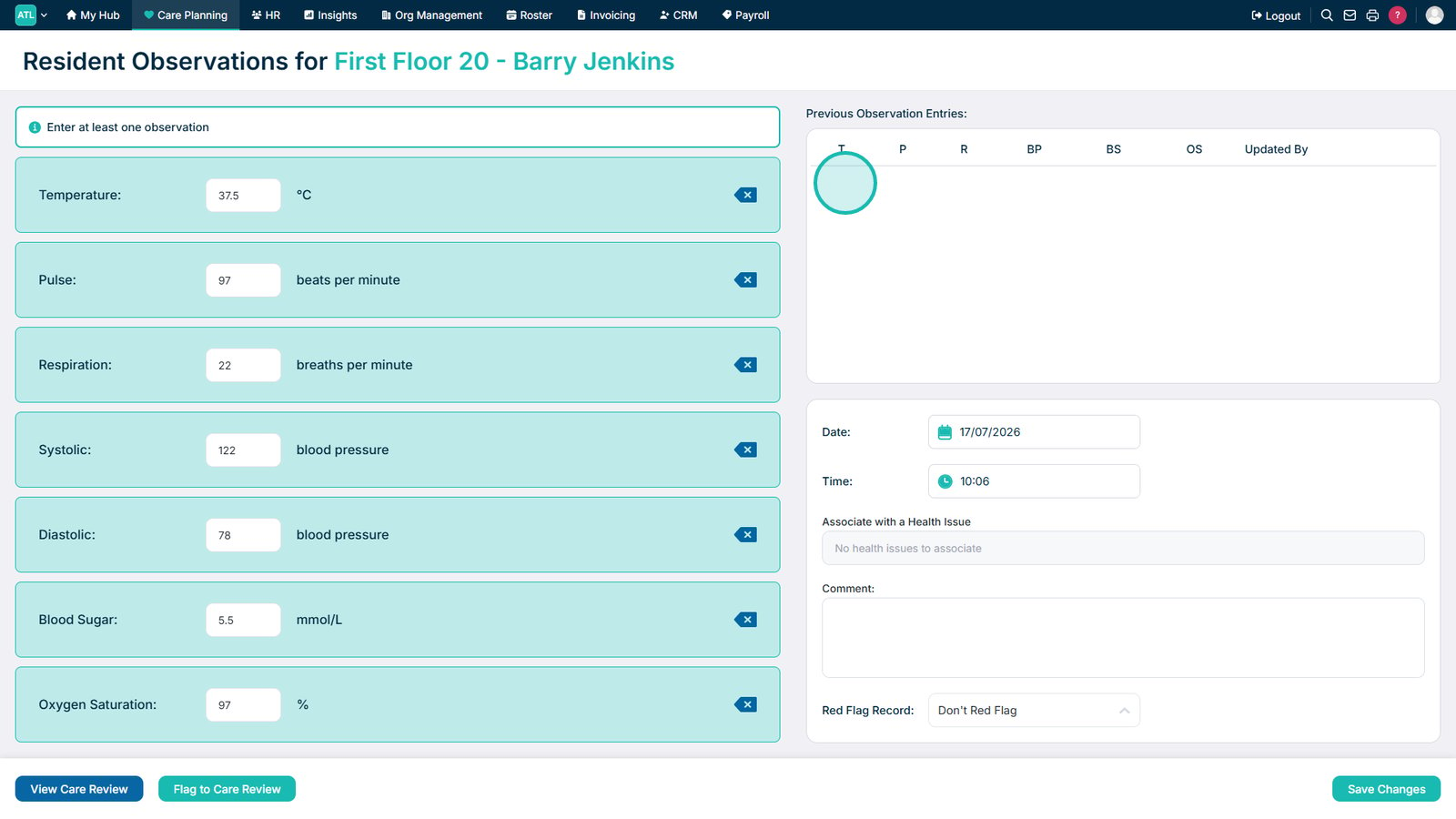
Repeat this process for any additional observations you need to record.

Review previous observation entries if required.

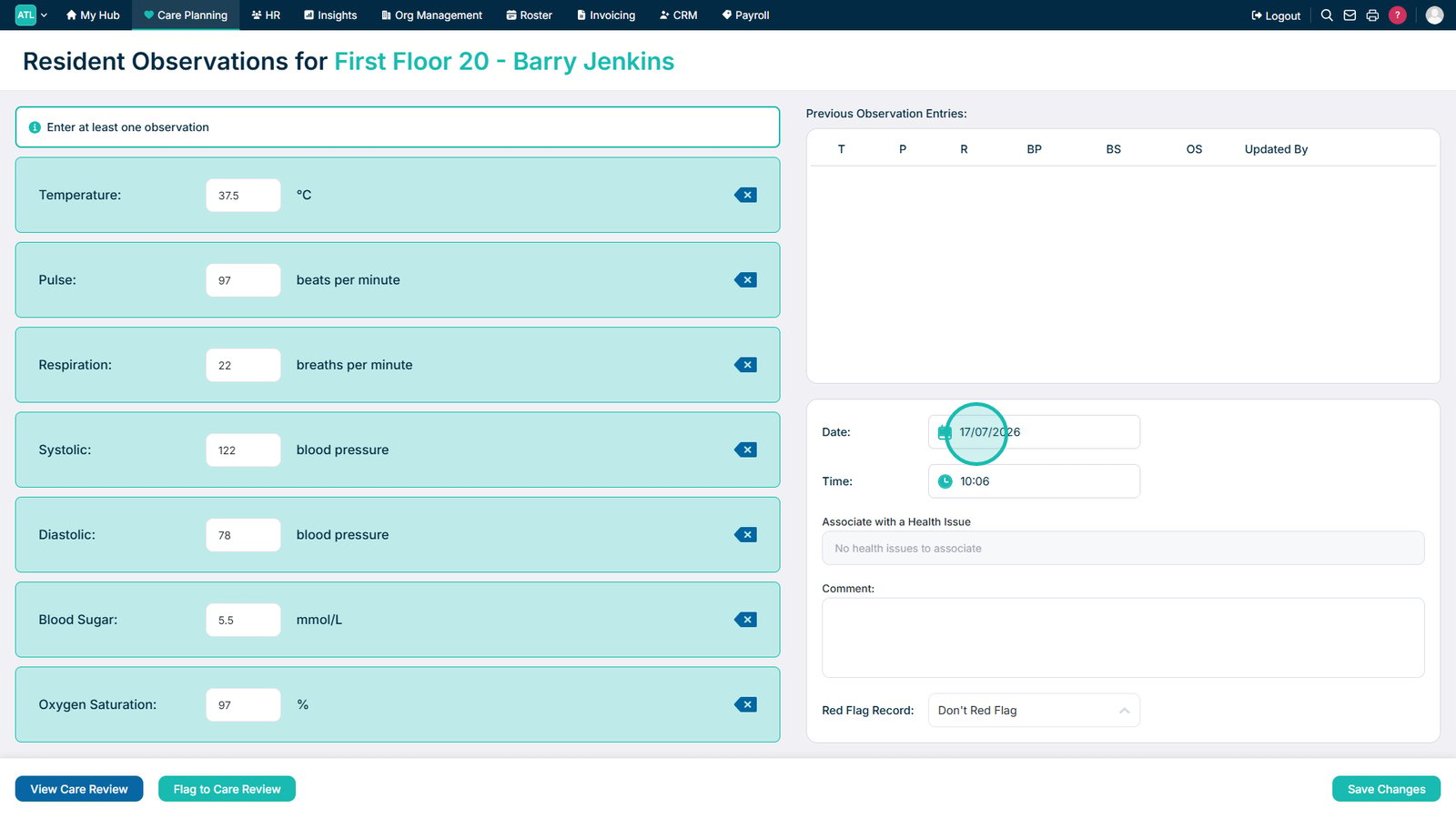
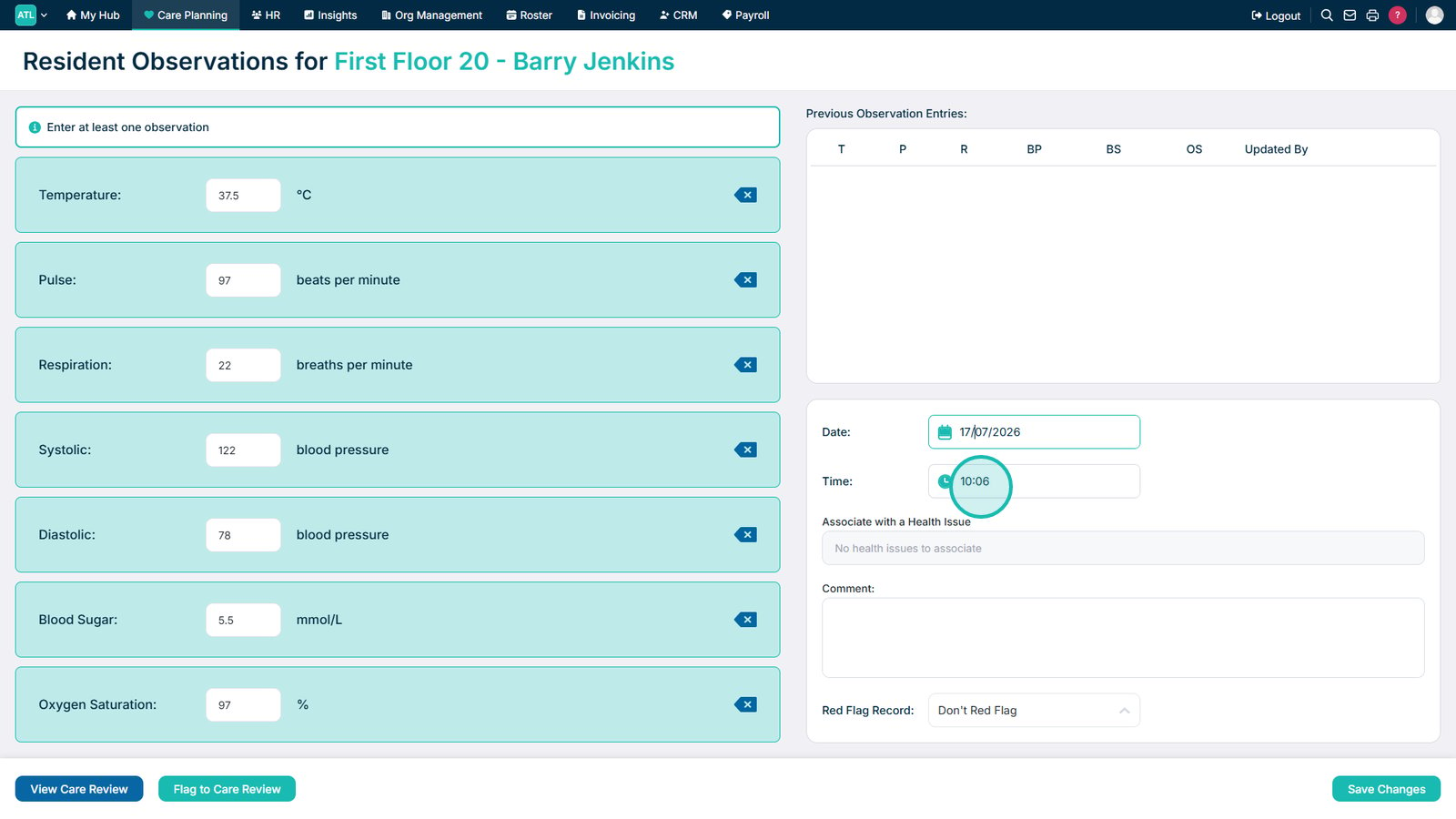
Select the date the observations were recorded.

Select the time the observations were taken.

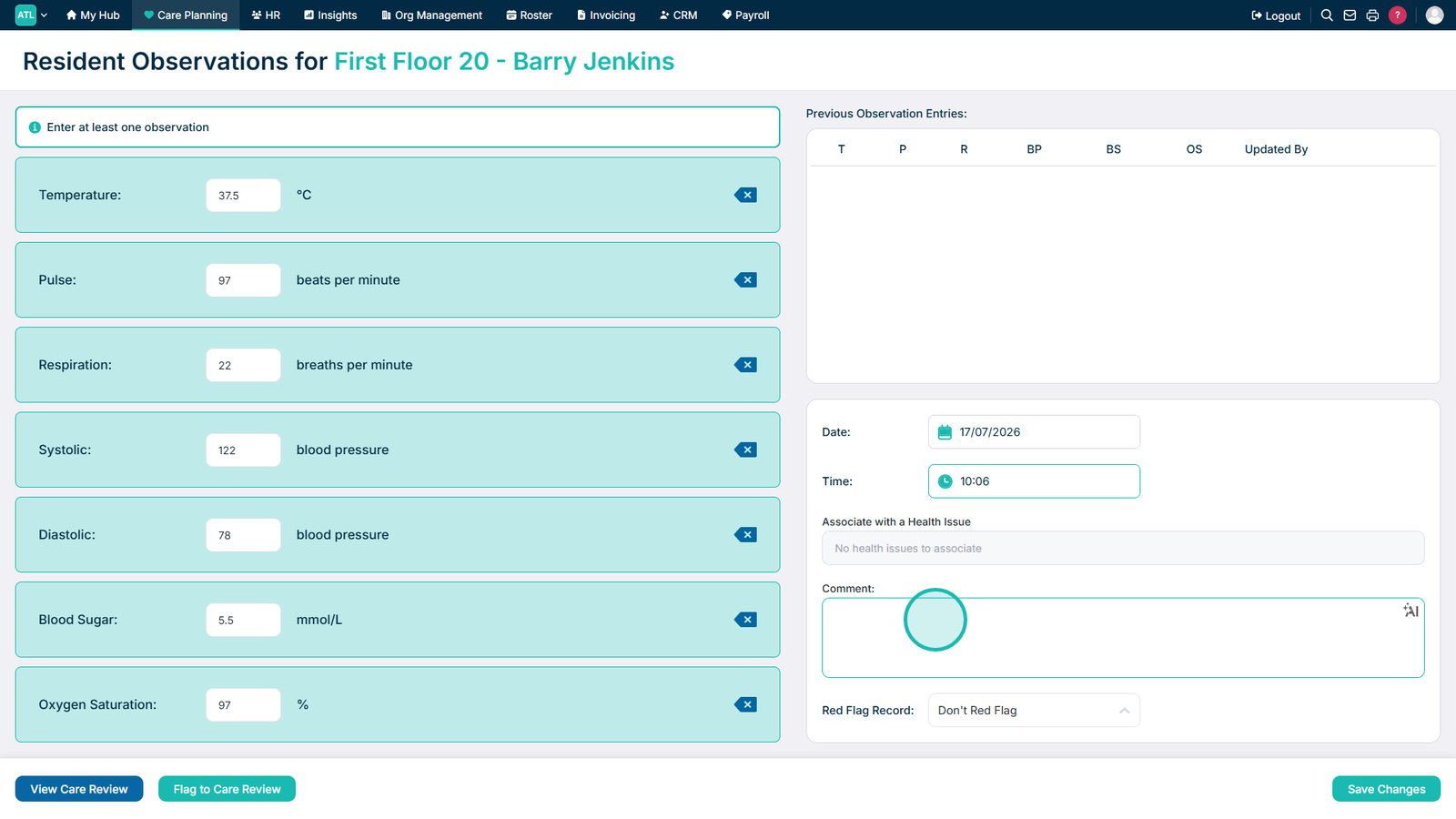
Add a comment if required.

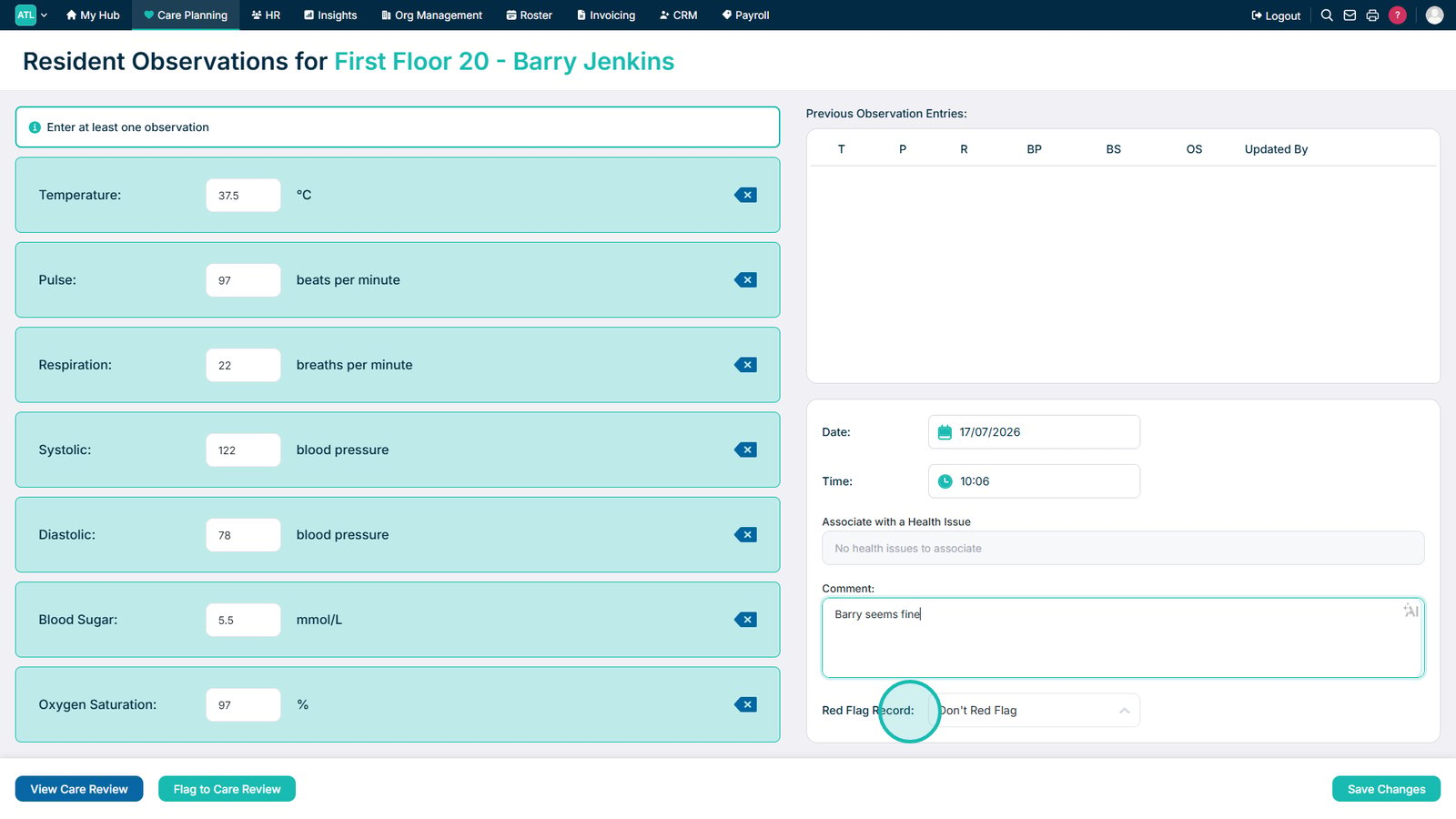
Apply a red flag if the record requires attention.

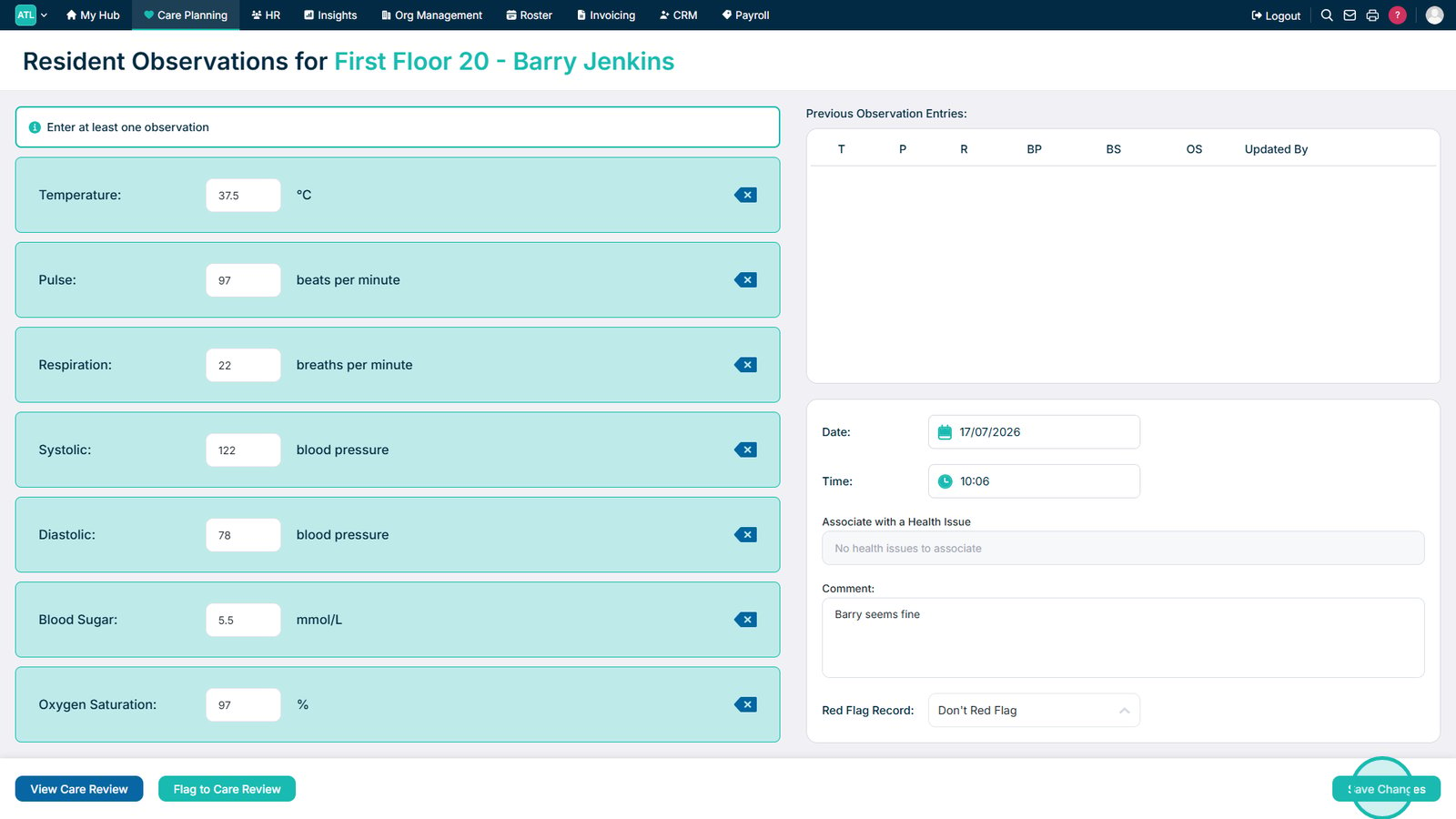
Select Save Changes to save the observation record.

Top tip
Ensure the observation values, date, and time accurately reflect when the observations were taken before saving the record.
Need more help?
Can't find what you're looking for? Our support team is here to help.
Contact SupportOr call us on