This guide explains how to record personal care provided for one or more service users
Takes 4 minutes
For: Care Staff
Updated: 17th July 2026
Introduction
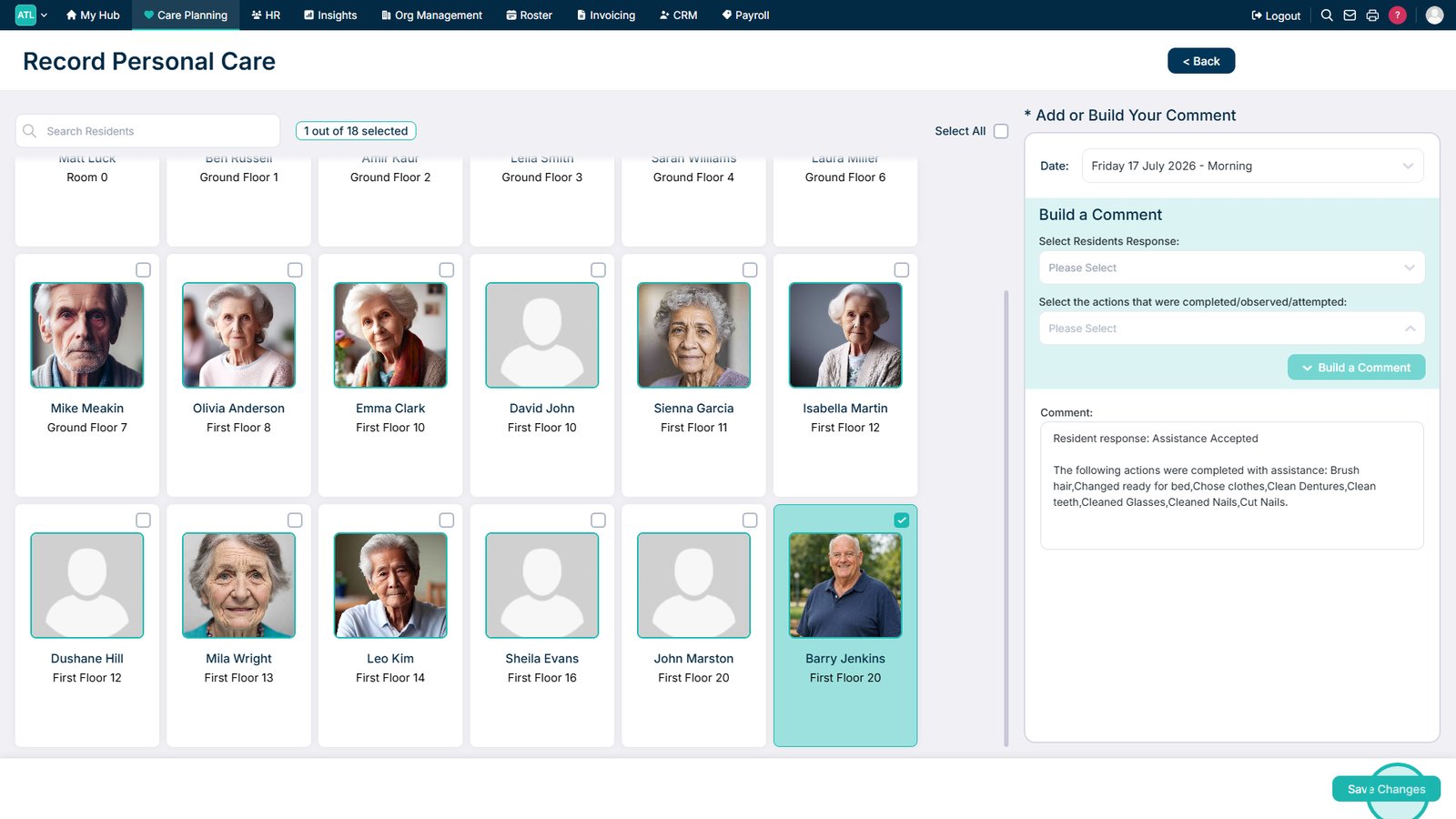
The Personal Care recording area allows you to record personal care provided for one, several, or all service users. You can record the service user's response, select the care actions completed, automatically generate a comment, and add any additional notes before saving.
In this guide you'll learn how to:
Open the Personal Care recording area
Select one or more service users
Record the service user's response
Record the completed care actions
Save the completed record
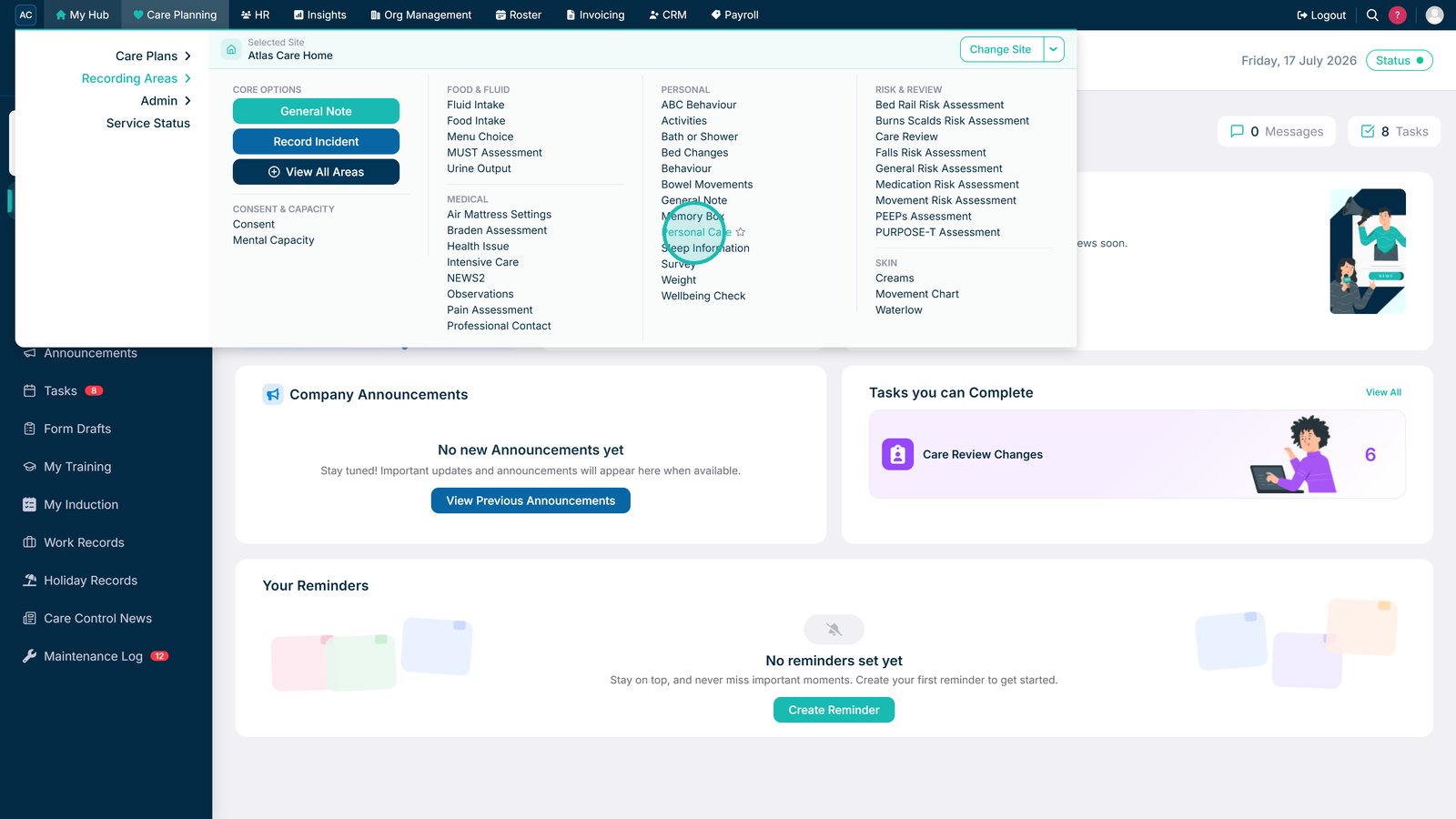
Select Personal Care under Recording Areas in Care Planning.
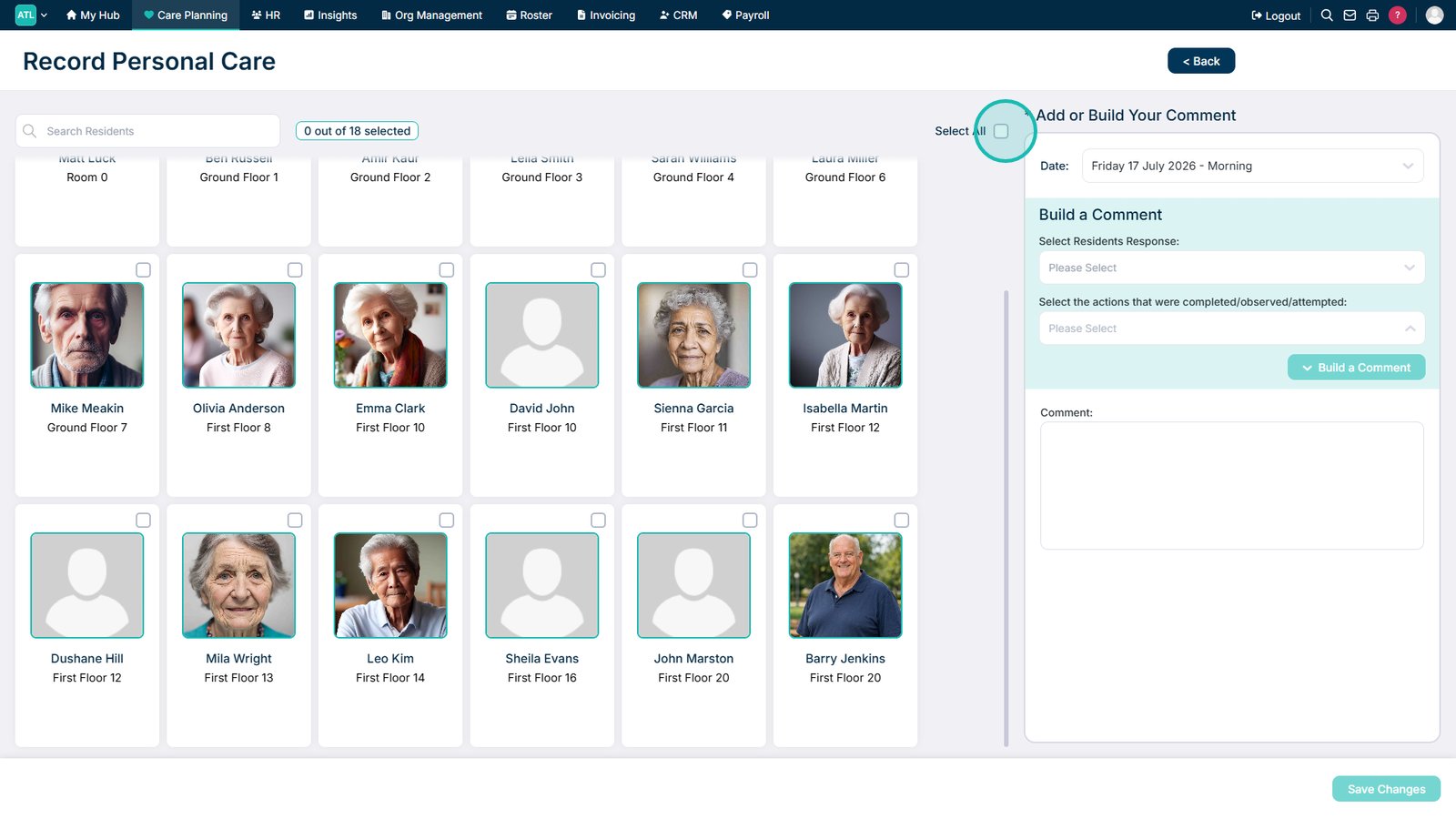
Select all service users if required.
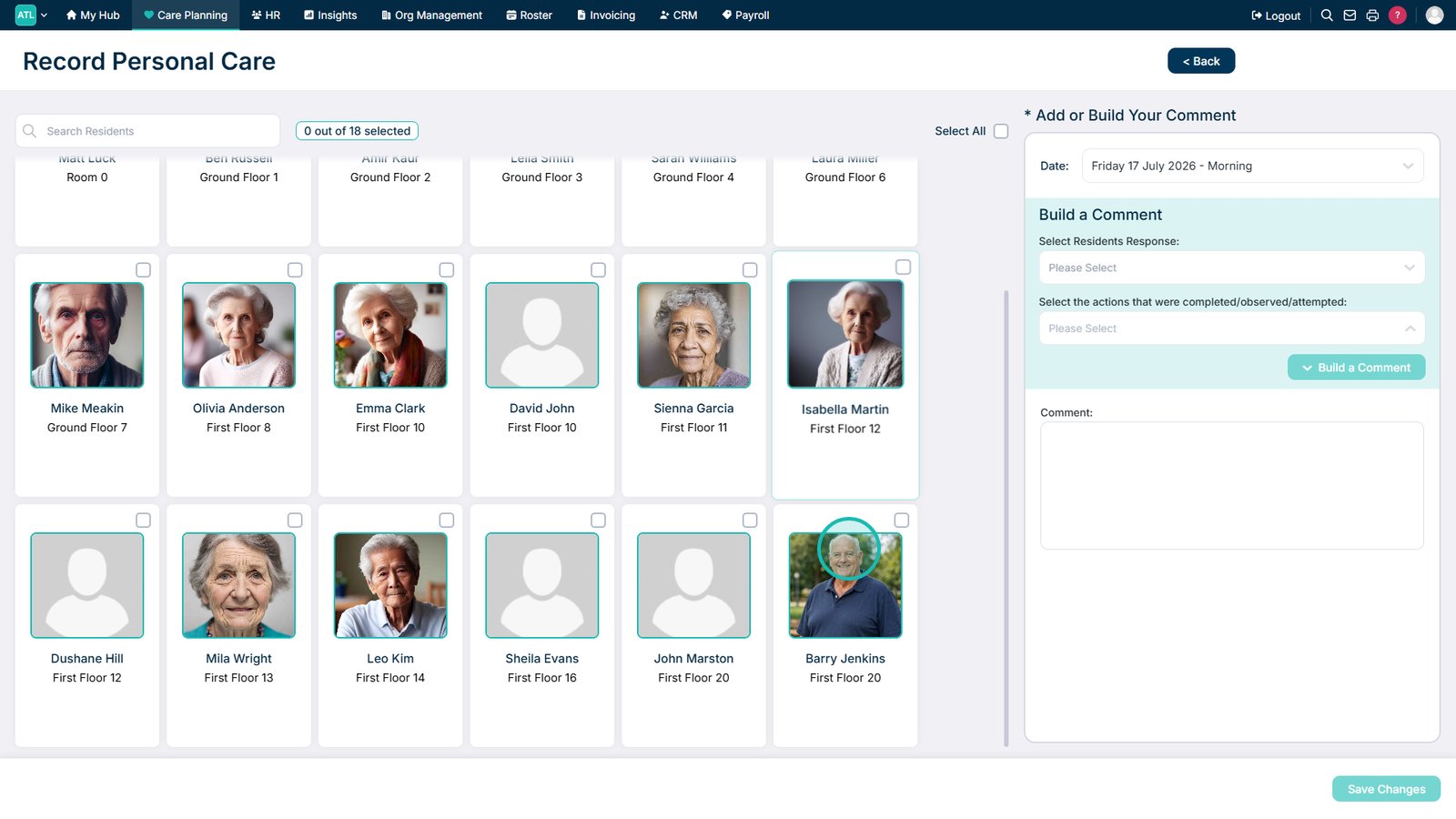
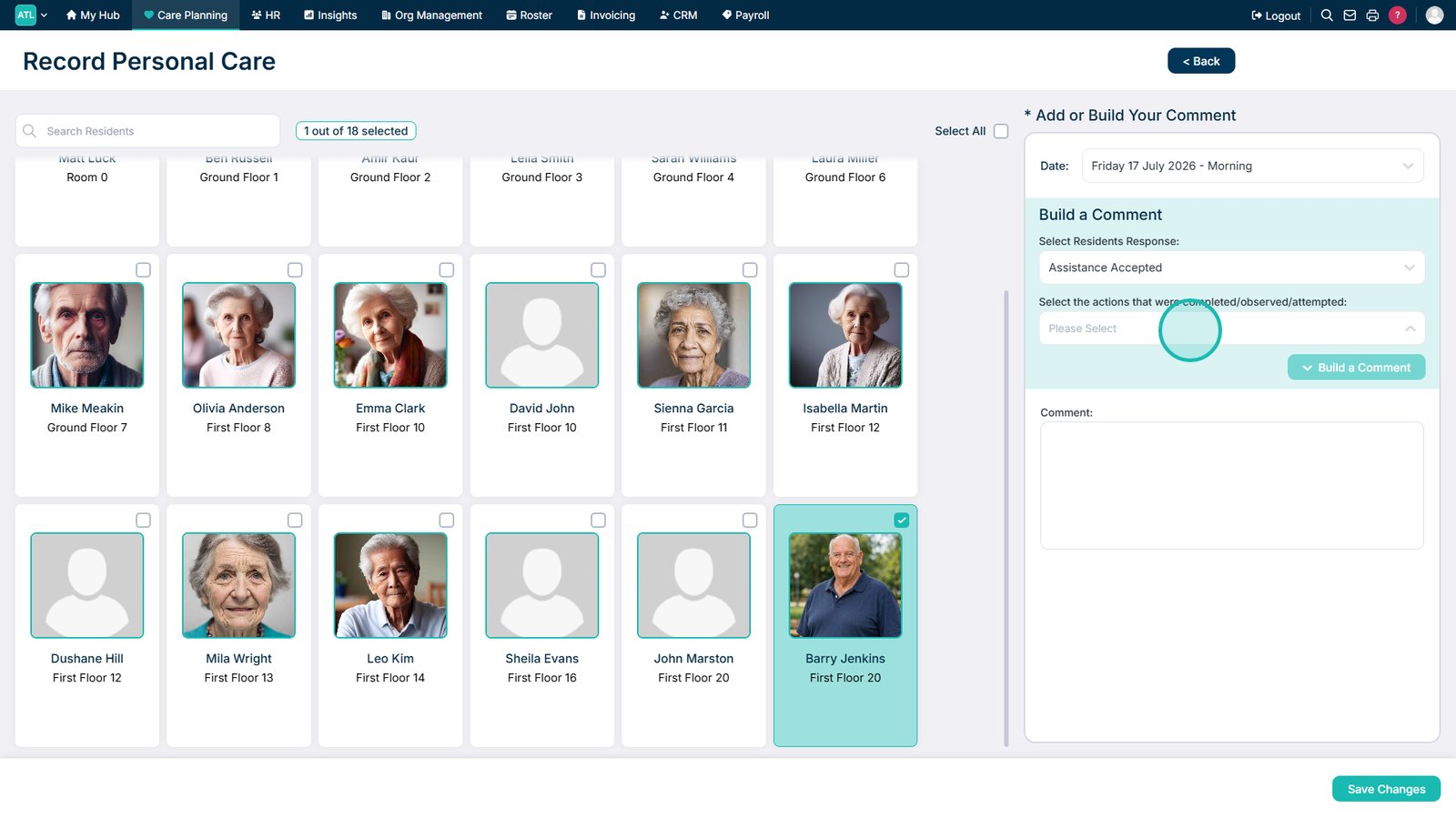
Alternatively, select individual service users from the list.
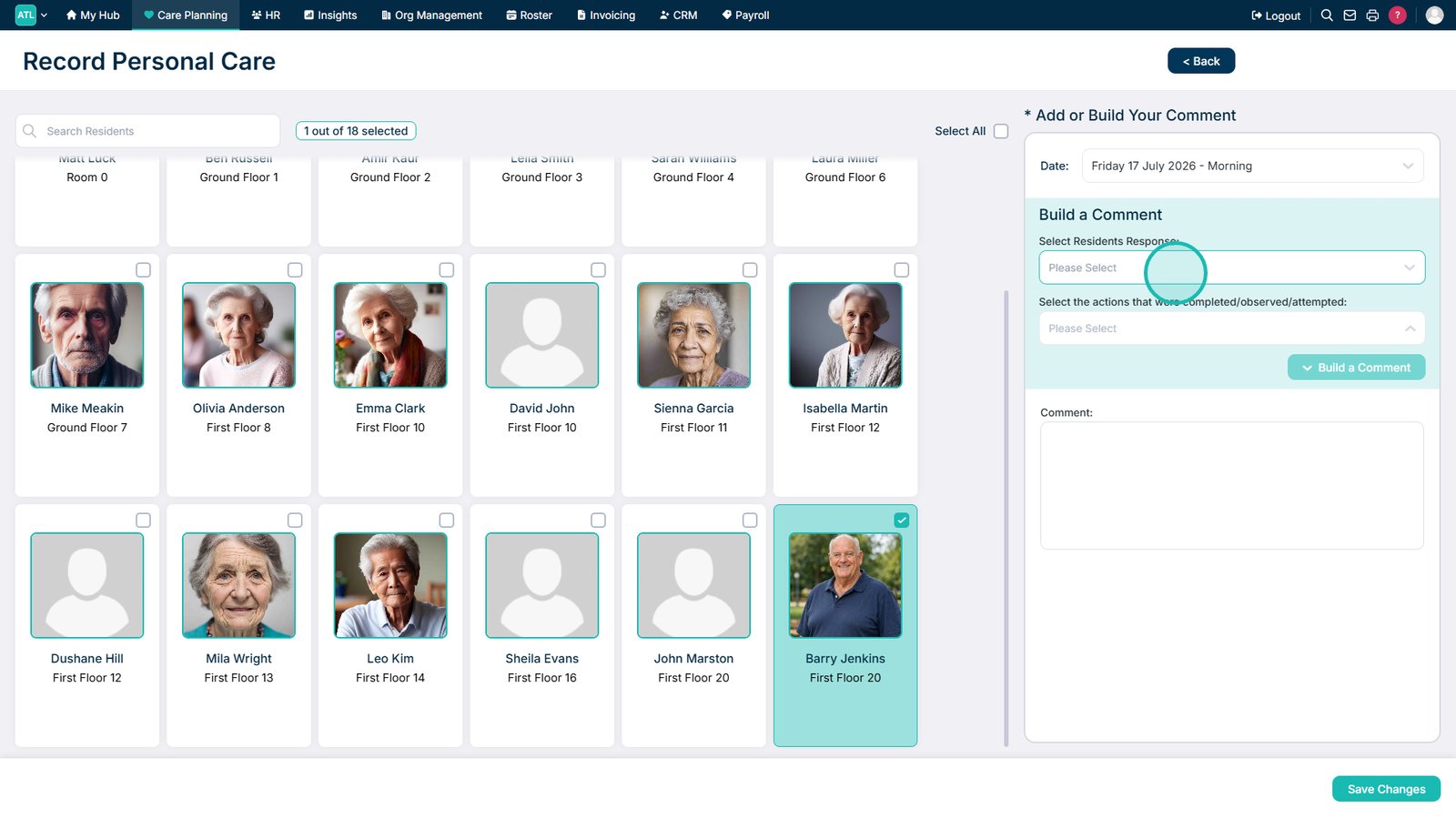
Select the service user's response from the drop-down list.
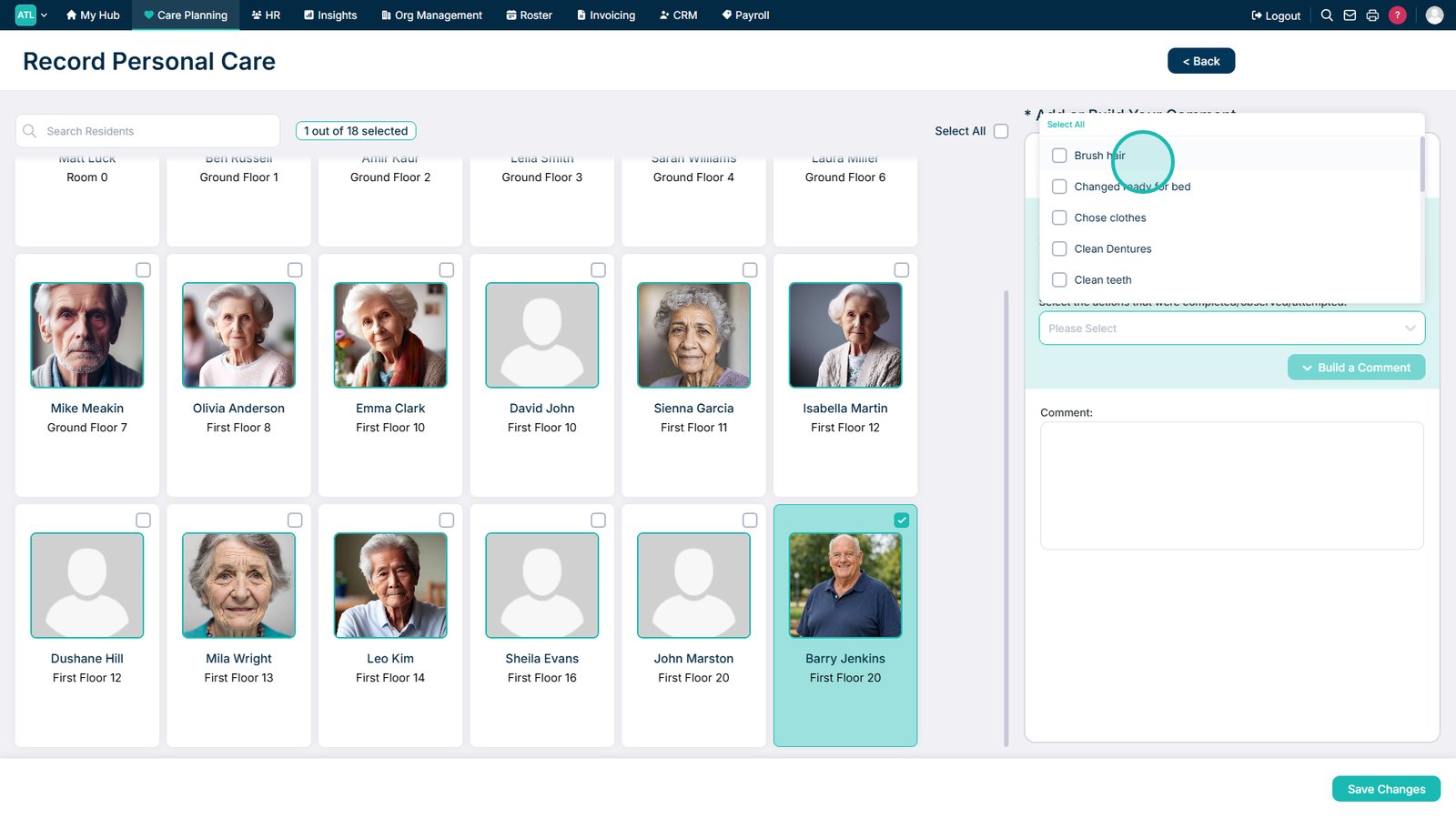
Open the Completed Actions drop-down list.
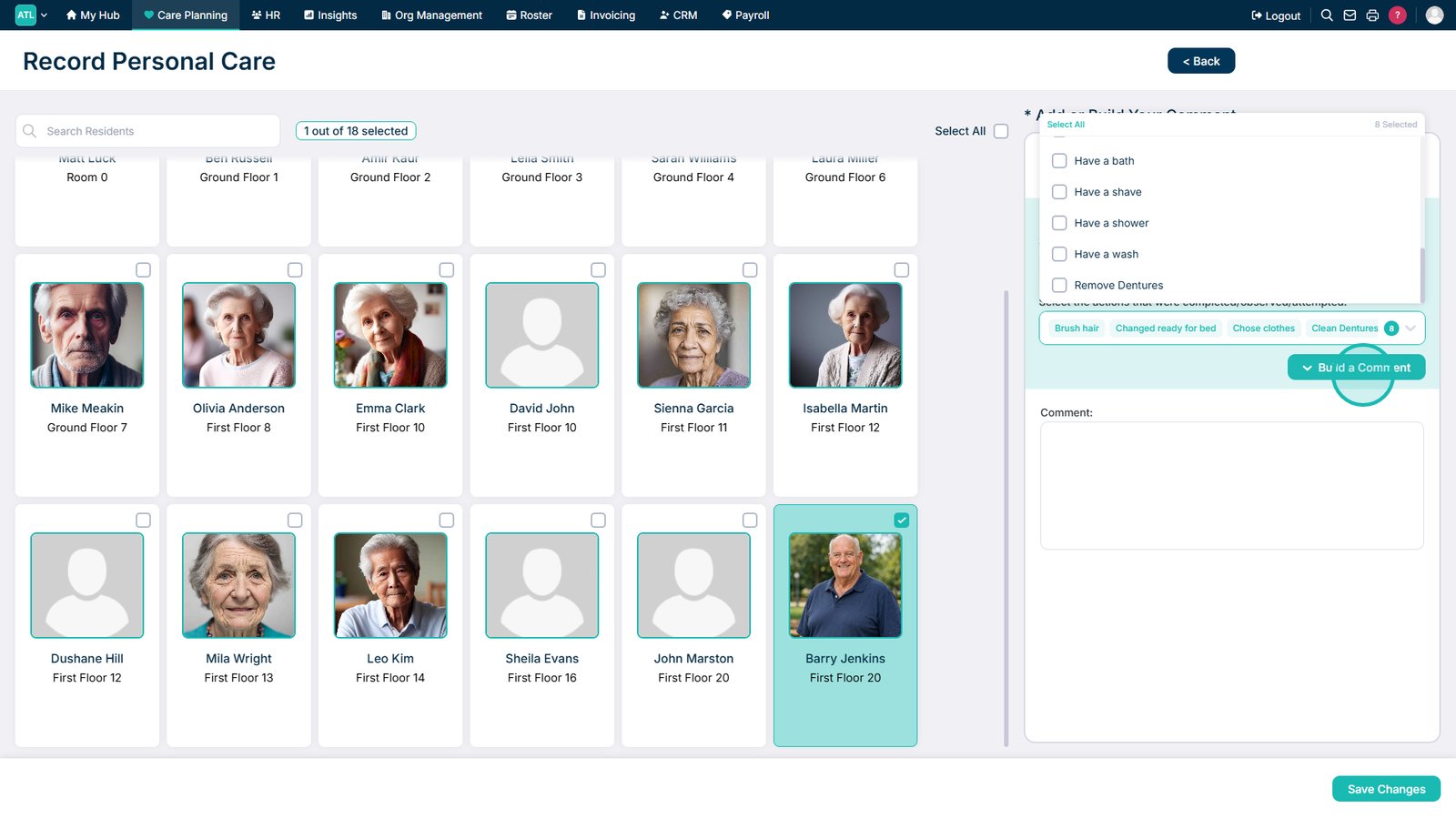
Select all completed care actions.
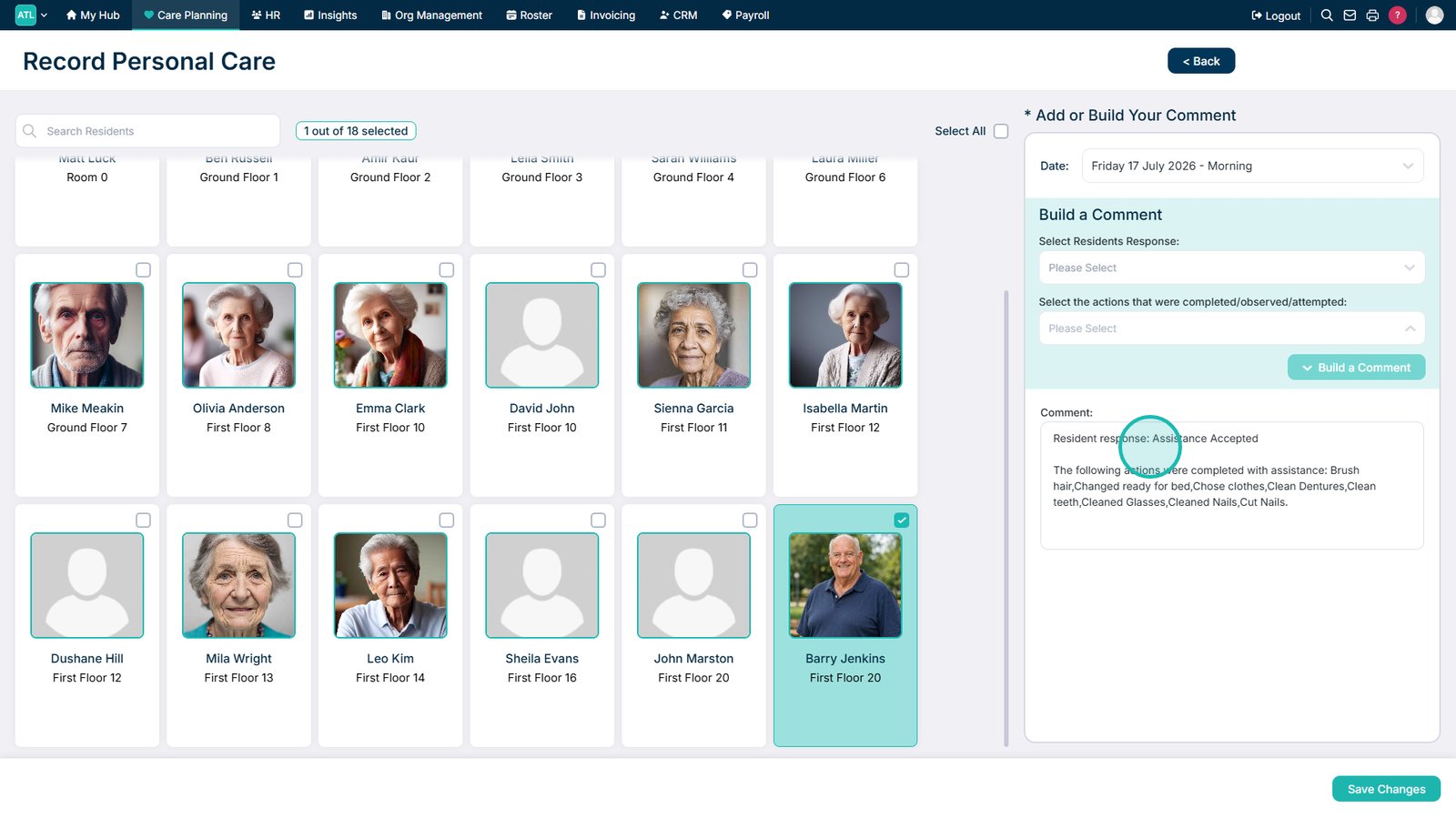
Select Build a Comment to automatically populate the comment field.
Add any additional information to the comment if required.
Select Save Changes to save the personal care record.
Top tip
Use Build a Comment to automatically populate the comment box with the selected care actions, then add any additional relevant information.