View Categories

How to Set Staff Reactivation Period

Learn how to control how long after leaving a staff member can be reactivated. Once the time period has passed, a new employment record must be created instead.

Takes 1 minute
For: Managers
Updated: 1st Sep 2026

Introduction

The Staff Reactivation Time Period setting allows you to control how long the Reactivate Staff option remains available for a staff member after they leave your organisation.

When enabled, you can set a reactivation period of up to 365 days. The Reactivate Staff option will only be available within this period.

If a returning staff member is outside the reactivation period, a New Employment should be created instead. This requires their new start date, category, role and contracted hours to be entered, helping ensure their new period of employment is recorded correctly.

If the setting is not enabled, staff reactivation will continue to work as normal without a restricted time period.

In this guide you'll learn how to:

  • Access the Staff Files settings.
  • Enable the staff reactivation time period.
  • Choose how many days staff can be reactivated for.

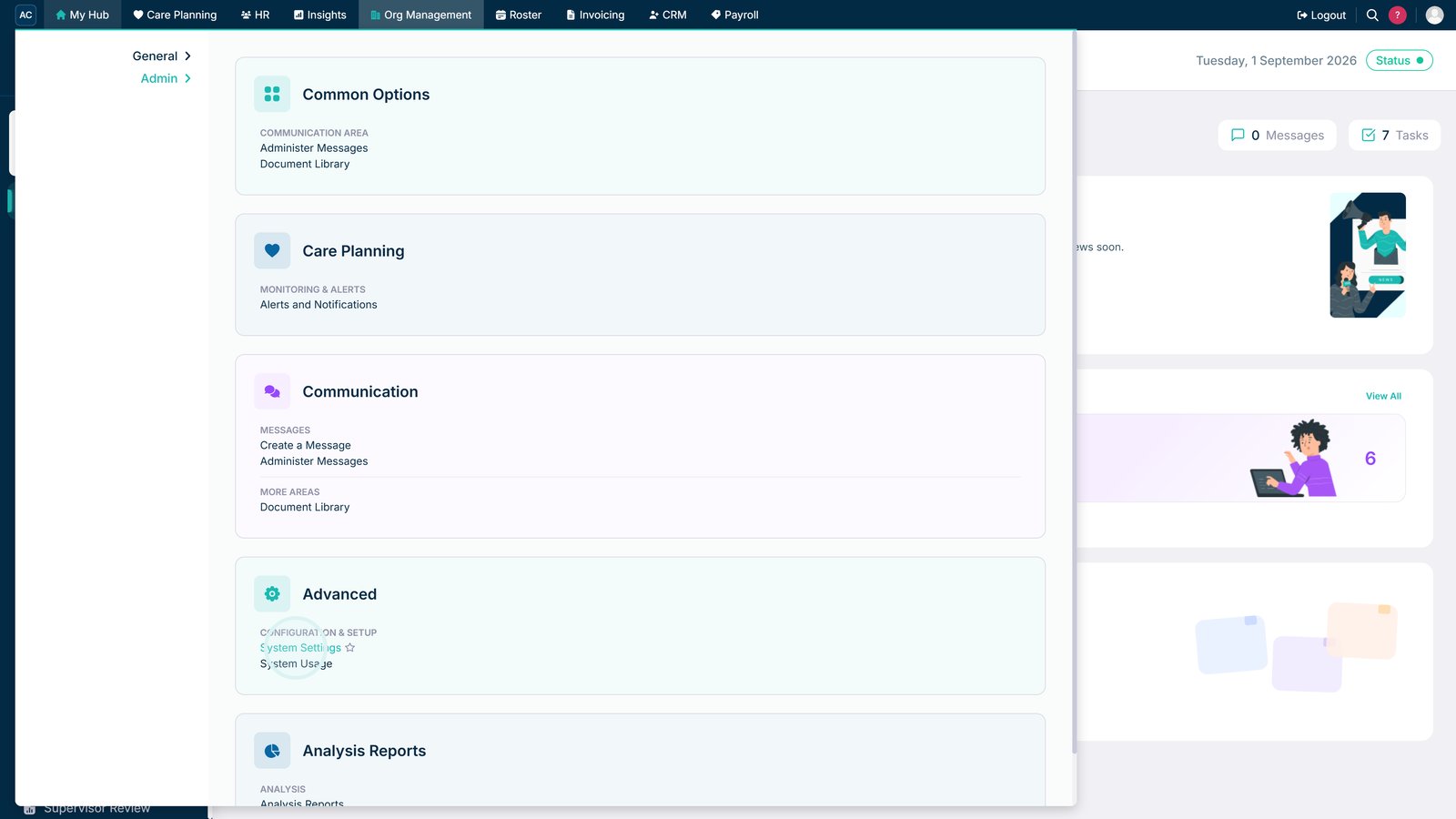
Open System Settings within Org Management.
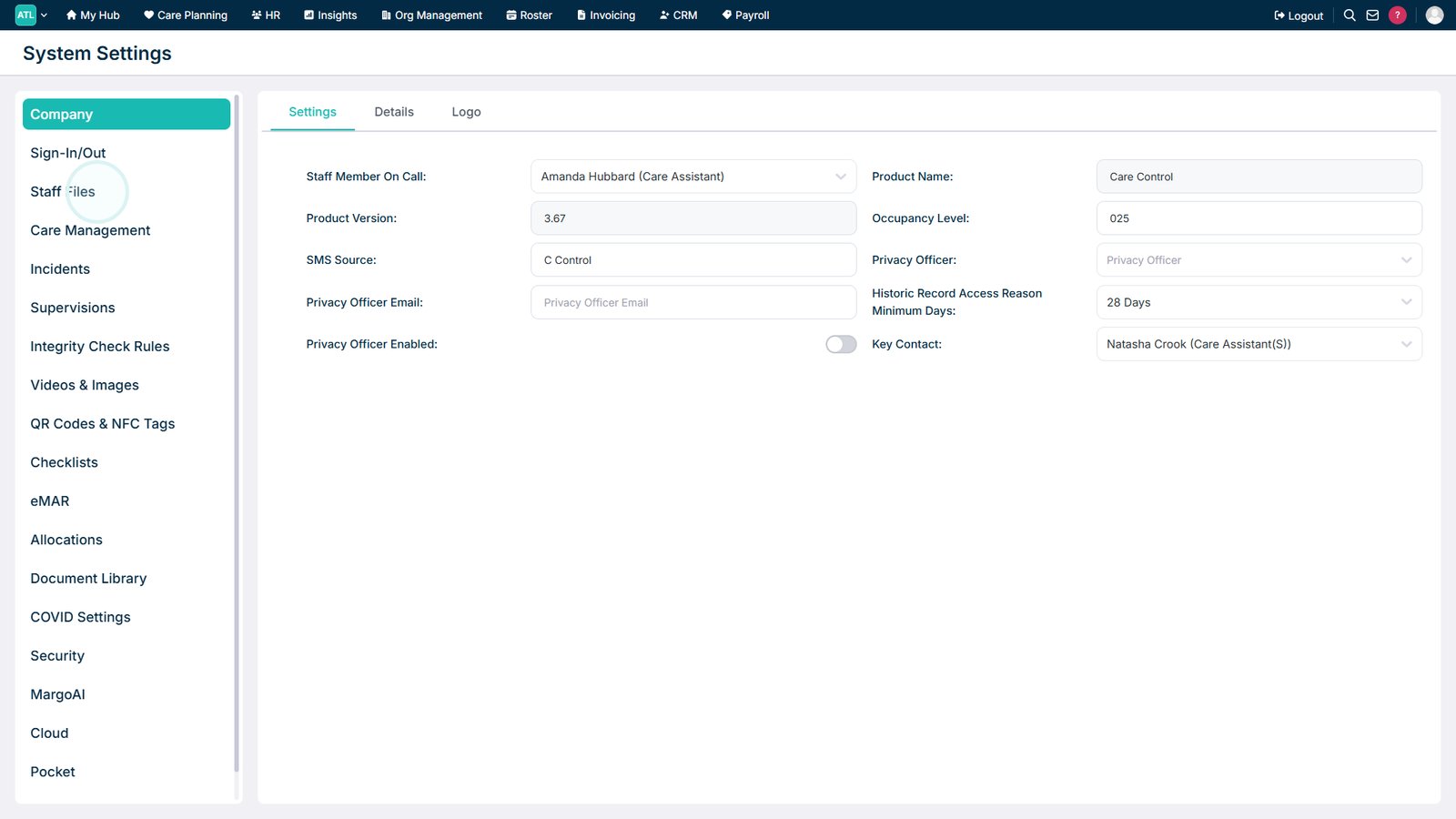
Open the Staff Files section.
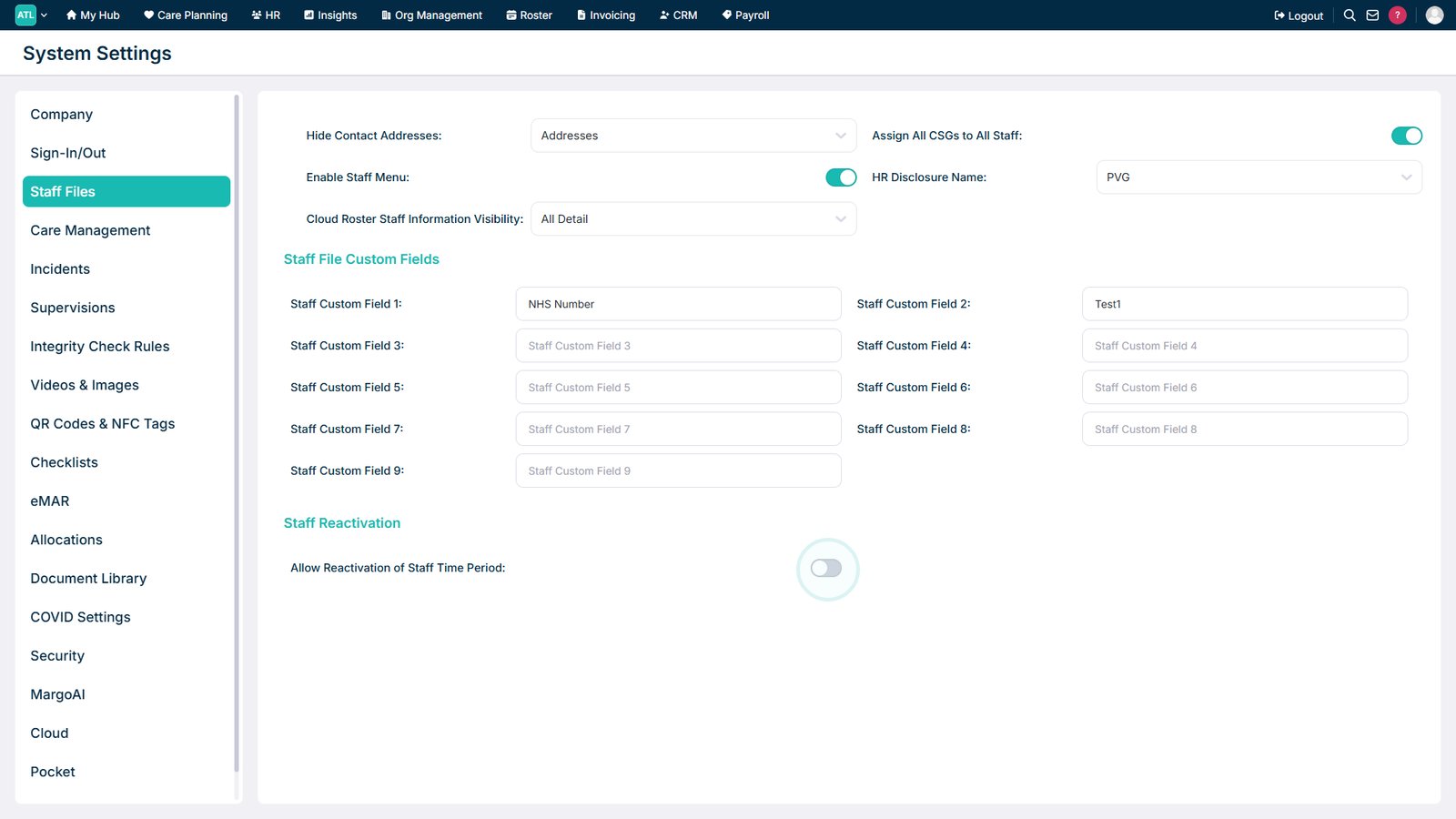
Enable Allow Reactivation of Staff Time Period.
Enter the number of days that the Reactivate Staff option should remain available.
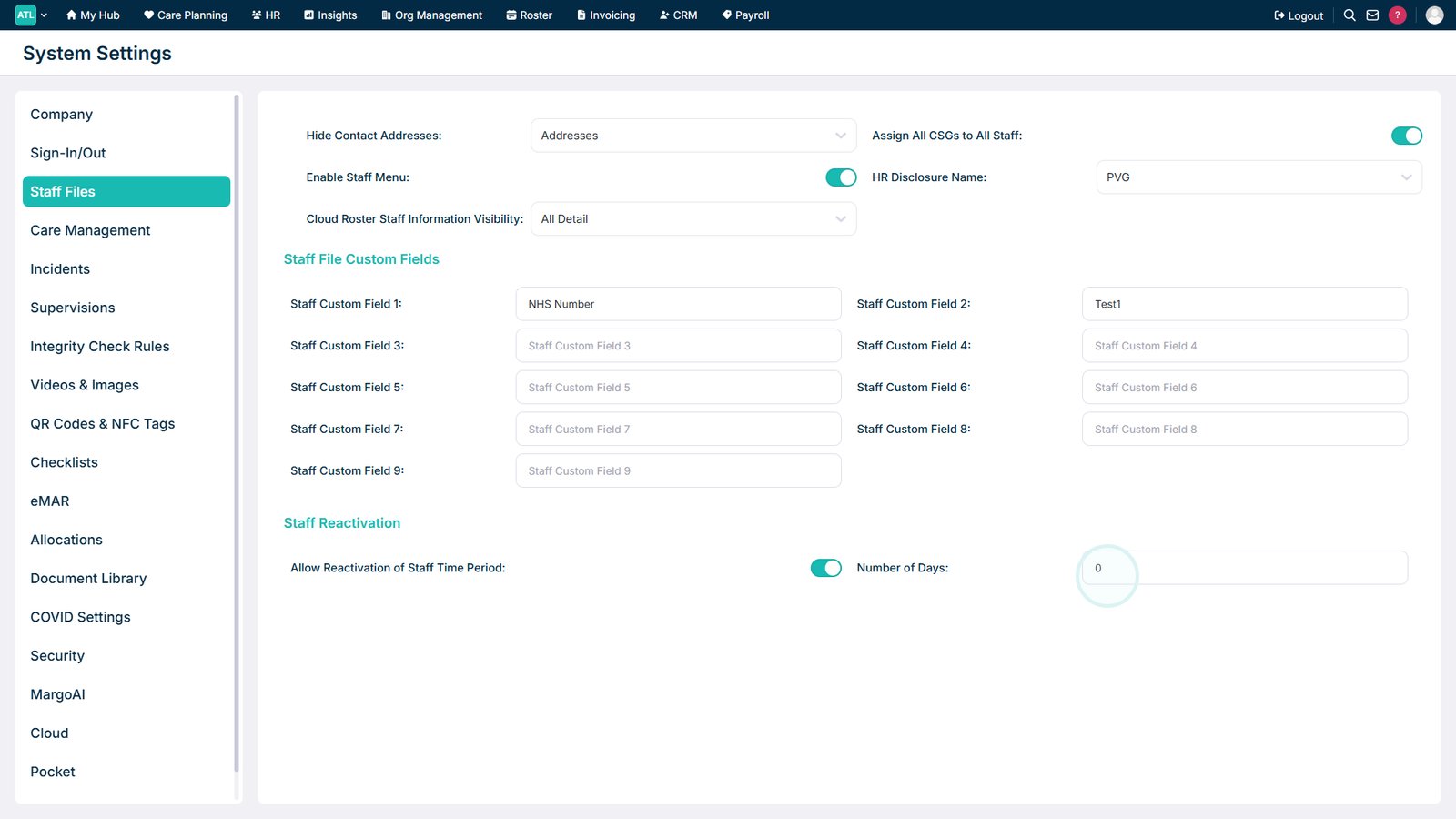
You can enter a value of up to 365 days. Staff can be reactivated within the period you set.

Top tip

Consider how your organisation handles returning staff before setting the reactivation period. You can set the period to a maximum of 365 days.

Was this guide helpful?

Need more help?

Can't find what you're looking for? Our support team is here to help.

Contact Support

Or call us on

On this page