⚠️ System update: We are aware of an issue affecting certain areas and user roles within the system following the new Navigation Menu release. Please note that Super Admin access is working as expected. Our Development Team is actively investigating the issue and working to implement a resolution as quickly as possible. We appreciate your patience and understanding while we work to restore full functionality.

View Categories

How to Set Up Stock Audits

This guide demonstrates how you can set up a stock audit for eMAR. In order to use stock audits on CC eMAR, they need to be set up on CC Windows first.

1

In the Administration of Care Control Windows, navigate to the eMAR tool under the Advanced Stuff tab.

2

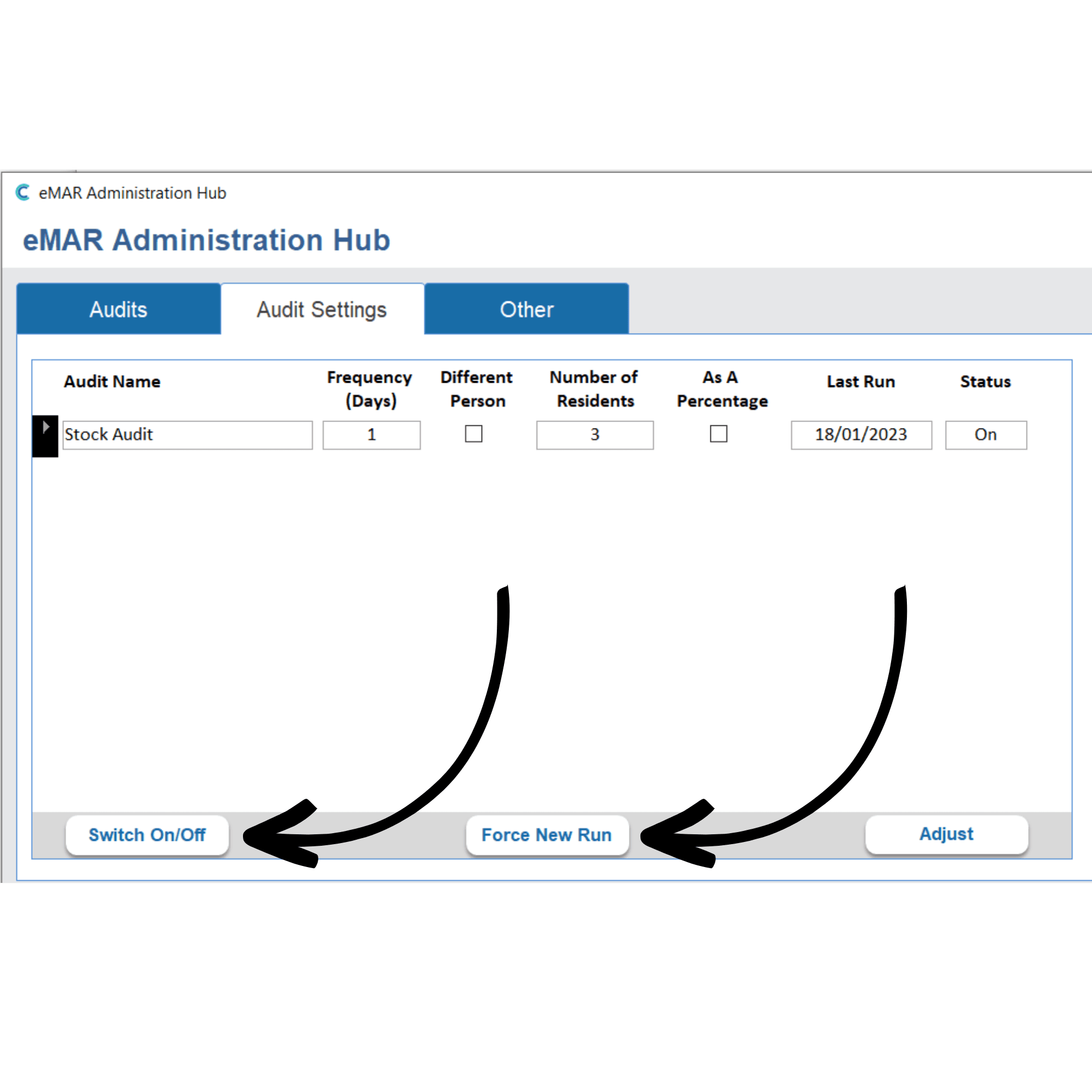
This will open a new window. Here, select Audit Settings from the 3 options at the top of the page. Next, select Adjust.

3

A small panel will open on the right-hand side of the screen, with some options for setting up your new audit:

  • Audit Name
  • Frequency (Days) – the repeating pattern of this audit
  • Different Person – tick to have a different person completing the audit than administrating.
  • Number of Residents – how many residents the audit will run for. This can also be a percentage of the total residents by selecting As A Percentage.


Next, select Update. The audit will now be on the list on the left-hand side of the window.

4

Select the audit by clicking on the box to the left of the audit name, and then press Switch On/Off. Finally, to start the audit immediately, press Force New Run.


This information will transfer onto the CC eMAR app. The audit will appear to be completed under the Medication Schedule. In order to look at audit data, navigate to the Administration of eMAR and select Audits.