
How to Set Up Care Control V-Book
Learn how to generate a One-Time Code in Care Control Cloud and use it to register your device for Care Control V-Book.
Open One Time Codes in Care Control Cloud
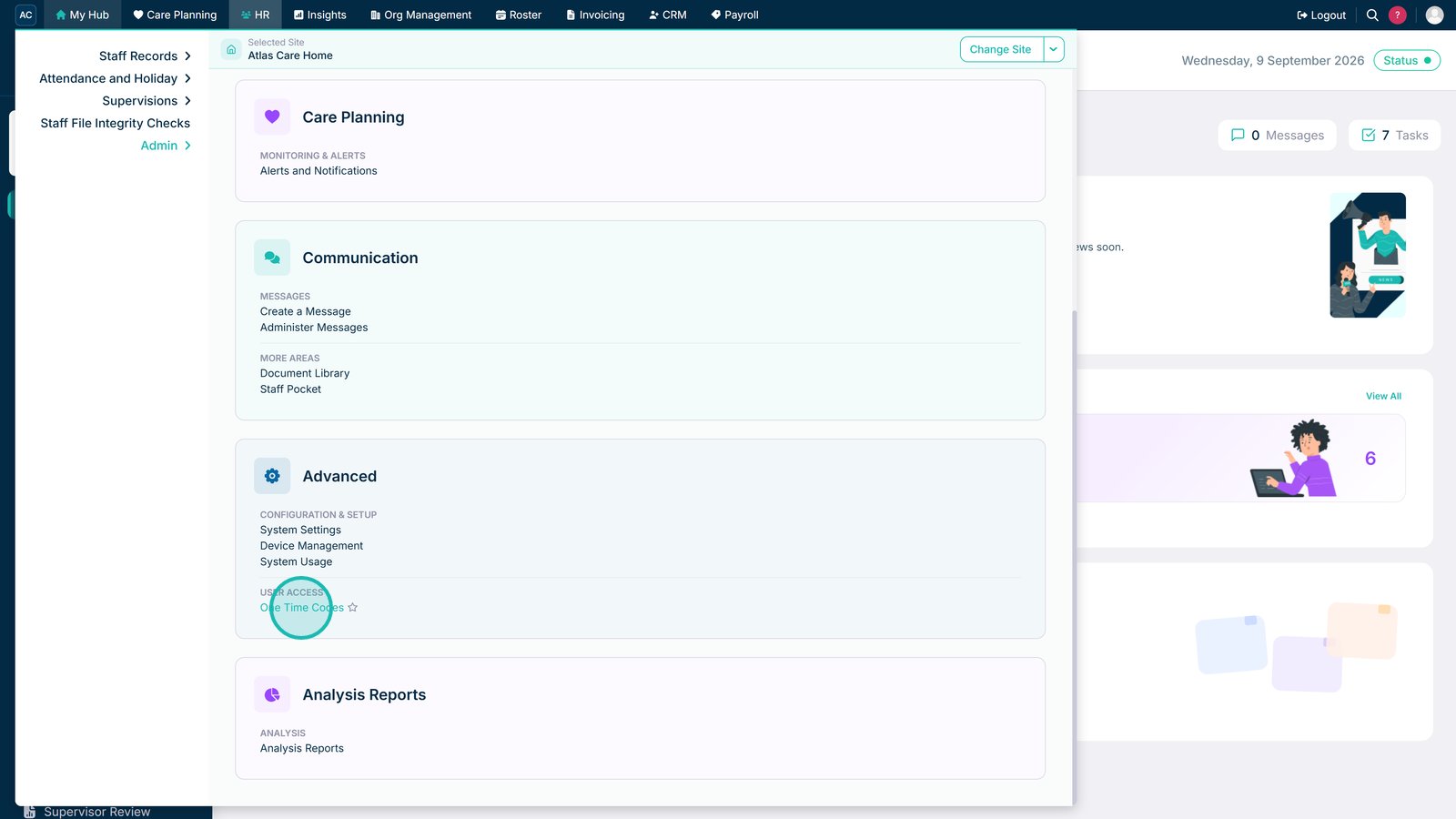
In Care Control Cloud, navigate to HR and open the Advanced section.
Select One Time Codes to begin generating a code for device registration.
Set the Code Expiry Date and Time
Choose an expiry date for the One-Time Code.

Next, select the expiry time. Make sure the code will remain valid until the device registration has been completed.

Select the Staff Member
Find and select the staff member who needs to receive the One-Time Code.

Add the Selected Staff Member
Add the selected staff member to the list of recipients for the One-Time Code.

Generate and Send the One-Time Code
Once you've selected the recipient and configured the expiry settings, generate and send the One-Time Code.
The staff member can now use this code to register their V-Book device.

Enter Your One-Time Code in V-Book
Open Care Control V-Book on the device you want to register.
Enter the One-Time Code generated in Care Control Cloud into the field provided.

Enter a Device Name
Enter a device name that will help you easily identify the device in future.
Choose a recognisable name, such as the device's location or purpose.

Complete Device Registration
Once you've entered your One-Time Code and device name, select Next to complete the V-Book setup process.
Your device registration is now complete.
