View Categories

How to Use the Maintenance Log

This guide explains how to use the Maintenance Log to report, manage and track maintenance issues

Takes 5 minutes
For: Everyone
Updated: 24th June 2026

Introduction

The Maintenance Log allows you to record, monitor and resolve maintenance issues across your organisation. You can report new issues, update their progress, record completed work and export maintenance records when required.
In this guide you'll learn how to:

  • View new, open and closed maintenance issues
  • Create a new maintenance issue
  • Update issues as work progresses
  • Close or reopen completed issues
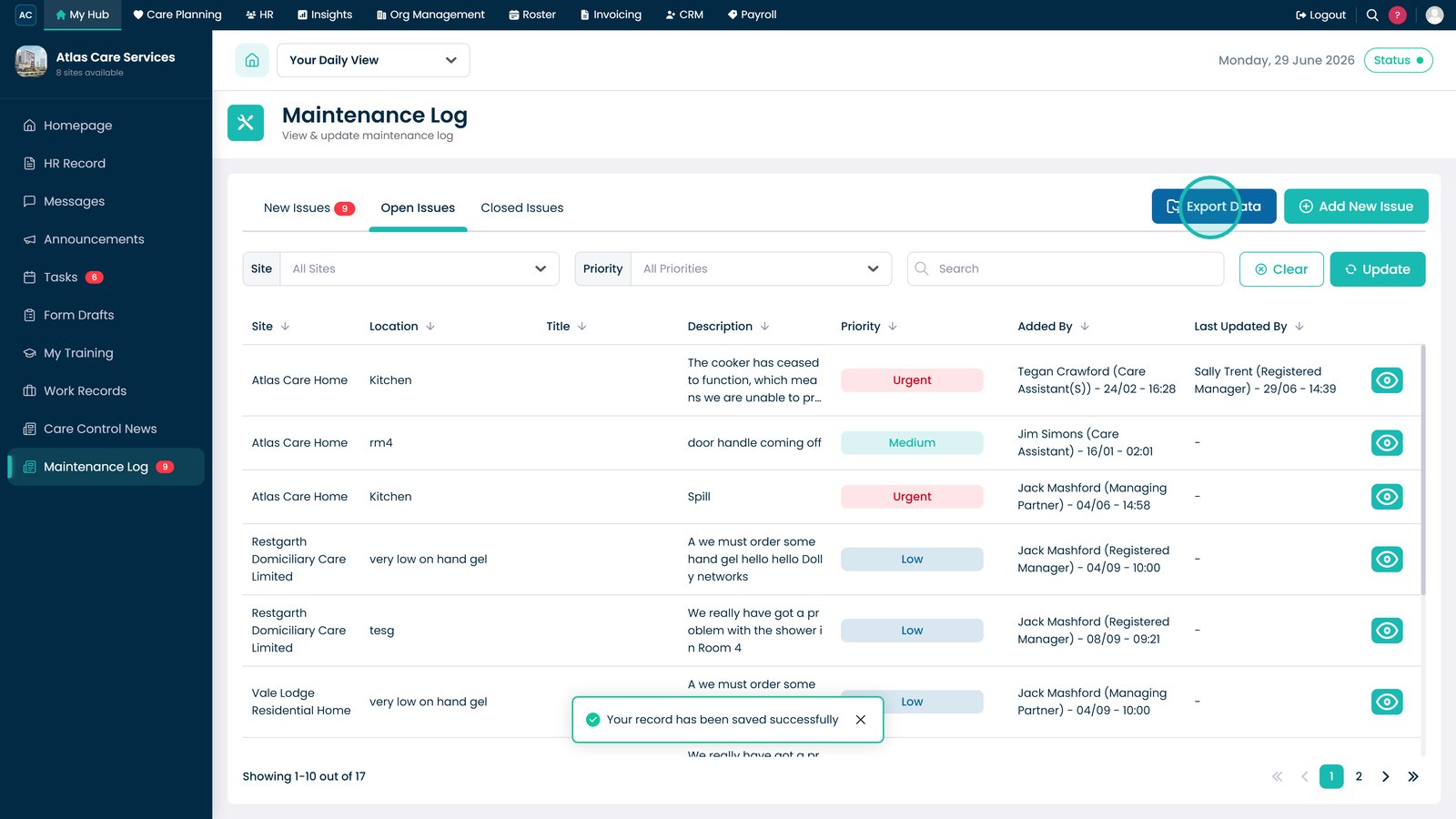
  • Export maintenance records

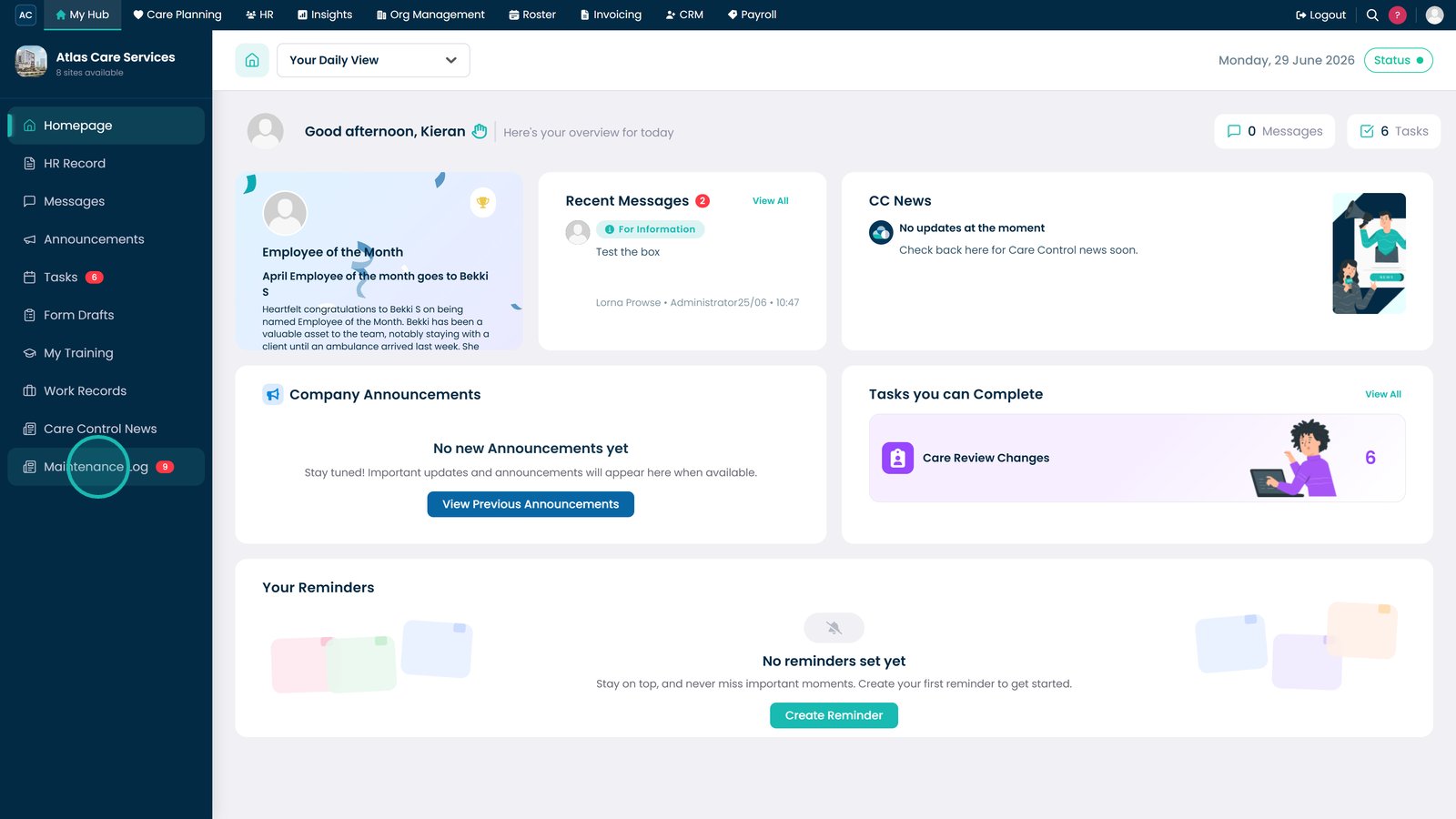
Open the Maintenance Log.

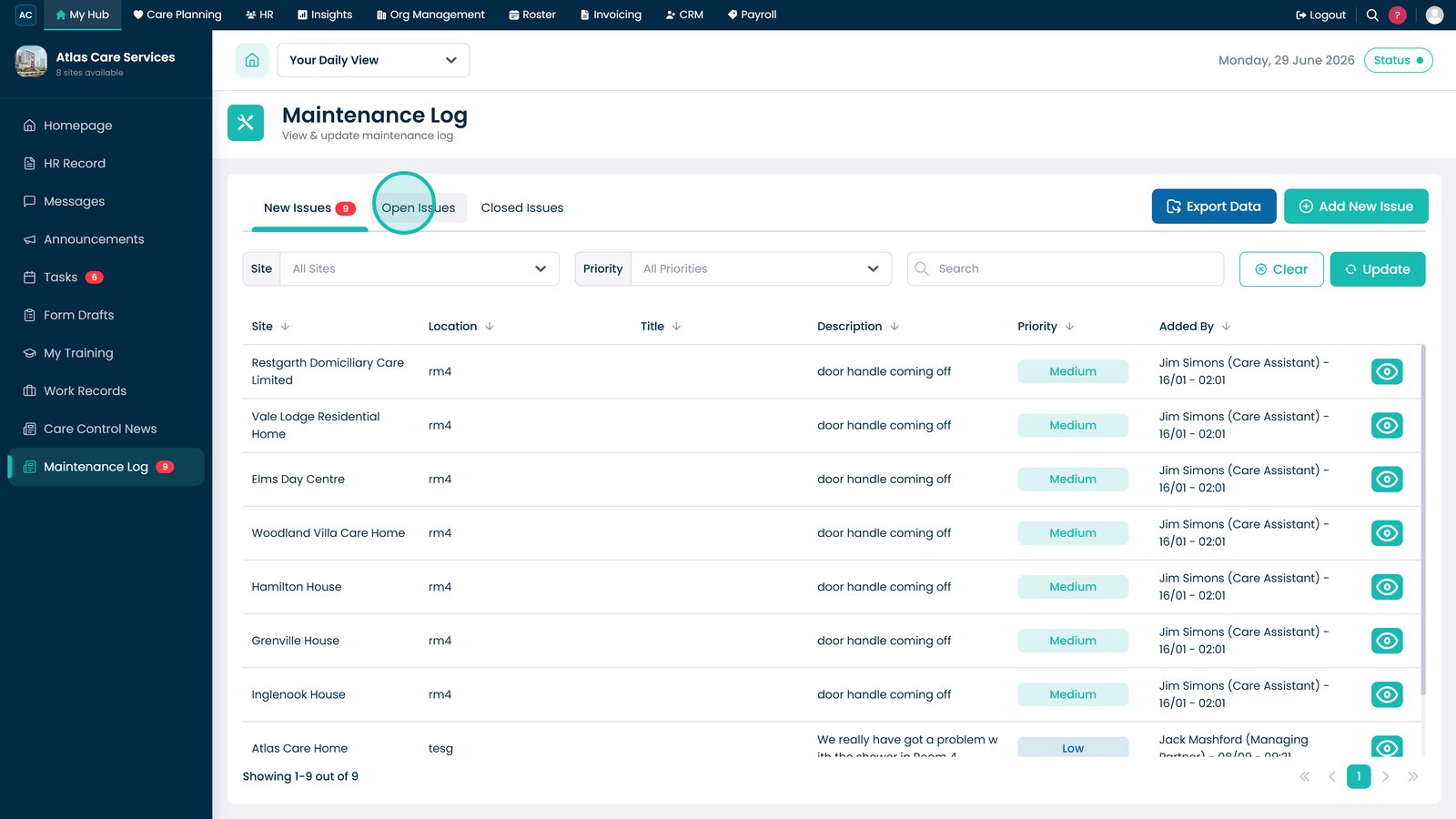
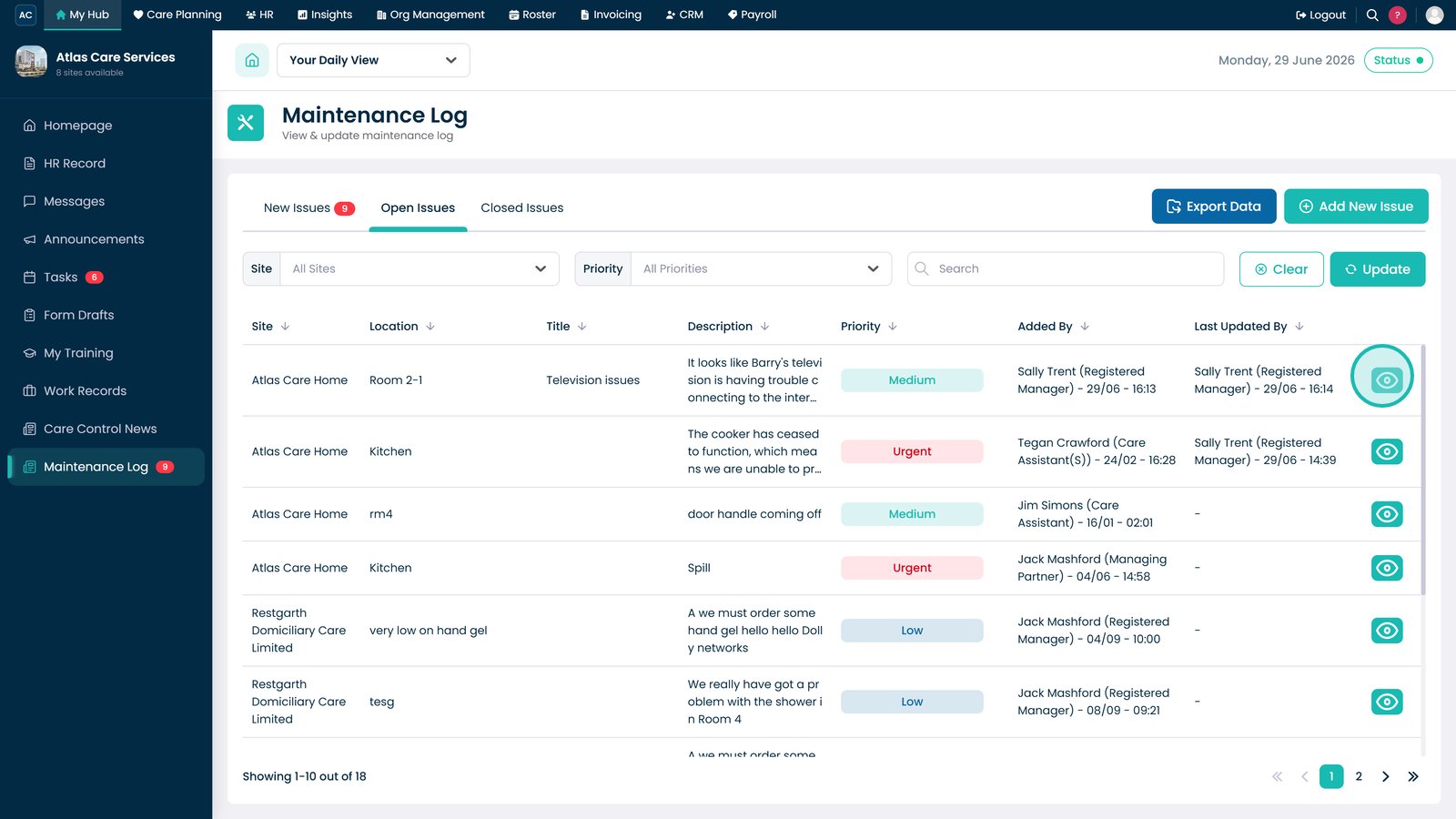
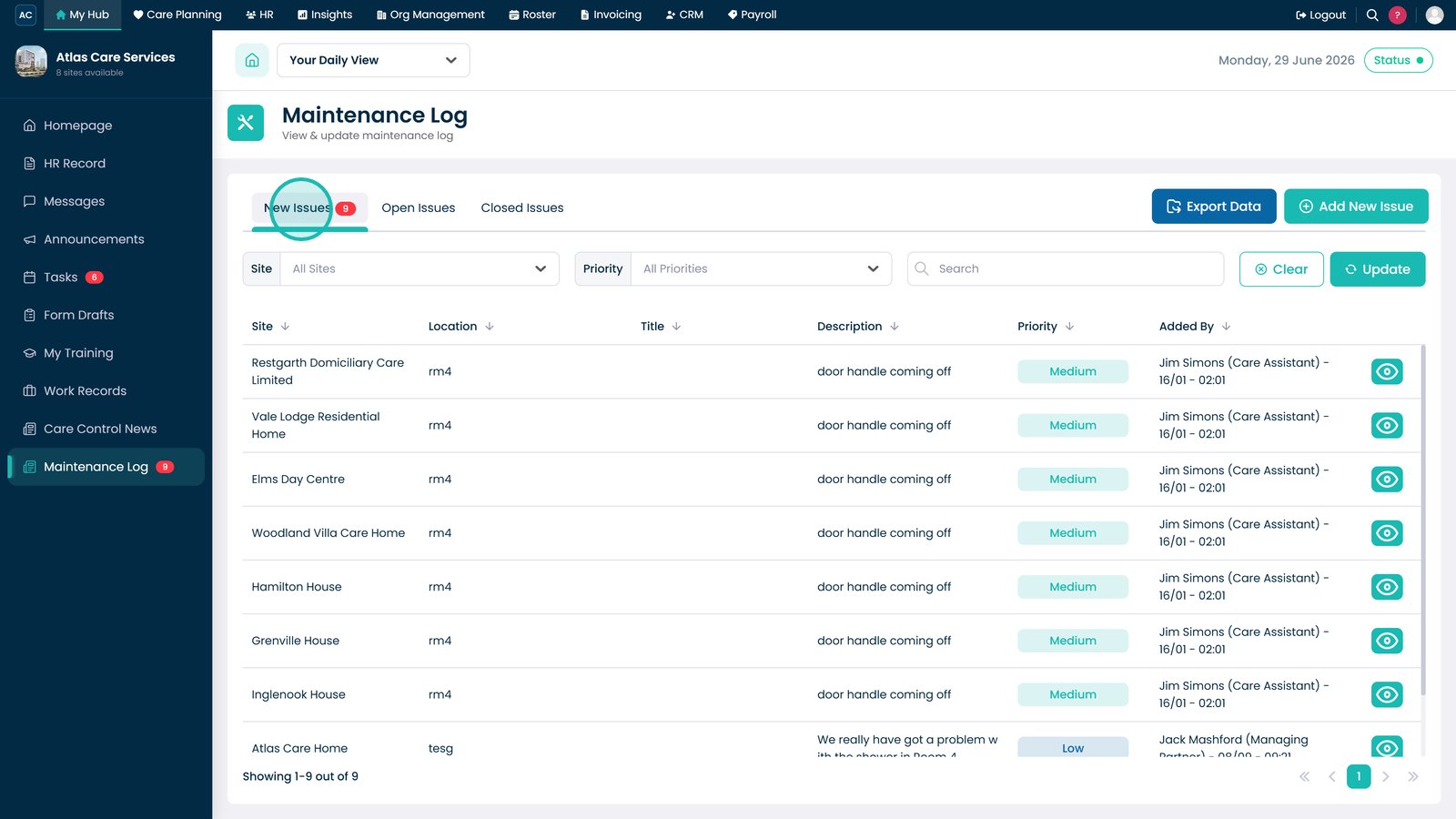
Select the New Issues tab to view recently reported maintenance issues.

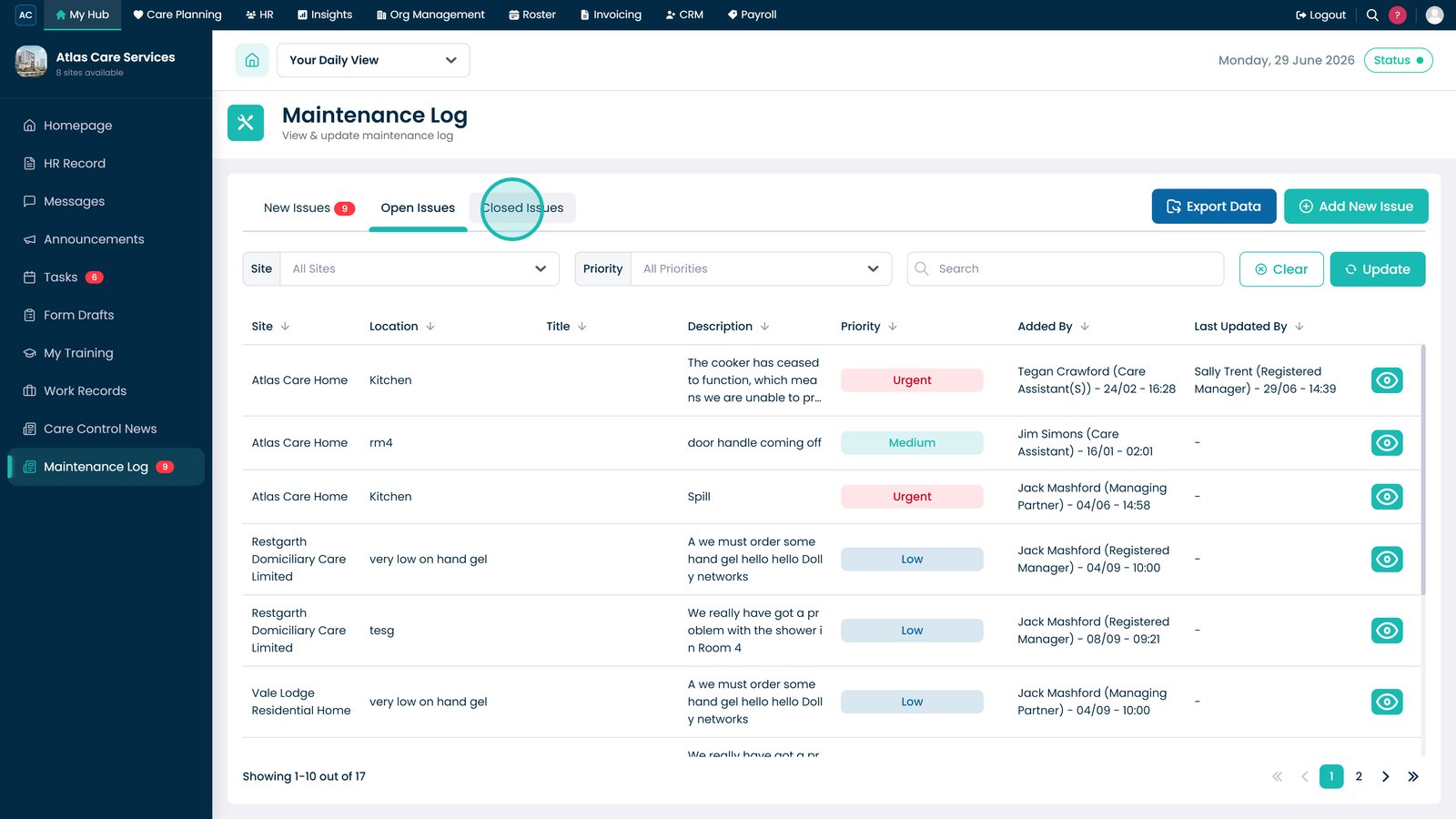
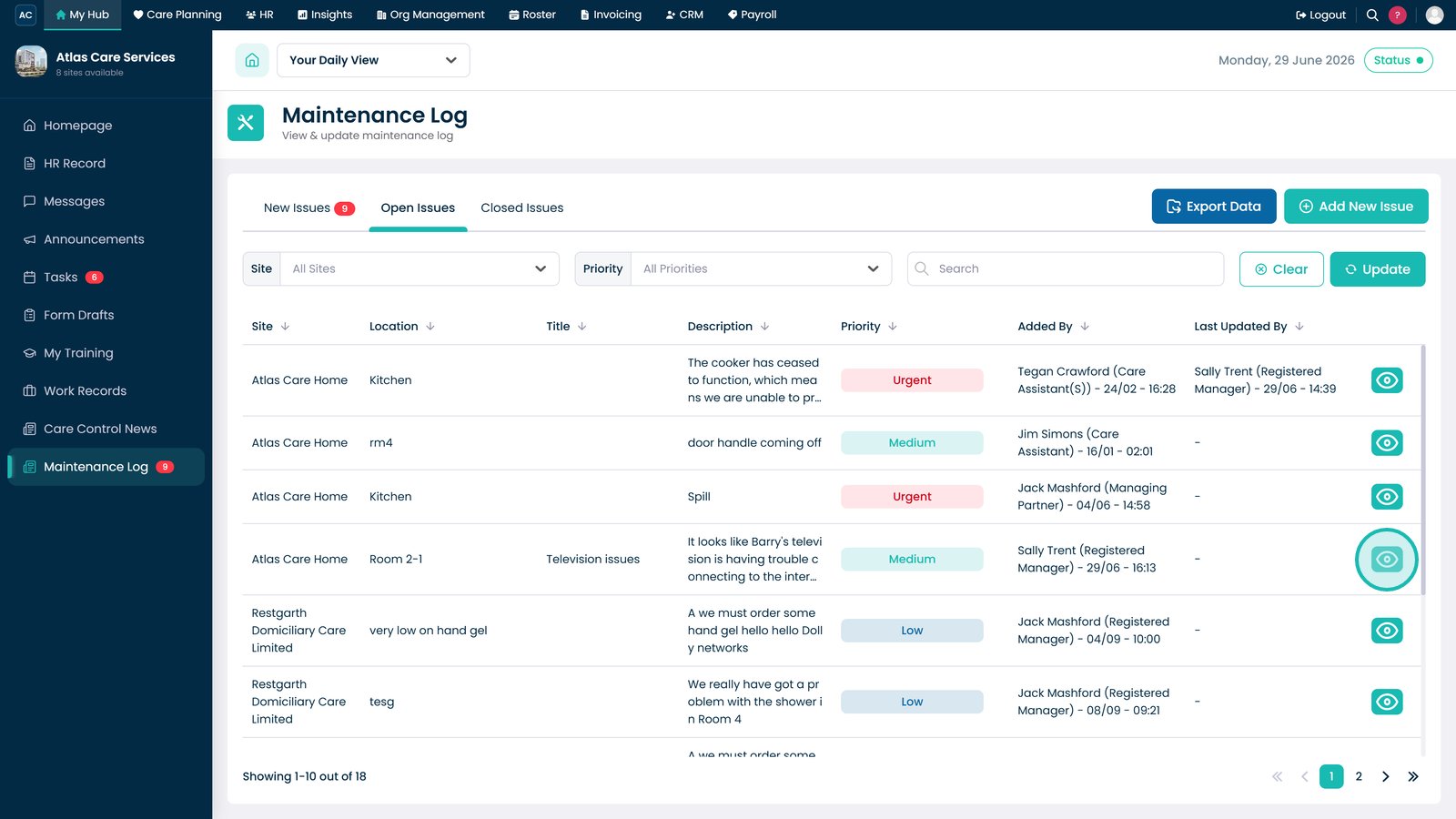
Open the Open Issues tab to review unresolved maintenance issues.

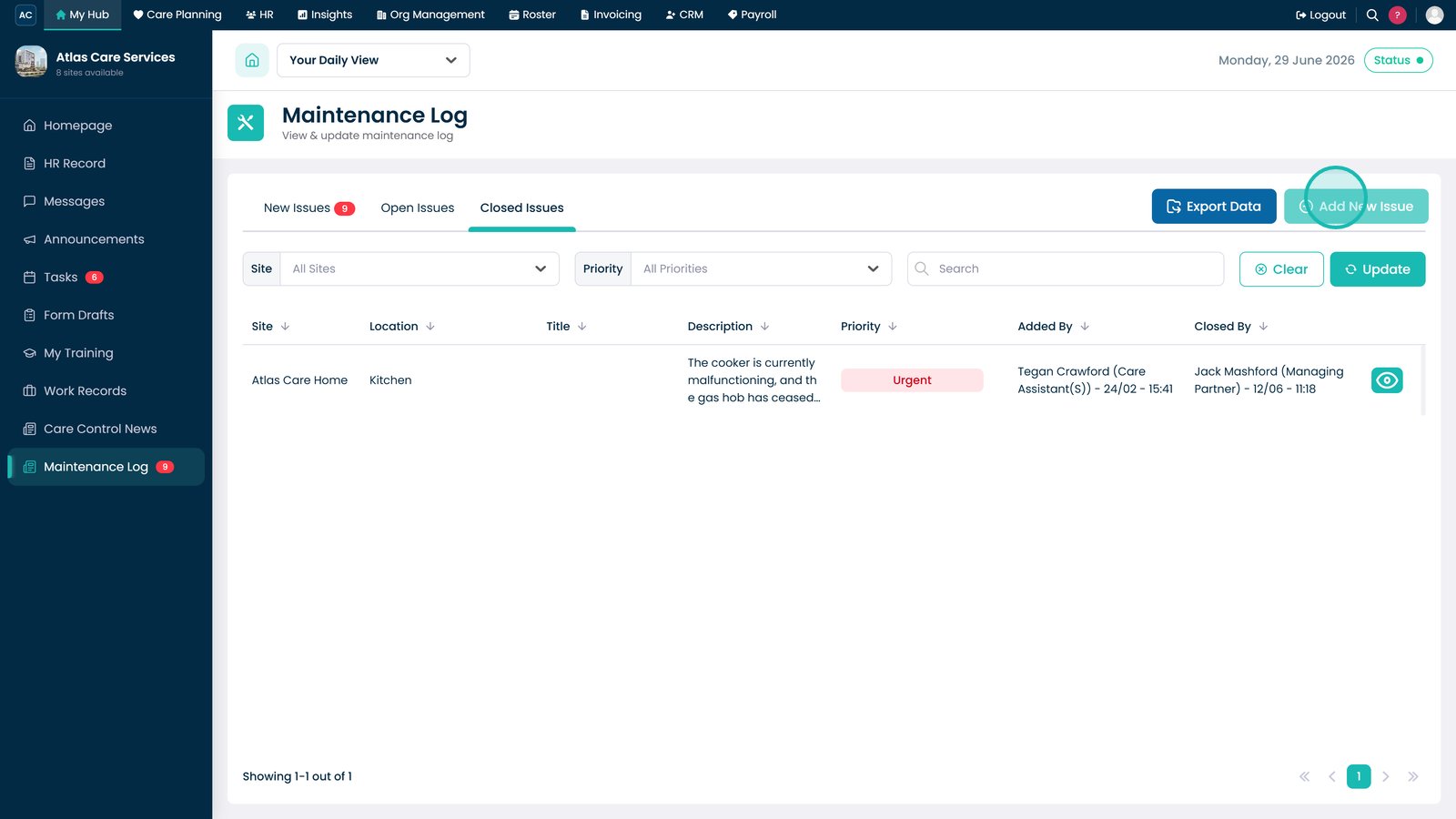
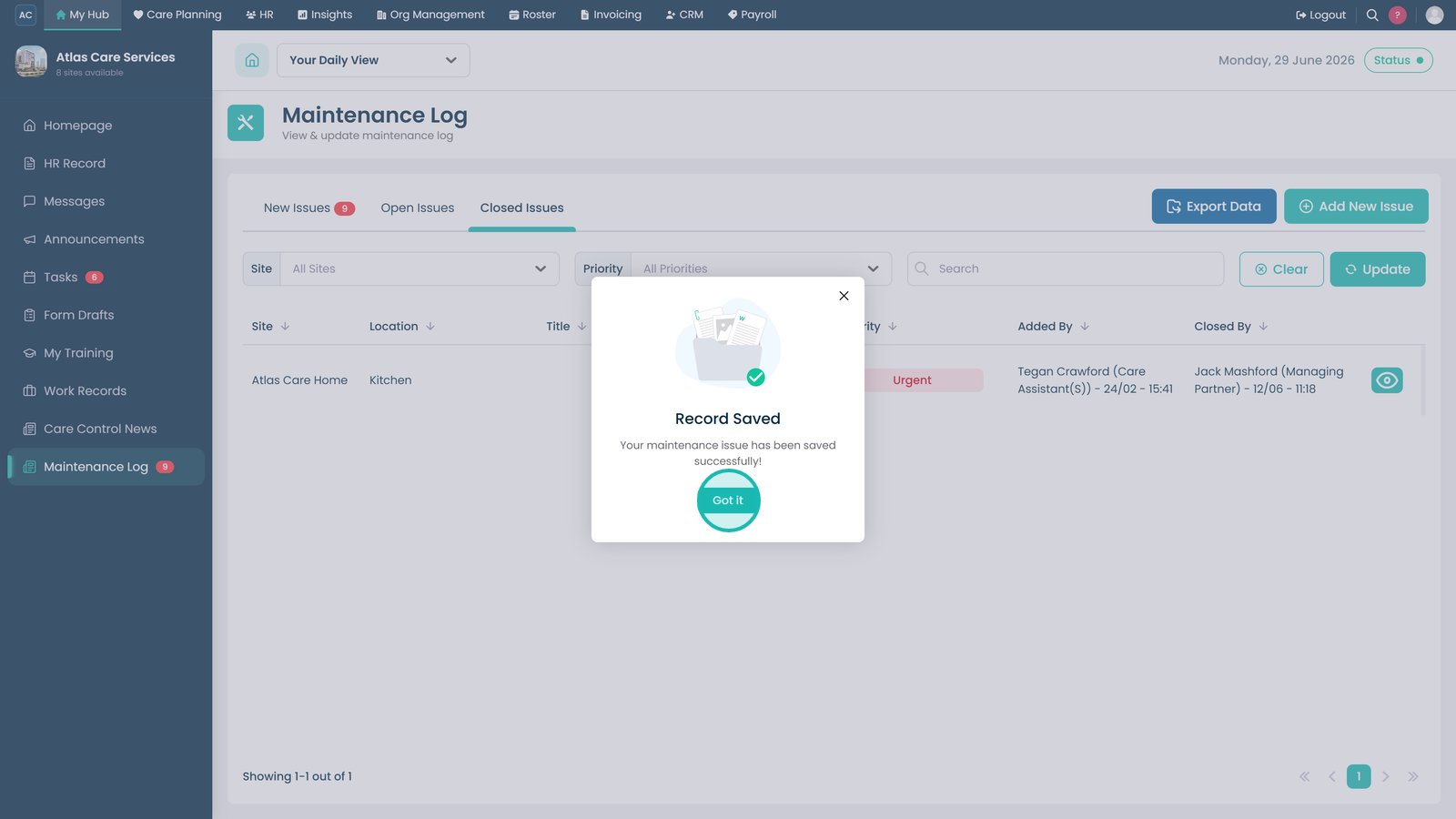
Select the Closed Issues tab to review completed maintenance issues.

Select Add New Issue.

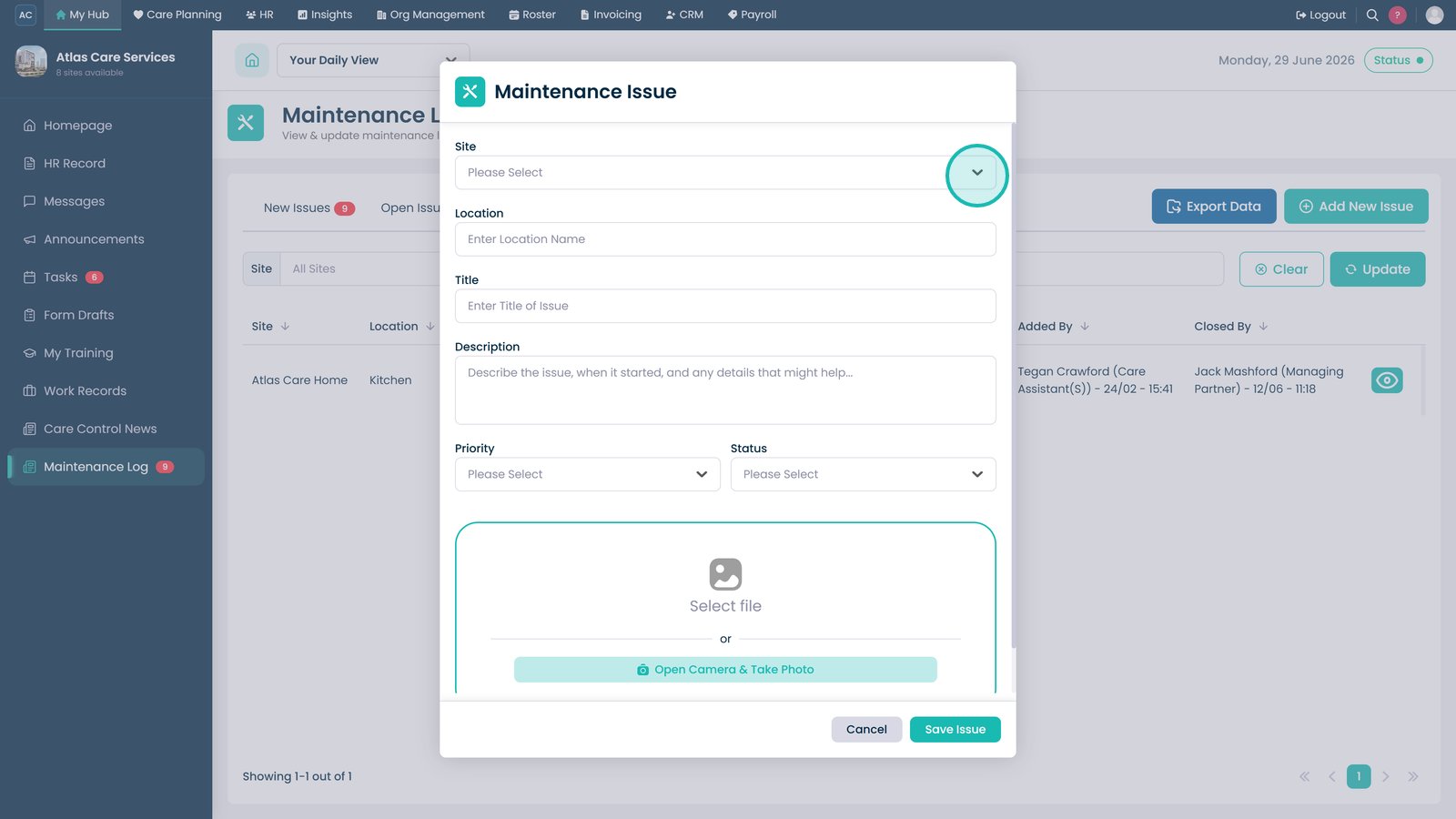
Select the site where the issue is located.

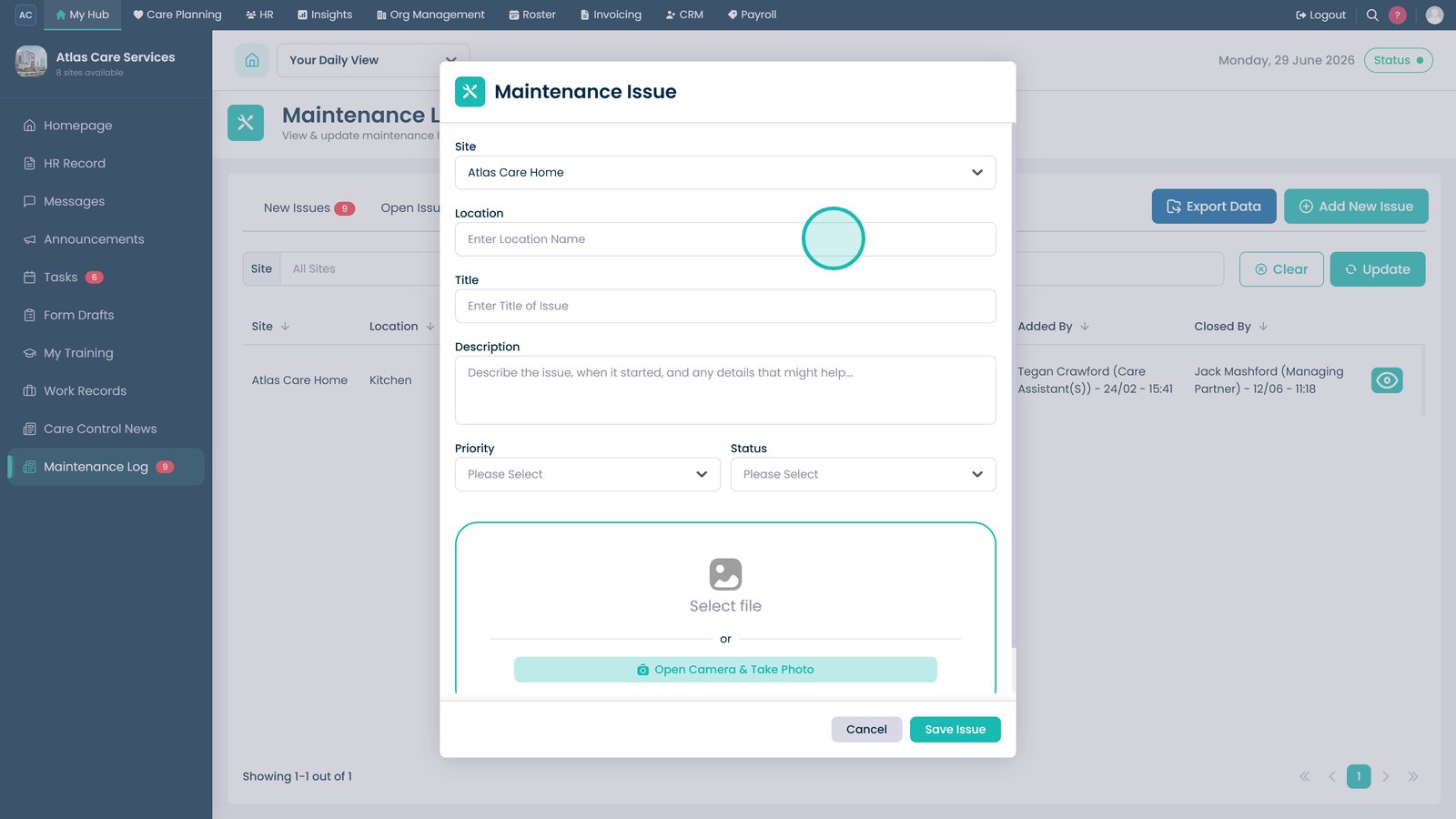
Enter the location of the maintenance issue.

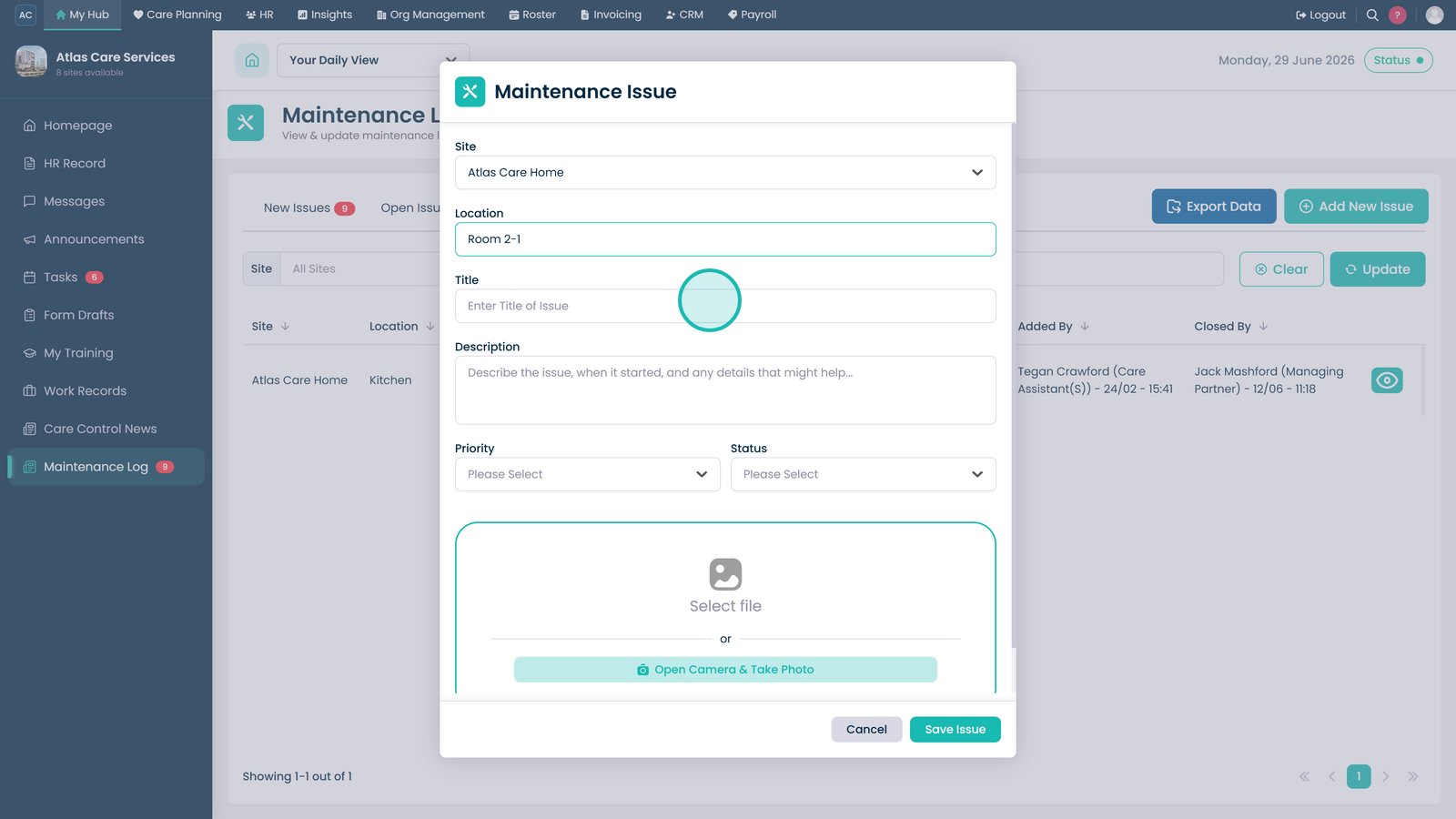
Enter a clear title for the issue.

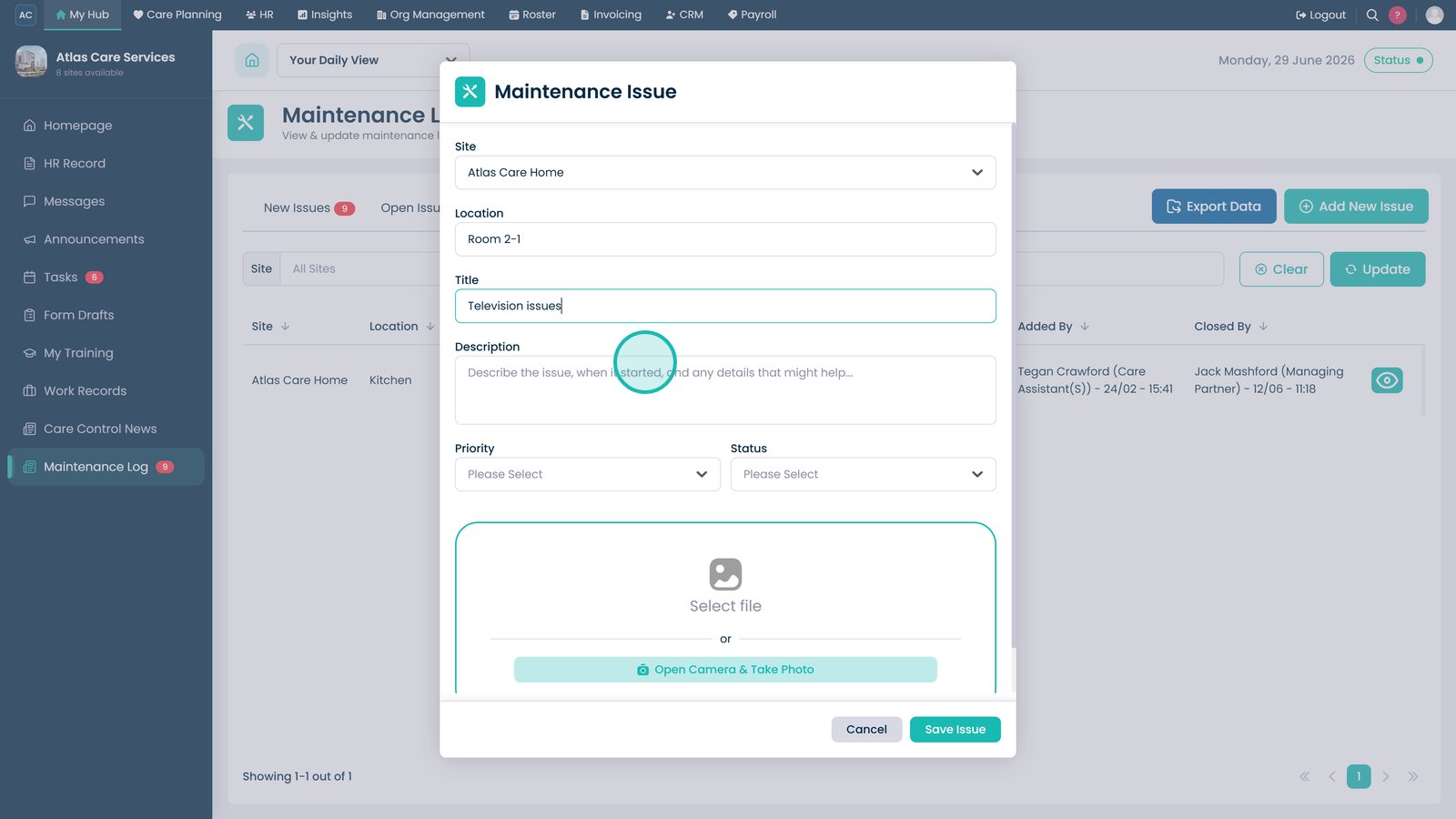
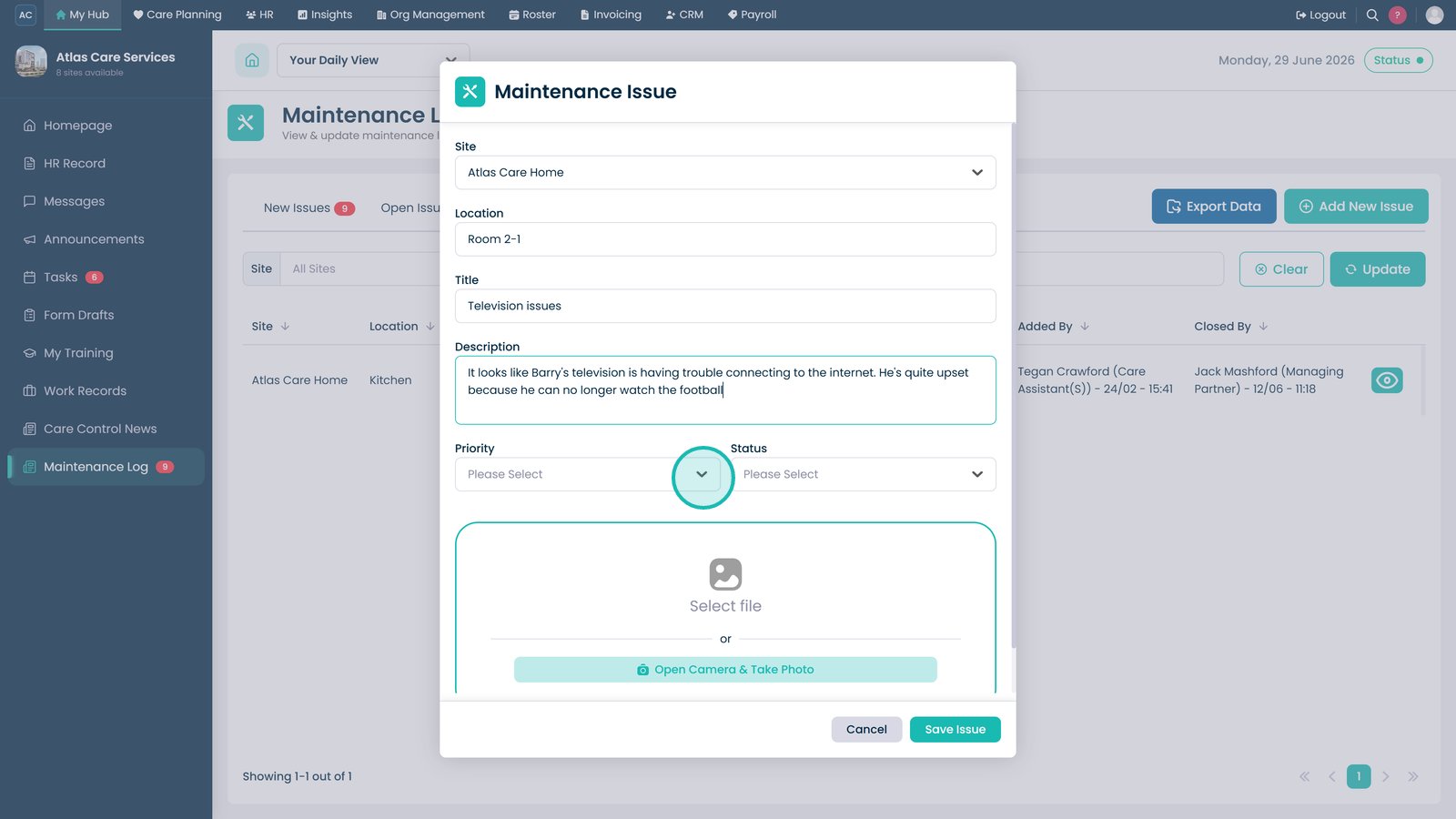
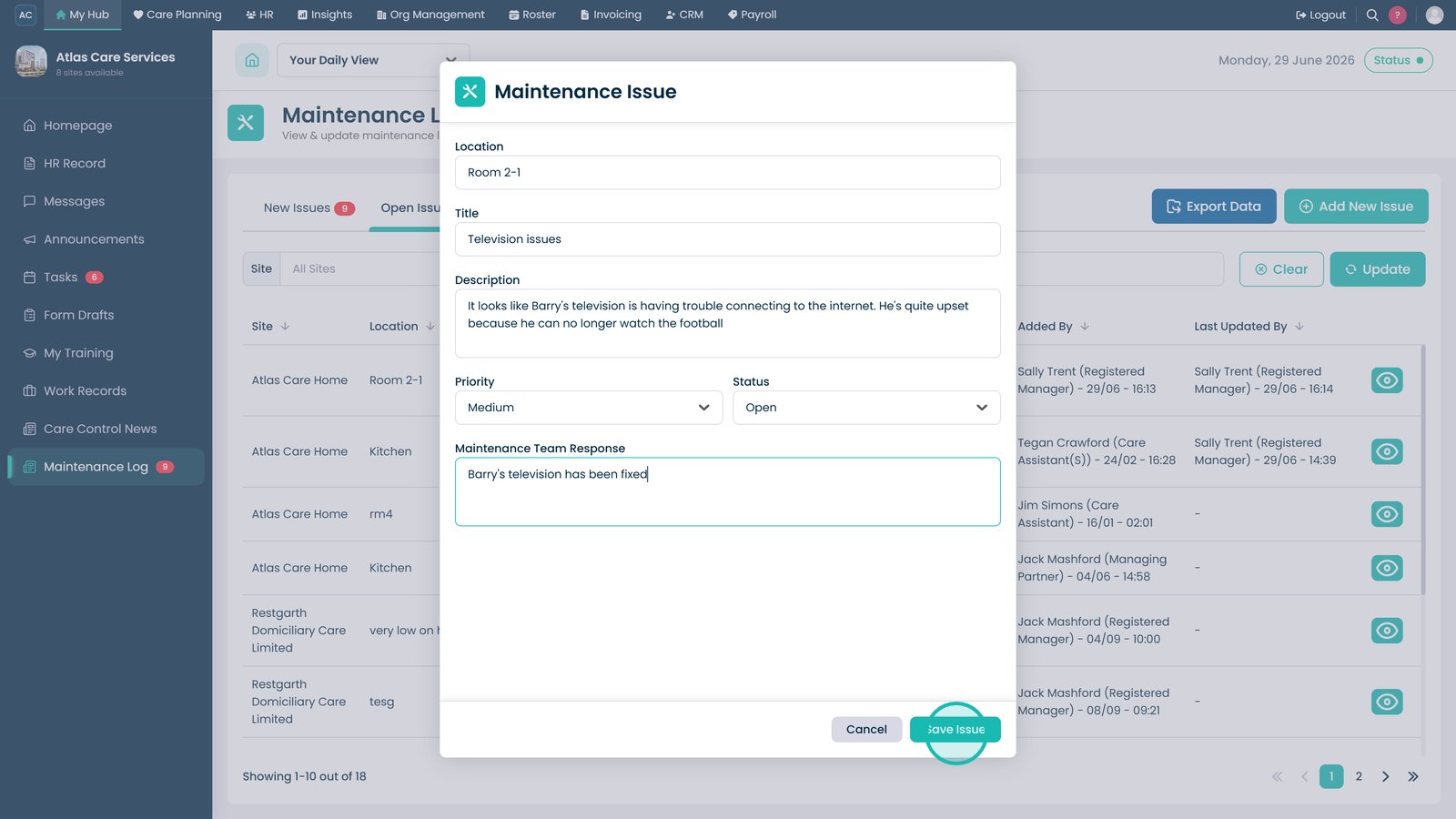
Describe the maintenance issue in detail.

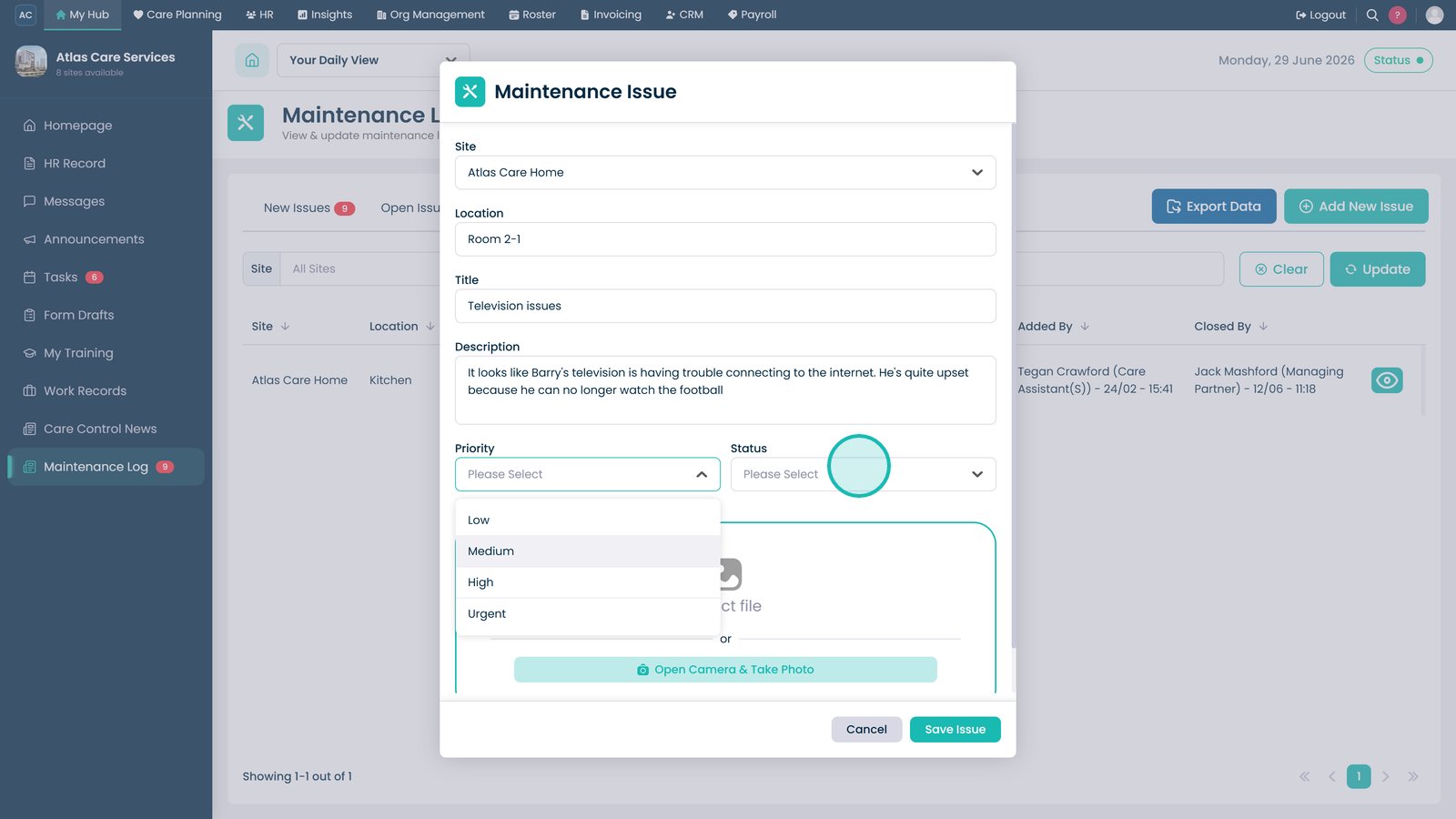
Select the appropriate priority.

Select the current status of the issue.

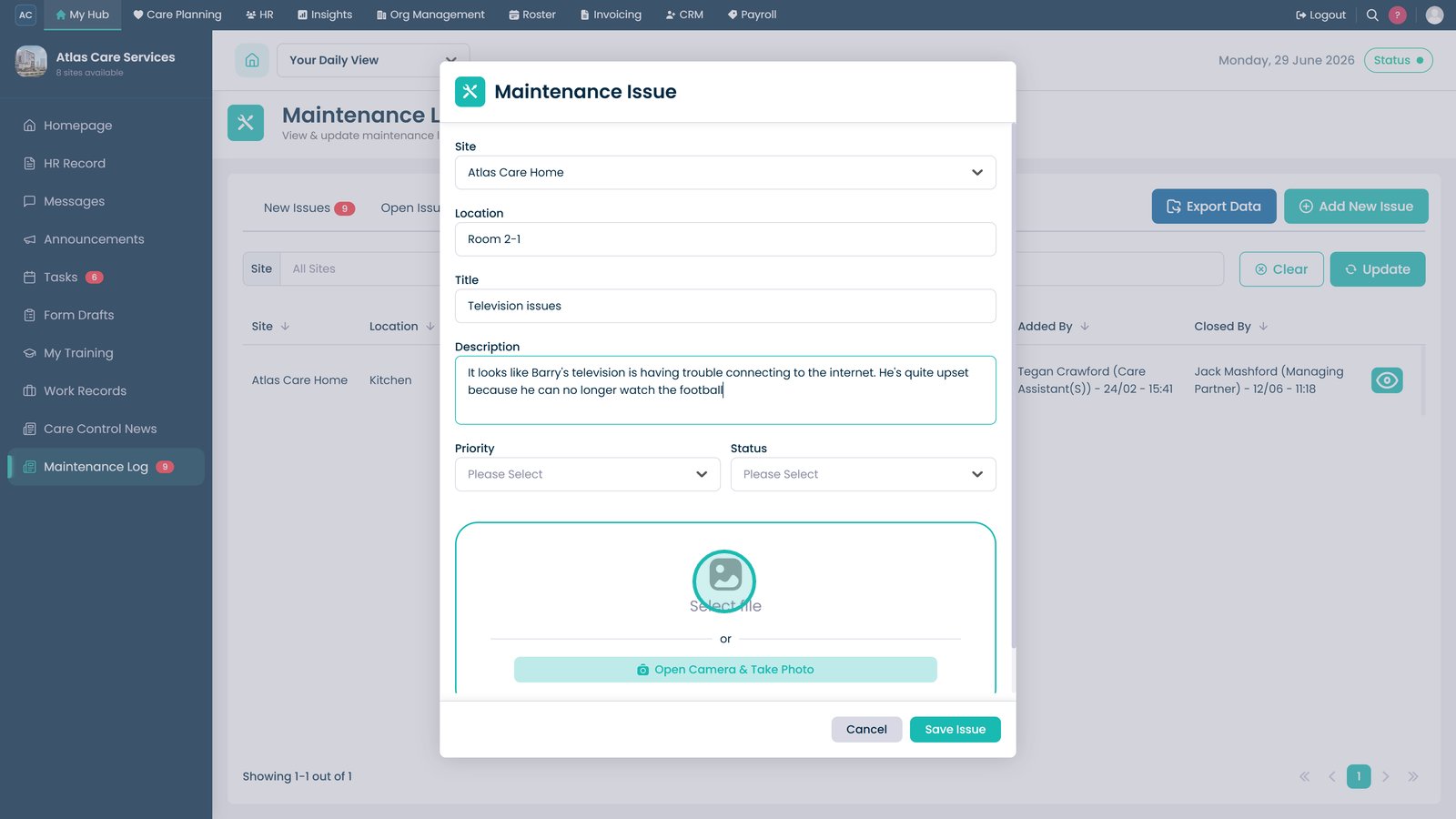
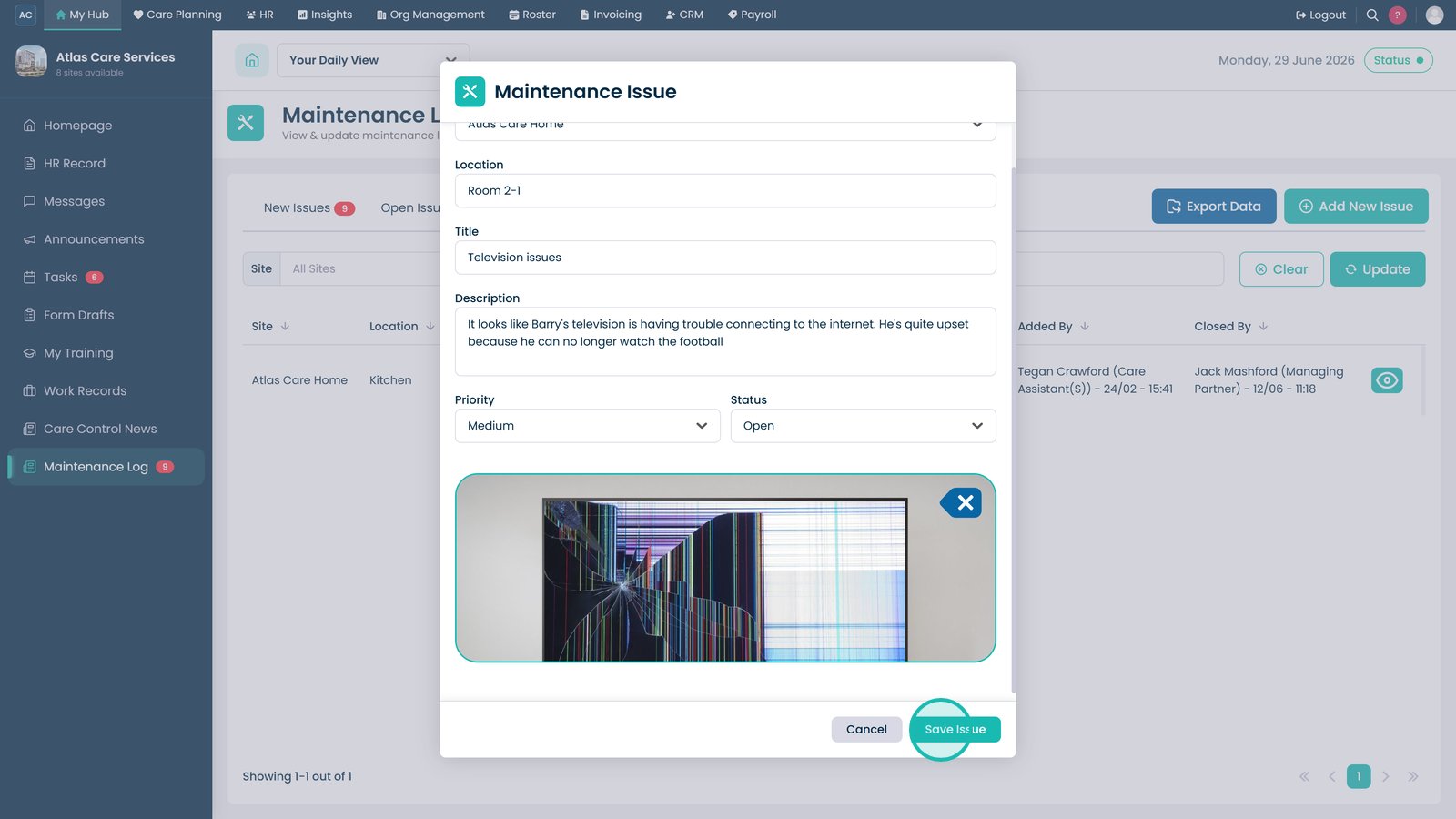
Upload an image to help illustrate the issue, if required.

Select Save Issue.

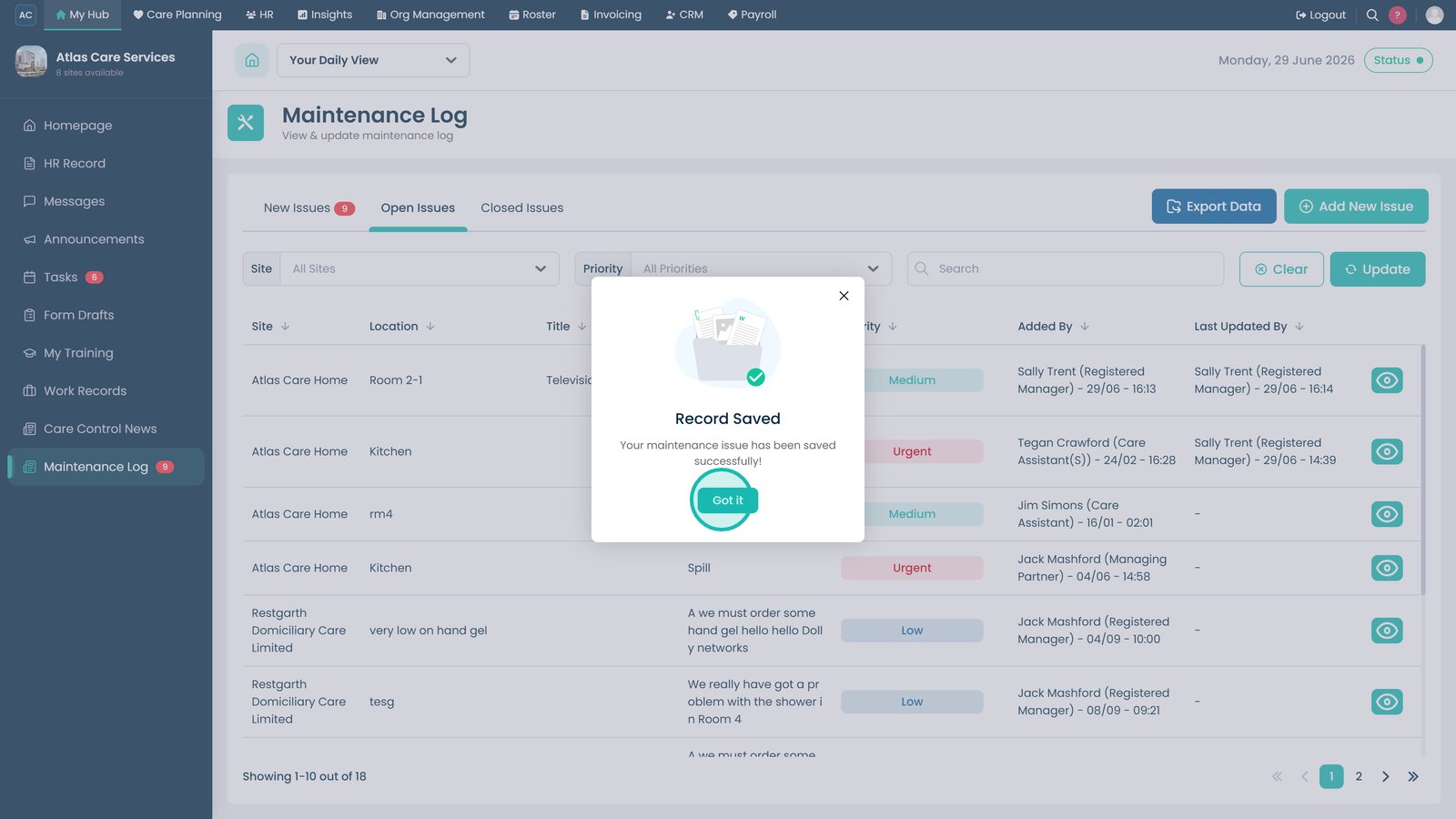
Select Got it to return to the Maintenance Log.

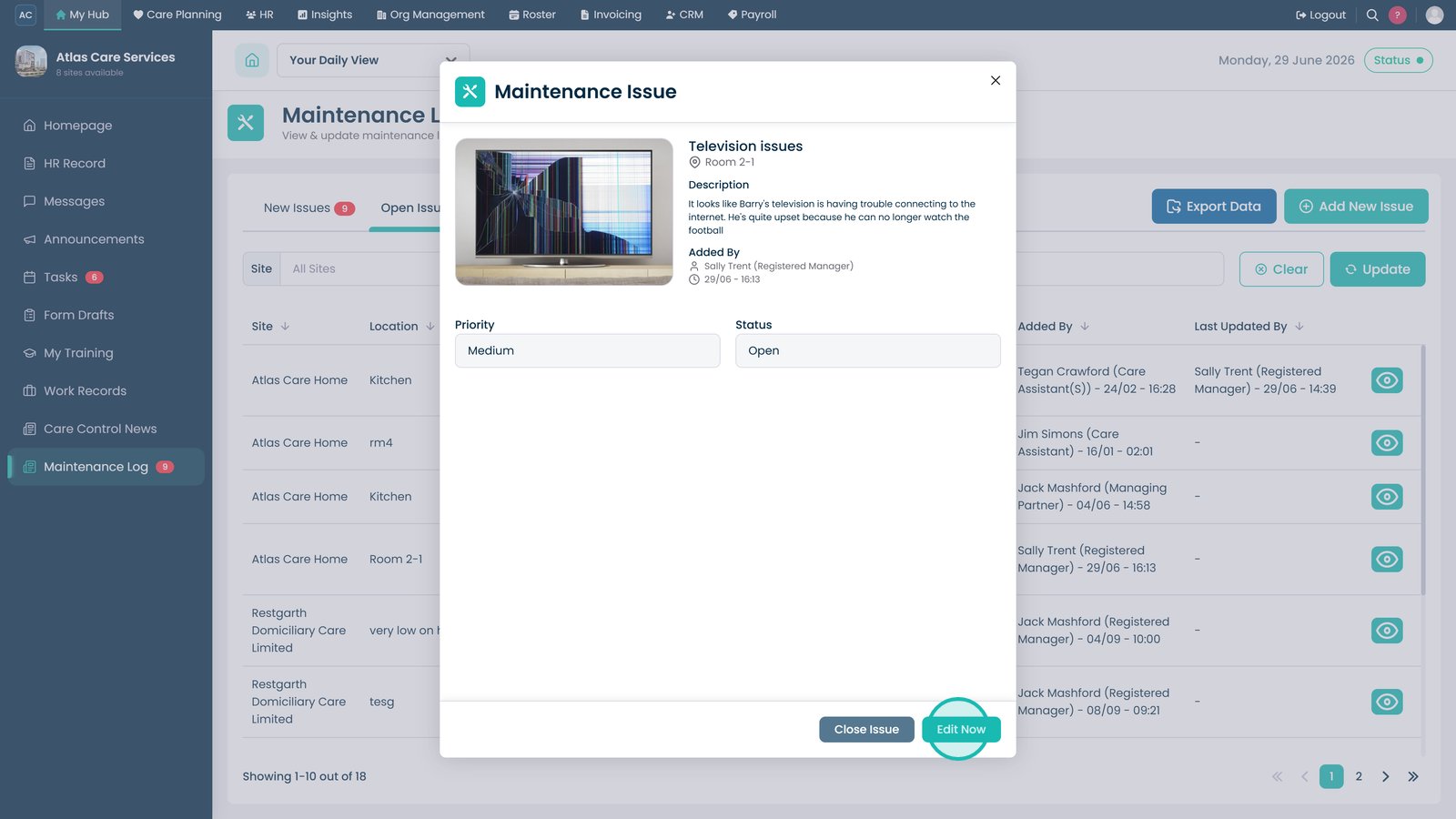
Select the View icon to open the maintenance issue.

Select Edit Now to update the issue.

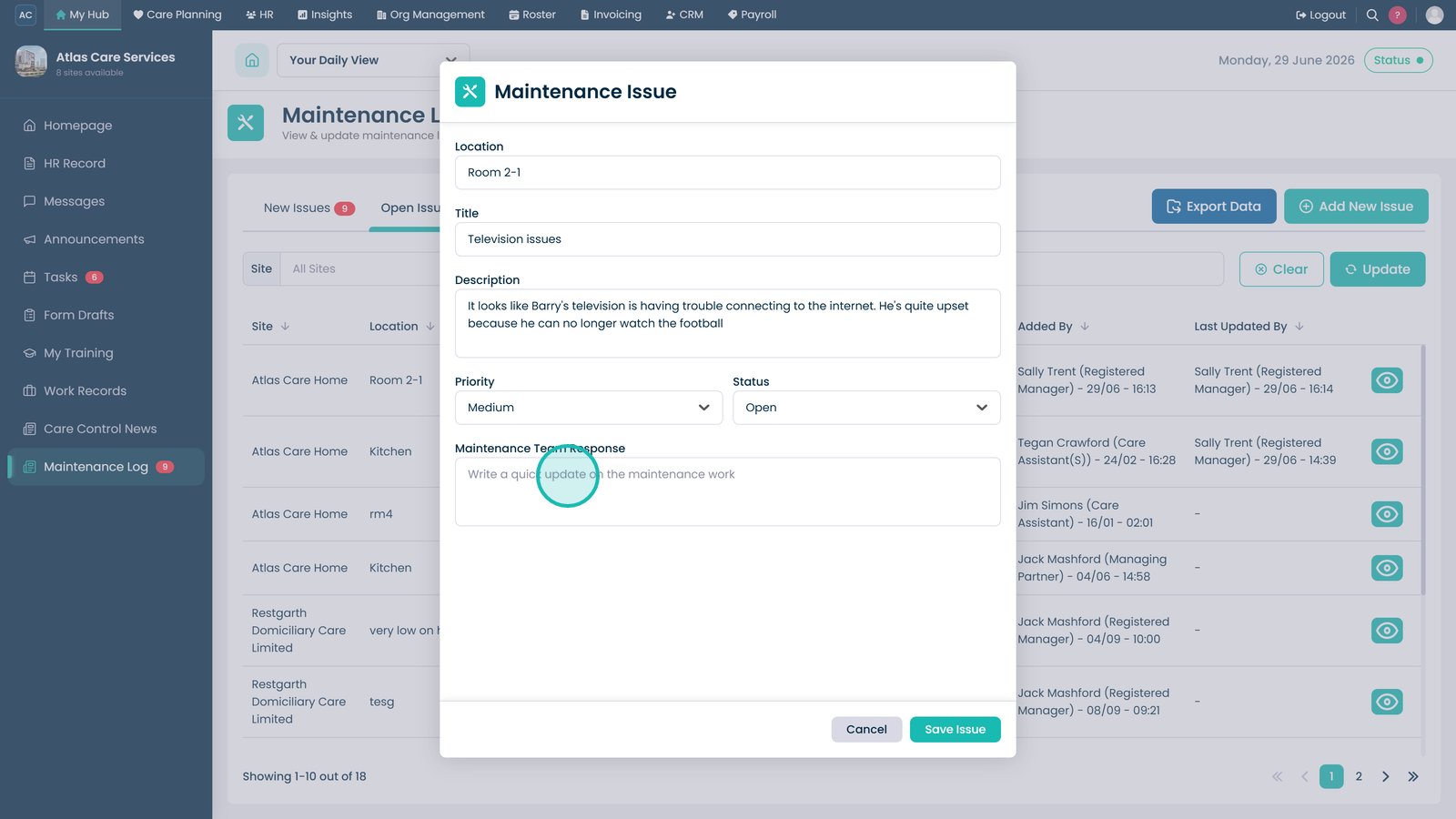
Record the maintenance team's response once the work has been completed.

Select Save Now to save your changes.

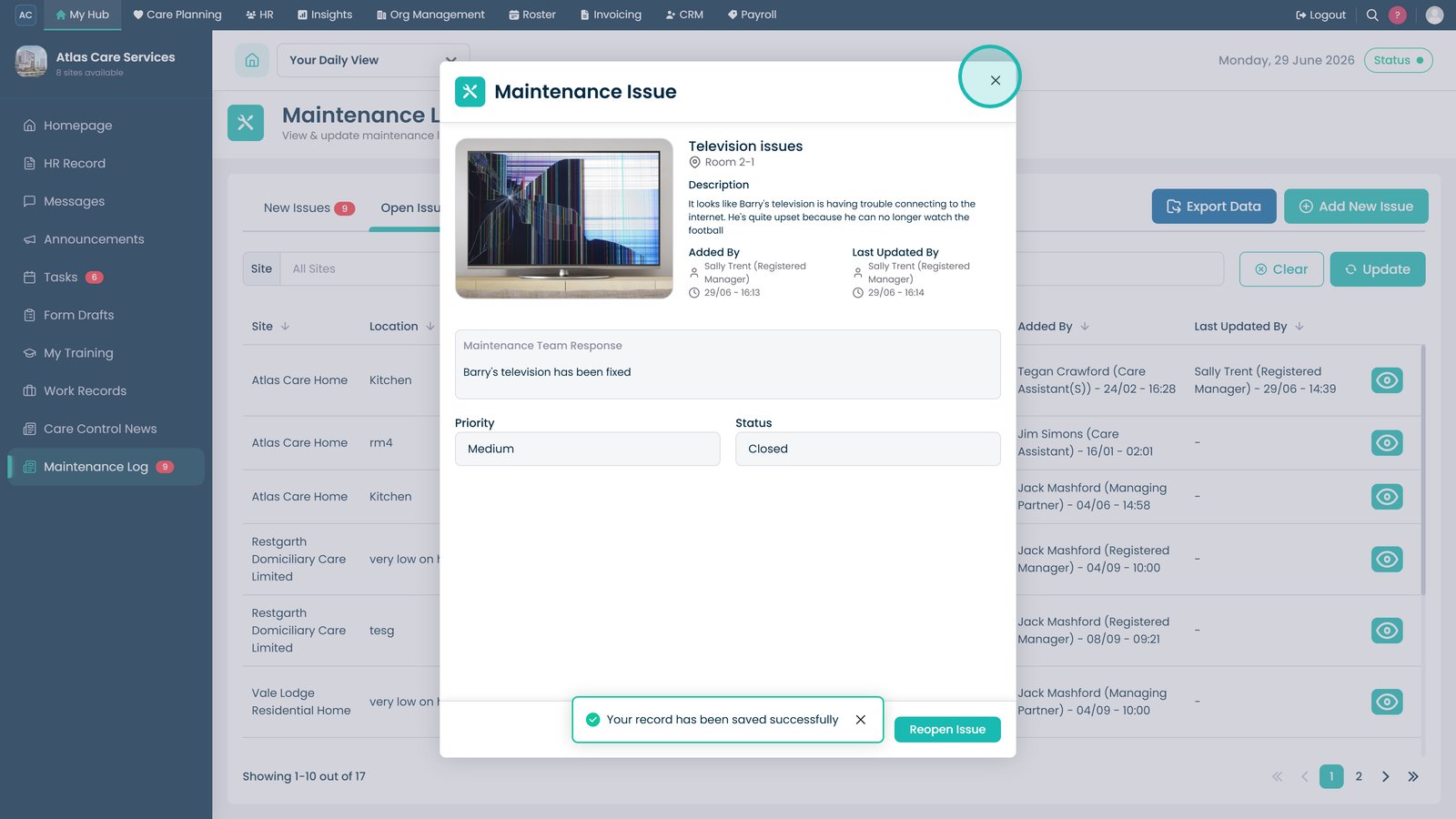
Close the confirmation message.

Select the View icon to open the issue again.

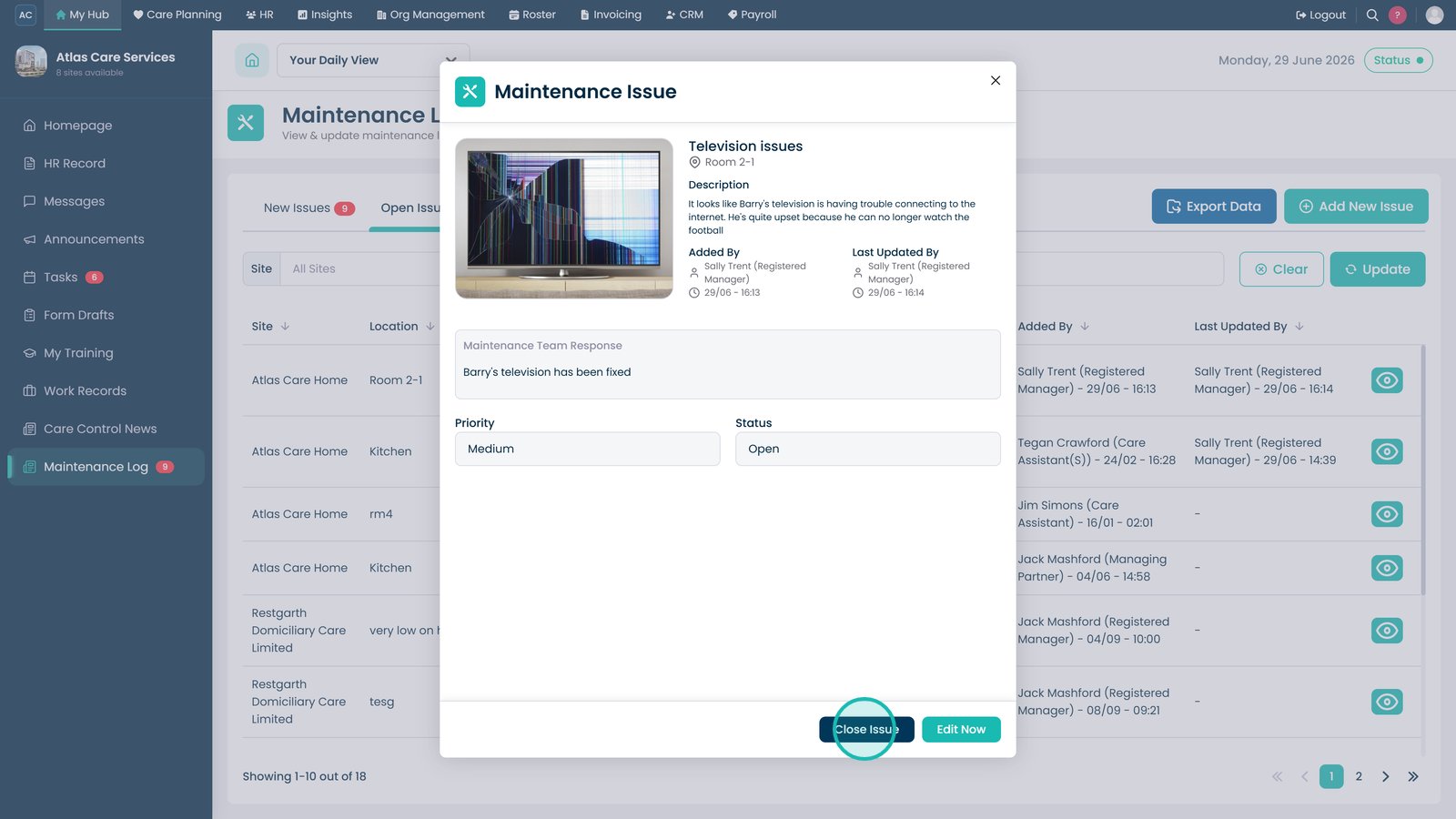
Select Close Issue once the work has been completed.

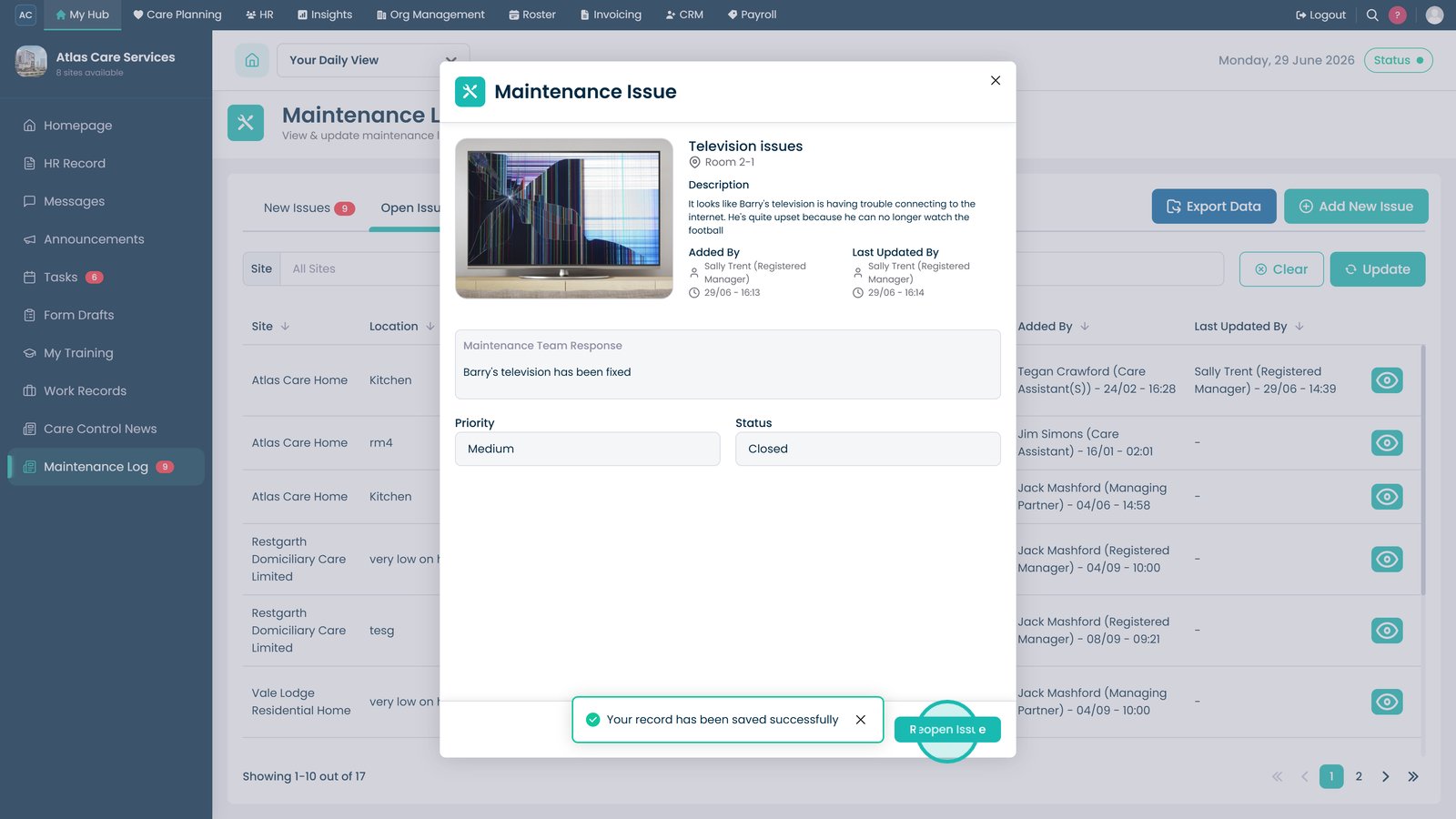
Select Reopen Issue if further work is required.

Close the issue window to return to the Maintenance Log.

Select Export Data to download the maintenance log as a CSV file.

Top tip

Include a clear description and upload a photo where possible to help the maintenance team identify and resolve the issue more quickly.

Was this guide helpful?

Need more help?

Can't find what you're looking for? Our support team is here to help.

Contact Support

Or call us on

On this page