This guide will walk you through the new Navigation Menu in Care Control Cloud
Takes 10 minutes
For: Everyone
Updated: 26th May 2026
Introduction
This guide explains how to use the new Navigation Menu within Care Control Cloud. The updated layout has been designed to make navigation quicker, clearer, and easier to use across all areas of the system.
In this guide you'll learn how to:
Navigate between applications and sections
Access admin and service user options
Use favourites for quicker access
Search across Care Control Cloud
Switch sites and residents
Access messages, printing, and support tools
Navigate Care Control more easily with the new Navigation Menu.
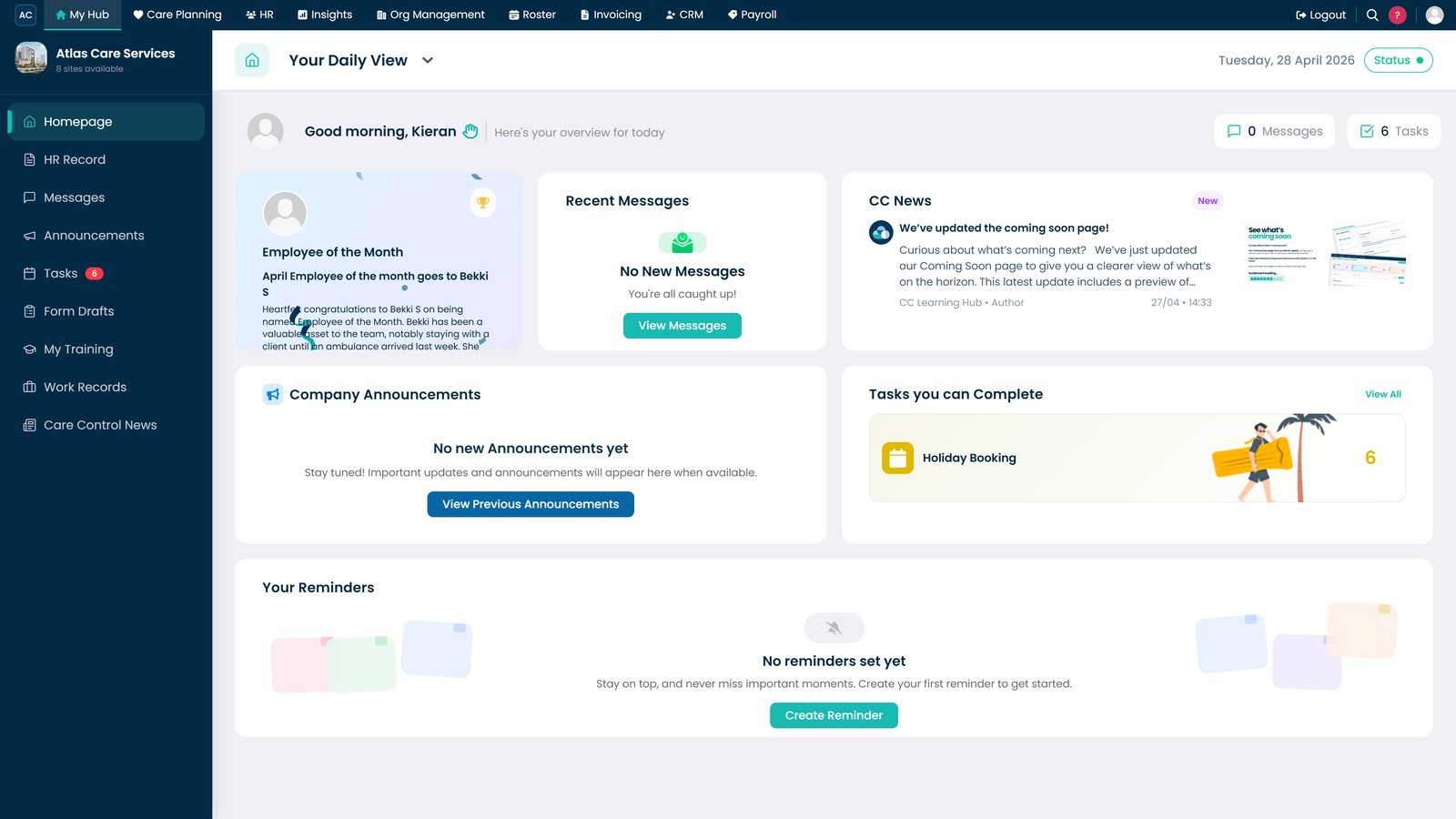
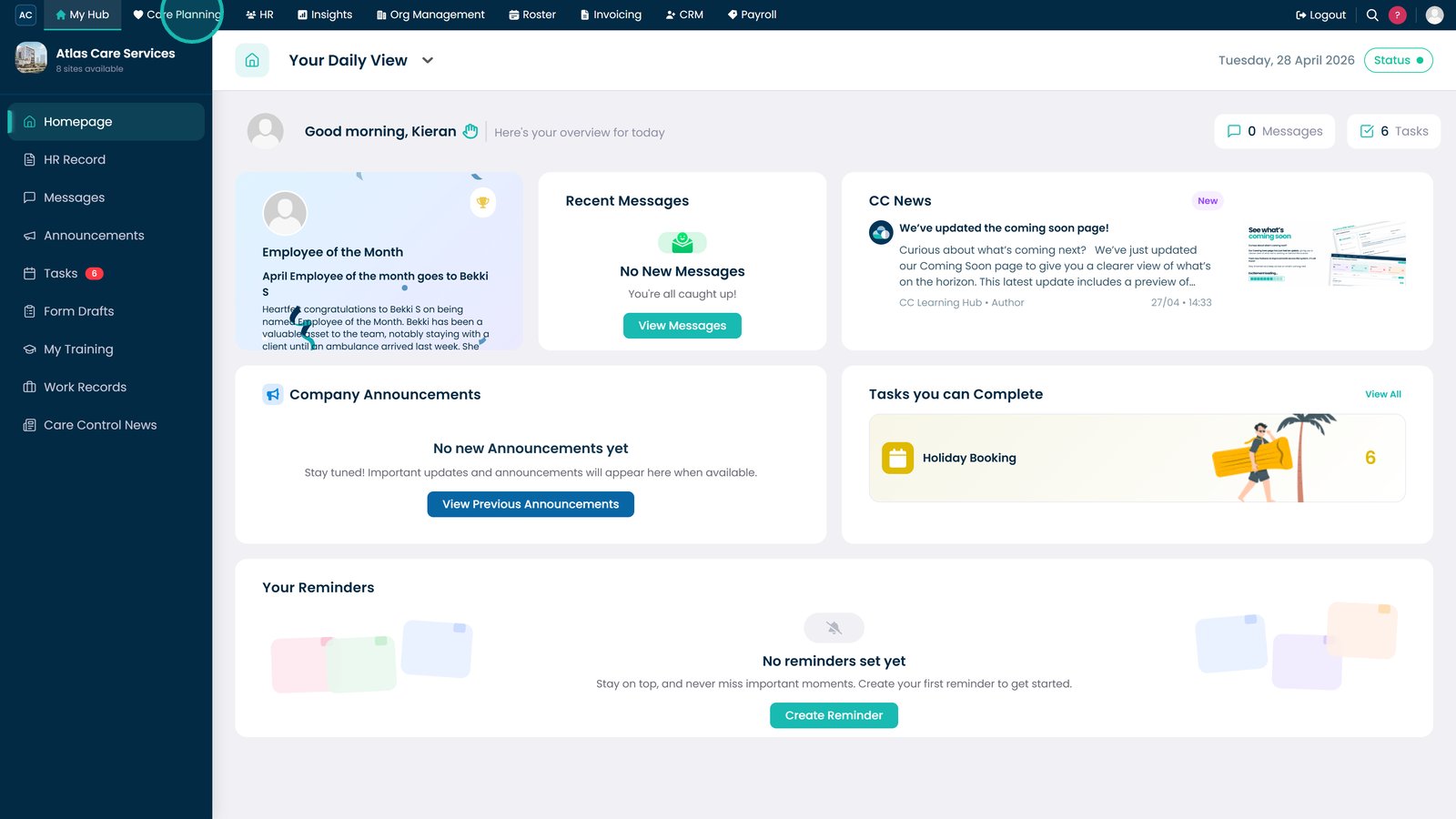
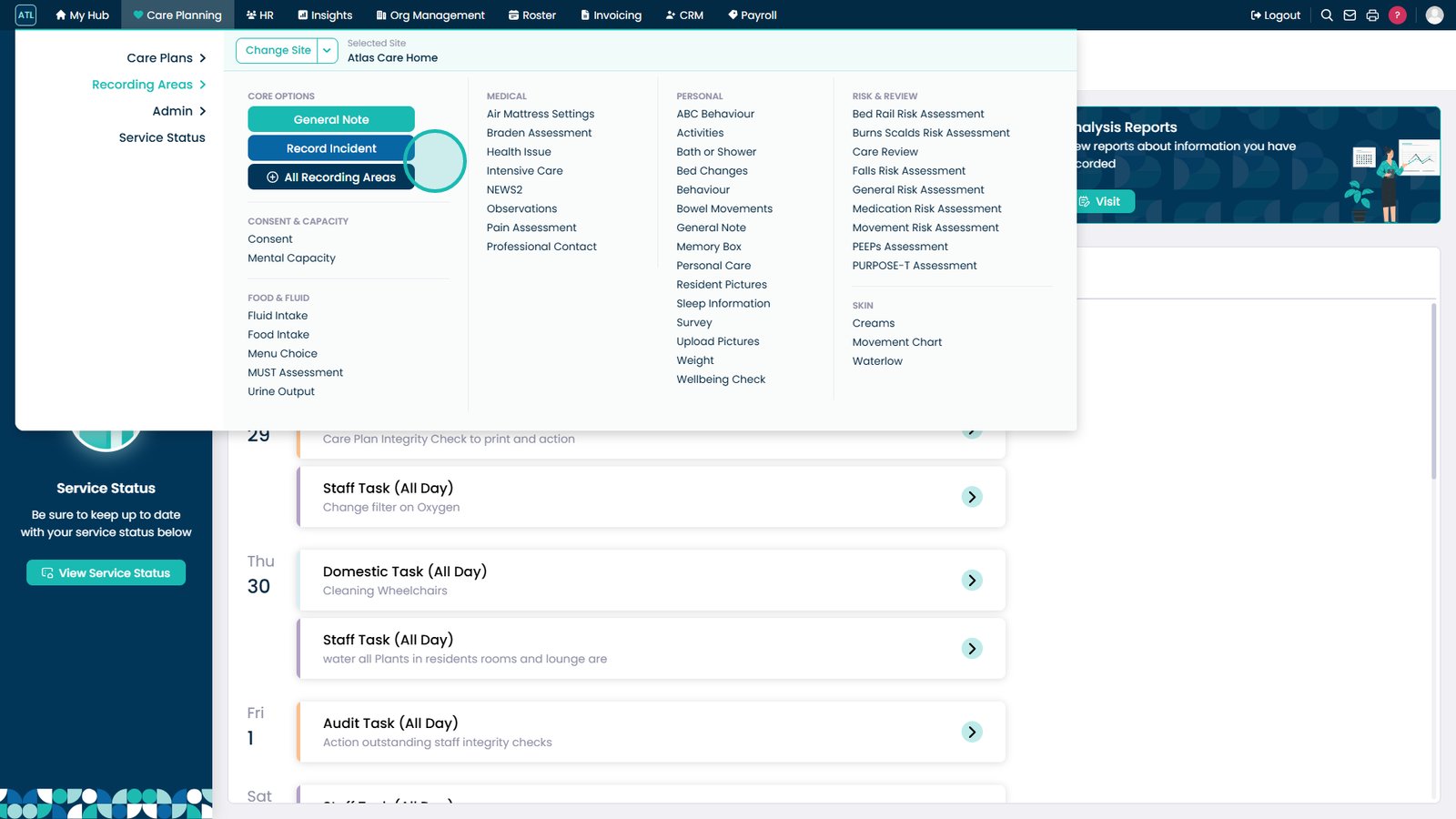
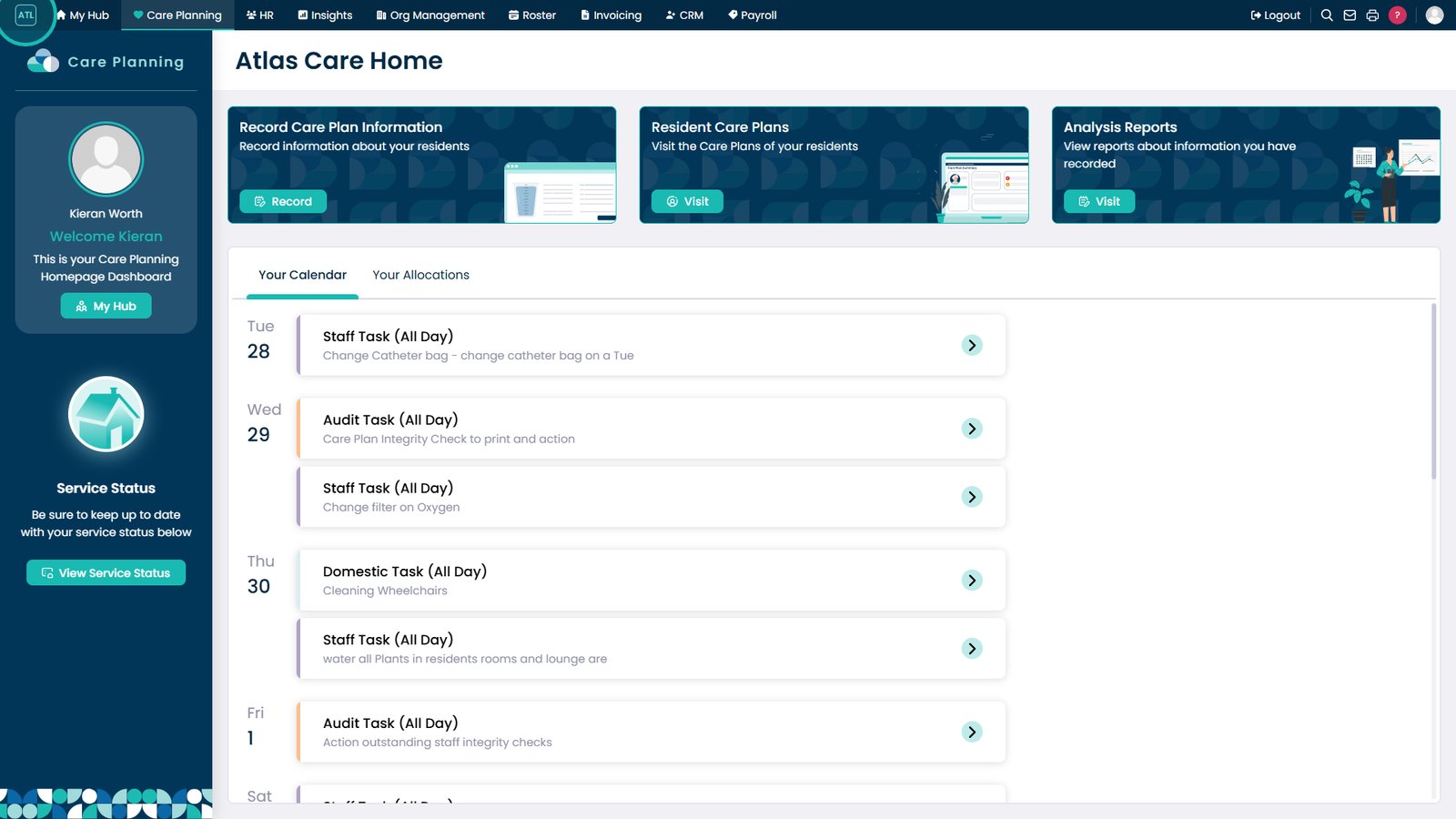
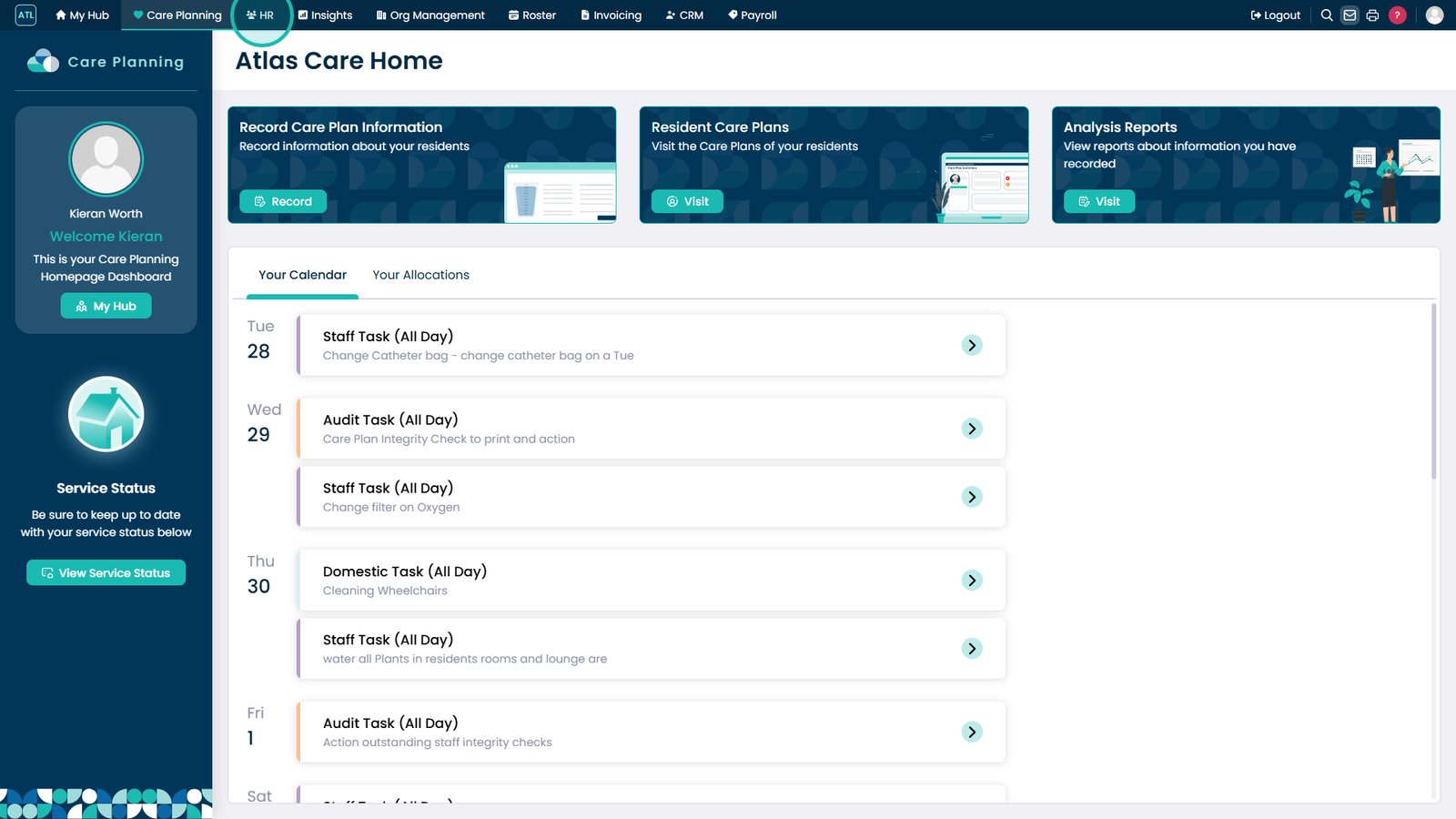
Access all applications from the top menu.
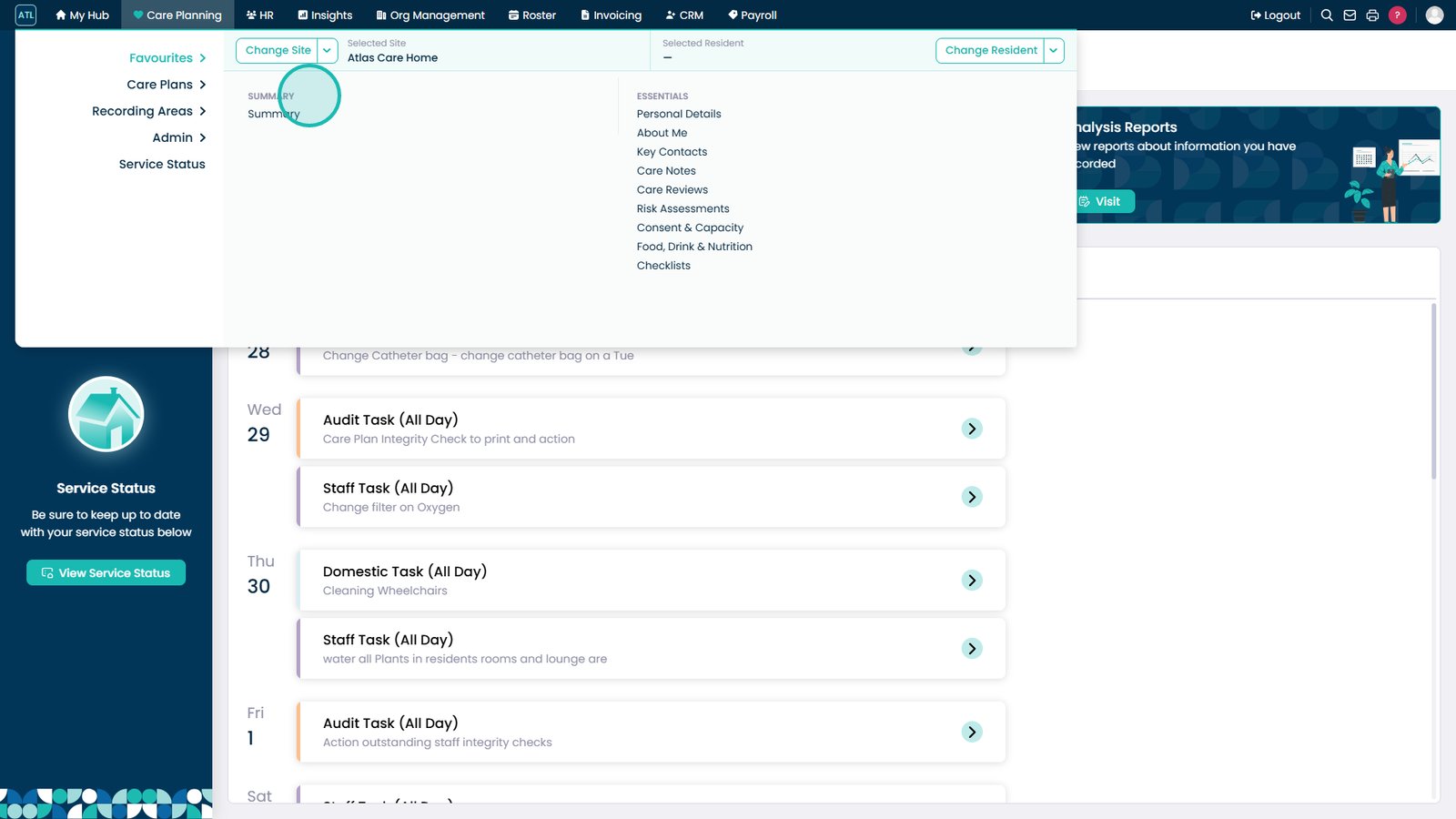
All your usual sections are still available here.
Hover over a section to quickly open it.
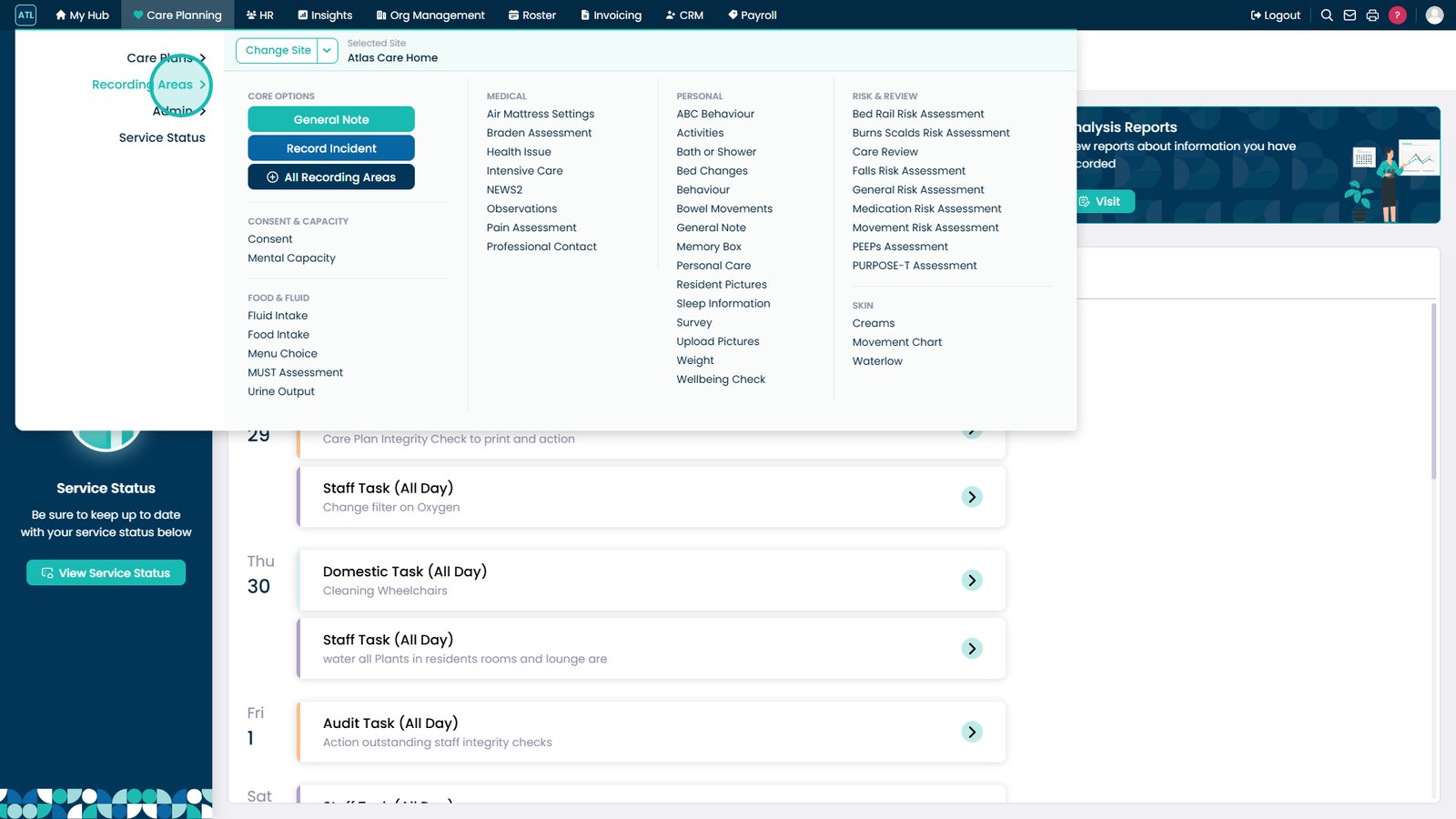
Create notes, incidents, and access Recording Areas.
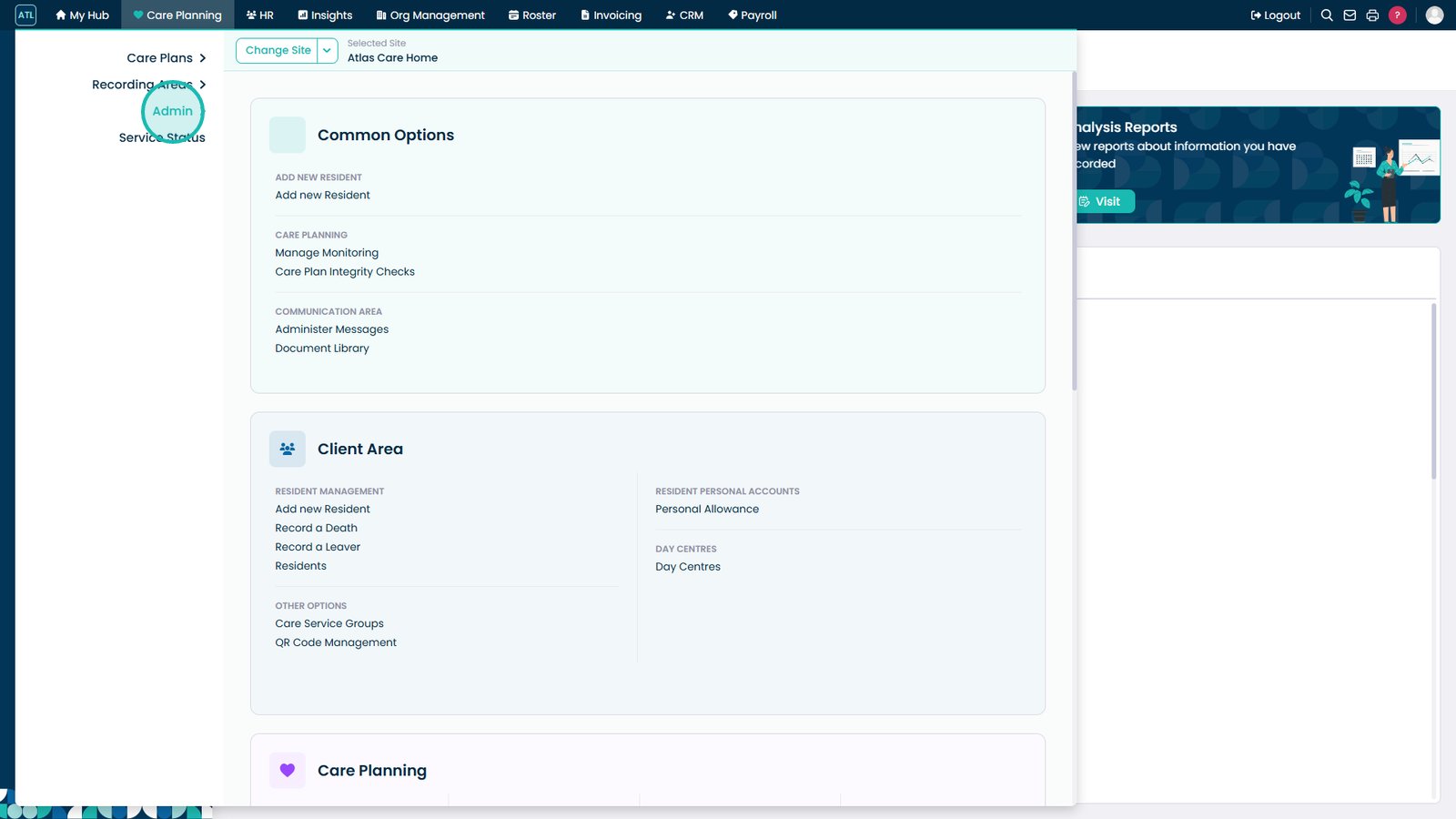
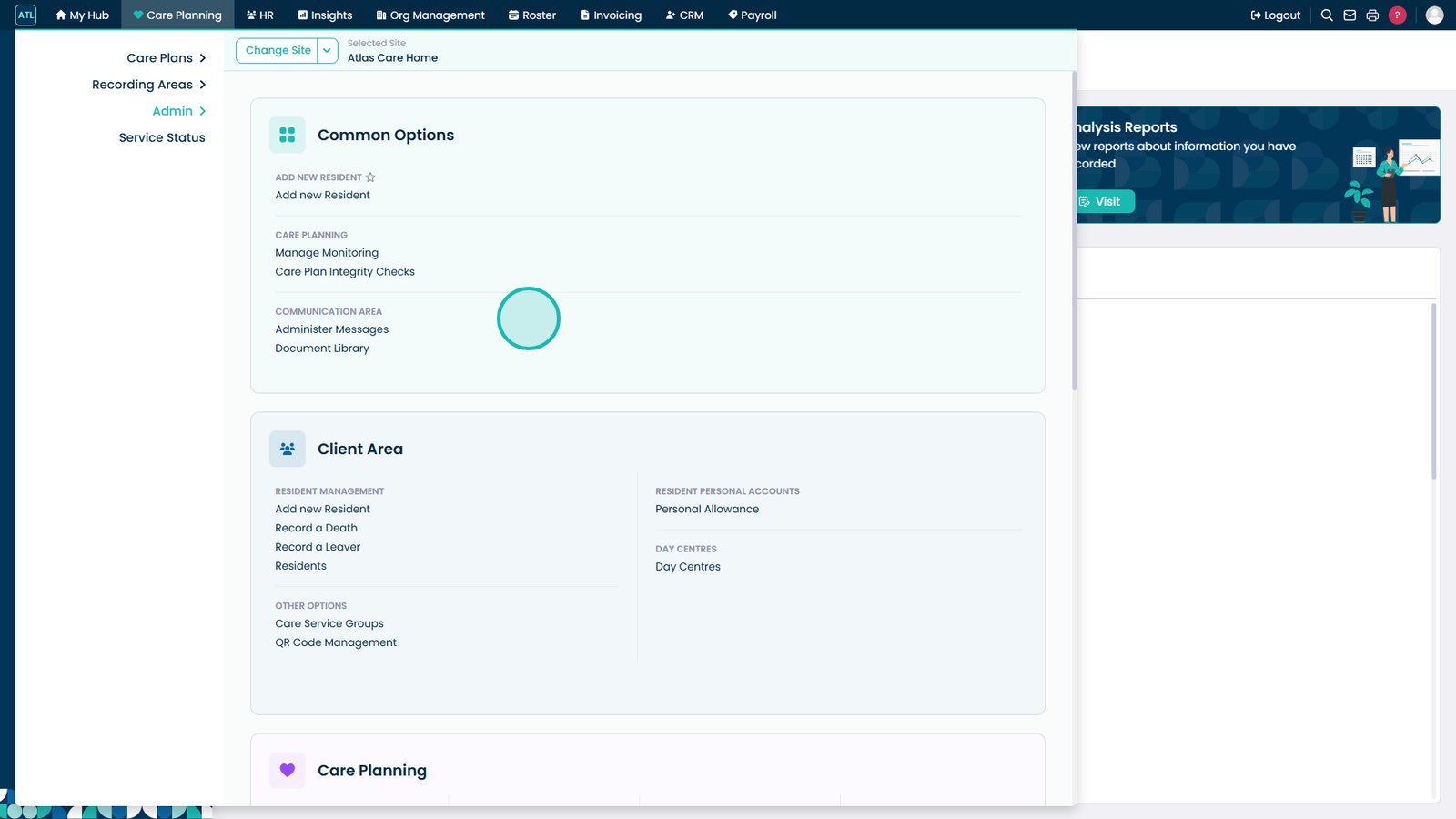
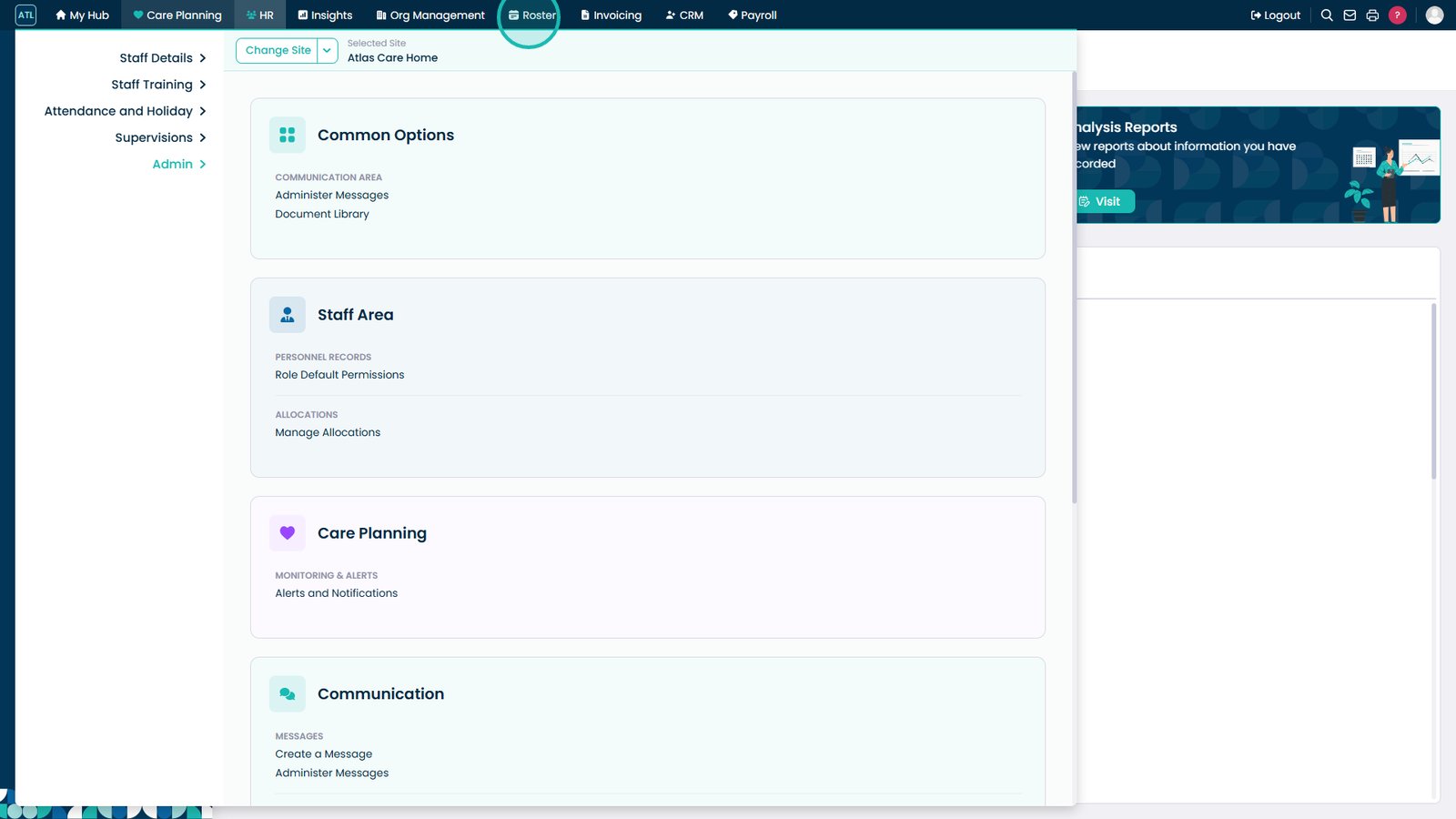
Admin options are now built into each app.
Access all previous Admin App options here.
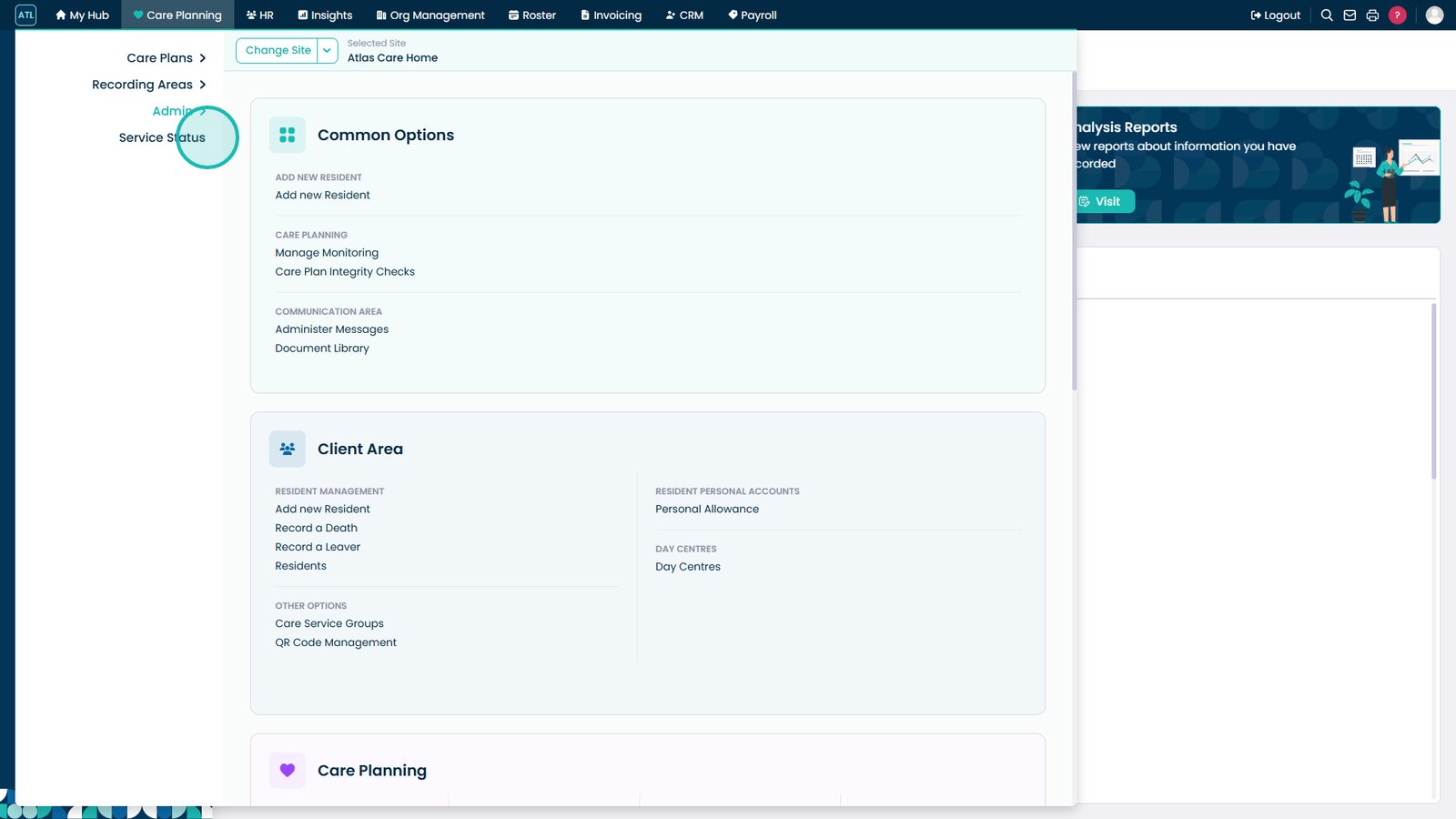
Access your Service Status screen here.
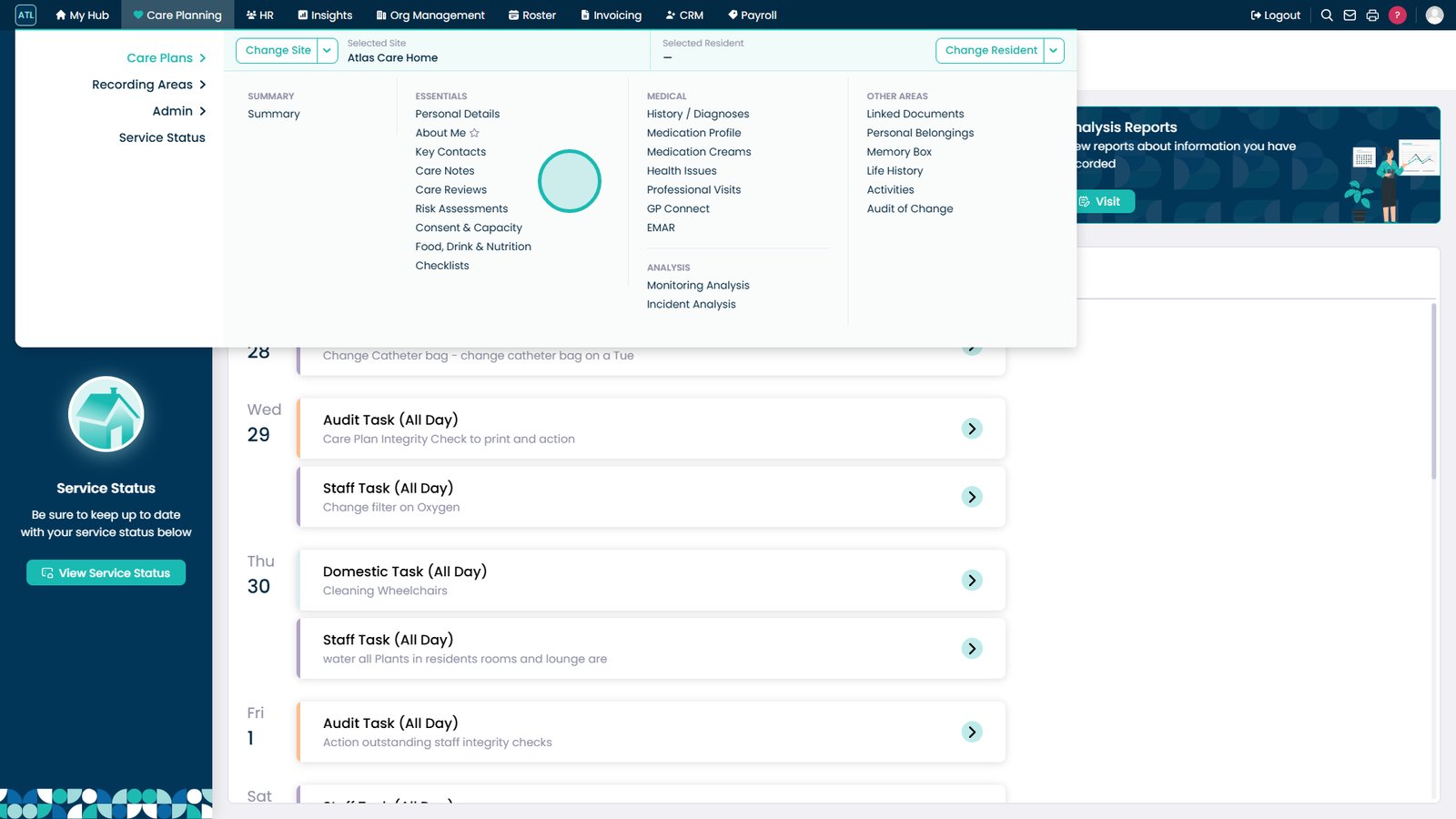
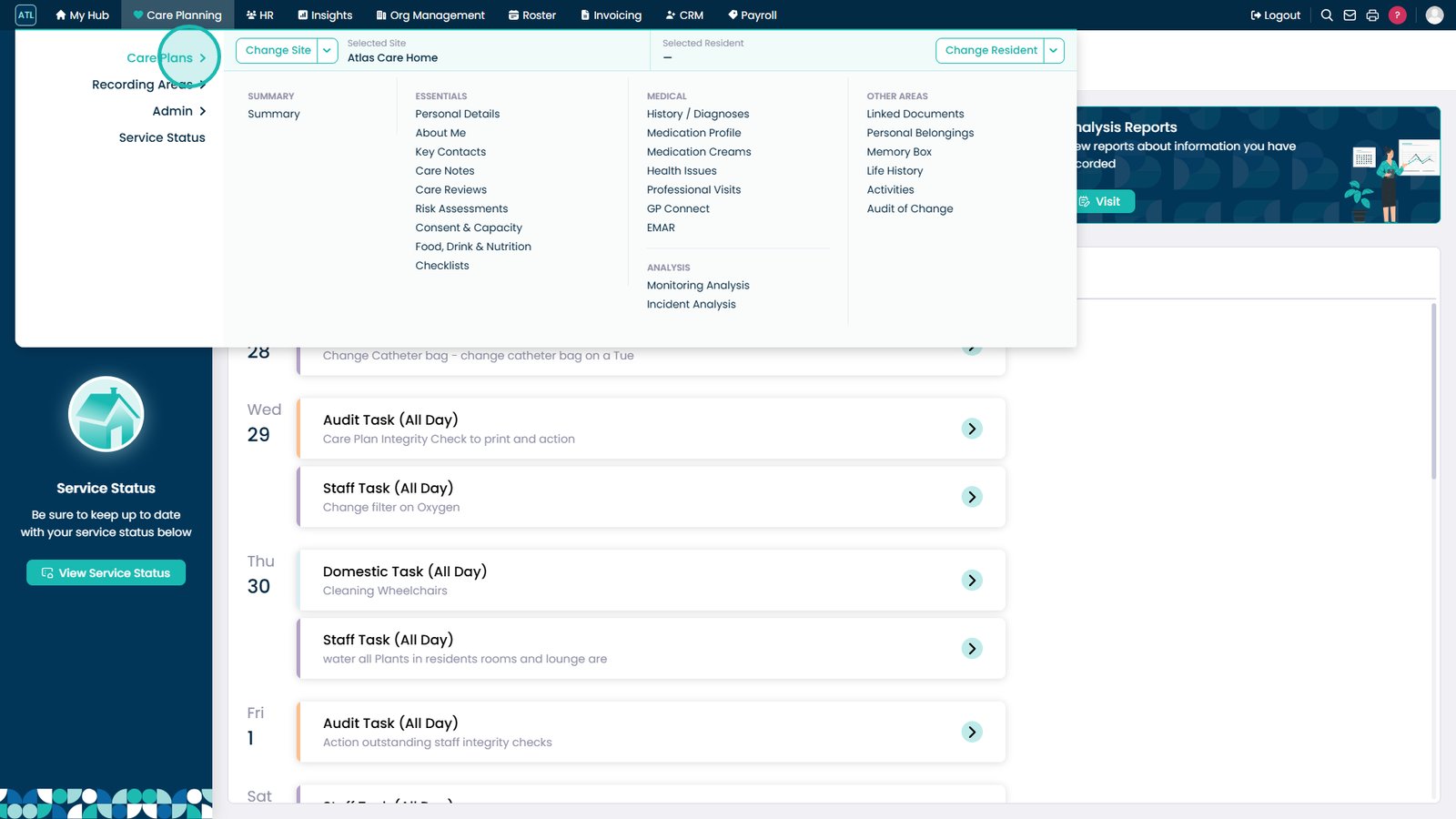
Service user options are now in Care Plans.
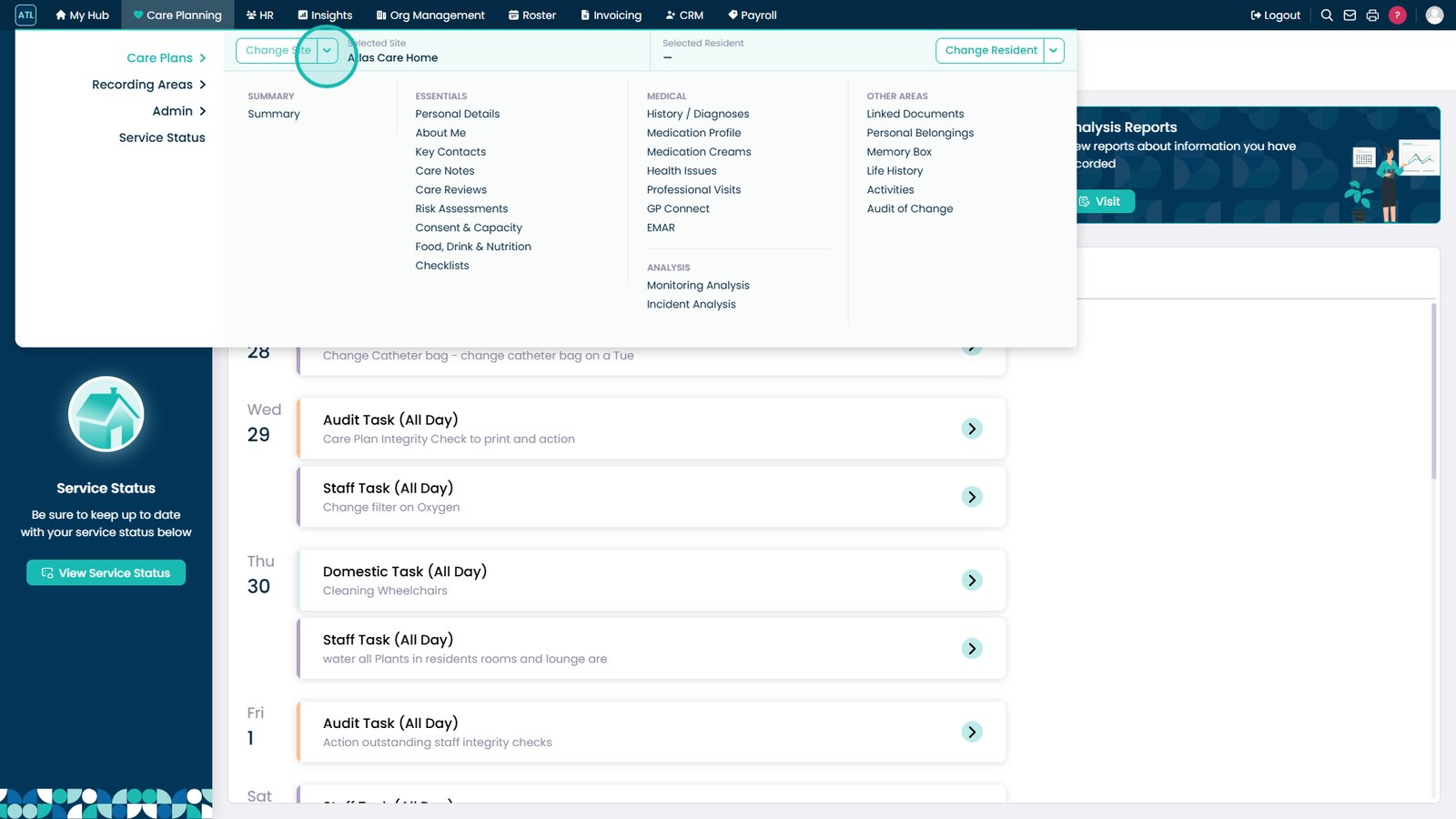
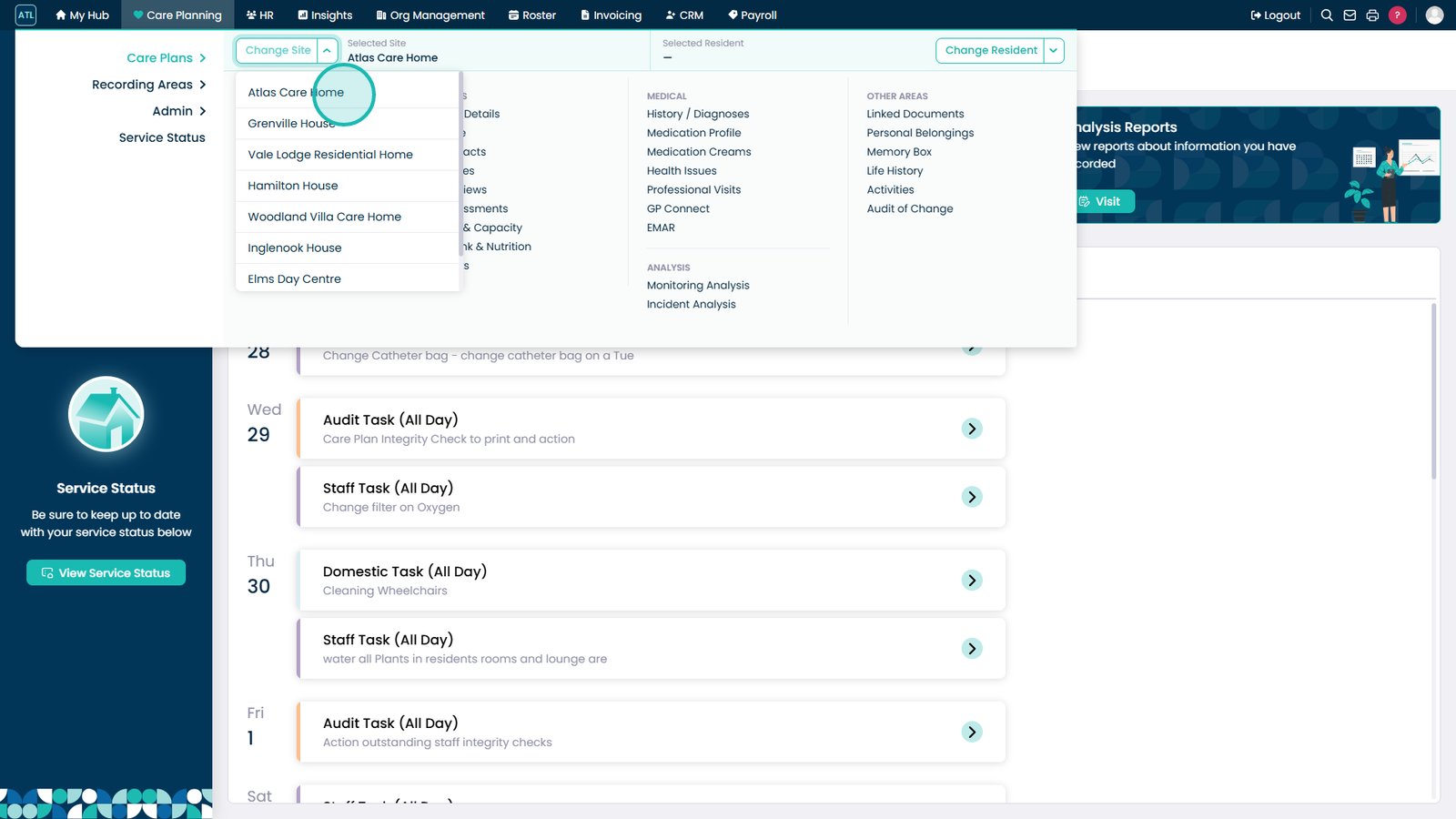
Use this dropdown to switch sites.
Select your site from the list.
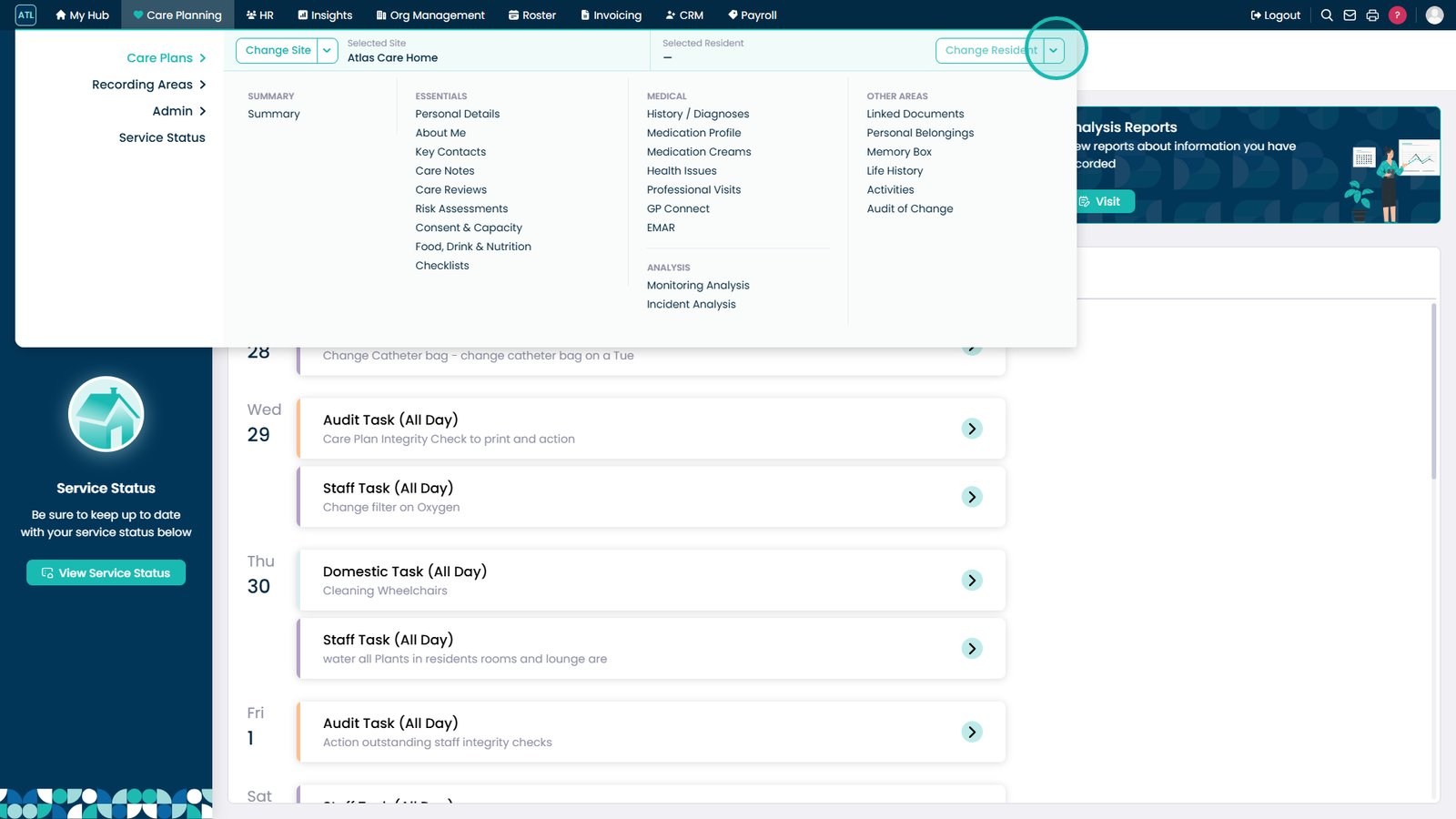
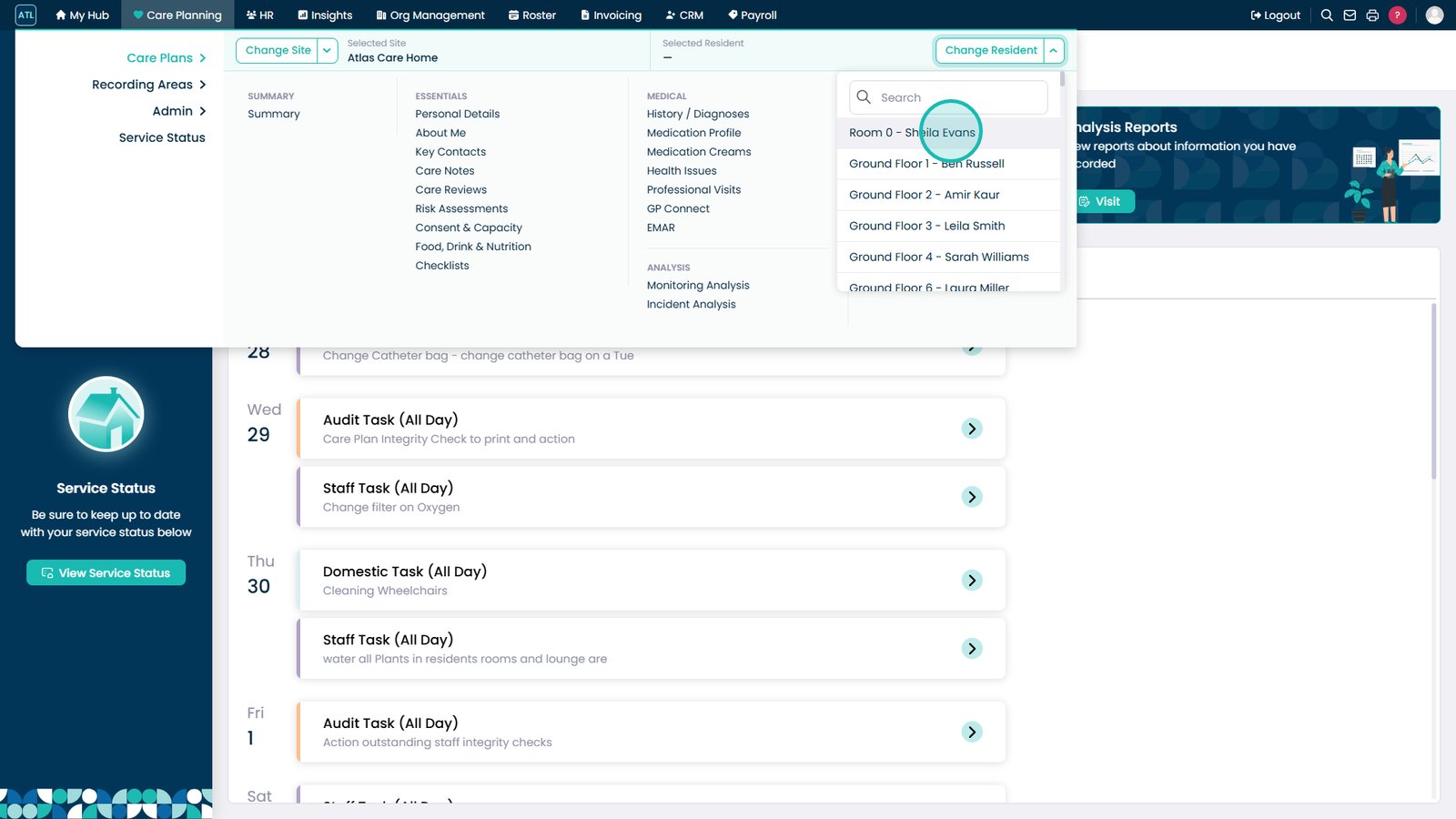
Open the Change Resident dropdown to view residents.
Select a resident to view their care records.
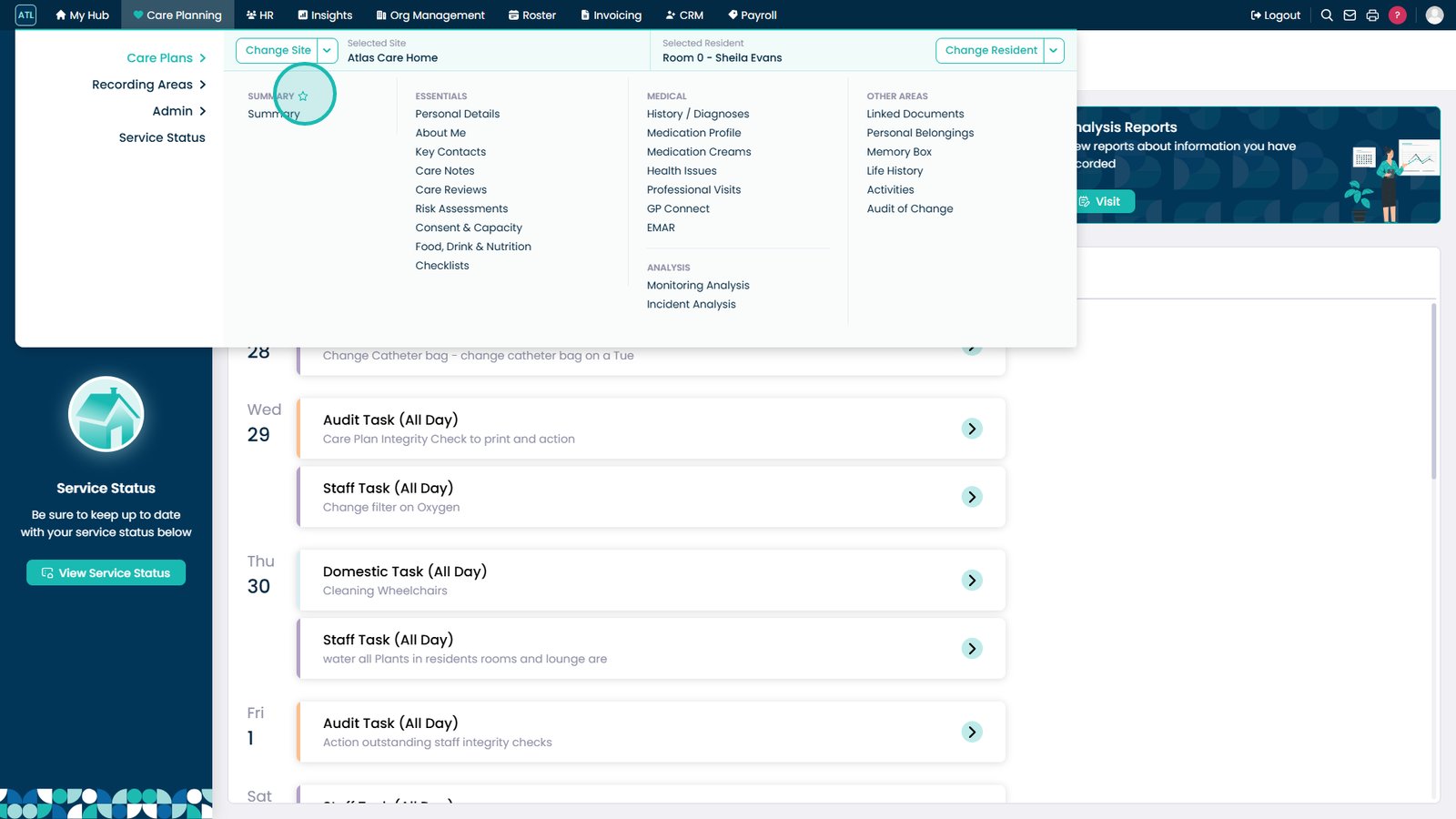
Select the star icon to add favourites.
You can favourite multiple areas.
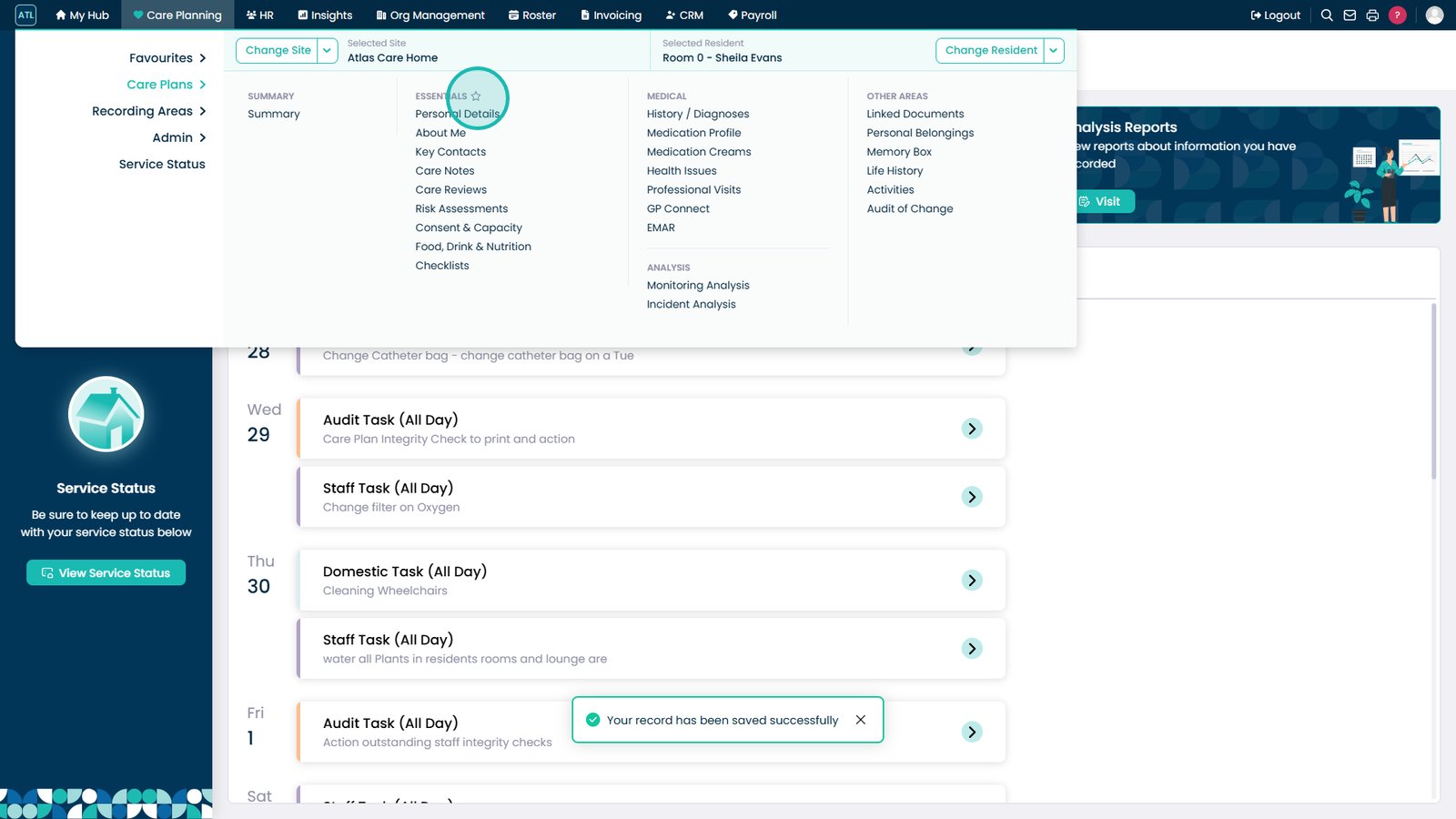
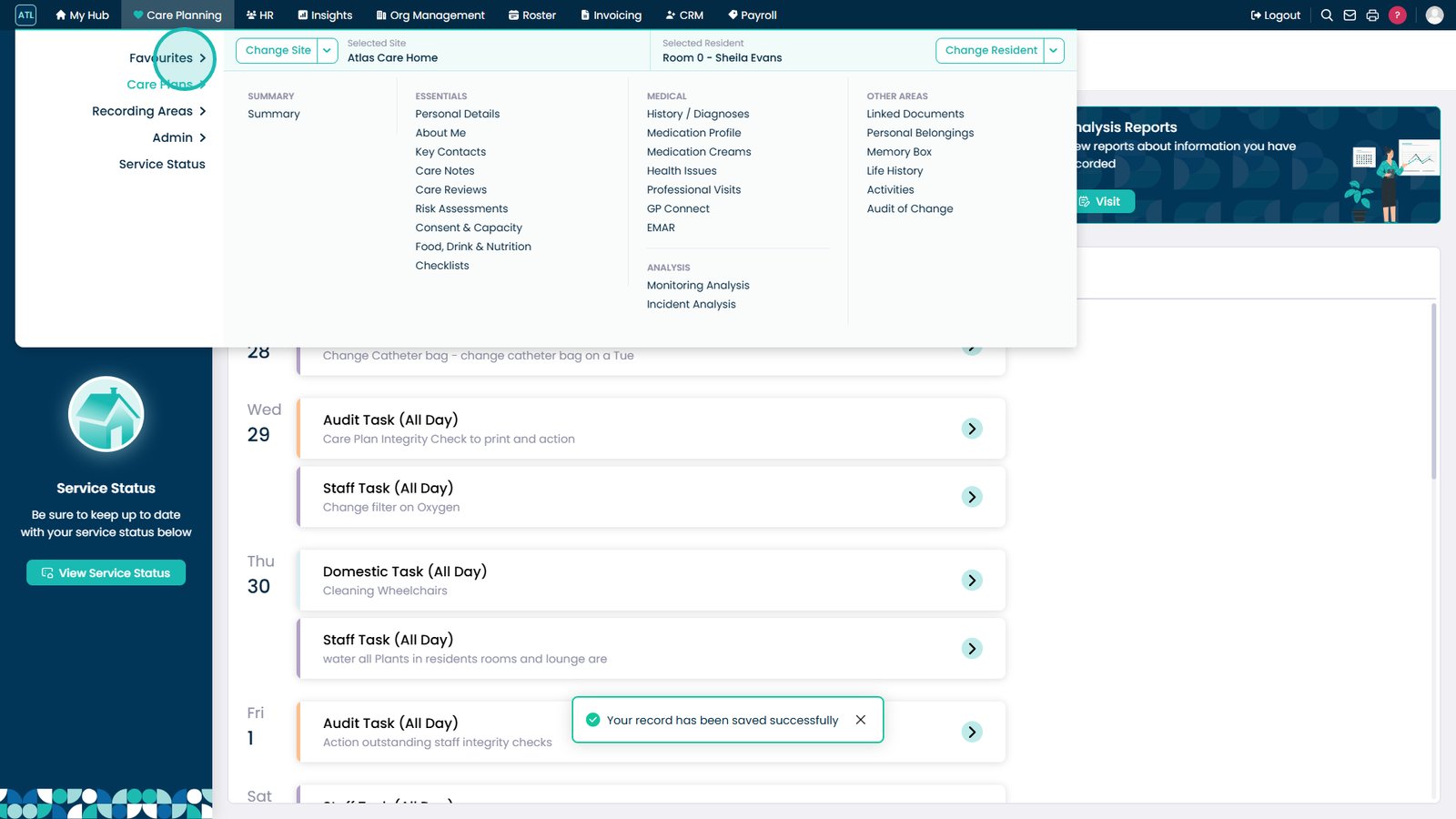
Hover over Favourites to view saved items.
Select the star icon again to remove a favourite.
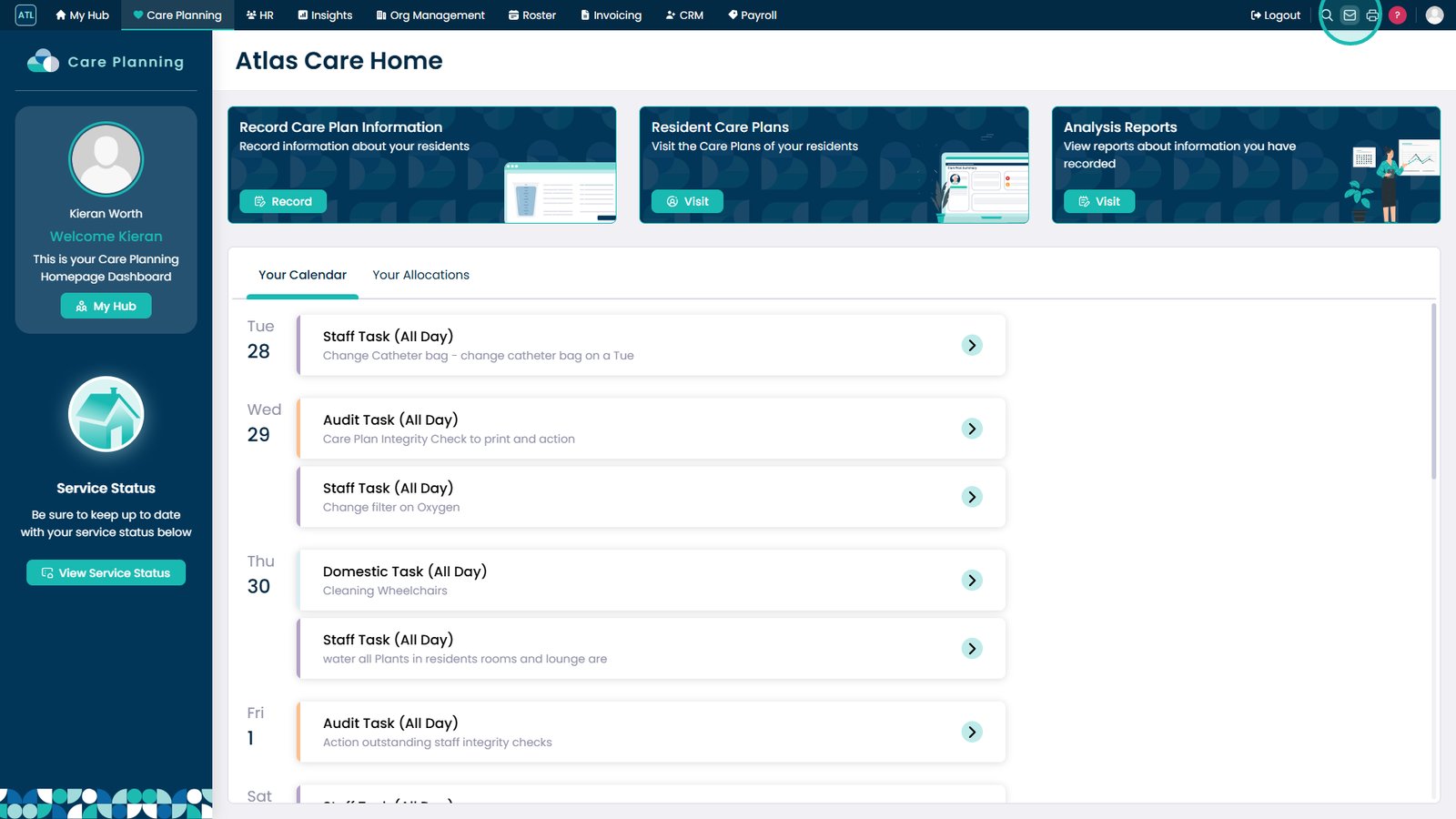
Select the Mail icon to view messages.
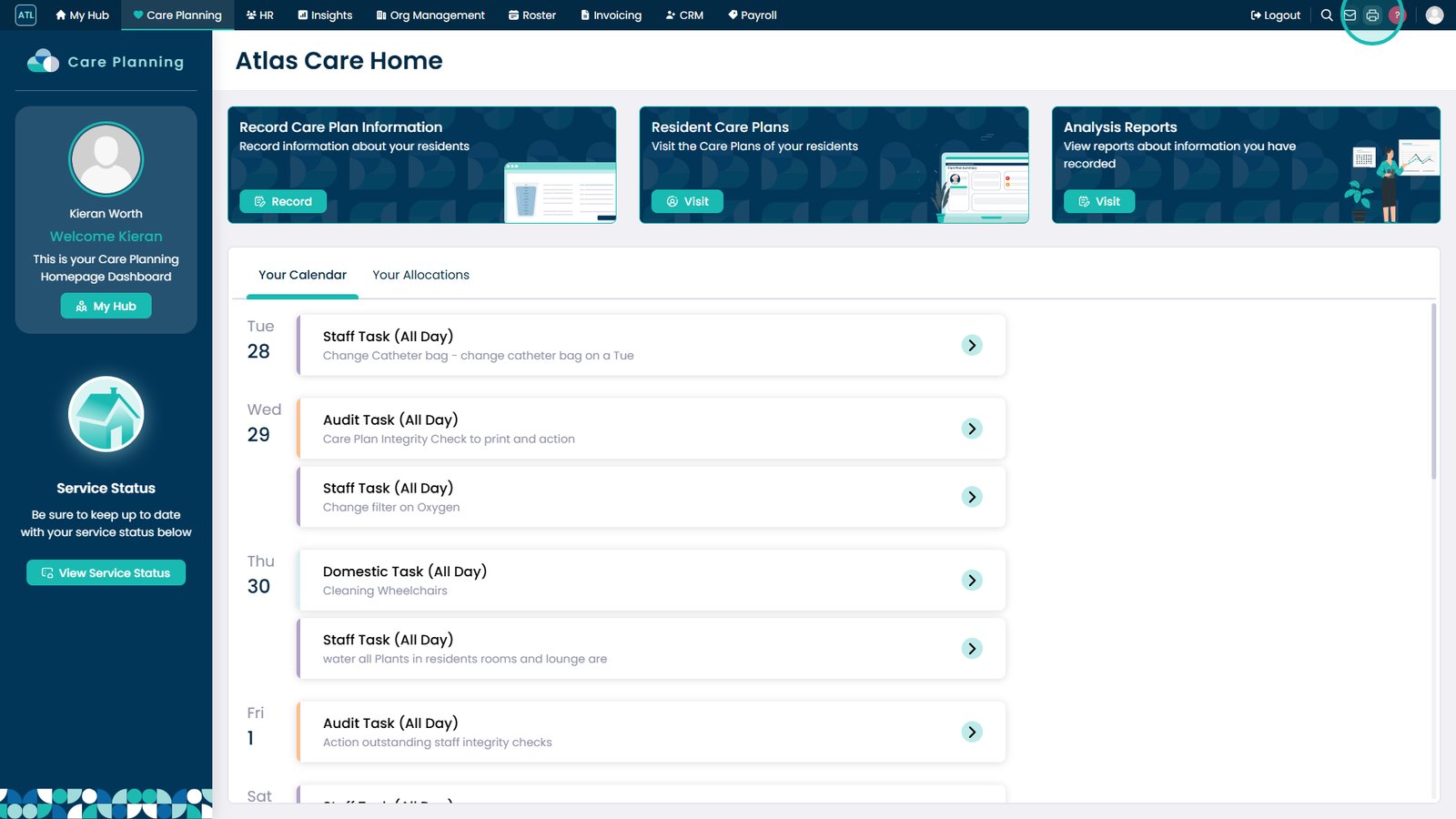
Select the Printer icon to view print options.
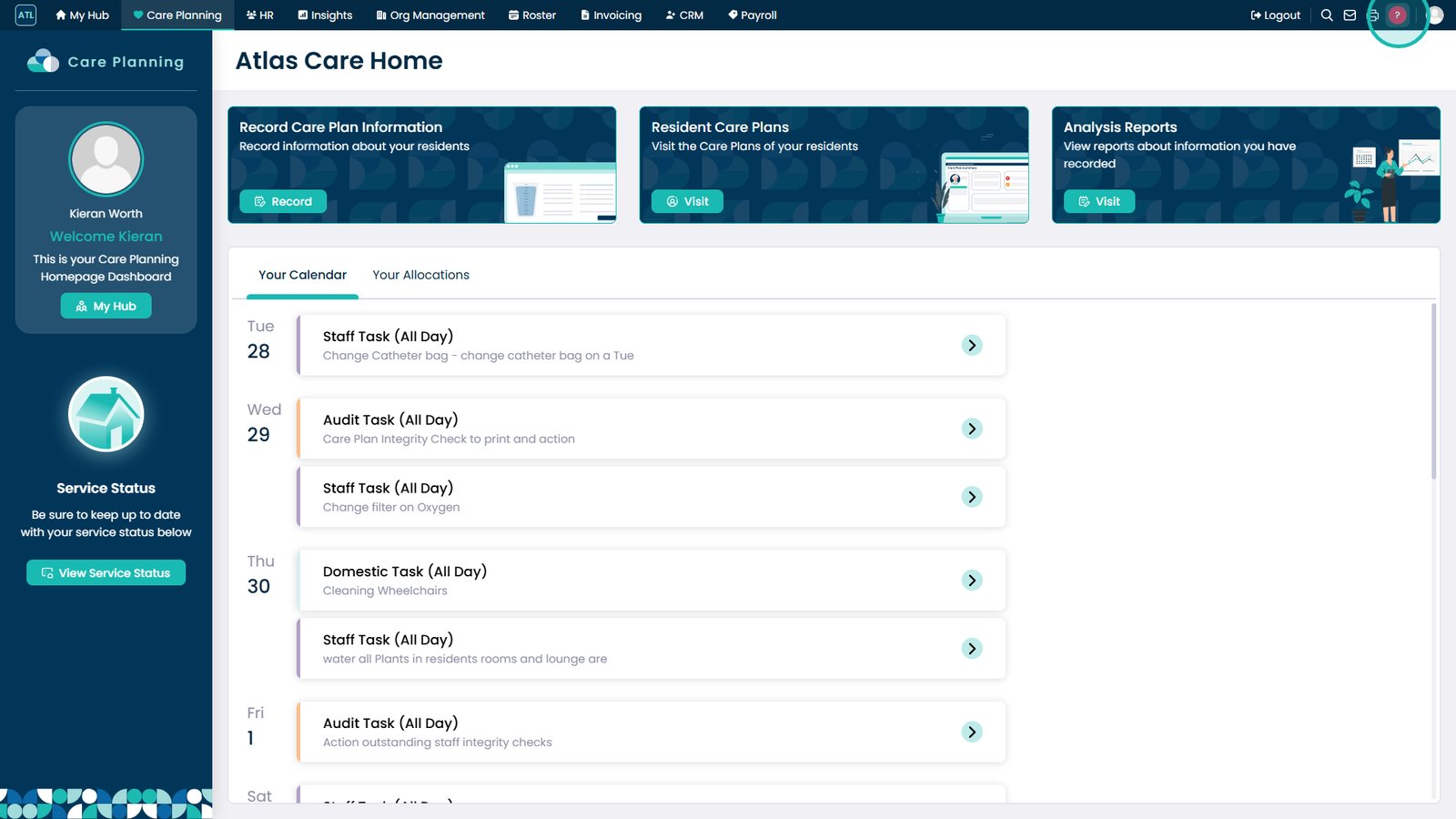
Use the question mark icon to chat with Margo.
Switch between sites using the top-left icon.
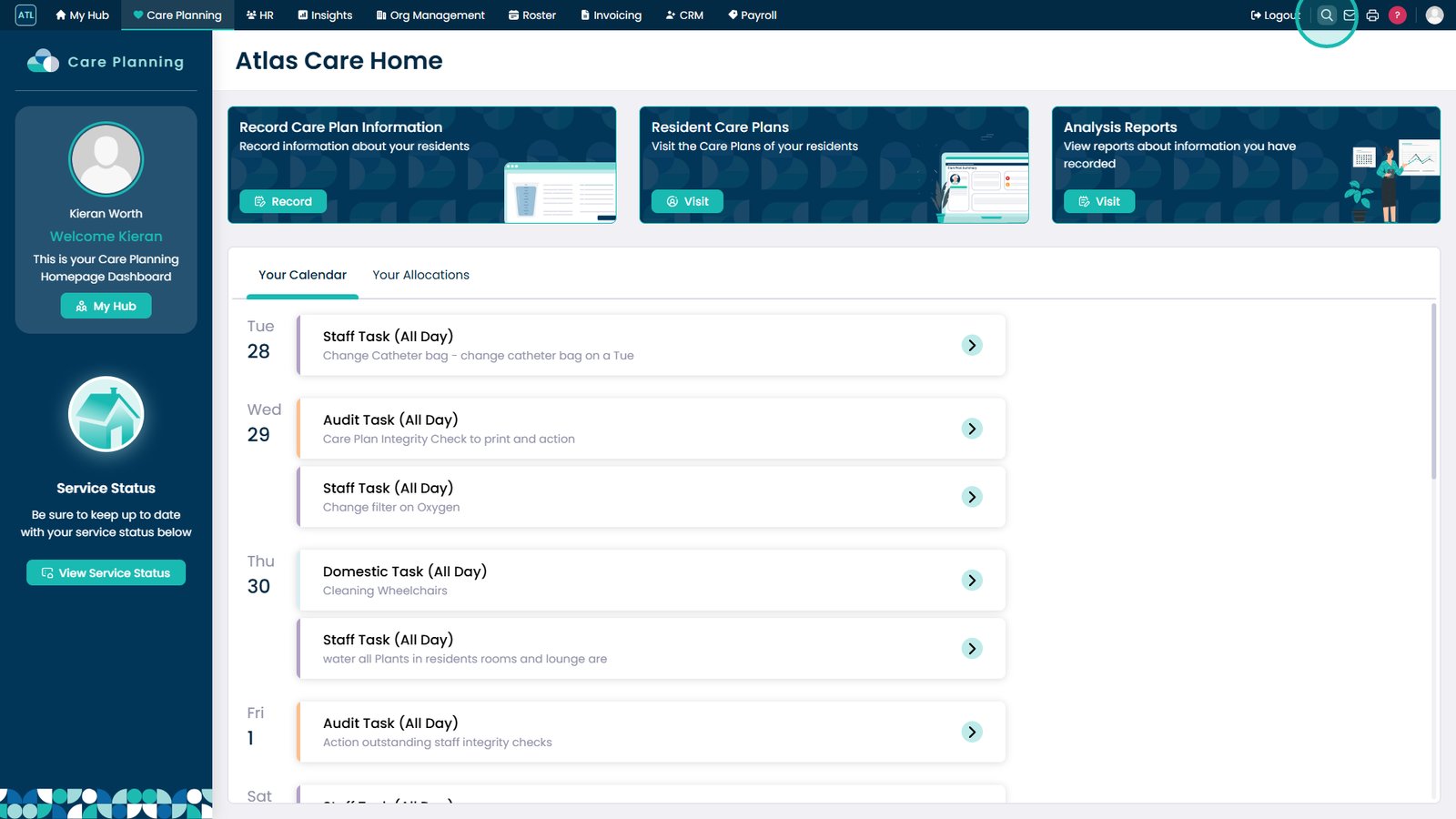
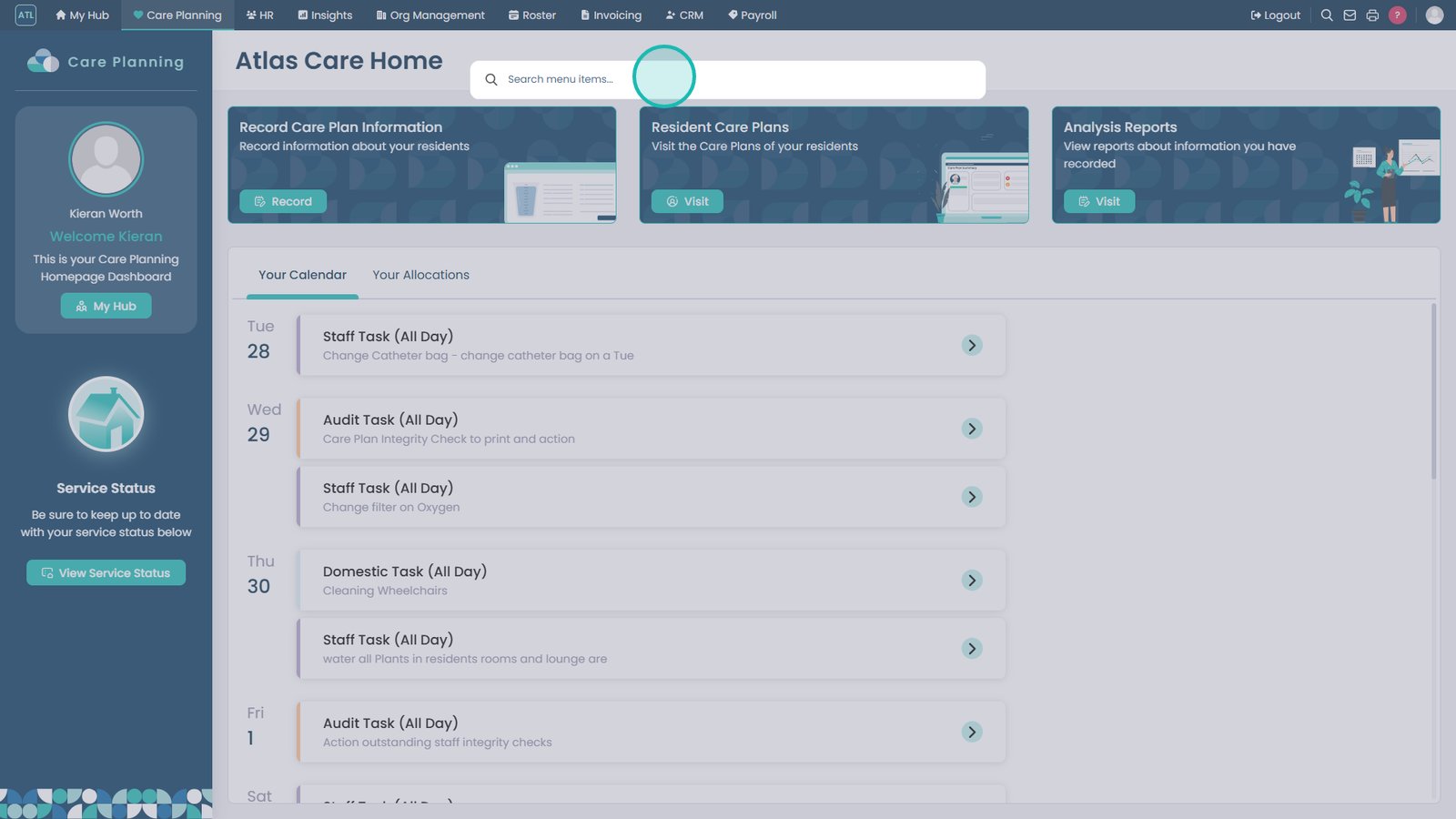
Use the search tool to search across Care Control Cloud.
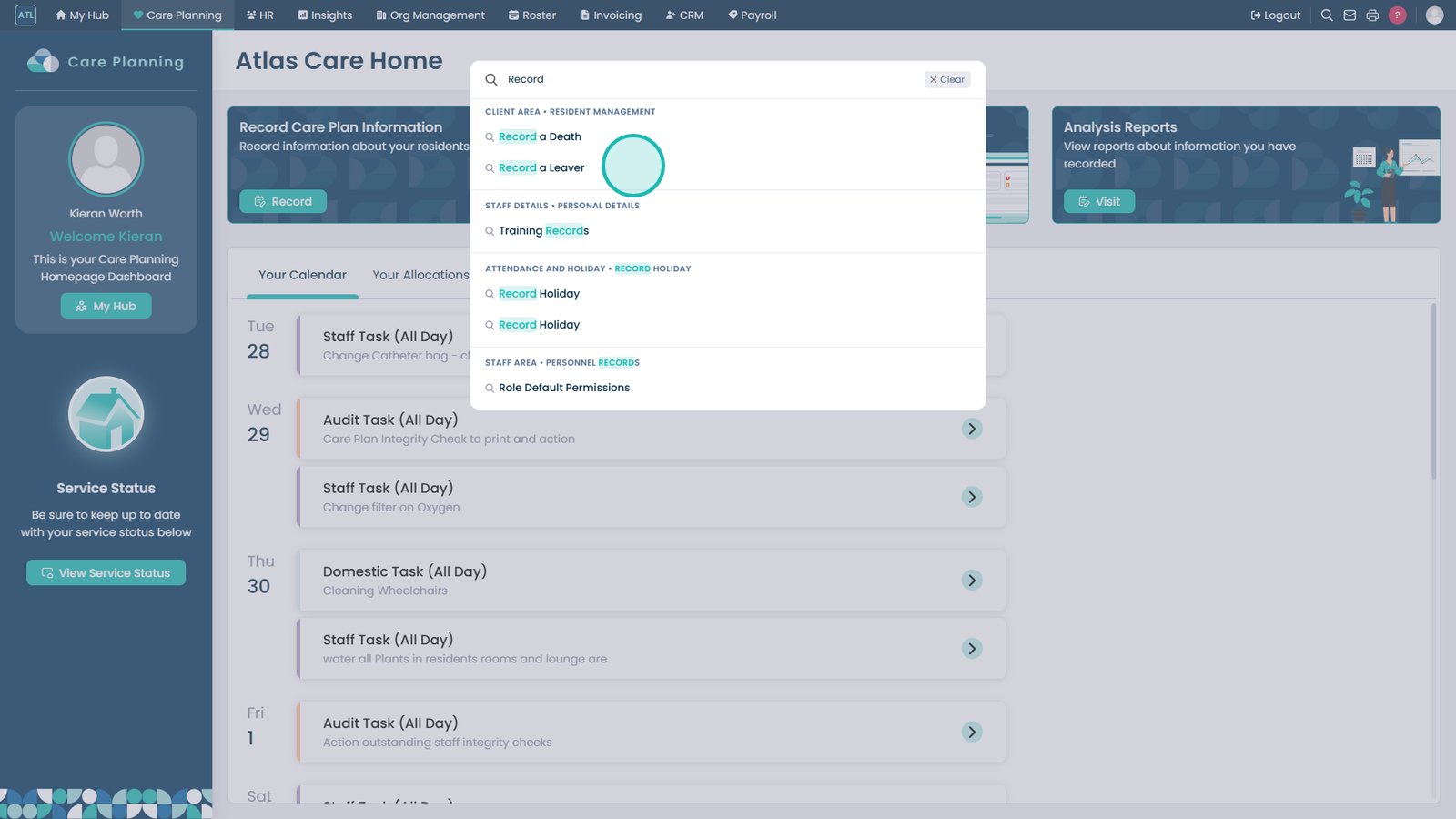
Enter a search term to find results.
Matching items will appear across the system.
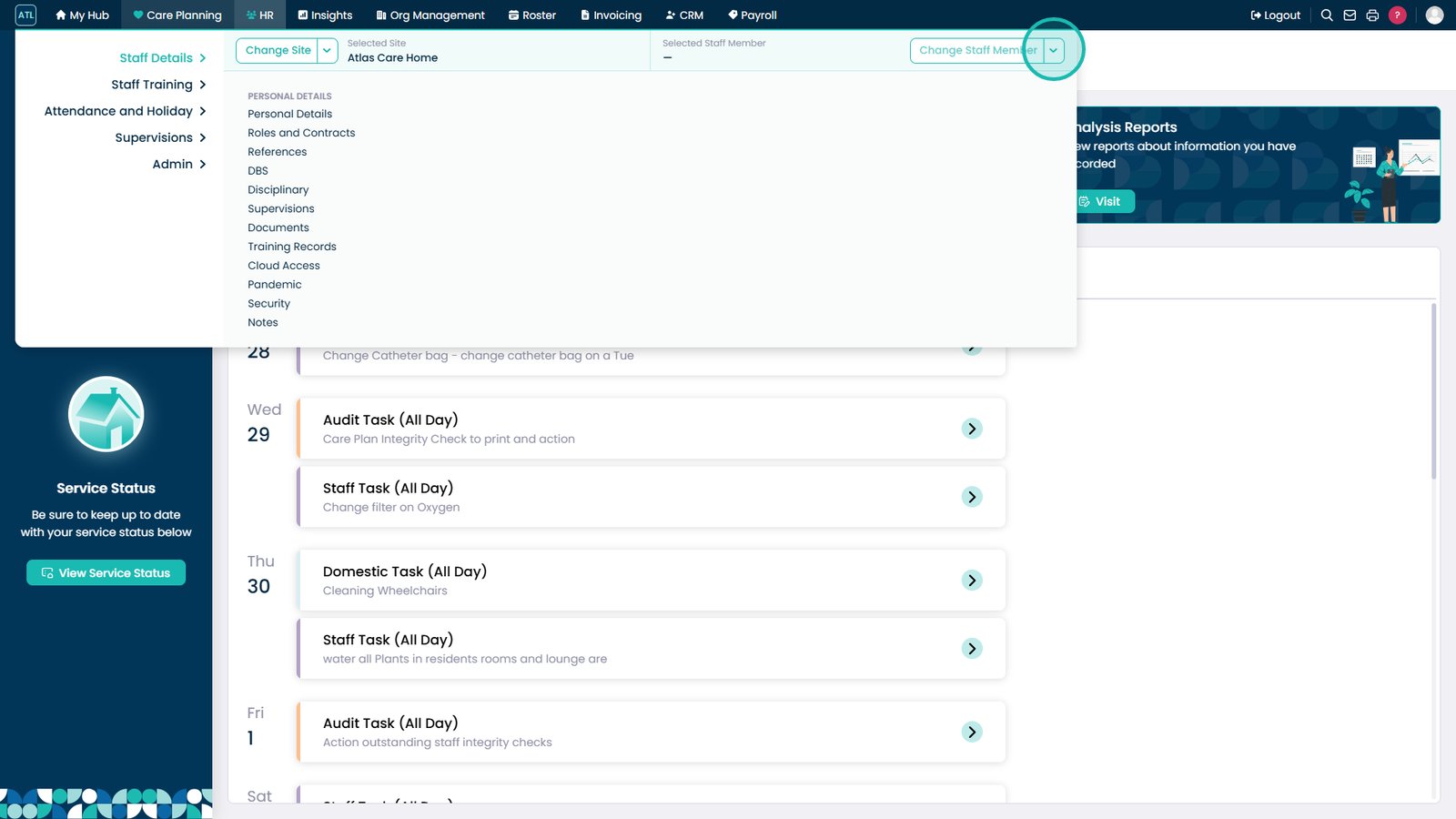
Hover over the HR app to view options.
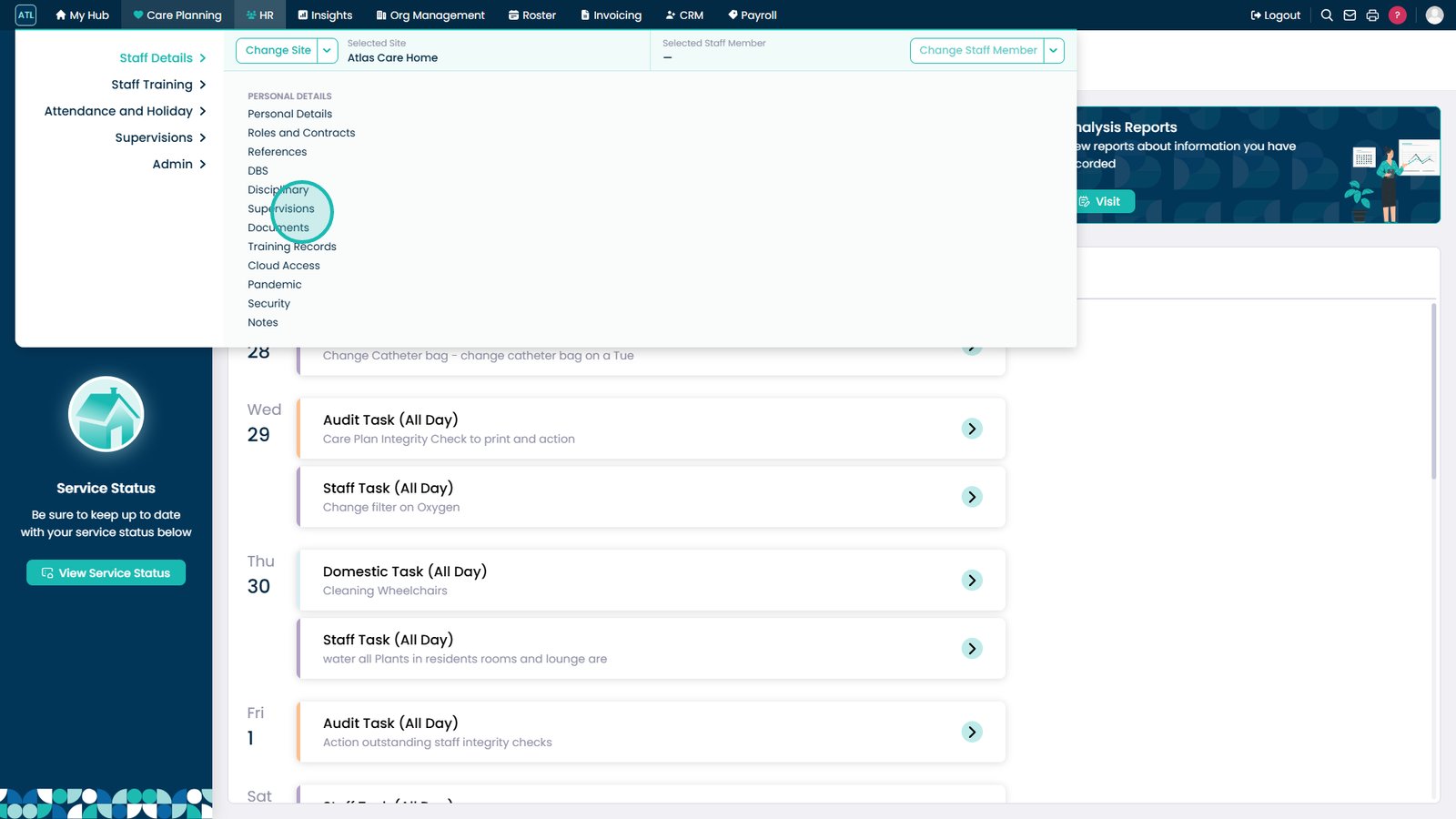
Select a staff member to edit details.
Select what you want to update.
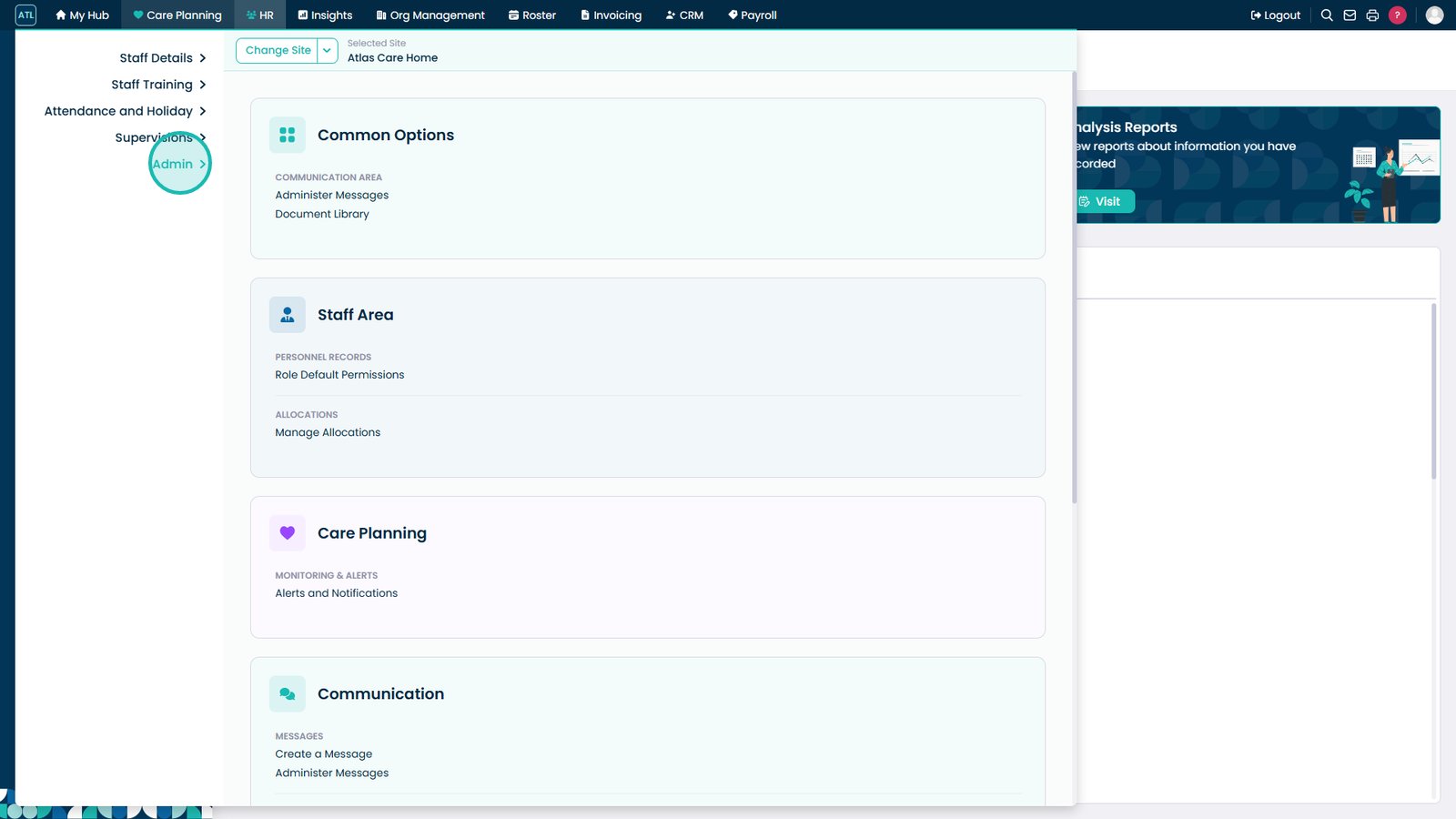
View HR admin options from the Admin area.
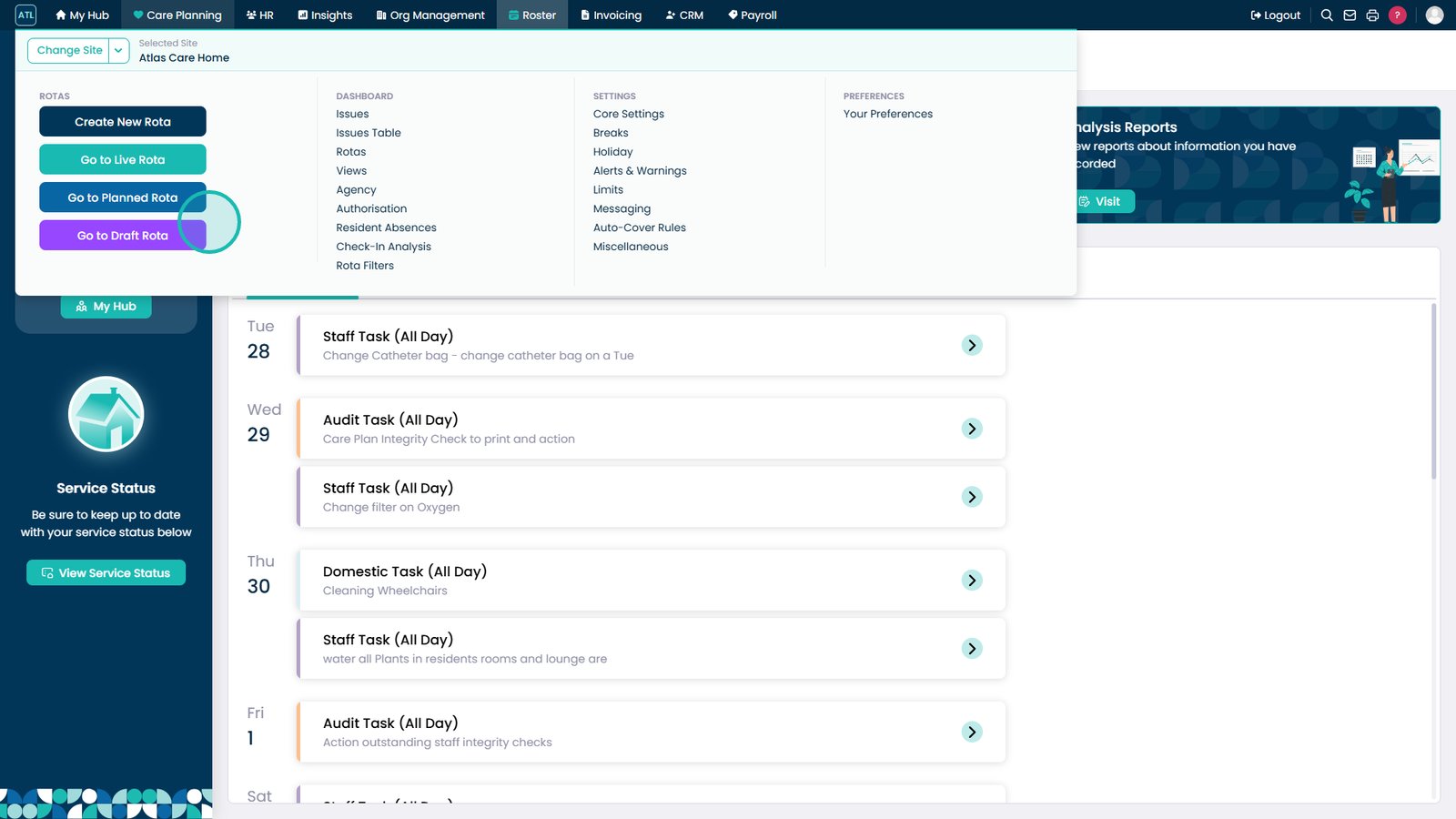
Hover over the Roster app to view options.
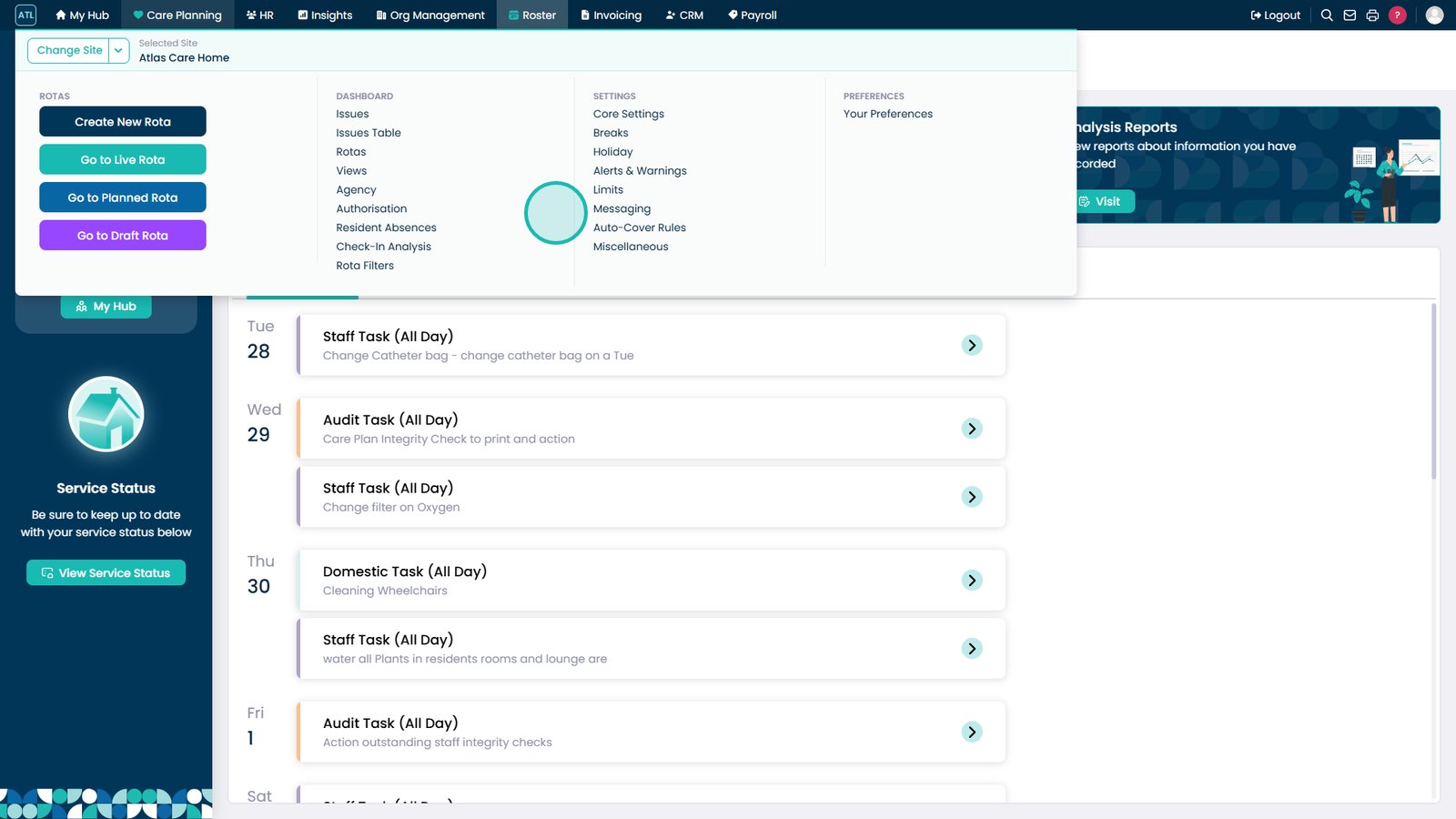
Create, view, or edit rotas from here.
Use this list to access additional sections.
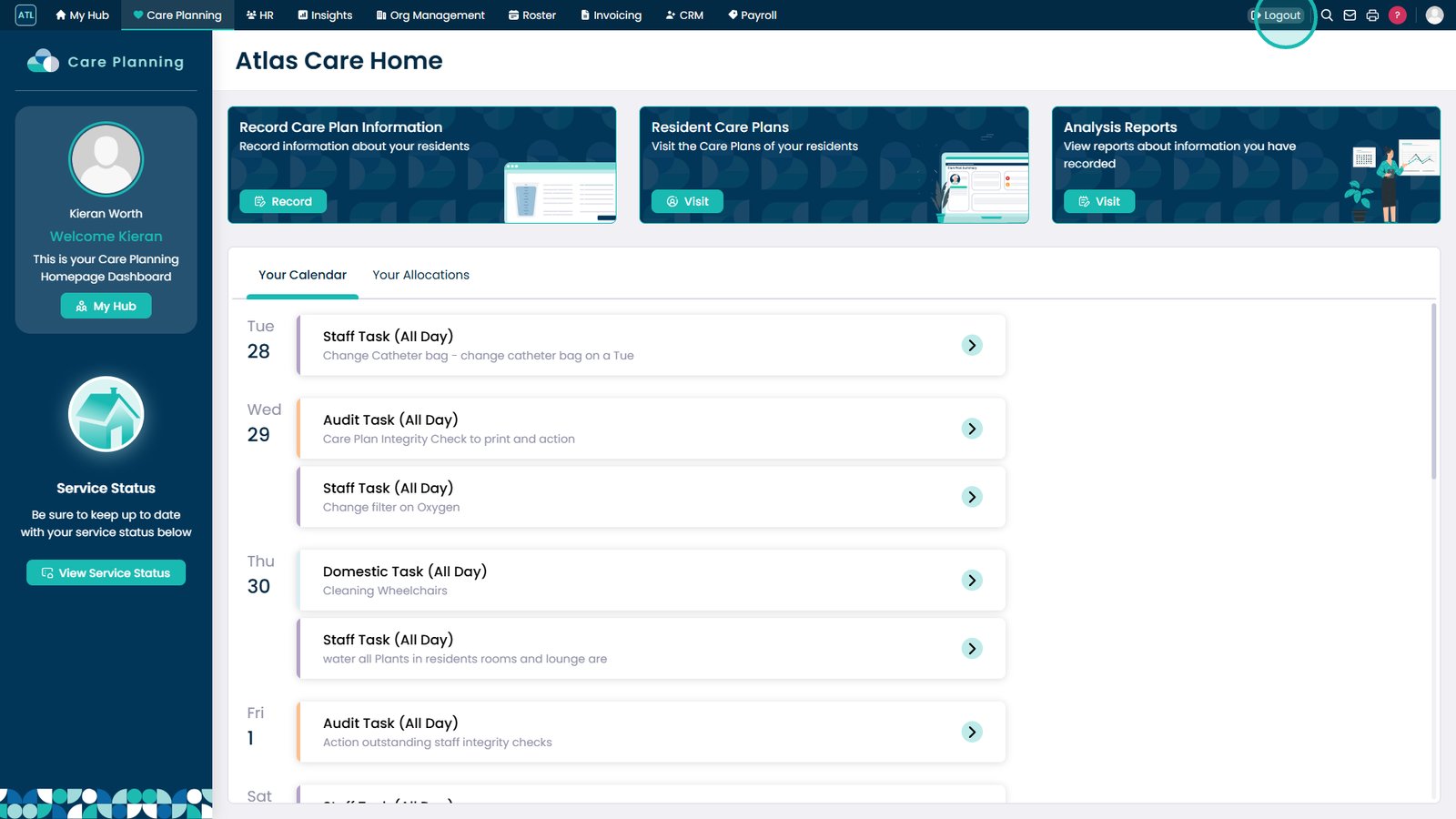
Select Logout when finished.
Top tip
Use the search bar wherever you are across Cloud to find what you need instantly.