How to View and Modify Personal Holiday Records
This guide explains how to view your holiday record, submit a new holiday request, check for booking conflicts, monitor request statuses, and cancel an existing holiday request.
Takes 5 minutes
For: Everyone
Updated: 9th July 2026
Introduction
The Holiday Records module allows you to view your holiday entitlement, submit new holiday requests, monitor the status of existing requests, and cancel bookings that are no longer required.
In this guide you'll learn how to:
- View your holiday records
- Submit a new holiday request
- Review booking conflicts
- Track the status of holiday requests
- Cancel an existing holiday booking
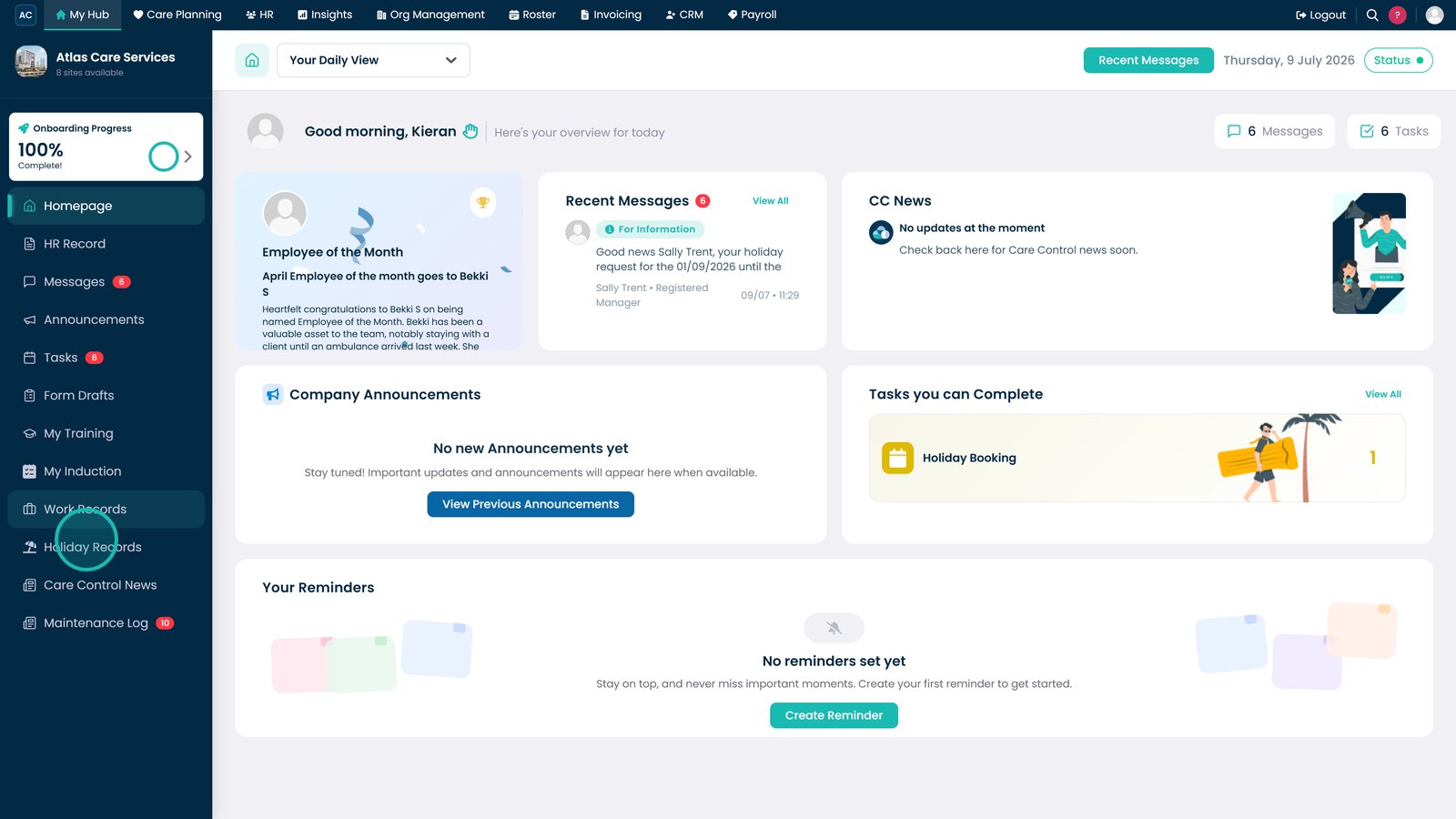
Open the Holiday Records section.

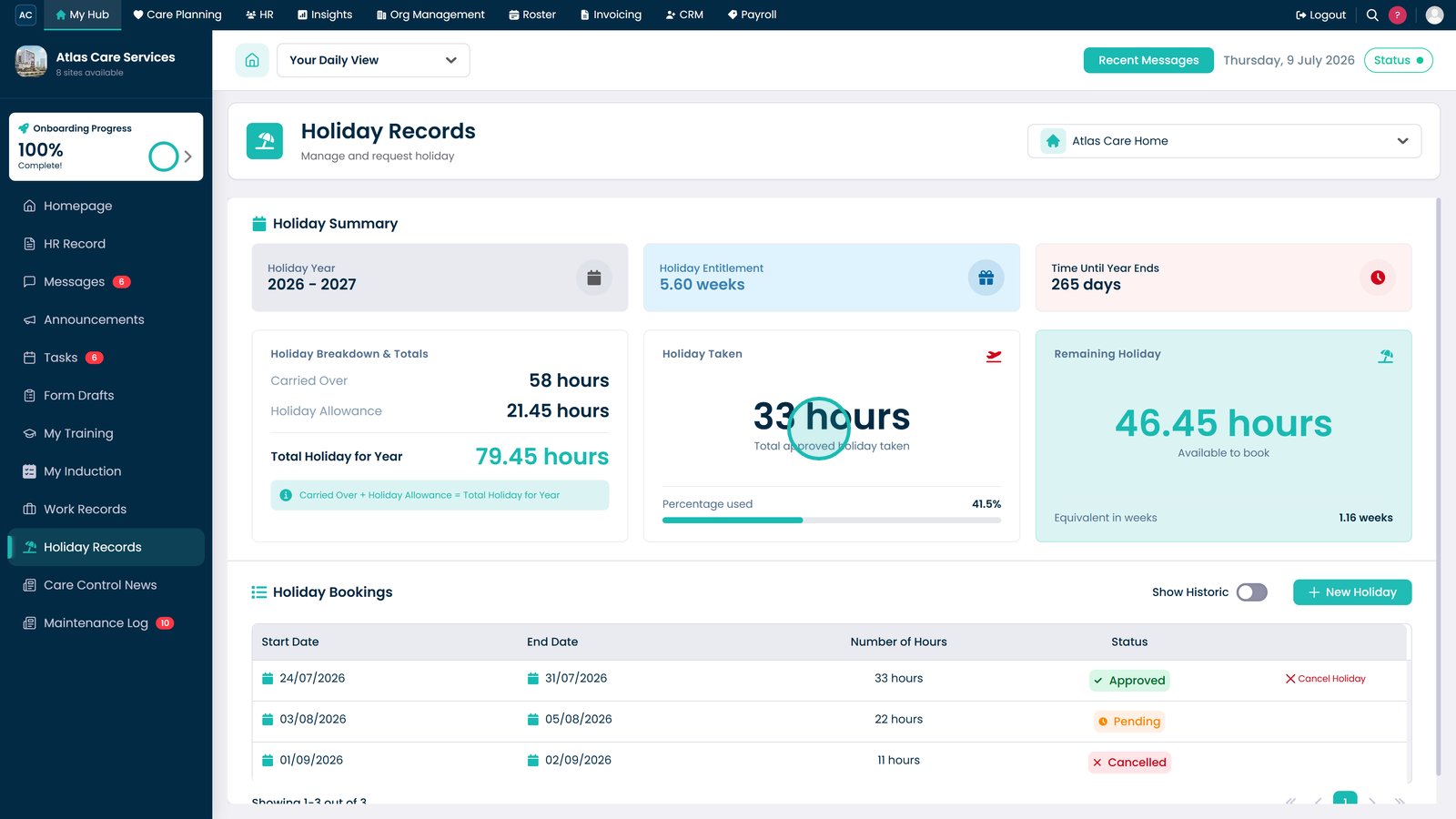
Review your holiday dashboard to view your holiday balance and requests.

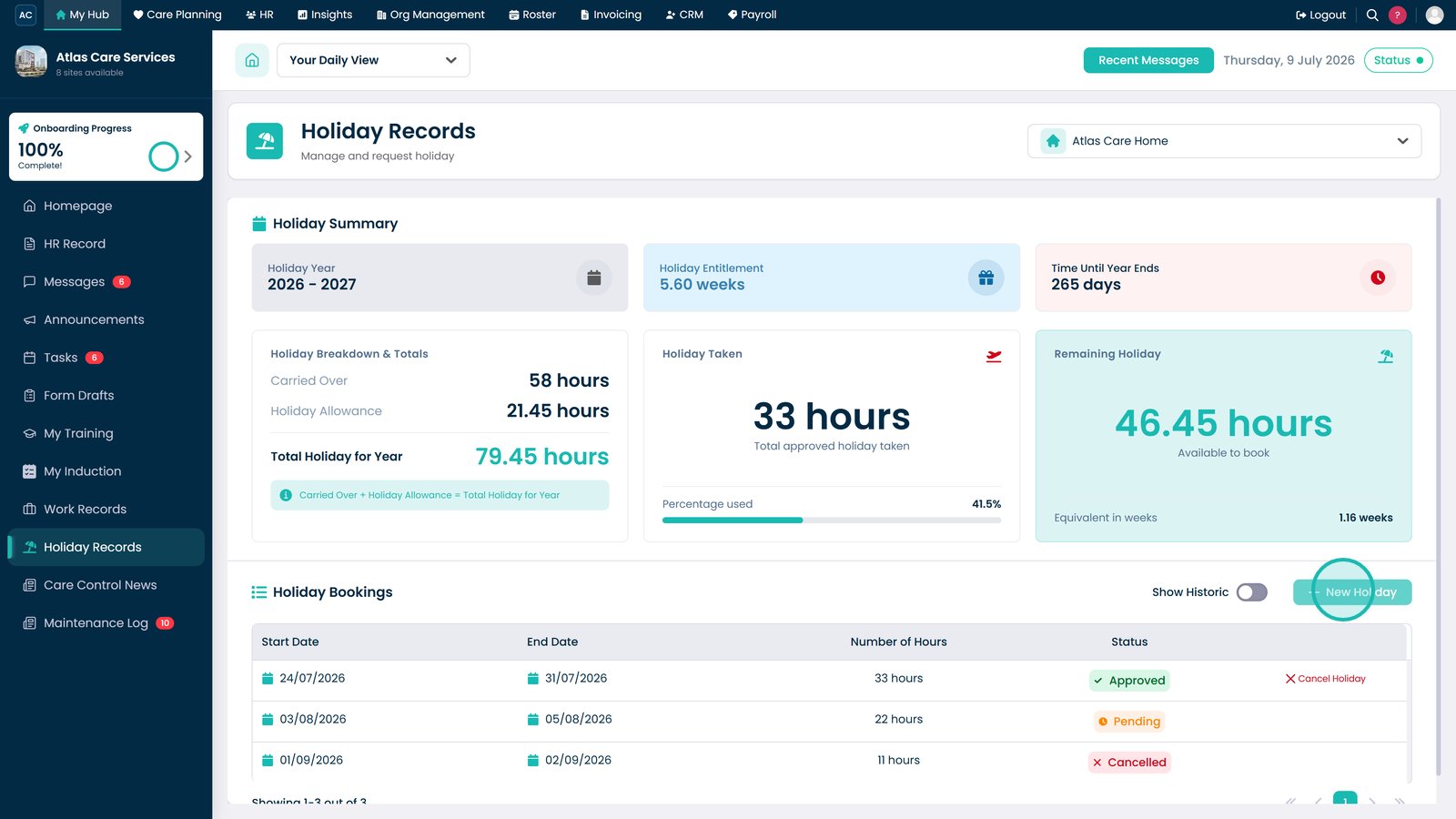
Select New Holiday to create a new holiday request.

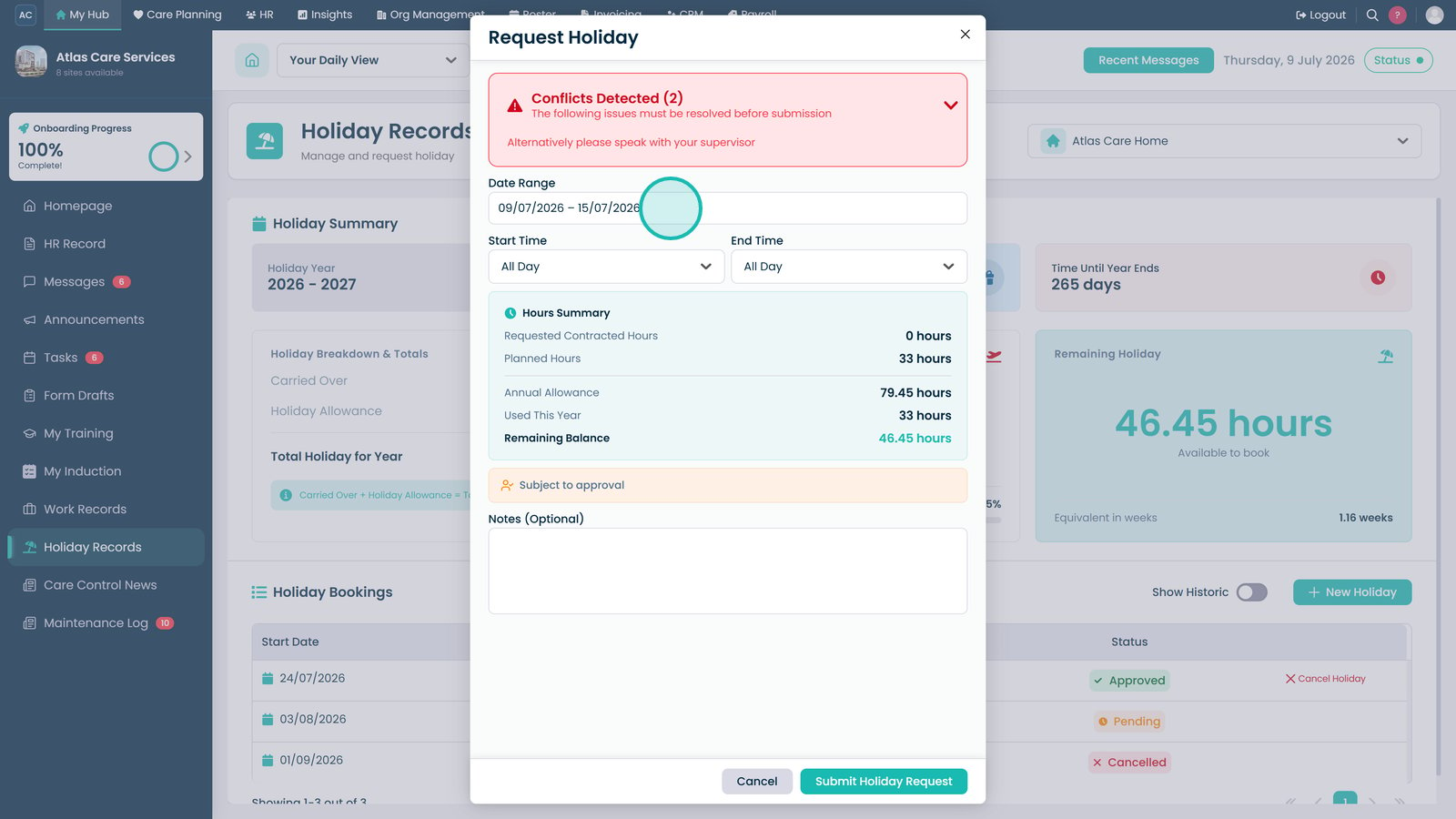
Select the Date Range to choose the start and end dates of your holiday.

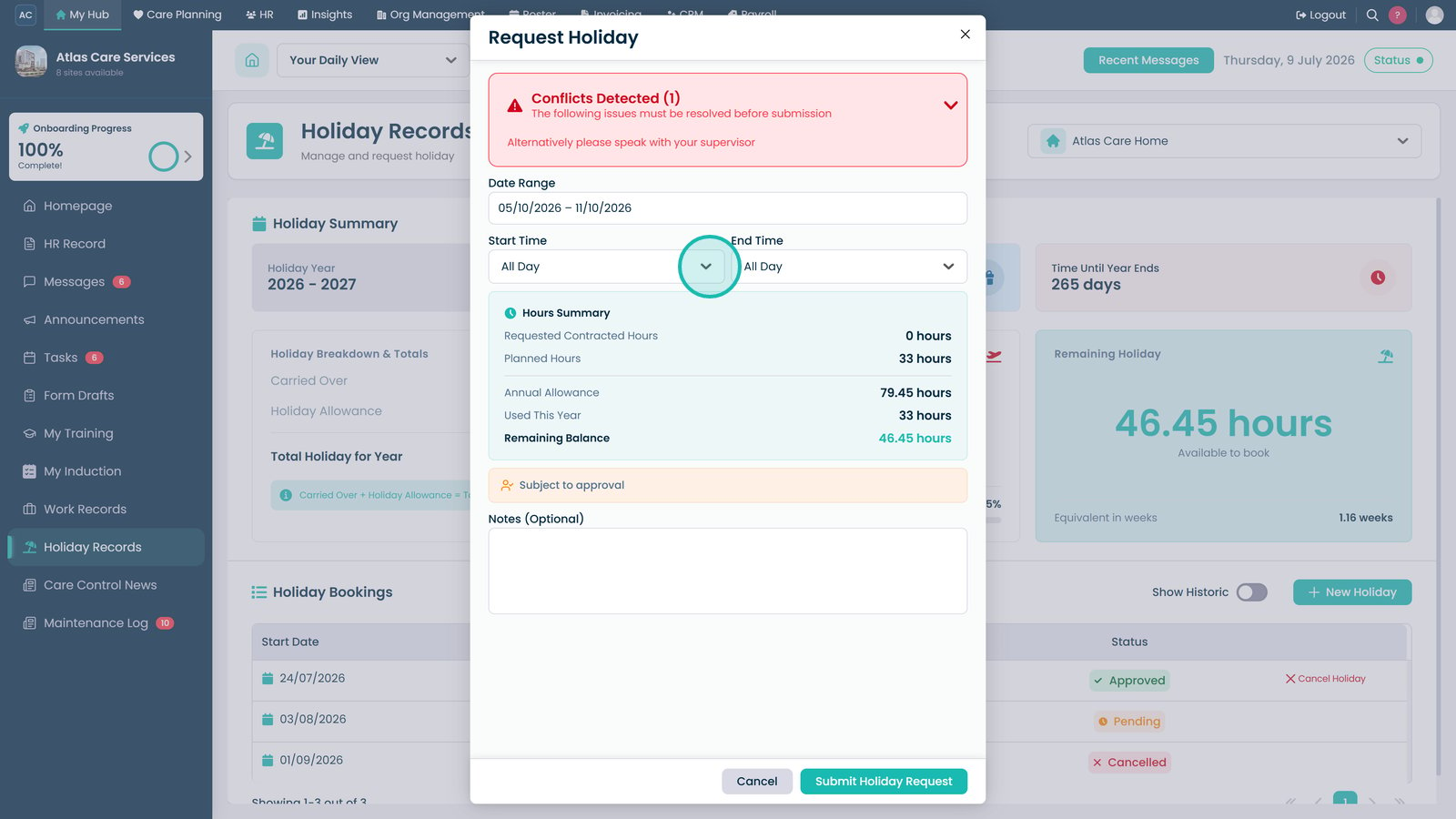
Adjust the Start Time if requesting part of a day.

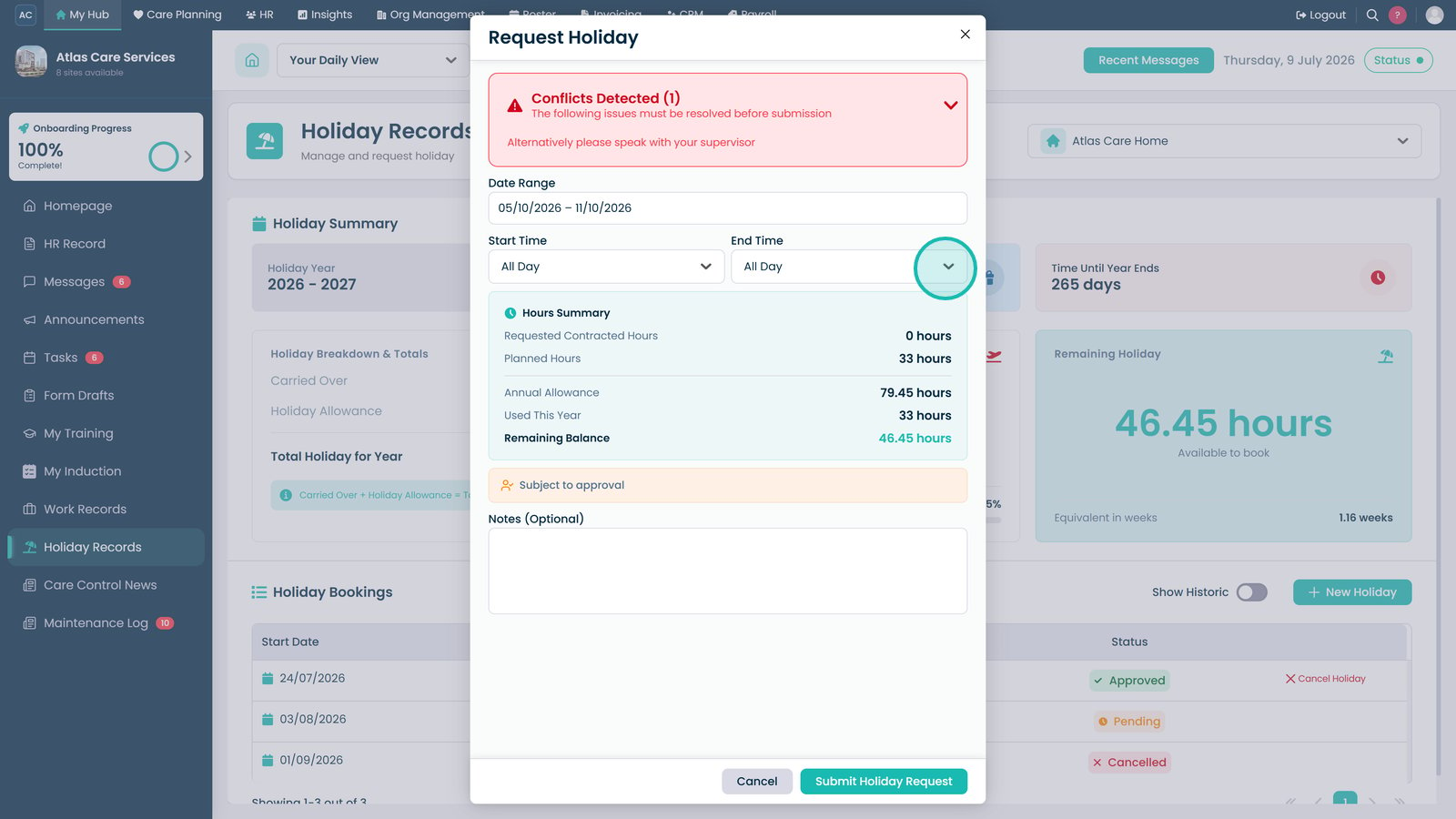
Adjust the End Time if requesting part of a day.

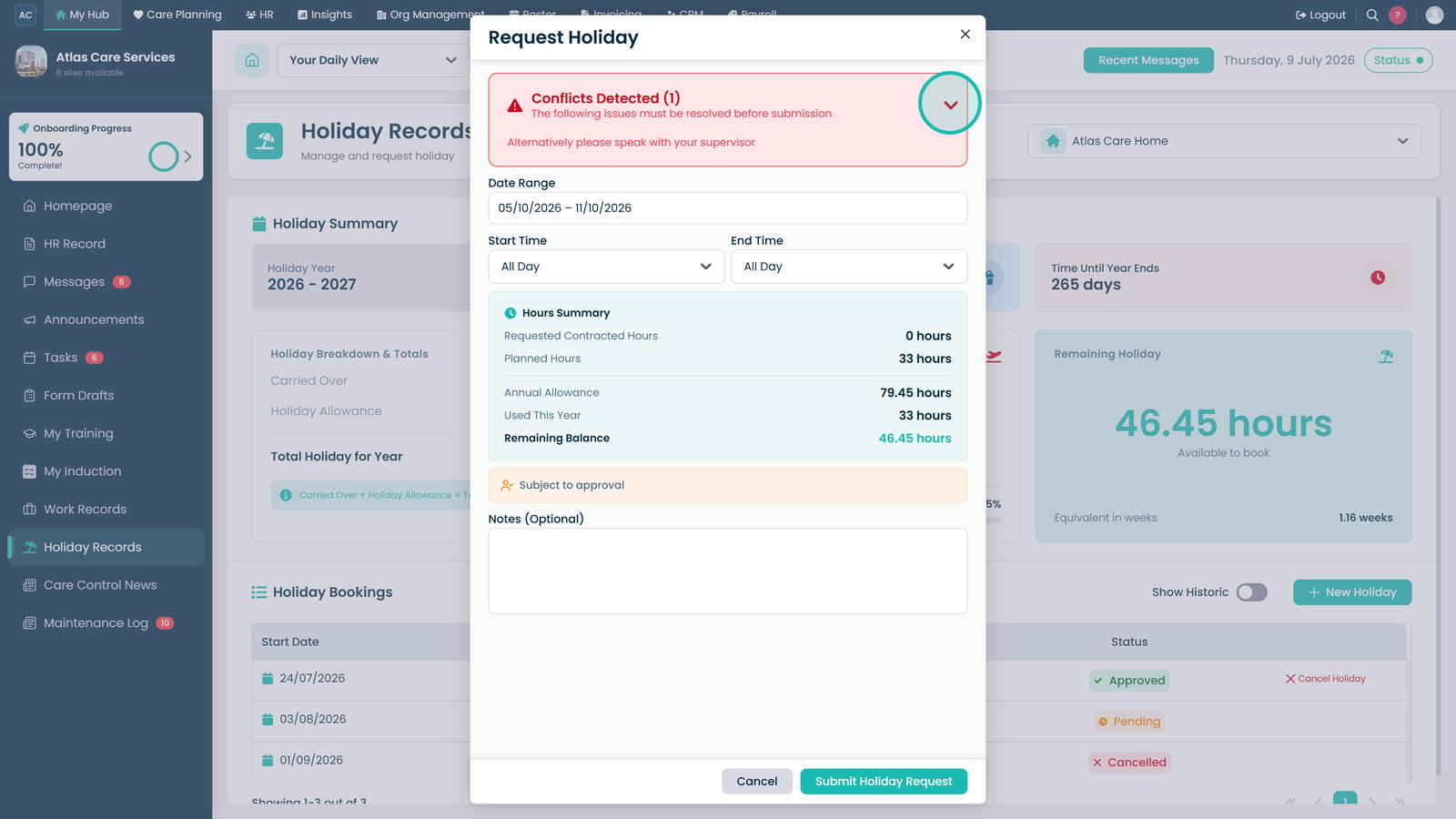
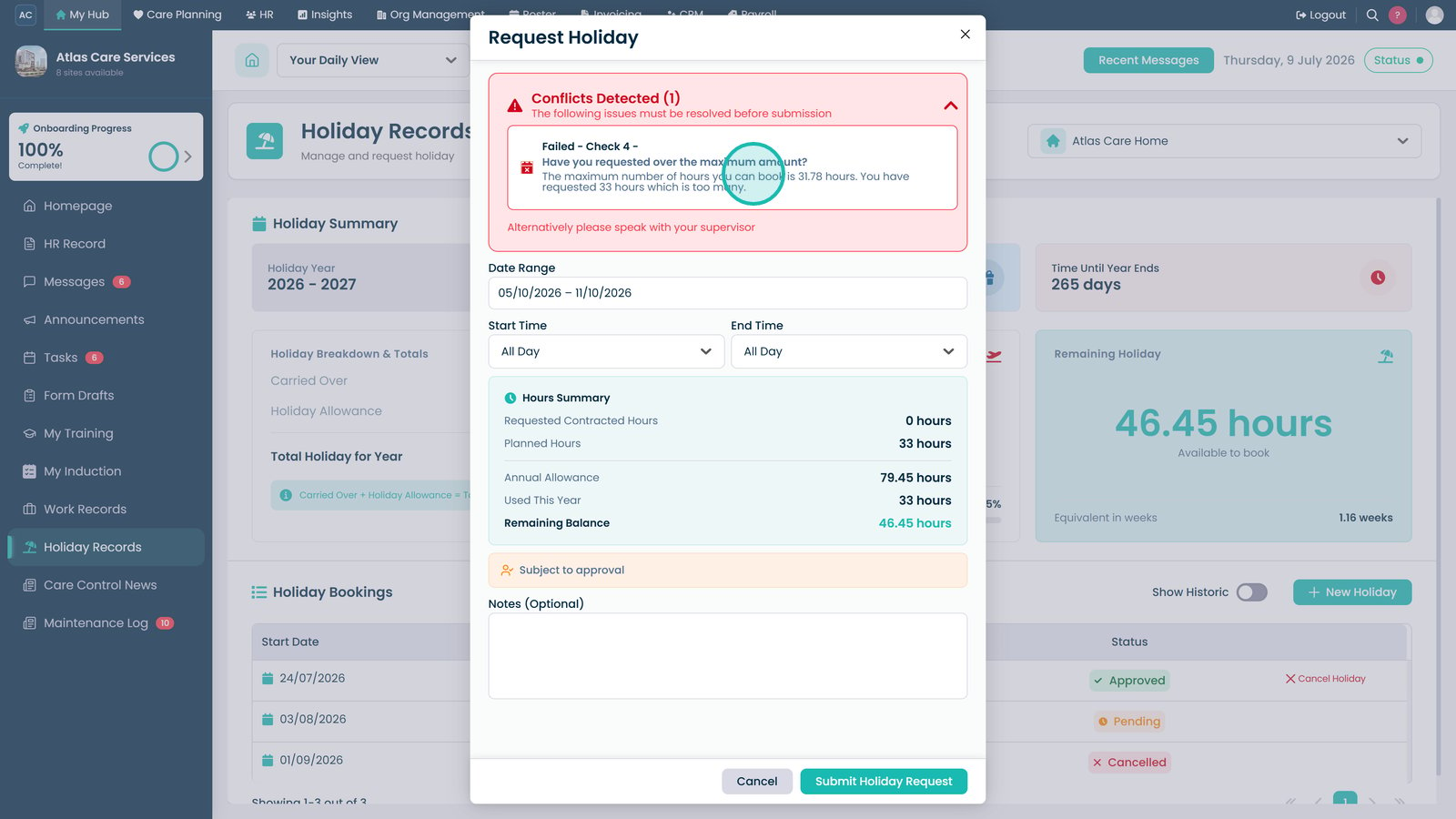
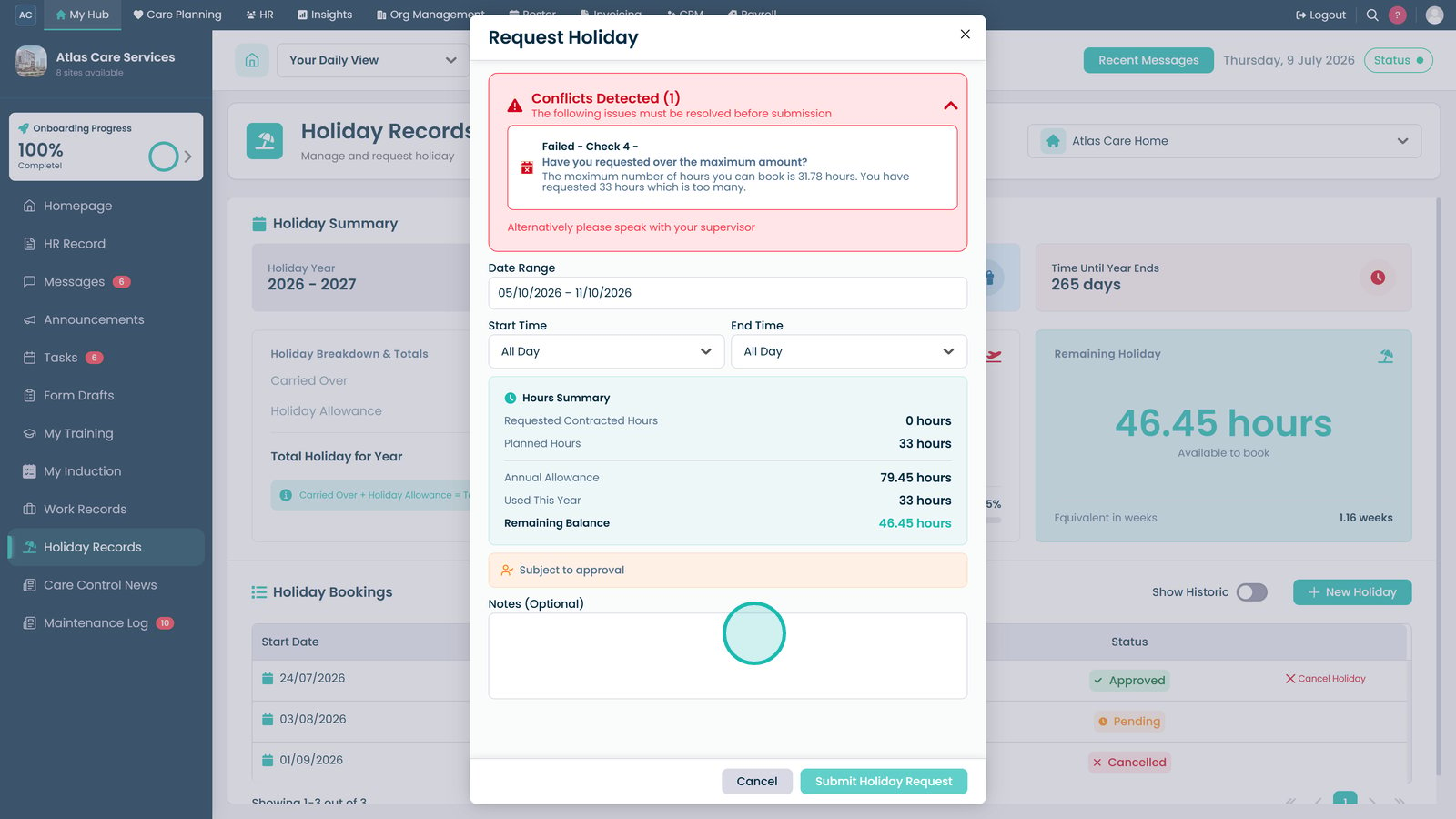
Open Conflicts Detected to review any issues with your request.

Review the conflict information before submitting your request.

Add any notes to support your holiday request.

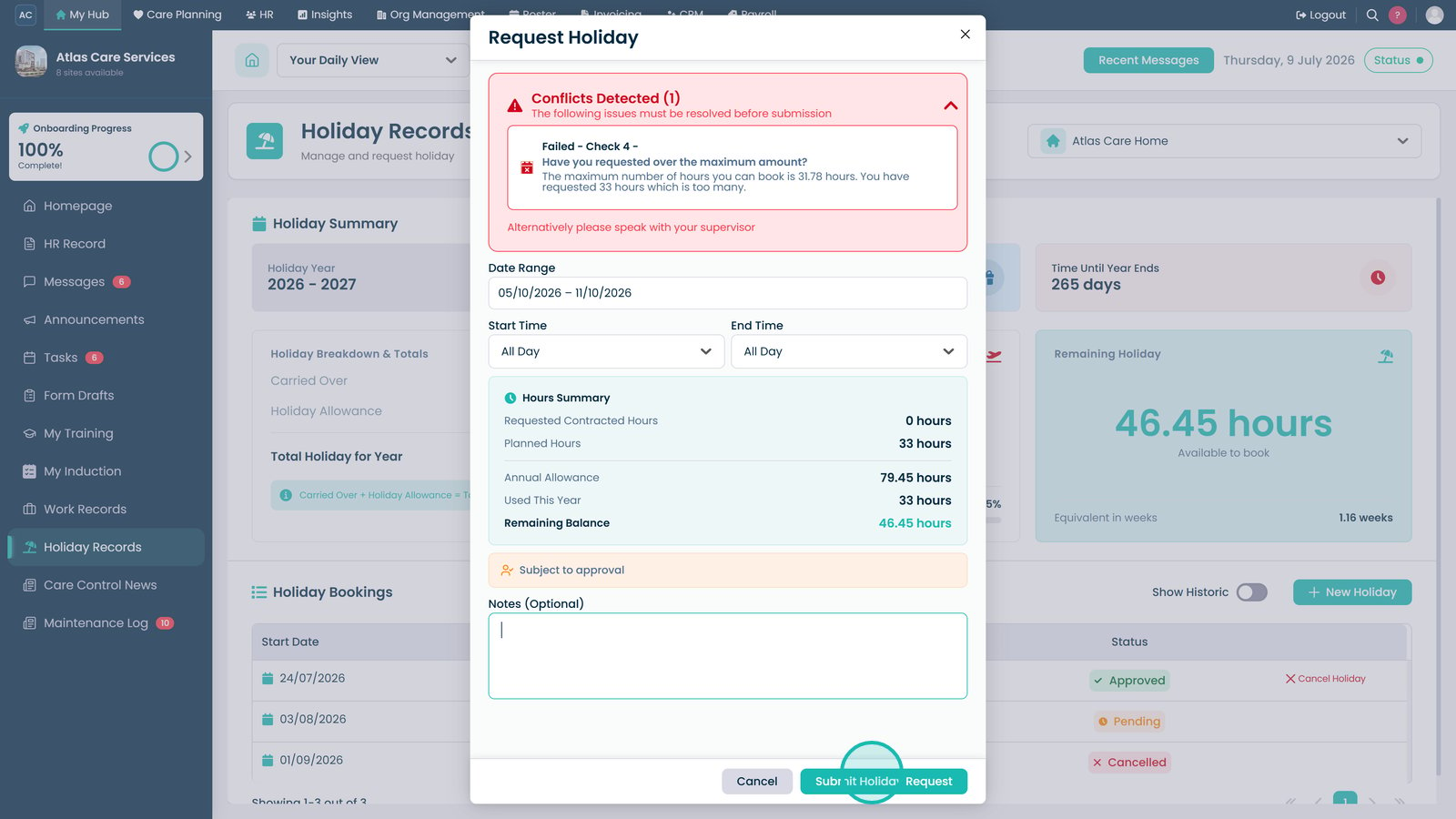
Select Submit Holiday Request to send your request for approval.

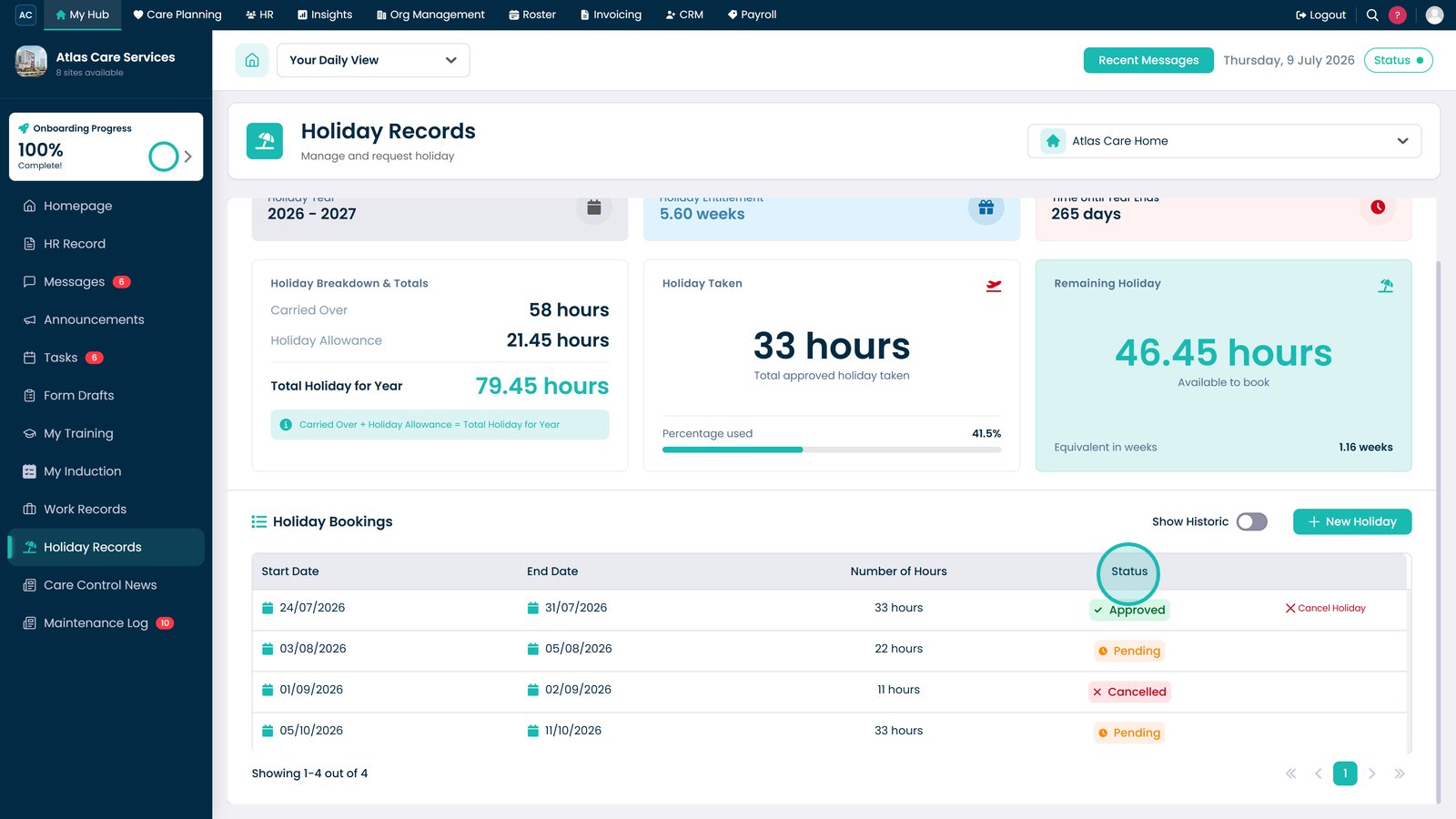
Review the status indicators to see whether requests are Approved, Pending, Denied, or Cancelled.

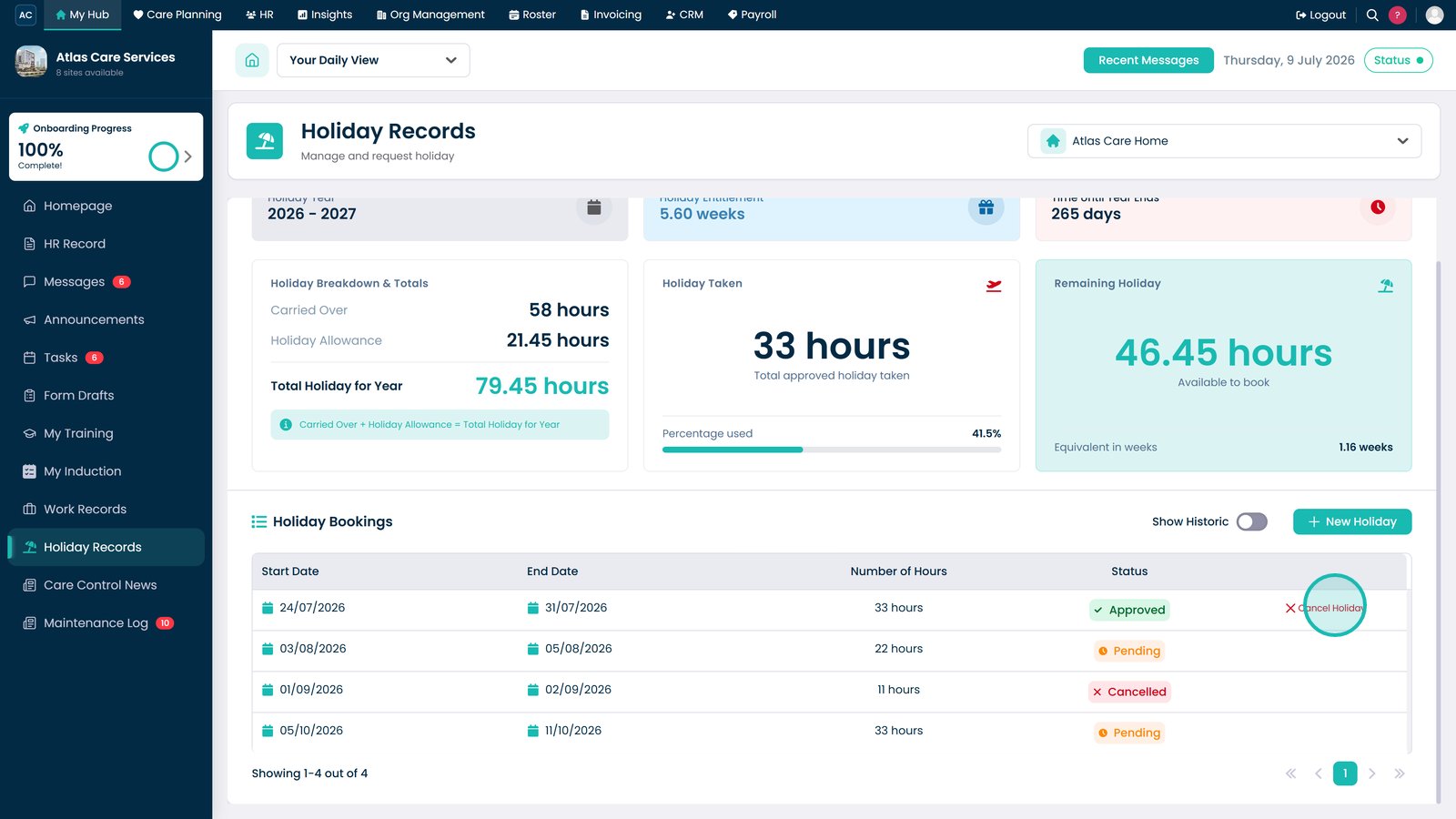
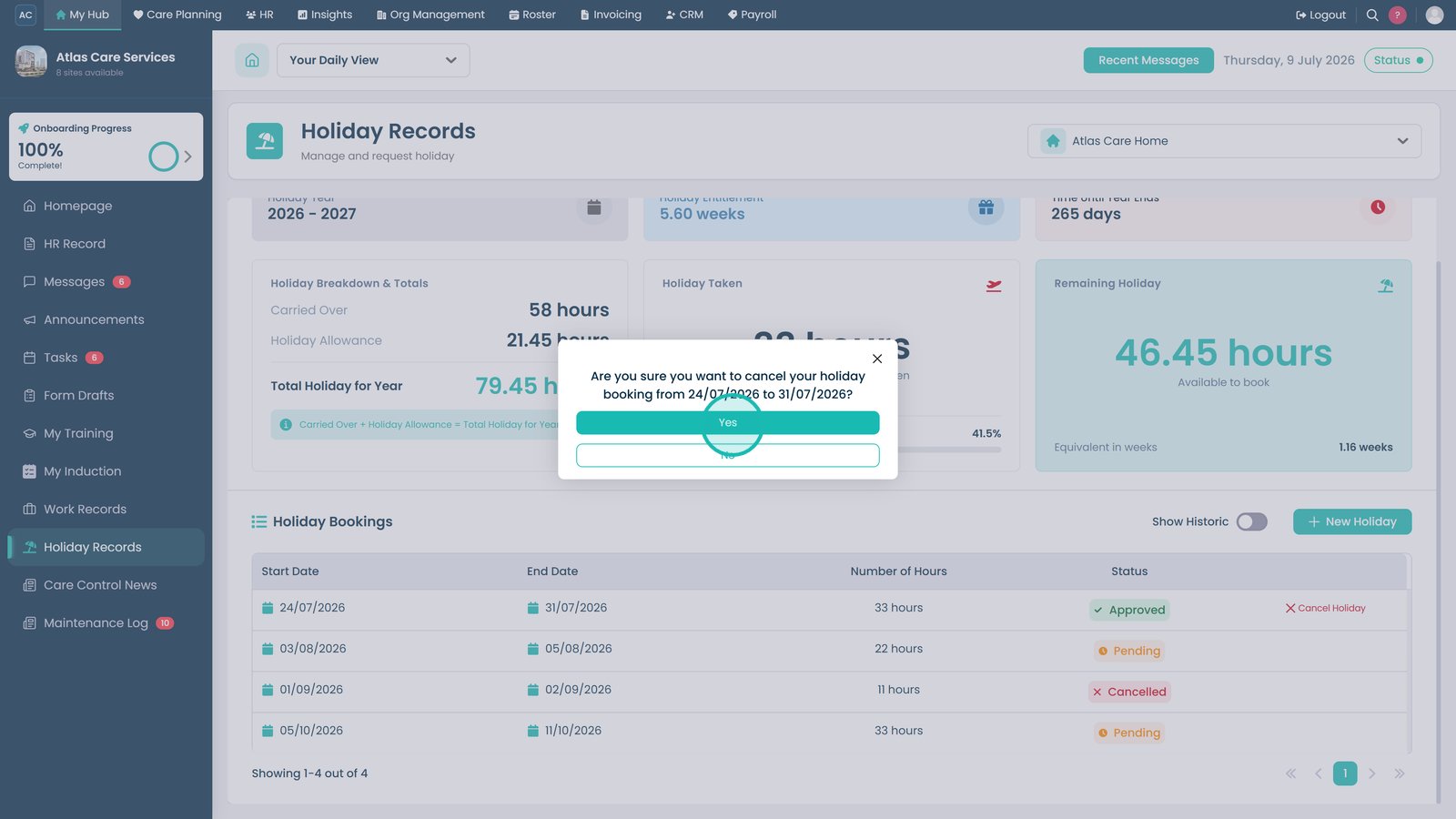
Select Cancel Holiday to cancel an existing holiday booking.

Select Yes to confirm the holiday cancellation.

Top tip
Check for any booking conflicts before submitting your holiday request to avoid delays or rejected requests.
Need more help?
Can't find what you're looking for? Our support team is here to help.
Contact SupportOr call us on