View Categories

How to View and Modify Personal Work Records

This guide explains how to navigate and manage Work Records, giving you full visibility over shifts, pay, and employee attendance within a selected pay period.

Accurately reviewing and updating work records is essential for ensuring correct payroll, maintaining compliance, and reducing errors in shift data. By keeping records up to date, you improve transparency, minimise discrepancies, and support smoother workforce management.

By following this guide, you will learn how to:

  • Navigate to and switch between sites within Work Records
  • Review gross pay, hours worked, and holiday records
  • Check sign-in and sign-out data for accuracy
  • Add new shifts and submit them for approval
  • Adjust existing shifts and provide reasons for changes
  • Ensure all records are accurate for payroll processing

This ensures your work records remain accurate, up to date, and aligned with payroll and operational requirements.

Interactive Guide

Text based guide

Navigate to Work Records from the main menu to access shift and payroll data.

Switch between sites to view shifts across different locations.

View the gross pay for the current pay period.

Open Hours Worked to review detailed employee shift history for the pay period.

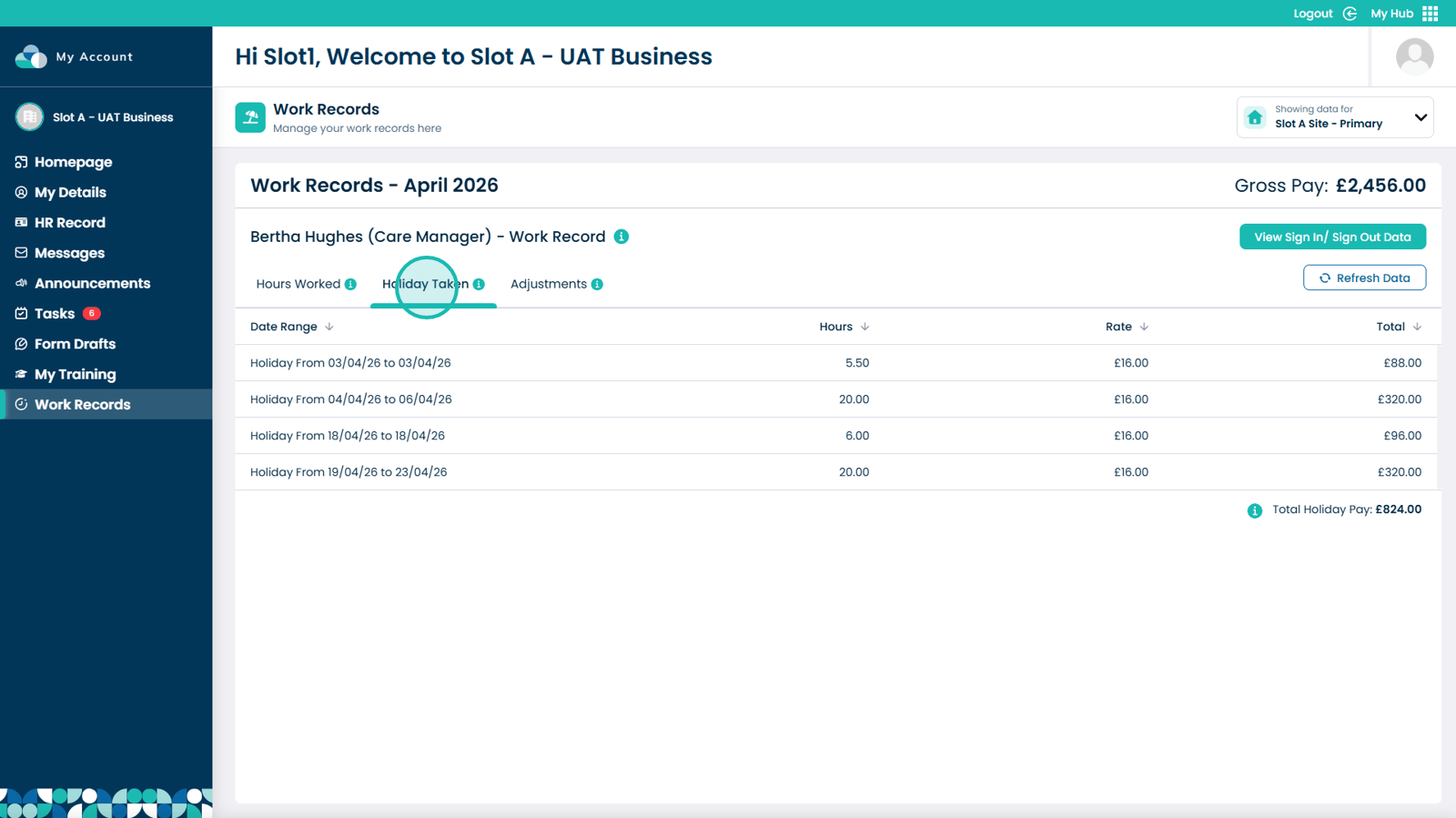
Check the Holiday Taken tab to review leave recorded within the pay period.

Review Adjustments to verify and update any changes to pay or hours.

Open sign-in and sign-out data to review attendance records.

Review detailed sign-in and sign-out data, including any missing entries.

Close the window using the X to return to the previous screen.

Return to Hours Worked to review or adjust employee work logs.

Click Add Shift to create a new shift entry.

Complete all required fields to accurately record the new shift.

Submit the shift using Send Proposed Adjustment for approval.

Use the Adjust option to modify any existing shift.

Review the current shift details displayed on the left panel.

Enter updated details in the right panel to amend the shift.

Provide a clear reason for the adjustment to maintain accurate records.

Submit the updated shift using Send Proposed Adjustment to finalise the change.

Return to the overview to continue reviewing shifts and payroll data.

Was it helpful ?
Table of Contents
↑ Top