This guide explains how to view your rota from within MyHub
Takes 2 Minutes
For: Everyone
Updated: 15th July 2026
Introduction
The Rota module allows you to view your scheduled shifts, review shift details, switch between sites, and identify opportunities to provide shift cover. You can also view who is working on a particular day and request to cover available shifts.
In this guide you'll learn how to:
View your rota
Filter scheduled shifts
Review shift details
Find available cover shifts
Request to cover a shift
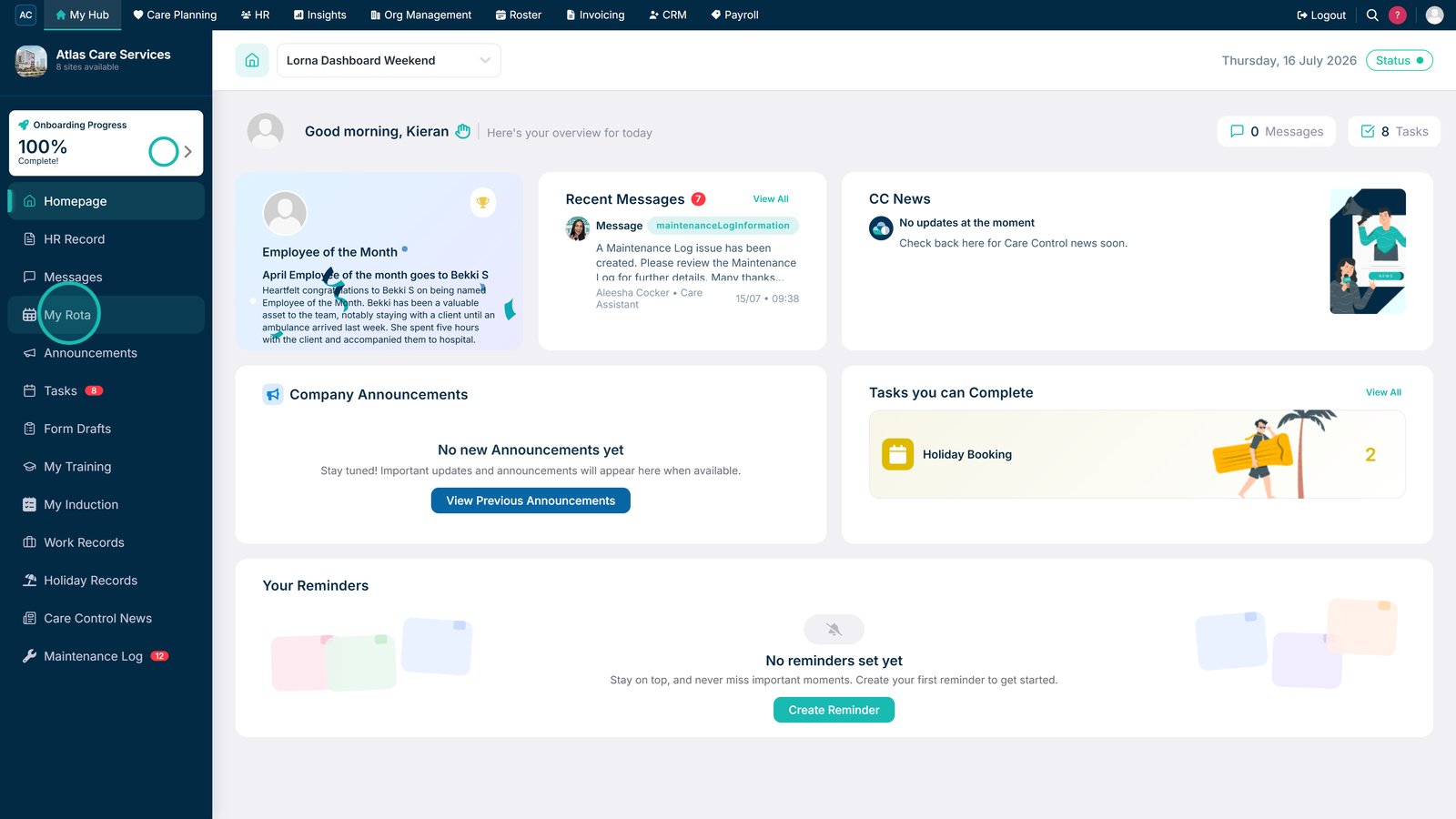
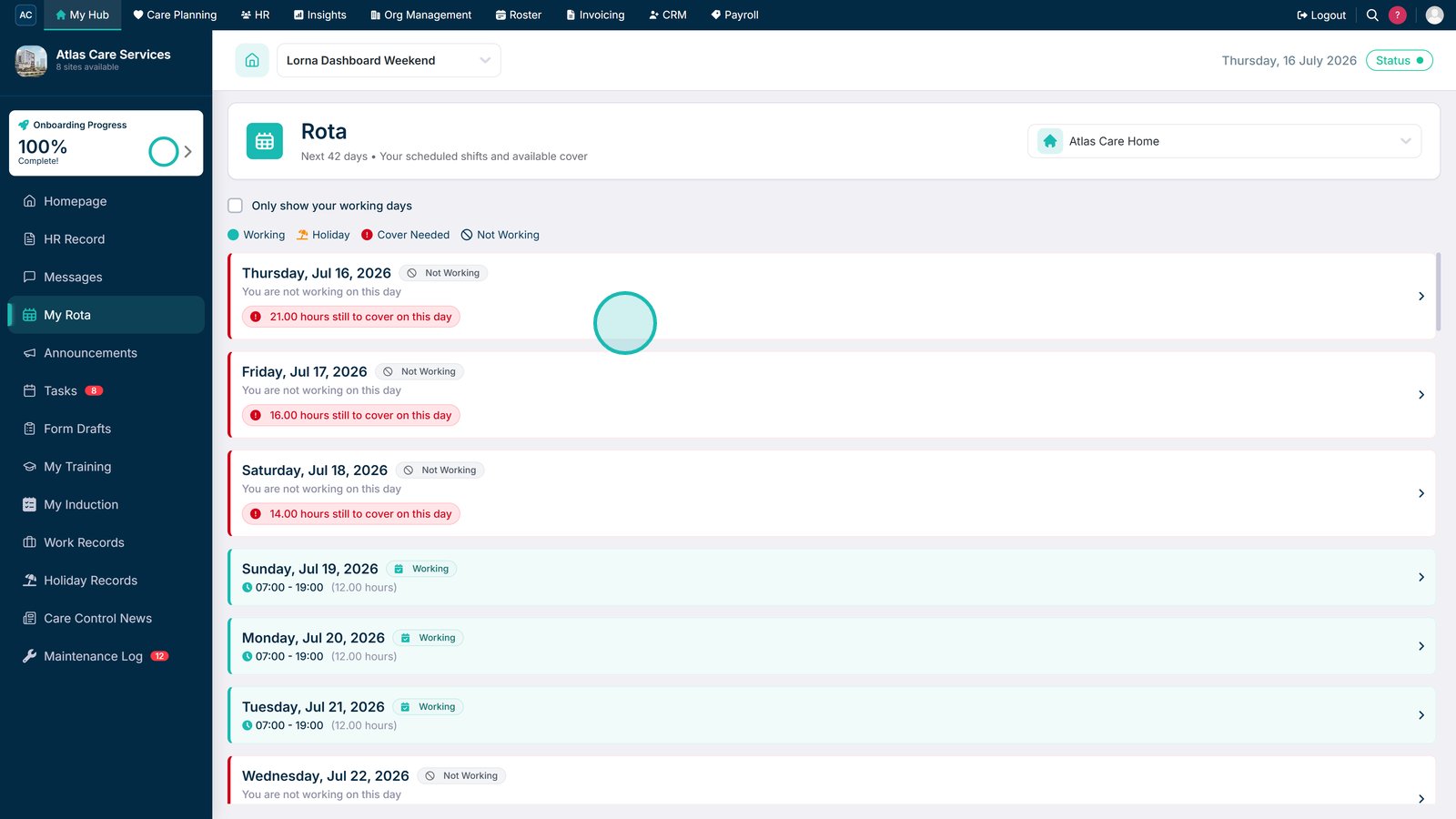
Open your Rota.
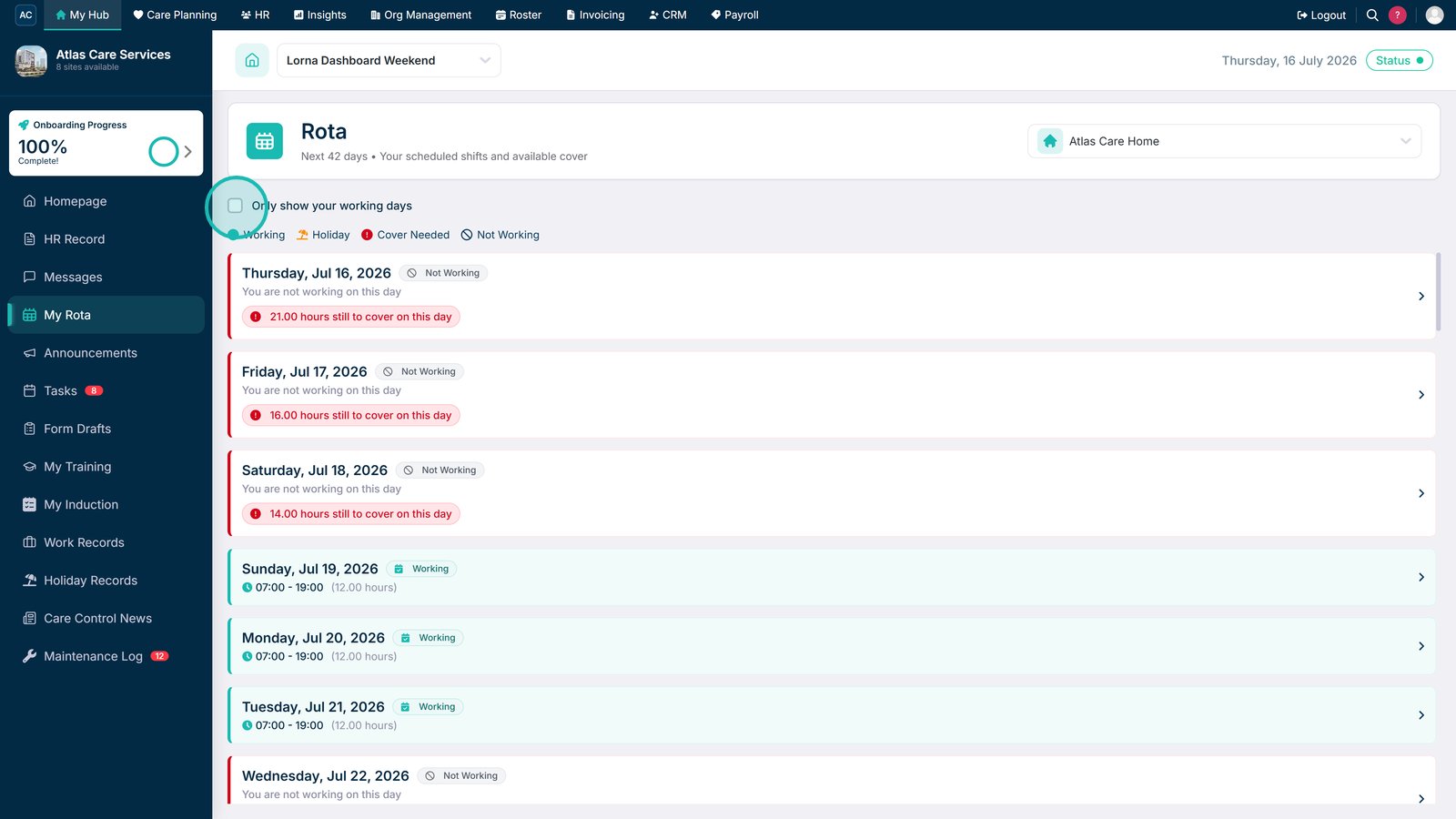
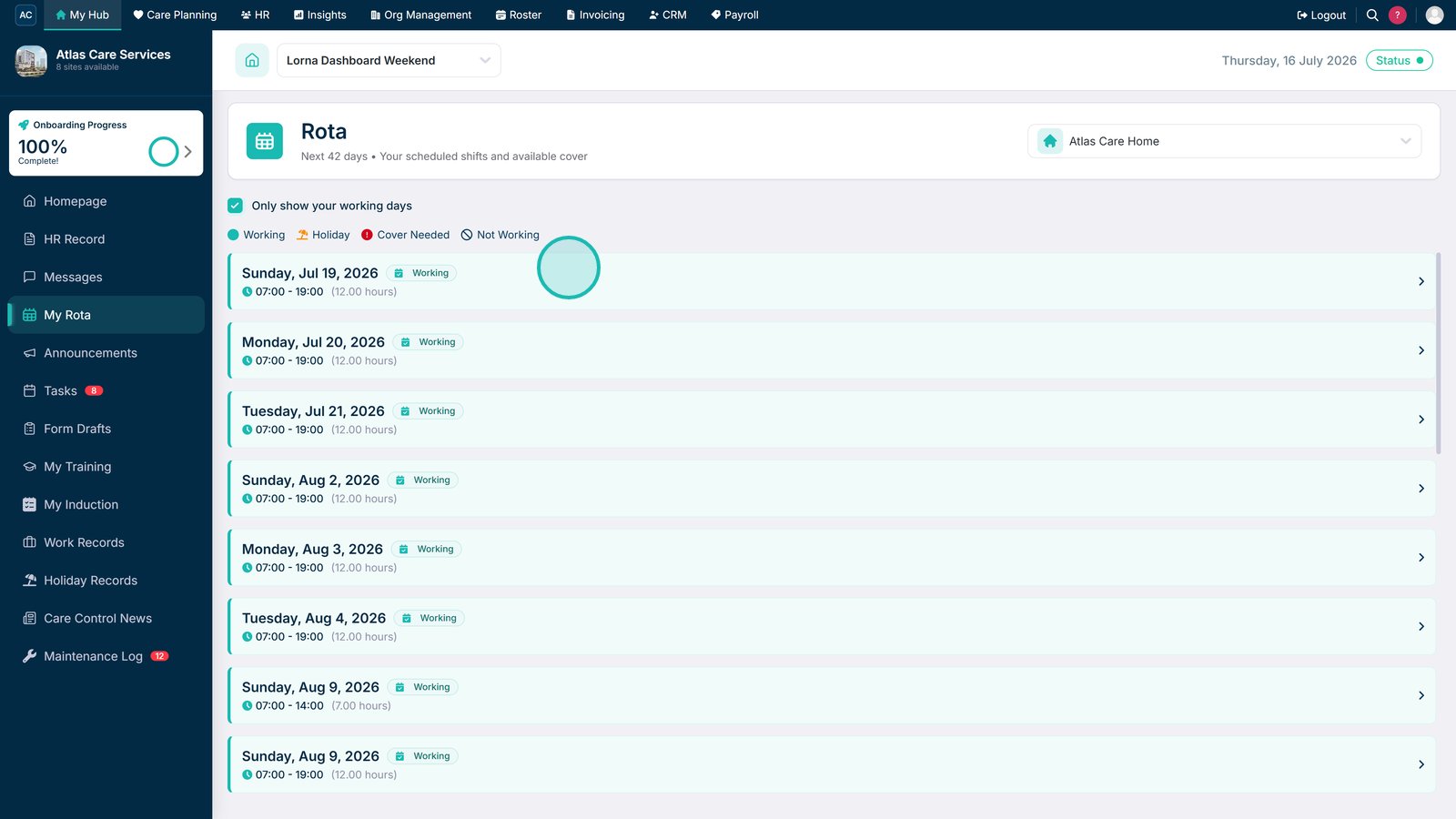
Select the checkbox to display only your scheduled working days.
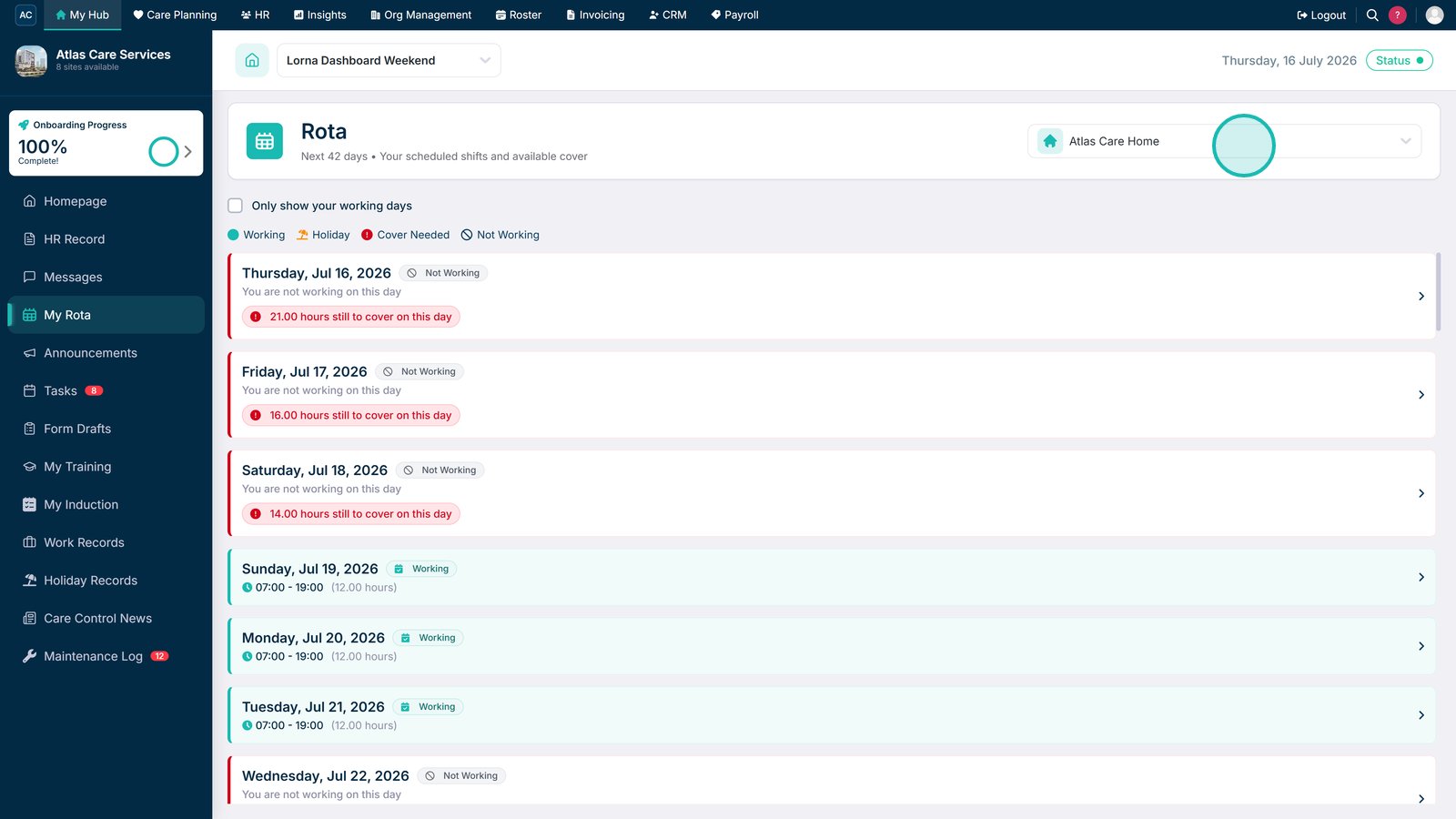
Select a site from the drop-down list to view a different rota.
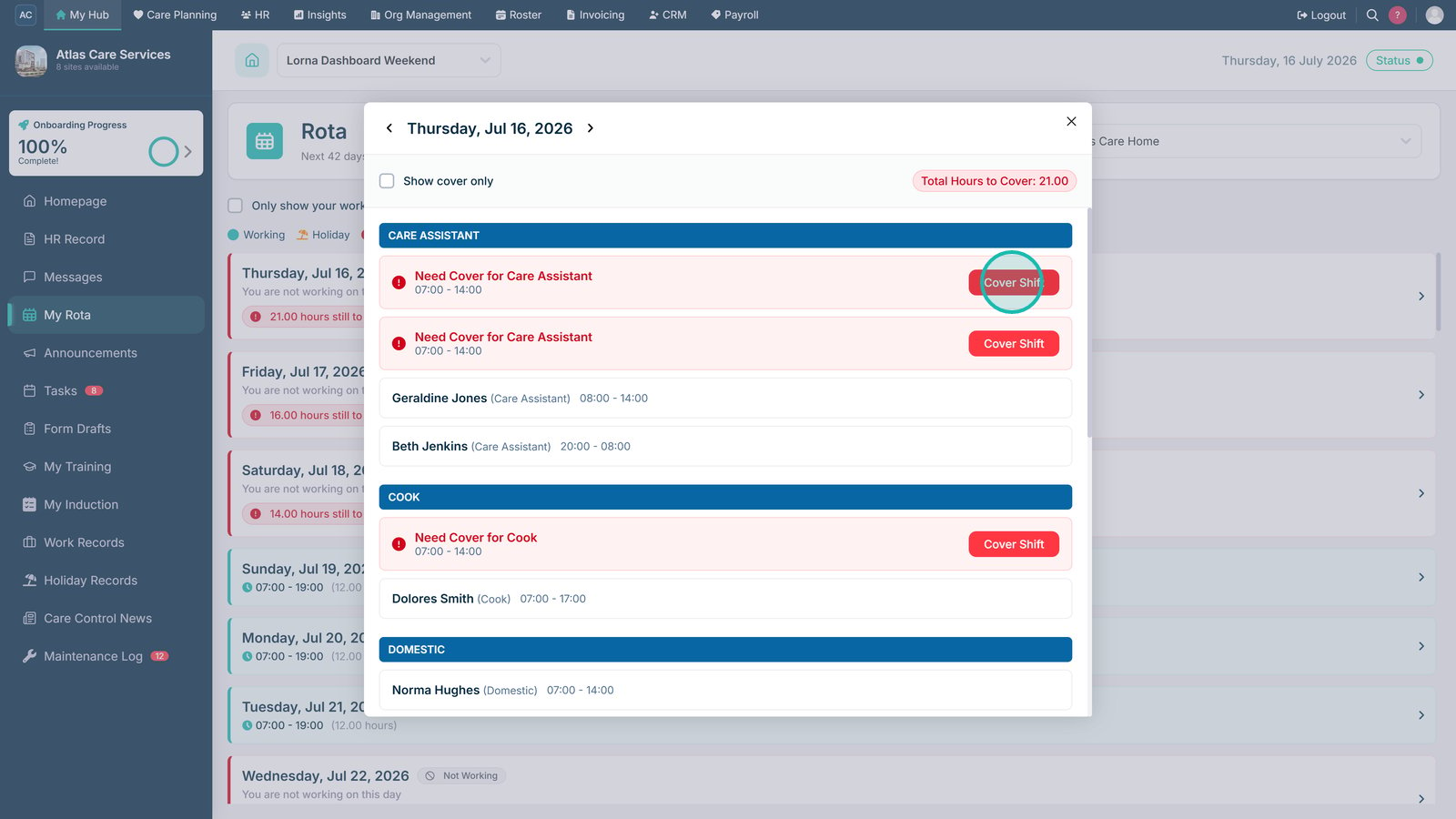
Select a date to view the shift details.
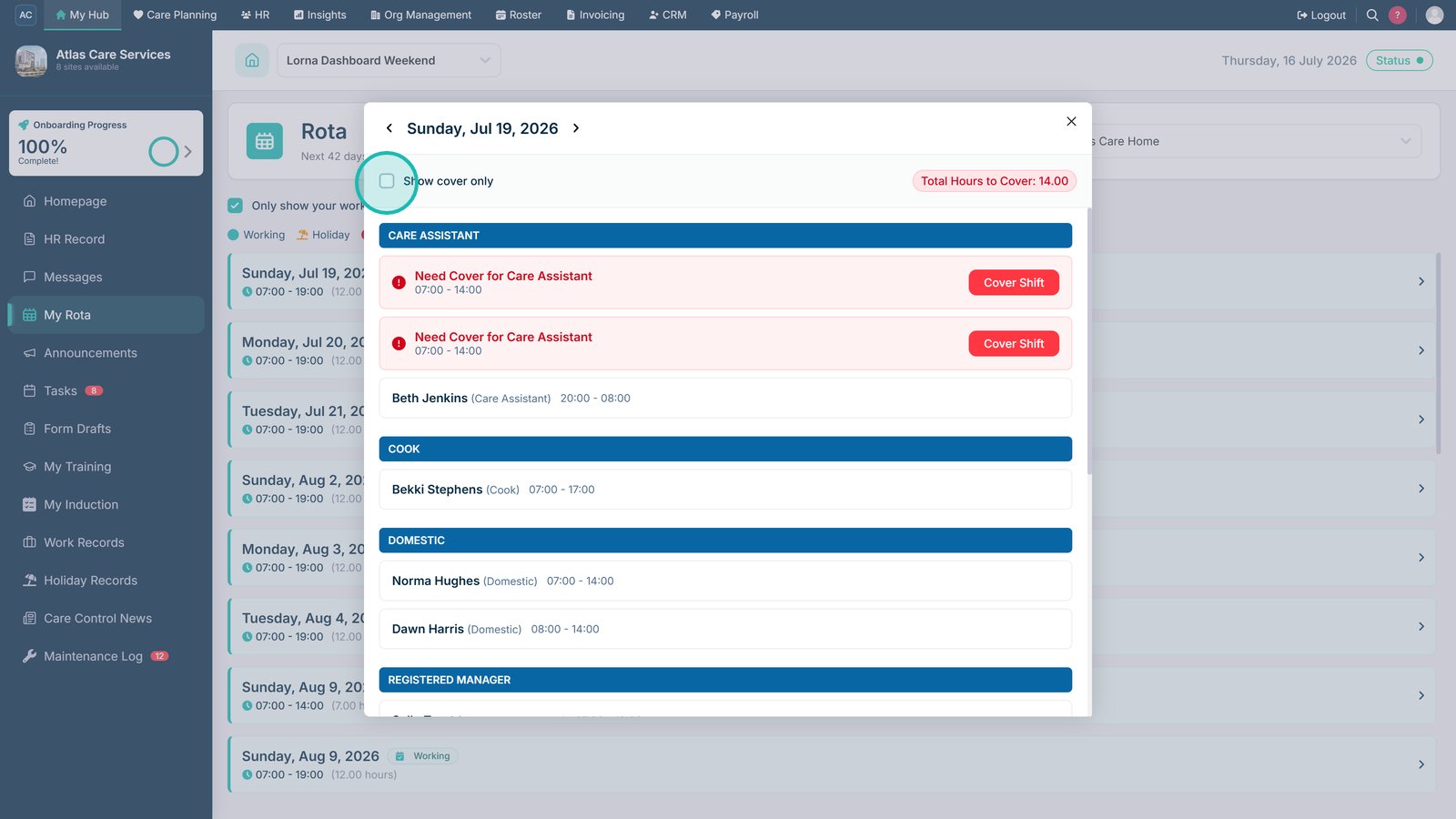
Enable the filter to display only shifts that require cover.
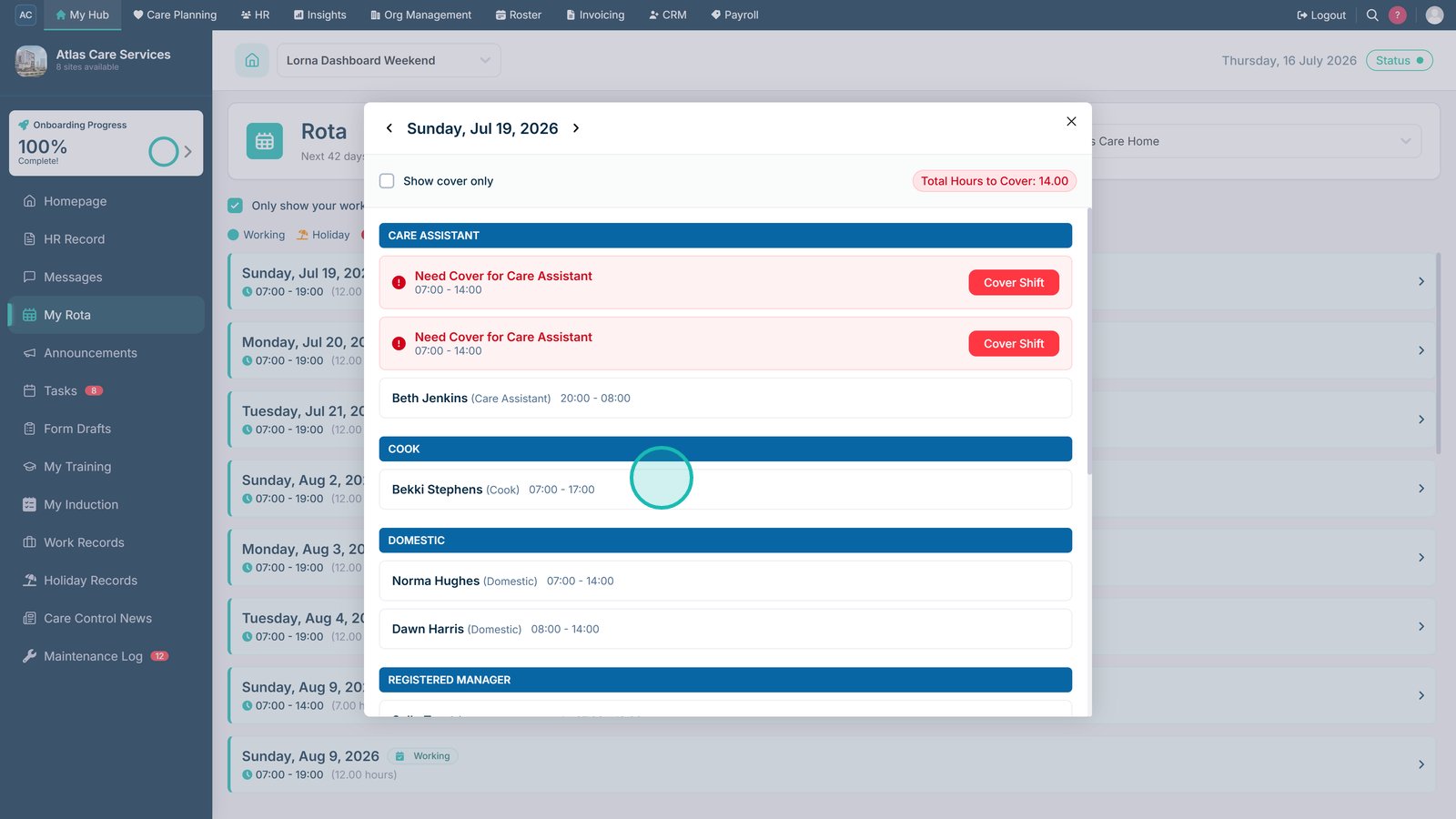
Review the staff members scheduled to work that day.
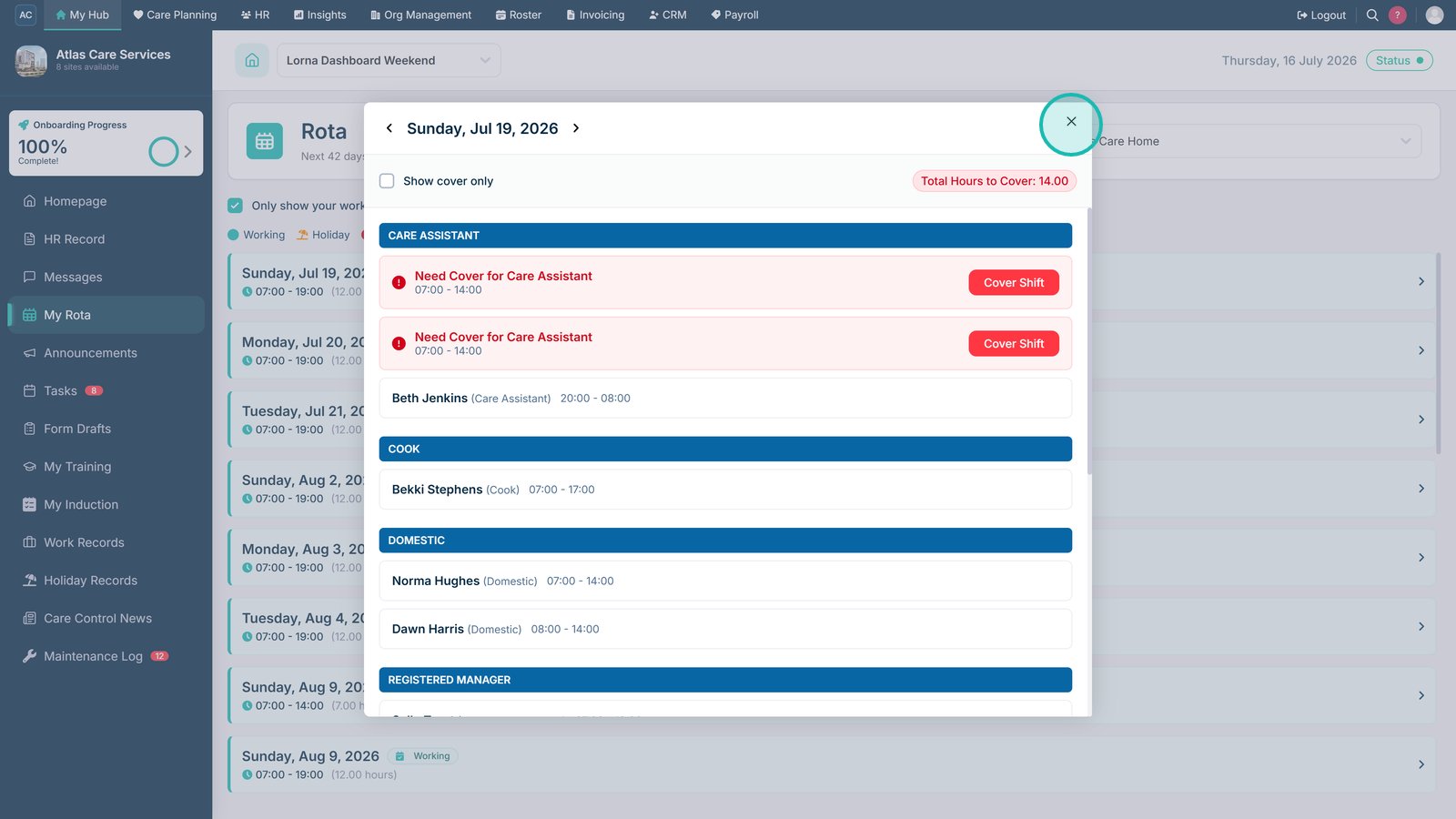
Close the shift details when you have finished reviewing them.
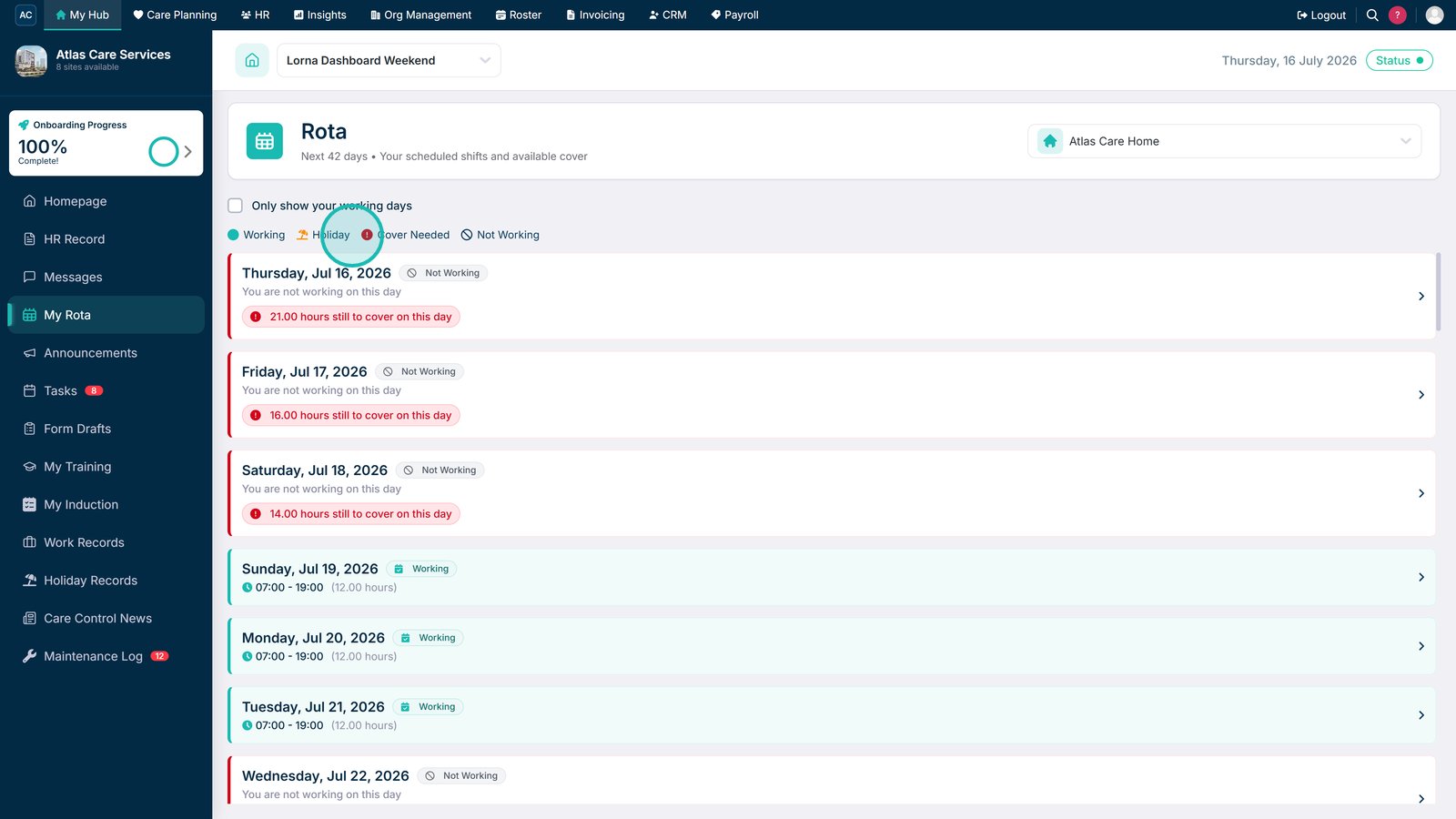
Review the rota key to identify the different shift types.
Select a Not Working day to view available cover opportunities.
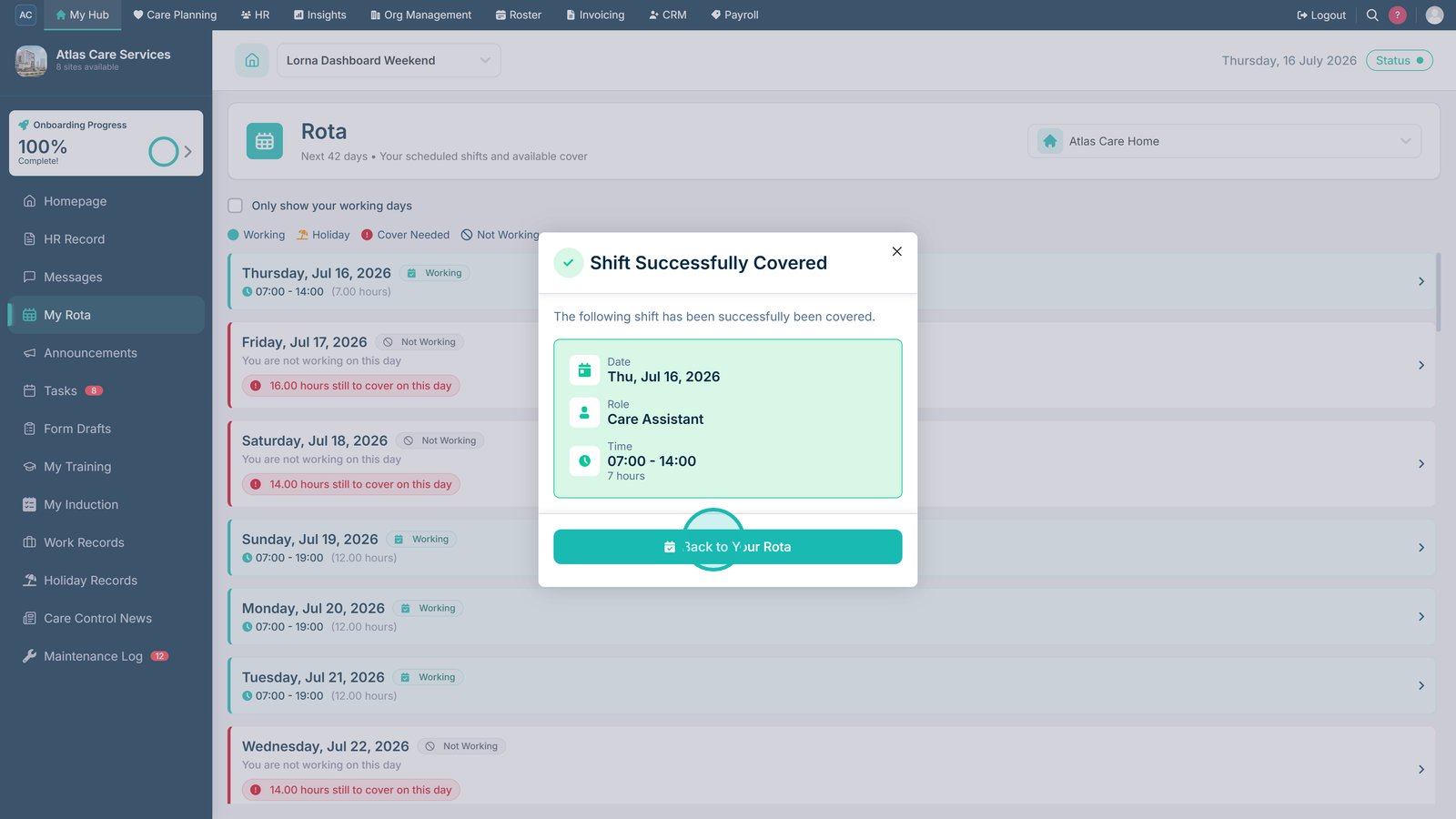
Select Cover Shift to request cover for the available shift.
Return to the main rota after requesting shift cover.
Top tip
Use the Only Working Days filter to quickly find your scheduled shifts, especially when viewing longer rota periods.