Bank Holiday Closure Notice: We will be closed on the 3rd April for the Easter bank holiday, so our customer service team will not be available on this day. If you need to get in touch, you can still use our customer contact form and we will get back to you as soon as possible. Even better, Margo will still be available on our phone lines to help with your queries whenever you need support. We hope you have a lovely Easter weekend 🐣
View Categories
Linking Notes & Documents to the Care Review
This guide will cover how to link care notes and service user documents to a Care Review section on Care Control Windows. Linking notes and documents in this way is a great way to accredit and evidence the information written in a care review section.
1
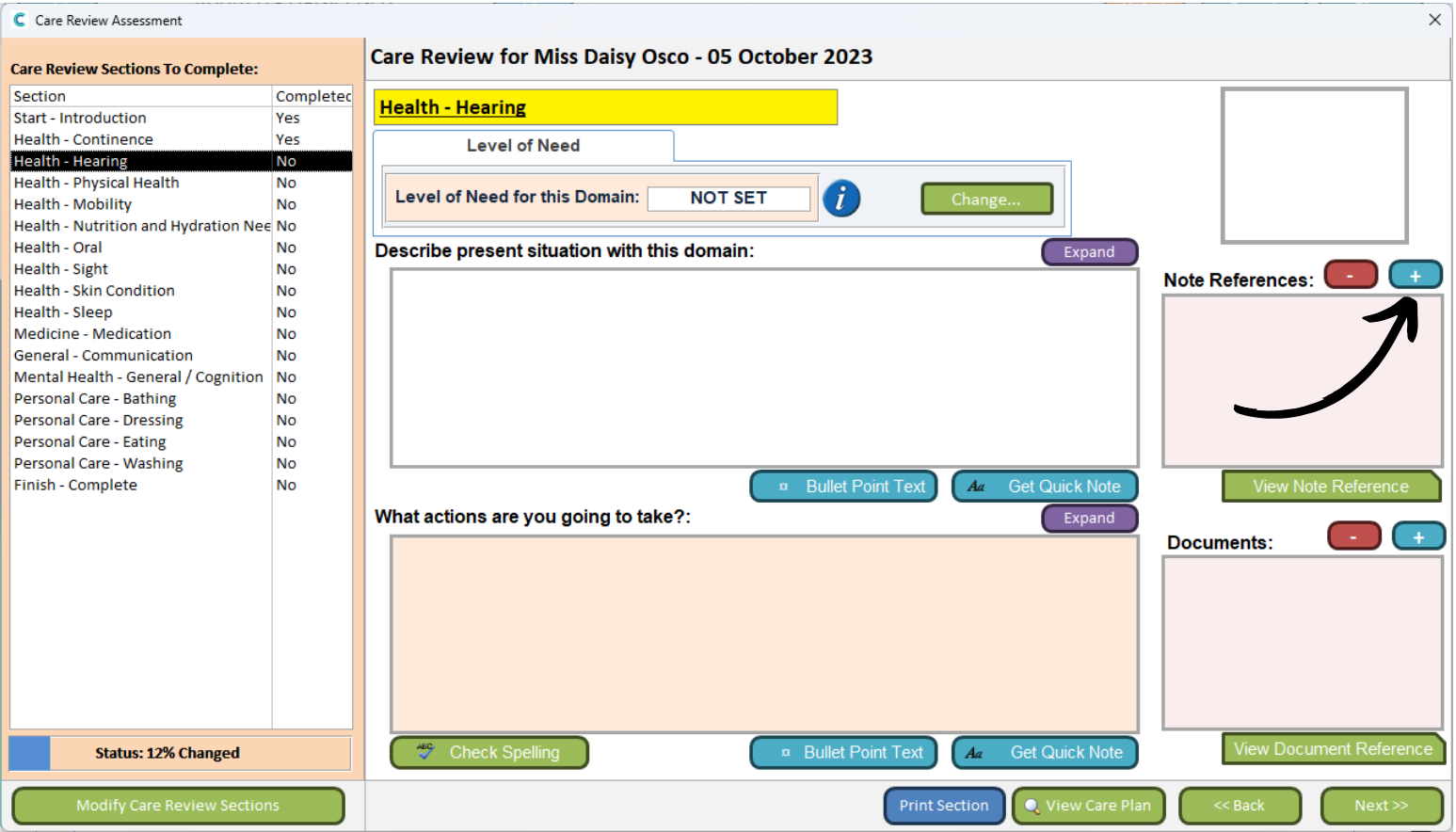
When completing a Care Review section, there are options to link documents and notes.
Press the Plus + icon in the Note References area.
2
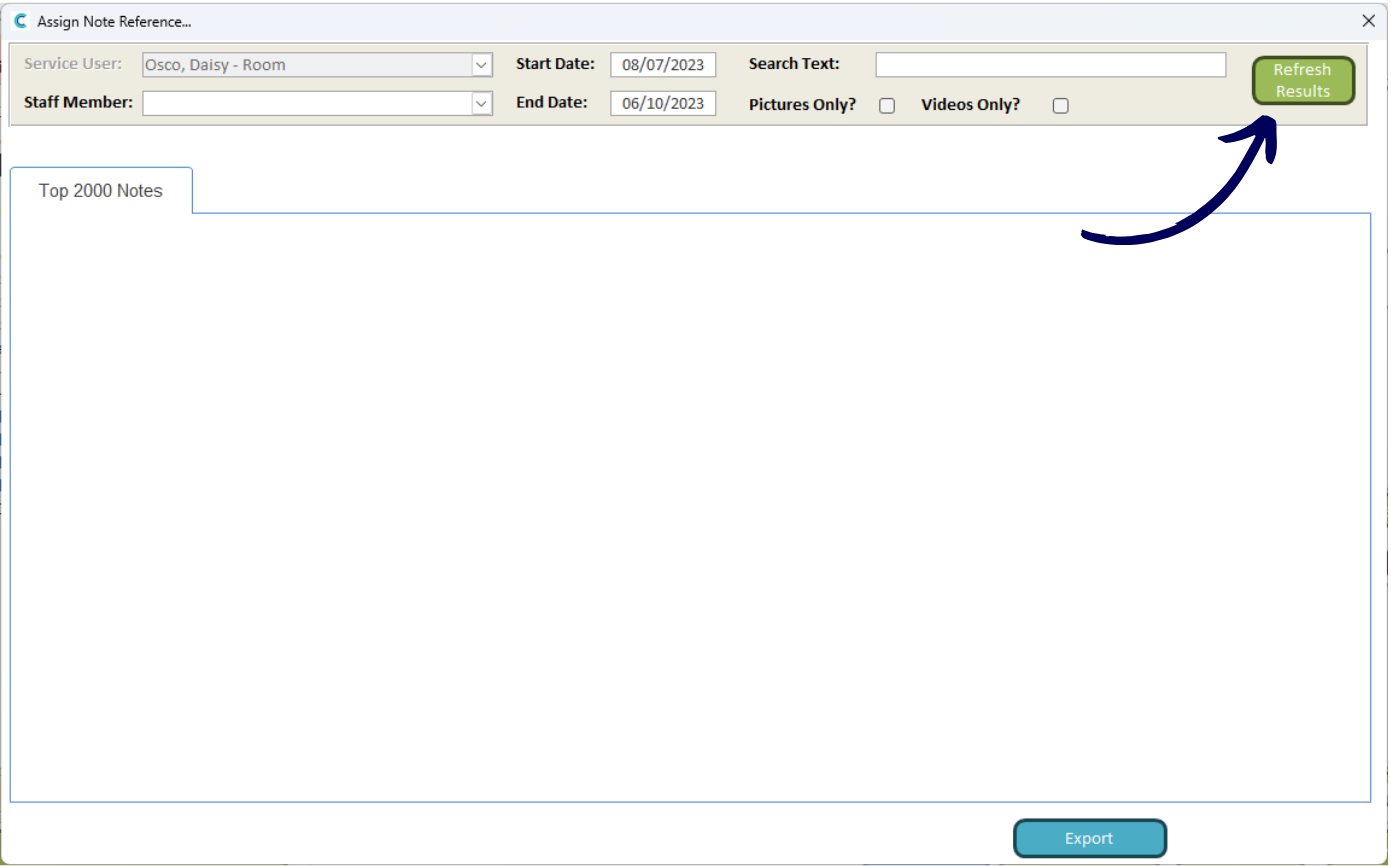
A new window will open. Here, you can filter all the care notes for the service user to find relevant notes to the care review section you are completing.
After entering any filter options, press Refresh Results.
3
Matching Care Notes will load. Simply press Add Note to Care Review Reference to link it.
4
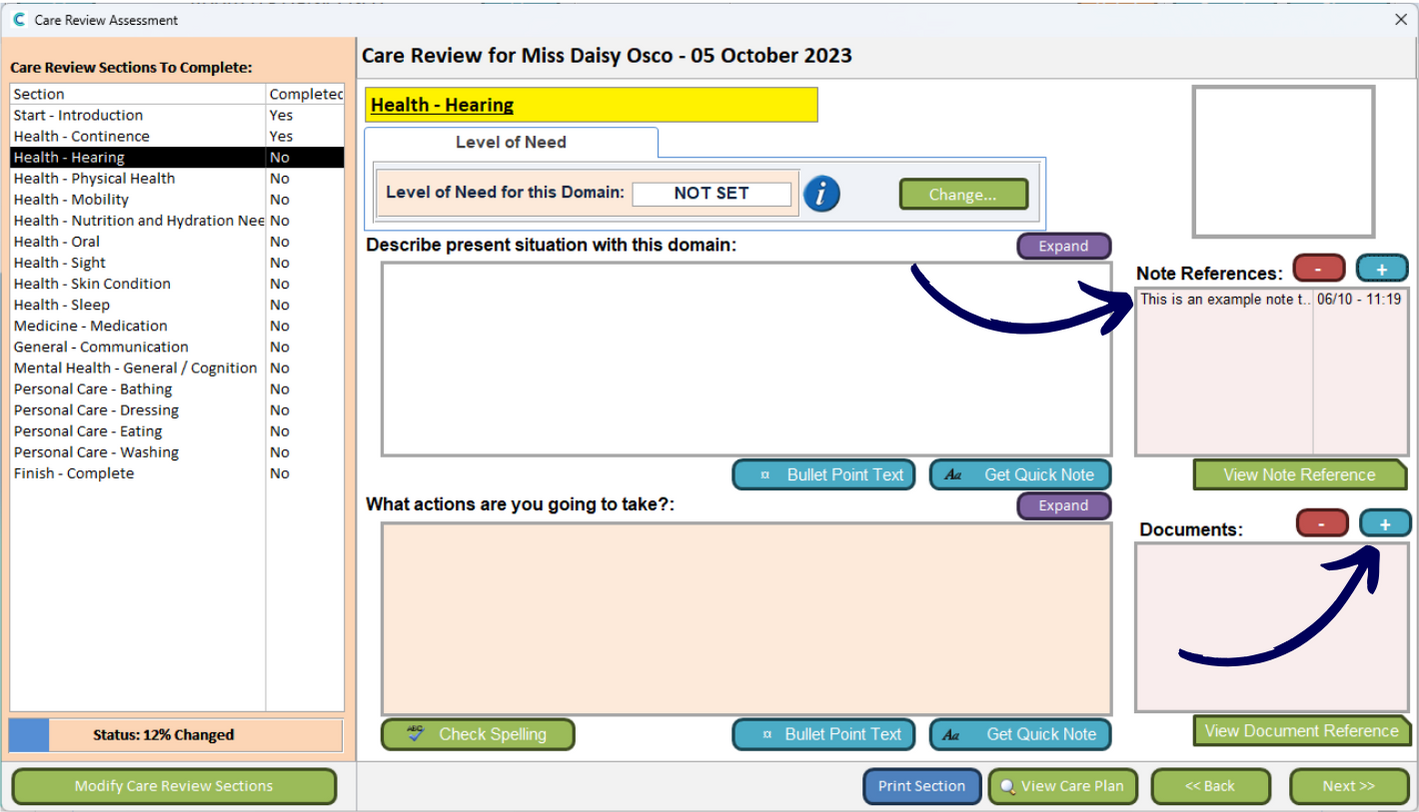
The note will now appear in the Care Review.
The same applies for Documents, press the Plus + icon.
5
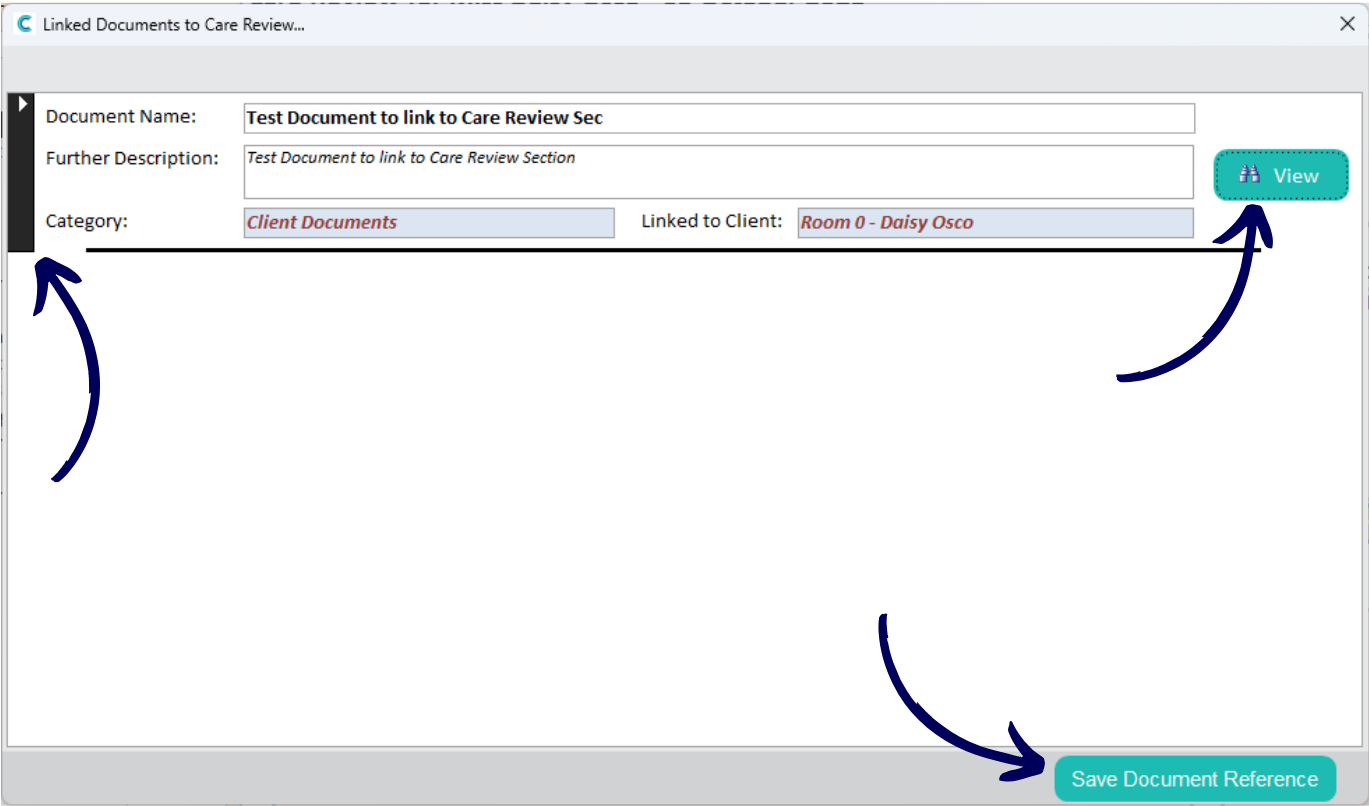
A new window will open displaying all the documents on the system which are linked to the service user.
You can view the documents by pressing View. If you want to link one, simply select it using the box on the left hand side of the window, then, press Save Document Reference.
6
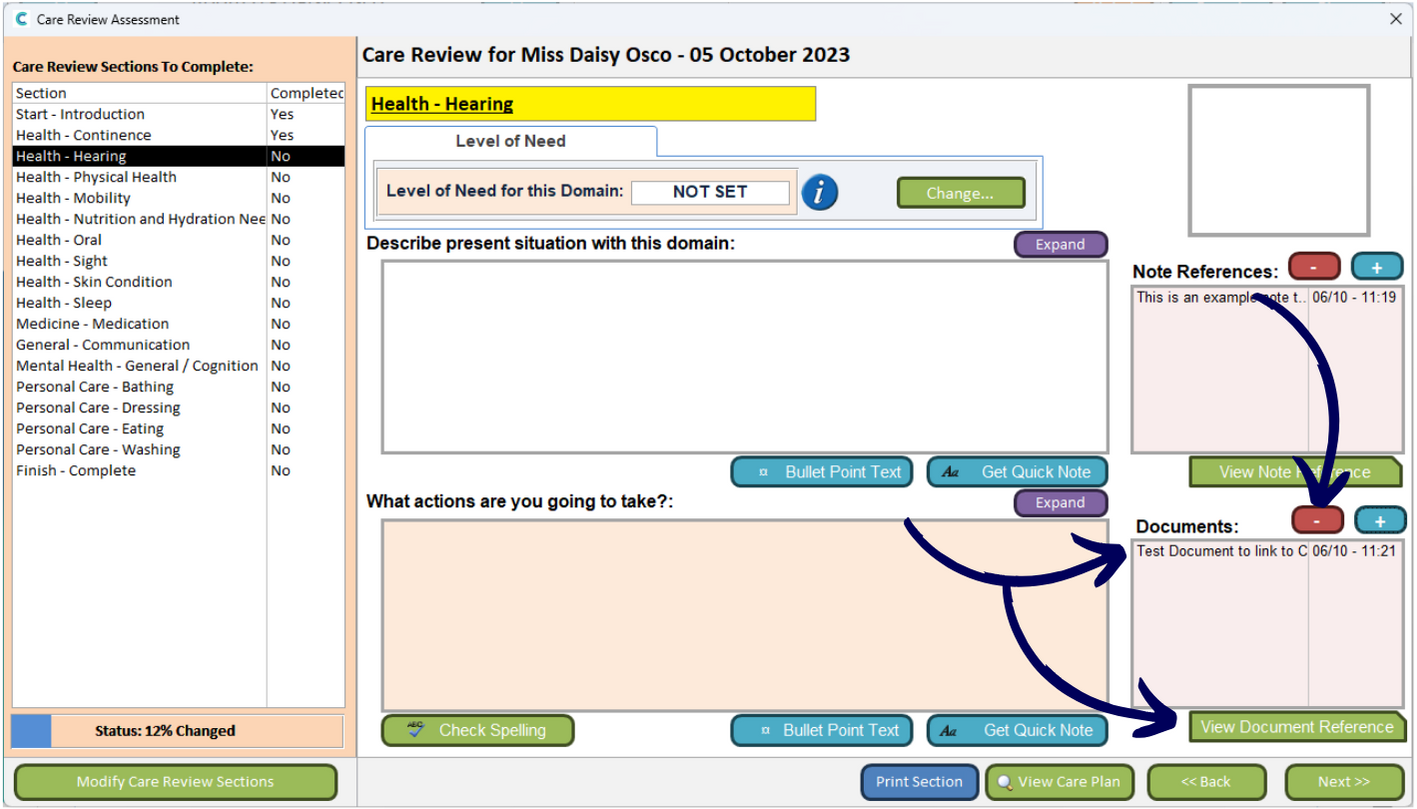
The linked document will appear in the Care Review section.
For notes and documents, you can View the Note/Document Reference to see the linked content.
You can also remove any linked items by selecting them and pressing the Minus – icon.