Bank Holiday Closure Notice: We will be closed on the 3rd April for the Easter bank holiday, so our customer service team will not be available on this day. If you need to get in touch, you can still use our customer contact form and we will get back to you as soon as possible. Even better, Margo will still be available on our phone lines to help with your queries whenever you need support. We hope you have a lovely Easter weekend 🐣
View Categories
Marking a Visit as 'Not Required'
This guide will cover how to mark a shift or visit on the rota as ‘Not Required’. This can be useful is a client cancels a visit or if a shift is no longer needed. Note: this is per-shift change and will not affect recurring shift patterns.
1
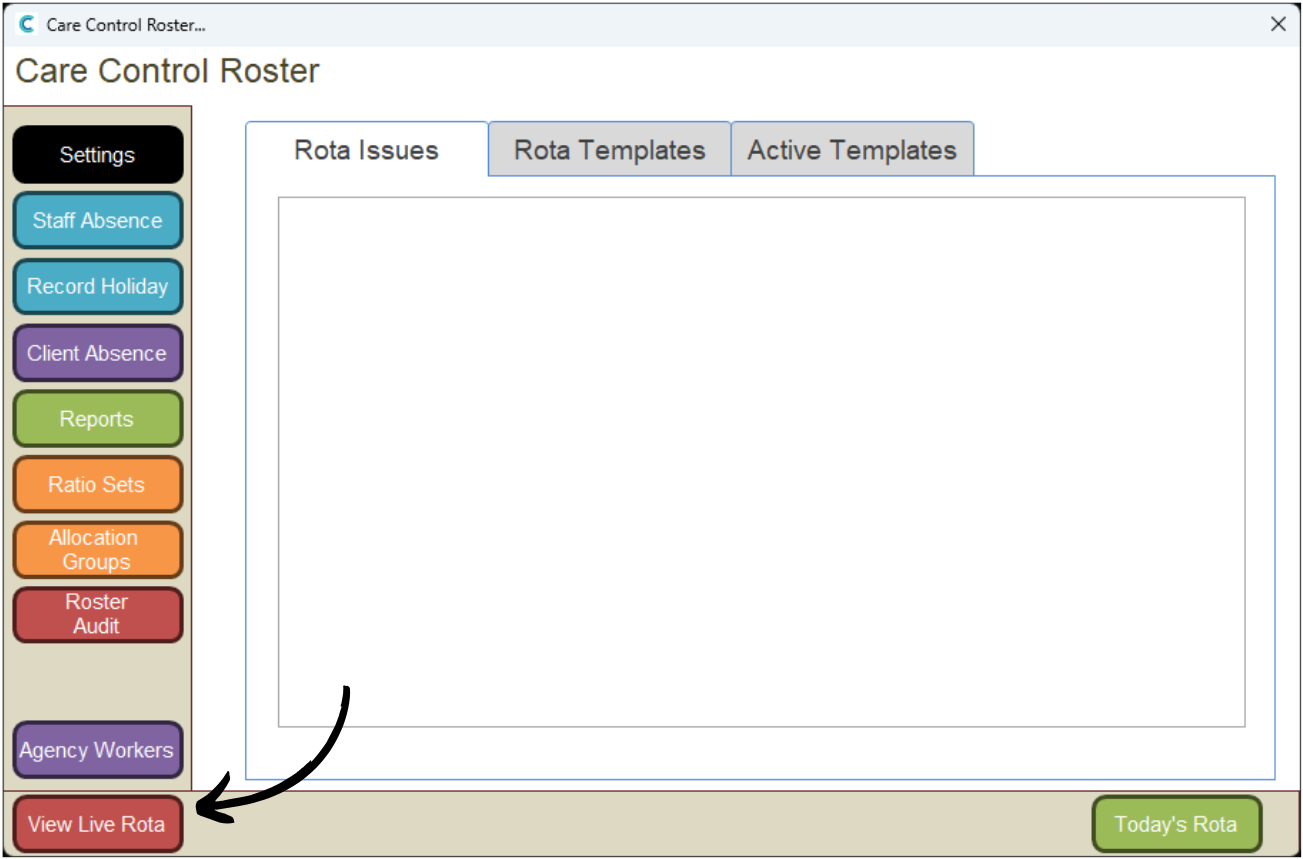
In the Administration of Care Control Windows, navigate to the Roster System, which can be found under the Time & Attendance tab.
2
A new window will open. Here, press View Live Rota via the button in the bottom left corner.
3
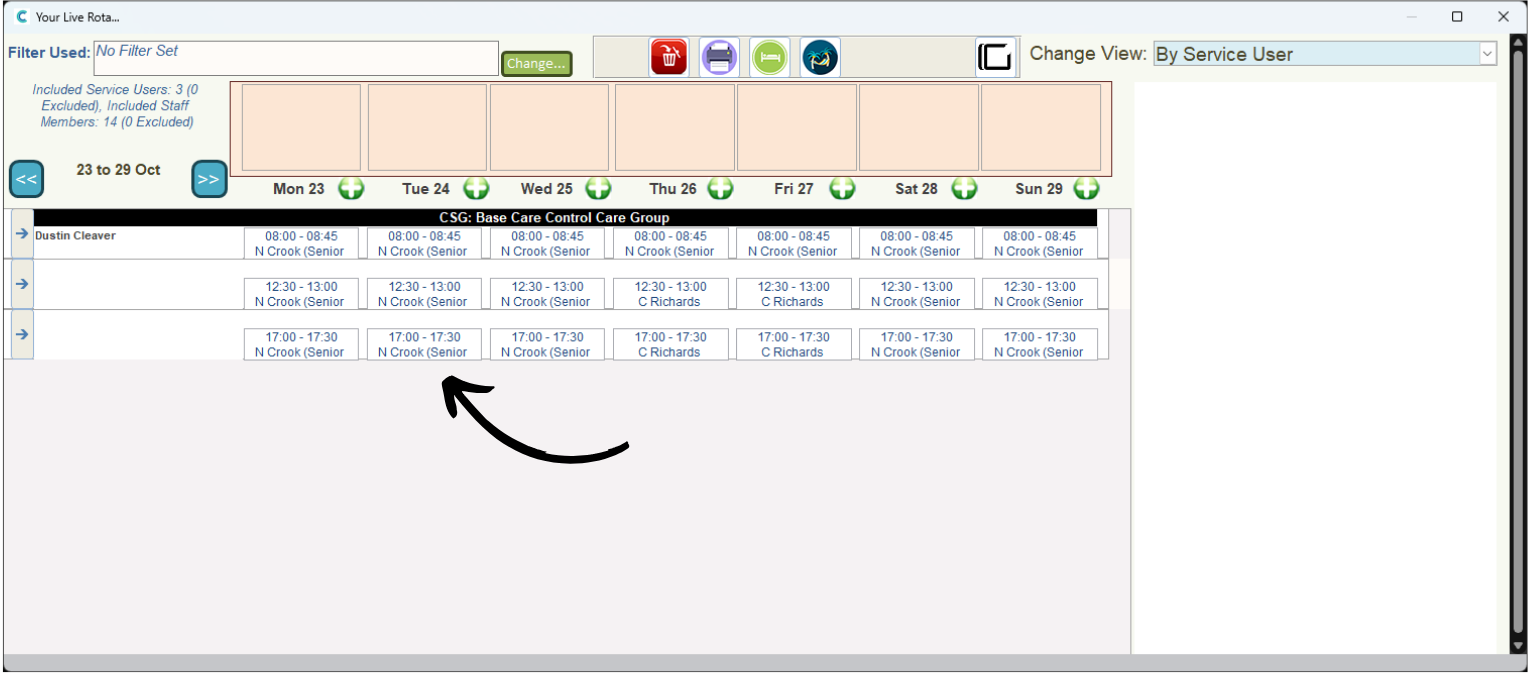
Find the shift you wish to mark as ‘Not Required’ and click on it.
4
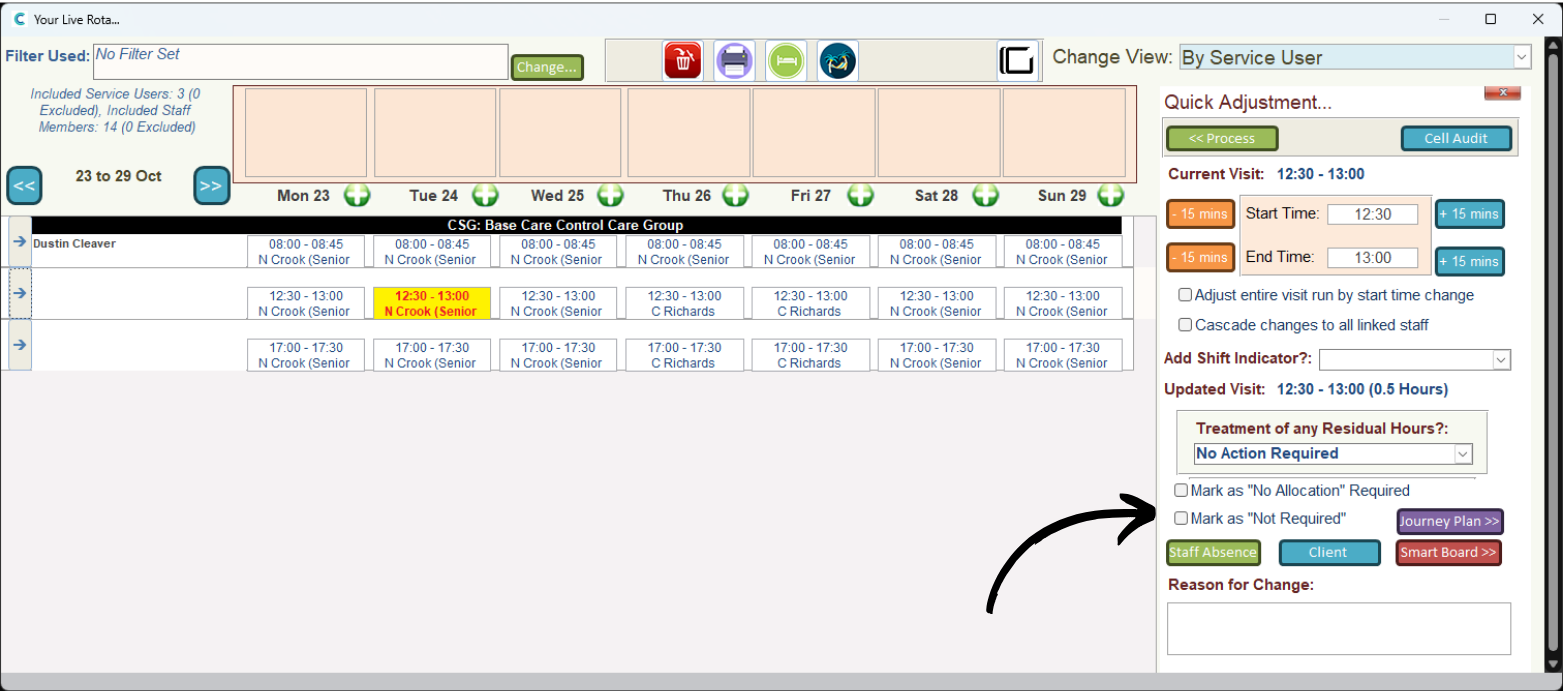
The shift will open on the right hand side. Simply tick the Mark as ‘Not Required’ checkbox.
5
You will be warned that doing this will remove the staff assignment and not require cover. Press OK.
6
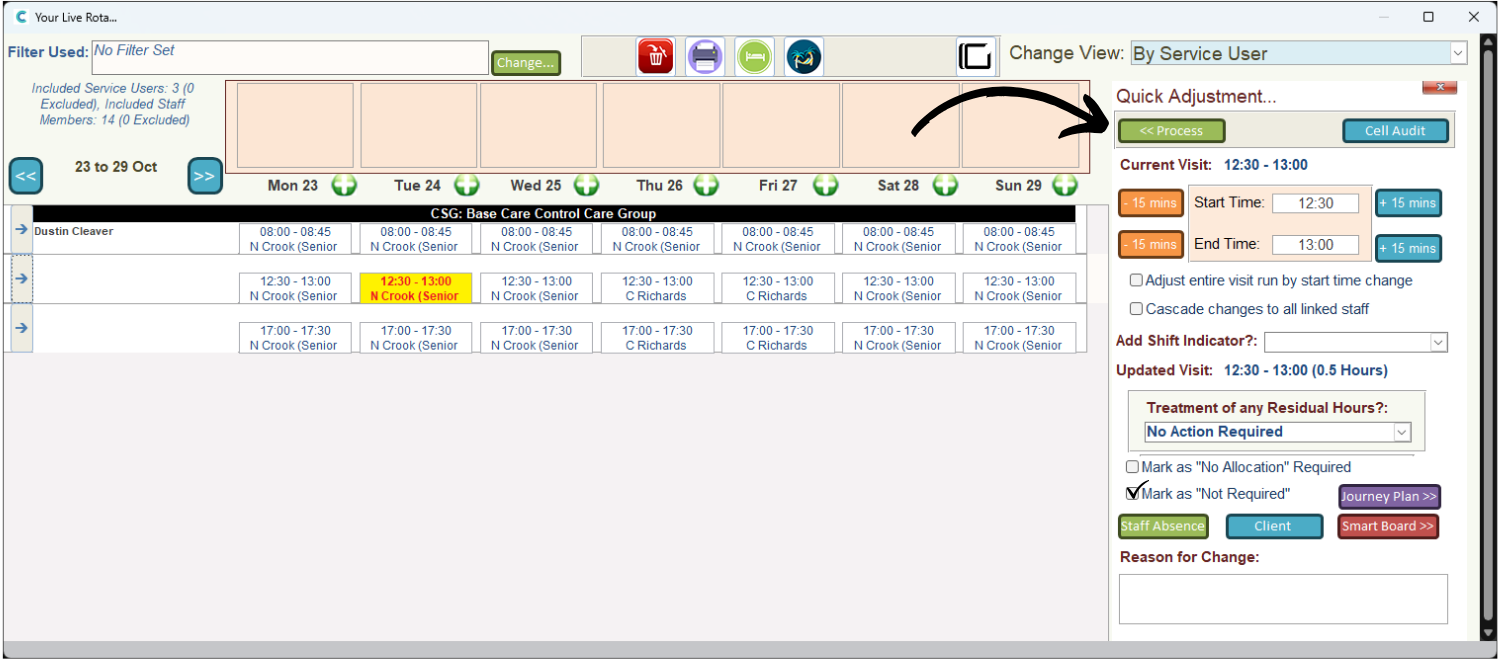
Press the green Process button to complete the change.
7
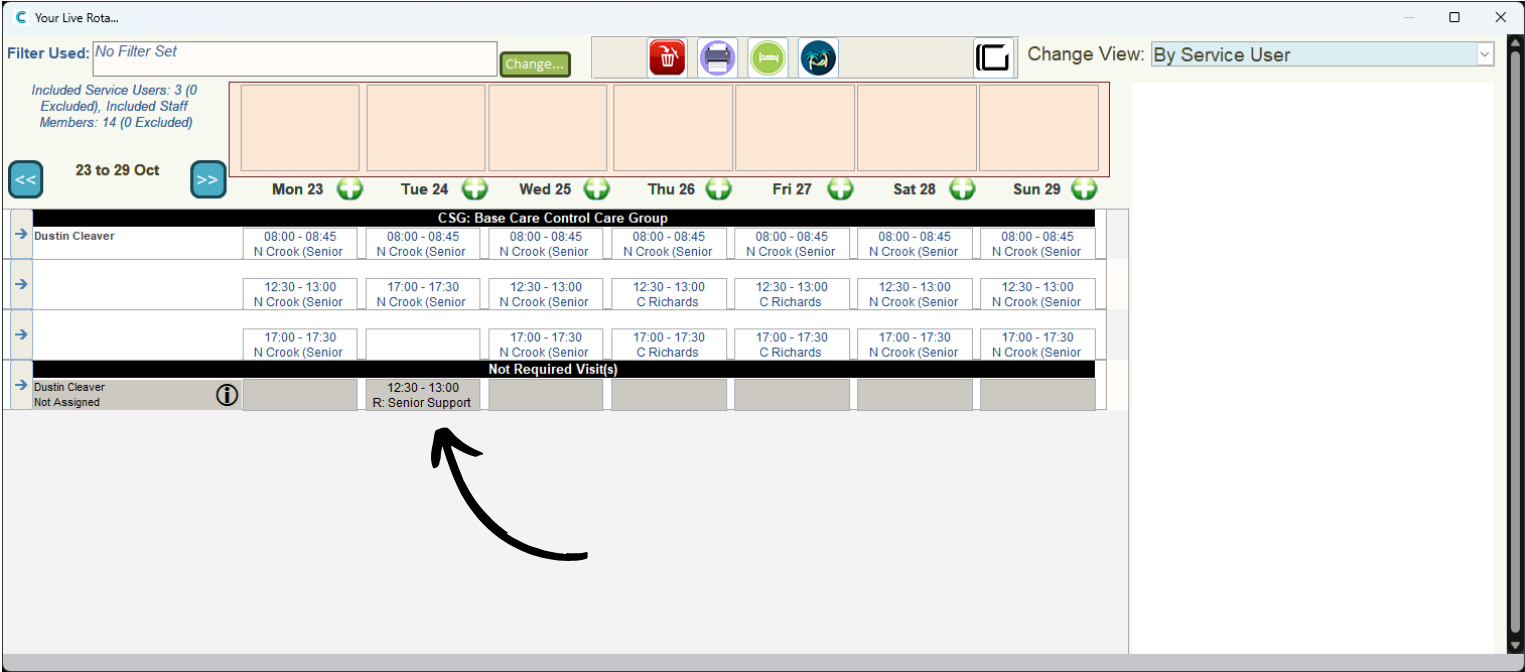
The shift will move into its own section, titled ‘Not Required’.