This guide covers how to access and amend the Personal Belonging records within a service user’s Care Plan on Care Control Cloud.
1
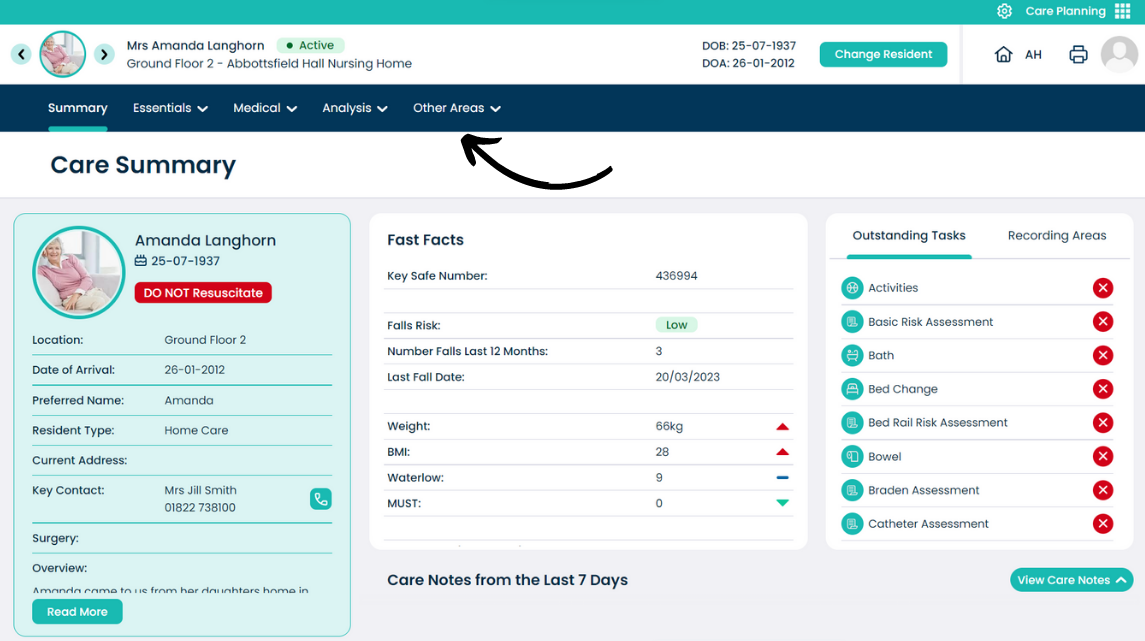
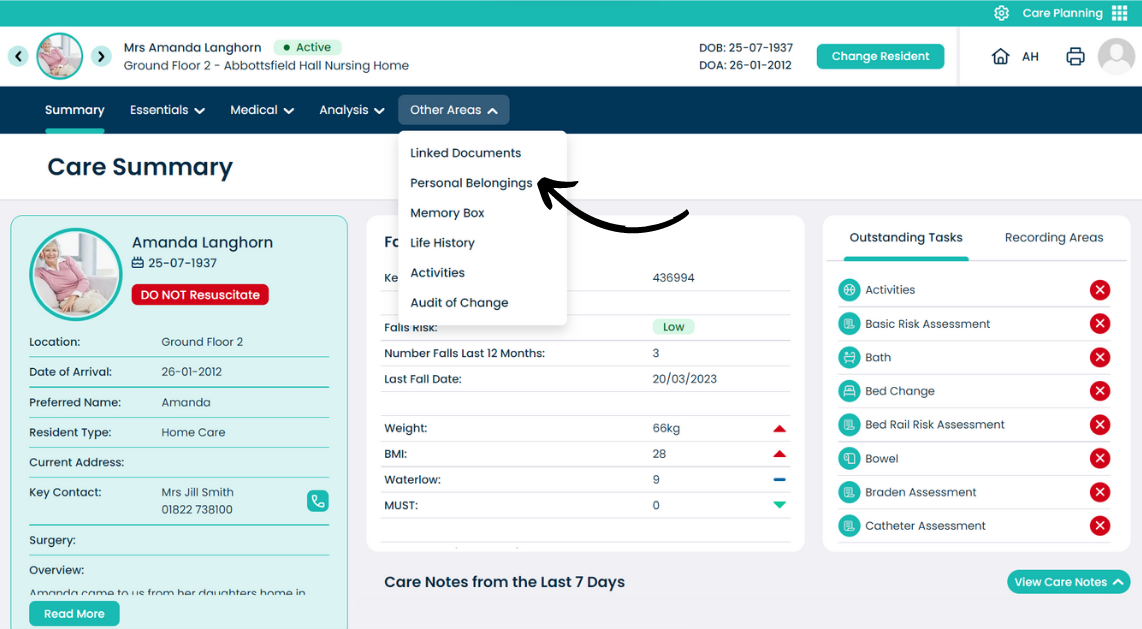
From the Care Plan Summary screen, open the Other Areas menu.
2
Select Personal Belongings.
3
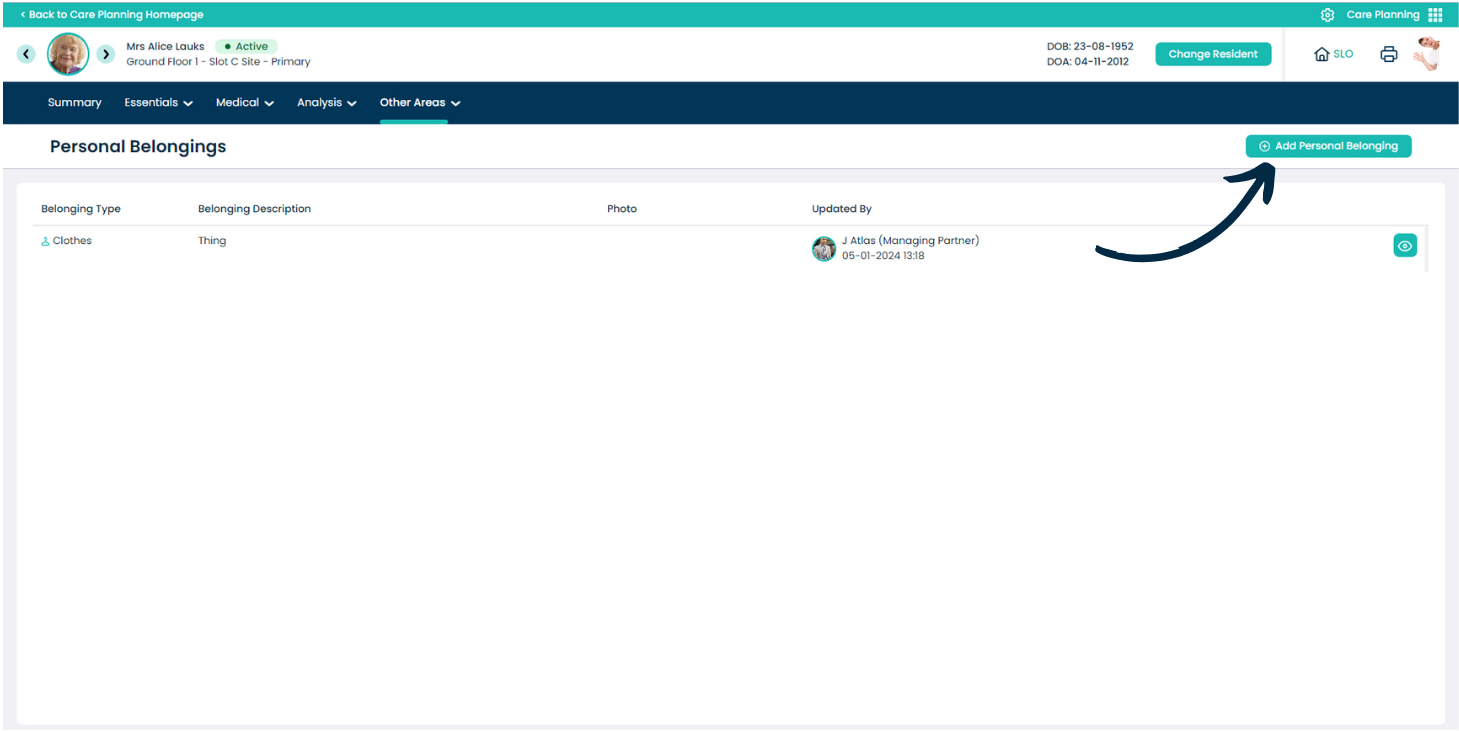
A list of recorded personal items will be shown. These are categorised by type and can have photos attached to them. An example of a personal item could be an item of clothing or jewellery.
4
To add a new record, press Add Personal Belonging.
5
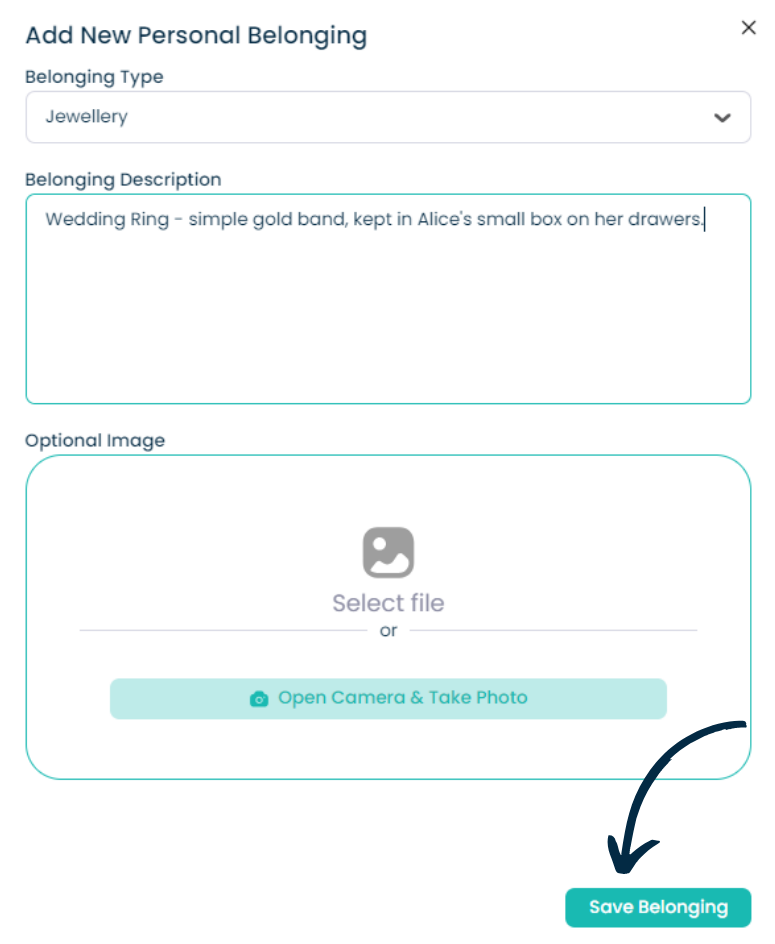
A blank form will open. Begin by selecting the Belonging Type from the drop-down list. Then, enter a Description of the item.
You can also upload and image if required by pressing Select File. This will open your file explorer.
6
After completing the form, press Save Belonging.
7
Your new item will appear in the Care Plan.
You can view the item by pressing the Eye Icon on the right hand side.
8
A pop-up window will open containing the information about the item.
From here, you can Edit and Delete the belonging via the dedicated buttons at the bottom of the window.