Bank Holiday Closure Notice: We will be closed on the 3rd April for the Easter bank holiday, so our customer service team will not be available on this day. If you need to get in touch, you can still use our customer contact form and we will get back to you as soon as possible. Even better, Margo will still be available on our phone lines to help with your queries whenever you need support. We hope you have a lovely Easter weekend 🐣
View Categories
Planned Client Absences
This guide will cover how to record, amend and cancel client absences on Care Control Windows. These are useful if a client is leaving your care for a period of time.
1
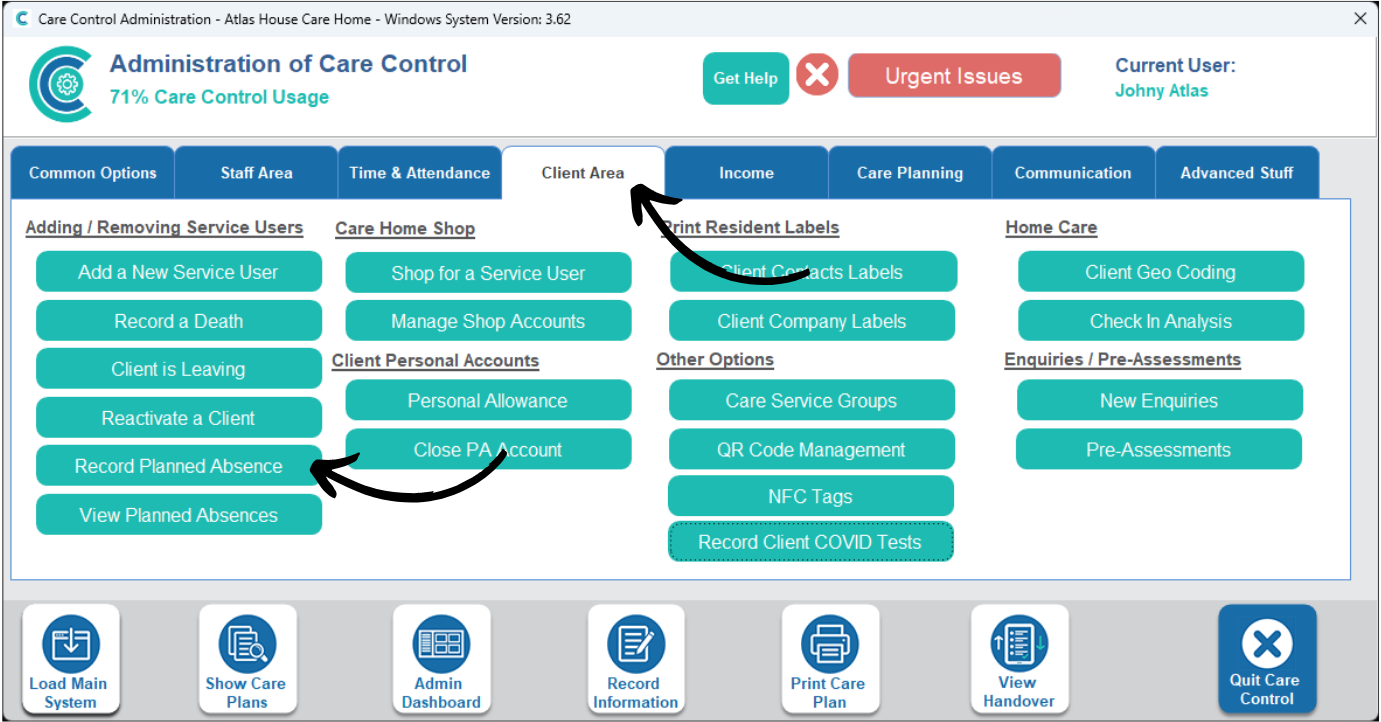
In the Administration of Care Control Windows, navigate to the Record Planned Absence tool, which can be found under the Client Area tab.
2
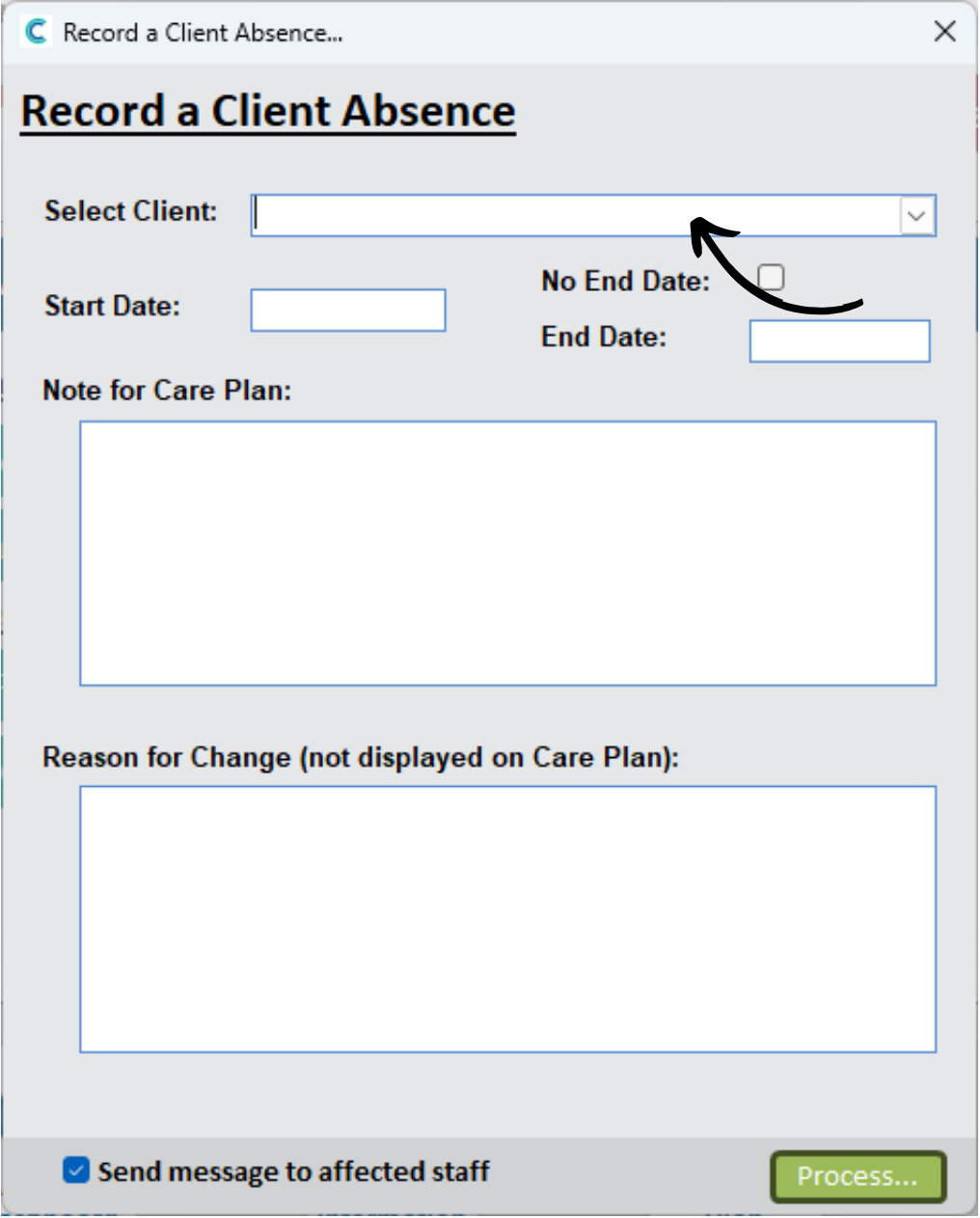
A blank form will open. Begin by selecting a Service User from the drop-down list.
3
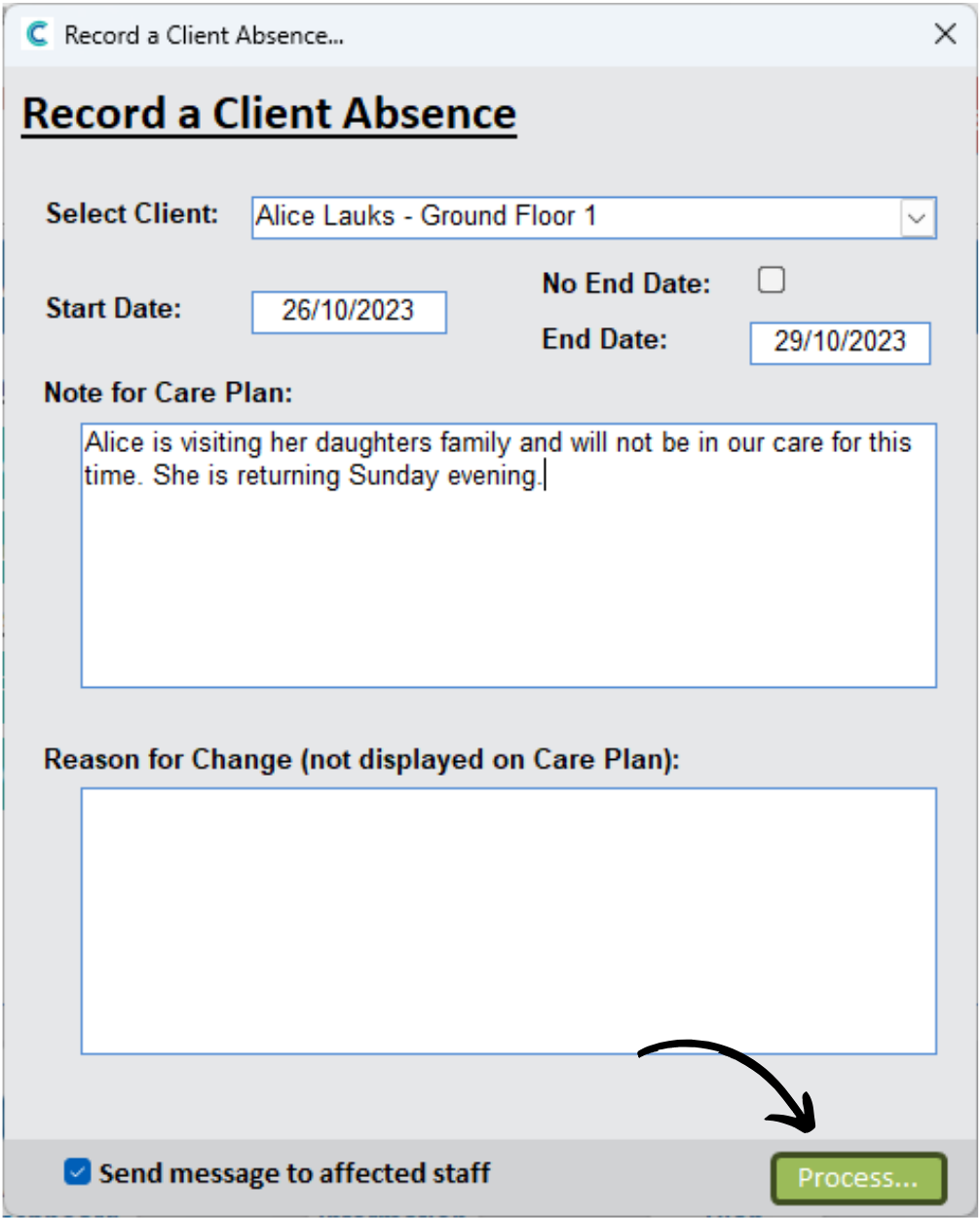
Then, enter a Start Date for the absence, as well as an End Date if known. If not, tick the No End Date box.
Then, enter some more information about the absence in the text box below. This will be added as a note onto the Care Plan.
Finally, choose whether to Send a Message to Affected Staff via the checkbox and press Process.
4
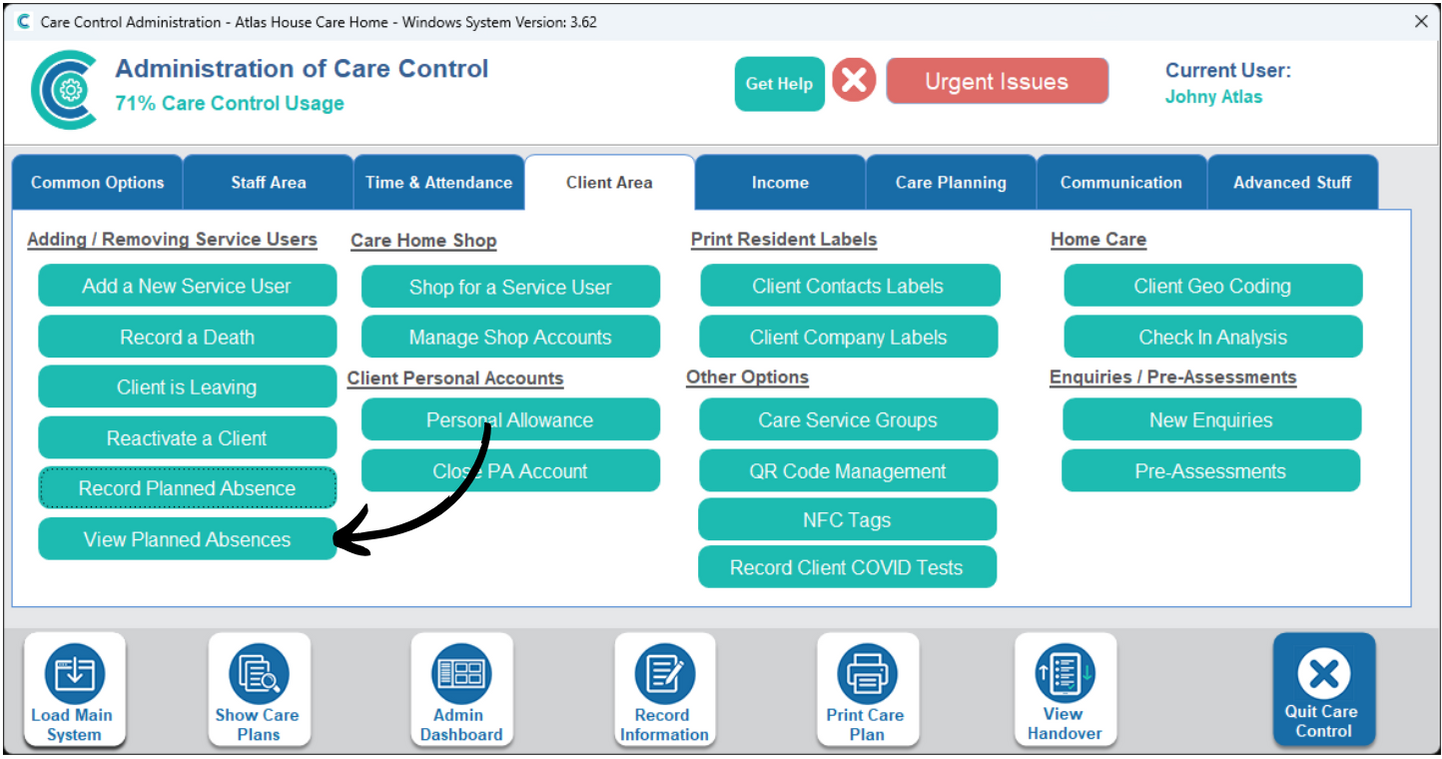
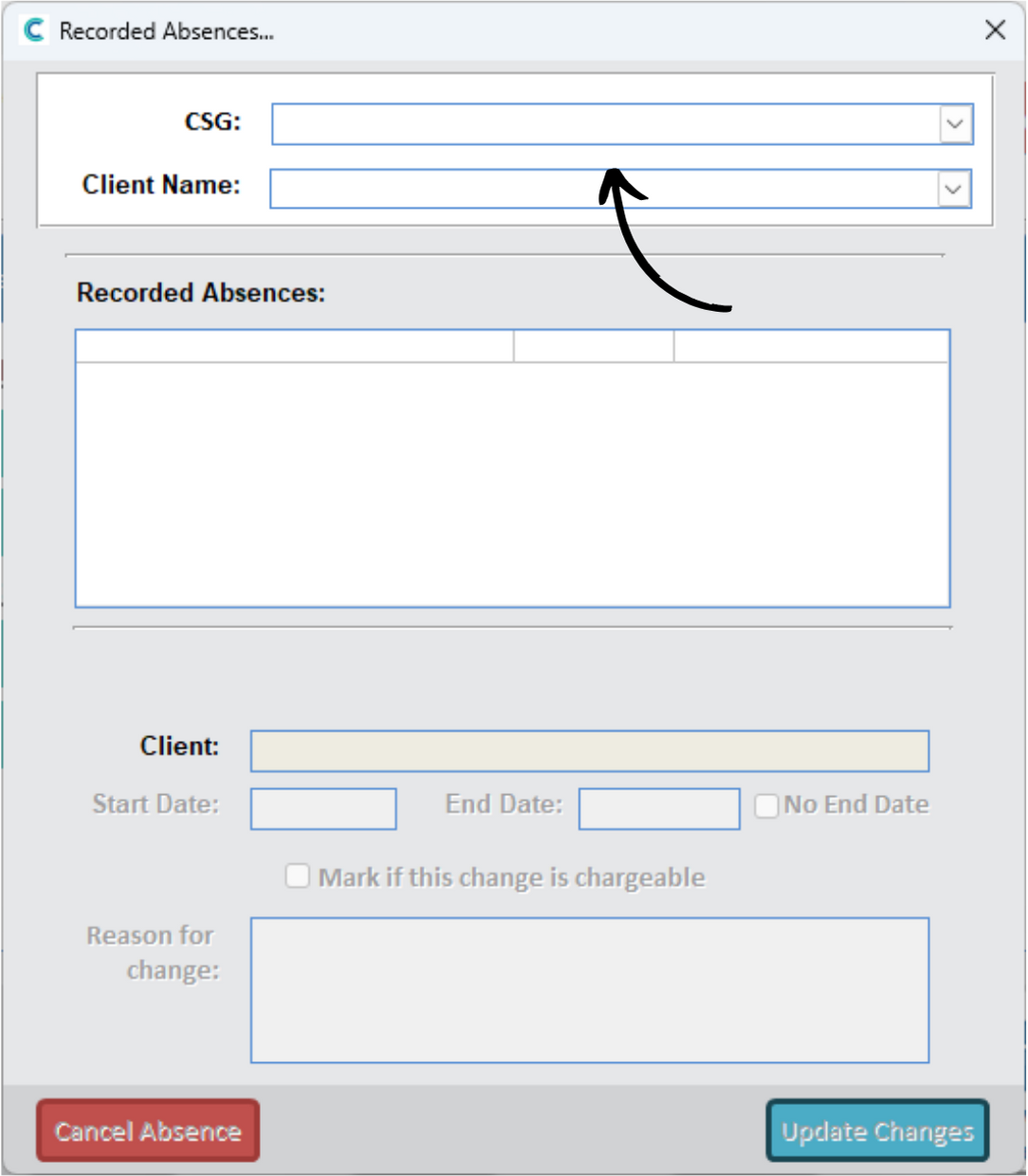
You can view, amend and cancel absences by opening the View Planned Absences tool, also found within the Client Area tab.
5
To find an absence, filter the results by CSG or by Client.
6
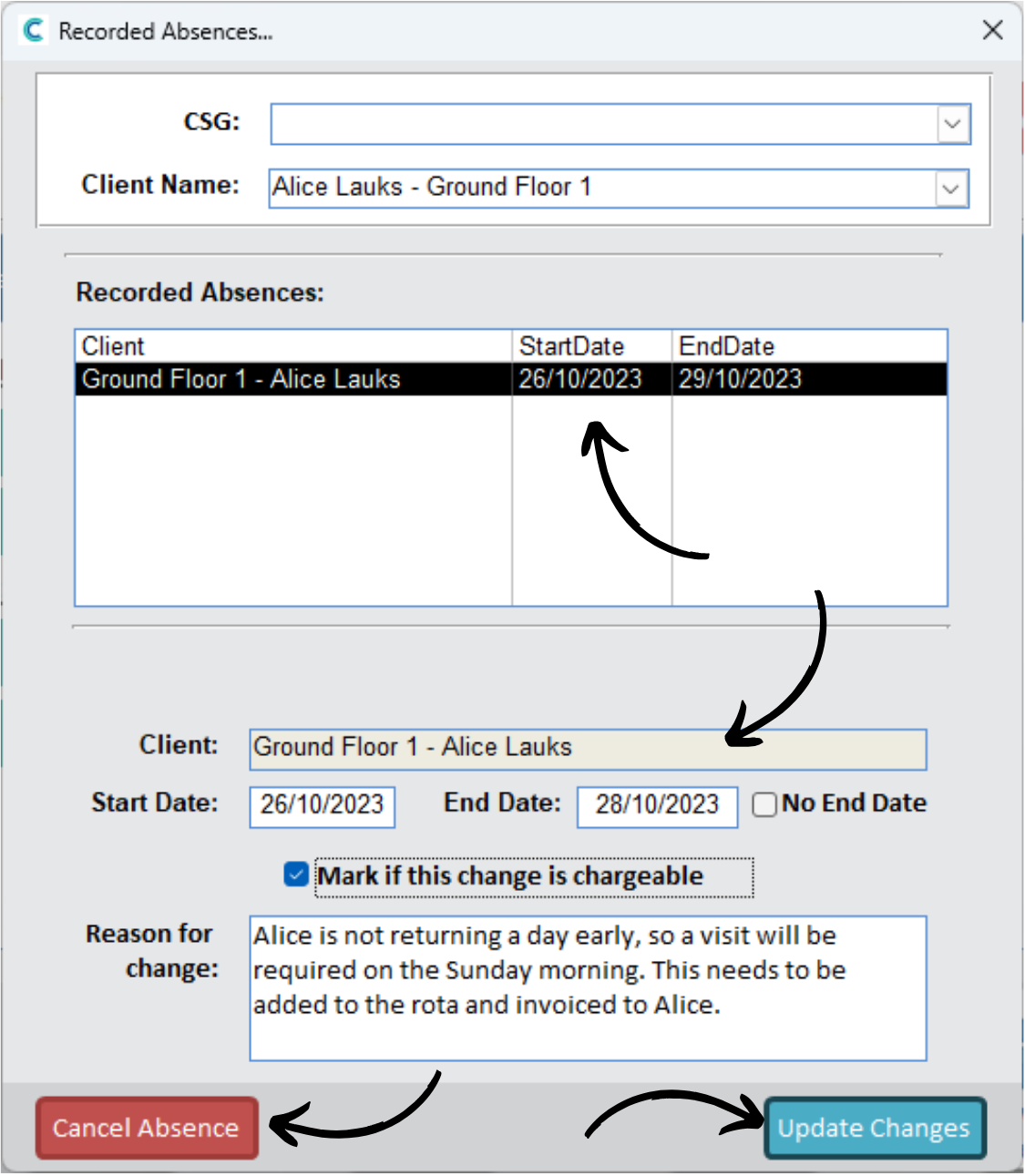
Select one of the results in the box below to view more information about it.
Here, you can amend the start and end dates and mark if this change is chargeable. For example, if a cancelled visit to the service user was previously cancelled because of the absence, but needed to be re-added, this could be chargeable to the client.
Finally, enter a Reason for Change in the text box and press Update Changes.
You can also cancel the entire absence via the Cancel Absence button in the bottom left corner.