This guide will cover how to propose a Care Review change for a service user via Care Control Mobile.
1
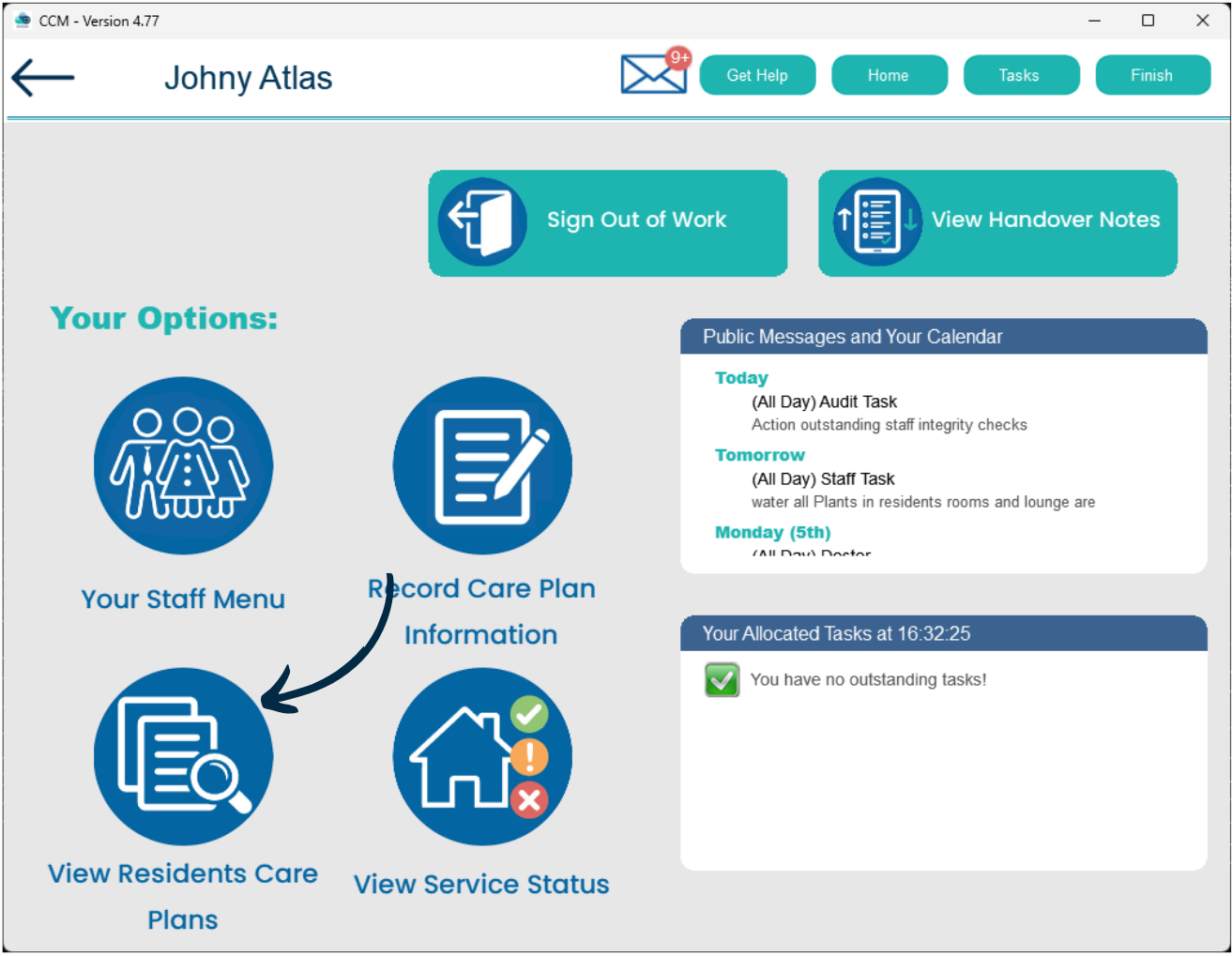
After signing into Care Control Mobile, select ‘View Residents Care Plans‘.
2
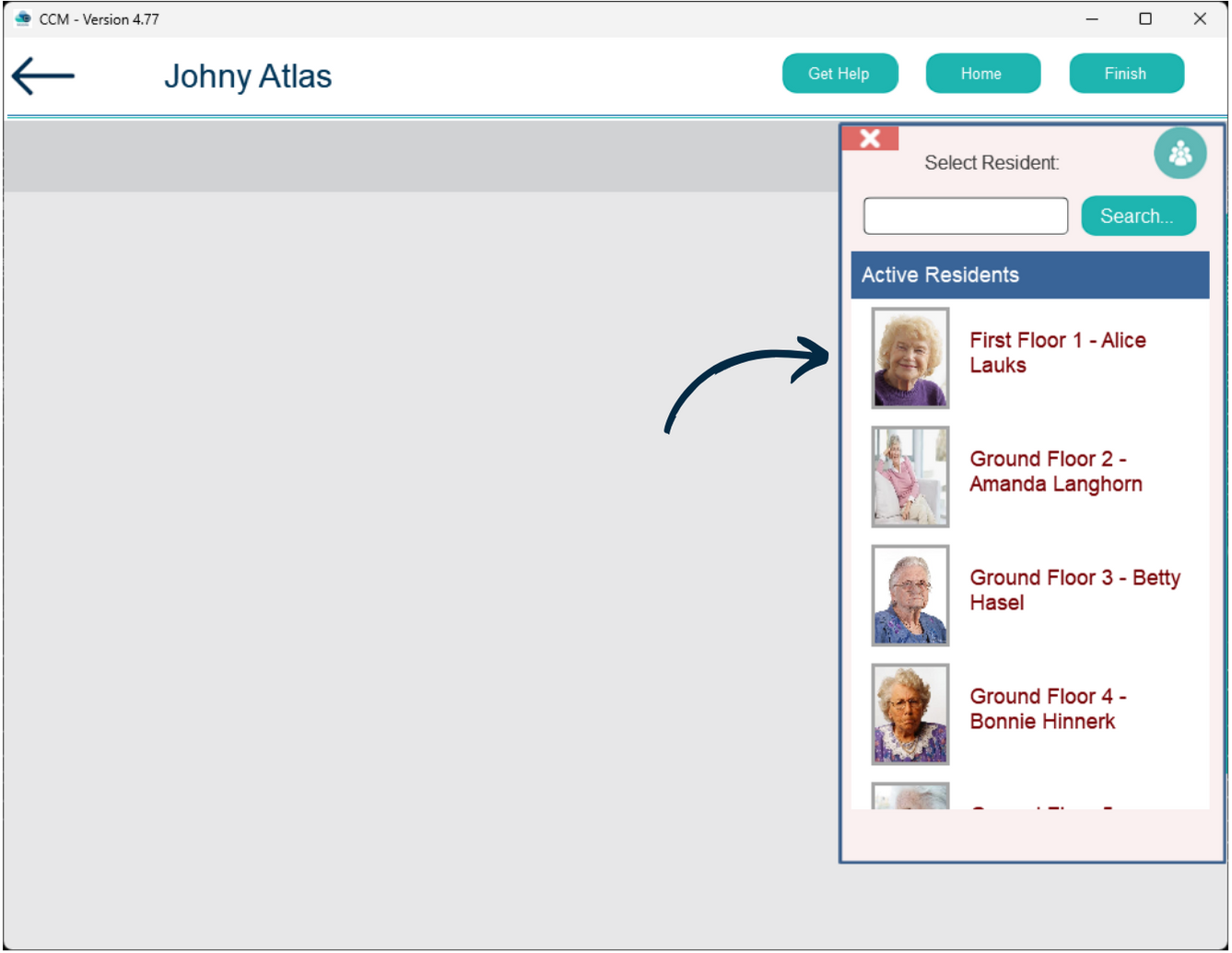
Choose a Service User from the list on the right hand side.
3
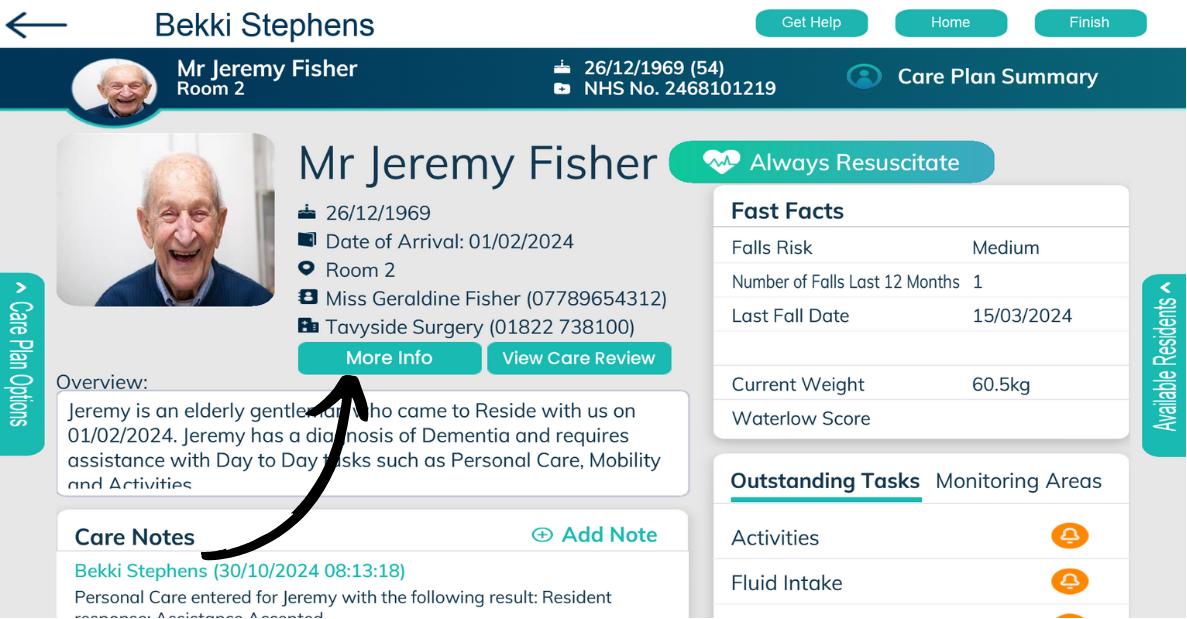
Press ‘More Info‘.
4
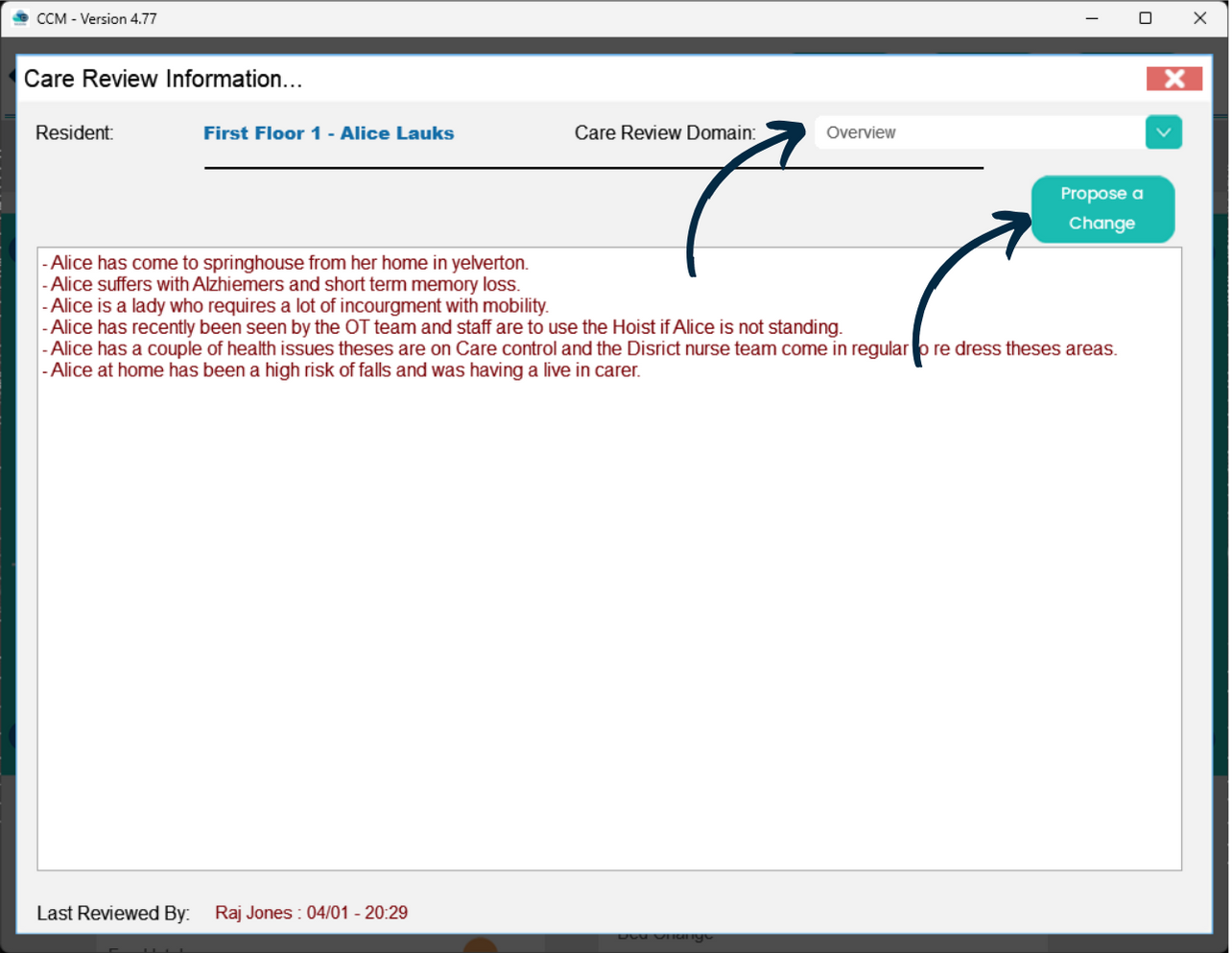
A new window will pop-up. Here, their Care Review information will be displayed.
Choose the section you wish to view via the ‘Care Review Domain‘ drop-down list at the top.
Then, press ‘Propose a Change‘.
5
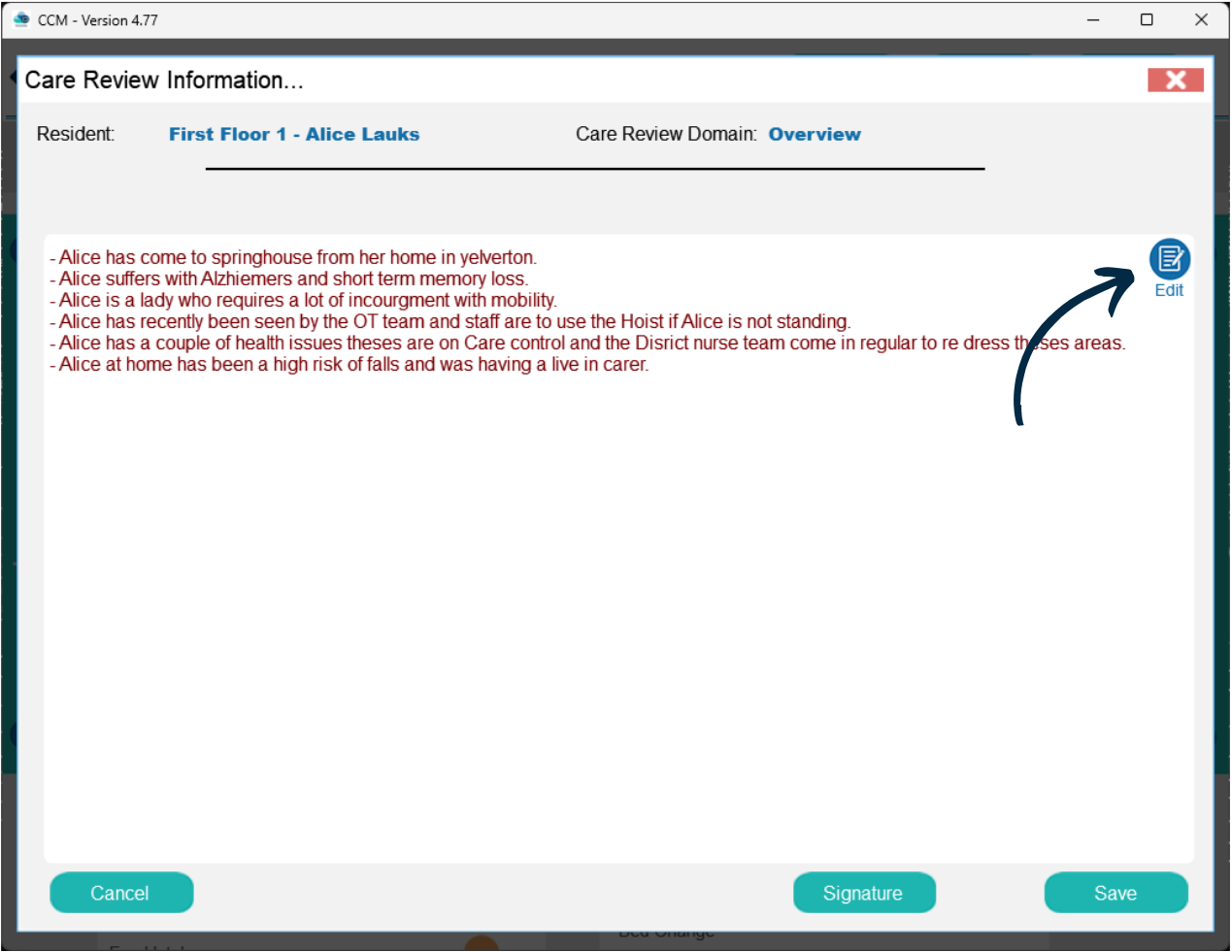
The section will enter edit mode.
Press the ‘Edit‘ button.
6
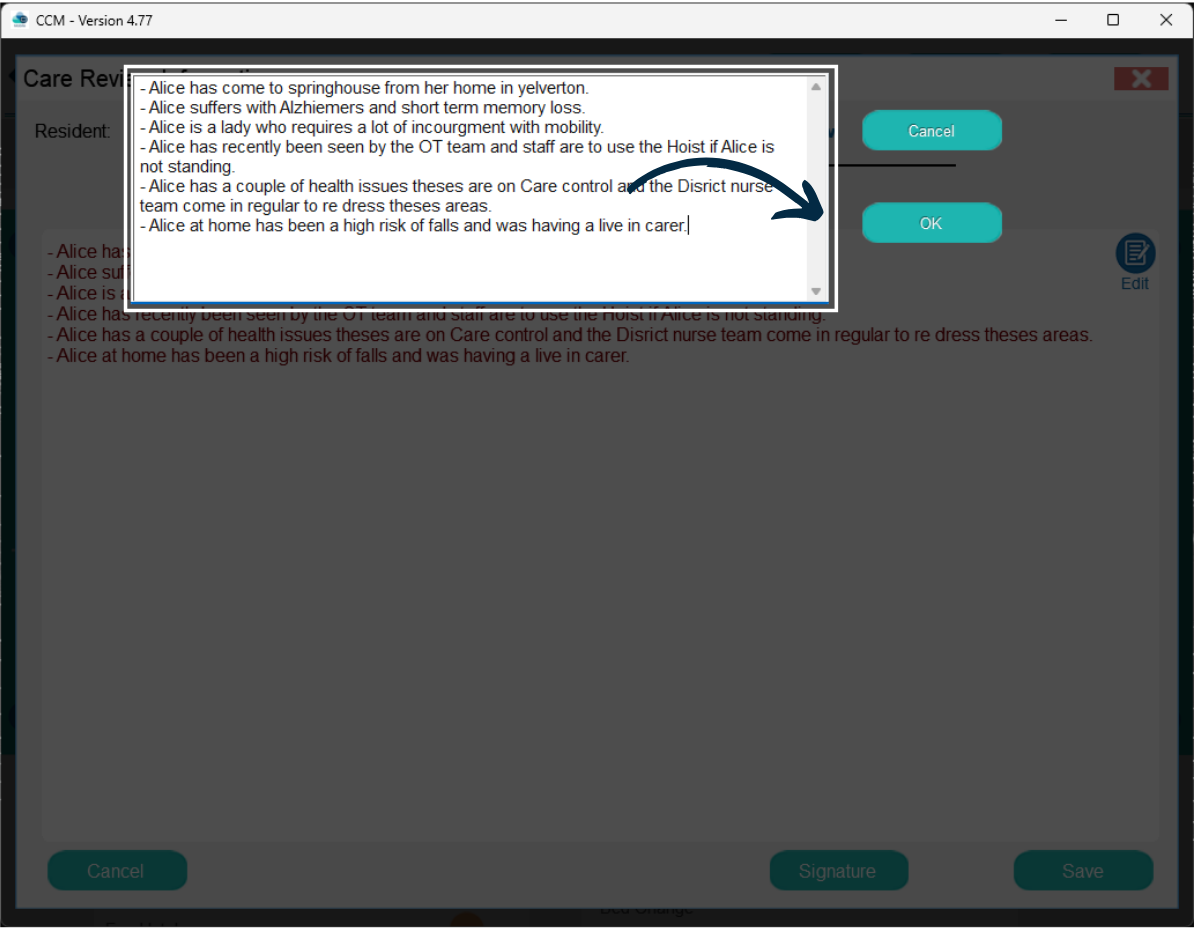
Now, you can add, remove or change any of the text in this Care Review section.
After doing so, press ‘OK‘.
7
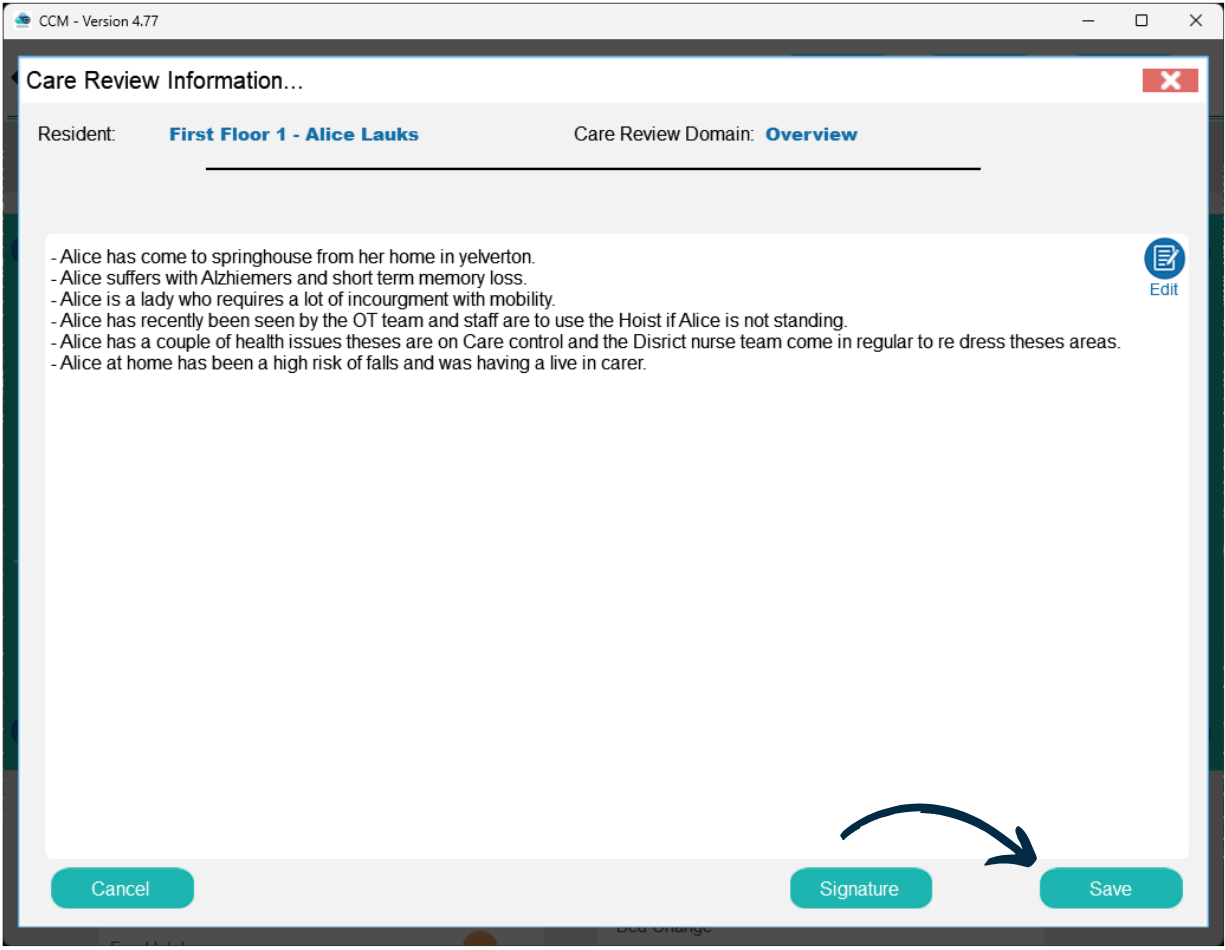
Finally, press ‘Save‘.
Your edits will not change the current Care Review for the service user. They instead will be sent through to Care Control Windows as a proposal for the next Care Review.
Users completing the next Care Review can then choose to accept or dismiss these proposals.
8
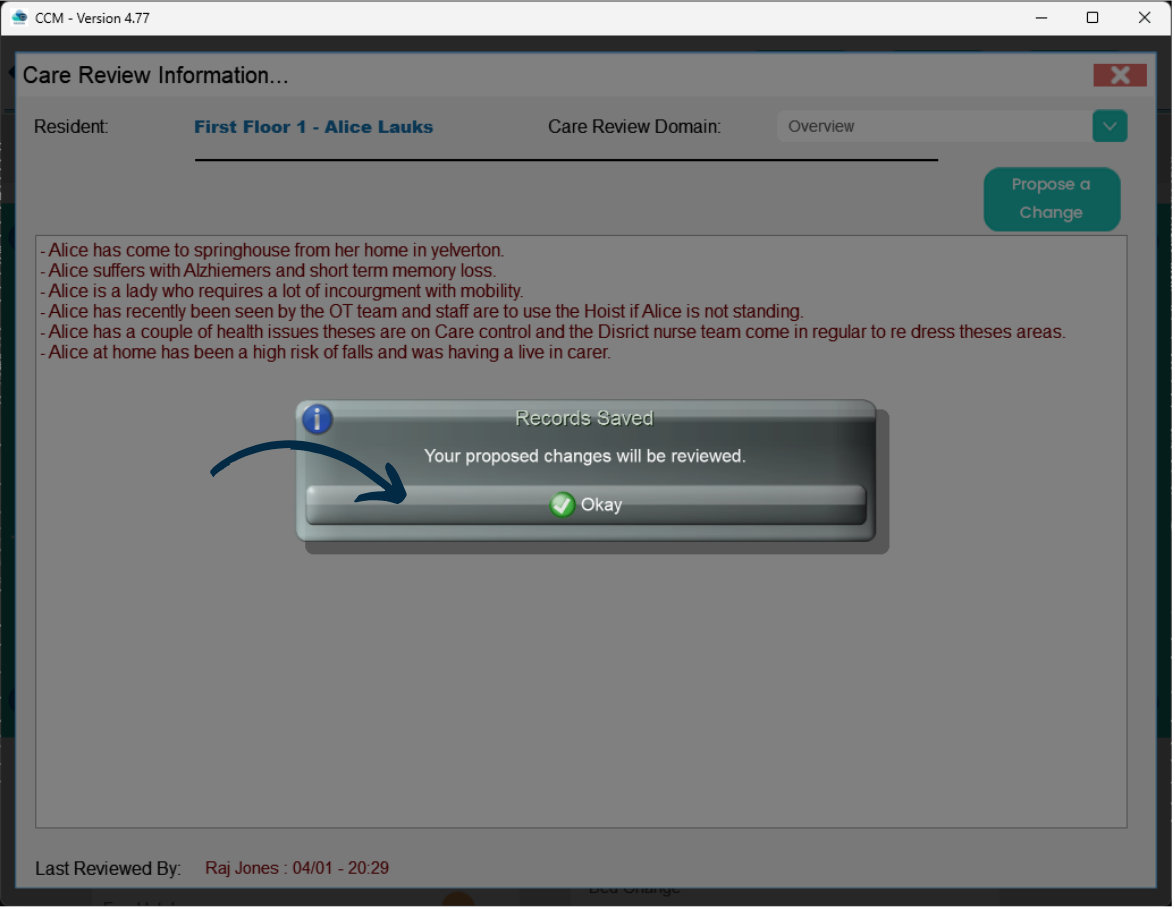
You will receive a confirmation that your proposal has been saved.