Explore our new Gateway hub with setup guides, FAQs, videos, webinars, and more
This new feature saves both time and money within Roster Cloud.
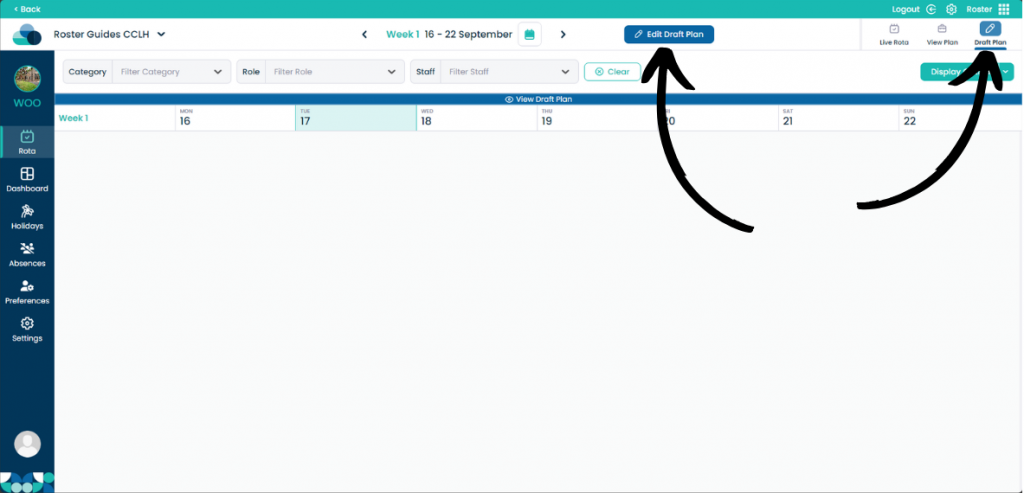
When on your rota screen, select Draft Plan and then Edit Draft Plan.
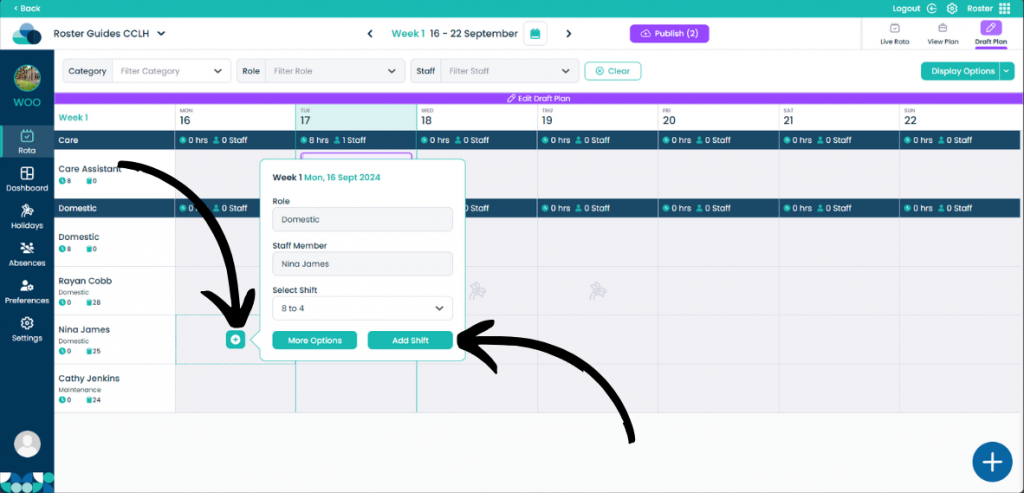
When your mouse is hovered over a cell, a plus button should appear in the middle.
Now you can choose from the Select Shift drop down menu which shift you would like to add.
Once you are happy with the shift, click Add Shift.
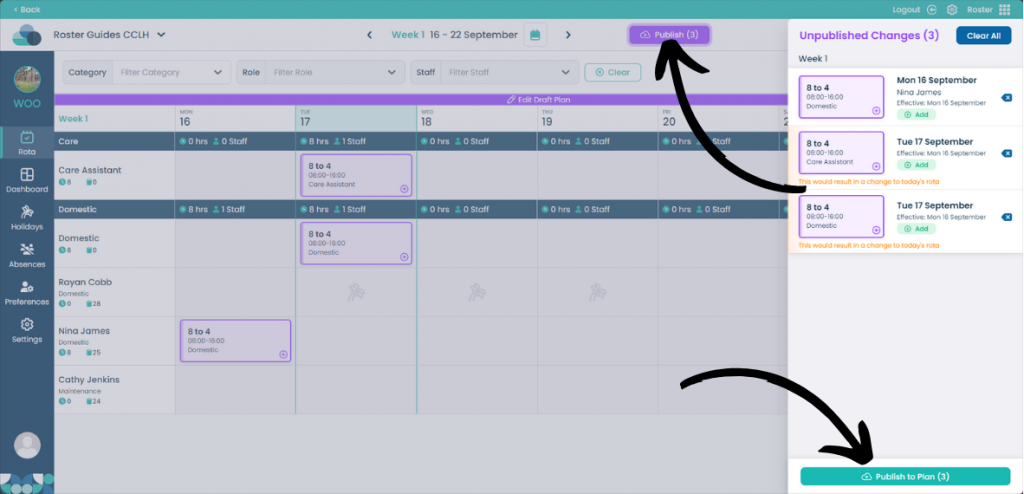
Now the shift is within the cell for that staff member, click Publish at the top of the screen and then click Publish to Plan when happy.