⚠️ System update: We are aware of an issue affecting certain areas and user roles within the system following the new Navigation Menu release. Please note that Super Admin access is working as expected. Our Development Team is actively investigating the issue and working to implement a resolution as quickly as possible. We appreciate your patience and understanding while we work to restore full functionality.

View Categories

Quick adjust shift in Cloud Roster

Quick adjusting can help manage your shifts if staff need to leave early or can cover further hours.

Step 1:

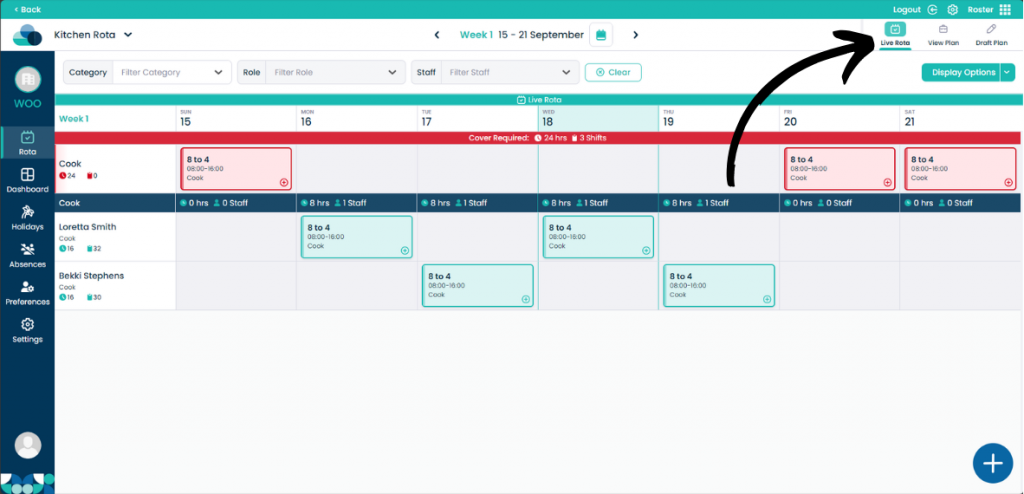
Navigate to the Live Rota.

Step 2:

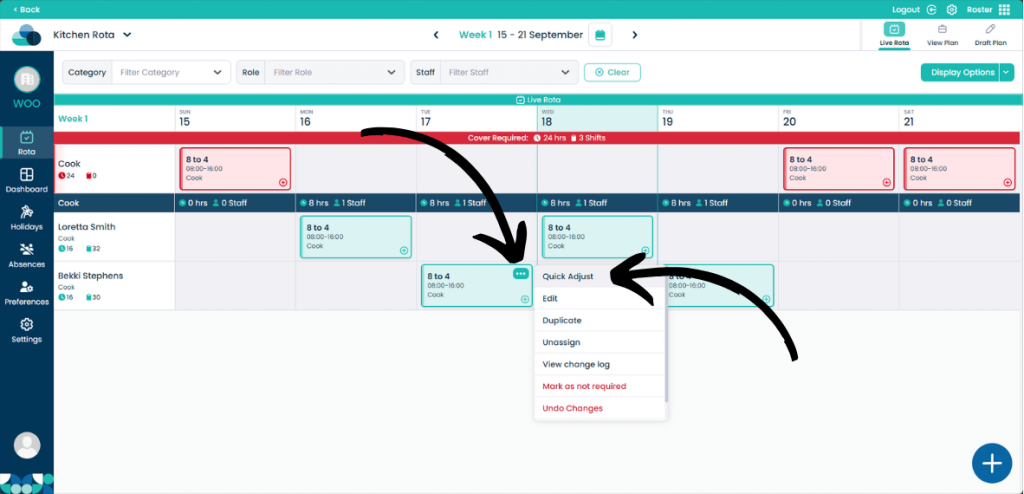
On a shift, click the three dots in the top right of a shift. Then click Quick Adjust.

Step 3:

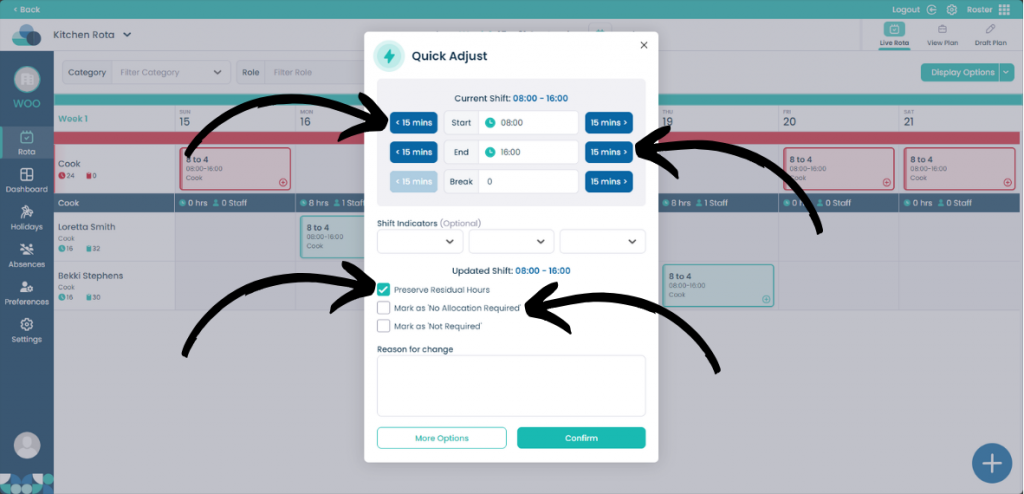
On the Quick Adjust menu you can manage both the Start and End times from this page. You can type specific hours in to the box or remove or add 15 minute increments. You can also manage the Breaks of the staff member. 

If you click Preserve Residual Hours, if extra hours are left over, a new shift will be created to cover it. You can also Mark as No Allocation Required or mark the shift as Not Required.
Step 4:

You can also add a Reason for change in the text box.

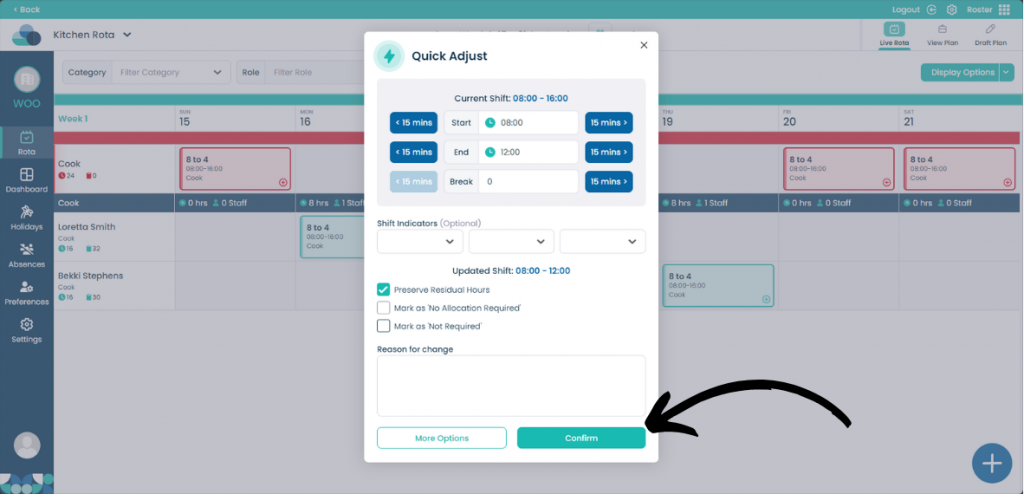
When you click Confirm the shift will now be modified.

Step 5:

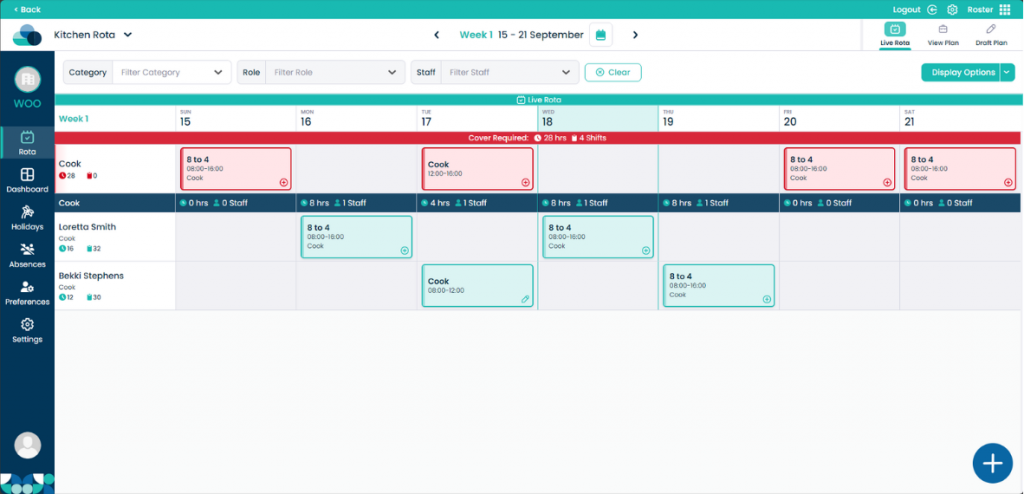
Now you can see the shift has been changed to 08:00-12:00 and the remaining shift of 12:00-16:00 is now in the Role row.