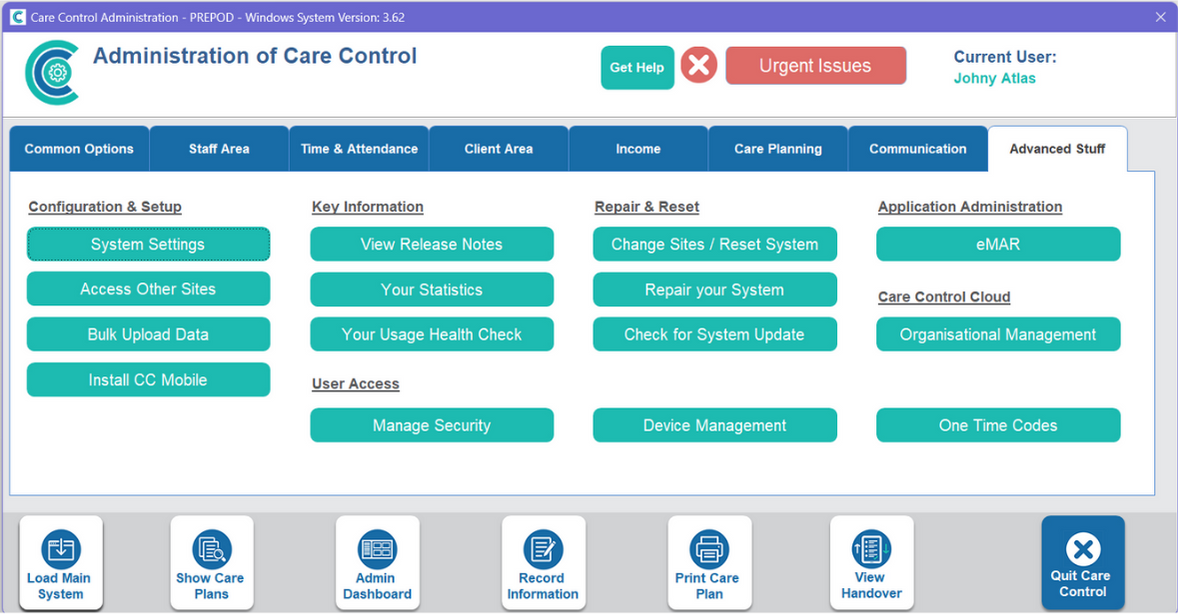
This guide will cover how to register the Care Control Windows system using a One Time Code. These codes allow staff users to set up devices without the need to hand out the system site code. Please see *this* guide on how to set up One Time Codes.
1
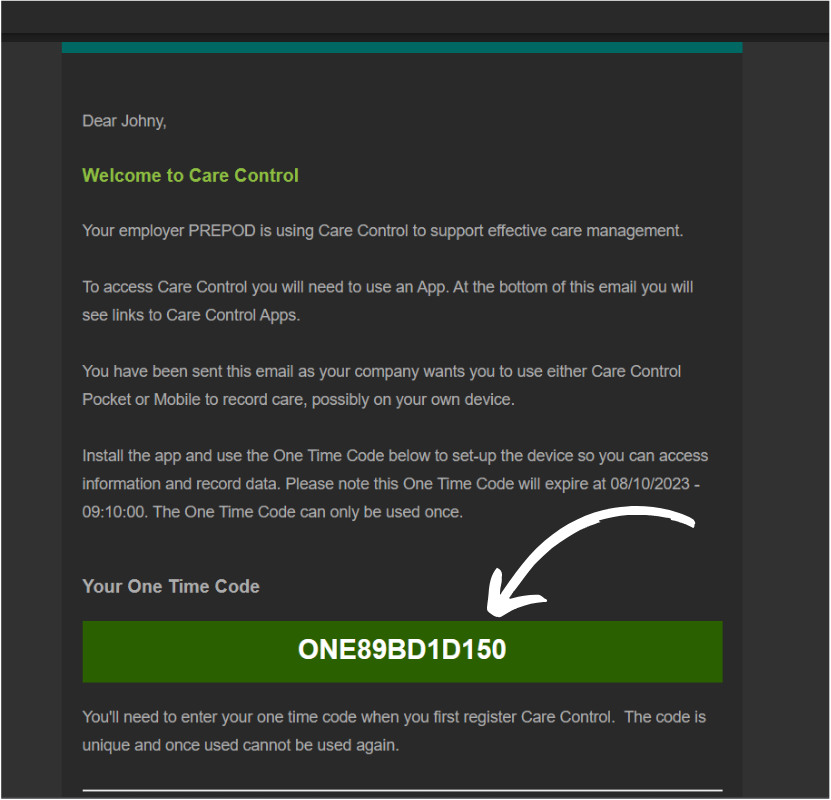
After receiving a One Time Code to your email address, you can copy it to your clipboard.
2
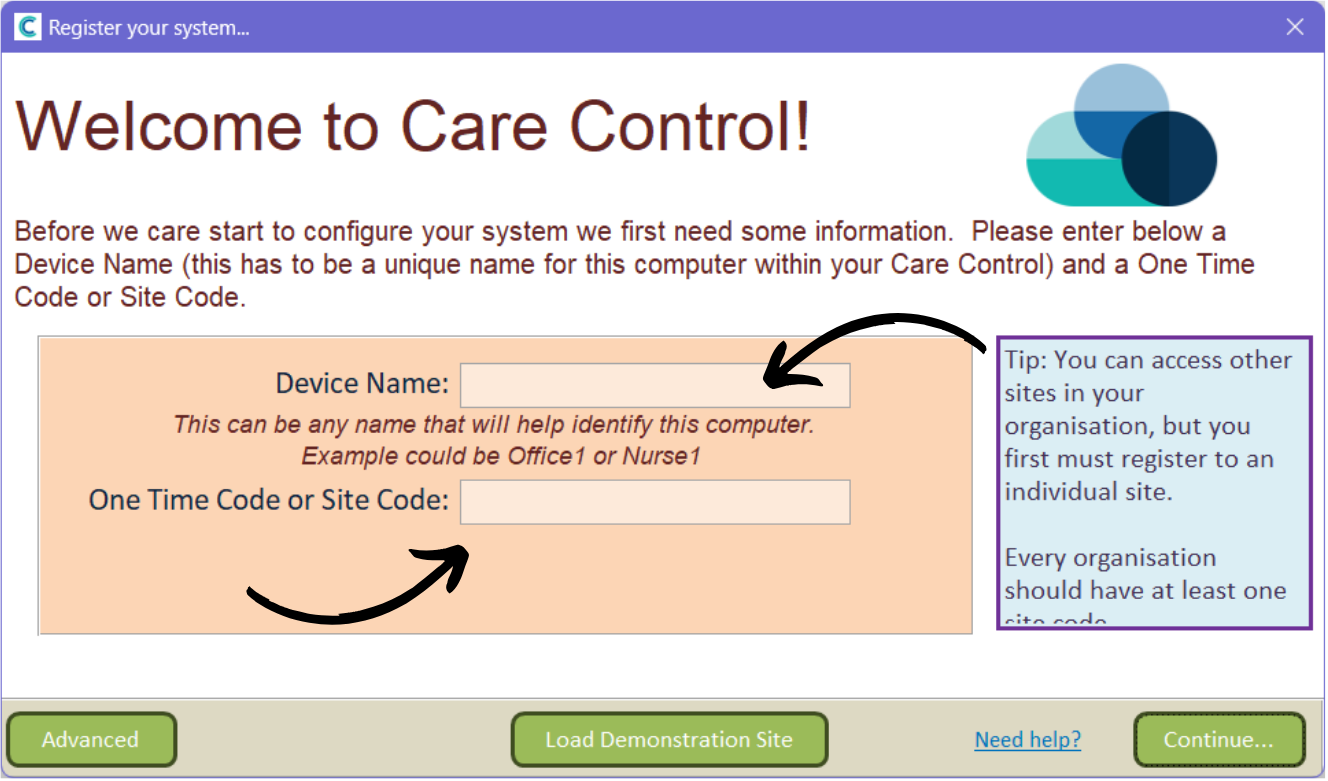
On the CC Windows registration screen, paste the OTC in the dedicated box.
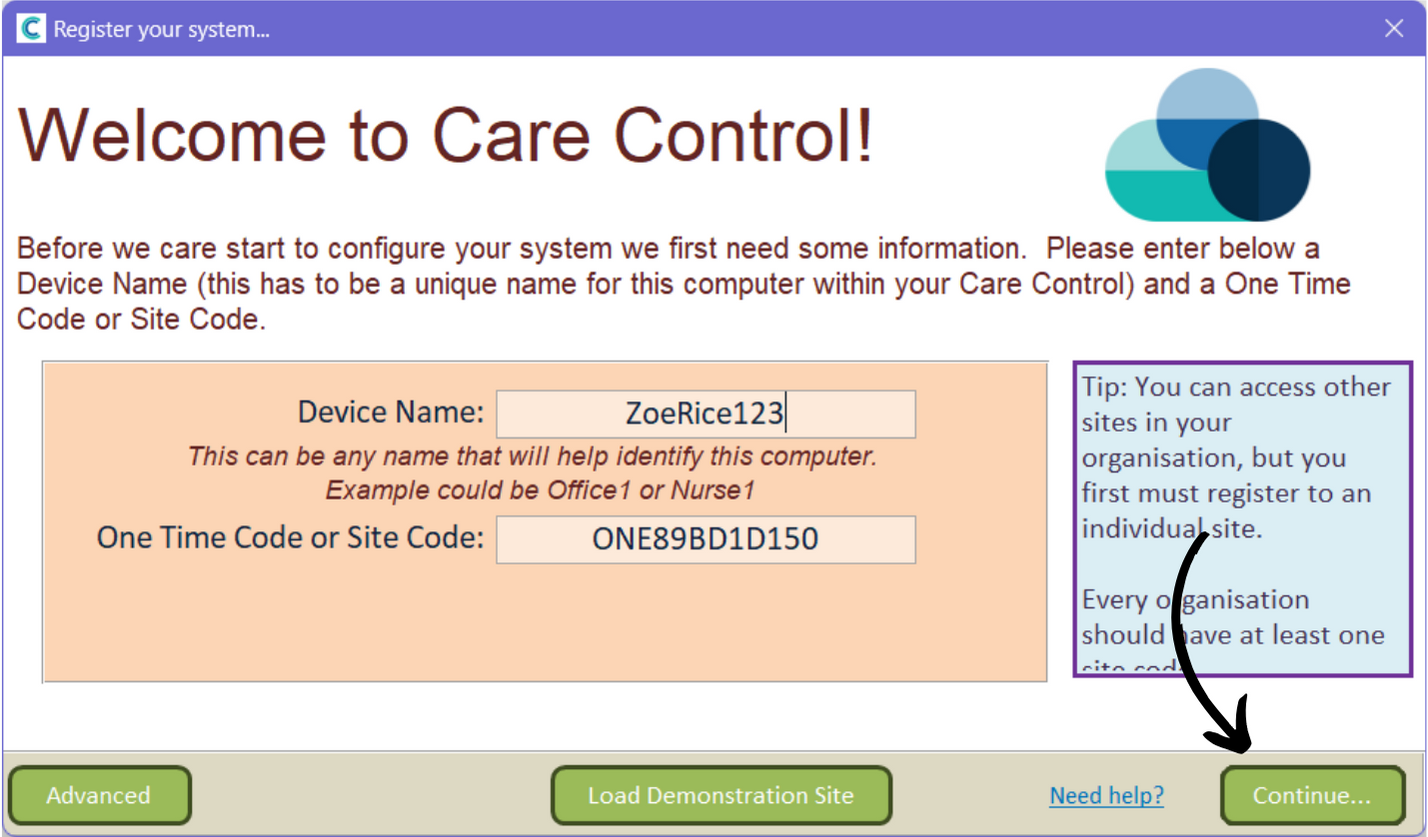
You will also need to enter a Device Name – this can be anything to identify the device, e.g, Manager Laptop.
3
After entering your details, press Continue.
4
You might receive a prompt to install CC Mobile, you can choose to ignore this.
5
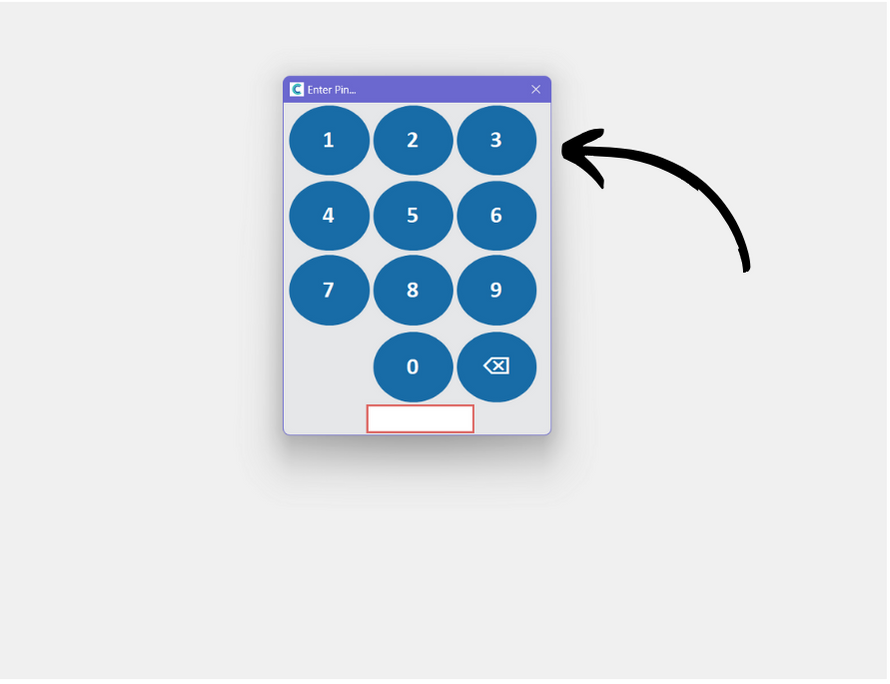
Enter your staff PIN to access the system.
6
The Care Control Windows system will load. It will attempt to open the Admin Dashboard. If you receive a message stating ‘Access Denied’, it is because your staff account does not have administration permissions.
If you need this access, speak to a known administrator in your organisation who can either give you access, or set the system to open in staff mode.