Bank Holiday Closure Notice: We will be closed on the 3rd April for the Easter bank holiday, so our customer service team will not be available on this day. If you need to get in touch, you can still use our customer contact form and we will get back to you as soon as possible. Even better, Margo will still be available on our phone lines to help with your queries whenever you need support. We hope you have a lovely Easter weekend 🐣
View Categories
Setting up Single Sign on for Cloud
This guide will cover how to set up Microsoft 365 / Azure Active Directory single sign-on for Care Control Cloud. This feature allows for seamless access to the Cloud using existing credentials for members within your organisation.
1
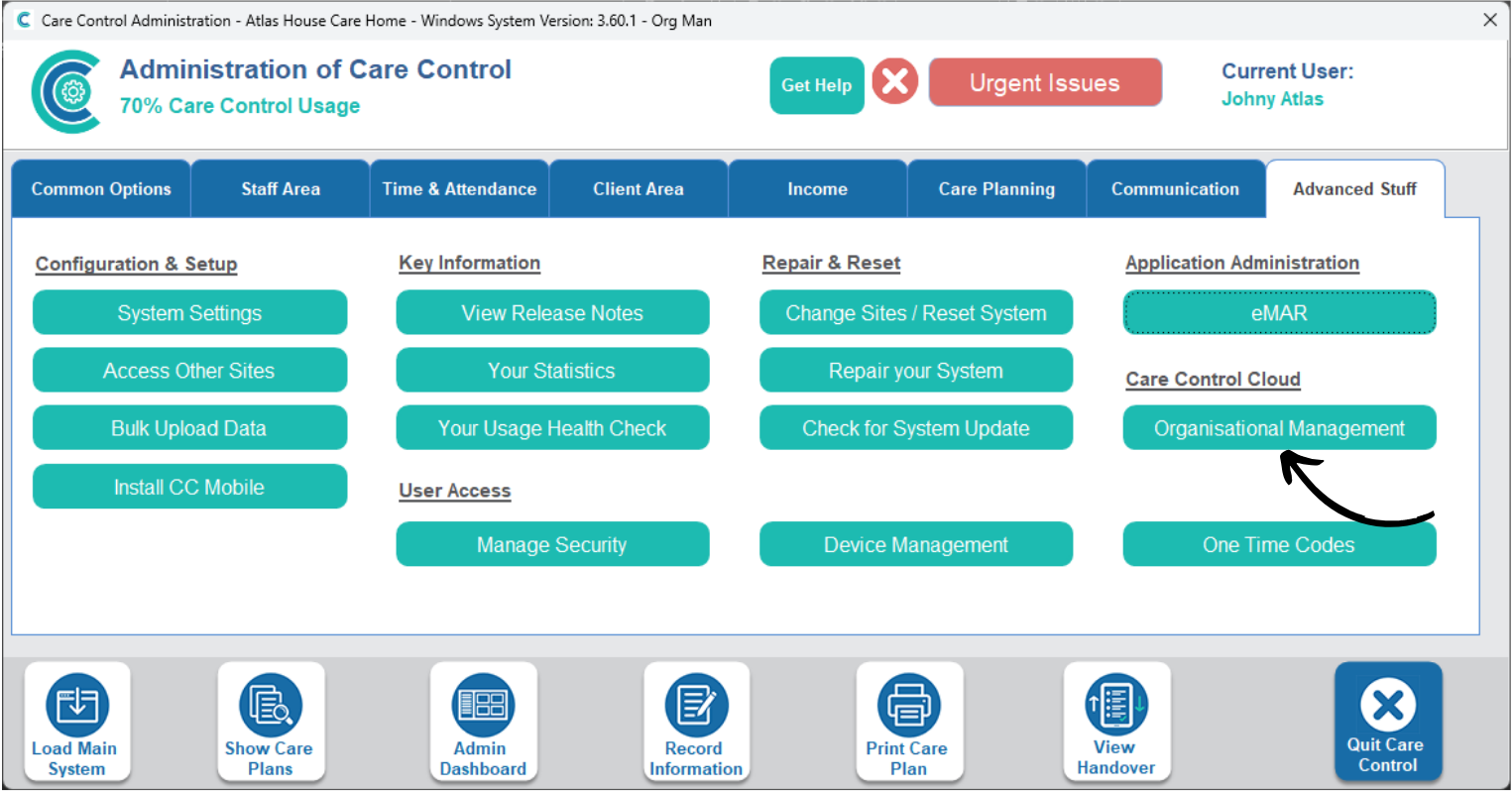
In the Administration of Care Control Windows, navigate to the Organisational Management tool, which can be found under the Advanced Stuff tab.
2
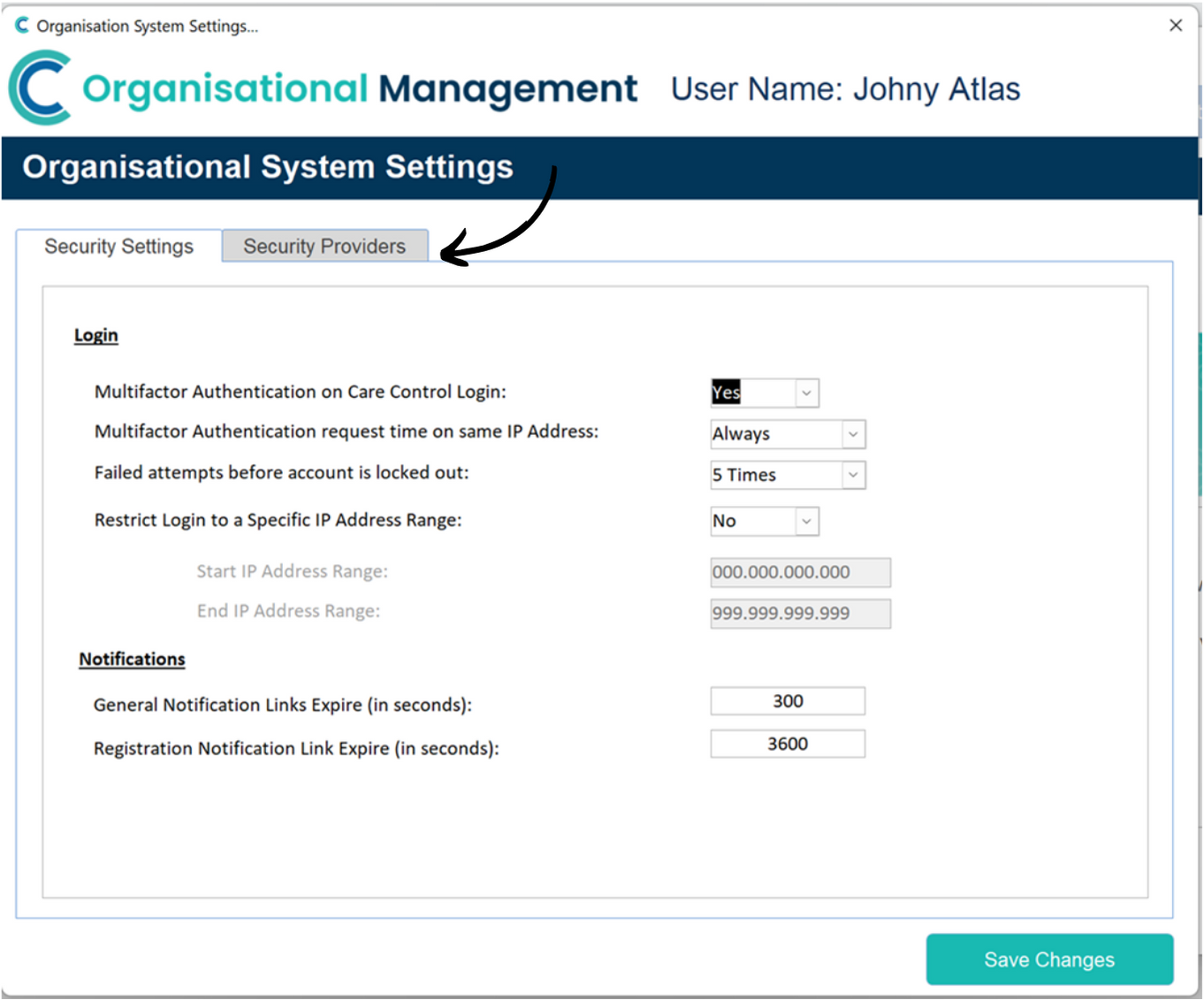
A new window will open. Here, access the Settings via the button in the top right.
3
Select the second tab, labelled Security Providers.
4
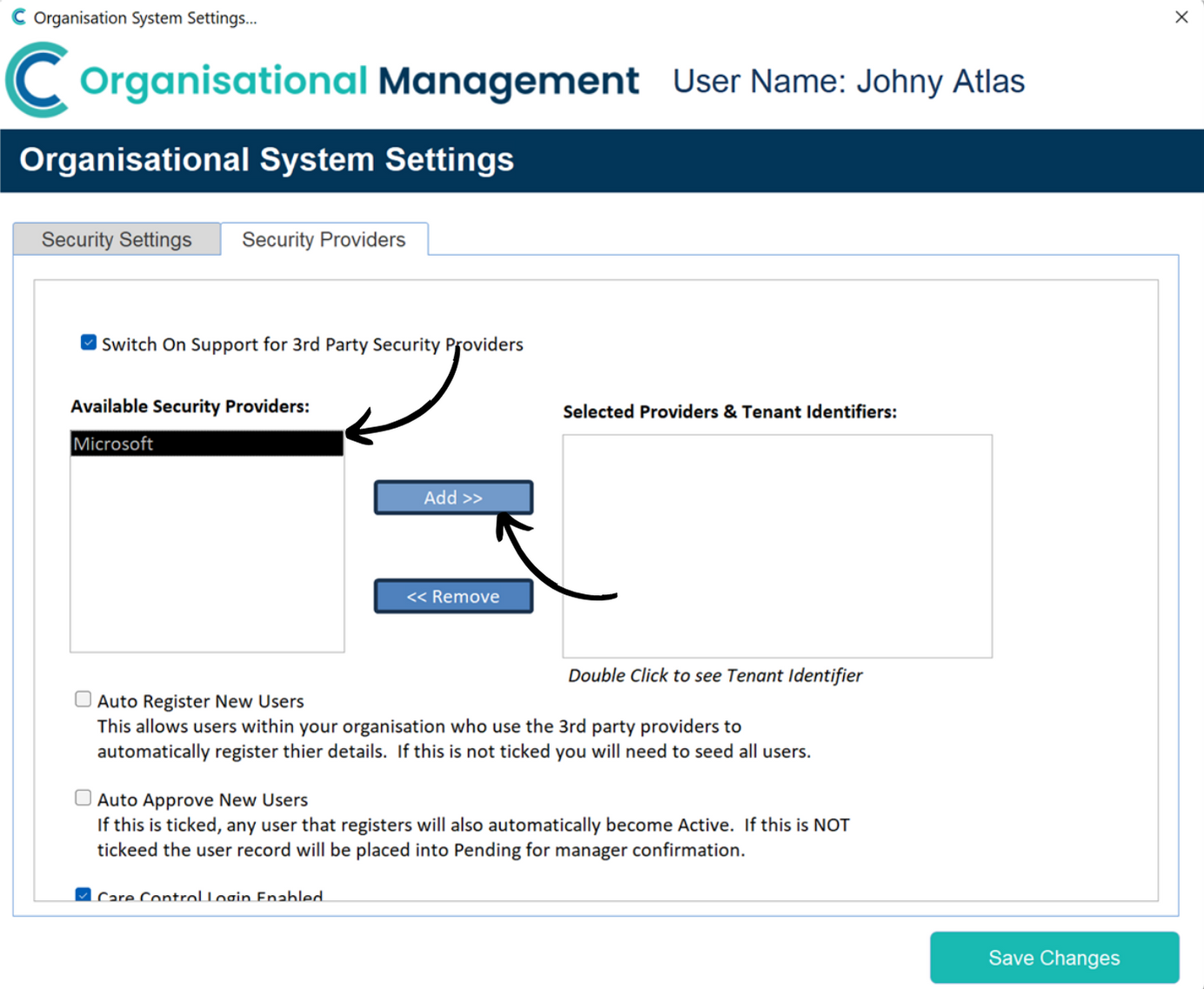
First, tick the Switch On Support for 3rd Party Providers box.
Then, select Microsoft from the list on the left hand side and press Add to move it into the list on the right hand side.
5
Within your web browser, navigate to your organisations Azure Home Portal (www.portal.azure.com/#home).
Select Manage Azure Active Directory from the dashboard.
6
Here, your Tenant ID should be displayed.
Copy the code to your clipboard.
7
Back within Care Control Windows, paste the Tenant ID into the dedicated box and press OK.
8
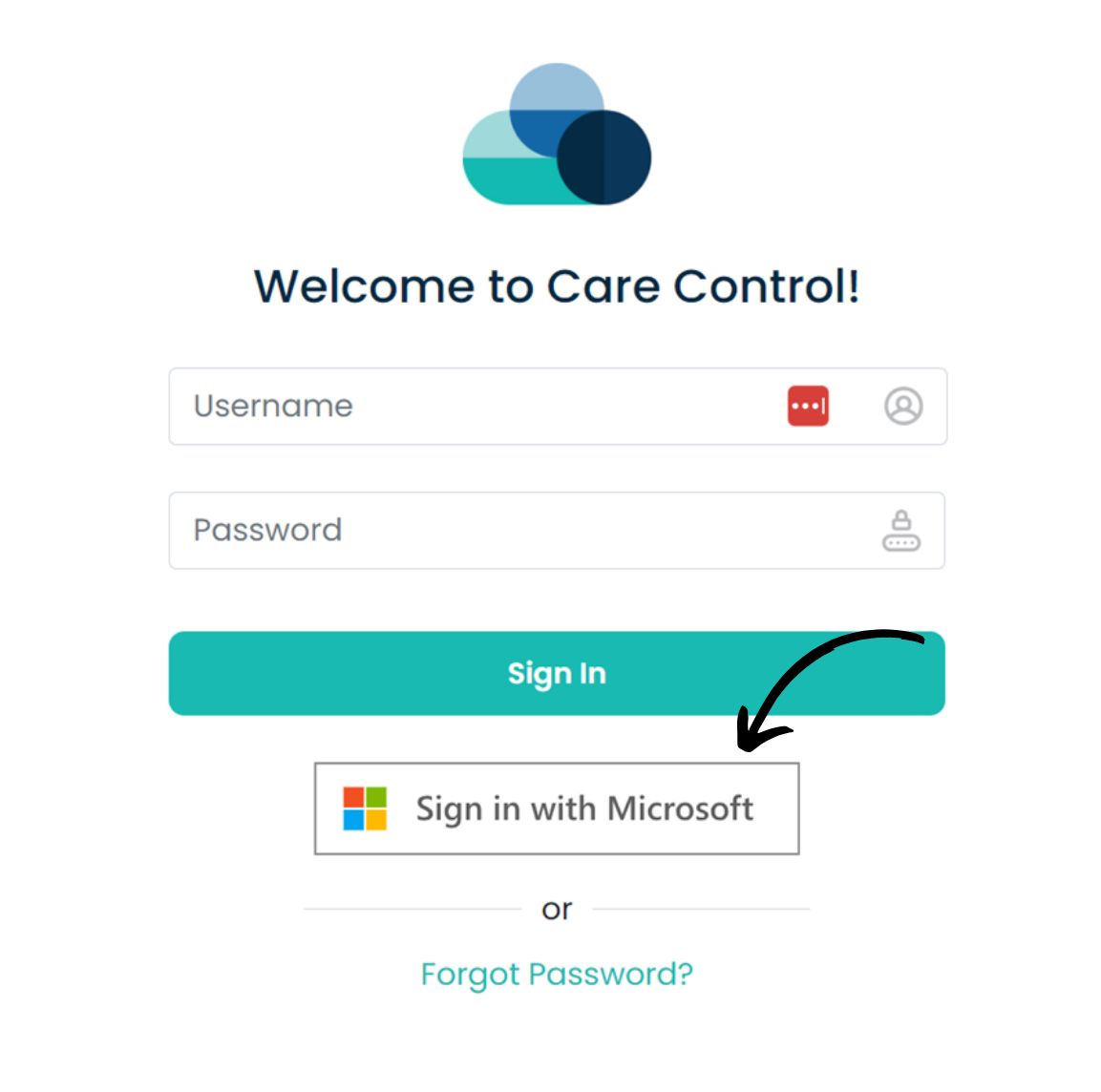
Now, when on Care Control Cloud, select Sign In with Microsoft on the log-in screen.