Moving shifts in Roster Cloud is easy and fast allowing you to easily cover shifts and move them between days.
Step 1:
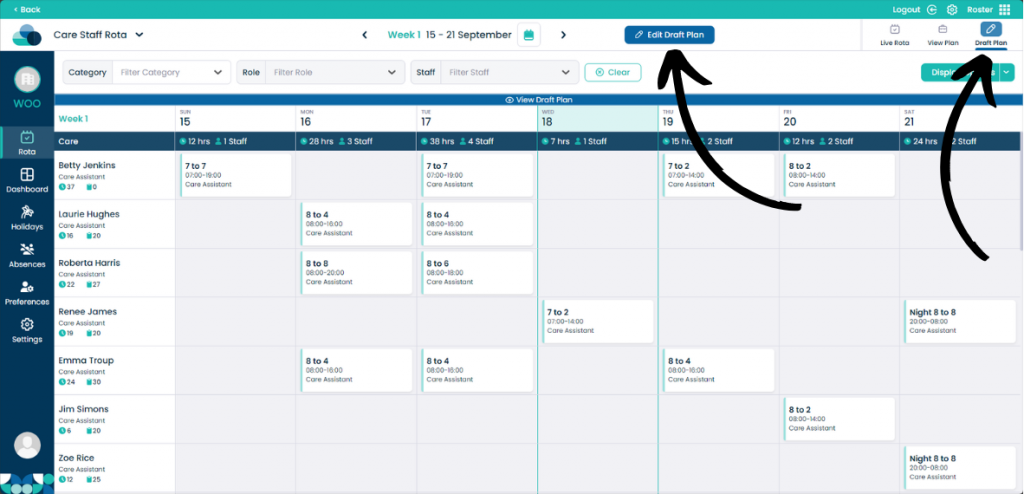
When on your rota screen, select Draft Plan and then Edit Draft Plan.
Step 2:
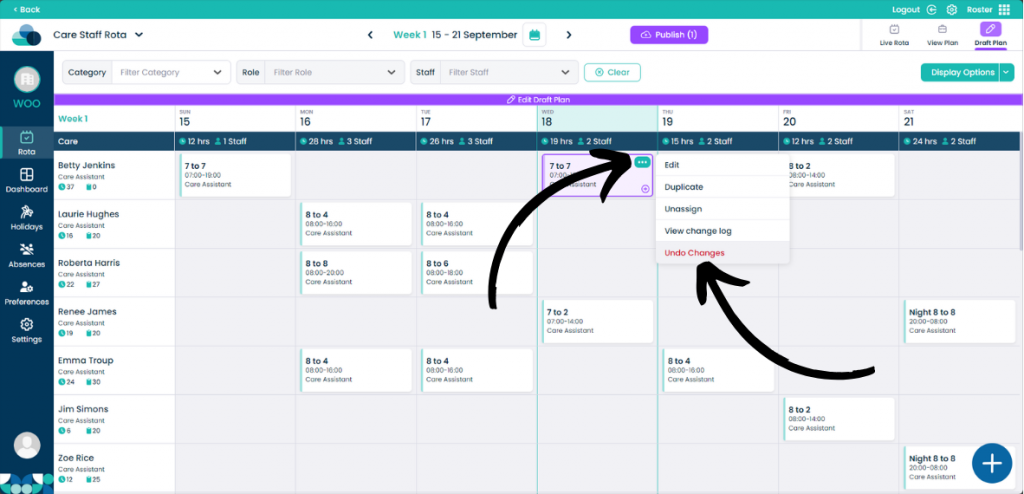
Over a shift, click the 3 dots in the top right of the shift. Then click Undo Changes to remove the shift from the cell.
In order for Undo Changes to be within this menu, you must have made a change to the shift before clicking Publish.
Step 3:
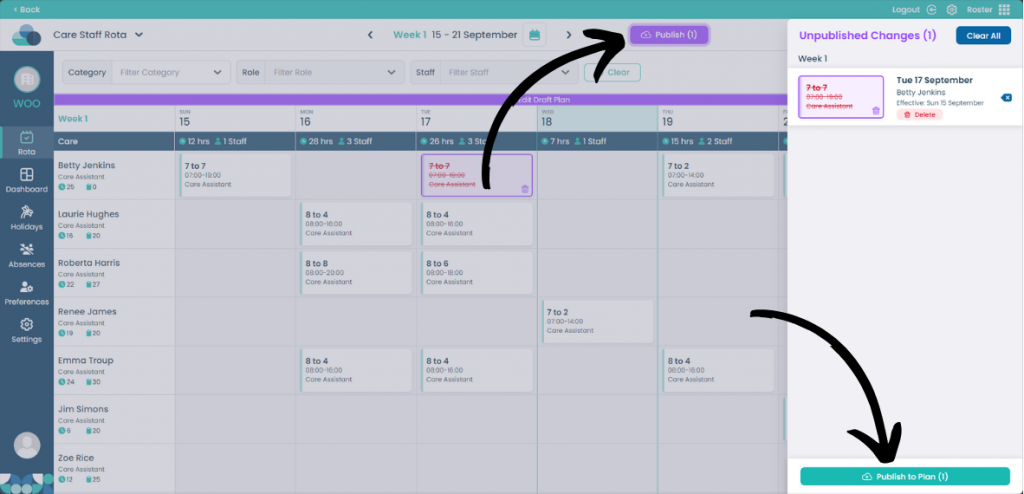
If the shift has been removed with the Undo Changes it will now appear crossed out. This is to easily show that the shift has been undone. In order to remove the shift fully, click Publish and then click Publish to Plan.