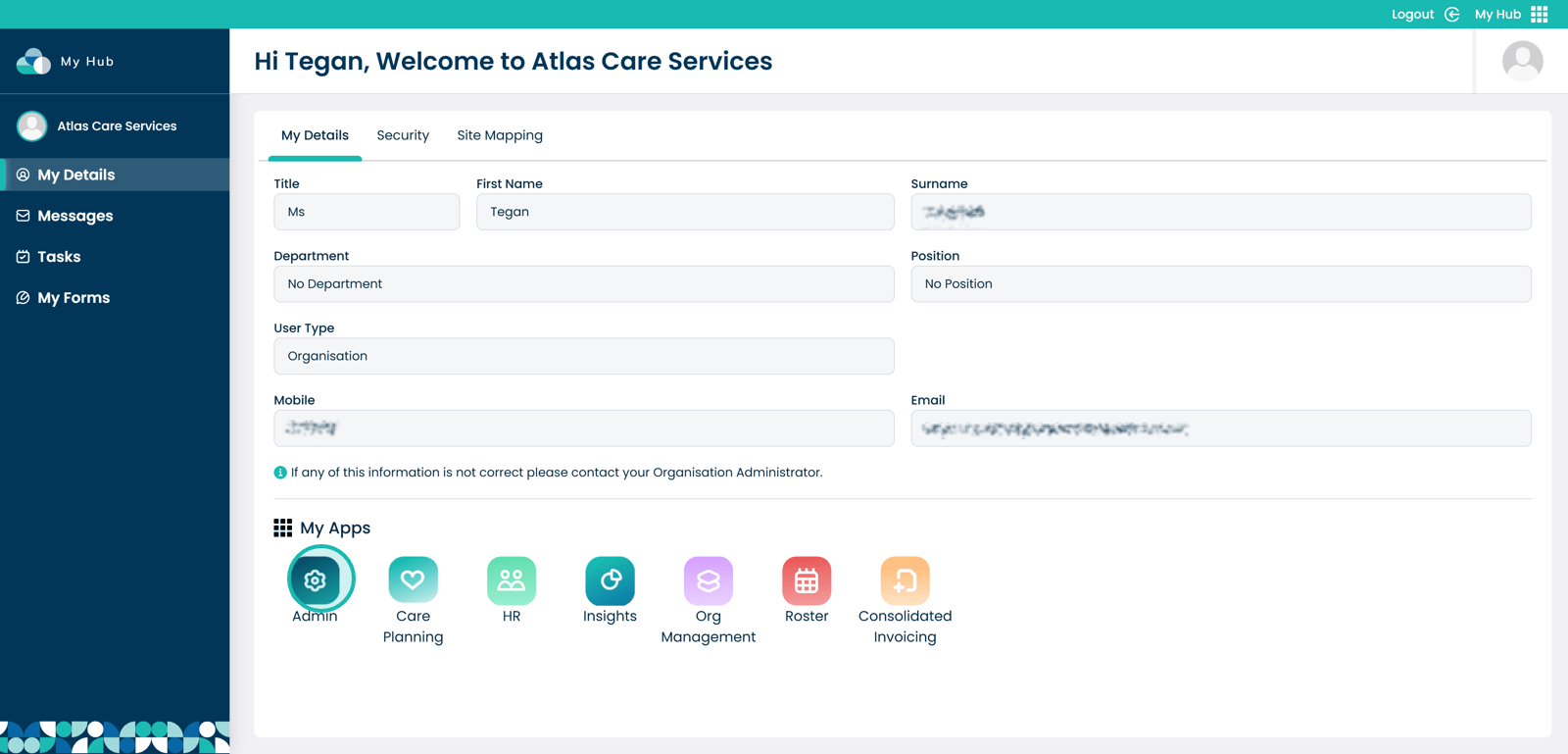
1. Within the My Hub dashboard, click the Admin App.
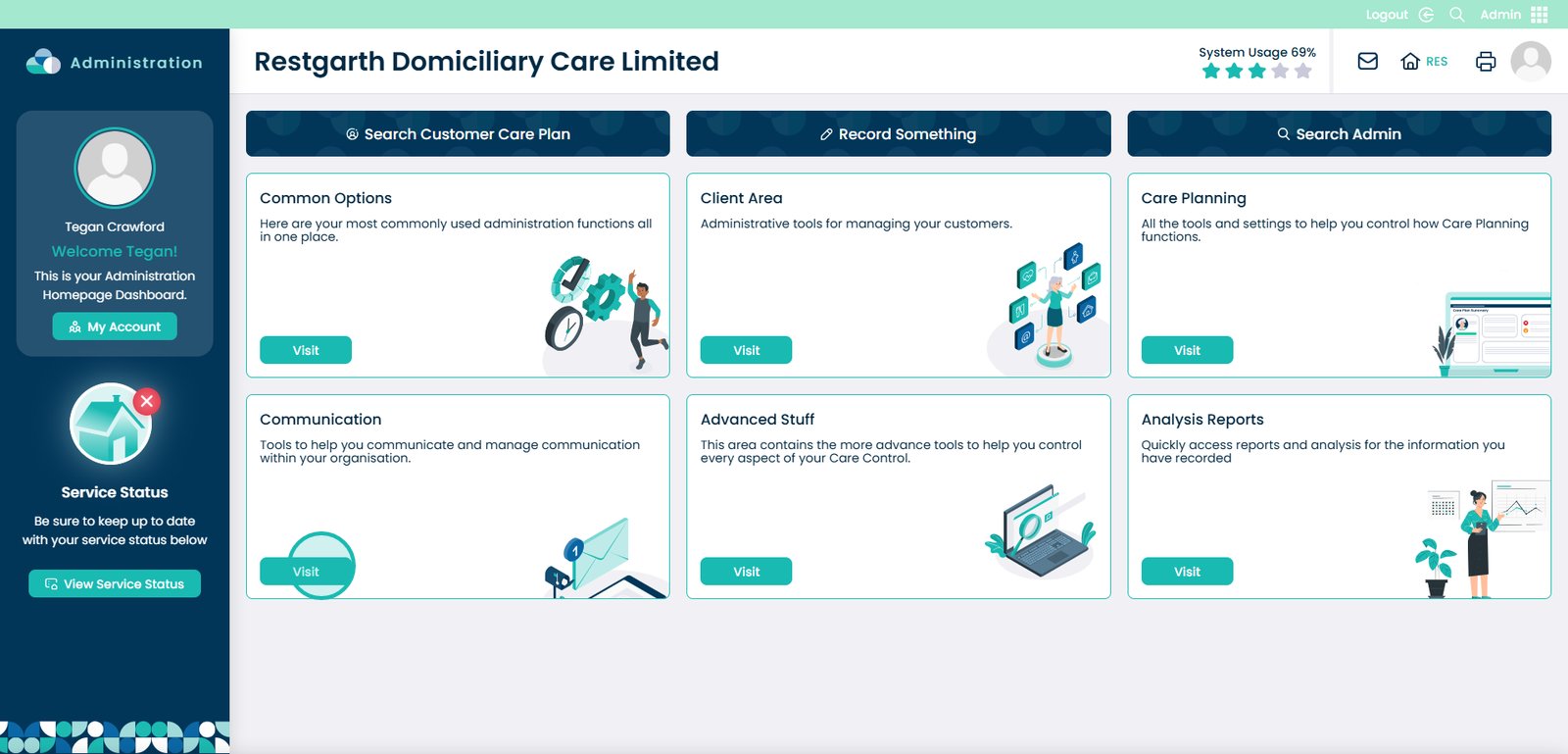
2. Next, you will need to click on the ‘Visit’ button under Communication.
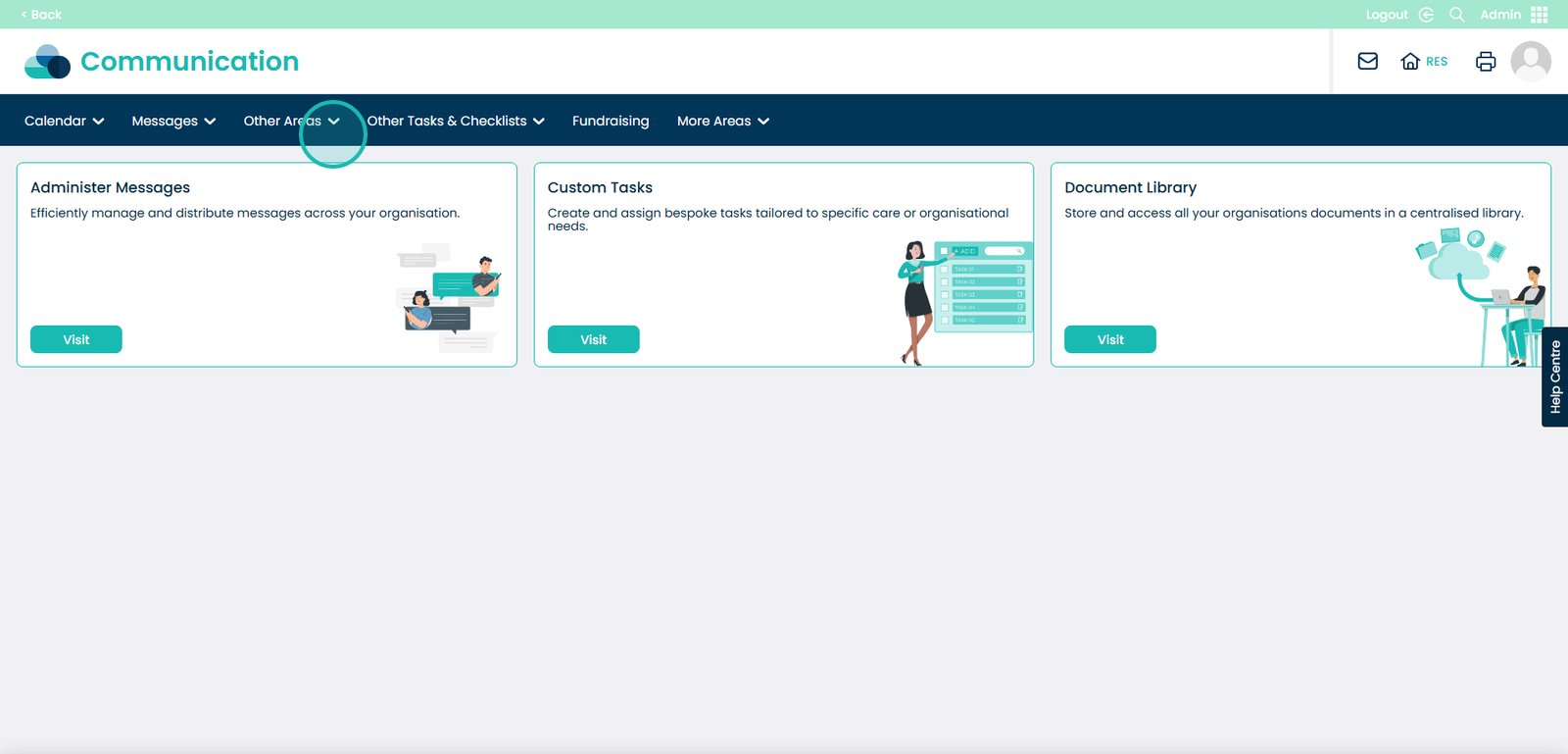
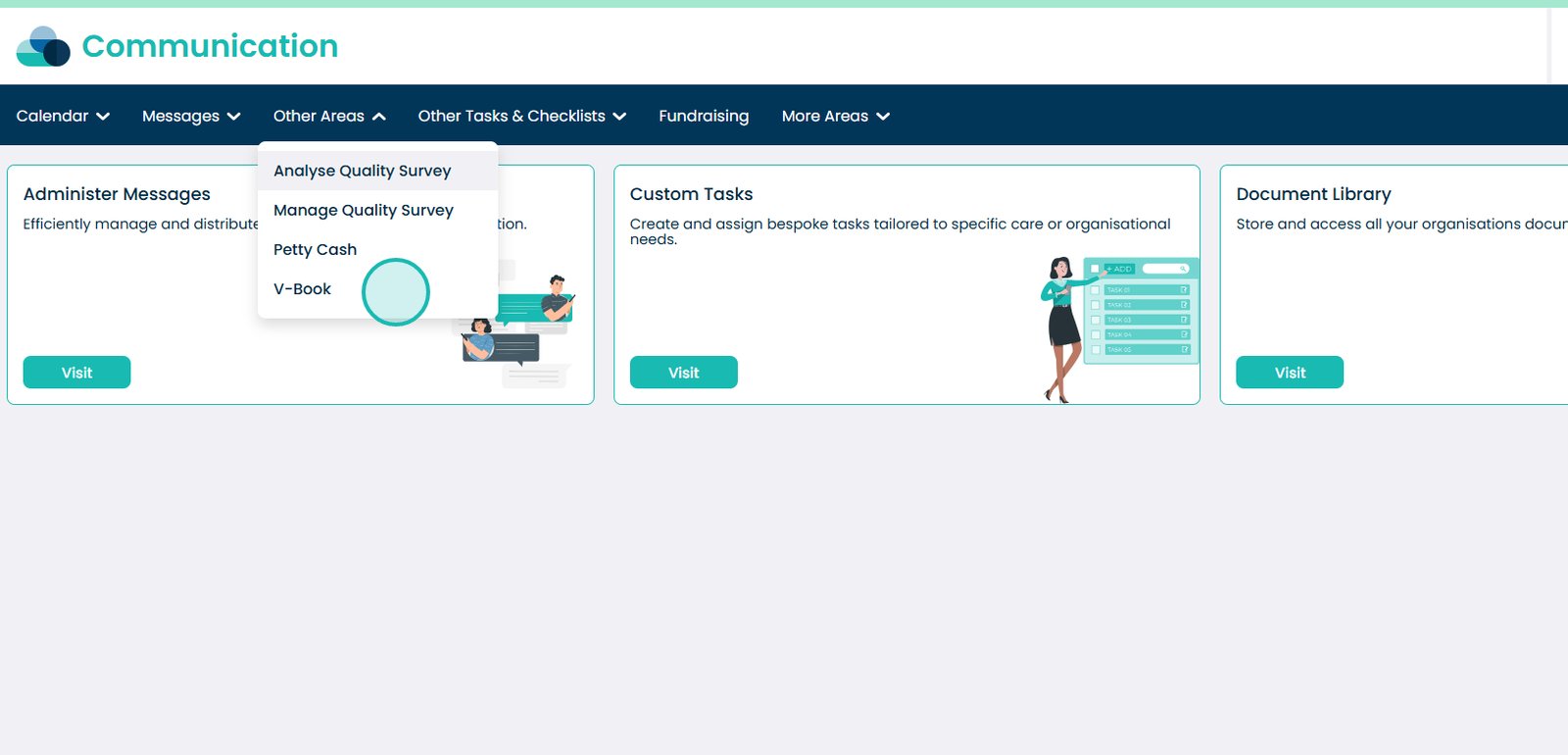
3. Within the communication area, there will be a tab called ‘Other Areas’, click the drop down arrow next to it.
4. A list will then appear. Select the ‘V-Book’ option.
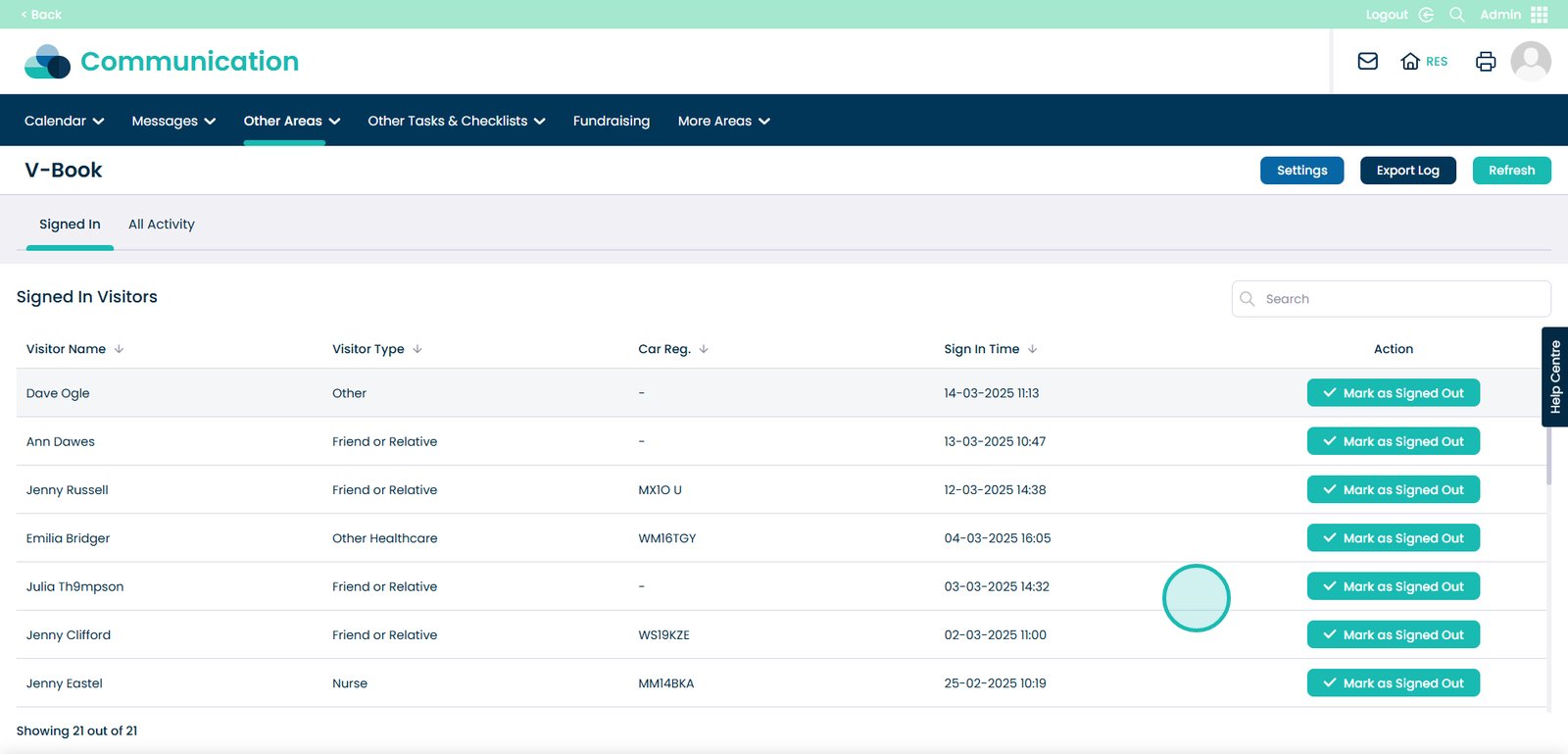
5. Your V-Book dashboard will open. Here, a list of currently signed in visitors will be displayed. You can sign them out here by pressing the ‘Mark as Signed Out’ button.
You can view a full log of V-Book activity by selecting the All Activity tab at the top of the page.
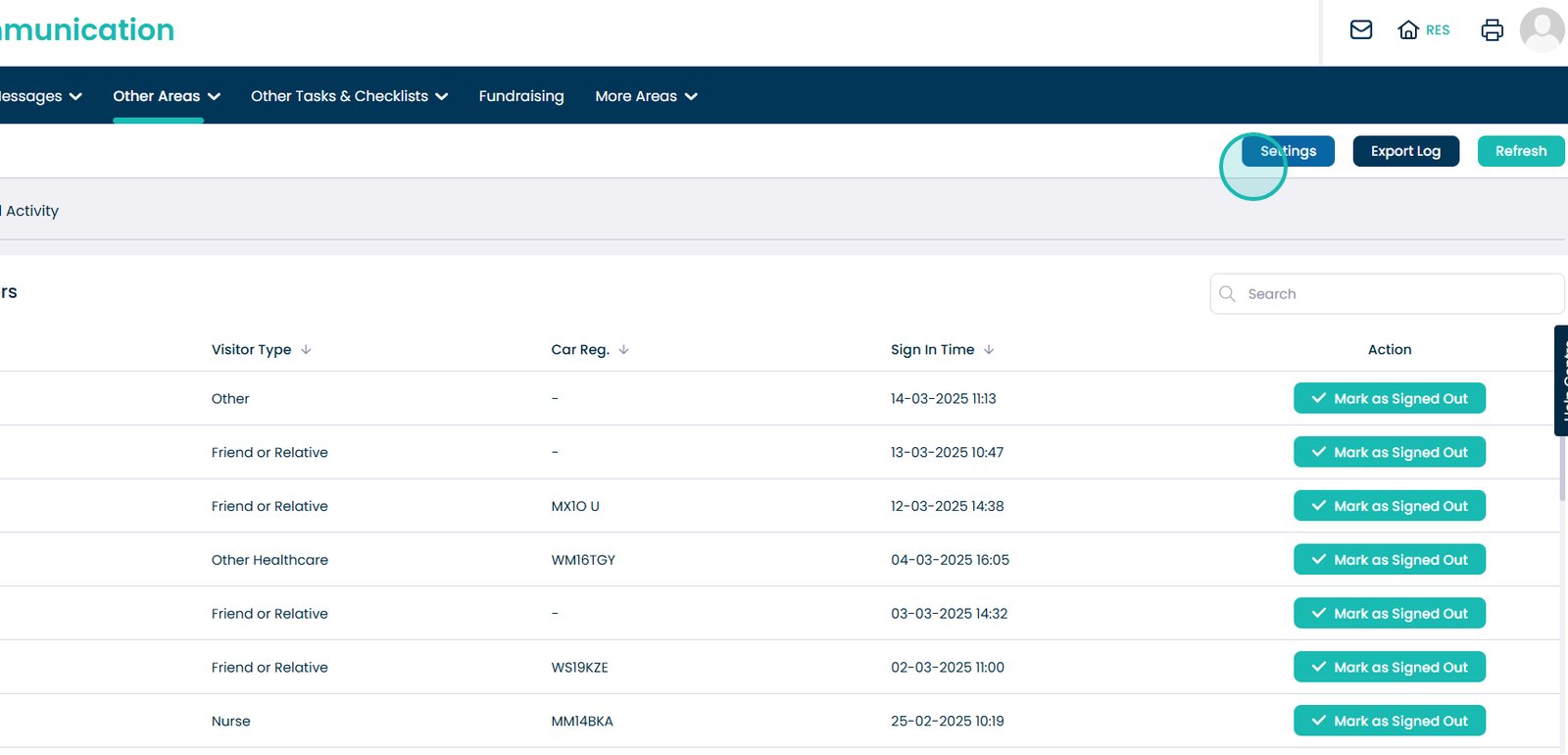
6. Press the ‘Settings’ button to view the V-Book configuration options.
7. Here, a list of settings will be displayed.
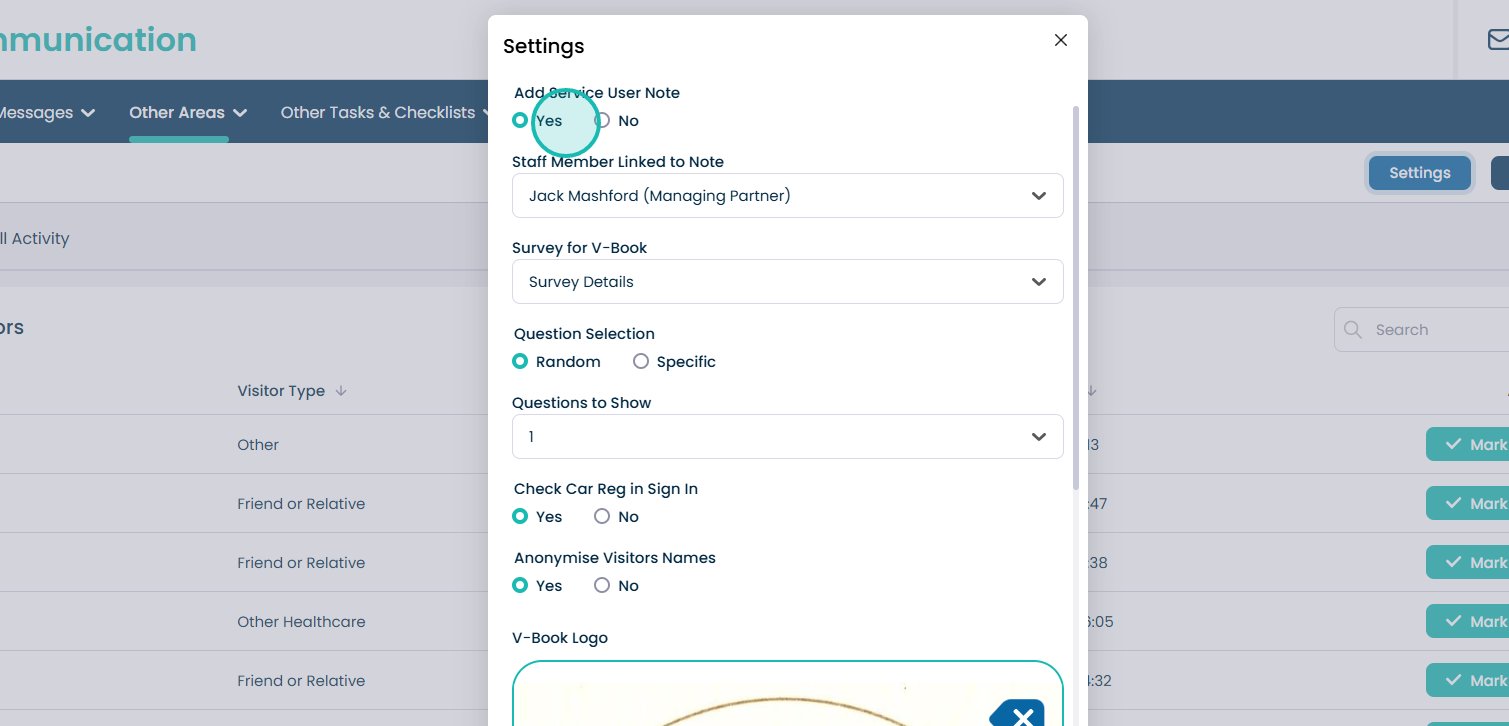
8. Add Service User Note – when Yes, a note will be recorded on the Care Plan for the service user in question that a visitor has been.
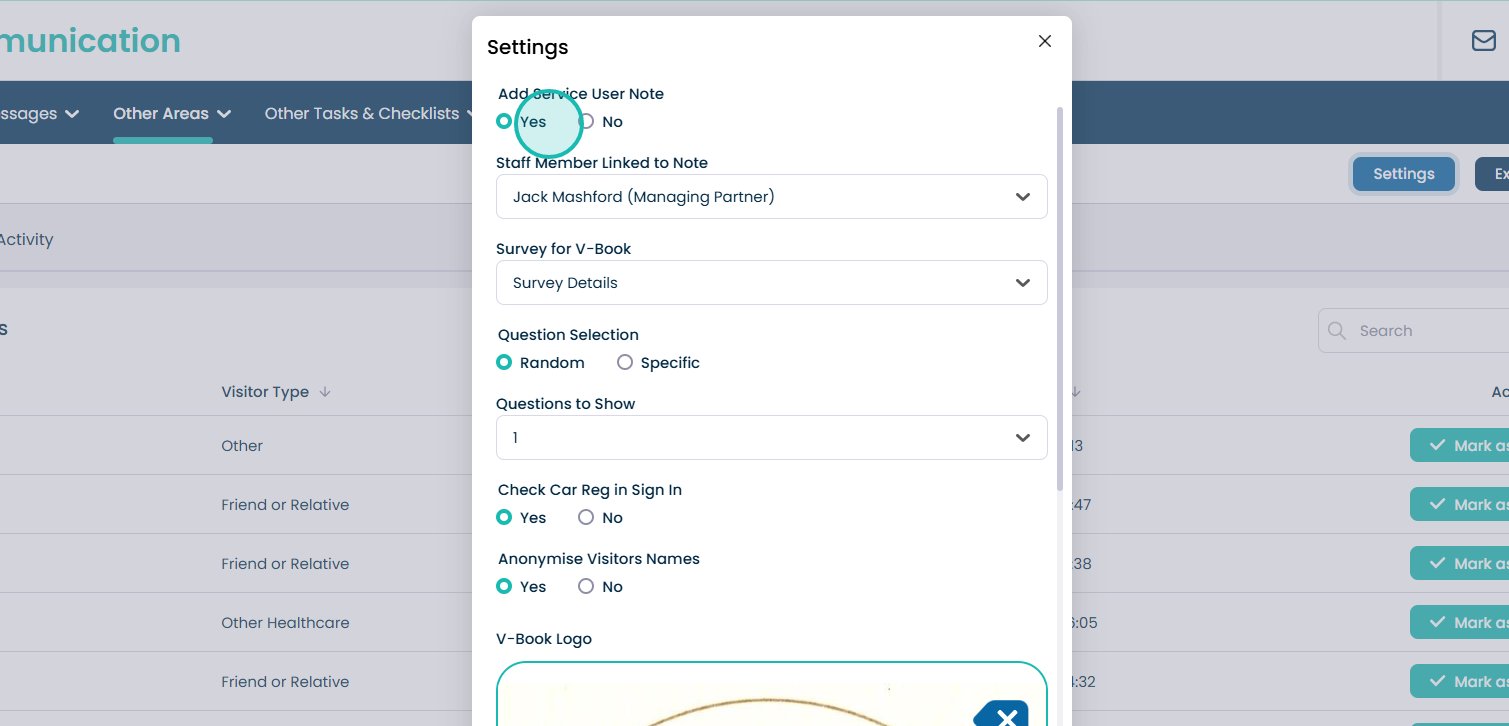
9. Staff Member Linked – the staff members name who will be associated with the aforementioned note.
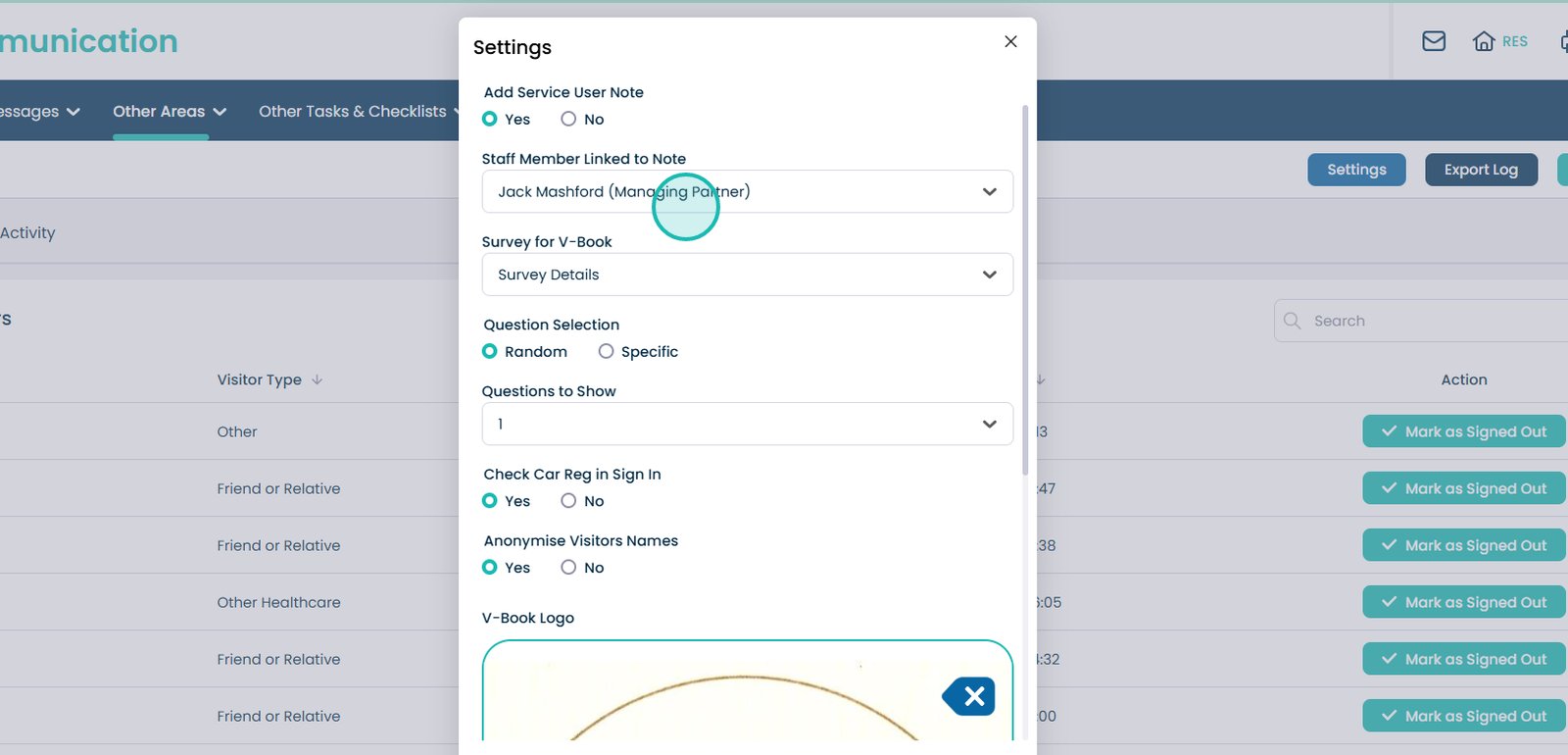
10. Survey for V-Book – choose a survey to be offered to a visitor when they sign out.
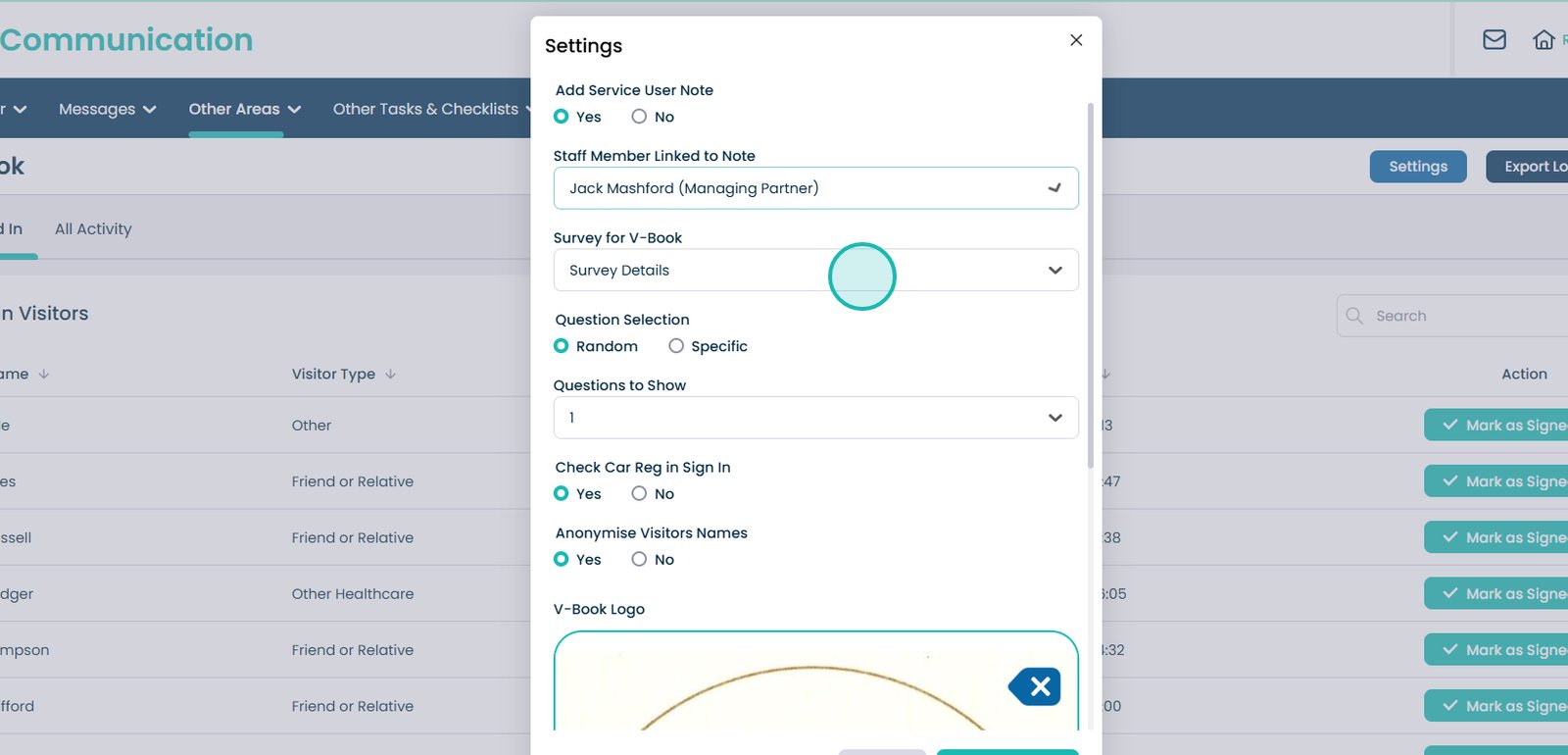
11. Question Selection – choose whether the questions offered to a visitor are random or specific.
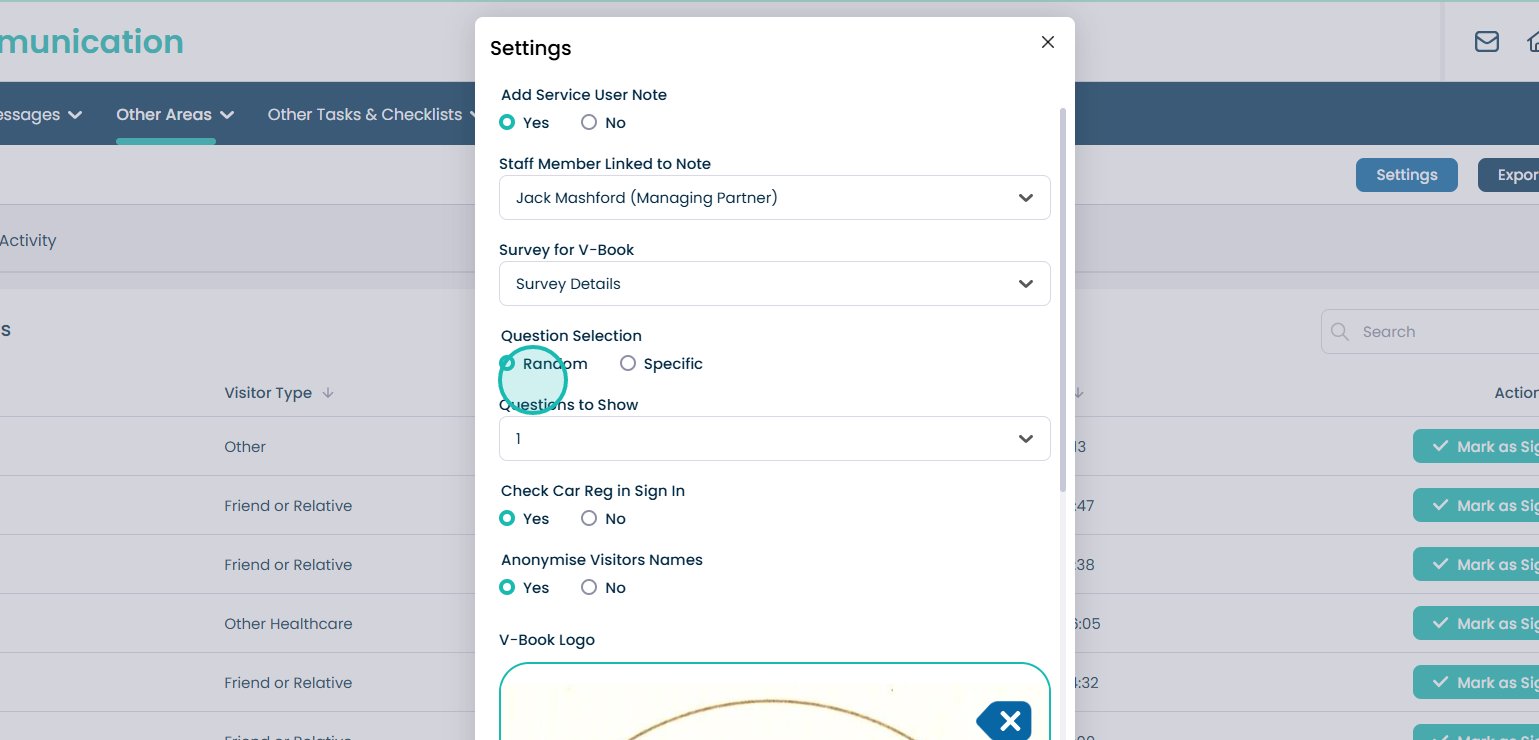
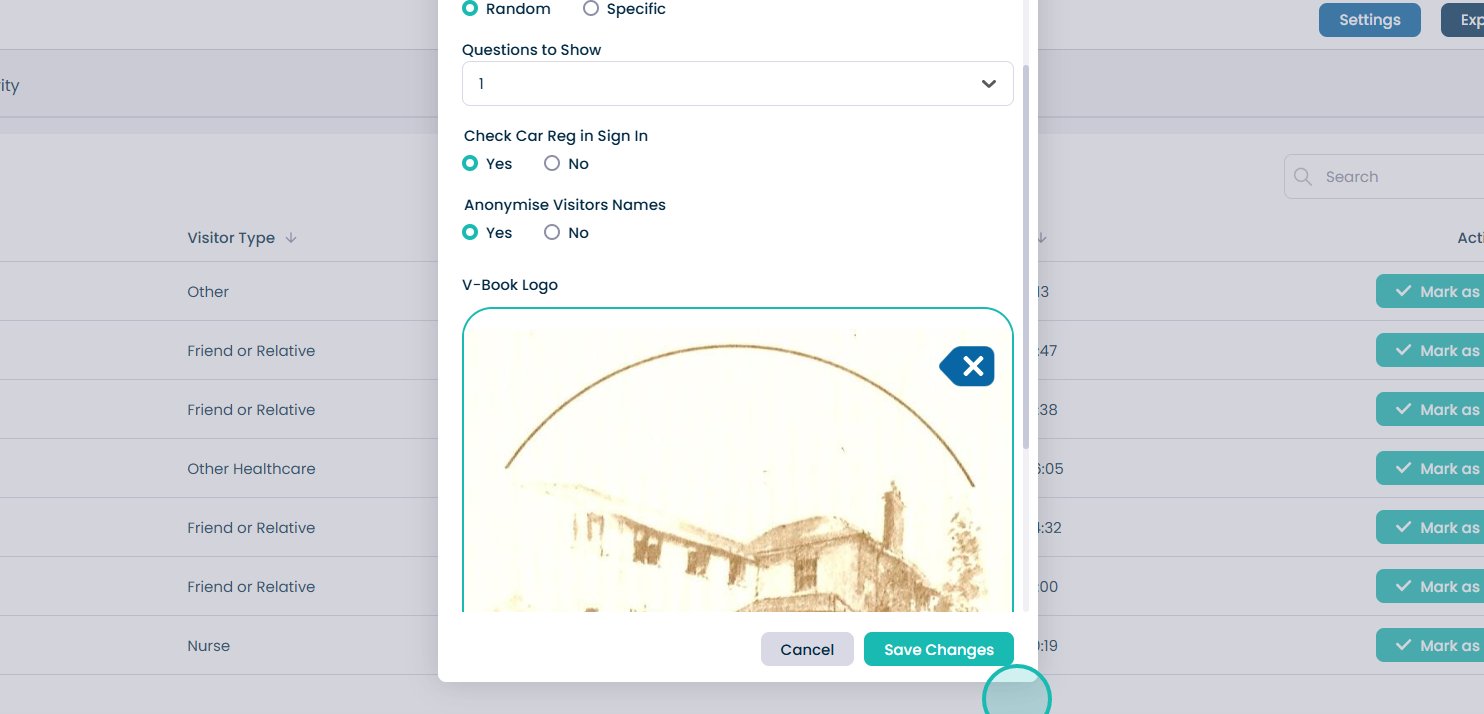
12. Questions to Show – the number of questions offered to a visitor in the chosen survey.
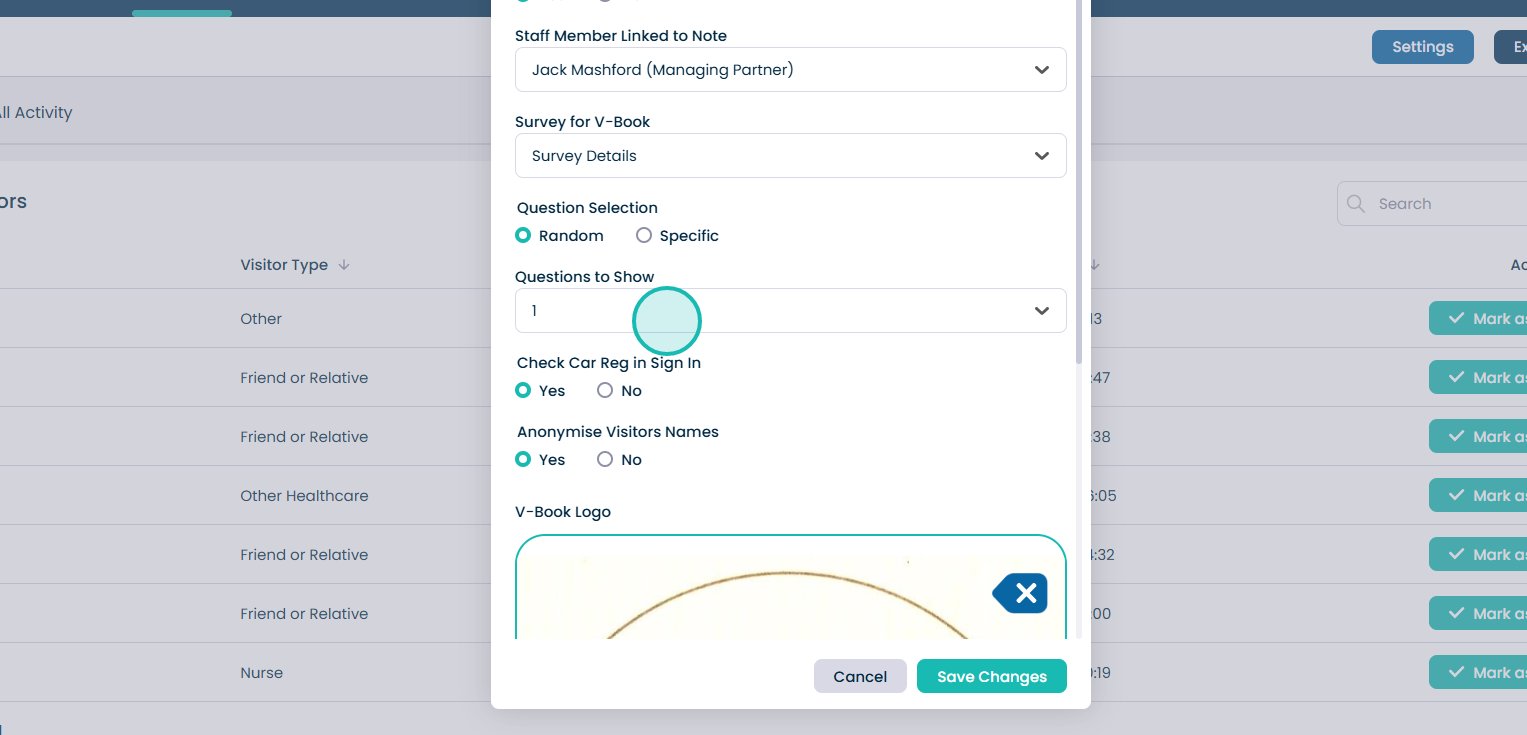
13. Check Car Reg in Sign In – when Yes, the visitor will be required to enter their Car Registration on sign in.
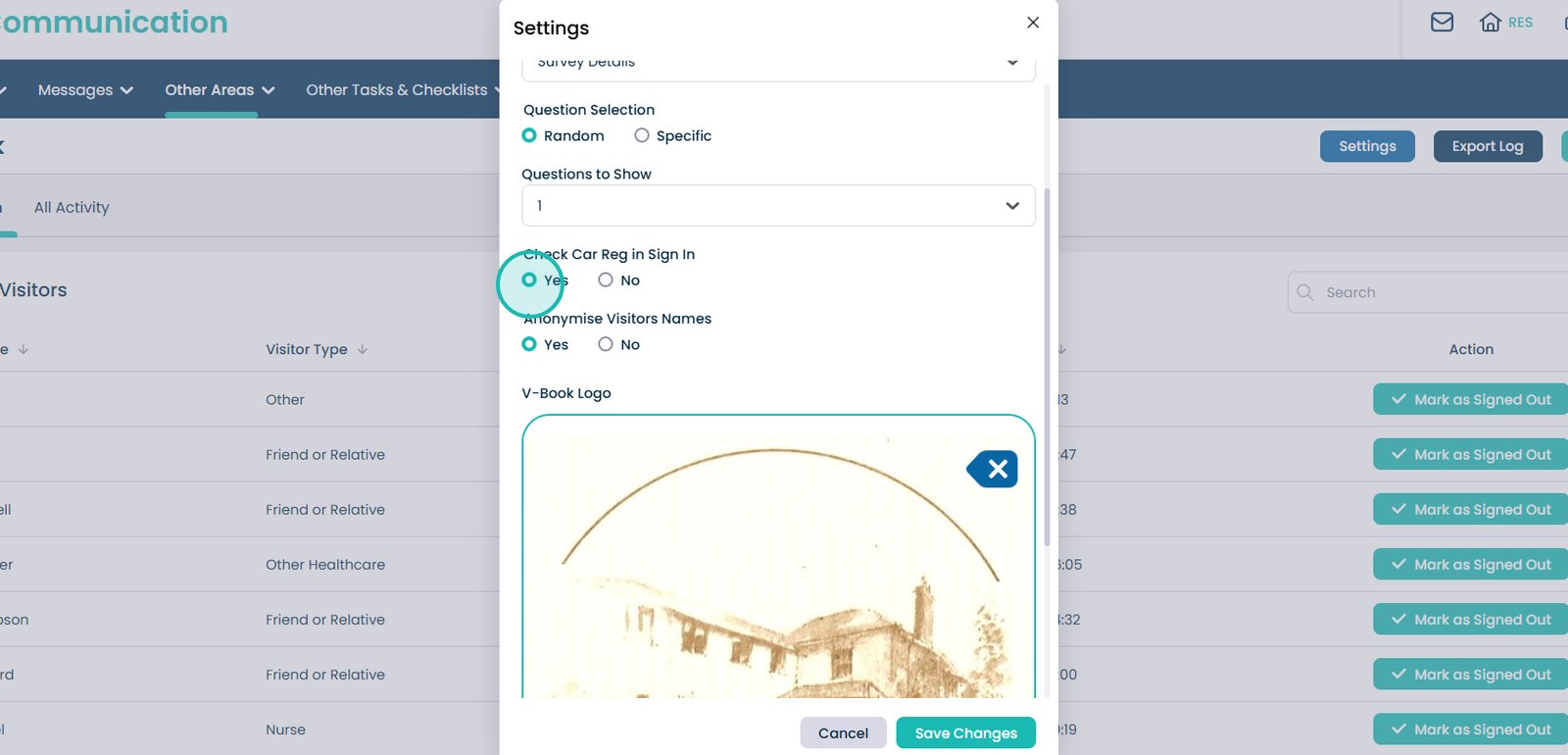
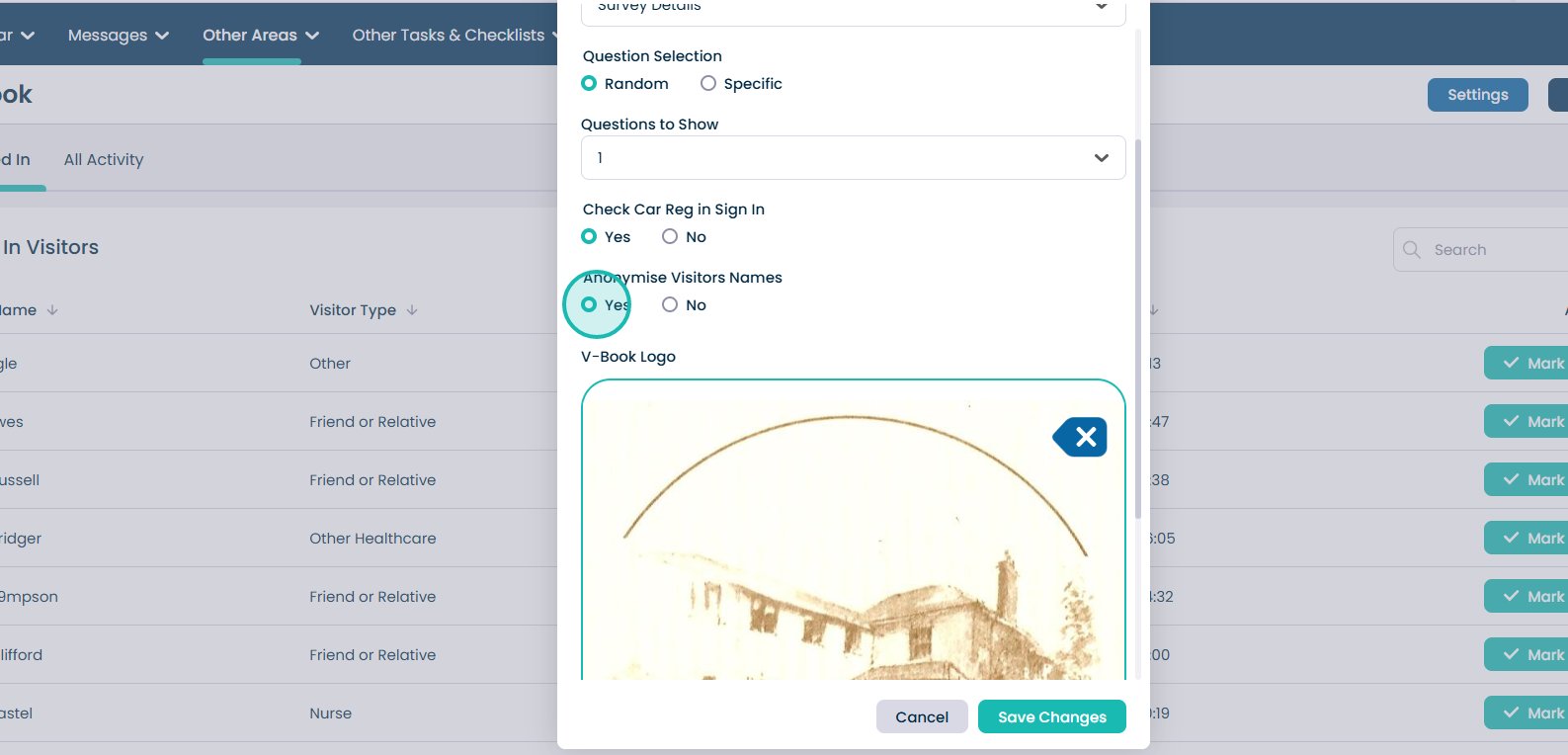
14. Anonymise Visitors Names – You now have the option to anonymise visitor names. This means that while visitors still sign in as usual, their names are hidden on the front-facing log.
15. V-Book Logo – upload a logo for your organisation which is displayed on the V-Book.
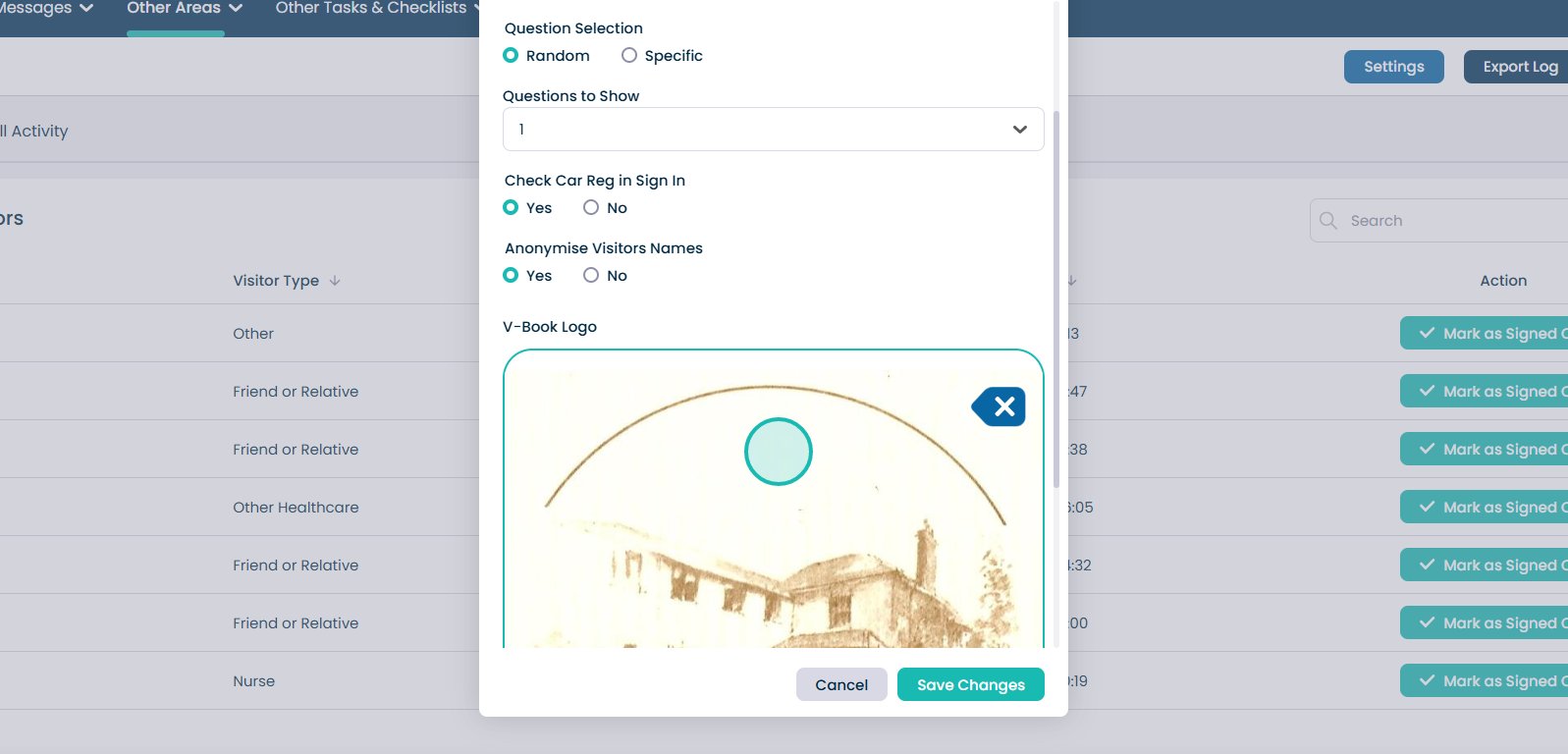
16. Any changes you wish to make, it is important to click the ‘save Changes’ button afterwards.