Viewing a Service User's Memory Box
This guide will cover how to view recorded Memory Box items in a service users Care Plan. The Memory Box items can be shared with the service user, and their reaction can be recorded.
1
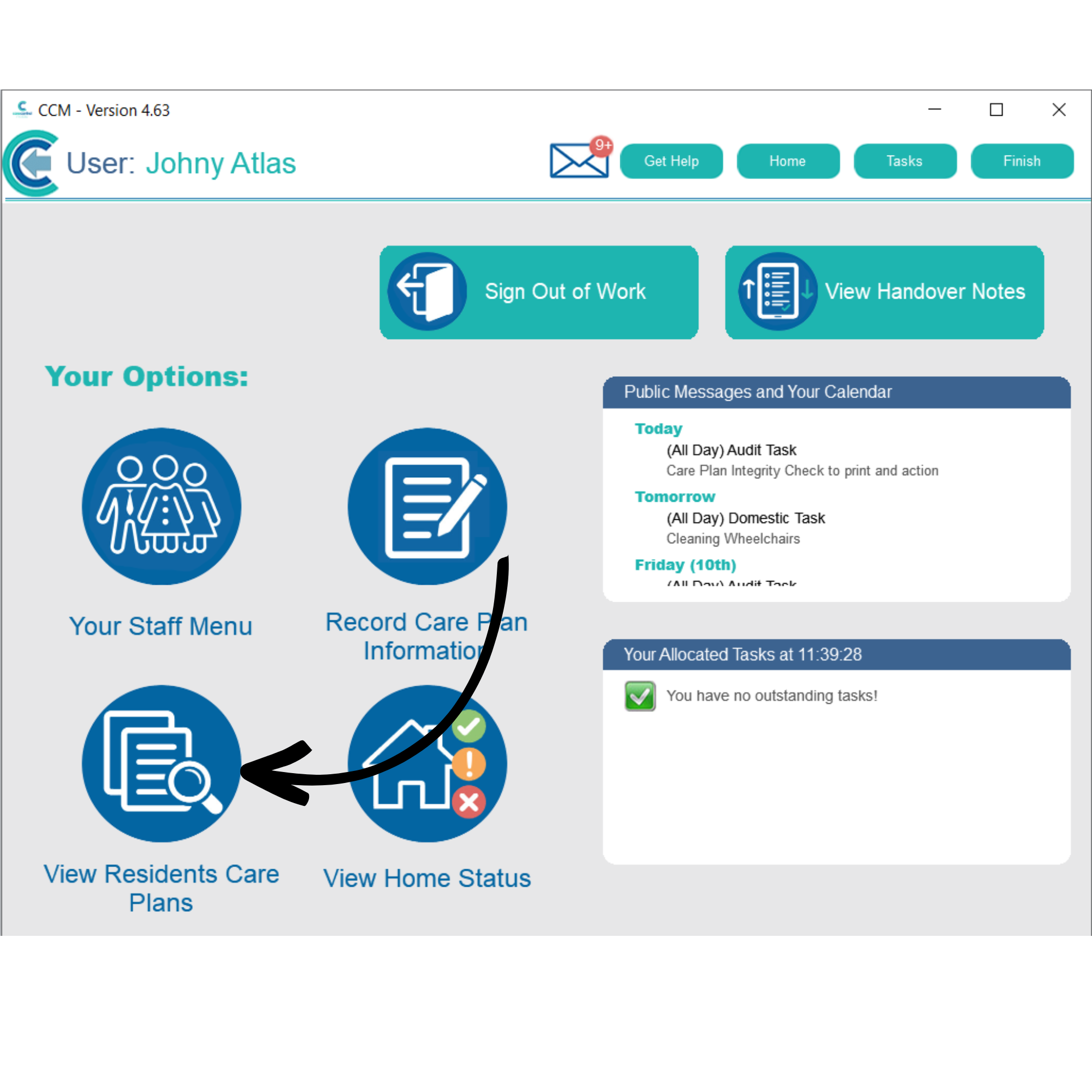
After logging in to Care Control Mobile, select View Residents Care Plan.
2
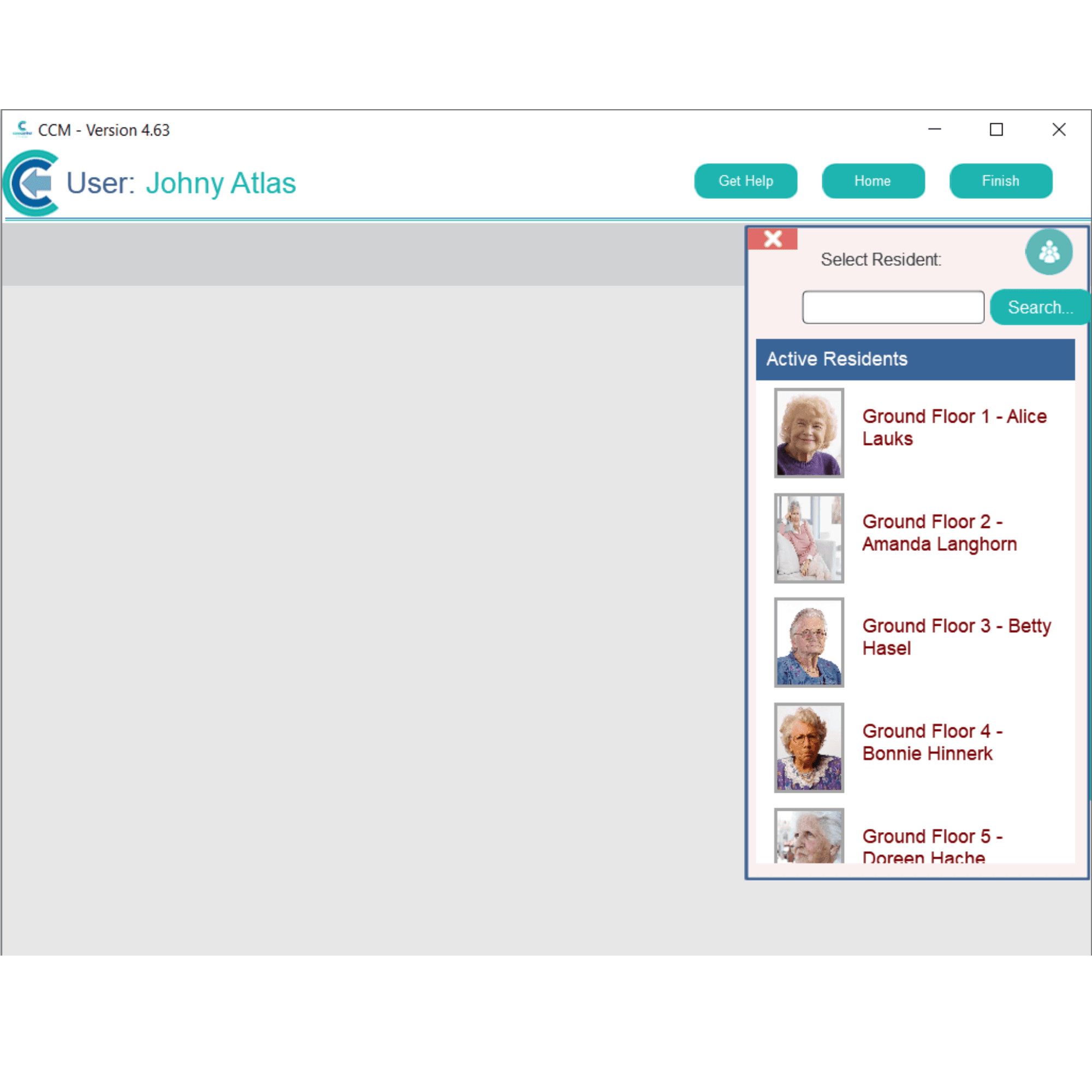
Select a service user to view.
3
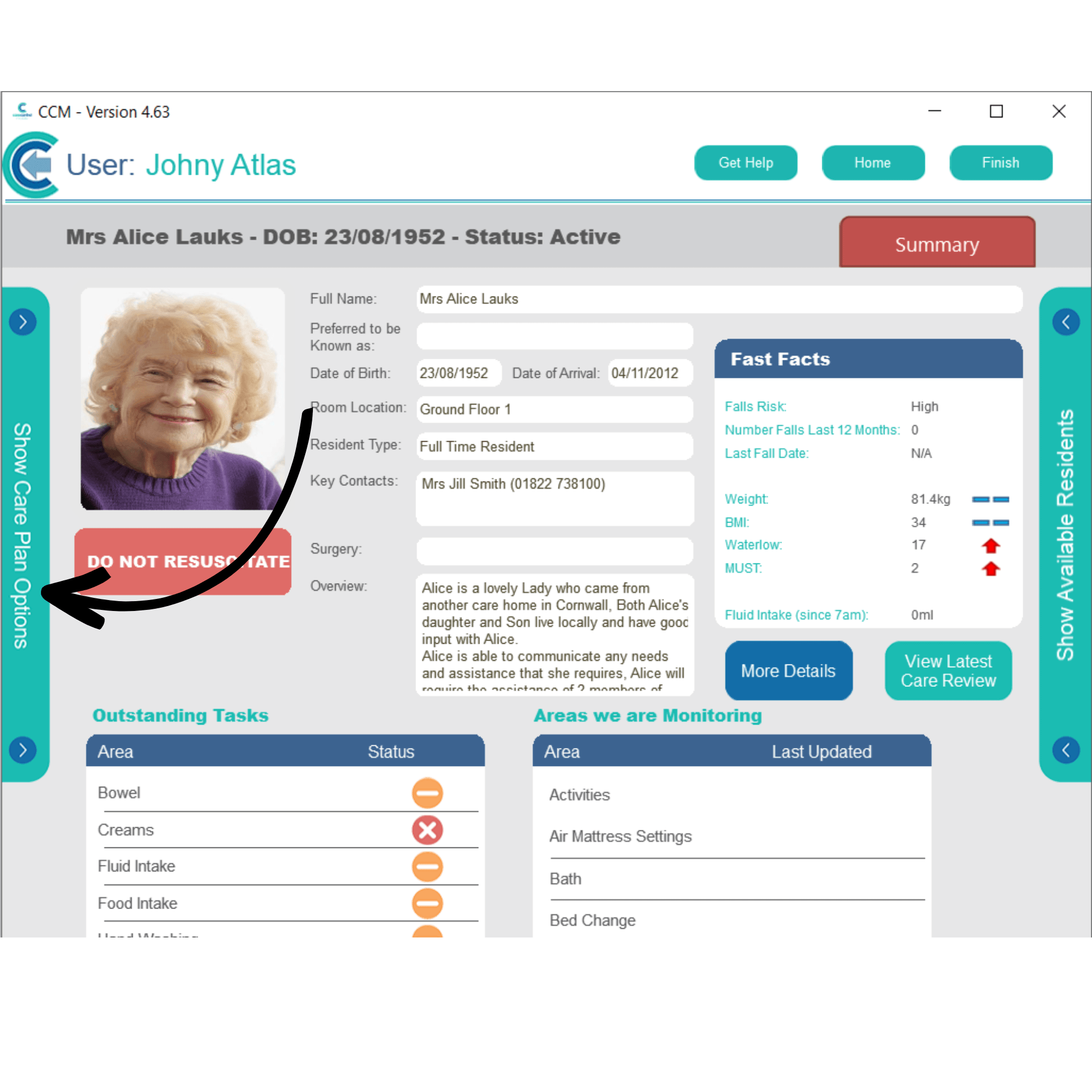
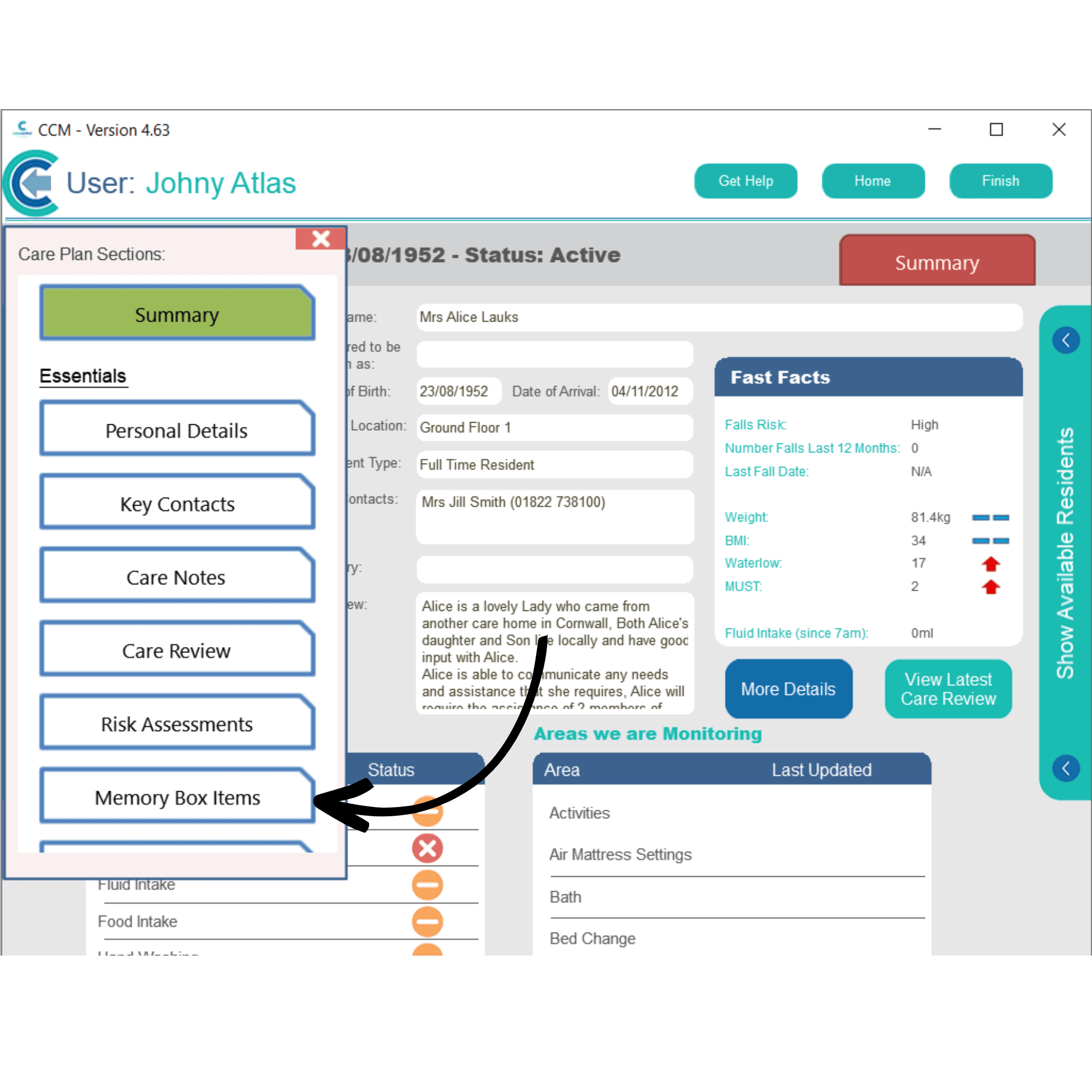
Open the care plan menu by tapping Show Care Plan Options on the left hand side of the screen.
4
From this menu, select Memory Box Items.
5
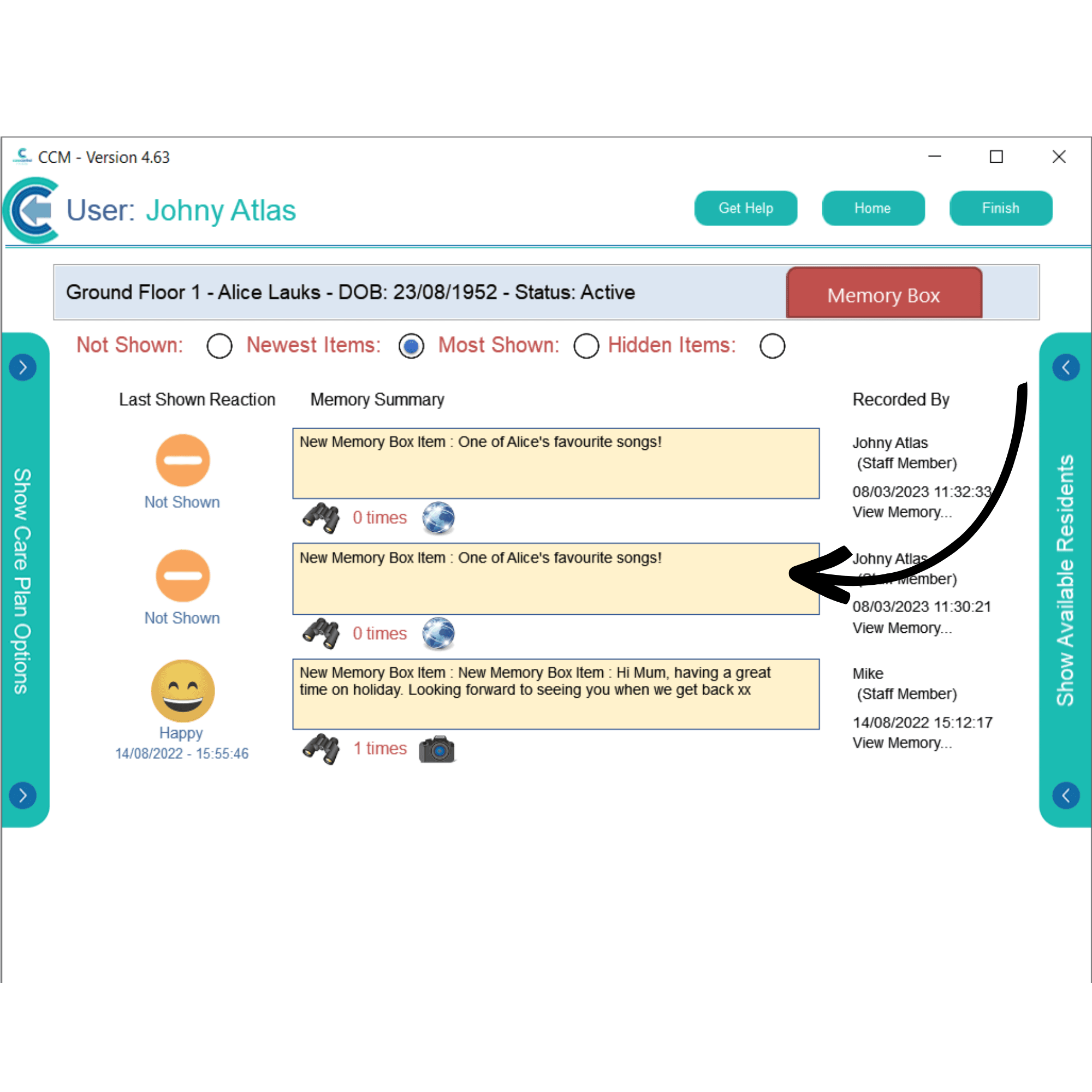
A list of recorded Memory Box item will be displayed. To open one, simply tap on the memory.
6
The memory contents will be displayed. After showing the service user, you can add their reaction and a comment. Press Record Reaction to save.

7
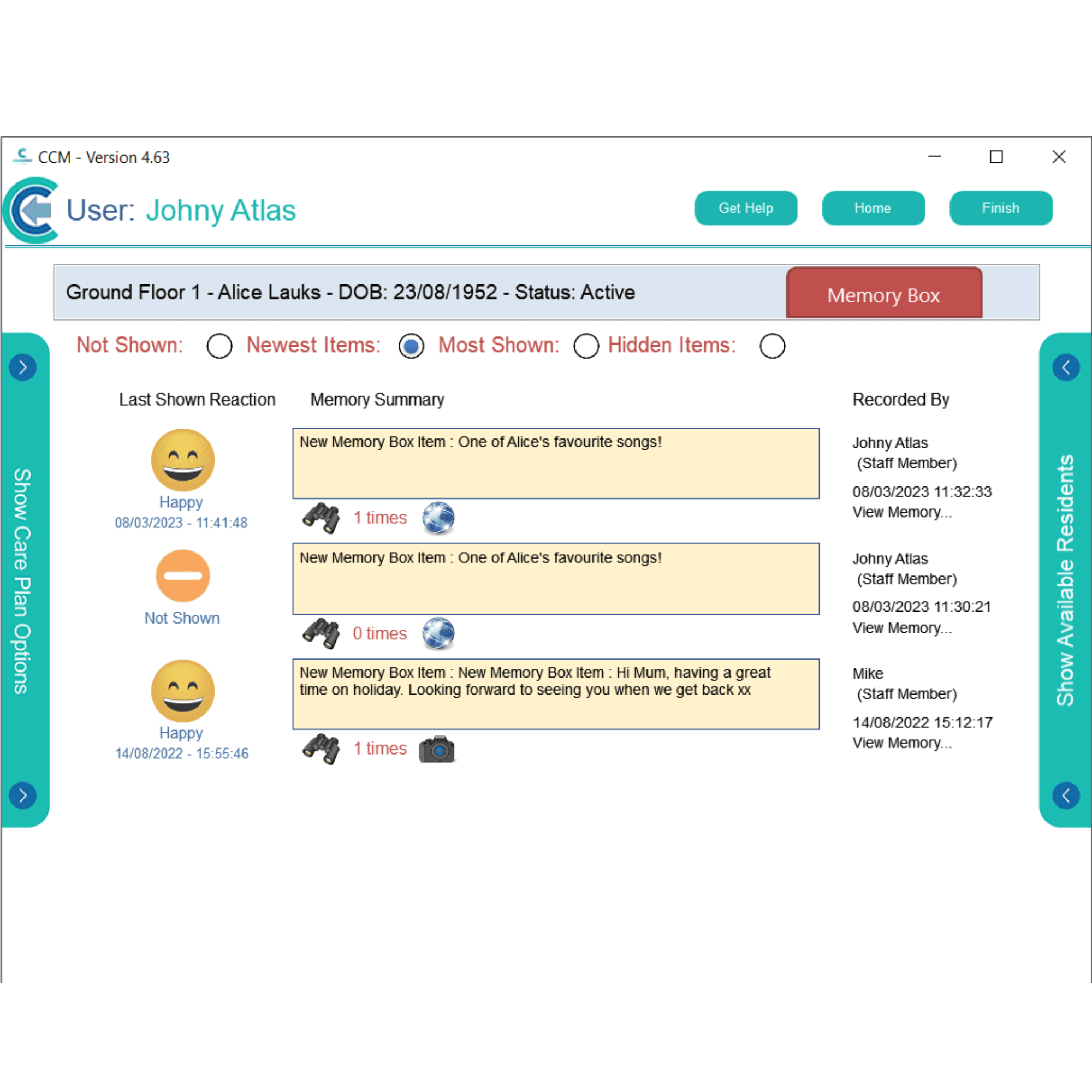
Their reaction will be updated on the Memory Box item list.
8
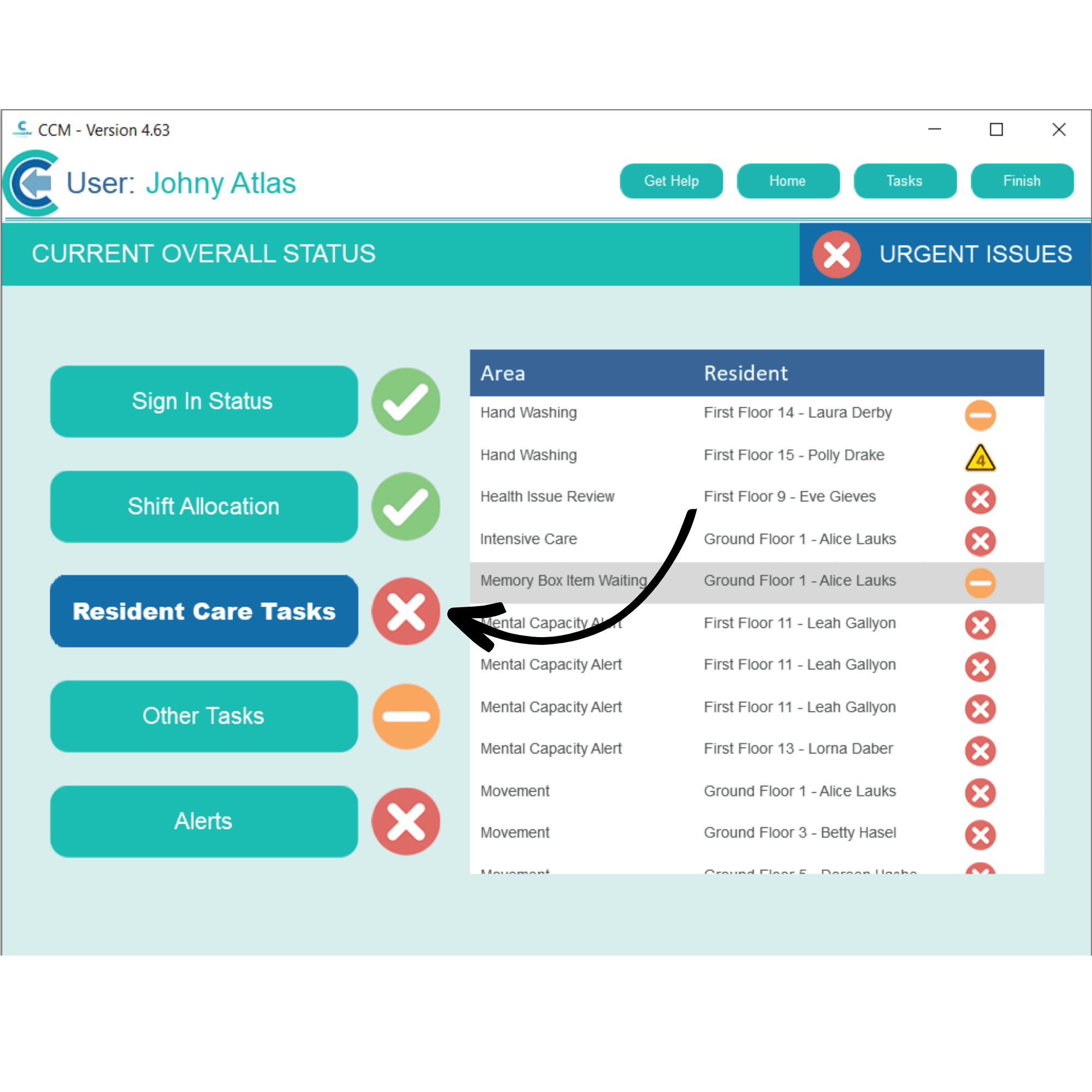
After a Memory Box item is added, it will also create a Resident Care Task which can be completed from the Home Status. Tapping on the task will open the memory contents and allow a reaction to be recorded.