On Sunday 8th February, our GP Connect service will undergo scheduled maintenance. While we cannot confirm the exact time, this work may result in up to 60 minutes of downtime. We apologise for any inconvenience this may cause and thank you for your understanding.

View Categories

Consent & Capacity

This guide will cover how to access the Consent & Capacity module within a service users Care Plan on Care Control Cloud.

1

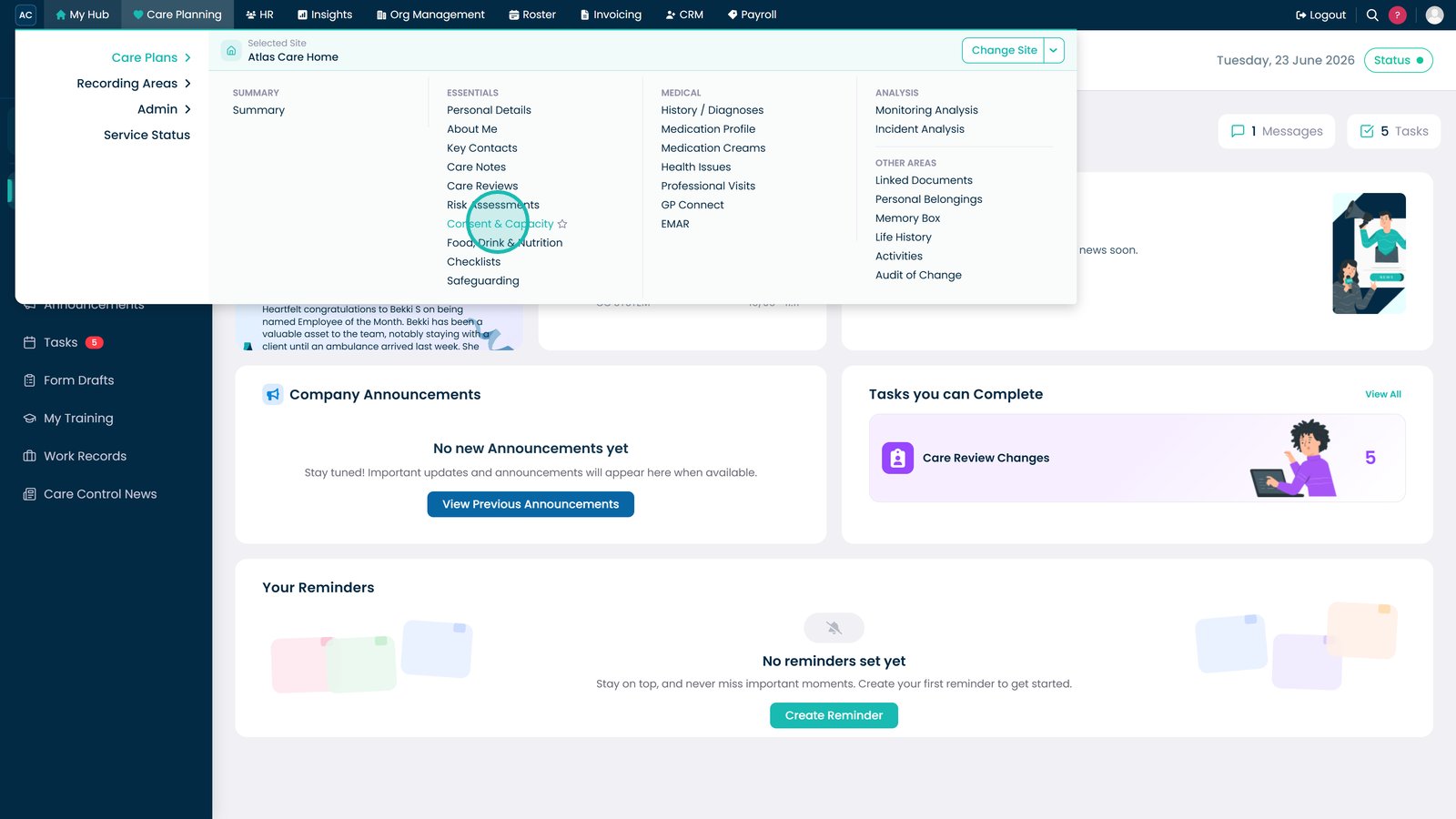
From the Care Plan Summary screen, open the Essentials menu.

2

Select Consent & Capacity.

3

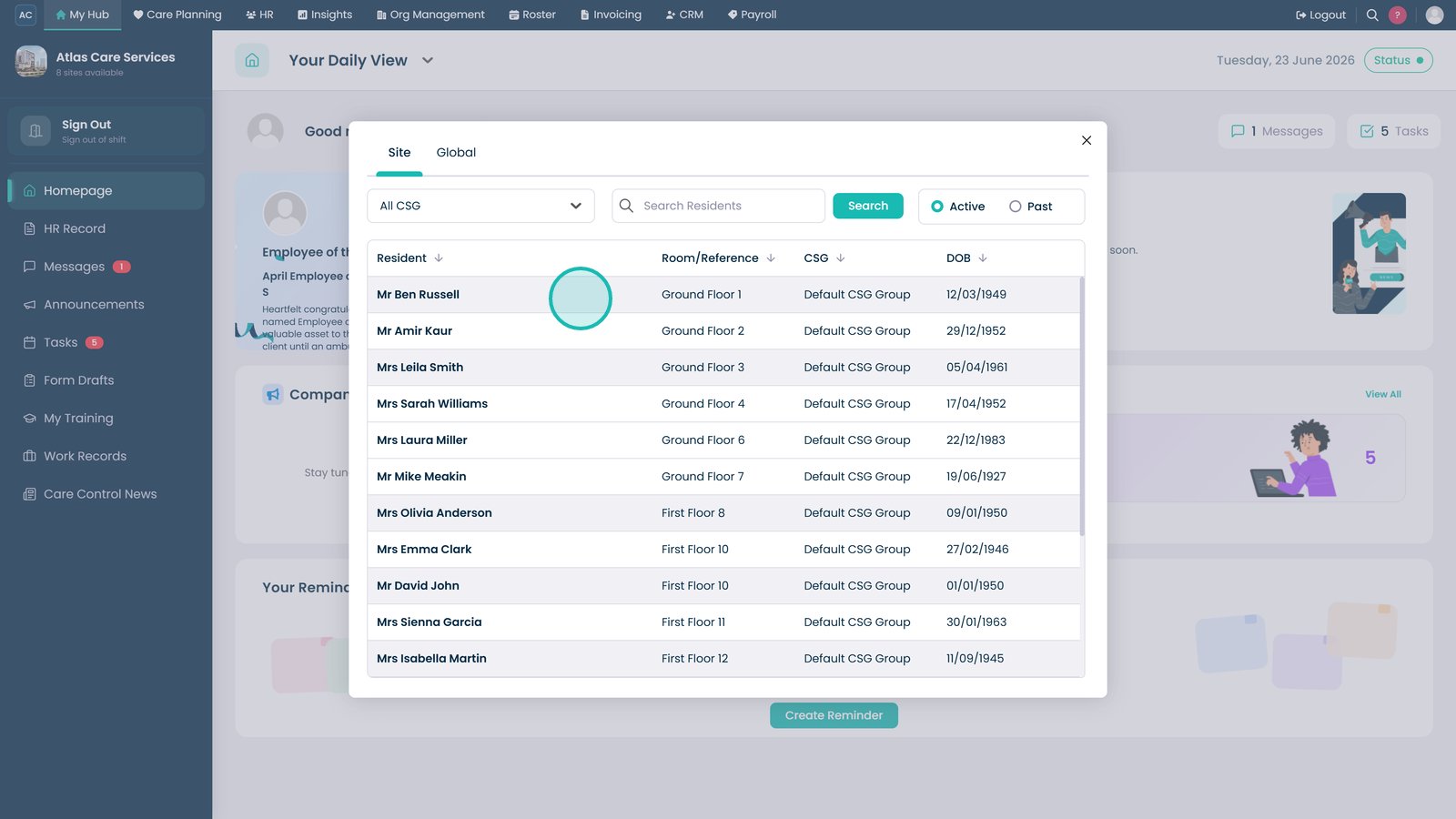
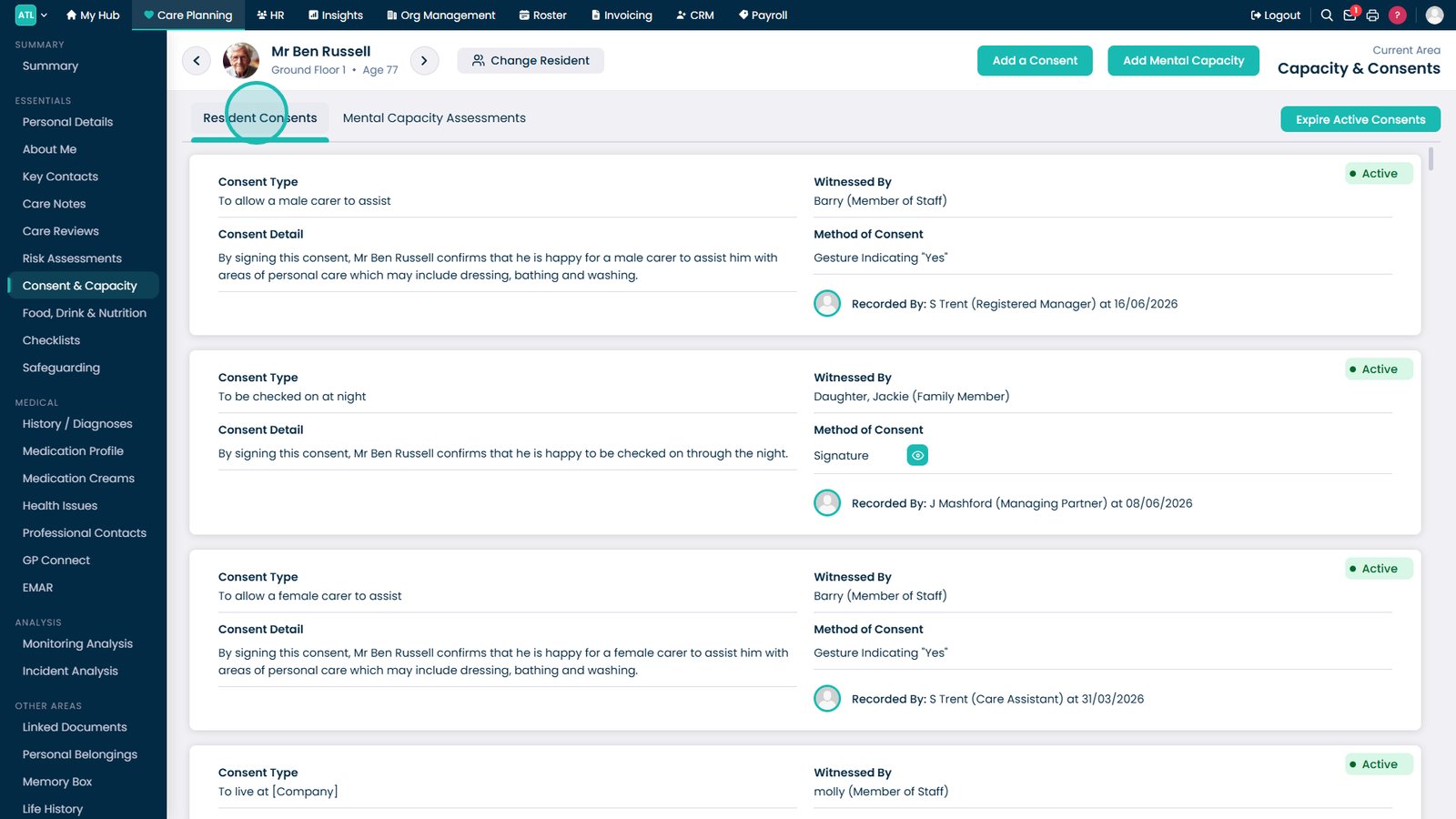
The Resident Consent page will open. Here, a list of signed consents will be displayed.

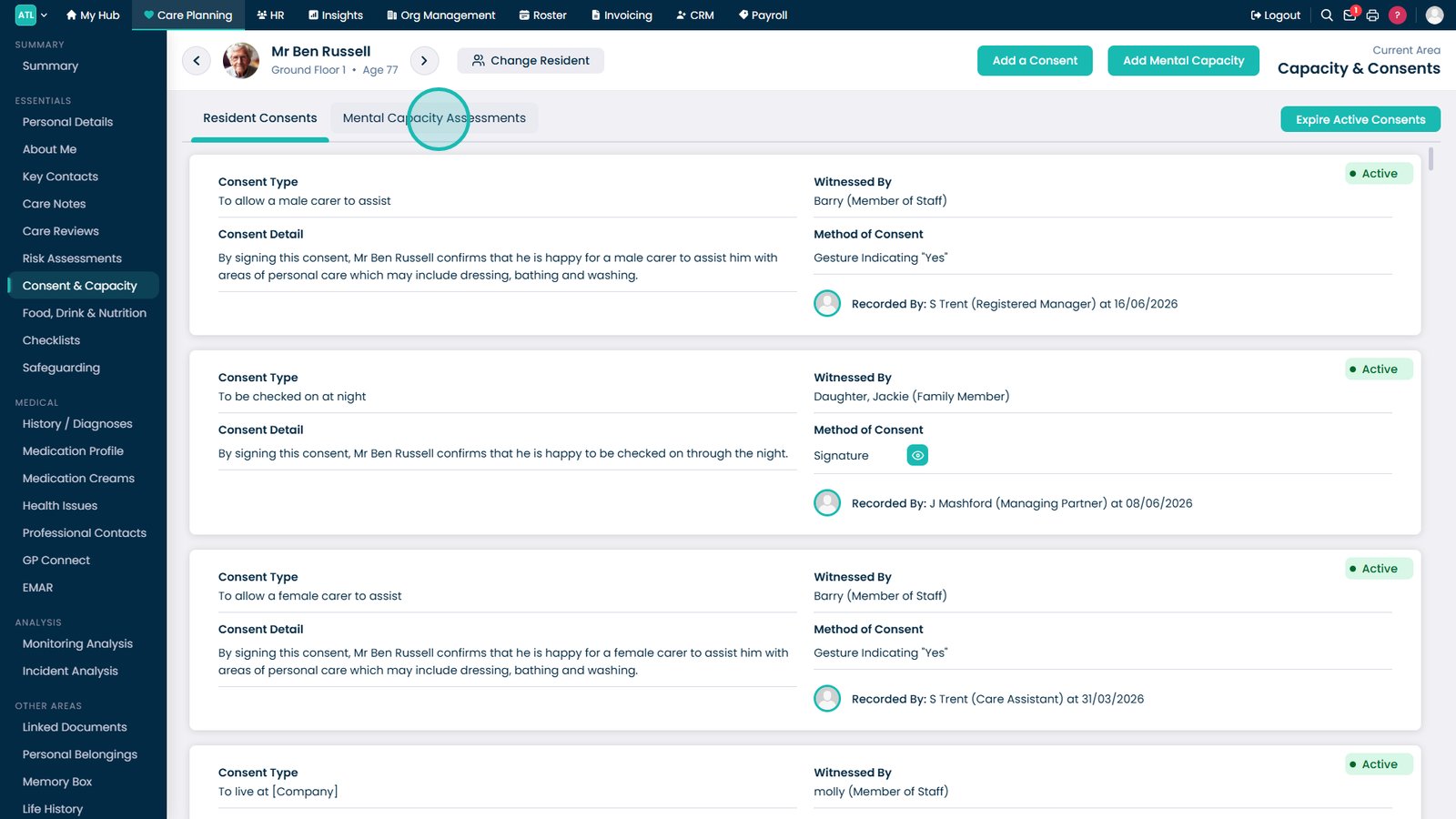
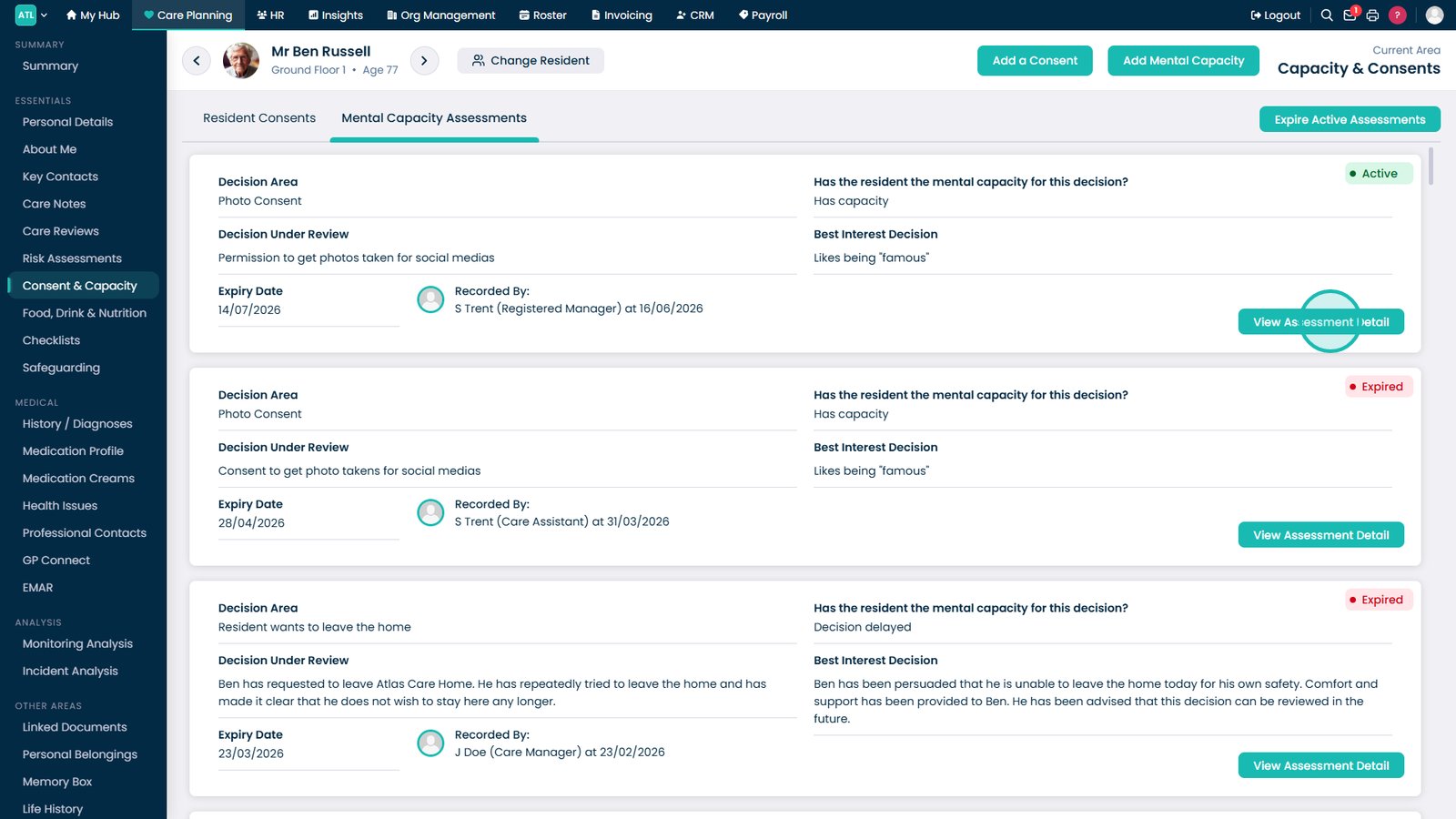
Press Mental Capacity Assessments.

4

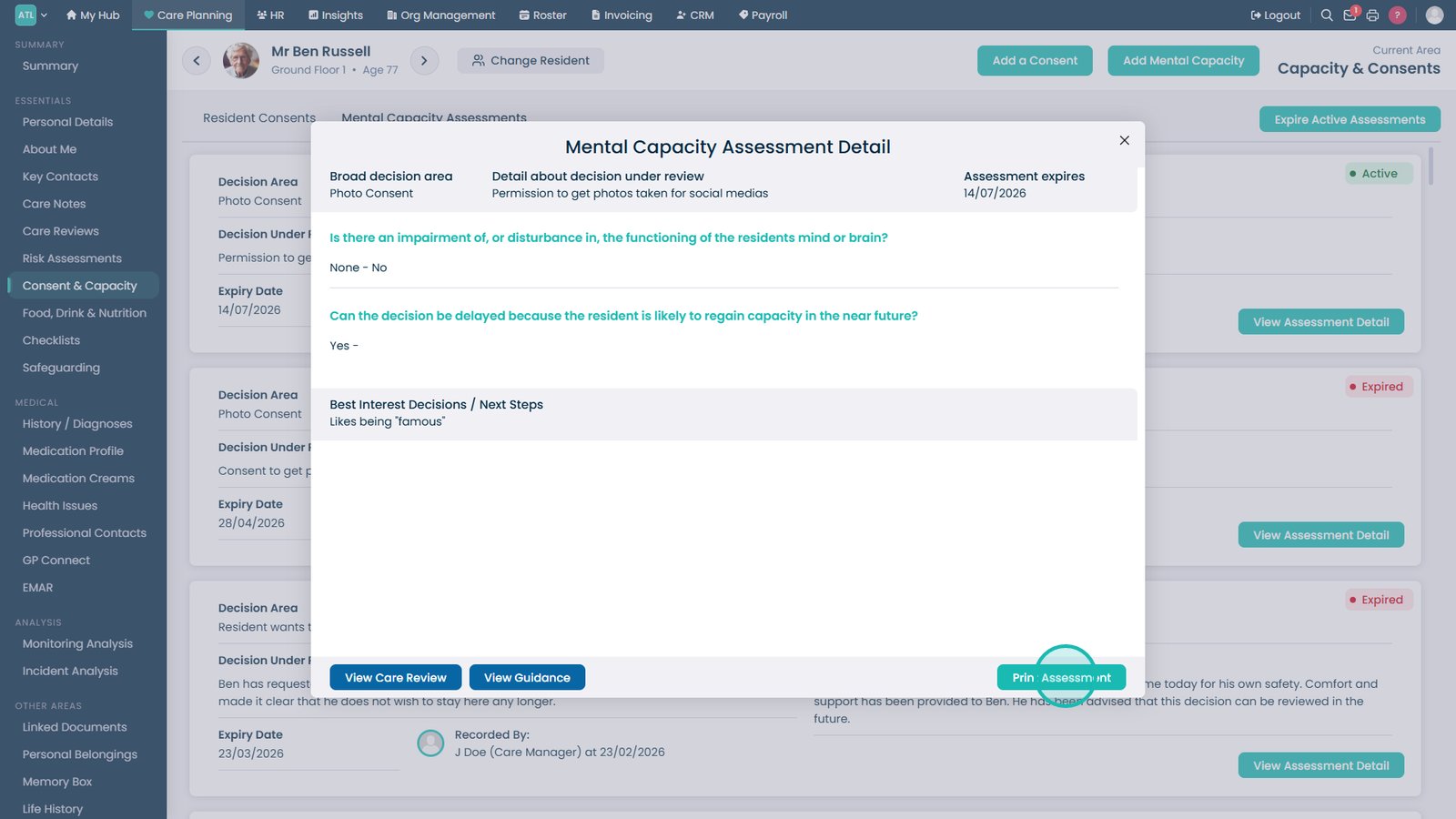
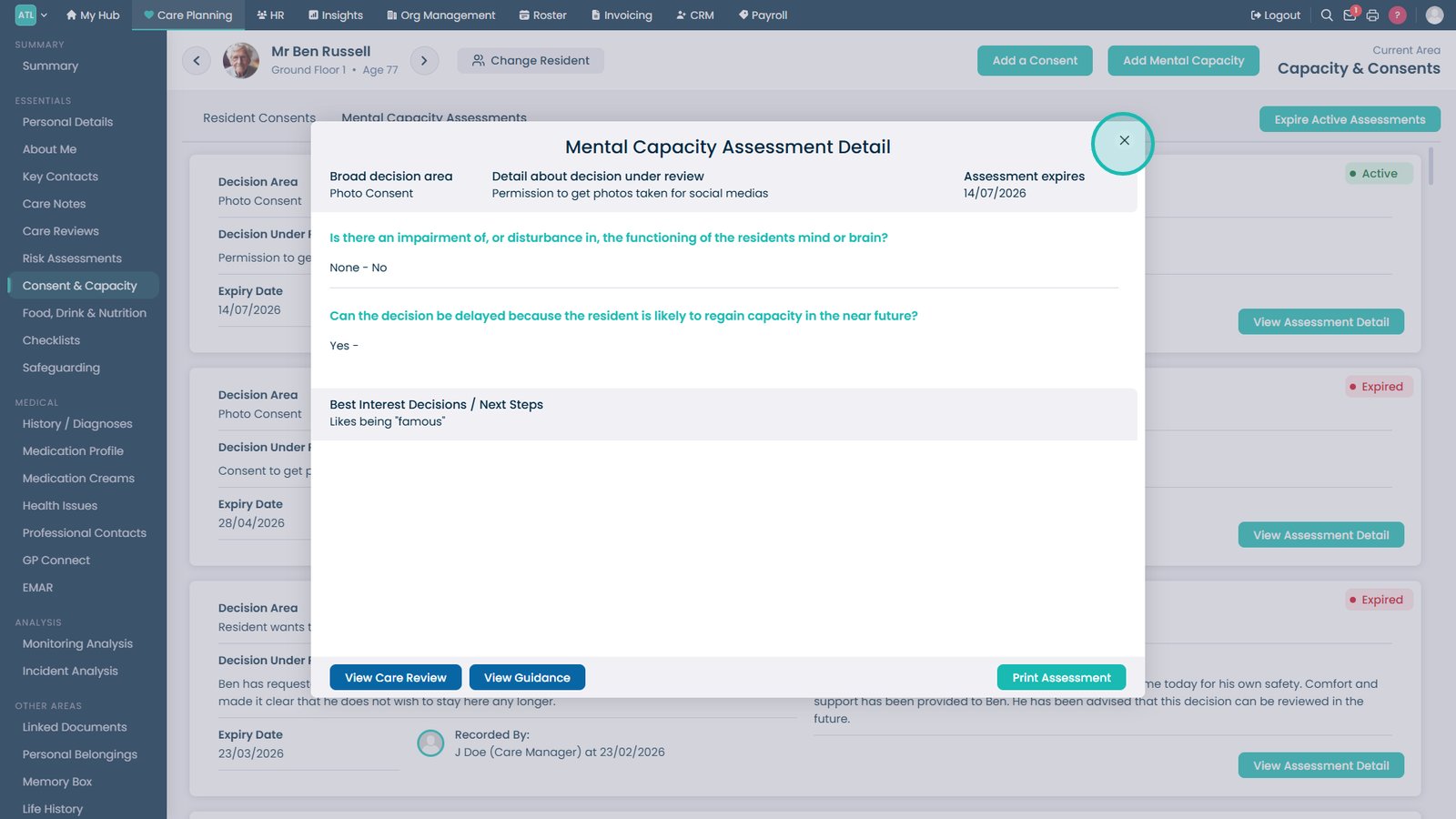
Here, a list of capacity assessments will be displayed. The form can be opened to display all the information by pressing View Assessment Detail.

5

Consents and Capacities have an activity status. When expired, the topic area is no longer valid and will need re-assessing so that the consent or capacity is active again.

6

You can add a new consent by pressing Add a Consent.

7

Select the new consent from the drop-down list. Then, complete the capacity and consent permission tick-boxes on the right hand side.

Finally, add a witness type and name in the bottom right before pressing Save Consent.